

If chrome downloads not working is the problem you are facing right now, every click ends in the same frustration: a progress bar that freezes halfway, a “Download blocked” warning, or a file that simply never appears in your folder. The good news is that this problem is almost never random. In nearly every case, one of a small handful of usual suspects is behind it — a shaky internet connection, Chrome’s own security blocking the file, your antivirus stepping in, a hard drive with no room left, or Chrome saving files somewhere you did not expect.
At TechSBSInfo we test every fix we publish step by step, and you can read more about how we work on our about page. Work through the eight fixes below in order, from simplest to most involved. Most readers are downloading again within a few minutes, without needing to reinstall anything.
Table of contents
- Quick checks
- Diagnose your download problem
- 1. Check your connection: the first step when chrome downloads are not working
- 2. Restart Chrome and try again
- 3. Open the downloads page and retry properly
- 4. Check the download folder and Chrome’s download settings
- 5. Keep a blocked download: the fix when chrome downloads not working comes from Safe Browsing
- 6. Check your antivirus and Windows security
- 7. Free up disk space
- 8. Switch off extensions, clear the cache and reset Chrome
- What to avoid
- FAQ
- Conclusion
Quick checks
Before you change any settings, run through these quick checks. They take two minutes and solve the problem surprisingly often.
- Restart Chrome completely. Close every Chrome window, then open it again. A stuck background process is a common cause of frozen downloads.
- Check your internet connection. Load a fresh page. If pages are slow or fail to load, the download never stood a chance.
- Try a different website. Download a small test file from a site you trust. If that works, the problem is with the original site, not your browser.
- Open the downloads page with
Ctrl + Jand look at the actual error message. The message tells you which fix to use. - Check your disk space. If your drive is nearly full, Chrome cannot save anything new.
- Try an Incognito window (
Ctrl + Shift + N). If the download works there, an extension or a setting in your main profile is the culprit.
Diagnose your download problem
Chrome usually tells you exactly what went wrong — you just need to know how to read the message. Match what you see with the table below, then jump to the matching fix.
| Symptom | Likely cause | Go to fix |
|---|---|---|
| Download stuck at 0% or “Network failed” | Your connection dropped or is unstable | Fix 1 |
| Download freezes halfway, then fails | Interrupted connection or a stuck Chrome process | Fix 2 |
| “Download blocked” or “Failed – Blocked” | Chrome Safe Browsing or site download permissions | Fix 5 |
| “Virus scan failed” or “Virus detected” | Antivirus or Windows security removed the file | Fix 6 |
| “Disk full” or “Insufficient disk space” | No free space on the drive | Fix 7 |
| File downloads but you cannot find it | Wrong download folder or it opened instead of saving | Fix 4 |
| Every download fails, only in Chrome | Broken extension, corrupt cache or profile | Fix 8 |
1. Check your connection: the first step when chrome downloads are not working
Downloads are the most connection-sensitive thing a browser does. A page can load fine on a weak signal while a large file keeps failing, because a download needs a steady stream for much longer. Start here — it is the simplest explanation and the quickest to rule out.
- Load two or three different websites. If they are all slow or show errors, your connection is the problem, not Chrome.
- Check your Wi-Fi signal. Move closer to your router, or plug in an Ethernet cable if you can. Weak Wi-Fi is a classic cause of downloads freezing halfway.
- Restart your router. Switch it off, wait 30 seconds, and switch it on again. Wait for all the lights to settle before retrying the download.
- Pause anything else using the internet. Streaming video, cloud backups and game updates all compete with your download. Pause them and try again.
- Check whether Windows itself lost Wi-Fi. If your whole PC keeps dropping the connection, our guide on Windows 11 Wi-Fi not working walks through that separately.
- Retry the download once the connection is stable. Do not keep hammering the retry button on a broken connection — you will just create a pile of half-downloaded files.
2. Restart Chrome and try again
If your connection is fine, the next suspect is Chrome itself. Browsers run for days with dozens of tabs open, and a stuck background process or a wedged download manager can quietly stop all new downloads while everything else looks normal.
- Close every Chrome window, not just the one with the download. Check the system tray (bottom-right corner) for a Chrome icon and right-click it to fully quit.
- Open Task Manager with
Ctrl + Shift + Esc, look for any remaining Chrome processes under “Background processes”, and end them. - Reopen Chrome and try the download again before restoring all your old tabs. Fewer tabs means fewer things that can interfere.
- Try the download in an Incognito window (
Ctrl + Shift + N). Incognito disables most extensions and uses fresh temporary data. If the file downloads there, you have narrowed the problem to an extension or a setting in your normal profile — Fix 8 will finish the job.
A clean restart clears temporary glitches in Chrome’s download manager. It costs nothing and fixes more download failures than most people expect.
3. Open the downloads page and retry properly
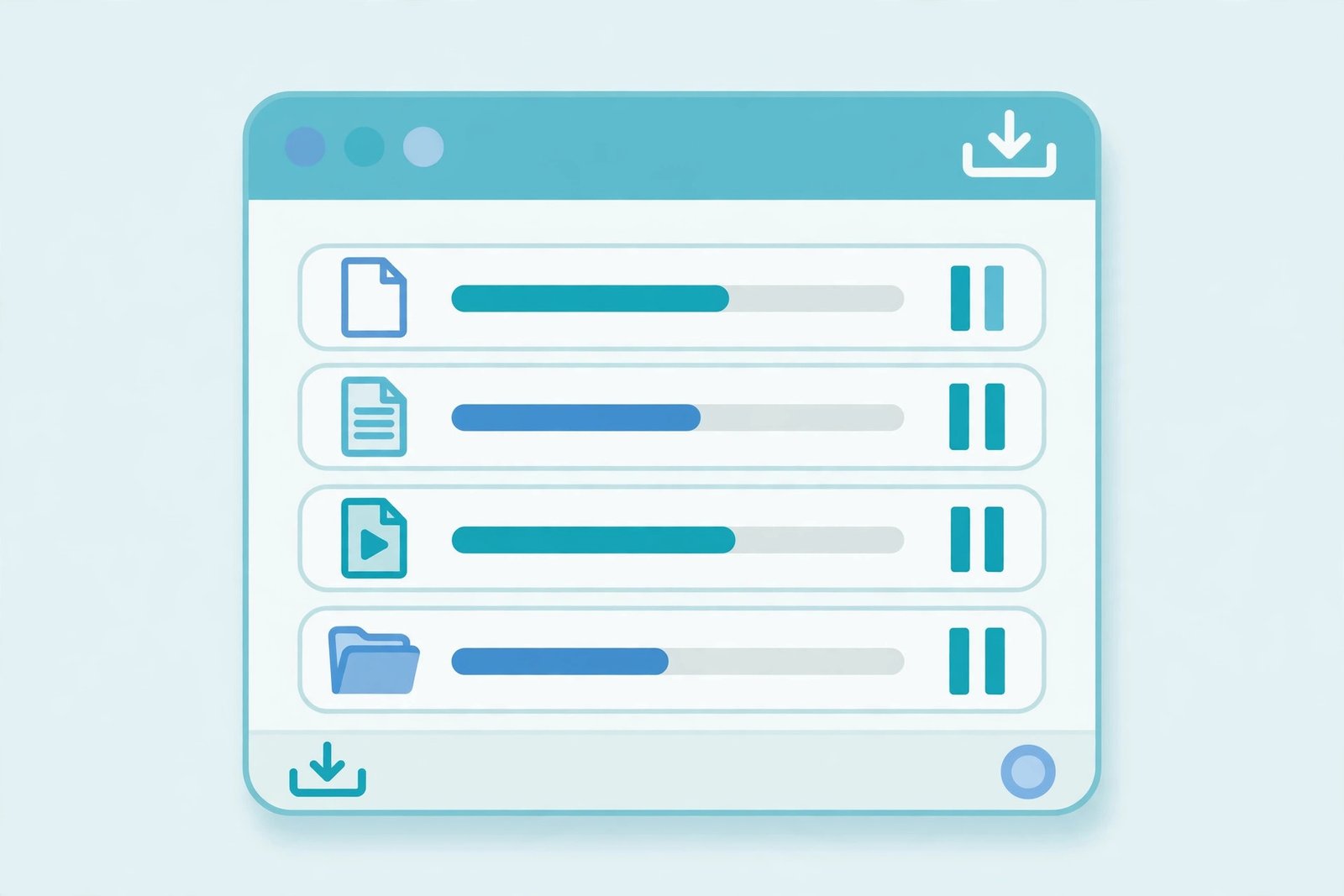
Most people retry a failed download by clicking the original link again, which can stack up duplicate half-finished files. Chrome’s own downloads page gives you far more control: you can see the exact error, retry cleanly, or remove a stuck entry.
- Open the downloads page with
Ctrl + J, or click the three-dot menu and choose Downloads. - Read the error message under the failed file. It will say something like “Network failed”, “Blocked” or “Virus scan failed” — match it to the diagnose table above if you skipped it.
- Click “Retry” next to the failed download instead of going back to the website. This restarts the same file with a clean attempt.
- Remove stuck entries. If a download shows 0% and will not move, click the three-dot menu on that file and choose Remove from list, then start fresh.
- Pause and resume large downloads. For big files, use the pause button, wait a few seconds, then resume. This can get past a temporary stall.
- Check the download tray. When a download starts, a small download icon appears near the address bar. Clicking it opens the tray with the same retry and “Show in folder” options.
The downloads page is also where Chrome shows you the “Keep” option for blocked files — which is exactly what Fix 5 covers next.
4. Check the download folder and Chrome’s download settings
A surprisingly common version of this problem: the download actually worked, but Chrome saved the file somewhere you did not look. Or Chrome is trying to save to a folder that no longer exists, a disconnected external drive, or a location it cannot write to.
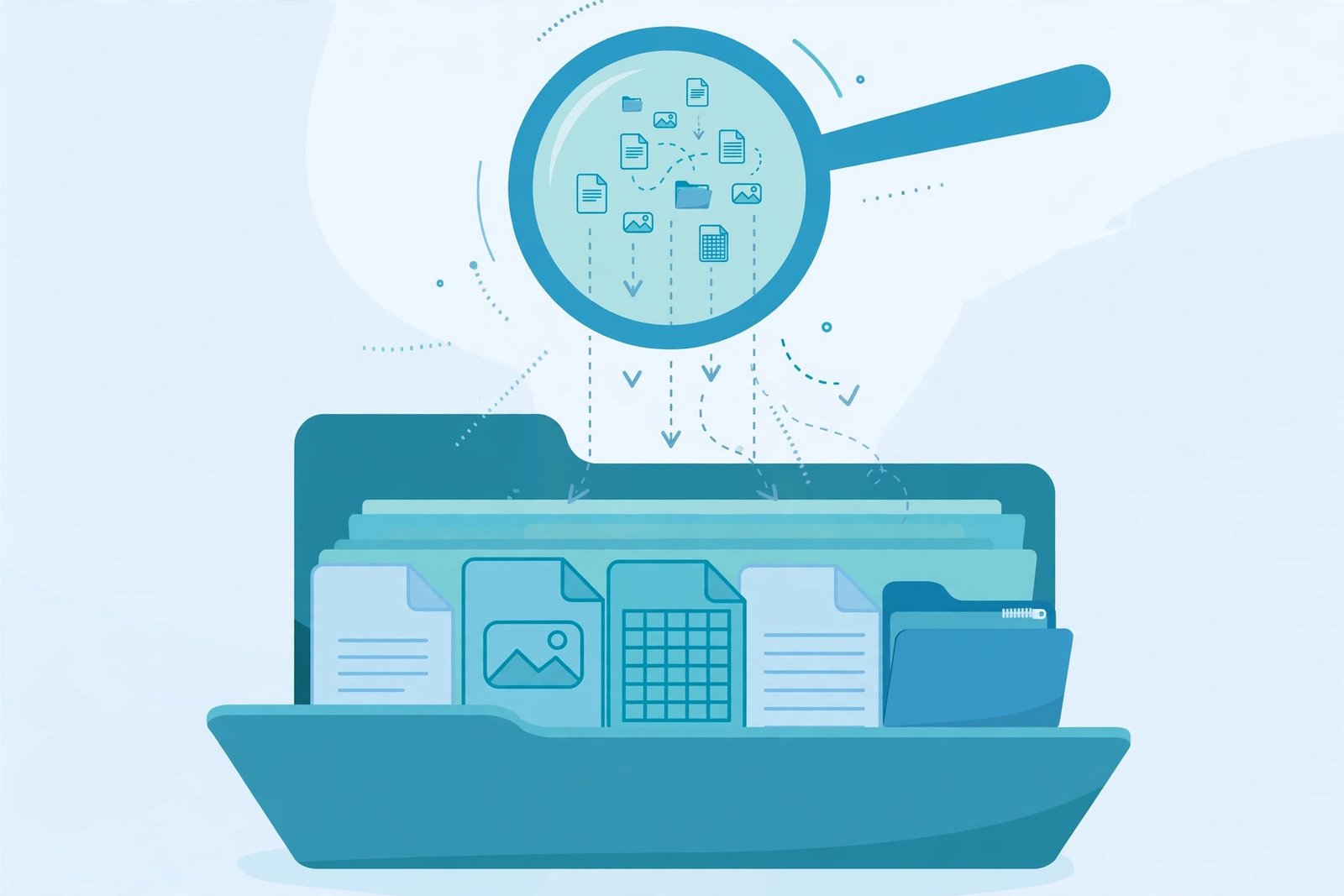
- Check where Chrome saves files. Click the three-dot menu, go to Settings, then Downloads in the left sidebar. The path shown next to Location is where your files go.
- Change the location if it looks wrong. Click Change and pick a folder you know exists and can write to, such as your Documents folder or Desktop. Avoid external drives and network folders that disconnect.
- Turn on “Ask where to save each file before downloading”. This makes Chrome show a Save window for every download, so you always know exactly where the file went and can rename it on the spot.
- Check the default locations. If you never changed anything, Chrome uses your system’s Downloads folder — on Windows that is
C:\Users\<your user name>\Downloads. Google’s official guide to downloading a file in Chrome lists the defaults for every system and shows how to change them. - Look for “open instead of save” behaviour. Some file types, like PDFs, open in Chrome instead of downloading. On the downloads page, right-click a recent file and make sure “Always open files of this type” is not ticked if you want them saved.
- Use “Show in folder”. On the downloads page (
Ctrl + J), click the three-dot menu on any file and choose Show in folder to open exactly where it landed.
If Chrome reports “Insufficient permissions” or “System busy”, it usually means the chosen folder cannot be written to — changing the location as described above fixes it.
5. Keep a blocked download: the fix when chrome downloads not working comes from Safe Browsing
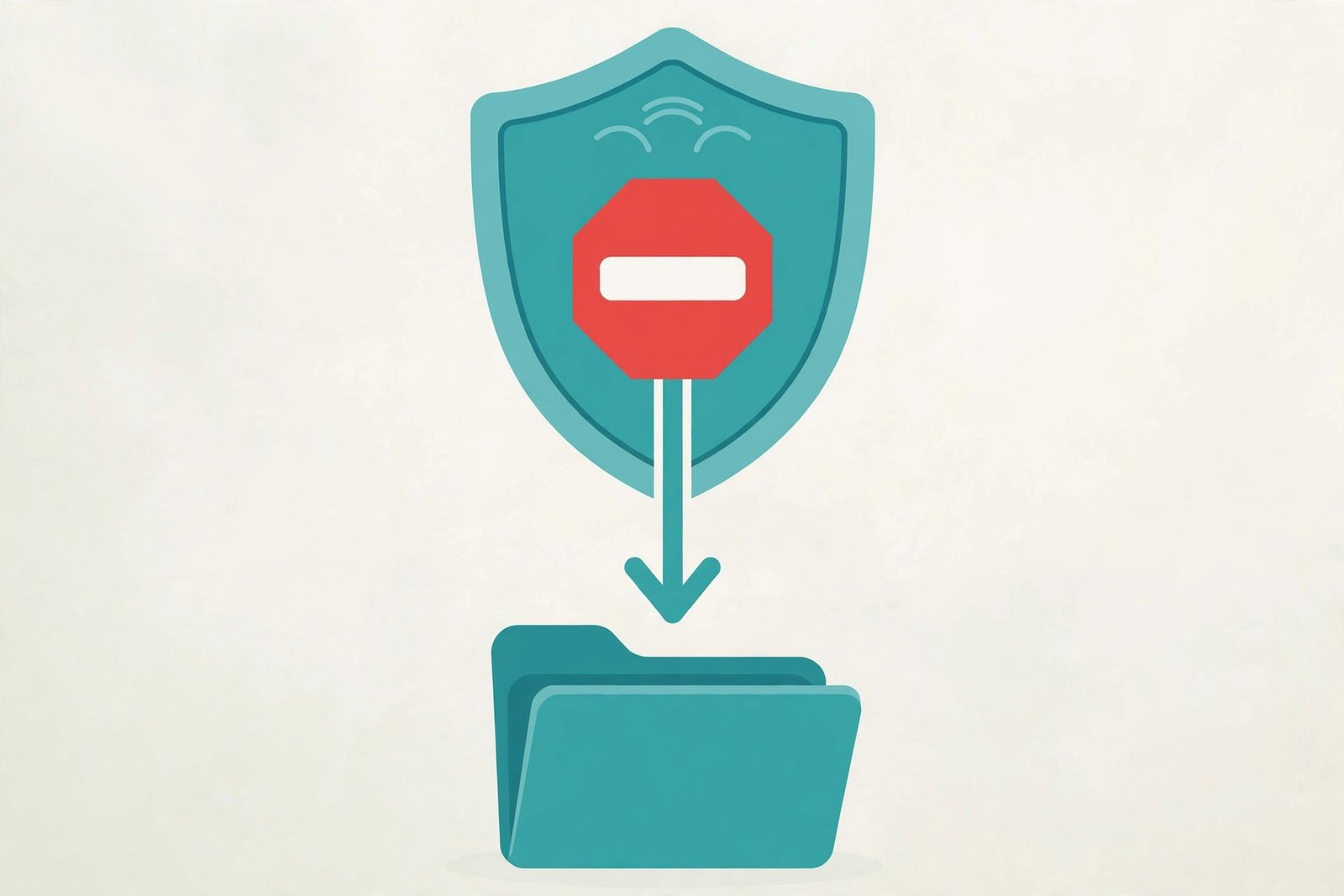
When Chrome shows “Download blocked” or “Failed – Blocked”, it means Chrome’s security settings stopped the file — not your antivirus. This happens most with executable files (.exe, .msi, .bat), zipped programs, and files from sites Chrome does not know well. Sometimes the block is correct. Sometimes it is a false alarm on a file you know is safe.
- Review the block first. On the downloads page (
Ctrl + J), find the blocked file and read the warning. Only continue if you trust the website and expected this exact file. - Keep the file. Click the arrow or three-dot menu next to the blocked download and choose Keep or Keep dangerous file. Chrome will then finish downloading it.
- Soften Safe Browsing if you get too many false blocks. Go to Settings, then Privacy and security, then Security. Switching from Enhanced protection to Standard protection reduces aggressive blocking while keeping real protection switched on.
- Allow one trusted site. Go to Settings, then Privacy and security, then Site settings, then Additional permissions, then Automatic downloads. Under “Allowed to automatically download multiple files”, add the website you trust.
- Read the official error guide. Google’s guide to fixing file download errors explains every message Chrome shows — “Network failed”, “Download blocked”, “Virus scan failed”, “Disk full” — and what each one means.
Never switch Safe Browsing to “No protection” as a permanent fix. It is like removing your front door because the lock sticks — use the “Keep” option or the Standard level instead, and turn stricter settings back on afterwards.
6. Check your antivirus and Windows security
If Chrome says “Virus scan failed” or “Virus detected”, your antivirus or Windows Security scanned the file during download and removed it. On Windows, the built-in Windows Attachment Manager can also strip out files it considers risky. This layer sits outside Chrome, so no browser setting will overrule it.
- Open your antivirus and check its quarantine or history. Most programs keep a log of everything they blocked. Look for your file name with today’s date.
- Check Windows Security. Open Windows Security, go to Virus & threat protection, then Protection history. Blocked downloads appear here with the reason.
- Restore or allow the file — carefully. If you are certain the file is safe and from a trusted source, use the “Allow” or “Restore” option in your antivirus. Do this only for files you expected and trust.
- Add an exception only when needed. If the same legitimate program gets blocked every time you download it, add that specific file or website to your antivirus exceptions. Never add exceptions for files you are unsure about.
- Keep real-time protection switched on. If you temporarily disabled your antivirus to test, turn it back on immediately afterwards. A test that ends with no protection is not worth it.
- Update your antivirus. Out-of-date security software blocks more legitimate files by mistake. Run its update check before deciding the block was wrong.
If your antivirus keeps deleting a file you know is safe, the issue is its settings — not Chrome. Adjust the exception list rather than blaming the browser.
7. Free up disk space
“Disk full” is the most honest error Chrome shows: there is simply nowhere to put the file. Downloads fail silently on nearly-full drives too, because Chrome needs a little extra room beyond the file size itself. This fix is pure housekeeping and helps your whole PC, not just Chrome.
- Check your free space. Open File Explorer, click This PC, and look at your main drive (usually C:). If the bar is red or nearly full, this is your problem.
- Empty the Recycle Bin. Right-click it and choose Empty Recycle Bin. Deleted files still take up space until you do this.
- Run Storage Sense. Go to Settings, then System, then Storage, and turn on Storage Sense. It automatically clears temporary files and old Recycle Bin contents.
- Delete old downloads. Open your Downloads folder and sort by size. Old installers, zipped files and videos you already watched are usually the biggest space hogs.
- Uninstall programs you no longer use. Go to Settings, then Apps, then Installed apps, sort by size, and remove what you do not need.
- Retry the download. Aim to keep at least a few gigabytes free on the drive Chrome saves to. Large files need that breathing room.
If your drive fills up again quickly, consider moving your Chrome download location to a larger drive (Fix 4) so future downloads never fight the system drive for space.
8. Switch off extensions, clear the cache and reset Chrome
If downloads fail in Chrome but work in every other browser, something inside Chrome itself is broken — usually a misbehaving extension, a corrupt cache, or a damaged profile setting. Work through this fix in order, stopping as soon as downloads work again.
- Test with extensions off. Click the three-dot menu, go to Extensions, then Manage Extensions. Switch everything off, then try your download. If it works, switch extensions back on one at a time to find the culprit. Download managers, ad blockers and security extensions are the usual suspects.
- Clear the cached files. Press
Ctrl + Shift + Delete, set the time range to All time, tick Cached images and files, and click Delete data. A corrupt cache can break the download manager while pages still load fine. - Reset Chrome settings. Type
chrome://settings/resetin the address bar and choose Restore settings to their original defaults. This keeps your bookmarks and passwords but switches off extensions and resets permissions, including download permissions you may have blocked by accident. - Create a fresh profile as a test. Click your profile icon (top-right), choose Add, and create a new Chrome profile. If downloads work in the new profile, your old one is damaged — you can move your bookmarks over and switch.
- Reinstall Chrome as a last resort. Uninstall it from Settings, then Apps, then download a fresh copy from the official Chrome website and install it. This replaces any damaged program files while keeping your synced data if you sign back in.
What to avoid
Fixing downloads is straightforward, but a few common “solutions” floating around the internet will make things worse. Avoid these.
- Do not set Safe Browsing to “No protection” permanently. Lower it temporarily if you must, then switch it back. Browsing without protection invites exactly the malware those warnings exist to stop.
- Do not leave your antivirus switched off. If you disabled it to test a download, turn it back on the moment the test is done.
- Do not download “driver updaters”, “PC optimisers” or “download fixer” tools. These shady programs are a classic source of malware. Only ever download software from the maker’s official website.
- Do not keep a file Chrome flags as dangerous unless you are certain. If you did not expect the file or do not fully trust the source, delete it instead of overriding the warning.
- Do not save important files to a USB stick or network drive that keeps disconnecting. Interrupted writes corrupt files. Use a local folder, then move the file afterwards.
- Do not delete Chrome’s profile folders by hand. Use the built-in reset at
chrome://settings/resetinstead — manual deletion can destroy bookmarks and passwords. - Do not ignore repeated blocks from the same website. If every file from one site gets blocked, the site itself may be compromised. Find the file from the official source instead.
FAQ
Why does Chrome block my downloads?
Chrome blocks downloads it considers risky using a system called Safe Browsing. It checks files against a list of known dangerous software and suspicious websites. Executable files like .exe and .msi get extra scrutiny. If you trust the source, you can review the block on the downloads page (Ctrl + J) and choose “Keep”. If blocks happen constantly on safe files, switch Safe Browsing from Enhanced to Standard protection in Settings, under Privacy and security, then Security.
Where do my Chrome downloads go?
By default, Chrome saves to your system’s Downloads folder — on Windows that is C:\Users\<your user name>\Downloads. You can see or change the exact folder under the three-dot menu, then Settings, then Downloads. Turn on “Ask where to save each file before downloading” if you want to choose a location every time. On the downloads page, “Show in folder” opens the precise location of any file.
Why does my download keep failing at the same percentage?
A download that always stalls at the same point usually means an unstable connection dropping at a weak moment, or a stuck Chrome process. Restart your router, close Chrome completely (including background processes), and retry from the downloads page with the Retry button. For very large files, pausing and resuming can also get past the stall.
What does “Failed – Network error” mean?
It means the connection between Chrome and the server broke during the download. Check your internet connection first, then retry. If it keeps happening with one specific site, the site’s server may be the problem — try again later or contact the site owner. If it happens on every site, work through Fix 1 and Fix 2 above.
How do I stop Chrome blocking downloads from a site I trust?
Go to Settings, then Privacy and security, then Site settings, then Additional permissions, then Automatic downloads, and add the website under “Allowed to automatically download multiple files”. For one-off files, use the “Keep” option on the downloads page. Only do this for sites you genuinely trust.
Should I reinstall Chrome to fix downloads?
Only as a last resort. Reinstalling fixes damaged program files, but most download problems come from connections, security blocks, full drives or extensions — none of which a reinstall changes. Work through Fixes 1 to 7 first. If downloads fail in Chrome but work in Edge or Firefox, try Fix 8’s extension check and settings reset before you reinstall.
Conclusion
When chrome downloads are not working, the fix is almost always one of the eight above: a shaky connection, a Chrome process that needs restarting, the wrong download folder, an overzealous security block, antivirus interference, a full drive, or a broken extension. Start with the quick checks, match your error message to the diagnose table, and work the fixes in order — there is no need to jump straight to reinstalling.
If this guide got your downloads moving again, our blog has more step-by-step Chrome and Windows fixes in the same plain style. And if a different problem pops up next, the same method applies: read the exact error message, find the cause, and fix that — not everything around it.
[…] Browser upload quirks do happen — if downloads misbehave in your browser too, our guide on Chrome downloads not working covers the browser […]