

A pdf file not opening in windows is one of the most annoying computer problems. You double-click a file and nothing happens. Or you get an error message. Or the screen goes blank for a second and then closes. It is frustrating, especially when the file is important.
The good news is that most of the time the file itself is fine. The problem is usually the app that opens it. Windows may be pointing to the wrong program. Your reader may need an update. Or the file may not have downloaded properly. This guide walks you through 9 fixes in the simplest order. Start at fix 1 and work your way down. One of them will open your file.
Table of contents
- Quick checks
- Diagnose your problem
- 1. Restart your PDF reader and your PC
- 2. Open the file in a different app
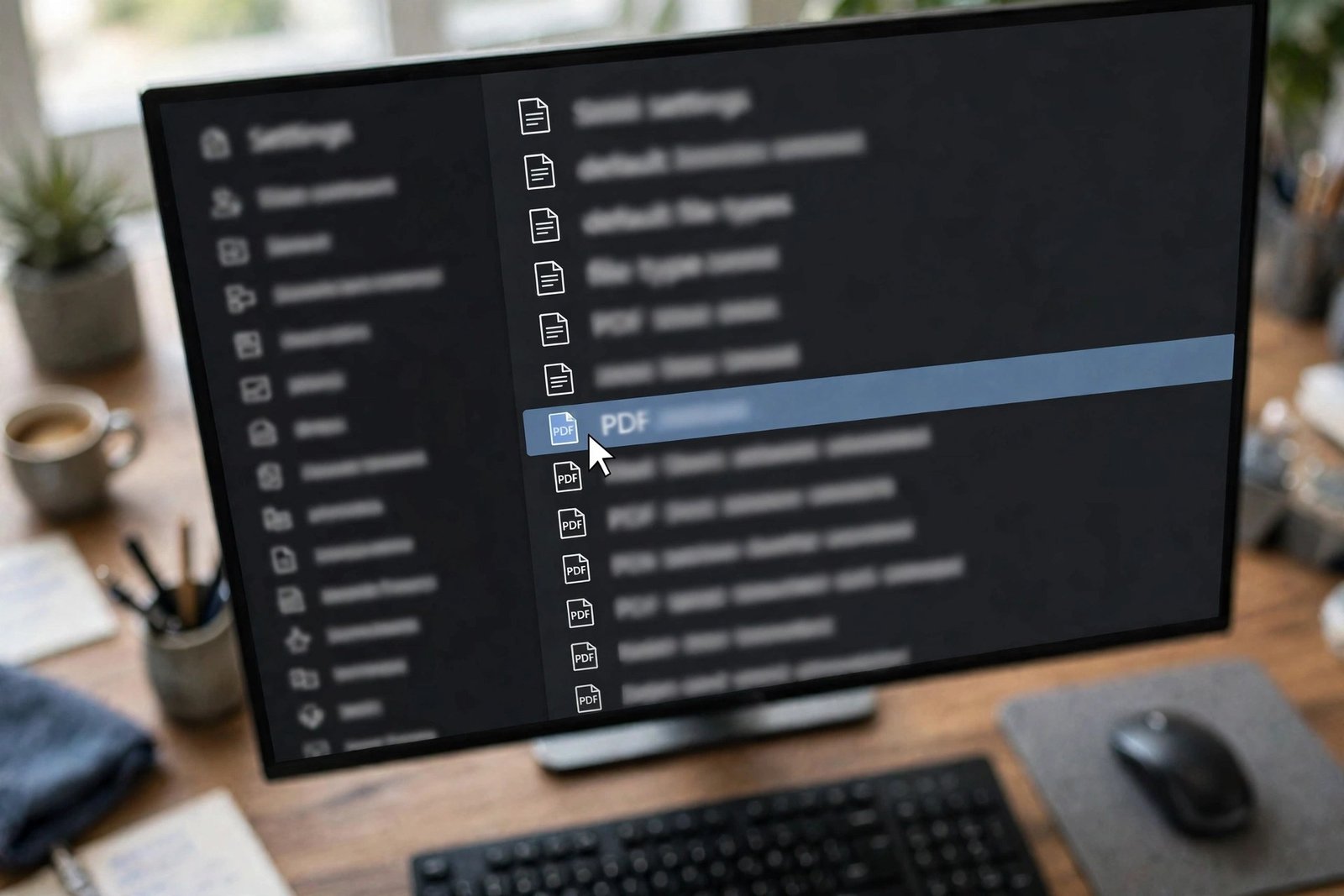
- 3. Set the correct default app for PDF files
- 4. Update your PDF reader
- 5. Repair your PDF reader
- 6. Download the file again
- 7. Unblock the file in Windows
- 8. Try a different PDF reader
- 9. Reinstall the reader from the official site
- What to avoid
- FAQ
- Conclusion
Quick checks
Before you change anything, run through these quick checks. They take less than a minute and fix a surprising number of cases.
- Try another PDF file. If other PDFs open fine, your reader is working and the problem is this one file. Skip to fix 6.
- Check the file size. A file that is 0 KB or only a few bytes did not download properly. It cannot open. You will need it again from the source.
- Look at the file name. Does it end in
.pdf? A file with the wrong extension may not be a PDF at all. - Move the file to your Desktop. Very long file paths or special characters in folder names can sometimes stop a file from opening. Test it from a simple location.
- Check where the file lives. If it is on a USB stick or a network drive, copy it to your PC first. A slow or disconnected drive can look like a broken file.
Diagnose your problem
Use this table to match what you see with the most likely cause, then jump to the right fix.
| Symptom | Likely cause | Go to fix |
|---|---|---|
| Nothing happens when you double-click the file | The reader is stuck in the background, or the wrong app is set as the default | Fix 1, Fix 3 |
| An error message about the app not working | The PDF reader is damaged or needs an update | Fix 4, Fix 5 |
| The reader opens but shows a blank or white screen | The reader needs an update, or the file is corrupt | Fix 4, Fix 6 |
| The file opens in the wrong program | Windows has the wrong default app for .pdf files | Fix 3 |
| The file worked on another computer but not this one | A reader problem or a missing default app on this PC | Fix 3, Fix 9 |
| The file asks you to sign in or shows a password prompt | The PDF is password protected | Ask the sender for the password |
| “Access Denied” or a blocked-file warning | Windows is blocking the file for security | Fix 7 |
| Every PDF fails, even ones that worked before | The reader installation is corrupt | Fix 5, Fix 9 |
1. Restart your PDF reader and your PC
A pdf file not opening in windows is often caused by a reader that is stuck, not by the file. The program may have closed badly and be running silently in the background. When you double-click the file, the stuck copy blocks the new one.
Here is the simplest fix:
- Press Ctrl + Shift + Esc to open Task Manager.
- Look through the list for your PDF reader, such as Adobe Acrobat or your browser.
- Select it and click End task. Do this for every copy you find.
- Try opening the PDF again.
If that does not help, restart your PC. A full restart clears every stuck process and temporary glitch in one go. Restart your computer through the Start menu, not by holding the power button. Then try the file again.
2. Open the file in a different app
This step tells you whether the problem is the file or the program. If the file opens in another app, your main reader is the problem. If it fails everywhere, the file itself is broken.
- Right-click the PDF file.
- Choose Open with.
- Pick a different program from the list. Microsoft Edge and Google Chrome both open PDFs without extra software.
You can also drag the file onto a browser window. If the PDF opens there, the file is healthy. You can keep using the browser for now and fix your main reader with the steps below. If the file will not open anywhere, jump to fix 6.
3. Set the correct default app for PDF files
Sometimes a pdf file not opening in windows simply means Windows is sending the file to the wrong program. After an update or a new install, the file type association can change. Setting the correct default app takes less than a minute.
- Right-click the PDF file and choose Open with > Choose another app.
- Select the program you want, for example Adobe Acrobat Reader or Microsoft Edge.
- Tick Always use this app to open .pdf files.
- Click OK.
You can also set it in Settings. Open Settings, go to Apps > Default apps, type .pdf in the search box, and choose your preferred app. Microsoft’s own guide walks through this for every version of Windows: Change default apps in Windows.
4. Update your PDF reader
Old versions of PDF readers cause many opening problems. A file made with a newer version may use features your old reader does not understand. Security updates can also change how the reader handles files. Updating is free and takes a few minutes.
- Open your PDF reader.
- Look for an update option. In Adobe Acrobat Reader it is under Menu > Help > Check for updates.
- Install any updates it finds.
- Restart the reader and try the file again.
If your reader does not open at all, check the program’s website for the latest version and install it over your current copy. Never download a reader from a random site. Always use the official download page of the company that makes the program.

5. Repair Your PDF Reader for the PDF File Not Opening in Windows Error
A damaged installation is a common reason for a pdf file not opening in windows. Files get corrupted by bad updates, power cuts, or disk errors. The program may launch but fail to open any document. Most readers include a built-in repair tool that fixes this without a full reinstall.
- Open your PDF reader if you can.
- Go to Help > Repair installation (in Adobe Acrobat Reader you will find it under the Menu button > Help).
- Wait for the repair to finish. The program will restart itself.
- Try opening your PDF again.
Adobe’s own troubleshooting guide for PDFs that will not open covers this repair step along with other checks: Can’t open PDF | Adobe Acrobat.
If the reader will not open at all, repair it through Windows instead:
- Open Settings > Apps > Installed apps.
- Find your PDF reader in the list.
- Select it and choose Modify, then pick the Repair option.
6. Download the file again
If no reader can open the file, the file itself is probably damaged. This happens more than people think. A download can stop halfway through. An email attachment can get cut off. A USB stick can lose data. The reader cannot open a file that is incomplete.
- Delete the broken copy, or move it to the Recycle Bin.
- Get the file again from its source. Download it fresh from the website, or ask the sender to send it again.
- Check the file size before opening it. A file that is much smaller than expected is probably still broken.
- Open the new copy.
If the file came from a website, try downloading it with a different browser. If it came as an email attachment, check that the attachment downloaded fully before you open it. Save attachments to your computer first, then open them from there instead of straight from the email.

7. Unblock the file in Windows
Windows protects you by marking files that come from the internet or from email. Most of the time these files open fine. Sometimes the protection stops the file from opening at all, especially when a pdf file not opening in windows shows an “Access Denied” style message.
- Right-click the PDF file and choose Properties.
- On the General tab, look near the bottom of the window.
- If you see an Unblock checkbox, tick it.
- Click Apply, then OK.
- Try opening the file again.
If there is no Unblock option, the file is not blocked and you can move on to the next fix. Only unblock files you trust. If the file came from a stranger or a suspicious email, do not unblock it. Ask the sender to confirm it first.
8. Try a different PDF reader
If your main reader keeps failing, the fastest answer may be a different program. There are several trustworthy free readers, and most of them install in a couple of minutes. The Microsoft Edge browser that comes with Windows opens PDFs well, and it is already on your PC.
- Install or open a different PDF reader. Good official choices include Adobe Acrobat Reader or the built-in Microsoft Edge.
- Right-click your PDF file and choose Open with > Choose another app.
- Select the new reader and tick Always use this app to open .pdf files.
- Click OK and test the file.
Download readers only from the official websites of the companies that make them. Never install a PDF reader from a pop-up advert or a site that bundles extra software with the download. You can read more free troubleshooting guides on our blog if you run into trouble with other programs too.
9. Reinstall the reader from the official site
If nothing else worked, the installation is probably too damaged for the repair tool. A clean reinstall replaces every program file with a fresh copy. This is the last and strongest fix for a reader that will not open PDFs.
- Open Settings > Apps > Installed apps.
- Find your PDF reader in the list.
- Select it and choose Uninstall.
- Follow the prompts to remove it fully.
- Restart your PC.
- Go to the official website of the reader’s maker and download the latest version. For Adobe’s reader, use Adobe’s official download page only.
- Install it, then open your PDF file.
After reinstalling, set the reader as your default app for .pdf files again, using the steps in fix 3. If the file still will not open after a clean reinstall, the file itself is almost certainly damaged, and you need a fresh copy of it.
What to avoid
These mistakes make the problem worse or put your computer at risk. Skip them all.
- Do not install “PDF repair” tools from unknown sites. Many are scams or contain malware. There is no free tool that can rebuild a truly damaged PDF.
- Do not download a cracked or “activated” PDF reader. Pirated software often carries viruses, and it is illegal. The official readers are free anyway.
- Do not delete program files by hand. Removing folders from Program Files will not fix the reader and can break other things. Use the proper uninstaller.
- Do not disable your antivirus to open a file. If your security software blocks a PDF, that is a warning. Get the file from a trusted source instead.
- Do not pay anyone who offers to “fix” your PDF remotely. This is a common scam. The real fixes in this guide are all free and take minutes.
- Do not keep forcing a password-protected file open. If a PDF asks for a password you do not have, contact the sender. Password-removal tools from shady sites often steal your data.
FAQ
Why is a pdf file not opening in windows when other files work fine?
If other PDFs open but one will not, the problem is almost always that one file. It may be damaged, it may still be downloading, or it may be blocked by Windows security. Try downloading it again, unblocking it in Properties, or opening it in a different program. The diagnose table above will point you to the right fix.
Should I install a new PDF reader if mine will not open files?
Not right away. First try updating, repairing, or reinstalling the reader you already have. But if you need the file open urgently, opening it in Microsoft Edge or another trusted reader is a safe temporary fix. Only download new programs from official websites.
Why does the reader open but show a blank white page?
A blank page usually means the reader version is too old for the file, or the file is damaged. Update the reader first. If that fails, download the file again from its source. Files that download incompletely often open as blank pages instead of showing an error.
Can a PDF file be too large to open?
Very large PDFs can be slow to open on older computers with little memory. Give it time before you assume it failed. If it still will not open, try a lighter reader such as Microsoft Edge, close other programs to free up memory, and make sure you have free disk space.
The PDF opens but I cannot print it. What should I do?
That is a separate problem from opening the file. The file is fine; the issue is between the reader and your printer. Our guide on Windows 11 printer not detected walks through getting your printer working again.
Why does the file ask for a password?
Some PDFs are locked by the person who created them. Only that person knows the password. You need to ask the sender or the website for it. Do not use password-cracking tools; they may be illegal and they often install malware.
Conclusion
A pdf file not opening in windows looks serious, but it is rarely a lost cause. In most cases the file is fine and the fix is small. A stuck background process, the wrong default app, an outdated reader, or a bad download covers almost every case. Work through the nine fixes in order, and you will have your document open in minutes.
To stop this happening again, keep your PDF reader updated, download files fully before opening them, and keep the right program set as your default for .pdf files. For more step-by-step troubleshooting help, visit TechSBSInfo — and if you want to know who is behind these guides, read our about page.