


You click “Upload”. The spinner turns. Then the message appears: wordpress image upload failed. Your image never reaches the media library, and your post stays pictureless. It is one of the most frustrating WordPress errors because the message tells you almost nothing about what went wrong.
The good news is that the cause is almost always one of a small set of problems. A file that is too large. A filename with characters WordPress cannot handle. Folder permissions that block the server. A hosting limit you never knew existed. This guide starts with the simplest checks and works down to the deeper server-side fixes, so most readers solve it in the first three steps.
Work through the fixes in order. Each one takes only a few minutes, and you can stop as soon as your upload succeeds.
- Quick Checks — Do These First
- Diagnose Table: Symptom, Cause and Fix
- 1. Shrink the Image Before You Upload It
- 2. Rename the File Using Simple Lowercase Words
- 3. Raise or Check Your Upload Size Limits
- 4. Fix Folder Permissions — a Classic wordpress image upload failed Cause
- 5. Check That Your Hosting Storage Is Not Full
- 6. Deactivate Plugins and Rule Out Security Blocks
- 7. Increase the PHP Memory Limit
- 8. Check the Uploads Path and Year/Month Organisation
- What to Avoid
- FAQ
- Conclusion
Quick Checks
- Try a tiny JPG first. Upload a small photo under 200 KB. If it works, your problem is file size or the specific file, not the whole system.
- Note whether it is one file or every file. One failing file points to the filename or that image. Every file failing points to permissions, limits, or the server.
- Read the exact error message. “HTTP error” means something different from “Unable to create directory” or “exceeds the upload_max_filesize directive”. Match it in the diagnose table below.
- Think about what changed recently. A new plugin, a theme update, or a host migration is often the trigger. Problems rarely start for no reason.
- Try a different browser. Browser upload quirks do happen — if downloads misbehave in your browser too, our guide on Chrome downloads not working covers the browser side.
- Check your connection. Large images on a shaky connection can time out mid-upload and look like a WordPress failure.
Diagnose Table
| Symptom | Likely cause | Go to fix |
|---|---|---|
| “HTTP error.” with no detail during upload | Oversized image, low memory, or a plugin/security block | Fix 1, then Fix 6 |
| “Unable to create directory wp-content/uploads/… Is its parent directory writable by the server?” | Folder permissions wrong or uploads path misconfigured | Fix 4, then Fix 8 |
| “The uploaded file exceeds the upload_max_filesize directive in php.ini.” | PHP upload limit too low | Fix 3 |
| Uploads fail for every file, even tiny ones | Permissions, disk quota, or plugin conflict | Fix 4, Fix 5, Fix 6 |
| Only one image fails; others upload fine | Bad filename or corrupt/odd file | Fix 2, then Fix 1 |
| Error started right after a host move or plan change | Uploads path setting or quota changed | Fix 8, then Fix 5 |
| Upload stalls or times out on large photos | File size too big or memory limit too low | Fix 1, then Fix 7 |
1. Shrink the Image Before You Upload It
The single most common reason for wordpress image upload failed is a file that is simply too big. Cameras and phones produce photos of 5–15 MB, and many shared-hosting setups choke on them. Resizing the image before upload fixes the problem in seconds and also makes your pages load faster.

Resizing an oversized photo before uploading it is the fastest fix for most wordpress image upload failed errors.
- Check the file size first. On Windows, right-click the image and choose Properties. On a Mac, right-click and choose Get Info. Anything over about 2 MB deserves resizing.
- Reduce the dimensions. A photo displayed at 800 px wide never needs to be 6000 px wide. Resize it to roughly the size it will appear on the page — 1200–1600 px wide is plenty for most blog images.
- Use a free tool. Windows users can use the Photos app or Paint. Mac users can use Preview (Tools > Adjust Size). Free online compressors also work well for a quick job.
- Export as JPG for photos. JPG gives far smaller files than PNG for photographs. Keep PNG only for graphics with sharp text or transparency.
- Re-upload the smaller file. Go to Media > Add New and try again. In most cases the upload now succeeds immediately.
Tip: resizing also helps your SEO. Smaller images mean faster pages, and page speed is a ranking factor. Aim for each image to be under 300 KB where possible.
2. Rename the File Using Simple Lowercase Words
WordPress can stumble on filenames with spaces, special characters, or non-English letters. A file called Mämmi's photo (final) #2.JPG is far more likely to fail than blue-widget-photo.jpg. If one specific image refuses to upload while others work, the filename is the prime suspect.
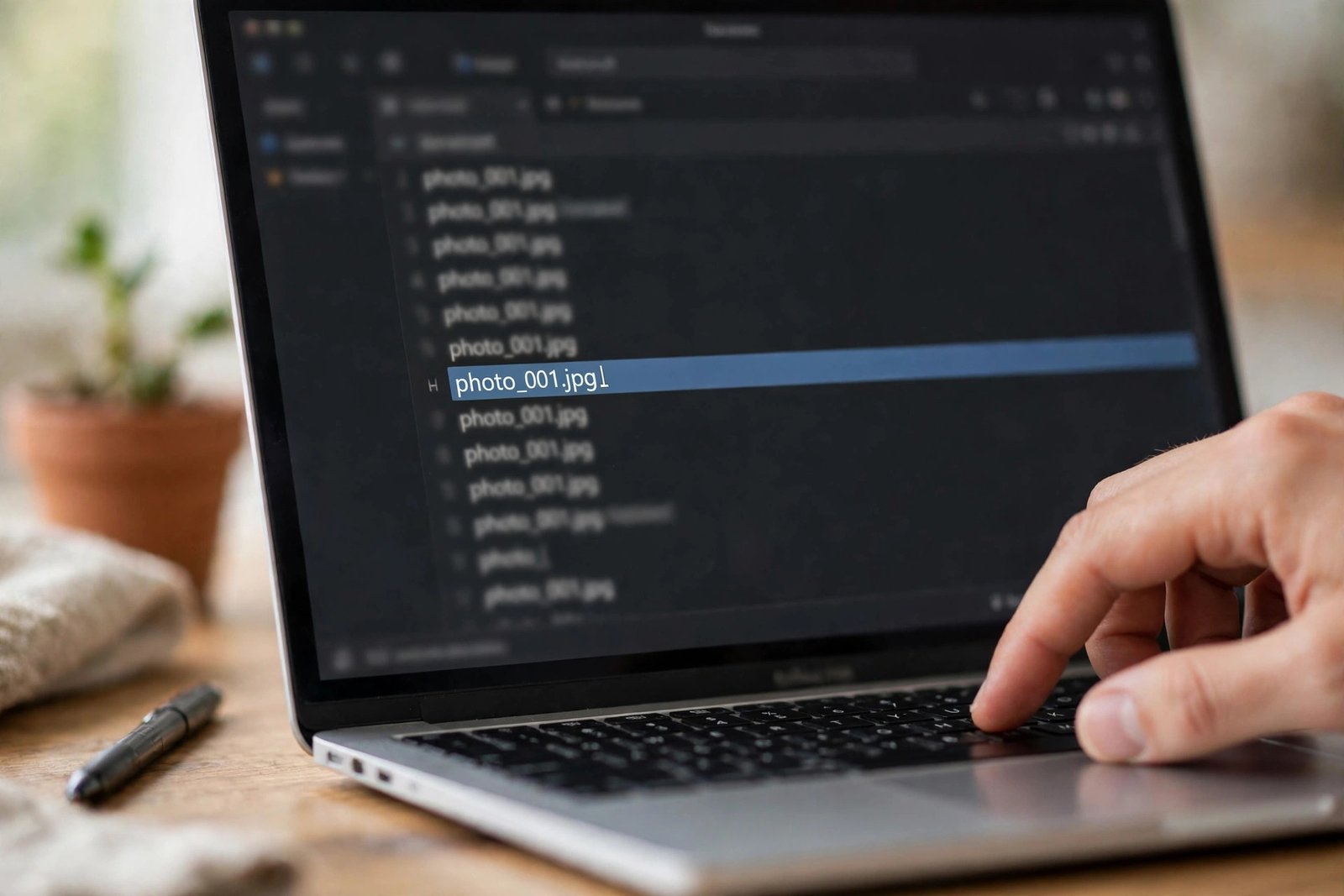
A clean, lowercase, hyphenated filename removes one of the sneakiest wordpress image upload failed triggers.
- Rename the file on your computer first. Do not rely on renaming it inside WordPress later — the upload itself is what fails.
- Use only lowercase letters, numbers, and hyphens. For example, change
IMG 2026 (1).jpgtooffice-desk-2026.jpg. - Remove every special character. Delete apostrophes, brackets, hashes, ampersands, and accented letters. Dashes and underscores are the only safe separators.
- Keep the extension lowercase.
.jpgworks everywhere;.JPGoccasionally causes odd behaviour on some servers. - Upload the renamed file. If it succeeds, you have found your culprit, and you can rename any other problem files the same way.
Tip: good filenames double as SEO. A descriptive name like wordpress-dashboard-screenshot.jpg is better for search than IMG_0042.jpg.
3. Raise or Check Your Upload Size Limits
If WordPress tells you the file “exceeds the upload_max_filesize directive”, your server is rejecting the file before WordPress even sees it. Two PHP settings control this: upload_max_filesize (the largest single file allowed) and post_max_size (the largest total upload request). The second must be larger than the first.
- Find your current limit. In WordPress, go to Media > Add New. The maximum upload size is shown at the bottom of the page. If it says 2 MB, that is your ceiling.
- Try the hosting control panel first. Many hosts (cPanel, Plesk, or custom panels) let you change PHP settings with a few clicks. Look for “PHP Options”, “PHP Settings”, or “MultiPHP INI Editor”.
- Set upload_max_filesize to at least 32M. Set post_max_size a little higher, for example 40M. Save the change.
- If your panel has no such option, edit php.ini. Add or change these lines, then restart PHP if your host requires it:
upload_max_filesize = 32Mpost_max_size = 40M- On some hosts, use .htaccess instead. Add these lines to the
.htaccessfile in your WordPress root: php_value upload_max_filesize 32Mphp_value post_max_size 40M- Ask your host if nothing works. Some shared hosts lock these values. A quick support message — “please raise my upload_max_filesize to 32M” — usually gets it done within hours.
Warning: after changing the limit, revisit the Media > Add New page to confirm the new maximum is shown. Do not assume the change applied.
4. Fix Folder Permissions — a Classic wordpress image upload failed Cause
When WordPress uploads an image, the server must be able to write it into the wp-content/uploads folder. If the folder’s permissions do not allow writing, you get the dreaded “Unable to create directory … Is its parent directory writable by the server?” message. This is the most common server-side cause of wordpress image upload failed.

Wrong folder permissions are the most common server-side cause of a wordpress image upload failed message.
- Connect with an FTP client or your host’s file manager. Navigate to the
wp-contentfolder of your WordPress installation. - Check the uploads folder. Right-click
uploadsand look at its permissions (sometimes called CHMOD). Folders should be 755 and files should be 644. - Fix them if they are wrong. Set the
uploadsfolder to 755. Most FTP clients let you apply the change to all subfolders and files inside it in one step — set folders to 755 and files to 644. - Never leave permissions at 777. Some guides suggest 777 as a quick test. It makes the folder writable by everyone, which is a security risk. If 777 fixes the upload, change it back to 755 immediately and ask your host to fix the underlying ownership problem instead.
- Re-upload your image. With correct permissions, the “unable to create directory” error should be gone.
Tip: if permissions keep resetting to wrong values after you fix them, your host’s server configuration is the real problem. Ask support to check the file ownership (the user the web server runs as).
5. Check That Your Hosting Storage Is Not Full
A full disk stops uploads dead. If your hosting plan’s storage quota is exhausted, WordPress cannot save new images no matter how perfect everything else is. This is easy to overlook because the site itself keeps working — only uploads fail.
- Open your hosting control panel. Look for a storage or disk-usage meter. cPanel shows it in the sidebar; most custom panels have a similar usage page.
- Check how full it is. If you are at 100% — or the panel shows 0 bytes free — you have found your problem.
- Free up space. Delete old backups stored on the server, clear unused media files from the WordPress media library, and remove old email if your mail lives on the same account.
- Consider upgrading. If you are genuinely out of room because the site has grown, a larger plan is the honest fix. Image-heavy sites outgrow starter plans regularly.
- Try the upload again. Once space is free, uploads should work immediately — no other change needed.
Warning: do not delete backup files unless you have another copy somewhere safe. Freeing space is good; losing your only backup is not.
6. Deactivate Plugins and Rule Out Security Blocks
Some plugins interfere with uploads. Image optimisation and security plugins are the usual suspects: they hook into the upload process and can break it. So can mod_security, a server-level firewall that sometimes flags legitimate uploads as attacks (a false positive).
When every file fails with a vague “HTTP error”, a plugin or security rule is often behind the wordpress image upload failed message.
- Deactivate all plugins. Go to Plugins > Installed Plugins, select all, choose Deactivate from the bulk menu, and apply. Do not worry — your settings are kept.
- Try the upload again. If it works now, a plugin was the cause.
- Reactivate plugins one by one. After each reactivation, test an upload. When uploads break again, the last plugin you activated is the culprit.
- Pay special attention to image and security plugins. Smush-style optimisers, firewall plugins, and anything that scans uploads deserve the first look.
- Ask your host about mod_security. If uploads fail even with all plugins off, ask support: “Could mod_security be blocking my WordPress media uploads? Please check the logs for false positives.” Hosts can whitelist the upload rule in minutes.
- Keep the problem plugin off or replace it. Once identified, either leave it deactivated or find an alternative that does not break uploads.
WordPress’s own documentation on common WordPress errors is worth bookmarking — it covers upload failures alongside the other classic errors you may meet later.
7. Increase the PHP Memory Limit
WordPress needs memory to process images — especially when it creates the thumbnail, medium, and large copies of every upload. If the PHP memory limit is too low, large images die mid-processing with a bare “HTTP error.” Raising the limit is a one-line change.
- Check your current limit. Install nothing: go to Tools > Site Health > Info > Server in your WordPress dashboard. The PHP memory limit is listed there. Anything at or below 128M is worth raising.
- Edit wp-config.php. Using FTP or your host’s file manager, open
wp-config.phpin the WordPress root folder. - Add the memory line. Just above the line that says
/* That's all, stop editing! Happy publishing. */, add: define( 'WP_MEMORY_LIMIT', '256M' );- Save and re-check. Return to Tools > Site Health > Info > Server and confirm the new limit shows 256M.
- Try the upload again. If memory was the bottleneck, the HTTP error disappears.
- Ask your host if it does not stick. Some hosts cap memory at the server level, and only support can raise it beyond your wp-config.php value.
Tip: 256M is a comfortable value for most sites. There is no benefit in setting it extremely high on shared hosting — your host’s cap will override it anyway.
8. Check the Uploads Path and Year/Month Organisation
WordPress stores where uploads go in a setting most people never see. If a migration, a plugin, or an old customisation pointed it at a folder that no longer exists, every upload fails — even though permissions and limits are perfect. The Settings > Media page hides this option in newer WordPress versions, which makes it extra sneaky.
- Look at the Media settings. Go to Settings > Media. Check the “Store uploads in this folder” field — on most installs it should be empty (meaning the default
wp-content/uploads) and “Organise my uploads into month- and year-based folders” should be ticked. - Clear a wrong custom path. If the folder field contains an old path from a previous host or setup, delete it so it is empty, then save. WordPress will use the correct default folder again.
- Check the hidden option directly. In newer WordPress versions the path field is hidden. You can view it under
wp-admin/options.php— look for theupload_pathrow. It should be empty. If it holds a stale path, clear it there. - Confirm the year/month folders exist. Inside
wp-content/uploads, WordPress creates folders like2026/10. If they are missing and WordPress cannot create them, revisit Fix 4 (permissions) — the two issues often appear together. - Test with a fresh upload. A small test image confirms the path is correct before you upload anything important.
The official Media Library documentation explains how the library, its folders, and its settings fit together — useful background if you manage a media-heavy site.
What to Avoid
- Never set permissions to 777 permanently. It fixes uploads by making your files writable by everyone, which is an open door for attackers. Use 755/644 and fix ownership properly.
- Never upload images from untrusted sources without scanning. Random image packs can hide malware in file metadata. Scan downloads with your security plugin before uploading.
- Never use “image fix” plugins from unofficial sites. Nulled or third-party “upload fixer” plugins are a classic malware vector. Only install plugins from the official WordPress plugin directory.
- Never edit core WordPress files to fix uploads. Changes to core files are wiped out by the next update. Use wp-config.php, .htaccess, or your host’s panel instead.
- Never ignore the exact error message. “HTTP error” and “unable to create directory” have different causes. Skipping the diagnose table wastes time on the wrong fix.
- Never bulk-upload hundreds of full-size originals. Upload in small batches, resize first, and you will avoid timeouts, memory errors, and a bloated media library.
FAQ
Why does WordPress say “HTTP error” when I upload an image?
The “HTTP error” message is WordPress’s generic way of saying the upload process broke without a specific reason. The most common causes are an oversized image, a low PHP memory limit, or a plugin interfering with the upload. Start with Fix 1 (resize the image), then Fix 6 (deactivate plugins), then Fix 7 (raise the memory limit).
What does “Unable to create directory … Is its parent directory writable by the server?” mean?
It means WordPress tried to save your image into wp-content/uploads but the server refused to write there. The folder permissions are almost always the cause — set folders to 755 and files to 644 as described in Fix 4. If permissions look right, check the uploads path setting in Fix 8.
What is the maximum image size I can upload to WordPress?
WordPress itself has no fixed limit — the limit comes from your server’s upload_max_filesize setting, often 2 MB on shared hosting. Check Media > Add New to see your current maximum, and follow Fix 3 to raise it through your hosting panel, php.ini, or .htaccess.
Can a plugin really break image uploads?
Yes. Image optimisation plugins and security plugins hook directly into the upload process, and a buggy update can break every upload on the site. Deactivating all plugins and testing (Fix 6) is the fastest way to find out. If uploads work with plugins off, reactivate them one by one to find the culprit.
Is it safe to set folder permissions to 777 to fix uploads?
No — not permanently. 777 makes files writable by anyone on the server, which attackers can exploit. It is acceptable as a thirty-second test to confirm permissions are the issue, but change it straight back to 755 and ask your host to fix the file ownership instead.
Why do uploads fail only for large images?
Large images hit two ceilings at once: the upload_max_filesize limit and the PHP memory WordPress needs to generate thumbnails. Resize the image before uploading (Fix 1) for an instant fix, and raise both the upload limit (Fix 3) and the memory limit (Fix 7) so it does not happen again.
Conclusion
A wordpress image upload failed message looks alarming, but it is almost never a serious problem. In most cases the image is simply too large, the filename contains characters the server dislikes, or the uploads folder needs its permissions corrected. The eight fixes above cover every common cause, from the thirty-second resize to the deeper server settings.
Work through them in order, test after each change, and keep a note of what fixed it — the same cause tends to strike again after host migrations and major updates. For more troubleshooting guides, browse the blog, learn more about what we do, or start from the homepage.