


You clicked “update”, the tab spun for a while, and now every page on your site shows the same short line: “Briefly unavailable for scheduled maintenance. Check back in a minute.” A minute passed. Then ten. Then an hour. Your site is still showing that notice, and wordpress stuck in maintenance mode is now the most urgent phrase in your day.
Take a breath. This is one of the most common WordPress problems, and the fix is usually a two-minute job. During every core, plugin or theme update, WordPress drops a tiny file called .maintenance into your site’s root folder. That file tells the world “updates are happening, come back soon”. If the update finishes normally, WordPress deletes the file itself. But if the update is interrupted — a timeout, a closed browser tab, a server hiccup — the file stays behind, and the message never clears.
This guide walks you through six fixes in order, from the simplest to the last resort. You do not need to be a developer. You only need access to your hosting account’s file manager or an FTP client, which every host provides.
- Quick Checks — Do These First
- Diagnose Table: Symptom, Cause and Fix
- 1. Wait 2–3 Minutes Before Touching Anything
- 2. Delete the .maintenance File — the Real Fix for WordPress Stuck in Maintenance Mode
- 3. Confirm the Update Finished and Re-run It
- 4. Deactivate the Failed Plugin and Update It by Hand
- 5. Clear Every Cache That Could Hold the Old Page
- 6. Stop It Happening Again: Timeouts and One-at-a-Time Updates
- What to Avoid
- FAQ
- Conclusion
Quick Checks
Before you change anything, run through these five checks. They take about a minute and often point straight at the cause.
- Did you just run an update? If the message appeared right after you updated WordPress core, a plugin or a theme, the leftover
.maintenancefile is almost certainly the cause. Skip to Fix 2. - Is wp-admin reachable? Try opening
yoursite.com/wp-admin. If the dashboard loads fine while the front end shows the maintenance notice, the problem is usually a stuck lock file or a cached copy of the notice — good news, both are easy. - How long has it been? If the update started less than three minutes ago, nothing is broken yet. Large updates can look stuck while they are actually working. Give it time before you intervene (Fix 1).
- Is the .maintenance file present? Log in to your hosting file manager, show hidden files, and look in the site root next to
wp-config.php. If.maintenanceis sitting there hours after the update, you have found the culprit. - Did you update many items at once? Clicking “update all” on twenty plugins is the classic way to trigger a timeout that leaves the site locked. This matters for prevention in Fix 6.
Diagnose Table
| Symptom | Likely cause | Go to fix |
|---|---|---|
| Message appeared during an update and never cleared | Leftover .maintenance file | Fix 2 |
| Message appeared but the update is less than 3 minutes old | Update still running | Fix 1 |
| wp-admin works but the front end shows the notice | Stuck lock file or cached notice | Fix 2, then Fix 5 |
| A plugin update failed and the site went down | Broken plugin locking the update process | Fix 4 |
| The site locks up every time you update | PHP timeouts or a slow server | Fix 6 |
| File deleted but the notice still shows | Cached maintenance page (plugin, server or CDN) | Fix 5 |
1. Wait 2–3 Minutes Before Touching Anything
This sounds too simple, but it is the correct first step. When WordPress runs an update, it shows the maintenance notice on purpose. The file is supposed to be there for the 30 to 60 seconds the update takes. On a slow server or with a large plugin, it can take two or three minutes.
Intervening too early causes real damage. If you delete the .maintenance file while the update is still running, you can end up with a half-updated plugin — files from the old version mixed with files from the new one. That is much harder to fix than a stale lock file.
So: note the time, make a cup of tea, and check the site again after three minutes. If the notice is gone, the update finished normally and you are done. Updates getting stuck midway is a theme across software, not just WordPress — if you have ever watched a system update freeze, you know the feeling (our guide to Windows update stuck downloading covers the same idea on the desktop side).
If three minutes pass and the notice is still there, move on to Fix 2. The update is not finishing on its own.
2. Delete the .maintenance File — the Real Fix for WordPress Stuck in Maintenance Mode
This is the fix that solves the problem in the vast majority of cases. The whole maintenance system is controlled by one small file. Delete it, and WordPress immediately goes back to normal.
The .maintenance file lives in your site’s root folder — the same folder that contains wp-config.php. Because the name starts with a dot, most file managers hide it by default, which is why many people look right at the folder and conclude the file is not there. You must turn on “show hidden files” first.
Step 1 — Open your site’s files. Log in to your hosting control panel (cPanel, Plesk, or your host’s own panel) and open the file manager. Alternatively, use an FTP client such as FileZilla with the credentials your host provided. Either route leads to the same folder.
Step 2 — Go to the site root. This is usually called public_html, www or htdocs. Confirm you are in the right place by finding wp-config.php — the .maintenance file, if it exists, sits right next to it.
Step 3 — Show hidden files. In the file manager, look for a Settings or Preferences option and tick “show hidden files (dotfiles)”. In FileZilla, go to Server > Force showing hidden files. The file listing will refresh and .maintenance should appear.
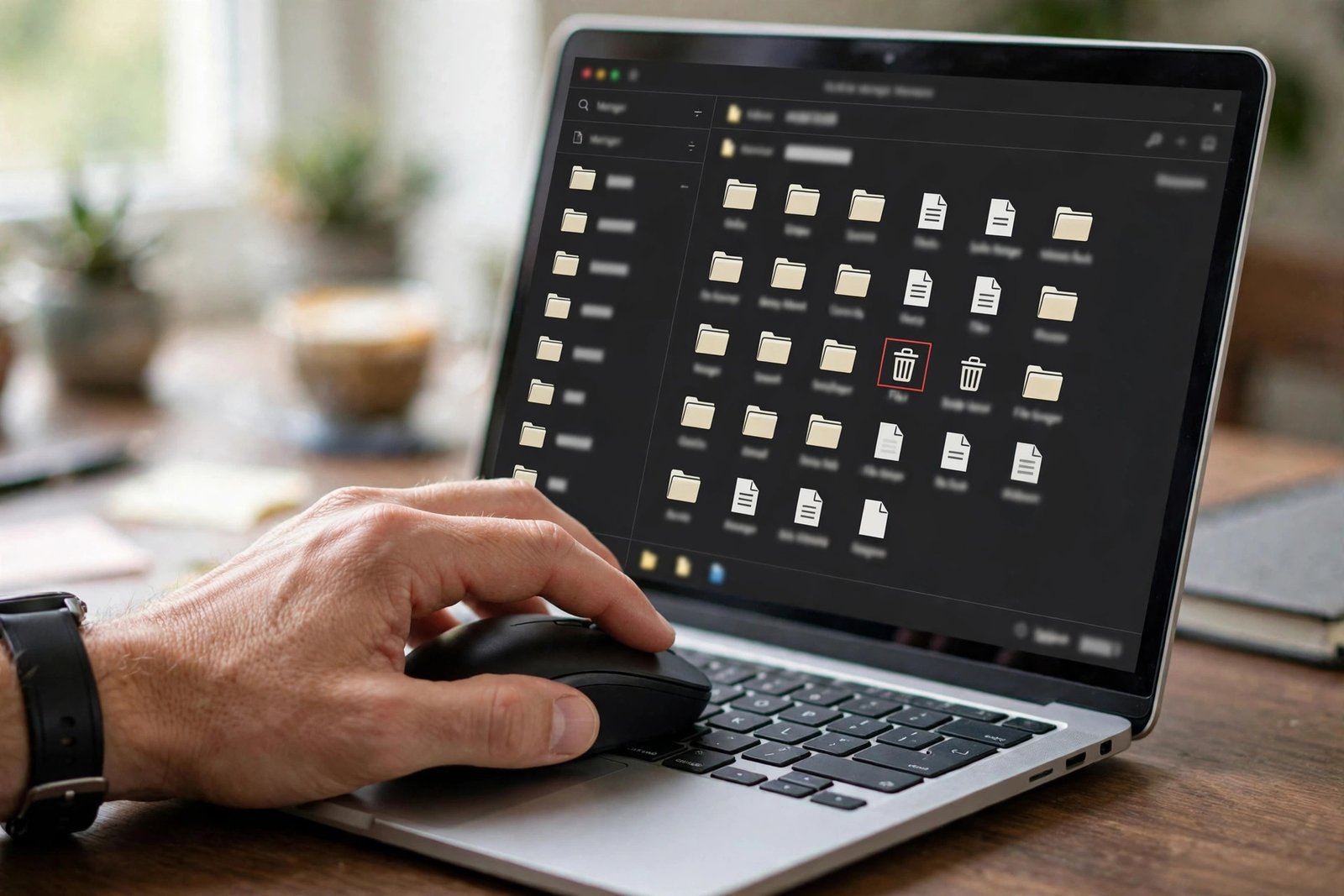
Step 4 — Back it up, then delete it. Right-click .maintenance and download a copy to your computer first — this is your safety net and takes five seconds. Then delete the file from the server.
Step 5 — Reload your site. Open your homepage in a fresh tab (or hard-refresh with Ctrl+Shift+R). The maintenance notice should be gone immediately.
If the notice is gone, do not stop here entirely — jump to Fix 3 to check whether the interrupted update actually finished. If the notice is still there after deleting the file, the page you are seeing is probably a cached copy, so go to Fix 5.
A word on what not to delete. The root folder contains files your site cannot live without. Delete .maintenance and nothing else. Do not touch wp-config.php, .htaccess, or the wp-content folder — removing those will break your site in ways that take far longer to repair.
3. Confirm the Update Finished and Re-run It
Removing the lock file gets your site back online, but it does not repair an update that was cut in half. A plugin whose files are only partly updated can throw errors, lose settings, or quietly break features. So once the site is reachable, verify what actually happened.
Step 1 — Log in to wp-admin. Go to yoursite.com/wp-admin and sign in. If you cannot log in, note the error and revisit Fix 4 — a broken plugin may be blocking the dashboard too.
Step 2 — Open Dashboard > Updates. WordPress shows you exactly which updates are pending and which claim to be complete. Look for anything that says it needs updating despite you having just run it — that is your interrupted update.
Step 3 — Check plugin and theme versions. Visit the Plugins and Themes screens. If a plugin shows the new version number, its update completed. If it shows the old one, or if it shows an error notice, the update failed partway.
Step 4 — Re-run the failed update on its own. Update that one item by itself — not with ten others. Single updates are far less likely to time out. Watch the screen until WordPress confirms the update is complete and the maintenance notice appears and disappears normally.

Step 5 — Test the site. Click through your homepage, a post, and any page that uses the updated plugin’s features. If something looks wrong, the plugin’s files may be partially updated — Fix 4 covers how to repair that properly.
WordPress documents its whole update process in the official upgrading guide, which is worth a read if updates fail on your site regularly. The pattern of an interrupted update leaving things half-done is not unique to WordPress — but WordPress at least tells you where it keeps its lock file.
4. Deactivate the Failed Plugin and Update It by Hand
Sometimes the update did not just stall — it broke the plugin itself. You will know this is the case if deleting the lock file brings the site back, but the site crashes again the moment you try to update that plugin, or if the plugin’s page shows fatal errors. A corrupted plugin can re-trigger the maintenance lock every time WordPress touches it.
The safe way to handle a broken plugin is to deactivate it first, then replace its files with a clean copy.
Step 1 — Deactivate via FTP. If wp-admin is reachable, go to Plugins and deactivate the suspect plugin normally. If the dashboard is broken, use FTP or the file manager: open wp-content/plugins, find the plugin’s folder, and rename it — for example from contact-form-7 to contact-form-7-disabled. Renaming forces WordPress to treat the plugin as deactivated, and it is fully reversible.
Step 2 — Download a fresh copy. Get the latest version of the plugin from its official source — the WordPress plugin directory or the developer’s own site. Never download plugins from unofficial “free premium plugin” sites; those copies often contain malware, and a compromised plugin is a far bigger problem than a maintenance notice.
Step 3 — Replace the files. Delete the renamed plugin folder from the server and upload the fresh copy in its place, with the original folder name. This guarantees no half-updated files remain.
Step 4 — Reactivate and test. Go back to the Plugins screen, activate the plugin, and check its settings are intact. Then browse the pages that depend on it.
Step 5 — Re-run any remaining updates one at a time. With the broken plugin fixed, update the rest of your pending items individually, watching each one complete.
If you are unsure which plugin caused the failure, deactivate your plugins one by one (or rename the whole plugins folder temporarily, which deactivates all of them at once) and re-run the update. When the update succeeds, you have found the culprit by elimination.
5. Clear Every Cache That Could Hold the Old Page
Here is a frustrating scenario: you deleted the .maintenance file, the site is fine on your phone’s mobile data, but your laptop still shows the maintenance notice. Nothing is actually wrong anymore — you are looking at a saved copy of the notice.
Caches exist at several layers, and any one of them can serve the stale maintenance page after the real problem is fixed. Clear them in this order.
Step 1 — Clear your caching plugin. If you use WP Rocket, LiteSpeed Cache, W3 Total Cache or similar, open its settings and hit “purge all caches” or “clear cache”. Do this first, because it is the most common holder of the stale page.
Step 2 — Clear server-side cache. Many hosts (SiteGround, Kinsta, WP Engine and others) run their own caching layer. Check your hosting panel for a cache or performance section and purge it there too.
Step 3 — Purge your CDN. If you use Cloudflare or another CDN, log in and purge the cache for your domain — or at least for the homepage. CDN edge servers can hold a copy of the maintenance page for hours otherwise.
Step 4 — Hard-refresh your browser. Press Ctrl+Shift+R (Windows) or Cmd+Shift+R (Mac). Better still, test in a private/incognito window, which bypasses the browser cache entirely.
Step 5 — Check from another network. Load the site on your phone with Wi-Fi turned off. If it loads fine there, the remaining problem is purely cache on your end, and it will resolve as caches expire.

One caution: do not clear caches as your first step while the .maintenance file still exists. You will just re-cache the maintenance page. Delete the file first (Fix 2), then purge.
6. Stop It Happening Again: Timeouts and One-at-a-Time Updates
If your site gets locked in maintenance mode every few weeks, the file is a symptom, not the disease. The disease is almost always one of these: PHP timeouts that are too short, a slow or overloaded server, or updating too many things at once.
Step 1 — Ask your host about PHP limits. WordPress updates need enough max_execution_time (30 seconds is the bare minimum; 60–120 is safer) and enough PHP memory (256M is a sensible floor for most sites). Your host can raise these in minutes, and many will do it on a support ticket without argument.
Step 2 — Update one item at a time. This single habit prevents most recurrences. Bulk “update all” runs multiply the chance of a timeout, and one failing plugin can lock the site for all of them. Work through your updates individually, confirming each completes.
Step 3 — Avoid updating during peak traffic. Updates compete with your visitors for server resources. Run them in the early morning or late evening for your audience’s timezone, when the server has headroom.
Step 4 — Keep a staging site for big updates. If your host offers staging, test major WordPress core updates there first. A staging site lets a failed update happen somewhere harmless.
Step 5 — Consider a maintenance-mode plugin for planned work. If you deliberately take the site offline for longer work, use a proper maintenance plugin with a branded holding page instead of relying on WordPress’s bare notice. Visitors see something professional, and you control when it clears.
Step 6 — Back up before every update round. A full backup (files plus database) before updates means that even in the worst case — a corrupted core update — you can restore in minutes instead of rebuilding. Most hosts offer one-click backups; use them.
WordPress’s own troubleshooting FAQ is a good bookmark for the day something else goes wrong. And the broader lesson applies everywhere: updates that get interrupted leave a mess behind, whether it is a WordPress plugin or a desktop system.
What to Avoid
- Never delete
wp-config.phpor.htaccessthinking they are the problem. The maintenance lock is caused by exactly one file:.maintenance. Your database credentials live inwp-config.php, and deleting it takes your site down far harder than any maintenance notice. - Never run ten updates at once on a slow server. Bulk updates are the number one cause of the timeouts that strand the lock file. Update items one by one, especially on shared hosting.
- Never close the browser tab mid-update. It is tempting when the spinner runs long, but closing the tab is one of the classic ways to interrupt the process and leave the site locked.
- Never skip the backup before touching server files. Download the
.maintenancefile before deleting it, and keep a full site backup before any update round. Five seconds of caution saves hours of repair. - Never install plugins from unofficial download sites to “fix” things faster. Nulled and repackaged plugins are a leading source of malware infections, and a hacked site is a much bigger disaster than a maintenance notice.
- Never edit the
.maintenancefile’s contents instead of deleting it. Some guides suggest modifying it. The file is meant to be temporary; the correct action is to remove it once the update has finished or failed.
FAQ
How long does WordPress maintenance mode normally last?
Usually under a minute. WordPress creates the .maintenance file when an update starts and deletes it when the update finishes. If the notice is still showing after five minutes, the update has stalled or failed, and the file needs to be removed by hand.
Where exactly is the .maintenance file?
In your site’s root folder — typically public_html — right next to wp-config.php. It is a hidden dotfile, so you must enable “show hidden files” in your file manager or FTP client before you can see it.
Will deleting the .maintenance file break my site?
No. The file only contains a timestamp that WordPress uses to display the notice. Deleting it simply tells WordPress the maintenance window is over. Just be sure the update has actually finished or failed first — deleting it mid-update can leave a plugin half-updated.
Why does my site keep getting stuck in maintenance mode?
The usual reasons are PHP timeouts that are too short, an overloaded or slow server, or updating many plugins at once. Ask your host to raise max_execution_time and PHP memory, and update items one at a time (see Fix 6).
The file is deleted but visitors still see the notice — why?
You are almost certainly seeing a cached copy. Purge your caching plugin, your host’s server cache, and your CDN cache, then hard-refresh your browser or check in an incognito window (see Fix 5).
Can I stop WordPress from showing maintenance mode during updates?
Not for automatic core updates — the notice is built into the update process for safety. For planned manual work, use a dedicated maintenance-mode plugin, which gives you a proper branded holding page and full control over when it appears and disappears.
Conclusion
A site that is wordpress stuck in maintenance mode looks alarming, but the cause is almost always a single leftover file from an interrupted update. Delete .maintenance from your site root, confirm the update actually finished, clear your caches, and your site comes straight back.
If it keeps happening, treat the recurrences as a signal: short PHP timeouts and bulk updates are the usual culprits, and both are fixable with one conversation with your host. For more troubleshooting guides, browse the blog, read about what we do, or start from the homepage.