

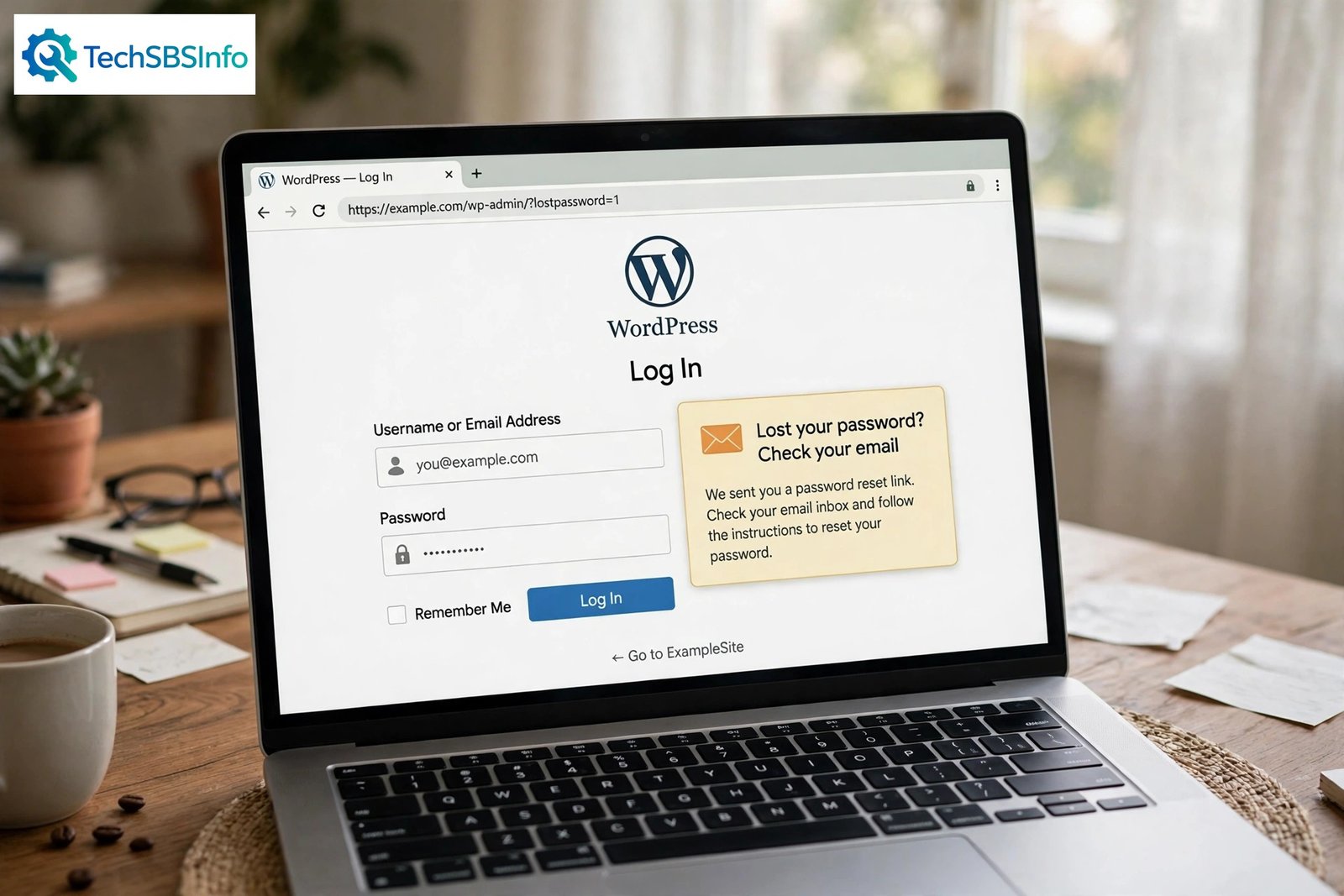
When the wordpress password reset email not sending problem hits your site, you click “Lost your password?”, type your username, and wait. Nothing arrives. You try again. Still nothing. Now you are locked out of your own website, and every minute matters.
The good news is that this problem is almost always fixable. In most cases the email is blocked by spam filters, sent from the wrong address, or never leaves your server at all. This guide walks you through eight fixes in order, from the simplest check to the last-resort manual reset. Follow them one by one and you will get back into your dashboard.
If you cannot even load the login screen in the first place, that is a different problem — see our guide on fixing the WordPress login page when it does not work before continuing here.
Table of Contents
- Quick Checks
- Why WordPress Password Reset Email Not Sending Happens
- Fix 1: Check Your Spam and Junk Folders
- Fix 2: Confirm the Email Address on Your Account
- Fix 3: Request One Link and Wait Patiently
- Fix 4: Check Your Hosting Email Delivery Log
- Fix 5: Install an SMTP Plugin to Send Mail Properly
- Fix 6: Deactivate Plugins That Can Break Email
- Fix 7: Add SPF and DKIM Records to Your Domain
- Fix 8: Reset the Password Manually as a Last Resort
- What to Avoid
- Frequently Asked Questions
- Conclusion
Quick Checks
- Look in your spam, junk, and promotions folders before doing anything else.
- Search your whole inbox for your site name or the word “password”.
- Make sure you typed the correct username or email address on the reset form.
- Wait at least ten minutes. Email delivery can be slow during busy periods.
- Request the reset link only once. Extra clicks cancel the older links.
- Check whether your hosting provider is having a mail outage right now.
Why WordPress Password Reset Email Not Sending Happens
WordPress sends the reset email through a function called wp_mail. By default it uses the basic mail system on your web server, which many hosts block or limit. Mail providers like Gmail and Outlook also treat server-sent mail with suspicion. The table below matches the most common symptoms to their causes and the fix that solves each one.
| Symptom | Cause | Go to Fix |
|---|---|---|
| Reset email sits in spam or promotions | Your mail provider flagged the message as suspicious | Fix 1 |
| The email never arrives at all | Wrong email address saved on your user account | Fix 2 |
| You requested several links and none work | Each new request cancels the previous link | Fix 3 |
| Host shows the mail as sent, but it never lands | Server mail is blocked or rejected by the receiver | Fix 4 |
| No email leaves the site for any user | WordPress uses basic PHP mail without authentication | Fix 5 |
| Reset emails stopped after a new plugin install | A plugin or theme filter broke wp_mail | Fix 6 |
| Every user reports reset mail going to spam | Missing SPF or DKIM records on your domain | Fix 7 |
| Nothing works and you are fully locked out | The password must be reset manually in the database | Fix 8 |
Fix 1: Check Your Spam and Junk Folders
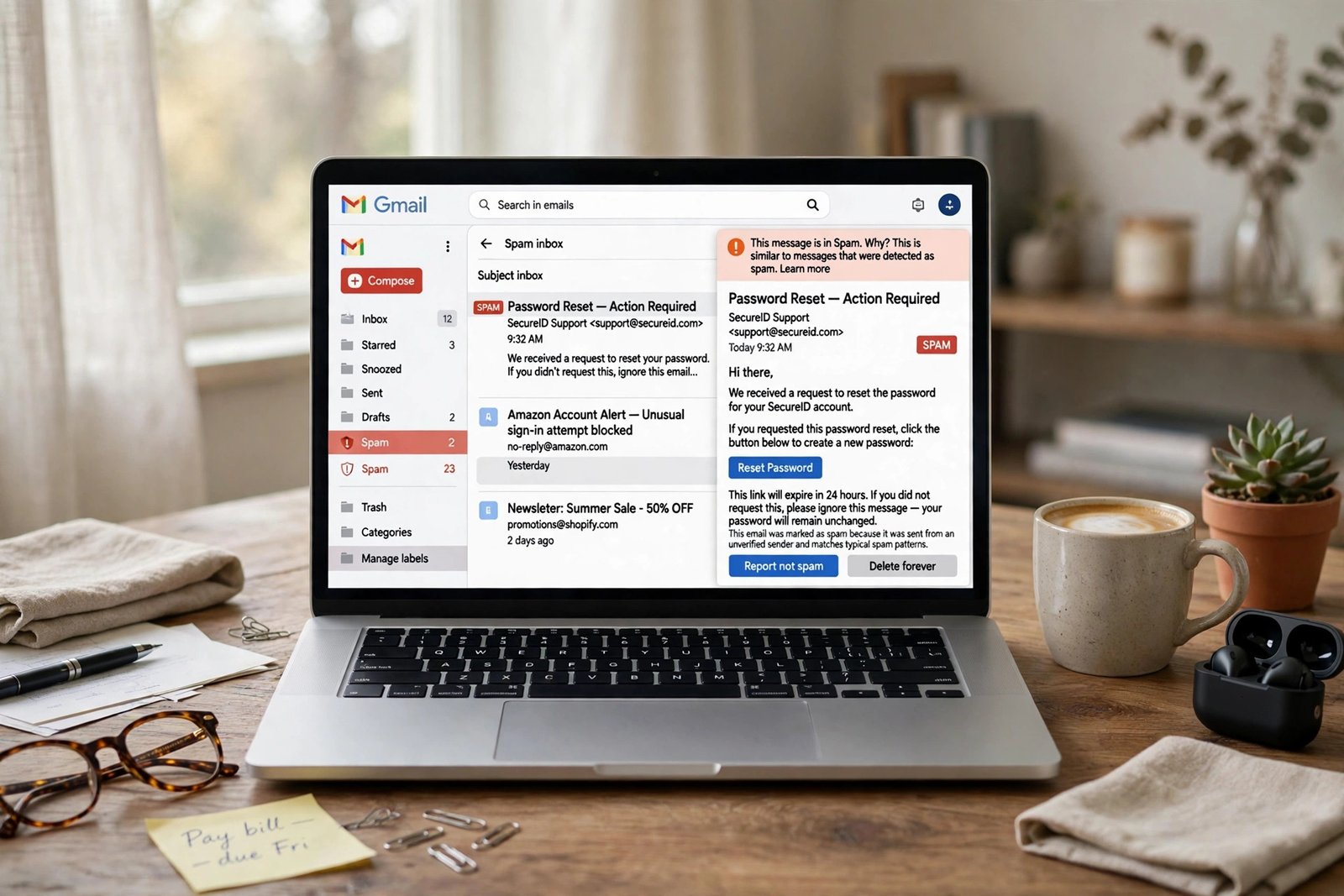
This is the most common answer. WordPress reset emails look generic, so mail providers often file them under spam, junk, or the promotions tab. Gmail in particular is strict with automated mail from web servers.
- Open your email account in a browser and click the Spam or Junk folder.
- Use the search box to look for your site name and the word “password”.
- Check the Promotions and Updates tabs if you use Gmail.
- If you find the email, click “Not spam” or “Report not junk” so future mail arrives in your inbox.
- Add the sender address to your contacts. The default sender is usually wordpress@yourdomain.com.
- If the link inside is expired because too much time passed, request a fresh reset link.
Once the email is out of spam, keep an eye on future messages too. If every site email lands in spam, your setup needs the sender authentication steps in Fix 7. For Gmail-specific delivery quirks, our Gmail notifications not working guide covers the inbox-side fixes in more detail.
Fix 2: Confirm the Email Address on Your Account
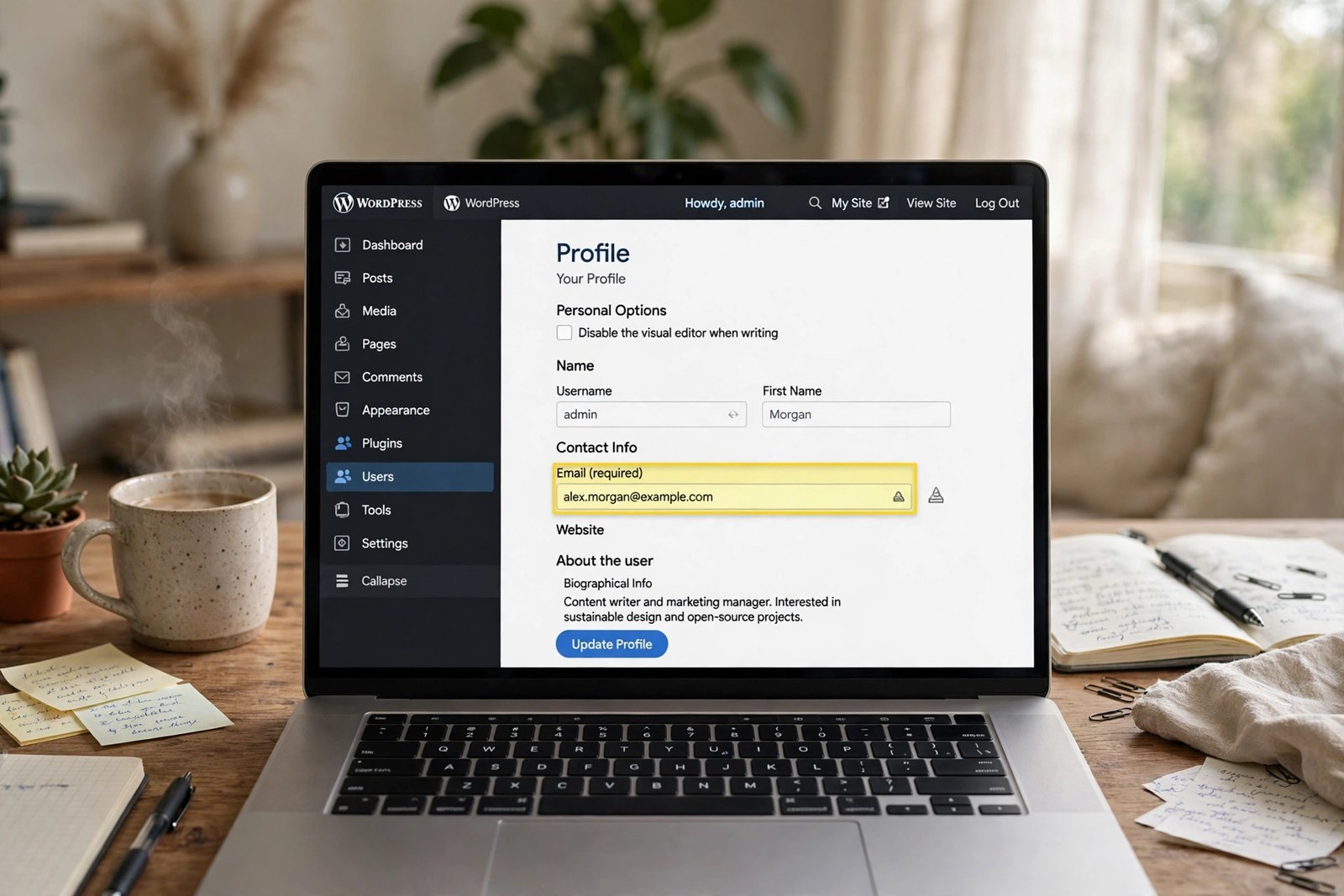
If WordPress is sending the reset email to an old or mistyped address, it will never reach you no matter what else you fix. This happens after people change email providers or make a typing mistake during registration.
- Log in to WordPress if you still can, then go to Users and then Profile.
- Look at the Email field and check every character for typos.
- If the address is wrong or outdated, correct it and click Update Profile.
- Log out and request a new password reset link.
- If you cannot log in at all, ask another administrator to check your email in Users and then All Users.
- If no other administrator exists, skip ahead to Fix 8 for the manual method.
Small detail, big result. Many site owners discover the account still points to an address they stopped using years ago.
Fix 3: Request One Link and Wait Patiently
Every time you submit the lost-password form, WordPress creates a brand-new reset link and cancels the old one. Clicking the button five times in a row means only the fifth email can work, and the first four will show an error page. Worse, some mail systems delay bulk identical messages, so the working link may arrive last.
- Note the exact time and request the reset link exactly once.
- Do not click the button again for at least ten minutes.
- Check your inbox slowly, oldest to newest, so you open the latest email.
- If several reset emails arrive, use only the link in the newest one.
- Delete the older reset emails so you do not click a dead link by mistake.
Patience fixes more lockouts than people expect. If ten minutes pass with nothing at all, move on to the next fix.
Fix 4: Check Your Hosting Email Delivery Log
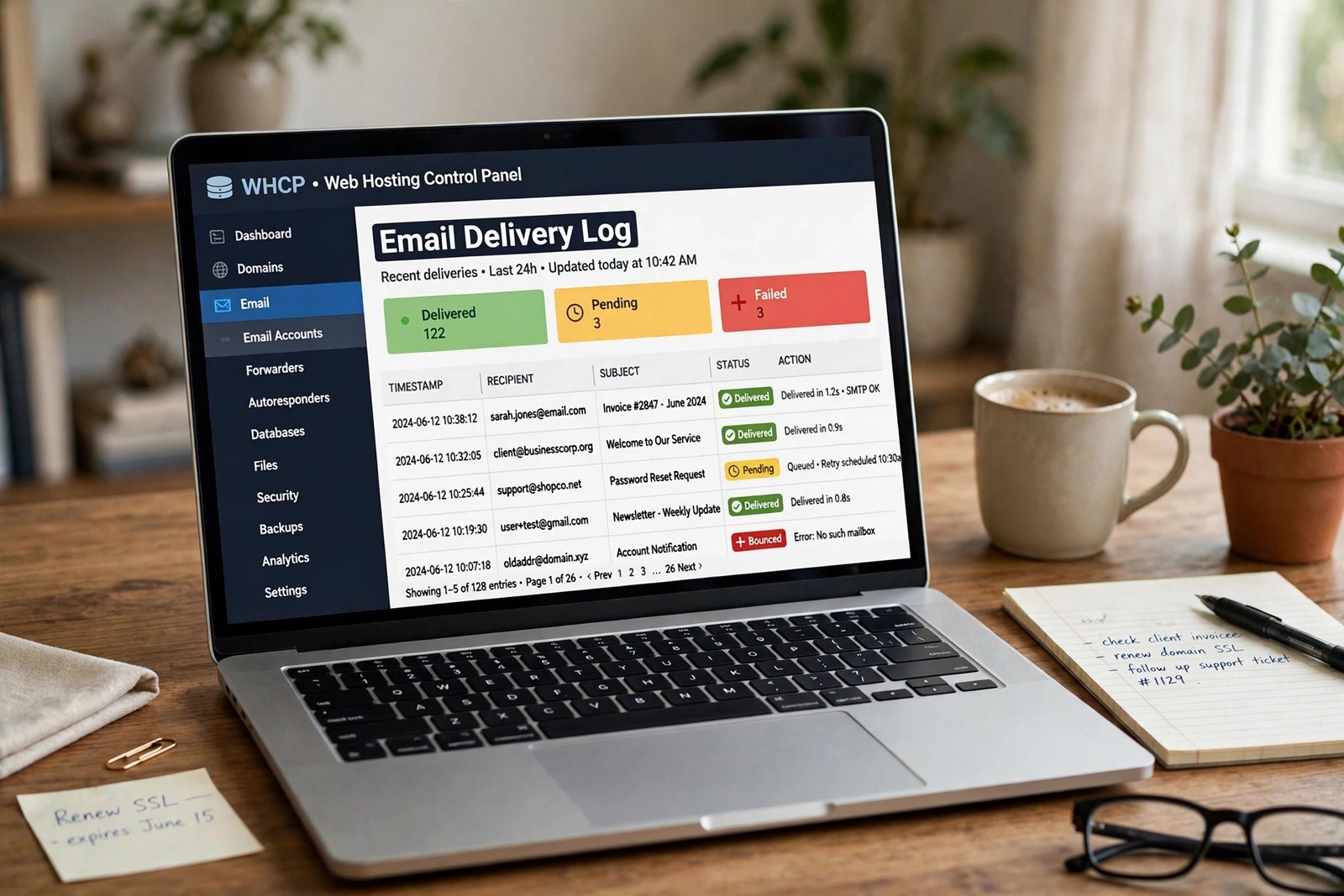
Your hosting account usually keeps a log of every email your server tried to send. This log tells you whether WordPress actually handed the message to the server, and whether the server delivered it, queued it, or bounced it.
- Log in to your hosting control panel or cPanel.
- Find the Email section and open Track Delivery or the Mail Delivery Report.
- Search for your own email address as the recipient.
- Look at the status column. “Delivered” means the problem is on your inbox side.
- “Failed”, “Bounced”, or “Deferred” means the server could not deliver it.
- Click the entry to read the error message, which often names the exact reason.
- If the log shows the mail was never sent, the problem is inside WordPress itself.
- Contact your host’s support with the error text if the failure is server-side.
The delivery log is the fastest way to split the problem in half. It tells you whether to keep fixing WordPress or to call your host.
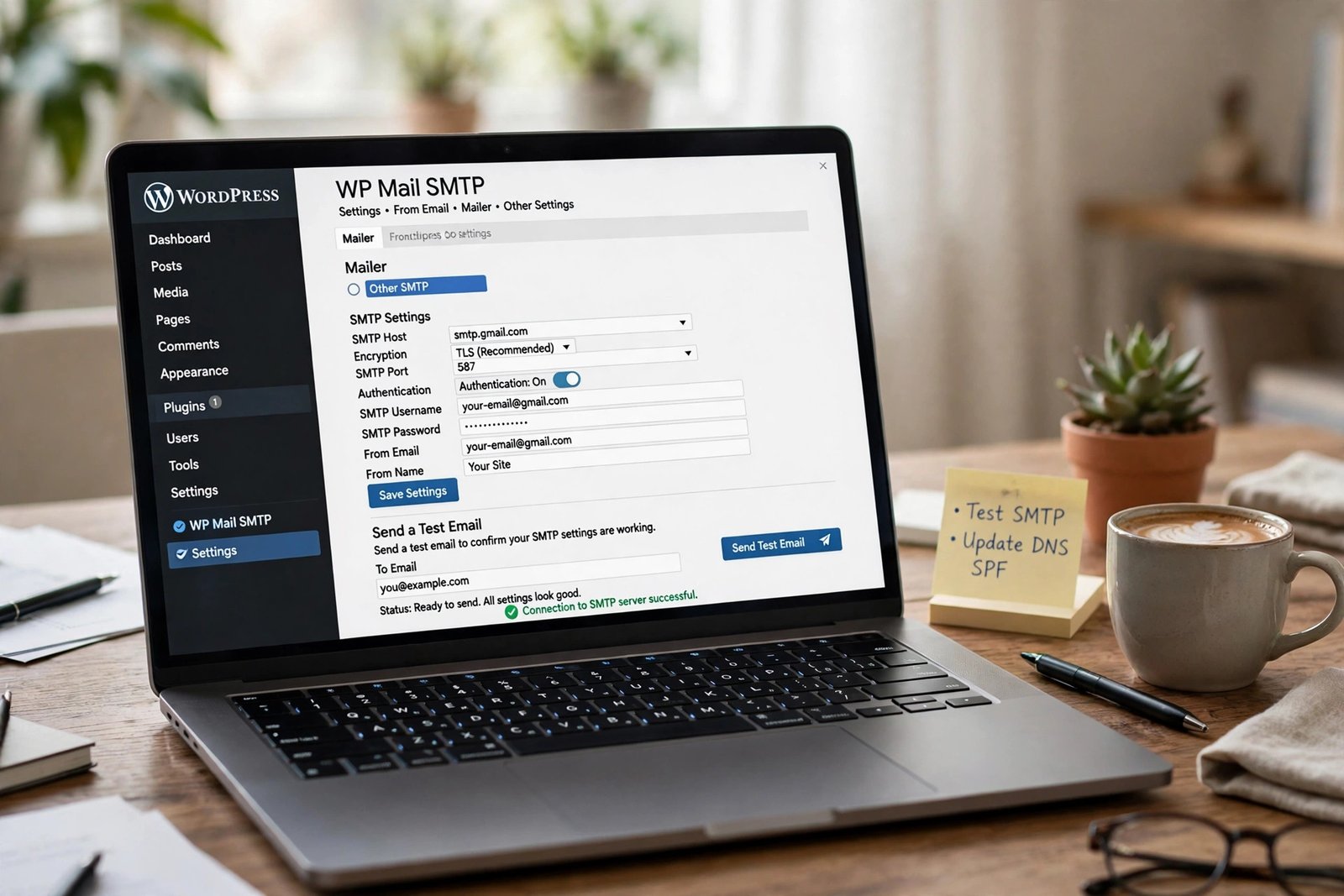
Fix 5: Install an SMTP Plugin to Send Mail Properly
Out of the box, WordPress sends mail through PHP mail with no login. Many hosts disable this feature, and mail providers distrust messages that arrive without authentication. An SMTP plugin makes WordPress send mail through a real mail account instead, which fixes delivery for most sites permanently.
- Install a well-known SMTP plugin from the official WordPress plugin directory.
- Open its settings page from the WordPress dashboard.
- Choose your mail provider, such as your host’s SMTP server or a Gmail account.
- Enter the SMTP host, port, username, and password from your provider.
- Set the “From” address to a real address on your own domain.
- Use the plugin’s built-in test email feature to send yourself a test message.
- Confirm the test arrives, then request a new password reset link.
SMTP stands for Simple Mail Transfer Protocol. It is the standard way email programs send mail, and using it makes your site’s mail look legitimate to spam filters. This one change solves the wordpress password reset email not sending problem for a large share of sites, and it also fixes contact form notifications and new-user emails at the same time.
Fix 6: Deactivate Plugins That Can Break Email
Sometimes reset emails worked fine until you installed or updated something. Security plugins, contact form plugins, and maintenance-mode tools can hook into the mail system and block or reroute messages without telling you.
- Go to Plugins and then Installed Plugins in your dashboard.
- Deactivate the most recently installed or updated plugin first.
- Request a new password reset link and check your inbox.
- If the email arrives, you found the culprit. Keep it deactivated and look for a setting inside it that controls email.
- If you are locked out of the dashboard, rename the plugin folder through FTP or your host’s file manager. WordPress will deactivate it automatically.
- Reactivate your plugins one at a time, testing the reset email after each one.
- Once the problem plugin is identified, check its settings or contact its developer.
Never leave a security plugin deactivated longer than needed for testing. Reactivate everything else as soon as the test is done. If you suspect a broader conflict between several plugins, our WordPress plugin conflict fix guide walks through the full isolation process step by step.
Fix 7: Add SPF and DKIM Records to Your Domain
SPF and DKIM are DNS records that prove your server is allowed to send mail for your domain. Without them, Gmail, Outlook, and Yahoo treat your reset emails as possible forgeries and drop them into spam or reject them outright. This fix matters most when every user on the site reports the same problem.
- Log in to wherever your domain’s DNS is managed, usually your host or domain registrar.
- Look for the DNS Zone Editor or DNS Management page.
- Add a TXT record for SPF that lists your mail server as an authorized sender.
- Enable DKIM in your hosting email settings, which generates a second TXT record to add.
- Save the records and wait for DNS changes to spread, which can take a few hours.
- Send yourself a test email from the SMTP plugin and check that it lands in the inbox.
- Ask one other user to request a password reset and confirm it arrives.
Many hosts publish the exact SPF record you need in their help articles, so copy it from their official page rather than guessing. This is a one-time setup. Once the records are in place, your site’s mail reputation starts building immediately.
Fix 8: Reset the Password Manually as a Last Resort
If none of the email fixes work and you are locked out, you can set a new password directly in the database. This bypasses email entirely. It sounds technical, but it takes only a few careful steps, and it is the official fallback method.
- Open phpMyAdmin from your hosting control panel.
- Select your WordPress database on the left side.
- Open the wp_users table. Your table prefix might differ from wp_.
- Find your username row and click Edit.
- In the user_pass field, choose MD5 from the function dropdown.
- Type your new password in the value box and click Go.
- Log in at wp-admin with your username and the new password.
- Change the password again from your Profile page to something strong.
If phpMyAdmin is not available, WordPress.org documents an emergency password reset script that you upload to your site root, run once, and then delete immediately. Never leave that script on your server after using it. If the dashboard itself shows errors instead of loading, read our WordPress critical error fix guide first, because a broken dashboard needs a different repair.
What to Avoid
- Do not request five reset links in a row — each new one kills the previous link.
- Do not disable your security plugin permanently just to test email.
- Do not edit WordPress core files to change how mail is sent.
- Do not share a reset link with anyone, even support staff. Reset links grant full access.
- Do not install SMTP plugins from unofficial sites or “nulled” plugin sellers.
- Do not ignore repeated bounces. A hard bounce pattern can hurt your domain’s mail reputation.
Frequently Asked Questions
Why does WordPress say the reset email was sent when nothing arrives?
That message only means WordPress handed the email to the server. It does not confirm delivery. The message can be lost at the server, rejected by spam filters, or sent to the wrong address. Check the hosting delivery log from Fix 4 to see what actually happened.
How long should I wait for a WordPress password reset email?
Give it at least ten minutes. Most arrive within a minute or two, but busy mail servers queue messages during peak times. If nothing arrives after ten minutes and the spam folder is empty, start the fixes above instead of waiting longer.
Can I reset my WordPress password without the reset email?
Yes. Use phpMyAdmin to update the user_pass field as described in Fix 8, use the official emergency reset script, or ask another administrator to change your password from Users and then All Users. Email is convenient, but it is not the only way back in.
Do I really need an SMTP plugin for password resets to work?
Not always, but it is the most reliable long-term fix. Many shared hosts block the default PHP mail function, and authenticated SMTP bypasses that problem completely. If your host blocks outgoing mail, no amount of resending will help until SMTP is set up.
Will changing the admin email address fix the problem?
Only if the address itself was the problem — for example a typo or an abandoned inbox. Changing it does not fix server blocks, spam filtering, or missing DNS records. Verify the address first with Fix 2, then continue with the other fixes if the email still does not arrive.
Why do reset emails go to spam for some users but not others?
Different mail providers apply different rules. Gmail is usually the strictest, while smaller providers may accept the same message. Missing SPF and DKIM records make this inconsistency worse, which is why Fix 7 helps the whole site instead of one inbox at a time.
Conclusion
A WordPress password reset email that never arrives is frustrating, but it follows a clear pattern. Check spam first, verify the address on the account, and request a single link. If the mail never leaves the server, the delivery log and an SMTP plugin will reveal and fix the cause. DNS records finish the job for good. And when you are completely locked out, the manual database reset gets you back in safely. Work through the fixes in order and you will be inside your dashboard again.