

A windows 11 slow startup usually has a simple cause: too many programs launching at boot, a tired hard drive, or settings that work against you. The good news is that most slow boots are fixable in minutes, without any risky tools. This guide walks you through 11 safe fixes in order, from the simplest to the most involved, so your PC gets to the desktop faster.
Table of Contents
- 1. Restart Your PC Properly (Not Just Shut It Down)
- 2. Disable Unnecessary Startup Apps (the Top Windows 11 Slow Startup Culprit)
- 3. Turn On Fast Startup
- 4. Install the Latest Windows Updates
- 5. Scan for Malware With Windows Security
- 6. Free Up Disk Space With Storage Sense
- 7. End Heavy Background Tasks to Free Up RAM
- 8. Switch to the Best Performance Power Plan
- 9. Trim Visual Effects for Speed
- 10. Repair Corrupted System Files With SFC
- 11. Upgrade From an HDD to an SSD
Quick Checks Before You Start
- Time your boot. Note roughly how long it takes from pressing the power button to a usable desktop, so you can tell whether a fix helped.
- Save your work and close open programs before changing system settings.
- Plug in your laptop. Some fixes behave differently on battery power.
- Unplug extra USB drives. A slow external drive can delay boot while Windows checks it.
- Check free space on your C: drive. Windows struggles when the drive is nearly full.
- Change one thing at a time. Restart and test after each fix so you know what worked.
Diagnose the Problem First
| Symptom | Likely cause | Go to fix |
|---|---|---|
| Boot takes several minutes; icons and taskbar load slowly | Too many startup apps | Fix 2 |
| PC booted fine before, now slow after an update | Pending update or driver issue | Fix 4 |
| Fan is loud and everything feels sluggish at boot | Malware or a heavy background task | Fix 5 or Fix 7 |
| “Low disk space” warnings appear | Drive nearly full | Fix 6 |
| Slow boot only on battery power | Power-saver plan limiting performance | Fix 8 |
| Old laptop with a spinning hard drive | HDD is the bottleneck | Fix 11 |
| Errors, freezes, or crashes during startup | Corrupted system files | Fix 10 |
1. Restart Your PC Properly (Not Just Shut It Down)
A shutdown does not always clear everything. With Fast Startup enabled, shutting down saves part of the system state to disk, so a fresh shutdown can carry old problems into the next boot. A restart always loads Windows cleanly.
- Click Start, then the Power button, then Restart.
- Wait for the PC to come back up fully before judging speed.
- Make this your first step before any deeper fix.
2. Disable Unnecessary Startup Apps (the Top Windows 11 Slow Startup Culprit)
Every program that launches at sign-in steals CPU and disk time from the boot process. Chat apps, game launchers, cloud storage tools, and updaters are common offenders. Turning off the ones you do not need is the single biggest win for most people.
- Press Ctrl + Shift + Esc to open Task Manager.
- Click Startup apps in the left-hand menu.
- Look at the Startup impact column. High impact apps slow boot the most.
- Right-click an app you do not need at boot and choose Disable.
- Keep your antivirus, firewall, and hardware utilities (audio, touchpad, graphics) enabled.
- If you are unsure about an entry, leave it alone for now.
Disabling a startup app does not uninstall it. You can still open it normally whenever you want.
3. Turn On Fast Startup
Fast Startup is a built-in Windows feature that saves the system kernel state to disk at shutdown, so the next boot skips part of the loading process. It is on by default on most PCs, but updates or settings changes can switch it off.
- Open Control Panel from the Start menu search.
- Go to Hardware and Sound, then Power Options.
- Click Choose what the power buttons do on the left.
- Click Change settings that are currently unavailable at the top.
- Tick Turn on fast startup (recommended).
- Click Save changes, then shut down and power on to test.
4. Install the Latest Windows Updates
Microsoft regularly ships performance and driver fixes through Windows Update. A PC that has missed updates can boot slowly because of known bugs that are already fixed.
- Open Settings with Windows key + I.
- Go to Windows Update and click Check for updates.
- Install everything offered, including optional driver updates under Advanced options.
- Restart when asked, even if it feels slow — the restart completes the update.
Microsoft’s official tips to improve PC performance in Windows also list updates as one of the first things to check.
5. Scan for Malware With Windows Security
Malware loves to hide in startup routines. A hidden miner or spyware tool can eat CPU and disk from the moment Windows loads, making every boot crawl. A quick scan rules this out.
- Open Settings, then Privacy & security, then Windows Security.
- Click Virus & threat protection.
- Click Quick scan and let it finish.
- If it finds threats, follow the on-screen steps to remove them, then restart.
- For a deeper check, choose Scan options and run a Full scan once.
6. Free Up Disk Space With Storage Sense
Windows needs breathing room on the system drive. When the C: drive is nearly full, boot files, updates, and the page file all slow down. Storage Sense clears temporary files automatically.
- Open Settings, then System, then Storage.
- Turn on Storage Sense and click Run Storage Sense now.
- Click Temporary files, tick the categories you want to remove, then click Remove files.
- Also open Settings, then Apps, then Installed apps.
- Sort by size and uninstall programs you no longer use.
- Empty the Recycle Bin afterwards.
7. End Heavy Background Tasks to Free Up RAM
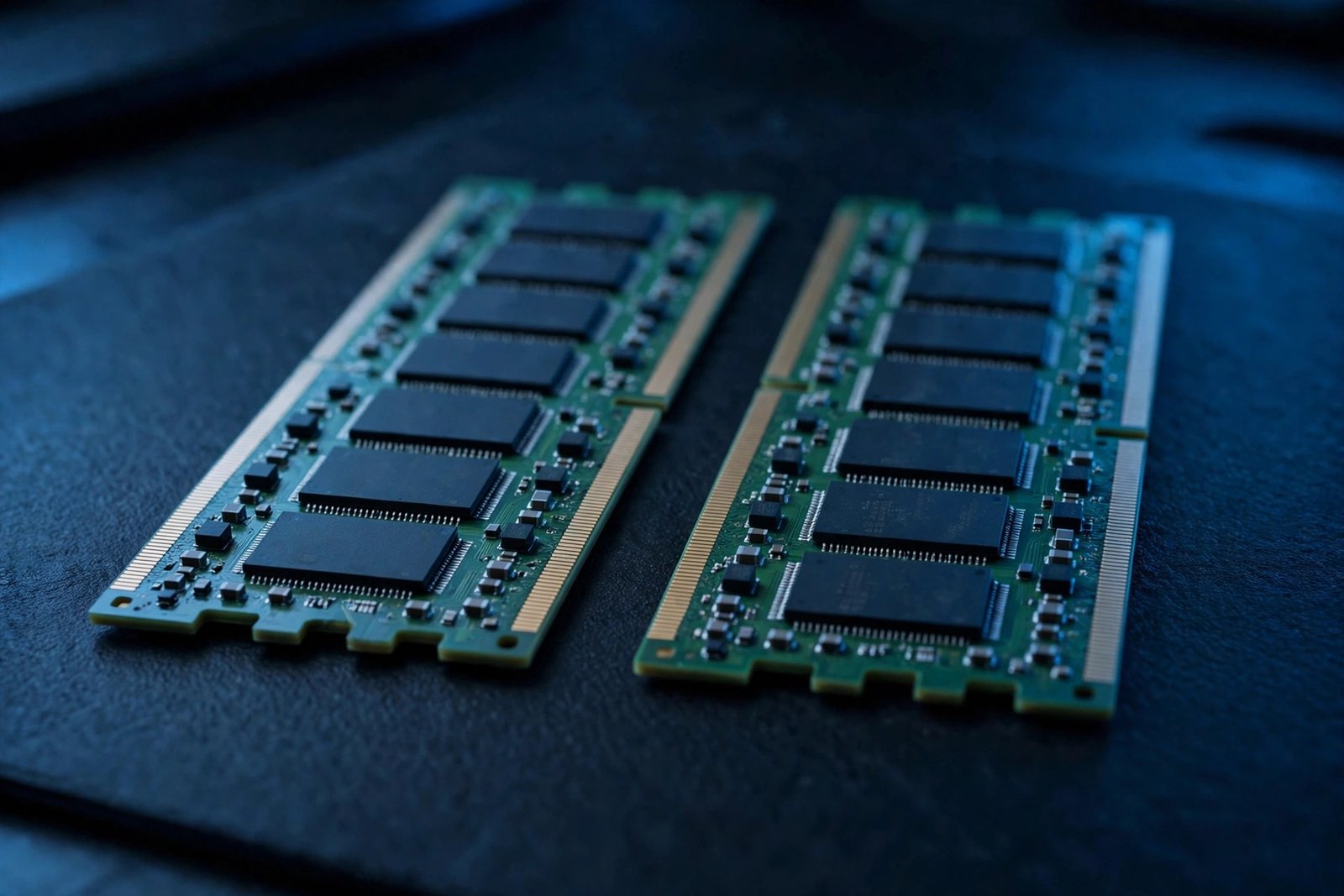
If your RAM is nearly full at boot, Windows pages data to the slower drive and everything drags. Task Manager shows exactly what is eating memory.
- Press Ctrl + Shift + Esc to open Task Manager.
- Click the Processes tab and sort by Memory.
- Right-click heavy apps you do not need and choose End task.
- Click the Performance tab, then Memory, to see total RAM and how much is in use.
- If usage sits near 100% with normal apps open, your PC may genuinely need more RAM — a cheap and effective upgrade on many desktops and some laptops.
8. Switch to the Best Performance Power Plan
Power-saver plans slow the CPU to save battery, which also slows boot. On a desktop, or a plugged-in laptop, the Best performance plan lets the CPU run at full speed from the start.
- Open Settings, then System, then Power & battery.
- Find the Power mode dropdown.
- Select Best performance.
- On laptops, expect the battery to drain faster and the device to run warmer with this setting.
9. Trim Visual Effects for Speed
Transparency, animations, and shadows look nice but cost CPU and GPU time during startup and sign-in. Reducing them is a quick settings change with no downside for speed.
- Press Windows key, type Adjust the appearance and performance of Windows, and open it.
- On the Visual Effects tab, select Adjust for best performance.
- Click Apply, then OK.
- If the plain look bothers you, choose Custom instead and keep only the effects you like.
For more tweaks in this area, see our other Windows 11 display and performance guides.
10. Repair Corrupted System Files With SFC
Damaged Windows files can stall the boot process or cause strange delays. The built-in System File Checker scans and repairs them automatically. Run it from an elevated Command Prompt.
- Press Windows key, type Command Prompt.
- Right-click Command Prompt and choose Run as administrator, then click Yes.
- Type the following command and press Enter:
DISM.exe /Online /Cleanup-image /Restorehealth- Wait until you see “The operation completed successfully.”
- Then type the following command and press Enter:
sfc /scannow- Wait until verification reaches 100%, then type
exitand restart your PC.
If you want the full official walkthrough, Microsoft’s guide to using System File Checker covers every step in detail.
11. Upgrade From an HDD to an SSD
If your PC still uses a spinning hard disk drive, no software tweak will fully fix slow boots. An SSD reads data many times faster than an HDD, and it is the single most effective hardware upgrade for boot speed.
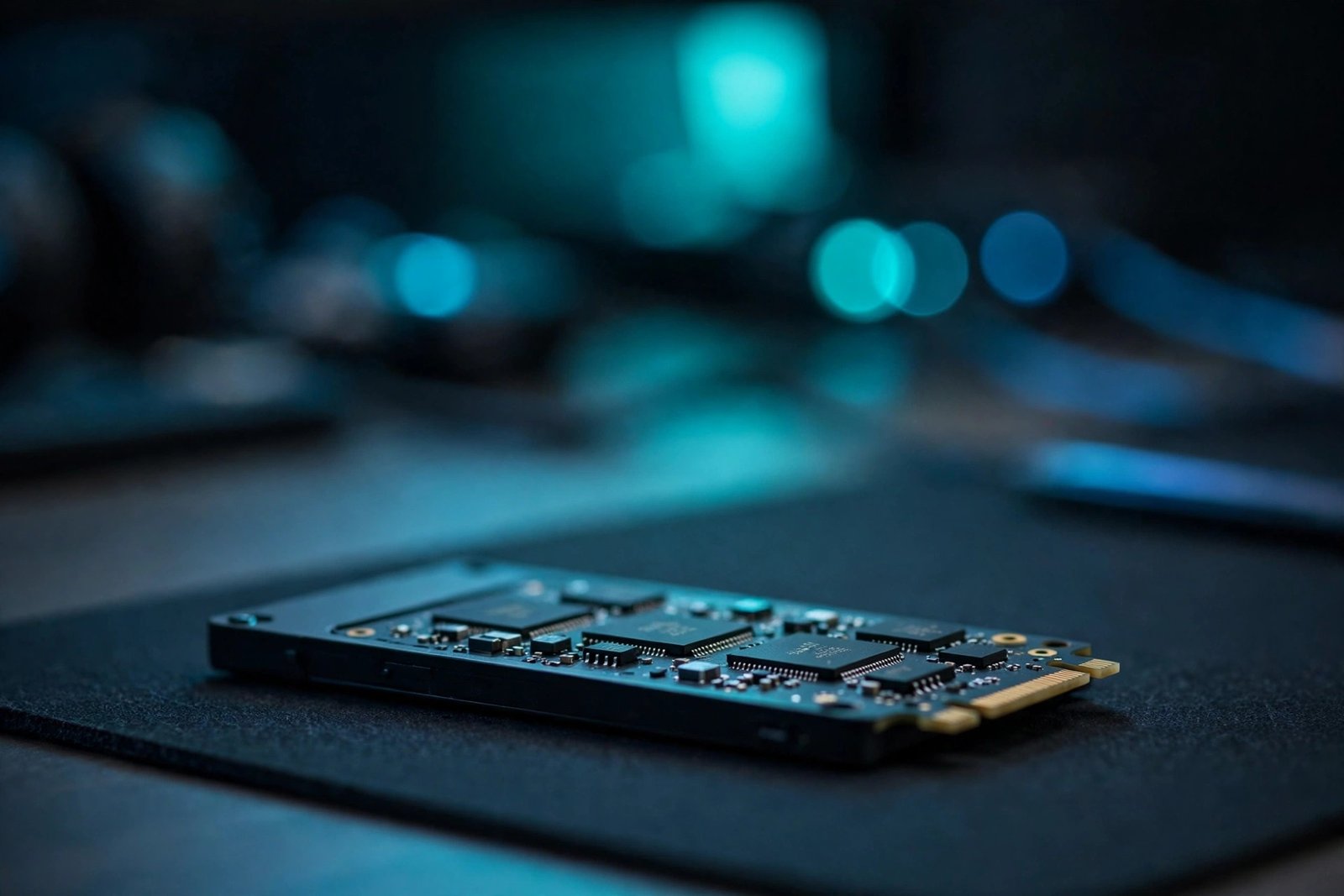
- Check your drive type in Task Manager: Performance tab, select the C: drive, and look at the top-right label.
- Buy an SSD from a reputable brand, sized to fit your data (256 GB minimum, 500 GB or more is more comfortable).
- Clone your old drive or do a clean Windows install — your PC manufacturer’s support page usually has a guide.
- Keep the old HDD as a secondary drive for storage if you like.
What to Avoid
- Do not install “PC optimizer,” “driver updater,” or registry cleaner tools. They often cause more harm than good.
- Do not disable startup entries blindly. Keep security software and hardware drivers enabled.
- Do not delete files from the Windows, System32, or WinSxS folders by hand.
- Do not turn off Windows Security to gain speed. A malware infection slows you down far more.
- Do not use pirated activators, cracks, or “tweaked” Windows builds from unofficial sites.
- Do not defragment an SSD. It gains nothing and wears the drive. The Optimize Drives tool handles SSDs correctly on its own.
- Back up important files before running repairs or making big changes.
Frequently Asked Questions
Why is my Windows 11 boot slower than Windows 10 was?
In most cases the cause is the same on both: too many startup programs, an old HDD, or a driver that loads slowly. Windows 11 itself is not automatically slower — check Fix 2 and Fix 11 first.
Does Fast Startup cause any problems?
It is safe for most people. It can occasionally interfere with dual-boot setups or delay installing certain updates, which is why a full Restart is still useful sometimes.
How long should Windows 11 take to boot?
On a modern SSD, most PCs reach a usable desktop in well under a minute. On an old HDD, several minutes is common. If your times are much worse than these rough ranges, work through the fixes above.
Will adding more RAM fix a slow startup?
It helps only if your RAM is actually full during boot. Check Task Manager’s Performance tab first — if memory usage is low, extra RAM will not change boot speed.
Is it safe to disable all startup apps?
No. Keep your antivirus, firewall, and hardware-related utilities enabled. Disable only apps you recognize and do not need immediately at sign-in.
Should I just reinstall Windows?
Reinstallation is a last resort. Try the 11 fixes first — most slow boots are solved by Fix 2, Fix 6, or Fix 11. If nothing helps, Settings > System > Recovery > Reset this PC can give you a clean start while keeping your files.
Conclusion
A windows 11 slow startup is frustrating, but it is rarely a mystery. Start with the easy wins — restart properly, trim startup apps, and turn on Fast Startup — then work down the list. For more step-by-step Windows help, visit the TechSBSInfo homepage, browse the TechSBSInfo blog for more troubleshooting articles, or learn more about us.
[…] Word has to fight other processes for memory. If Windows itself feels slow, work through our Windows 11 slow startup fix first — a faster system gives Word the breathing room it […]
[…] computer is sluggish rather than just Excel, background load may be the culprit — our guide to fixing a slow Windows 11 startup can help there […]