


An excel file not opening is usually caused by one of a handful of things: a download blocked by Windows, a broken file association, a faulty add-in, or a workbook that has become corrupted. The good news is that you can work through these causes in order, from the simplest to the most involved, and most files open again within a few minutes. Here at TechSBSInfo, we fix file problems like this every day, and this guide gives you the exact steps we use — no risky downloads, no guesswork, and no data loss if you follow the order below.
Table of Contents
- Quick checks
- What your symptom tells you
- 1. Copy the file and open the copy
- 2. Unblock the file in Properties
- 3. Open Excel first, then use File > Open
- 4. Use Open and Repair on an excel file not opening because of corruption
- 5. Start Excel in Safe Mode and disable add-ins
- 6. Move the file to your local drive
- 7. Switch calculation to manual before opening
- 8. Check and fix the file extension
- 9. Update Office and run a Quick Repair
- What to avoid
- FAQ
- Conclusion
Quick checks
Run through these before anything else. Each one takes less than a minute.
- Restart Excel fully. Close every Excel window, check Task Manager (Ctrl + Shift + Esc) for any Excel process still running, end it, then try the file again.
- Check the file size. Right-click the file and choose Properties. If the size is 0 KB, the file contains no data and none of the fixes below can recover it — you will need a backup or a previous version instead.
- Try a different Excel file. If no Excel file opens at all, the problem is Excel itself, not your file. Skip straight to Fix 5 and Fix 9.
- Close heavy programs. If your whole computer is sluggish rather than just Excel, background load may be the culprit — our guide to fixing a slow Windows 11 startup can help there too.
- Make a backup copy now. Before trying any repair, copy the problem file somewhere safe (your Desktop is fine). Every fix below is safe, but working on a copy means you can never make things worse.
What your symptom tells you
Match what you see to the likely cause, then jump to the fix.
| Symptom | Likely cause | Go to fix |
|---|---|---|
| Double-clicking the file does nothing at all | File association is broken, or Excel is not the default app | Fix 3 |
| Error says the file is corrupt or unreadable | The workbook structure is damaged | Fix 4 |
| Excel freezes or crashes when the file loads | A faulty add-in, or a huge calculation on open | Fix 5, then Fix 7 |
| Yellow bar warns the file came from the internet | Windows has blocked the file for your safety | Fix 2 |
| A blank grey window opens with no data | The workbook opened in a hidden window, or the extension is wrong | Fix 3, then Fix 8 |
| File sits on a network drive, USB stick, or cloud folder and will not open | Unstable file location | Fix 6 |
| Excel itself will not start, for any file | Damaged Office installation | Fix 9 |
1. Copy the file and open the copy
This sounds too simple to work, but it genuinely fixes a surprising number of cases. A file can fail to open because of a temporary lock, a stale handle from a crashed Excel session, or a read problem at its current location. Copying it gives you a fresh, unlocked version.
- Right-click the problem file and choose Copy.
- Right-click your Desktop and choose Paste.
- Double-click the Desktop copy to open it.
- If the copy opens but the original does not, the original’s location or file handle was the problem. Keep working with the copy and re-save it with a clean name.
- If neither opens, move on to Fix 2 — your file is still safe on the Desktop copy you just made.
2. Unblock the file in Properties
Windows marks files downloaded from the internet or received as email attachments as potentially unsafe. Excel may refuse to open such a file, or open it in a locked-down mode that looks broken. The fix takes ten seconds.
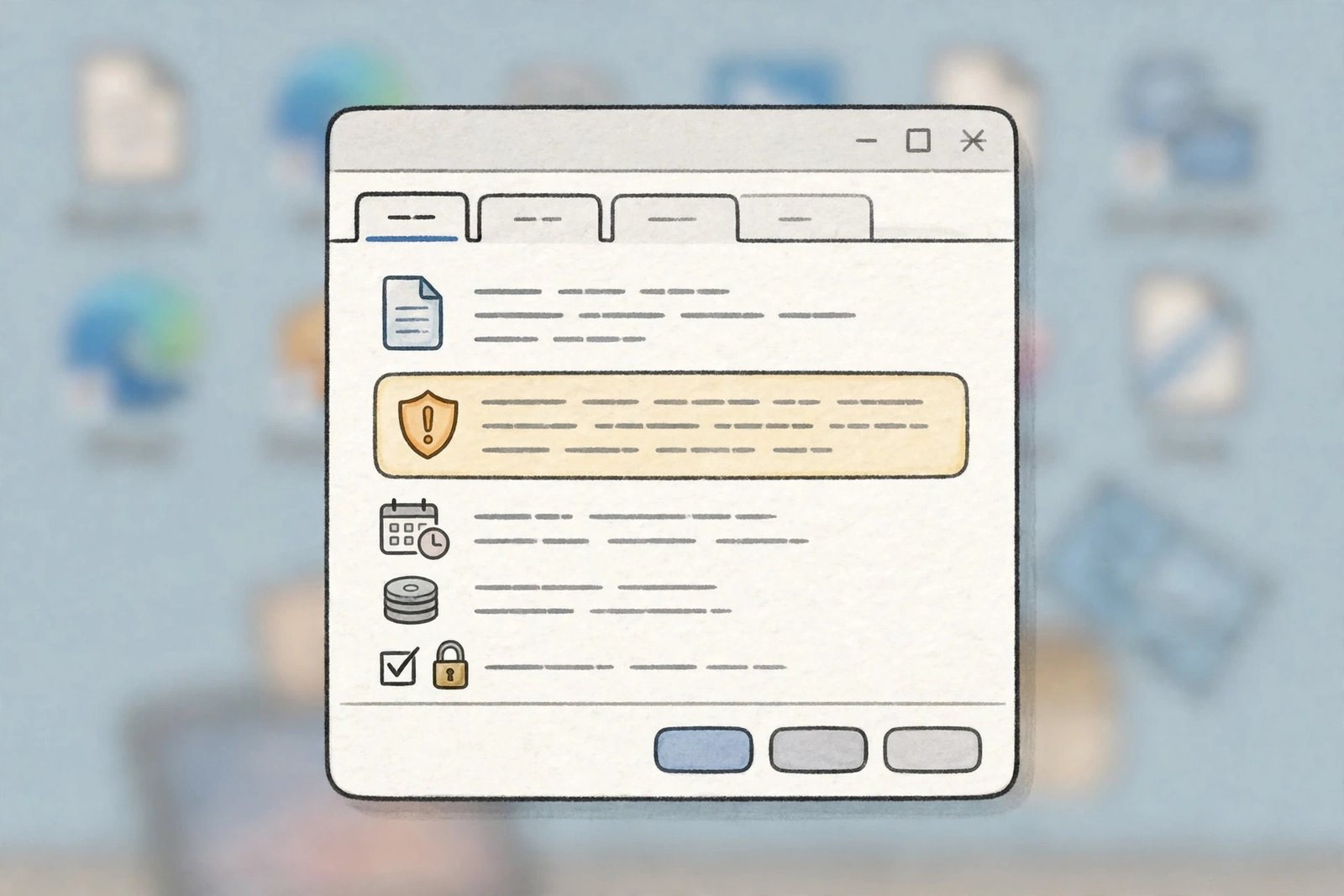
- Right-click the file and choose Properties.
- At the bottom of the General tab, look for a Security note that says the file came from another computer, with an Unblock checkbox next to it.
- Tick the Unblock checkbox and click OK.
- Try opening the file again.
- If there is no Unblock checkbox, the file was not blocked — move on to Fix 3.
3. Open Excel first, then use File > Open
When double-clicking does nothing, or a blank grey Excel window appears, the problem is often how Windows hands the file to Excel rather than the file itself. Opening the file from inside Excel bypasses that handoff completely. This step also helps when the wrong program has claimed your .xlsx files.
- Open Excel from the Start menu so you get a blank workbook.
- Click File > Open > Browse and navigate to your file.
- Select it and click Open.
- If the file opens this way but not by double-click, reset the file association:
- Right-click the file, choose Open with > Choose another app.
- Select Excel, tick Always use this app to open .xlsx files, and click OK.
- If a blank grey window still appears, press Ctrl + O inside Excel and try again — and also check Fix 8, because a mismatched extension can cause the same blank window.
4. Use Open and Repair on an excel file not opening because of corruption
If Excel says the file is corrupt or unreadable, do not panic. Excel ships with a built-in repair tool that can rebuild a damaged workbook, and it recovers most files at least partially. Microsoft’s own guide to repairing a corrupted workbook documents exactly this process.
- Open Excel to a blank workbook (do not double-click the damaged file).
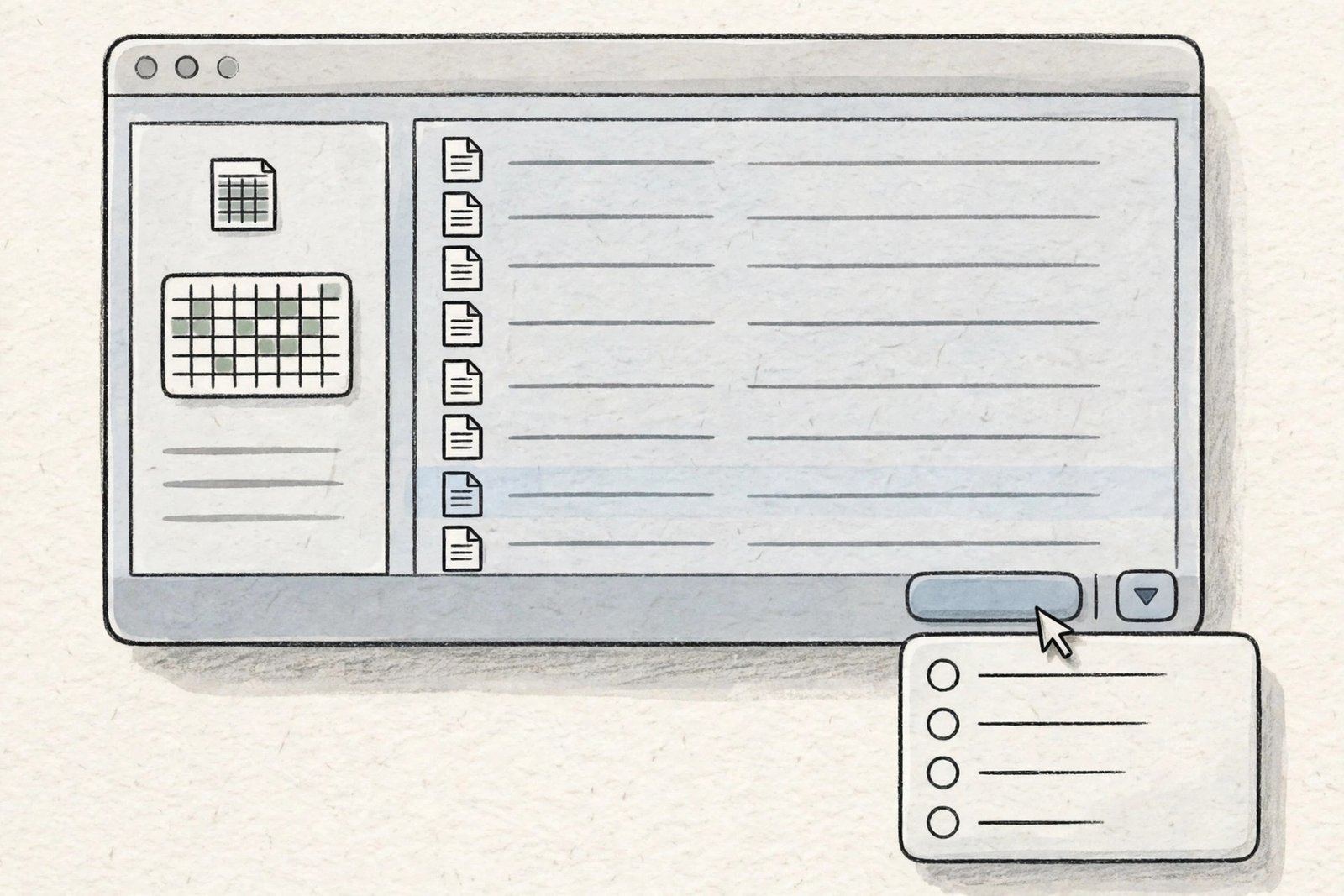
- Click File > Open > Browse and select the damaged workbook — but do not double-click it yet.
- Click the small arrow next to the Open button, then choose Open and Repair.
- First choose Repair. Excel will rebuild as much of the workbook as it can and tell you what it fixed.
- If Repair fails, run Open and Repair again and this time choose Extract Data. This pulls out your values and formulas even when the workbook structure cannot be saved.
- As soon as the file opens, press Ctrl + S or use File > Save As to save it under a new name. Do not overwrite the original until you have checked the recovered data.
- Check the recovered workbook carefully: look at each sheet, test a few formulas, and confirm charts still show the right data before you trust it.
5. Start Excel in Safe Mode and disable add-ins
A faulty add-in is one of the most common reasons Excel crashes or freezes the moment a particular file opens — especially if other files open fine. Safe Mode starts Excel with all add-ins switched off, which tells you immediately whether an add-in is to blame.
- Hold down the Ctrl key and double-click the Excel icon (or the problem file). Keep holding Ctrl until Excel asks if you want to start in Safe Mode, then click Yes.
- Try opening your file in Safe Mode.
- If it opens, an add-in is the problem. Close Safe Mode and open Excel normally.
- Go to File > Options > Add-ins. At the bottom, set the dropdown to COM Add-ins and click Go.
- Untick every add-in and click OK, then restart Excel and open your file.
- Re-enable your add-ins one at a time, restarting Excel each time, until the file fails again. The last one you enabled is the culprit — leave it disabled or check the vendor’s site for an update.

- If the file still fails in Safe Mode, add-ins are not the cause — continue to Fix 6.
6. Move the file to your local drive
Excel is sensitive to where a file lives. Workbooks stored on a flaky network share, a failing USB stick, or a cloud folder that has not finished syncing can fail to open even when the file itself is fine. Moving it to your computer’s own drive removes the location from the equation.
- Copy the file (do not cut it yet) to a folder on your local drive, such as Documents or Desktop.
- Open the local copy.
- If it opens, the original location was the problem. Work with the local copy from now on.
- If the file came from a USB stick, copy it off and test the stick with other files — repeated failures from the same stick mean the stick itself is failing, so replace it before it takes more files with it.
- If the file came from a cloud folder (OneDrive, Dropbox, Google Drive), open the cloud app and confirm the file shows as fully synced, not still uploading. Pause the sync, copy the file locally, and try again.
7. Switch calculation to manual before opening
Some workbooks contain huge or circular formulas that Excel tries to recalculate the instant the file opens. On a slower machine that recalculation can hang Excel so badly it looks like the file will not open at all. Opening with calculation set to manual skips that first recalculation.
- Open Excel to a blank workbook.
- Go to File > Options > Formulas.
- Under Calculation options, select Manual and click OK.
- Now use File > Open > Browse to open the problem file.
- If it opens, the formulas were the bottleneck. Review the workbook for circular references (Formulas > Error Checking > Circular References) and volatile functions used across very large ranges, and simplify where you can.
- Remember to switch calculation back to Automatic afterwards (same path as above), or your other workbooks will stop recalculating and show stale results.
8. Check and fix the file extension
A file named .xlsx is not always really an .xlsx file. Downloads sometimes get renamed, email systems sometimes mangle extensions, and a file saved by another program may wear the wrong extension. Excel refuses to open a file whose contents do not match its extension.
- In File Explorer, click View in the top bar and tick File name extensions so you can see the real extension.
- Confirm the file really ends in
.xlsx,.xls,.xlsm, or.csv— whichever it is supposed to be. - If you know the file came from an older version of Excel, try renaming a copy from
.xlsxto.xlsand opening it. Sometimes the reverse helps too. - Never just rename a
.csvor.txtfile to.xlsxand expect it to work — instead, open Excel first and use File > Open to import it properly. - If the extension looks right but Excel still complains the format does not match, treat the file as corrupted and go back to Fix 4.
9. Update Office and run a Quick Repair
If Excel will not open any file, or every fix above has failed, the Excel installation itself may be damaged or badly out of date. Updating first is worth it because Microsoft regularly ships fixes for file-opening bugs. If the update does not help, the built-in Quick Repair reinstalls Excel’s core files without touching your documents.
- Open any Office app (Word will do if Excel will not start).
- Go to File > Account > Update Options > Update Now and let any updates install, then restart your computer.
- Test your file again.

- If the file still will not open, run a Quick Repair:
- Open Settings > Apps > Installed apps.
- Find Microsoft 365 (or your Office version) in the list, click the three dots, and choose Modify.
- Choose Quick Repair and click Repair. This runs offline and takes a few minutes.
- If Quick Repair does not help, repeat the steps and choose Online Repair instead — it takes longer but replaces more files.
- After the repair, restart your computer once more and test the file.
What to avoid
- Do not keep double-clicking a corrupted file. Repeated failed opens will not fix it, and each attempt risks triggering another crash that complicates recovery.
- Do not download “Excel repair” tools from random websites. Many are malware in disguise, and others charge you for what Excel’s free Open and Repair already does. Stick to Fix 4 and official Microsoft guidance.
- Do not use pirated Office activators or cracked copies. They are a common source of exactly these file-opening problems, alongside malware. Use a genuine Office installation from Microsoft.
- Do not overwrite your only copy. Always repair a copy and save recovered work under a new name until you have verified every sheet.
- Do not save a recovered file in an old format “just in case”. Saving back to the modern
.xlsxformat keeps your data safest; older formats can silently drop features your workbook needs. - Do not ignore repeated corruption. If the same file corrupts again and again, the cause is usually a failing drive, a bad add-in, or a network problem — fix the cause, not just the file.
FAQ
Why does Excel say my file is corrupt when it opened fine yesterday?
Corruption usually happens during saving, not opening. A crash, a power cut, a full disk, or a lost network connection while Excel is writing the file can leave it half-written. That is why the file that “worked yesterday” fails today. Fix 4 (Open and Repair) is designed for exactly this situation.
Can I recover an Excel file that shows 0 KB?
No. A 0 KB file contains no data at all — there is nothing for any repair tool to work with. Check your Recycle Bin, your cloud service’s version history, and any backup you have. To prevent this in future, turn on AutoRecover under File > Options > Save.
Excel opens but shows a blank grey screen instead of my data. Is the file broken?
Not necessarily. A blank grey window usually means the workbook opened in a hidden window or the file association handed Excel an empty session. Fix 3 covers this — open the file from inside Excel with File > Open, and check View > Unhide in case the workbook window is simply hidden.
What does “Extract Data” do differently from “Repair”?
Repair tries to rebuild the whole workbook — formatting, charts, and all. Extract Data gives up on the structure and salvages just your values and formulas into a plain new workbook. Use Repair first; use Extract Data when Repair fails. Microsoft documents both options in its guide to repair a file.
Will Safe Mode delete my add-ins?
No. Safe Mode only disables add-ins for that one session so you can test. Your add-ins and their settings stay installed. You decide afterwards which ones to keep disabled, as described in Fix 5.
The file opens on my colleague’s computer but not on mine. What does that mean?
The file is fine — your Excel installation or your add-ins are the problem. Work through Fix 5 (Safe Mode and add-ins) and Fix 9 (update and Quick Repair) on your own machine. If you need more background on the guides we publish, you can read about us on our About page, and you will find the rest of our troubleshooting library on the blog.
Conclusion
An excel file not opening feels like a disaster, but it is almost always one of the nine causes above — and they are all fixable without special software. Start with the quick checks, unblock downloaded files, try Open and Repair for corruption, and use Safe Mode to catch bad add-ins. Keep a backup copy before you repair anything, save recovered work under a new name, and update Office so known bugs stay fixed. Work through this guide in order and your spreadsheet will almost certainly be back on screen today.
If this guide helped you, TechSBSInfo exists to help you solve everyday PC problems yourself — read more about us and visit the homepage for more step-by-step troubleshooting guides.