

When your windows pc keeps restarting again and again, it can feel like the machine has a mind of its own. The screen goes black, the fans spin up, and the whole thing starts over. The good news is that most reboot loops have a clear cause, and you can fix most of them yourself. At TechSBSInfo, we test every fix before we publish it, so you can follow this guide with confidence.
In this guide, you will find 10 fixes ordered from the simplest to the most advanced. Start with Fix 1 and work your way down. Most readers solve the problem before they reach the end.
Table of Contents
- Fix 1: Unplug All External USB Devices
- Fix 2: Let Windows Finish Any Pending Update
- Fix 3: Turn Off Automatic Restart on System Failure to See Why Your Windows PC Keeps Restarting
- Fix 4: Boot into Safe Mode and Undo Recent Changes
- Fix 5: Roll Back or Update a Faulty Driver
- Fix 6: Run Startup Repair from the Recovery Environment
- Fix 7: Repair Corrupted System Files with SFC and DISM
- Fix 8: Fix Overheating — Clean the Fans and Improve Airflow
- Fix 9: Test the RAM and Check the Power Supply
- Fix 10: Reset Windows While Keeping Your Files
Quick Checks Before You Start
- Think about when the restarts happen. During gaming? Right after login? At random times? The pattern points to the cause.
- If you recently installed a driver, a Windows update, a program, or new hardware, that change is your prime suspect.
- Plug the PC directly into a wall outlet. Avoid loose power strips and overloaded extension cords.
- If the PC stays on for a few minutes at a time, back up your important files before you continue.
- Keep a second device nearby, like your phone, so you can read this guide while you work on the PC.
Diagnose: Match Your Symptom to the Fix
| Symptom | Likely cause | Go to fix |
|---|---|---|
| The PC restarts right after you plug in a USB drive, hub, or dock | Faulty external device or a USB power problem | Fix 1 |
| Restarts happen during or right after a Windows update | Interrupted or failed update | Fix 2 |
| A blue screen flashes for one second, then the PC reboots | A system crash hidden by automatic restart | Fix 3 |
| The loop started after a new driver or a new program | Bad driver or software conflict | Fix 4, Fix 5 |
| The PC never reaches the desktop at all | Damaged boot files or system files | Fix 6, Fix 7 |
| Restarts happen during games or heavy work | Overheating or a weak power supply | Fix 8, Fix 9 |
| Restarts are random with no clear pattern | Failing RAM or power supply | Fix 9 |
| Nothing above worked | Deep system corruption | Fix 10 |
1. Unplug All External USB Devices
A faulty USB device can crash Windows during startup and trigger a reboot. This is one of the most common and easiest causes to rule out.
- Shut down the PC completely. Hold the power button for 5 seconds if you must.
- Unplug every USB device: external drives, hubs, printers, webcams, card readers, and phone cables.
- Leave only the keyboard and mouse connected. If you use a USB keyboard and mouse, keep those.
- Also unplug SD cards and disconnect any docking station.
- Turn the PC on and wait. If the loop stops, one of the devices was the problem.
- Plug the devices back in one at a time. Restart after each one until the culprit reveals itself.
- Replace or stop using the faulty device. Check the maker’s website for a firmware update if you want to keep it.
2. Let Windows Finish Any Pending Update
Windows sometimes restarts several times while it installs a large update. What looks like a loop may just be an update doing its job.
- When the PC restarts, watch the screen closely.
- If you see “Working on updates,” a percentage counter, or “Do not turn off your computer,” leave the PC alone.
- Keep it plugged into power. Do not force it off.
- Give it at least 30 to 60 minutes. Large feature updates can take a while on slower drives.
- If the same percentage shows for over two hours with zero hard drive activity, the update is likely stuck. Move on to Fix 3.
- Never shut down the PC in the middle of an update unless you are sure it is frozen. Interrupting an update is a classic cause of reboot loops.
3. Turn Off Automatic Restart on System Failure to See Why Your Windows PC Keeps Restarting
Windows hides blue screen errors by restarting automatically. That is why your windows pc keeps restarting without showing you the real error. Turn this setting off so you can read the actual error code.
- Get into the Windows Recovery Environment. Interrupt the boot twice: start the PC, and as soon as the Windows logo appears, hold the power button until it shuts down. Repeat this once more.
- On the third start, the Automatic Repair screen appears. Choose Advanced options.
- Go to Troubleshoot, then Advanced options, then Startup Settings.
- Click Restart. The PC reboots into the Startup Settings menu.
- Press 9 or F9 for “Disable automatic restart after failure.”
- Windows now boots normally, or it shows the blue screen instead of restarting.
- Write down the stop code, for example
MEMORY_MANAGEMENTorDRIVER_IRQL_NOT_LESS_OR_EQUAL. That code tells you exactly where to look next.
4. Boot into Safe Mode and Undo Recent Changes
Safe Mode starts Windows with only the basic drivers. If the PC is stable in Safe Mode, a driver or startup program is causing the loop.
- Open the Recovery Environment as described in Fix 3, steps 1 and 2.
- Go to Troubleshoot, then Advanced options, then Startup Settings, then Restart.
- Press 4 or F4 for Safe Mode. Use 5 or F5 if you need internet in Safe Mode.
- Once in Safe Mode, undo your most recent change:
- Uninstall the program you installed just before the loop began.
- Remove a driver update through Device Manager.
- Run a full scan with Windows Security to rule out malware.
- Restart the PC normally and check whether the loop is gone.
- If Safe Mode is stable but normal mode is not, the problem is almost certainly a driver or a startup app. Continue to Fix 5.
5. Roll Back or Update a Faulty Driver
Bad drivers are behind a large share of reboot loops, especially display and network drivers. Rolling back to the previous version often fixes the issue in minutes.
- Boot into Safe Mode using the steps in Fix 4.
- Right-click the Start button and open Device Manager.
- Expand Display adapters. Right-click your graphics card and choose Properties.
- Open the Driver tab. If the Roll Back Driver button is clickable, click it and follow the prompts.
- Repeat for Network adapters if the loop started after a network driver update.
- If roll back is not available, choose Update driver, then Search automatically for drivers.
- For the best result, download the driver directly from the maker’s official site. Use NVIDIA, AMD, or Intel for graphics, and your PC maker’s site for everything else.
- Restart normally. Only install drivers from official sources, never from random “driver updater” tools.
6. Run Startup Repair from the Recovery Environment
Startup Repair scans your PC for boot problems and fixes them automatically. It handles missing system files, damaged boot records, and bad boot settings.
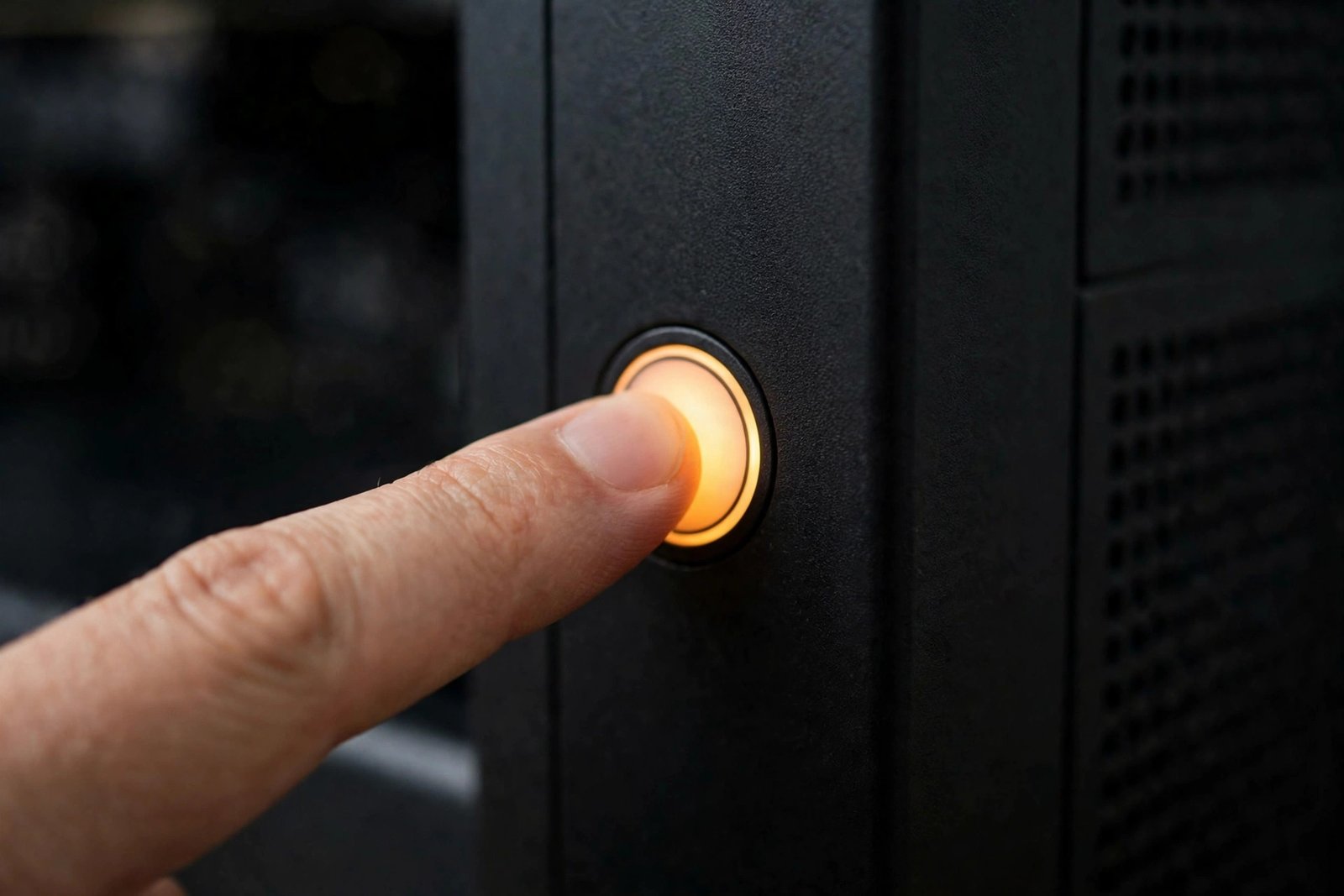
- Interrupt the boot process twice using the power button, exactly as in Fix 3.
- On the Automatic Repair screen, choose Advanced options.
- Go to Troubleshoot, then Advanced options, then Startup Repair.
- Pick your account, enter your password if asked, and let the tool run.
- Wait until it finishes. It will tell you whether it found and fixed anything.
- Click Restart and see if Windows boots normally.
- If Startup Repair cannot fix the problem, it shows a log of what it tried. Note the details and move to Fix 7.
Microsoft’s official Startup Repair guide explains exactly which boot problems this tool can repair.
7. Repair Corrupted System Files with SFC and DISM
Corrupted Windows system files can crash the boot process and cause endless restarts. Two built-in tools, SFC and DISM, scan and repair these files for free.
- Boot into Safe Mode with the steps from Fix 4, or open a Command Prompt from the Recovery Environment under Troubleshoot, then Advanced options.
- Right-click the Start button, open Terminal (Admin) or Command Prompt (Admin), and approve the prompt.
- First, repair the Windows image. Type this command and press Enter:
DISM /Online /Cleanup-Image /RestoreHealth
- Wait for it to finish. It can take 10 to 30 minutes. Do not close the window.
- Next, scan the system files. Type this command and press Enter:
sfc /scannow
- Wait for the scan to reach 100 percent.
- If it reports that it found and fixed corrupt files, restart the PC.
- If SFC says it could not fix some files, run the DISM command once more, then run SFC again.
If you cannot reach the desktop at all, you can run these same commands from the Command Prompt inside the Windows Recovery Environment. See Microsoft’s official guide to the Windows Recovery Environment for the exact steps.
8. Fix Overheating — Clean the Fans and Improve Airflow
When a CPU or graphics card gets too hot, the PC shuts itself down or restarts to prevent damage. Restarts during games or heavy work point strongly to heat.
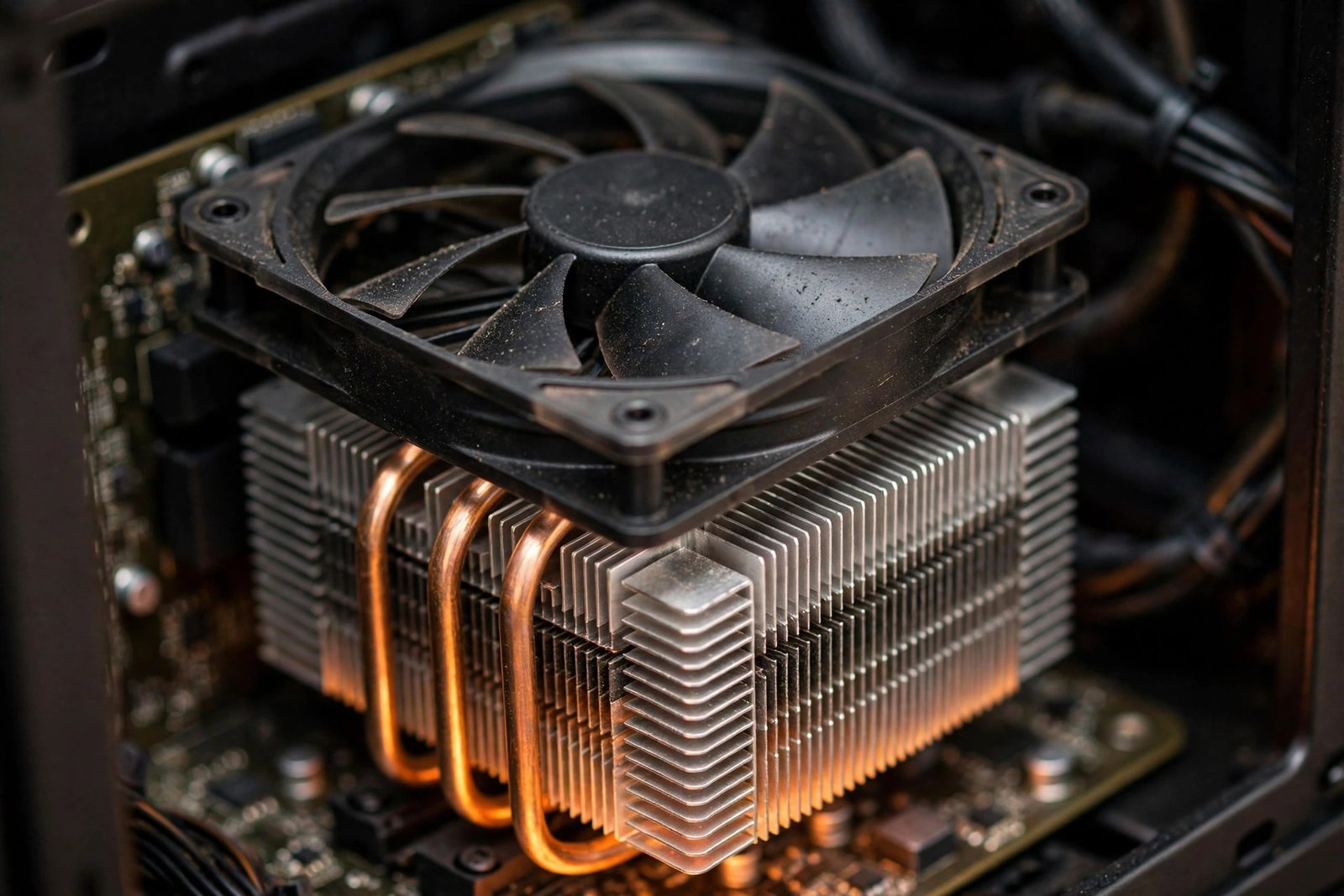
- Shut down the PC and unplug the power cable. On a laptop, also remove the charger.
- Move the PC so air can flow around it. Keep it away from walls, heaters, and direct sun.
- Open the case or the vent panels. On most desktops, two thumb screws release the side panel.
- Blow the dust out with a can of compressed air. Focus on the CPU fan, the graphics card fan, and the case vents.
- Hold the fan blades still with a finger while you blow air through them. This stops the fan from spinning too fast.
- Check that all fans spin freely when you turn the PC on.
- On a laptop, use a cooling stand and clean the vents from the outside. Do not open a laptop that is still under warranty unless the maker allows it.
- After cleaning, watch the temperatures with a free tool like HWMonitor from the maker’s official site. Idle temperatures should be well below 60°C.
9. Test the RAM and Check the Power Supply
Faulty memory and a failing power supply both cause random restarts with no warning. Test them in order, starting with the free memory test built into Windows.
- Press Windows key + R, type
mdsched.exe, and press Enter. - Choose Restart now and check for problems.
- The Memory Diagnostic runs before Windows loads. Let it finish the standard test.
- When Windows starts again, check the result in Event Viewer under Windows Logs, then System, looking for a MemoryDiagnostics entry.
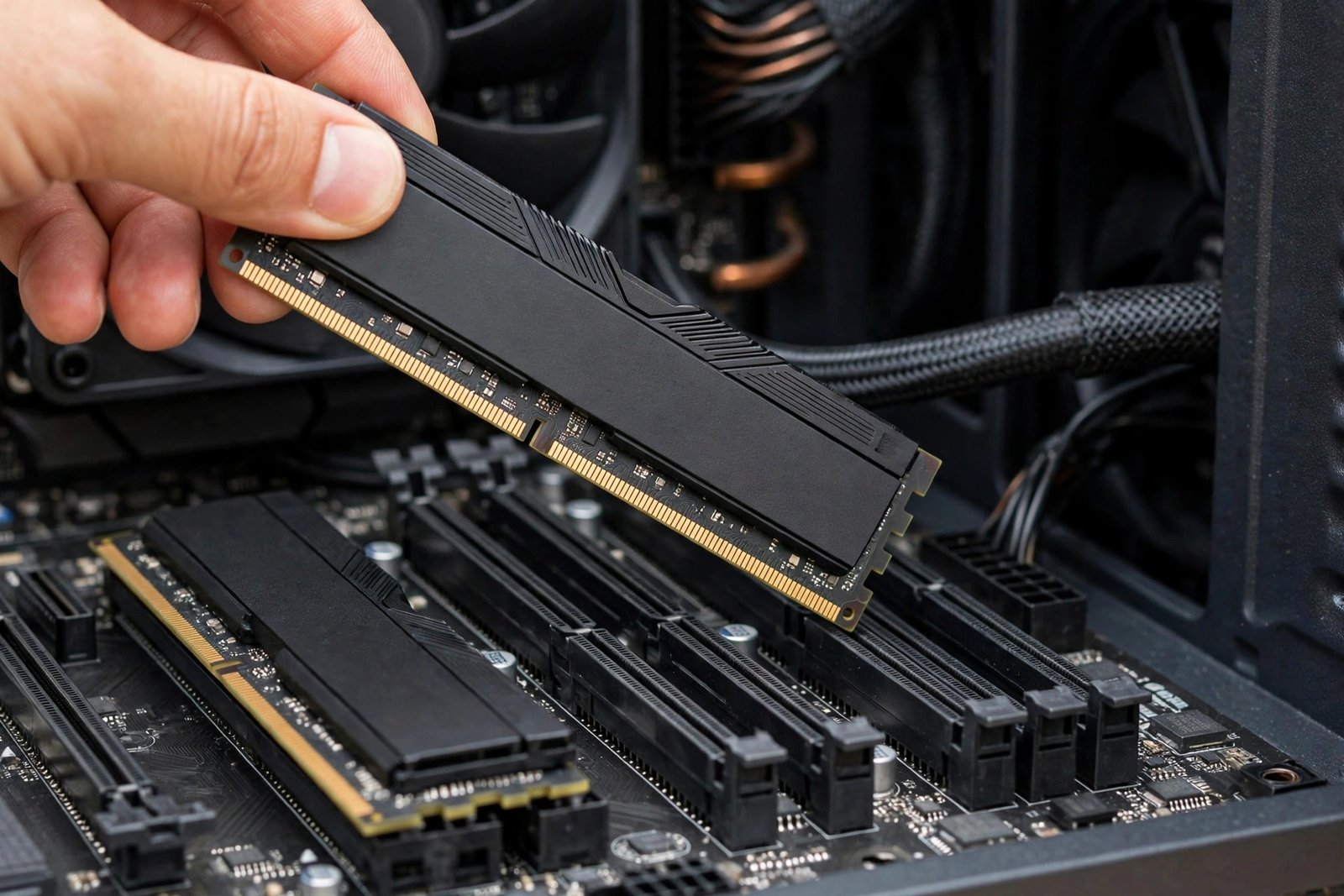
- If errors are found, shut down the PC, unplug it, and reseat the RAM:
- Open the case and push the clips on each RAM slot to release the sticks.
- Blow out any dust, then press each stick firmly back in until both clips click.
- If you have two sticks, test with one at a time to find the faulty one.
- Replace any stick that fails the test. Match the speed and type printed on the old stick.
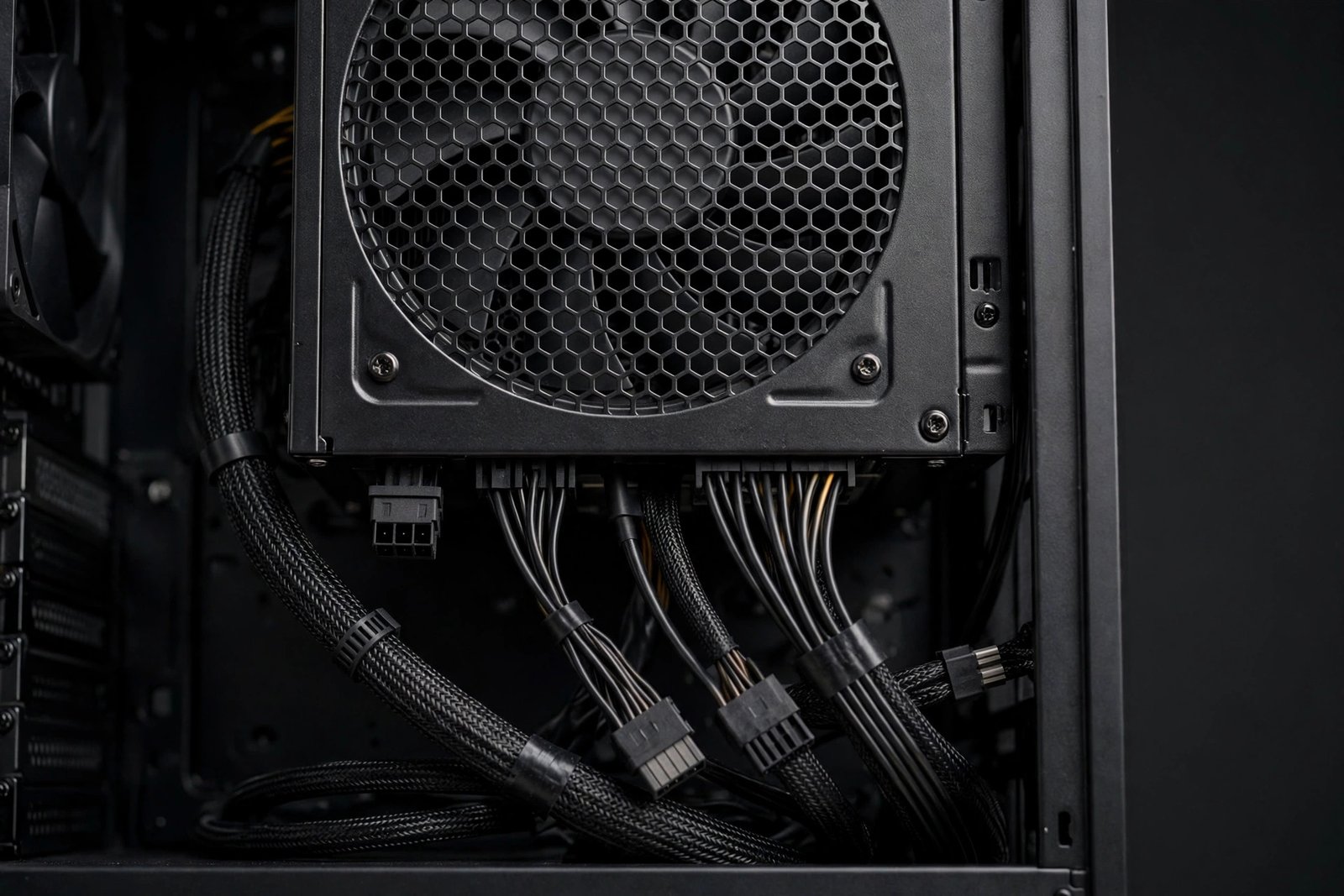
- For the power supply, check the simple things first:
- Make sure the 24-pin motherboard cable and the CPU power cable are fully seated.
- Try a different wall outlet on a different circuit.
- Listen for the PSU fan. If it never spins, or you smell burning, stop using the PC.
- If the restarts happen the moment the PC draws power, like when a game starts, the PSU may be too weak or dying. Replace it with a quality unit from a known maker with enough wattage for your parts.
- Never open the power supply unit itself. Its capacitors hold a charge long after it is unplugged.
For more recovery walkthroughs like this one, browse our Windows 11 System & Recovery section.
10. Reset Windows While Keeping Your Files
If every fix above failed, a reset gives you a fresh copy of Windows while keeping your personal files. It removes apps and settings, so treat it as the last resort.
- Open the Recovery Environment by interrupting the boot twice, as in Fix 3.
- On the Automatic Repair screen, choose Advanced options.
- Go to Troubleshoot, then Reset this PC.
- Choose Keep my files. Windows reminds you that apps and settings will be removed.
- Pick Cloud download if you have a good internet connection, or Local reinstall if you do not.
- Follow the prompts and let the reset finish. It can take 30 minutes to over an hour.
- After the reset, install drivers only from official sources and add your programs back one at a time.
What to Avoid
- Do not download “driver updater,” “PC optimizer,” or “registry cleaner” tools. They cause more reboot loops than they fix.
- Do not use activators, cracks, or keygens for Windows. They often carry malware that damages system files.
- Do not force the PC off while updates, SFC, DISM, or Startup Repair are running.
- Do not keep using a PC that smells of burning or has a dead PSU fan. Unplug it and get the power supply replaced.
- Do not disable Windows Update permanently. Missed updates leave bugs that cause crashes.
- Do not flash the BIOS unless a specific fix requires it and you follow the maker’s guide exactly. A failed flash can brick the board.
FAQ
Why does my PC keep restarting after a Windows update?
An update may have failed halfway or clashed with a driver. Let it finish first (Fix 2). If it is stuck, boot into the Recovery Environment and use Uninstall Updates, then run SFC and DISM (Fix 7).
Can a virus cause a reboot loop?
Yes, malware can damage system files and drivers. Boot into Safe Mode (Fix 4) and run a full scan with Windows Security. If the damage is deep, a reset (Fix 10) is the clean option.
Is it safe to keep using a PC that restarts randomly?
No. Every sudden restart risks corrupting open files. Worse, the cause could be heat or a failing power supply, which can damage parts over time. Work through the fixes above instead of ignoring it.
Will resetting Windows delete my files?
The “Keep my files” option saves your personal files, but it removes installed apps and resets settings. Back up anything important first if the PC stays on long enough.
How do I know if the power supply is the problem?
Typical signs are restarts the instant the PC works hard, a PSU fan that never spins, burning smells, or the PC failing to turn on at all sometimes. When in doubt, have a technician test it. Replacing a dying PSU early can save the rest of your parts.
You can find more step-by-step repair guides on the TechSBSInfo blog.
Conclusion
A reboot loop is frustrating, but it is rarely the end of your PC. Work through these fixes in order, from unplugging USB devices to resetting Windows, and you will find the cause. Most loops come down to a bad driver, a stuck update, heat, or failing hardware. If you are ever unsure about a step involving the inside of your PC, ask a technician rather than guessing. Learn more about TechSBSInfo and how we test every fix we publish.
[…] freezes or restarts when Chrome crashes, the problem is bigger than the browser. Our guide to a Windows PC that keeps restarting covers that […]