

If Google Chrome keeps crashing, you are not alone. One minute you are working. The next, the whole window vanishes. No warning. No error. Just a desktop with your half-finished work gone.
The good news is that most Chrome crashes come from a short list of causes. Too many tabs. A bad extension. A damaged profile. A graphics setting that your PC cannot handle. Each of these has a clear fix, and you only need to work through them in order. This guide from TechSBSInfo — a small blog that solves real Windows and browser problems one step at a time — walks you through ten fixes from the simplest to the most thorough. Test Chrome after each fix, and stop as soon as the crashing stops. You will find more troubleshooting guides like this across TechSBSInfo, and we keep every step beginner-friendly so you can follow along without any technical background.
Table of contents
- Quick checks before you start
- What is causing your crash?
- 1. Close extra tabs and restart Chrome
- 2. End stuck Chrome processes in Task Manager
- 3. Disable your extensions one by one
- 4. Clear your browsing data
- 5. Turn off hardware acceleration
- 6. Update Chrome to the latest version
- 7. Reset Chrome settings when Google Chrome keeps crashing
- 8. Remove incompatible software
- 9. Create a fresh Chrome profile
- 10. Uninstall and reinstall Chrome cleanly
- What to avoid
- FAQ
- Conclusion
Quick checks before you start
Run through these quick checks first. They take seconds, and they often reveal the cause.
- Check one website versus many. If Chrome only crashes on one site, the problem is probably that website, not your browser. Try the page in another browser to confirm.
- Check your memory. If Chrome crashes only when you have twenty tabs open, you are probably running out of RAM. This is the most common cause of all.
- Check whether the whole PC is unstable. If your computer itself freezes or restarts when Chrome crashes, the problem is bigger than the browser. Our guide to a Windows PC that keeps restarting covers that situation.
- Check for recent changes. Did you install a new extension, a new program, or an update just before the crashes began? Undo that change first.
- Save your work. Bookmark your important tabs before you start fixing things. Press Ctrl + D on any tab you cannot afford to lose.
What is causing your crash?
Match your symptom to the likely cause, then jump to the right fix. This saves you from trying everything blindly.
| Symptom | Likely cause | Go to fix |
|---|---|---|
| Chrome crashes with lots of tabs open | Low memory (RAM) | Fix 1 |
| Chrome closes the second you open it | A stuck background process or a bad extension | Fixes 2 and 3 |
| Pages freeze and the tab says “Not responding” | Corrupted cache or a heavy website | Fix 4 |
| The whole window flickers or turns black | Hardware acceleration issue | Fix 5 |
| Crashes started after a Chrome update | An outdated or buggy version | Fix 6 |
| Crashes on every site, even simple ones | Damaged settings or profile | Fixes 7 and 9 |
| Chrome opens with strange pop-ups or a changed homepage | Unwanted software interfering | Fix 8 |
| Nothing else worked | Broken installation | Fix 10 |
1. Close extra tabs and restart Chrome
This is the fix Google recommends first, and it solves more crashes than anything else. Each open tab uses memory. Heavy tabs like video sites and web apps can use a lot of it. When your PC runs out of memory, Chrome has no choice but to shut down.
Here is what to do.
- Press Ctrl + Shift + Esc to open Task Manager and check how much memory Chrome is using.
- Close every tab except the one you are working in.
- Quit other heavy programs that are running, such as video editors or games.
- Pause any large downloads.
- Restart your computer, not just Chrome, so the memory is fully cleared.
Now reopen Chrome and use it normally for a while. If the crashing stops, the problem was simply overload. You can find these same first steps in Google’s own crash troubleshooting article, which confirms that freeing up memory and restarting is where every crash repair should begin.
If the crashes continue, your problem is not memory. Move on to fix 2.
2. End stuck Chrome processes in Task Manager
Sometimes Chrome crashes but does not fully close. It leaves invisible processes running in the background. When you try to open Chrome again, the new window fights with the stuck one, and everything crashes again. This is why Chrome sometimes closes a second after you open it.
You need to kill those leftover processes before anything else will work.
- Press Ctrl + Alt + Delete, then choose Task Manager.
- Under the Processes tab, look for Google Chrome or chrome.exe.
- You may see several entries. Select each one and click End task.
- Make sure no Chrome entries remain in the list.
- Restart your computer and open Chrome fresh.
If Chrome still crashes right after opening, a stuck process was not the cause. The next most likely culprit is an extension.
3. Disable your extensions one by one
Extensions are small programs that add features to Chrome. Ad blockers, password managers, coupon tools, and themes all run inside your browser all the time. One badly written or outdated extension can crash the whole browser. This happens more often than most people realise.
The safest way to test this is to turn all extensions off, then switch them back on one at a time until the crashing returns.
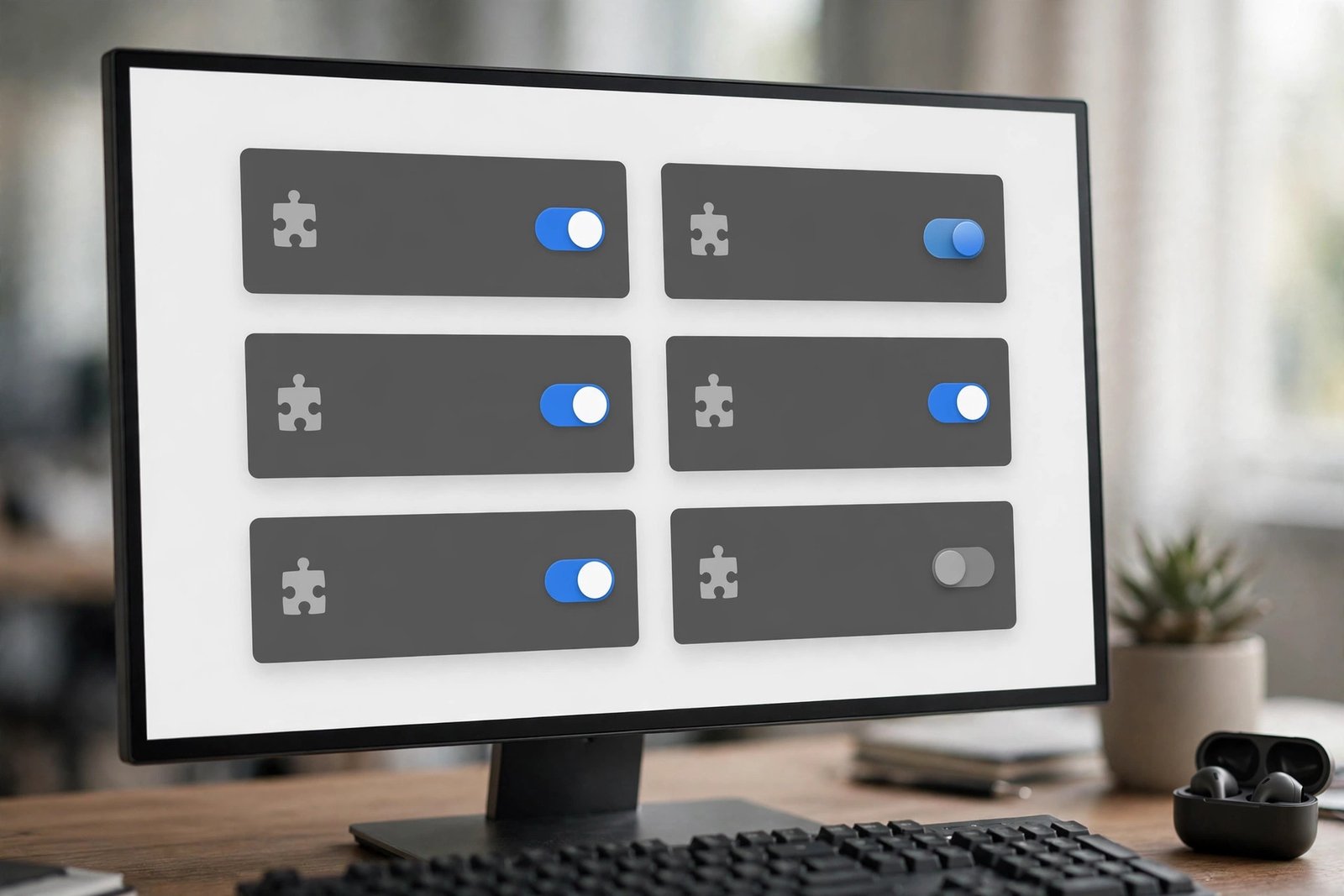
- Type chrome://extensions into the address bar and press Enter.
- Turn off every extension using the toggle switch.
- Restart Chrome and test it for a while.
- If the crashing stops, turn extensions back on one at a time.
- When Chrome crashes again, you have found the bad extension. Remove it.
Pay special attention to extensions you installed recently, coupon and shopping helpers, and anything that changes how pages look. If you no longer use an extension, do not just disable it. Click Remove to delete it completely.
Only install extensions from the Chrome Web Store. Extensions from random download sites are a common source of crashes and worse.
4. Clear your browsing data
Over time, Chrome stores a large amount of cached files and cookies. Most of them help pages load faster. But when some of those files become damaged, Chrome can freeze or crash while trying to read them. This often shows up as tabs that say “Not responding” or pages that die with an “Aw, Snap!” message.
Clearing the data forces Chrome to fetch fresh copies of everything.
- Press Ctrl + Shift + Delete to open the Clear browsing data window.
- Set the time range to All time.
- Tick Browsing history, Cookies and other site data, and Cached images and files.
- Click Clear data and wait for it to finish.
- Restart Chrome and try your usual sites again.
You will be signed out of most websites, so make sure you know your passwords or have them saved in Chrome first. Your bookmarks will not be affected.
If pages still freeze after a full data clear, the problem is probably deeper than stored files. Keep going.
5. Turn off hardware acceleration
Hardware acceleration lets Chrome use your graphics card to draw pages faster. On most PCs this works well. But on some computers, especially older ones or those with outdated graphics drivers, it causes flickering, black screens, and sudden crashes.
Turning it off makes Chrome do the drawing work with your processor instead. Pages may render a tiny bit slower, but the browser becomes much more stable.
- Click the three-dot menu in the top right of Chrome.
- Go to Settings, then select System from the left menu.
- Turn off the option called Use hardware acceleration when available.
- Click Relaunch when Chrome asks you to restart.
Test Chrome for a full day with this setting off. If the crashes are gone, leave it off. You can also update your graphics drivers from your PC maker’s website, then try turning the setting back on. But never download drivers from random “driver updater” programs. Those tools are a frequent source of malware, and they often cause the exact problems they claim to fix.
6. Update Chrome to the latest version
Bugs get fixed in every Chrome update. If you are running an old version, you may be suffering from a crash bug that Google already fixed months ago. Outdated browsers are also less secure, so this fix is worth doing even if you think your version is fine.
Checking for updates is quick.
- Click the three-dot menu, then Help, then About Google Chrome.
- Chrome will automatically check for updates.
- If an update is available, let it download, then click Relaunch.
- If Chrome says it is up to date, move on to the next fix.
Keep automatic updates turned on. Chrome normally updates itself quietly in the background, but a failed update or a paused connection can leave you stuck on an old build. A quick visit to the About page is the most reliable way to make sure.
7. Reset Chrome settings when Google Chrome keeps crashing
If your settings have been changed by a bad extension or a program you installed, Chrome can crash every time it tries to load a page. Resetting the settings puts everything back to how Chrome shipped, without deleting your bookmarks or saved passwords.
Google explains exactly what a reset changes and keeps: your search engine, homepage, startup pages, new tab page, and site permissions return to their defaults, extensions and themes are disabled, and cookies and site data are cleared. Bookmarks and saved passwords stay safe.
Here are the steps.
- Click the three-dot menu and open Settings.
- Choose Reset settings from the left menu.
- Click Restore settings to their original defaults.
- Click Reset settings in the confirmation box.
- Restart Chrome and test it before reinstalling your extensions.
This is not a full wipe. Some settings like fonts and accessibility options are left alone. That is fine, because it also means there is very little risk. You can always add your extensions back later, one at a time, so you can spot any troublemaker.
8. Remove incompatible software
Some programs on your PC clash with Chrome. Old antivirus tools, banking software, and so-called “system optimisers” can hook into Chrome’s processes and crash them. If your crashes started after installing a new program, that program is your prime suspect.
Chrome includes a built-in check for this on Windows.
- Click the three-dot menu and open Settings.
- Choose Reset settings from the left menu.
- Click Update or remove incompatible applications.
- Chrome will list any software it finds that may interfere.
- Follow the prompts to update or remove it, then restart Chrome.
If Chrome finds nothing, think about any security software or system utilities you added recently. Try temporarily disabling them and testing Chrome. If the crashing stops, you have found the conflict. Replace that program with a well-known alternative from its official website.
Never run two antivirus programs at the same time. They fight each other, slow your PC to a crawl, and can crash browsers in the process.
9. Create a fresh Chrome profile
Your Chrome profile stores your settings, extensions, history, and synced data. If part of that profile is damaged, every fix so far can fail while the broken profile remains. A new profile starts completely clean, which is a perfect test.
Creating a profile takes about a minute.
- Click your profile icon in the top right of Chrome.
- Click Add at the bottom of the menu.
- Choose Continue without an account so the new profile stays separate.
- Give the profile a name and pick a colour.
- Use Chrome in the new profile for a while.
If the new profile is stable while your old one crashes, the old profile is damaged. Move your important bookmarks over by exporting and importing them, sign in to your Google account in the new profile to sync your data, and delete the old profile afterwards.
If even the fresh profile crashes, the problem is with Chrome itself or your PC, not your data. Only one fix remains.
10. Uninstall and reinstall Chrome cleanly
This is the last resort because it takes the most time. A clean reinstall replaces every Chrome file on your PC. If some part of the program itself became damaged, nothing else will fix it.
Before you start, make sure your bookmarks and passwords are synced to your Google account. Sign in to Chrome, go to Settings, then Sync, and confirm that everything you care about is synced.
- Press the Windows key, type Add or remove programs, and open it.
- Find Google Chrome in the list and click Uninstall.
- Follow the prompts to remove Chrome completely.
- Restart your computer.
- Download Chrome only from google.com/chrome using another browser, and install it fresh.
- Sign in to your Google account to bring back your bookmarks and passwords.
Do not restore from a backup of your old profile data during the reinstall. That would bring the damaged files straight back. Start clean, add extensions back one at a time, and your browser should be stable again.
What to avoid
These mistakes are common, and they either waste your time or make the problem worse.
- Do not install “Chrome fixer” or “browser repair” tools. These programs promise one-click repairs, but many are adware in disguise. Stick to the real fixes in this guide.
- Do not download Chrome from unofficial sites. Fake installers bundle extra software that causes the very crashes you are trying to fix. Always use google.com/chrome.
- Do not turn off your antivirus to “test” for weeks. A brief, careful test is one thing. Browsing without protection for days is asking for real malware.
- Do not delete files from Chrome’s folders by hand. Deleting profile folders manually can destroy your bookmarks and passwords. Use the reset and profile tools described above instead.
- Do not reinstall Windows yet. A full Windows reinstall is almost never needed for a browser problem. It is a huge amount of work for something a Chrome reinstall can fix.
- Do not ignore a pattern. If crashes only happen on one website, or only after a specific program starts, that pattern is a clue. Write down when the crashes happen before you start fixing.
FAQ
Why does Google Chrome keep crashing on startup?
If Google Chrome keeps crashing the moment it opens, a stuck background process or a damaged extension is usually to blame. End all Chrome processes in Task Manager, then start Chrome with extensions disabled. If that works, remove the bad extension. If it still closes instantly, reset your settings or create a fresh profile.
Why does Chrome crash only on certain websites?
Heavy websites with lots of video, ads, or scripts use far more memory than simple pages. If Chrome crashes on those sites only, you are likely running out of memory. Close other tabs, clear your browsing data, and check that Chrome is updated. It can also mean one specific site has a problem, so test the same page in another browser.
Will resetting Chrome delete my bookmarks?
No. Restoring Chrome’s settings to their defaults keeps your bookmarks and saved passwords. It does clear cookies and site data, which signs you out of websites, and it disables your extensions. If you are signed in to your Google account, your data also stays safe in the cloud.
Is it safe to keep hardware acceleration turned off?
Yes, completely safe. Hardware acceleration only changes how Chrome draws pages on screen. With it off, your processor does the drawing instead of your graphics card. Some pages may feel slightly less smooth on older PCs, but the browser will not crash because of a graphics conflict. Many people leave it off permanently with no downside.
Do I need to be technical to fix Chrome crashes?
Not at all. We write these guides so anyone can follow them. If you can click a menu and read a short list of steps, you can work through every fix in this article. If you want to know more about how we write these guides, visit our about page. Every fix here uses only Chrome’s own built-in tools and settings.
When should I reinstall Chrome instead of fixing it?
Reinstall when you have tried the simpler fixes and Chrome still crashes everywhere, even in a fresh profile. A clean reinstall is safe as long as your bookmarks and passwords are synced to your Google account first. It takes a few minutes and gives you a completely fresh copy of the browser.
Conclusion
When Google Chrome keeps crashing, the answer is almost always one of the ten fixes above. Start simple: free up memory, kill stuck processes, and test your extensions. Most people stop there. The deeper fixes — resetting settings, creating a fresh profile, and a clean reinstall — handle the rest.
The key habit is testing after each change. Change one thing, use Chrome for a while, and only move on if the crashing continues. That way you know exactly what fixed it, and you can undo any step you did not need.
You can browse more step-by-step repairs in the TechSBSInfo blog, where we cover Chrome, Windows, and Office problems with the same plain-language approach. A stable browser is only a few clicks away — work through the list, and get back to browsing without the crashes.