

You press print, but your printer is nowhere to be found. This guide from TechSBSInfo explains exactly what to do when your windows 11 printer not detected issue strikes. You do not need any special tools. Work through the nine fixes below in order, and most printers reconnect within minutes.
- Table of Contents
- 1. Restart Your Printer and PC
- 2. Check the USB Cable and Ports
- 3. Make Sure the Printer and PC Are on the Same Wi-Fi Network
- 4. Check the Bluetooth Connection (Bluetooth Printers)
- 5. Remove and Re-Add the Printer (Fixes Windows 11 Printer Not Detected)
- 6. Run the Printer Troubleshooter in Get Help
- 7. Restart the Print Spooler Service
- 8. Update or Reinstall the Printer Driver
- 9. Add the Printer Manually by IP Address or Port
This guide is part of our collection of Windows 11 hardware and devices tutorials, where you will find step-by-step fixes for other devices too.
Quick checks before you start
- Confirm the printer is switched on and not asleep.
- Look at the printer’s screen or lights for error messages, paper jams, or low ink.
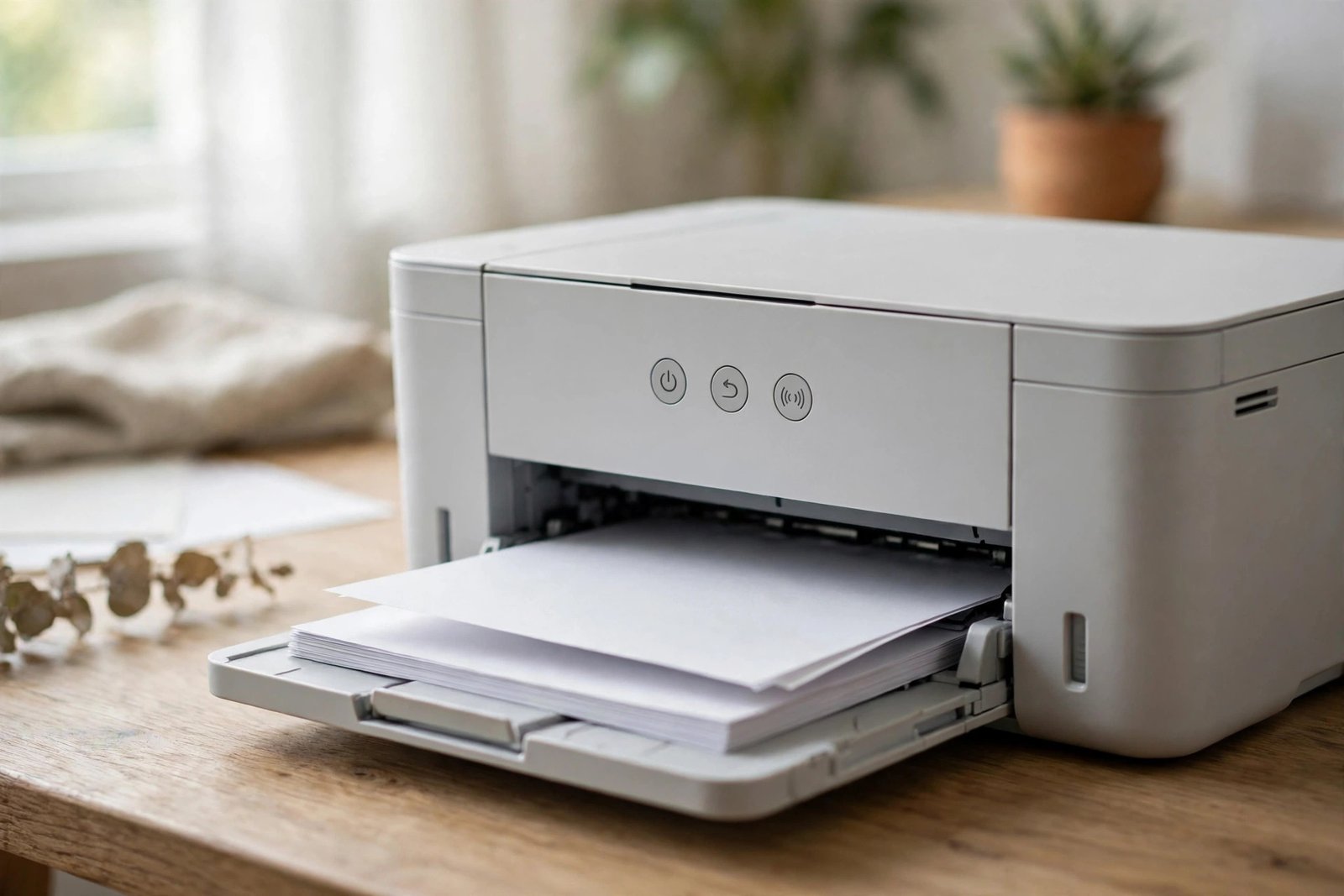
- Make sure paper is loaded and the tray or covers are fully closed.
- If it is a wireless printer, check that the Wi-Fi light or icon on the printer is on.
- If it is a USB printer, make sure the cable is plugged in at both ends.
- Restart your router if other devices also lose their network connection.
Diagnose your symptom first
| Symptom | Likely cause | Go to fix |
|---|---|---|
| Printer worked before, now gone after a restart or update | Stalled spooler or changed driver | Fix 1, then Fix 7 |
| Printer never appears in Settings at all | Loose USB cable or dead USB port | Fix 2 |
| USB printer appears and disappears | Faulty cable or USB port | Fix 2 |
| Wireless printer not listed in Add device | Printer and PC on different Wi-Fi networks | Fix 3 |
| Bluetooth printer not listed | Bluetooth off or printer not paired | Fix 4 |
| Printer listed but says “Driver is unavailable” | Missing or outdated driver | Fix 8 |
| Printer shows Offline after being added | Printer asleep, wrong port, or changed IP address | Fix 9 |
| Nothing works, automatic setup keeps failing | Deep software or driver problem | Fix 6, then Fix 8 |
1. Restart Your Printer and PC
A simple restart clears temporary glitches on both sides. Many detection problems vanish after a full power cycle.
- Turn off the printer with its power button.
- Unplug the printer’s power cable from the wall socket.
- Wait at least 30 seconds.
- Shut down your PC completely (do not just put it to sleep).
- Plug the printer back in and switch it on.
- Wait until the printer finishes its start-up and shows no error.
- Start your PC.
- Go to Settings > Bluetooth & devices > Printers & scanners and check if the printer now appears.
2. Check the USB Cable and Ports
For wired printers, a loose or damaged cable is one of the most common reasons for a windows 11 printer not detected message.
- Unplug the USB cable from both the printer and the PC.
- Look at the cable and both connectors for bent pins, dirt, or damage.
- Plug the cable firmly back into the printer first.
- Plug the other end directly into your PC — not into a USB hub or a front-panel port if you can avoid it.
- Try a different USB port on your PC, preferably a port on the back of a desktop.
- If you have a spare USB printer cable, try it.
- Open Settings > Bluetooth & devices > Printers & scanners and select Add device to search again.
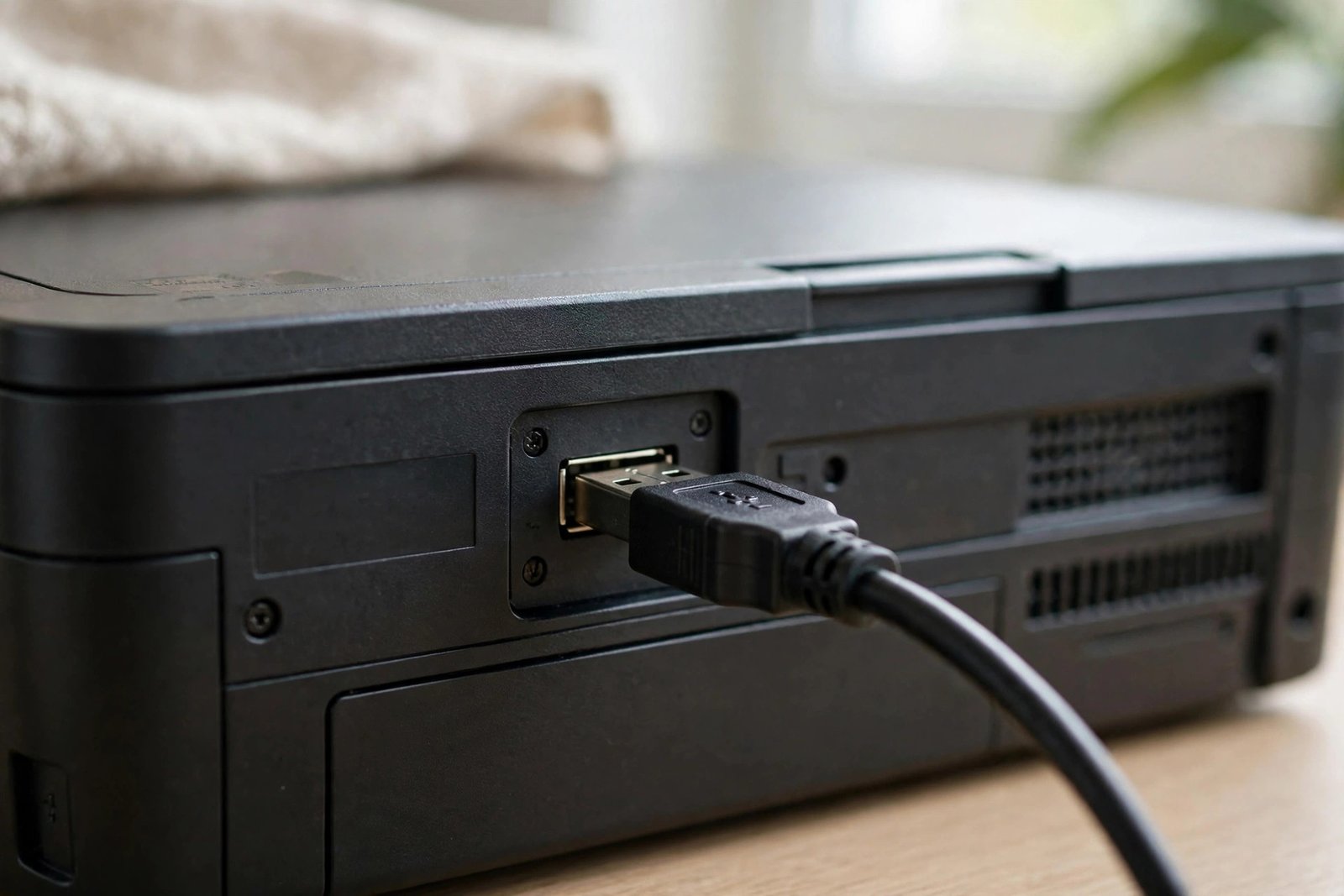
- Tip: very long or cheap third-party USB cables can cause detection failures. Keep the cable under 3 metres if possible.
- Tip: if the printer only works in one specific port, that port may be failing — test other USB devices in the same port.
3. Make Sure the Printer and PC Are on the Same Wi-Fi Network
Windows can only discover a wireless printer that is awake and on the same network as your PC. A printer connected to a guest network, an extender with a different name, or the 5 GHz band while your PC uses 2.4 GHz (or the other way round) will stay invisible.
- On the printer’s control panel, find the wireless or network settings and note the exact Wi-Fi network name it is joined to.
- Many printers let you print a network test page from the settings menu — use it to confirm the connection.
- On your PC, click the Wi-Fi icon in the taskbar and note the network name.
- If the names differ, connect the printer to the same network as the PC, or connect the PC to the printer’s network.
- Make sure the printer’s wireless option is switched on (look for a blue wireless icon or light).
- Restart both the printer and the router, then try Add device in Printers & scanners again.
- If your router has separate SSIDs for extenders or access points, connect both devices to the main network.
- Do not skip this step just because printing worked yesterday — routers can silently move devices between bands after a reboot.
4. Check the Bluetooth Connection (Bluetooth Printers)
A Bluetooth printer must be paired before Windows can detect it. If pairing dropped, the printer simply will not show up.
- On your PC, go to Settings > Bluetooth & devices and make sure Bluetooth is switched On.
- Put the printer into pairing mode (check the printer’s manual — it is usually a long press of the Bluetooth button).
- Select Add device and choose Bluetooth.
- Select your printer from the list and complete pairing.
- If pairing keeps failing, remove the old pairing first: select the printer entry, choose Remove device, then pair again.
- If you are also having trouble with wireless or Bluetooth printer connections in general, read our guide on fixing Bluetooth not working on Windows 11.
5. Remove and Re-Add the Printer (Fixes Windows 11 Printer Not Detected)
A broken printer entry can block Windows from detecting the printer again. Removing it and adding it fresh often solves stubborn windows 11 printer not detected cases.
- Go to Settings > Bluetooth & devices > Printers & scanners.
- Select the printer that is not working.
- Select Remove and confirm with Yes.
- Restart your PC.
- Make sure the printer is on and connected (USB, Wi-Fi, or Bluetooth).
- Go back to Printers & scanners and select Add device (or Refresh).
- Wait a moment while Windows searches.
- When your printer appears, select the Add device button next to it.
- Print a test page to confirm it works.
6. Run the Printer Troubleshooter in Get Help
Windows 11 includes an automated printer troubleshooter that runs diagnostics and applies common repairs by itself. It is worth running before you touch drivers.
- Select Start and type Get Help, then open the app.
- Search for the printer troubleshooter and start it.
- Answer the questions it asks about your printer.
- Let it finish and apply any fixes it suggests.
- Go back to Printers & scanners and select Add device to search again.
- If the troubleshooter cannot fix the issue, note any error code it shows — you may need it for the driver steps below.
Microsoft’s official printer troubleshooting guide also covers these steps in detail if you want a second reference.
7. Restart the Print Spooler Service
The Print Spooler is the Windows service that manages printing. When it stalls or crashes, printers can stop being detected even though the hardware is fine.
- Press Windows key + R, type
services.msc, and press Enter. - In the Services window, find Print Spooler in the list.
- Right-click Print Spooler and select Restart.
- If it was stopped, select Start instead, then set Startup type to Automatic.
- Wait a few seconds for the service to start.
- Go to Settings > Bluetooth & devices > Printers & scanners and select Add device.
- Check whether the printer now appears.
- If the spooler keeps stopping on its own, a damaged print job or a bad driver is the usual cause — continue to Fix 8.
8. Update or Reinstall the Printer Driver
An outdated, missing, or wrong driver can make Windows fail to recognise the printer. Always get drivers from Windows Update or the printer manufacturer’s official website — never from random driver-download sites.
- Press Windows key + X and select Device Manager.
- Expand Printers (or Print queues).
- Right-click your printer and select Update driver.
- Choose Search automatically for drivers and let Windows check.
- If Windows finds nothing new, right-click the printer again and select Uninstall device.
- Restart your PC so Windows reinstalls a fresh copy of the driver.
- If it still fails, visit the printer manufacturer’s official support site, search for your exact model, and download the latest Windows 11 driver.
- Run the manufacturer’s installer and follow its on-screen steps.
- After installing, check Settings > Bluetooth & devices > Printers & scanners again.
- Also check Settings > Windows Update for optional driver updates that may include your printer.
- Warning: do not install “driver updater” tools from adverts or unknown websites. They often bundle unwanted software and cannot be trusted with system drivers.
9. Add the Printer Manually by IP Address or Port
If automatic detection still fails, add the printer by hand. This bypasses discovery entirely and connects Windows straight to the device.
- Go to Settings > Bluetooth & devices > Printers & scanners.
- Select Add device and wait for the search to finish.
- Select The printer that I want isn’t listed (or Add manually).
- Choose Add a printer using an IP address or hostname.
- Find the printer’s IP address from its network test page or control panel.
- Type the IP address and select Next.
- Pick your printer’s manufacturer and model from the lists, then select Next.
- Give the printer a name you will recognise and select Next.
- Choose whether to share the printer, then select Finish.
- Print a test page to confirm the connection.
For a USB printer that still refuses to appear, choose Add a local printer or network printer with manual settings instead, pick the USB port from the list, and select your model. Microsoft’s guide on how to install a printer in Windows walks through each of these manual options with screenshots.
Before you finish, clear any physical error state: make sure paper is loaded, ink or toner is not empty, and no covers are open. A printer stuck in an error state may not announce itself to Windows at all.
What to avoid
- Do not download drivers from unofficial driver sites, torrents, or “free driver updater” adverts.
- Do not use pirated activators, cracks, or keygens to “unlock” printer software — they are unsafe and illegal.
- Do not delete random printer ports or registry keys unless a trusted guide tells you exactly which ones.
- Do not keep clicking Add device every few seconds — give each search a full minute to finish.
- Do not change advanced spooler or port settings you do not understand; a wrong port can make things worse.
- Do not ignore the printer’s own error lights — Windows cannot detect a printer that is jammed or out of ink.
Frequently asked questions
Why is my printer not showing up in Windows 11 at all?
The most common reasons are a loose USB cable, the printer and PC being on different Wi-Fi networks, a stalled Print Spooler, or a missing driver. Work through Fixes 1 to 5 above in order — they cover the cause in most cases.
How do I add a printer that Windows 11 cannot find automatically?
Go to Settings > Bluetooth & devices > Printers & scanners, select Add device, then choose The printer that I want isn’t listed. From there you can add it by IP address or set it up as a local printer with manual settings, as described in Fix 9.
Can a Windows update cause my printer to disappear?
Yes. Updates can replace or break a printer driver. If the problem started right after an update, check Settings > Windows Update for optional driver updates, or reinstall the driver from the manufacturer’s official site (Fix 8).
Why does my wireless printer keep disappearing from Windows 11?
This usually means the printer’s IP address changed or it dropped off Wi-Fi. Give the printer a fixed (static) IP address in your router settings, keep it on the same network as your PC, and disable any deep-sleep or eco mode that turns off its Wi-Fi.
Should I use the manufacturer’s installer or Windows’ own setup?
For most printers, Windows’ built-in setup (Fix 5 or Fix 9) is enough. Use the manufacturer’s official installer only when Windows cannot find a working driver by itself — and only download it from the manufacturer’s own website.
Can empty ink or paper stop Windows from detecting my printer?
Yes, on some models. A printer stuck in an error state may not respond to discovery requests. Load paper, check ink or toner, close all covers, and clear any jam before trying to add the printer again.
Conclusion
A windows 11 printer not detected problem is rarely serious. Start with a power cycle and a cable or network check, then re-add the printer, restart the Print Spooler, and refresh the driver. One of these nine fixes reconnects the printer in almost every case. If you found this guide helpful, explore more step-by-step solutions on the TechSBSInfo blog.
[…] opening the file. The file is fine; the issue is between the reader and your printer. Our guide on Windows 11 printer not detected walks through getting your printer working […]