

If windows 11 bluetooth not working is the problem you are facing right now, you are not alone. Bluetooth dropouts, failed pairings, and missing Bluetooth toggles are among the most common complaints on Windows 11. The good news is that most of these problems have simple causes, and you can fix them yourself in a few minutes. This guide walks you through 10 proven fixes in order, starting with the easiest. Work through them one by one, and stop as soon as your device reconnects.
Table of Contents
- Fix 1: Turn Bluetooth Off and Back On
- Fix 2: Restart Your Bluetooth Device and Bring It Closer
- Fix 3: Turn Off Airplane Mode
- Fix 4: Restart Your PC
- Fix 5: Run the Windows Bluetooth Troubleshooter
- Fix 6: Remove the Device and Pair It Again
- Fix 7: Update the Driver That Keeps Windows 11 Bluetooth Not Working
- Fix 8: Restart the Bluetooth Services
- Fix 9: Uninstall and Reinstall the Bluetooth Adapter
- Fix 10: Install Windows Updates and Try a USB Bluetooth Adapter
- What to Avoid
- Frequently Asked Questions
Quick checks before you start
- Make sure your Bluetooth device is charged or has fresh batteries.
- Keep the device within 10 metres (about 30 feet) of your PC, with no thick walls in between.
- Make sure no other device (phone, tablet) is currently connected to the same Bluetooth accessory — many accessories only connect to one device at a time.
- If your laptop has a physical wireless switch or a function key for wireless, make sure it is switched on.
- Close any audio or device apps that might be holding the connection open.
Diagnose your symptom
| Symptom | Likely cause | Go to fix |
|---|---|---|
| Bluetooth toggle is missing or greyed out | Driver or hardware error | Fix 7, Fix 9 |
| Device pairs but will not connect | Stale pairing data or driver issue | Fix 6, Fix 7 |
| Device connects but audio is choppy or drops | Interference or power saving | Fix 2, Fix 8 |
| Bluetooth was working, then stopped after an update | Broken or outdated driver | Fix 7, Fix 9, Fix 10 |
| Device never appears in the pairing list | Discovery settings or pairing mode | Fix 2, Fix 6 |
| Bluetooth works with some devices but not others | Device-side problem | Fix 2, Fix 6 |
Fix 1: Turn Bluetooth Off and Back On
This sounds too simple, but a quick toggle resets the Bluetooth radio and clears temporary glitches. Always try this first.
- Press Windows + A to open Quick Settings.
- Click the Bluetooth tile to turn it off.
- Wait about 10 seconds.
- Click the tile again to turn Bluetooth back on.
- Wait a few seconds and check whether your device reconnects automatically.
If the Bluetooth tile is missing from Quick Settings, go to Settings > Bluetooth & devices and use the toggle at the top instead.
Fix 2: Restart Your Bluetooth Device and Bring It Closer
Half of all pairing problems are on the device side, not the PC side. A weak battery, too much distance, or a stuck device firmware can all stop a connection.
- Turn your Bluetooth device completely off (not just standby).
- If it uses batteries, replace them or charge it fully. A low battery is a very common cause of failed pairings.
- Wait 10 seconds, then turn the device back on.
- Move the device within 1 metre of your PC while you pair.
- Move away from USB 3.0 ports, microwaves, and baby monitors — unshielded electronics can interfere with Bluetooth signals.
- If your device supports it, try connecting it to a phone first. If it works there, the problem is on the PC side.
Fix 3: Turn Off Airplane Mode
Airplane Mode disables all wireless radios, including Bluetooth. It is easy to turn it on by accident from Quick Settings.
- Press Windows + A to open Quick Settings.
- Check the Airplane mode tile. If it is on, click it to turn it off.
- Also check Settings > Network & internet > Airplane mode to be sure it is off.
- After turning it off, wait a few seconds and try connecting your device again.
Fix 4: Restart Your PC
A restart clears temporary driver and service errors that a simple toggle cannot reach. Do a full shutdown for the best result.
- Save your open work.
- Click Start > Power > Shut down (not Restart — a full shutdown resets the hardware).
- Wait about 30 seconds after the PC powers off.
- Turn the PC back on.
- Try pairing your Bluetooth device again.
Fix 5: Run the Windows Bluetooth Troubleshooter
Windows 11 includes a built-in troubleshooter that can detect and fix many Bluetooth problems automatically. Microsoft recommends starting with it, so let it do the heavy lifting before you dig deeper.
- Press Windows + I to open Settings.
- Go to System > Troubleshoot > Other troubleshooters.
- Find Bluetooth in the list and click Run.
- Follow the on-screen instructions and let it finish.
- If the troubleshooter suggests a fix, apply it and test your device.
- In newer Windows 11 builds, you can also find the troubleshooter inside the Get Help app by searching for “Bluetooth”.
If you want Microsoft’s official walkthrough alongside this guide, their Fix Bluetooth problems in Windows support article covers the same troubleshooting path in more depth.
Fix 6: Remove the Device and Pair It Again
Old pairing information can become corrupt, especially after a Windows update. Deleting the device and pairing it fresh solves “paired but not connected” problems most of the time.
- Go to Settings > Bluetooth & devices > Devices.
- Find your device in the list and click the three dots next to its name.
- Select Remove device and confirm.
- Put your Bluetooth device into pairing mode (check its manual — usually a long press on the power or pairing button).
- Click Add device in Windows Settings and select Bluetooth.
- Select your device from the list and complete the pairing.
- Keep the device close to your PC until pairing finishes.
Tip: if the device never appears in the list, go to Settings > Bluetooth & devices > Devices, scroll to Bluetooth devices discovery, and change it to Advanced so Windows shows all device types.
Fix 7: Update the Driver That Keeps Windows 11 Bluetooth Not Working
When windows 11 bluetooth not working keeps coming back after reboots and re-pairing, the Bluetooth driver is the most likely culprit. A driver made for an older Windows version can break after a Windows 11 update. Update it from Device Manager first, and only use your PC manufacturer’s official website if Windows cannot find a newer one.
- Right-click Start and select Device Manager.
- Expand the Bluetooth section.
- Right-click your Bluetooth adapter (its name may include “Bluetooth” or “Radio”).
- Select Update driver > Search automatically for drivers.
- Follow the steps and click Close when done.
- Restart your PC and test Bluetooth again.
- If Windows finds nothing, open your PC manufacturer’s official support page (Dell, HP, Lenovo, ASUS, Acer, etc.), search for your exact model, and download the latest Bluetooth driver from there.
- Run the downloaded installer and restart your PC.
Never download drivers from random third-party sites or “free driver updater” tools. Stick to Windows Update and the manufacturer’s official support site — anything else risks malware and broken drivers.
Fix 8: Restart the Bluetooth Services
Windows runs background services that handle Bluetooth connections. If one of them has crashed or stalled, Bluetooth will misbehave even when everything else looks fine.
- Press Windows + R, type
services.msc, and press Enter. - In the Services window, find Bluetooth Support Service.
- Right-click it and select Restart (or Start if it is stopped).
- Also check Bluetooth User Service and Bluetooth Audio Gateway Service and restart those too.
- Double-click Bluetooth Support Service, set Startup type to Automatic, and click OK so it starts with Windows.
- Close Services and try connecting your device again.
Fix 9: Uninstall and Reinstall the Bluetooth Adapter
If the Bluetooth icon has disappeared entirely from Settings, or none of the fixes above helped, reinstalling the adapter forces Windows to rebuild its Bluetooth setup from scratch.
- Open Device Manager (right-click Start > Device Manager).
- Expand Bluetooth and right-click your Bluetooth adapter.
- Select Uninstall device and confirm. (Do not worry — this is reversible.)
- Click Start > Power > Shut down and wait a few seconds.
- Turn the PC back on. Windows will try to reinstall the adapter driver automatically.
- If Windows does not reinstall it, open Device Manager, click Action > Scan for hardware changes.
- Once the adapter is back, try pairing your device again.
Microsoft’s guide for a missing Bluetooth icon describes this same reinstall process and adds firmware steps for cases where the adapter will not come back on its own.
Fix 10: Install Windows Updates and Try a USB Bluetooth Adapter
As a last resort, make sure Windows itself is fully updated, then consider a cheap hardware workaround if your built-in Bluetooth chip has failed.
- Go to Settings > Windows Update and click Check for updates.
- Install all available updates, then go to Advanced options > Optional updates and install any driver updates listed there.
- Restart your PC.
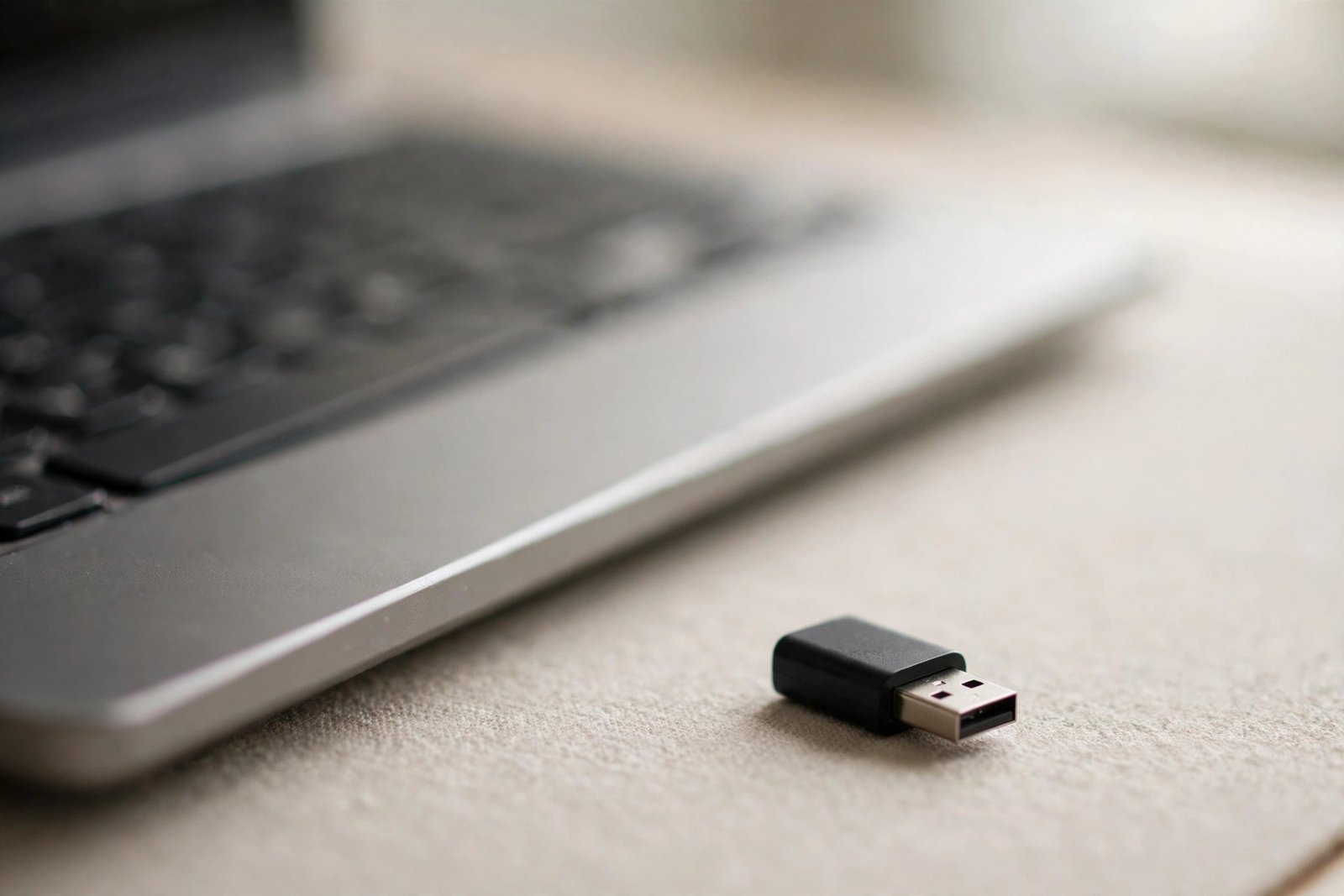
- If Bluetooth still does not work, the built-in adapter may be faulty. A small USB Bluetooth adapter (dongle) costs very little and gives you a fresh, working Bluetooth radio.
- Plug the USB adapter into a free USB port, let Windows install its driver, and pair your devices through it.
- If the USB adapter works while the built-in one does not, your PC’s internal Bluetooth hardware is the problem — contact the manufacturer for repair options.
For more Windows 11 hardware troubleshooting guides, browse our Windows 11 Hardware & Devices category or check the latest step-by-step tutorials on our blog. If you are new here, you can read more about what we do on our About page, and the TechSBSInfo homepage is the fastest way to find every guide on the site.
What to avoid
- Do not download “free driver updater” tools or cracked driver packs — they often install malware or the wrong drivers.
- Do not edit the Windows Registry to fix Bluetooth unless a trusted official guide tells you to; one wrong edit can stop Windows from booting.
- Do not delete .inf or system files (like bth.inf) to “clear the Bluetooth cache” — Windows manages these files itself.
- Do not keep pairing the same device over and over without removing the old pairing first; stale pairings are a top cause of “paired but not connected”.
- Do not ignore low battery warnings on your headphones or mouse — weak batteries cause exactly the random disconnects people blame on Windows.
- Do not buy a replacement device before testing a USB Bluetooth adapter or a different device on the same PC; the fault is often on the PC side.
Frequently Asked Questions
Why is my Bluetooth toggle missing in Windows 11?
The toggle disappears when Windows cannot see the Bluetooth hardware. This is usually a driver or firmware problem. Update the Bluetooth driver in Device Manager (Fix 7), then uninstall and reinstall the adapter (Fix 9). If it still does not return, install optional updates from your PC manufacturer.
My device says “Paired” but will not connect. What should I do?
Remove the device from Settings > Bluetooth & devices > Devices, put the device back into pairing mode, and pair it again from scratch (Fix 6). This clears corrupt pairing data, which is the most common cause of this exact symptom.
Bluetooth keeps disconnecting every few minutes. How do I stop it?
First check the device battery and move it closer to the PC. Then open Device Manager, right-click your Bluetooth adapter, go to Properties > Power Management, and uncheck “Allow the computer to turn off this device to save power”. Also restart the Bluetooth services (Fix 8).
Can I use a USB Bluetooth adapter if my built-in Bluetooth is broken?
Yes. A USB Bluetooth dongle works independently of your built-in chip. Plug it in, let Windows install the driver, and pair your devices through the new adapter (Fix 10). It is the cheapest fix when the internal hardware has failed.
Do I need third-party software to fix Windows 11 Bluetooth?
No. Every fix in this guide uses tools built into Windows 11 or drivers from your PC manufacturer’s official site. Avoid “free Bluetooth fixer” programs — they are unnecessary at best and harmful at worst.
Will updating Windows fix my Bluetooth problem?
It can. Windows updates often include newer Bluetooth drivers and firmware fixes. Go to Settings > Windows Update, install everything including optional driver updates, and restart (Fix 10). But update the Bluetooth driver directly first (Fix 7), since that targets the problem more precisely.
Conclusion
Most cases of windows 11 bluetooth not working come down to a handful of causes: a stuck radio, a stale pairing, a broken driver, or a stalled service. Start with the quick toggle and device restart, work through the troubleshooter and re-pairing steps, and move on to drivers and services only if you need to. In the rare case that software fixes fail, a USB Bluetooth adapter gets you connected again for very little money. Take it one fix at a time, and your devices will be back online soon.
[…] make sure they are paired and connected first. Pairing problems are a separate issue, and our guide to fixing Bluetooth audio devices on Windows 11 walks through them step by […]
[…] If you are also having trouble with wireless or Bluetooth printer connections in general, read our guide on fixing Bluetooth not working on Windows 11. […]