

Android mobile data not working is one of the most frustrating phone problems because it cuts you off from everything at once — maps, messages, email, and browsing all fail together. The good news is that the cause is almost always a setting, not a broken phone. Mobile data depends on a short chain: your plan must be active, your SIM must be seated properly, your phone must be connected to the right network, and the correct APN settings must be in place. This guide walks you through 9 fixes in order, from the quickest to the most thorough, so you can find the broken link and get back online.
Table of contents
- Quick checks
- Diagnose your problem
- 1. Turn mobile data off and back on
- 2. Toggle Airplane mode on and off
- 3. Check your mobile data plan and balance
- 4. Restart your phone
- 5. Check and reseat your SIM card
- 6. Set the right network mode and choose your operator manually
- 7. Reset or correct your APN settings
- 8. Check data limits, Data Saver, and per-app restrictions
- 9. Still stuck with Android mobile data not working? Reset your network settings
- What to avoid
- FAQ
- Conclusion
Quick checks
Before you change any settings, run through this 60-second list. Most people find their problem here:
- Is the Mobile data toggle actually on? Swipe down from the top of the screen and look at the quick settings panel. The data icon should be lit up, not greyed out.
- Is Airplane mode on? A small plane icon in the status bar means all radios are off. Turn it off.
- Is Wi-Fi on? Your phone prefers Wi-Fi whenever it is connected. If the Wi-Fi network has no internet, your phone may sit on the dead Wi-Fi instead of using mobile data. Turn Wi-Fi off to test your cellular connection on its own. If your Wi-Fi keeps dropping too, see our separate guide on Android phones disconnecting from Wi-Fi.
- Are you in a coverage dead zone? Basements, lifts, rural roads, and concrete buildings can all block the signal. Step outside or move near a window and check again.
- Have you used up your data allowance? Many plans stop data completely once the monthly limit is reached.
- Is the roaming indicator on? If you are abroad or near a border, you may need data roaming switched on — but check charges first.
- Are you on the right SIM? On dual-SIM phones, mobile data can be assigned to one SIM only. Make sure the SIM with your data plan is selected for mobile data.
Diagnose your problem
| Symptom | Likely cause | Go to fix |
|---|---|---|
| No 4G/5G icon in the status bar, or an exclamation mark on the signal icon | Mobile data toggle off, or a broken APN configuration | Fix 1, Fix 7 |
| Data worked yesterday and stopped suddenly overnight | Airplane mode stuck on, carrier outage, or a corrupt network state | Fix 2, Fix 3 |
| Apps load on Wi-Fi but not on mobile data | Mobile data toggle off, wrong SIM selected for data, or per-app restrictions | Fix 1, Fix 8 |
| Full signal bars but no internet | Wrong network type, wrong operator, or misconfigured APN | Fix 6, Fix 7 |
| Calls and SMS work but data does not | Data allowance exhausted, or the APN is wrong | Fix 3, Fix 7 |
| Data works right after a restart, then dies again | Loose SIM card or an unstable network state | Fix 5 |
| Only some apps can use mobile data | Data Saver is on, or per-app mobile data is blocked | Fix 8 |
| Nothing has helped so far | Deep network settings corruption | Fix 9 |
1. Turn mobile data off and back on
This is the simplest reset you can give your phone’s data connection, and it fixes a surprising number of cases. A stuck connection state — where the phone thinks it is connected but no packets are moving — is cleared the moment you toggle the switch.
- Swipe down from the top of the screen to open quick settings.
- Tap the Mobile data tile to turn it off. Wait 10 seconds.
- Tap it again to turn it back on.
- Open a browser and try loading a page.
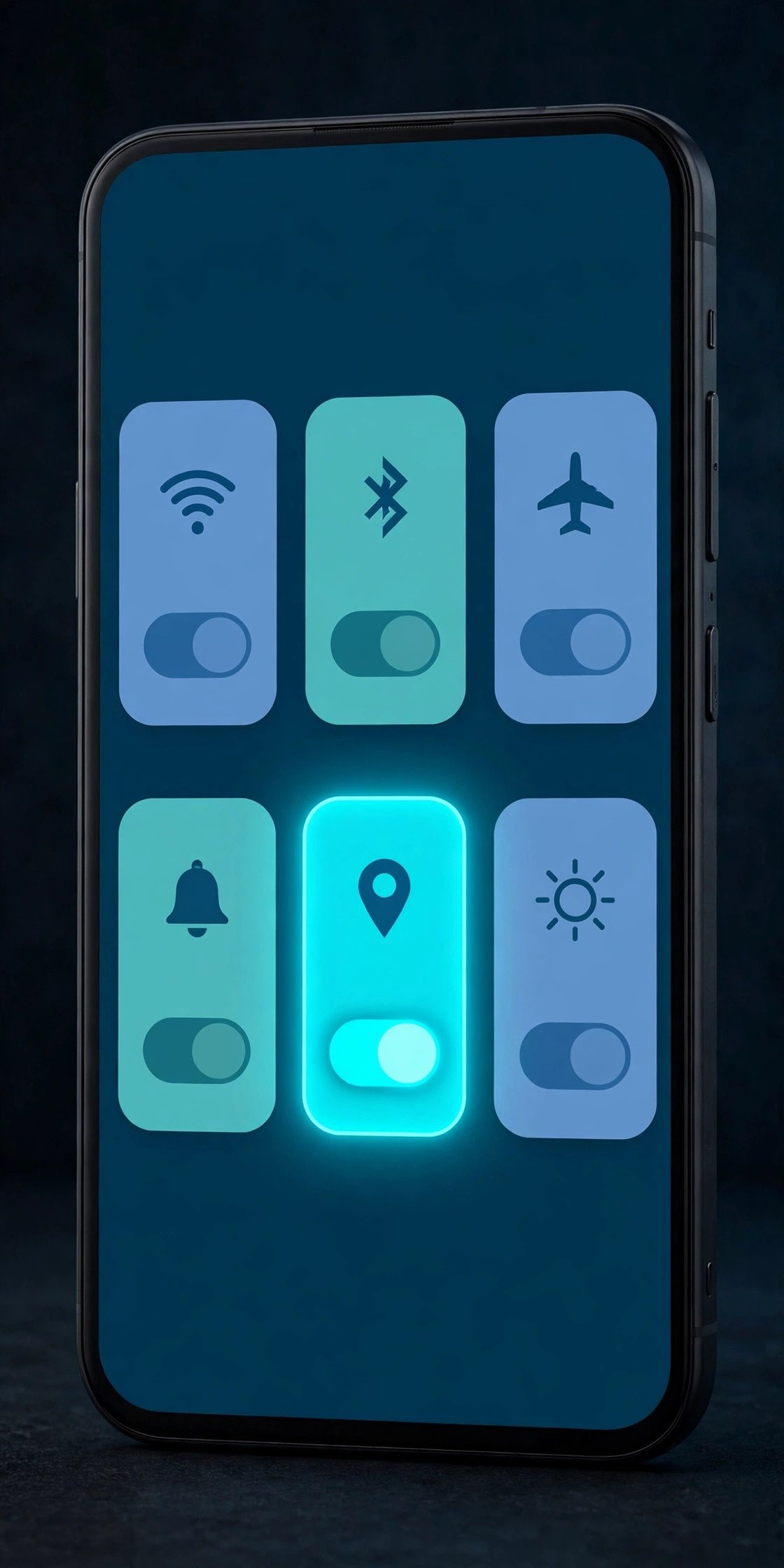
If the quick settings panel does not show a Mobile data tile, expand the full panel (swipe down twice) and tap the edit or pencil icon to add it.
2. Toggle Airplane mode on and off
Airplane mode forces every radio in your phone to shut down and restart: cellular, Wi-Fi, and Bluetooth. This is more powerful than toggling mobile data alone, because it re-registers your phone with the nearest cell tower from scratch.
- Swipe down to open quick settings.
- Tap the Airplane mode (plane icon) tile to turn it on.
- Wait about 30 seconds. Let the phone fully disconnect.
- Tap it again to turn it off.
- Wait another 30 seconds for the phone to reconnect to the network, then test your data.
If airplane mode fixed it but the problem returns daily, your phone may be failing to re-register on network handoffs — check your SIM card (Fix 5) and your network operator setting (Fix 6).
3. Check your mobile data plan and balance
No setting can fix an empty plan. Before you dig deeper, rule out the account side:
- Check your remaining data allowance. Open your carrier’s app or dial their balance-check code. Many plans stop data completely at the limit, and some throttle speeds so low that pages seem to hang.
- Check your balance and bill status. An unpaid bill or an expired prepaid plan will cut data first. Calls and SMS often keep working on a restricted plan, which makes this easy to misdiagnose.
- Check for a carrier outage. Visit your carrier’s status page or ask a friend on the same network. A local tower fault can knock out data for hours, and no phone setting will fix it.
- Check for SIM activation issues. If you recently changed plans, ported a number, or got a new SIM, the line may not be fully provisioned yet. Activation can take anywhere from minutes to 24 hours.
If everything looks fine on the account side, move on to the phone settings below.
4. Restart your phone
A restart clears temporary system glitches, stuck background services, and corrupt network state. It is a cliché because it works.
- Press and hold the power button (on some phones, power + volume up).
- Tap Restart. If your phone only shows Power off, turn it off, wait 10 seconds, and turn it back on.
- Once the phone is fully booted and shows your carrier name and a data icon, test your connection.
If the problem keeps coming back after restarts, there is a persistent cause — a loose SIM, a wrong APN, or a broken network setting — and the fixes below will find it.
5. Check and reseat your SIM card
The SIM card is the physical key that connects your phone to your carrier. A slightly loose, dirty, or damaged SIM is a classic cause of mobile data failures — sometimes calls work but data does not, and sometimes data works only intermittently.
- Turn your phone off completely before touching the SIM.
- Use a SIM ejector tool (or a straightened paperclip) to open the SIM tray.
- Take the SIM card out and inspect it. Look for scratches on the gold contacts, dirt, or a cracked edge.
- Gently wipe the gold contacts with a soft dry cloth. Do not use water or anything abrasive.
- Put the SIM back in firmly, making sure it sits flat in the tray, and push the tray fully back in.
- Turn the phone on and test your data.
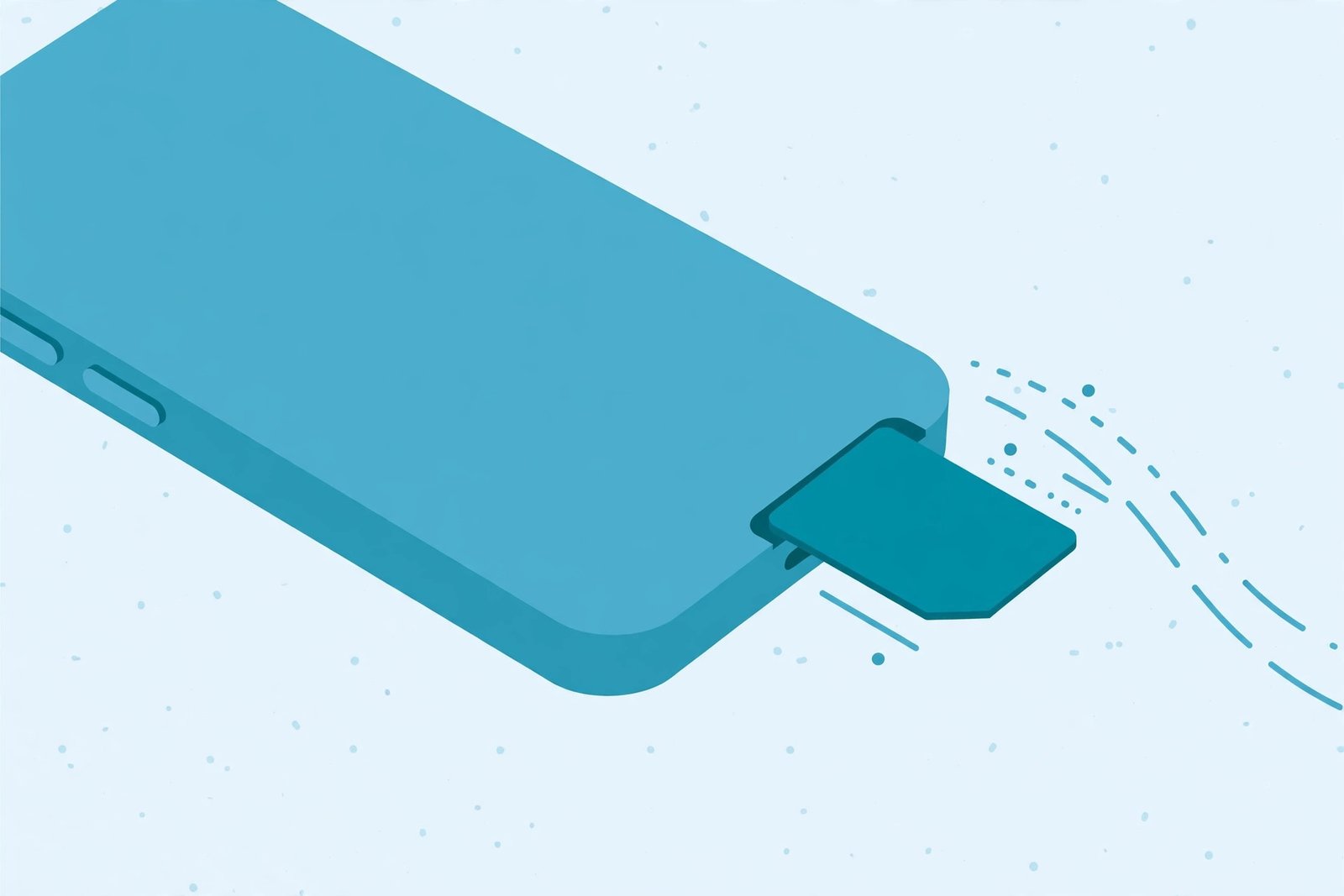
Two extra checks for this fix:
- Try the SIM in another phone. If data works there, the problem is your phone’s settings, not the SIM. If it fails there too, ask your carrier for a replacement SIM — they are usually free or very cheap.
- Check SIM manager settings. On dual-SIM phones, go to Settings → Connections → SIM manager (Samsung) or Settings → Network & internet → SIMs (Pixel and most others) and confirm the right SIM is selected for Mobile data, and that the SIM itself is switched on.
6. Set the right network mode and choose your operator manually
Your phone can connect over 2G, 3G, 4G, or 5G, and it normally picks the best one automatically. Sometimes it picks wrong — for example, it clings to a weak 5G signal when a strong 4G connection would work, or it registers on the wrong operator near a border.
- Open Settings → Network & internet → SIMs → your carrier (Pixel), or Settings → Connections → Mobile networks (Samsung).
- Tap Preferred network type and try 4G/LTE (or 5G if your plan supports it). Some phones list options like “5G/4G/3G/2G auto” — avoid locking to 2G or 3G only.
- Tap Network operators (or Mobile networks → Network operators) and turn off Choose automatically. Wait for the list to load, then select your carrier’s name manually.
- Go back, turn mobile data off and on once more, and test.
Google’s official guide to connecting to mobile networks explains these settings in more detail, including how preferred network types differ by phone and Android version. Note that menu names vary slightly between Samsung, Pixel, Xiaomi, and other brands — use the search box at the top of the Settings app and type “network operators” if you cannot find the menu.
7. Reset or correct your APN settings
The APN (Access Point Name) tells your phone exactly how to reach your carrier’s data network. If it is missing, wrong, or corrupt — which can happen after a carrier update, a system update, or switching SIMs — you will see full signal bars with zero internet. This is one of the most common causes of android mobile data not working with a healthy-looking signal.
- Open Settings → Network & internet → SIMs → your carrier (Pixel), or Settings → Connections → Mobile networks (Samsung).
- Tap Access Point Names (you may need to tap Advanced first).
- Tap the three-dot menu and choose Reset to default. This restores your carrier’s official APN settings.
- Make sure the correct APN is selected (there should be a dot or checkmark next to it).
- Restart your phone and test.
If the reset does not help, compare your APN values with the ones your carrier publishes on their website. If a field is wrong, create a new APN with the correct values rather than editing the default — never delete the only APN without knowing the correct replacement values, or you will make things worse.
8. Check data limits, Data Saver, and per-app restrictions
Android lets you limit mobile data in several places. If only some apps fail on mobile data while others work — or if data stops on a specific date each month — one of these limiters is the likely culprit.
- Check the data warning and limit. Go to Settings → Network & internet → SIMs → Data usage (or Settings → Connections → Data usage on Samsung). Look at Billing cycle and data warning — if a data limit is set, your phone may be cutting data off automatically.
- Turn off Data Saver. Go to Settings → Network & internet → Data Saver and make sure it is off, or add your important apps to the unrestricted list. Data Saver blocks background data for most apps, which can make things like email sync and notifications fail silently.
- Check per-app mobile data permissions. Go to Settings → Apps, open an app that fails on mobile data, tap Mobile data & Wi-Fi (or Data usage), and make sure Mobile data is allowed and Background data is not blocked.
If messages and alerts stopped arriving around the same time your data broke, it may be a notification problem rather than a data problem — our guide to Gmail notifications not working walks through that separately.
9. Still stuck with Android mobile data not working? Reset your network settings
If none of the fixes above worked, your phone’s network configuration itself may be corrupt. Resetting network settings wipes all Wi-Fi, mobile, and Bluetooth settings back to their defaults — including APNs, saved Wi-Fi passwords, and Bluetooth pairings — without touching your apps, photos, or files.
- Open Settings → System → Reset options (Pixel), or Settings → General management → Reset (Samsung).
- Tap Reset Wi-Fi, mobile & Bluetooth (on some Pixel models, you will see Reset mobile network settings and Reset Bluetooth & Wi-Fi as two separate options — do both).
- Confirm with your PIN or fingerprint.
- Your phone will restart the network stack. Reconnect to your Wi-Fi, make sure mobile data is on, and test.
Google’s official guide to fixing mobile connectivity issues lists this reset among its recommended steps and also explains how to check whether mobile data is switched on for your SIM. After the reset, you will need to re-enter Wi-Fi passwords — write them down first if you do not have them saved anywhere else.
What to avoid
- Do not install random “signal booster” or “network speed” apps. They cannot improve your hardware signal, and many are packed with ads or worse. The built-in settings above do the real work.
- Do not delete APN settings without knowing the correct values. A deleted APN with no replacement means no data at all. Reset to default instead, or add a new APN alongside the old one.
- Do not turn on data roaming abroad without checking charges. Roaming fees can be steep. Confirm the cost with your carrier before enabling it.
- Do not factory reset your phone for a data problem. A factory reset is a last resort that erases everything — the network settings reset in Fix 9 solves the same connectivity layer without touching your data. Browse our troubleshooting guides for less destructive options first.
- Do not buy a new phone before testing your SIM in another phone. If the SIM fails elsewhere, the phone was never the problem.
- Do not ignore your plan’s data cap. A surprising number of “dead data” cases are simply an exhausted monthly allowance.
FAQ
Why is my mobile data not working even though it is switched on?
The toggle is only one link in the chain. With the switch on, the most common causes are a used-up data allowance, a corrupt APN, the wrong network operator selected, or a loose SIM card. Work through the fixes in order — most people find the cause by Fix 7.
Does airplane mode really fix mobile data problems?
Yes, surprisingly often. Airplane mode shuts down and restarts all your phone’s radios, forcing a fresh registration with the cell tower. It clears stuck connection states that a simple data toggle cannot reach.
Why do I have full signal bars but no internet?
Signal bars show your connection to the cell tower, not your connection to the internet. Full bars with no data usually means a broken or missing APN, the wrong preferred network type, or a carrier-side issue. See Fix 6 and Fix 7.
Can a damaged SIM card cause mobile data to stop working?
Yes. A scratched, dirty, or loose SIM can fail on data while calls still work. Reseat the SIM as described in Fix 5, and if in doubt, ask your carrier for a free replacement SIM.
Will resetting network settings delete my files or photos?
No. The reset in Fix 9 only clears network-related settings — saved Wi-Fi passwords, Bluetooth pairings, and APNs. Your apps, photos, messages, and files stay untouched.
Should I factory reset my phone if nothing works?
Only as an absolute last resort. Try the network settings reset (Fix 9) and a replacement SIM first. If data still fails with a known-good SIM in your phone, the issue may be hardware — contact your phone manufacturer or a repair shop.
Conclusion
When android mobile data not working strikes, the fix is almost always one of a short list: the data toggle is off, airplane mode is stuck, the plan is exhausted, the SIM is loose, the APN is corrupt, or the network settings need a reset. Work through the 9 fixes above in order — most readers will be back online by Fix 4, and nearly everyone else by Fix 9. If nothing here helped, the problem is likely with your SIM card or your carrier’s network, and a call to your carrier is the next step. If this guide helped you, learn more about the people behind these step-by-step fixes on our About page.
[…] mobile data itself refuses to work on your phone, follow our detailed mobile data troubleshooting guide before trying the hotspot […]
[…] Battery Saver got enabled by the update (Fix 4). If the same update broke mobile data too, our Android mobile data not working guide covers that […]