

If your android phone keeps disconnecting from wifi every few minutes, you are not alone. The Wi-Fi icon fills up, then vanishes. Videos freeze. Downloads fail. Calls drop. Then, seconds later, the phone reconnects on its own — only to drop again.
The good news is that when your android phone keeps disconnecting from wifi, the problem has a short list of usual suspects. It is almost always one of these: a tired router, a corrupt saved network, an aggressive battery saver, a smart-switching setting, or outdated software. Work through the ten fixes below in order, simplest first. Most people find the culprit by fix 4 or 5, and each step takes only a few minutes.
- Quick Checks — Do These First
- Diagnose Table: Symptom, Cause and Fix
- 1. Restart Your Phone and Router
- 2. Forget the Network and Reconnect Fresh
- 3. Improve Your Router Position and Range
- 4. Turn Off Smart Wi-Fi Switching
- 5. Stop Battery Saver and VPN From Cutting Wi-Fi
- 6. Reset Network Settings
- 7. Update Android and Router Firmware
- 8. Band and Channel Fixes When an Android Phone Keeps Disconnecting From Wifi
- 9. Test in Safe Mode to Rule Out Apps
- 10. Contact Your ISP or Phone Maker
- What to Avoid
- FAQ
- Conclusion
Quick Checks
If your android phone keeps disconnecting from wifi, do these one-minute checks before touching any setting. They often reveal the pattern instantly.
- Do other devices drop too? If your laptop and tablet also disconnect, the problem is your router or internet line, not your phone. Jump to fix 1 and fix 8.
- Does it drop only in certain rooms? Drops that happen far from the router point to weak signal, not a phone bug. Jump to fix 3.
- Did it start after an update or a new app? A recent Android update, router firmware update, or newly installed VPN app is the prime suspect. Jump to fix 5 and fix 7.
- Does it drop when the screen turns off? This is the classic sign of a battery-saver or sleep setting killing Wi-Fi. Jump to fix 5.
- Are you on a busy public network? Cafes, airports and offices kick idle phones off regularly. This is normal, and fix 2 still helps.
- Check the time pattern. Drops every 10–15 minutes often mean a router DHCP lease issue. Drops only at peak evening hours suggest congestion. Write down the pattern — it makes the diagnose table much more useful.
Diagnose Table
| Symptom | Likely cause | Go to fix |
|---|---|---|
| Wi-Fi drops every few minutes, then reconnects | Router glitch or stale connection | Fix 1, then Fix 2 |
| Drops only far from the router | Weak signal or bad router position | Fix 3 |
| Drops only when the screen turns off | Battery saver or Wi-Fi sleep setting | Fix 5 |
| Phone jumps to mobile data and back constantly | Smart network switch / adaptive Wi-Fi | Fix 4 |
| Drops started right after an Android update | Software bug or reset network stack | Fix 6, then Fix 7 |
| Drops on one network but not others | Router-specific issue (band, channel, DHCP) | Fix 2, then Fix 8 |
| Drops only when a VPN is connected | VPN tunnel failing, not Wi-Fi itself | Fix 5 |
| Drops in Safe Mode too | Hardware or deep system fault | Fix 10 |
1. Restart Your Phone and Router
If your android phone keeps disconnecting from wifi, the oldest fix in the book is still the most effective first step. A restart clears stale connection states on both the phone and the router.
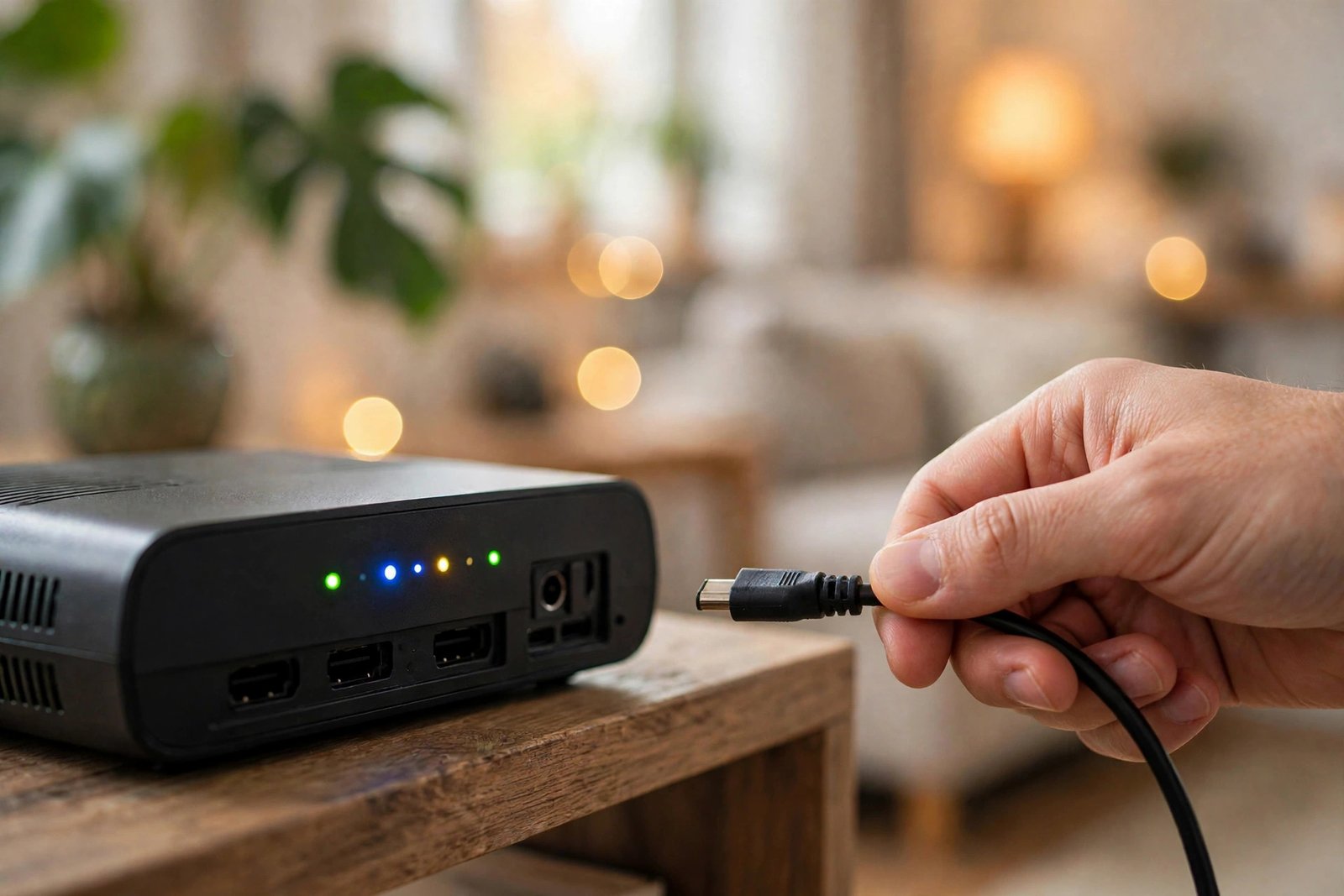
- Restart the phone first. Hold the power button, tap Restart, and wait for it to boot fully before testing.
- Unplug the router from power. Not the reset button — pull the power cable and wait a full 60 seconds.
- Plug it back in and wait. Give the router 2–3 minutes to reconnect to your ISP and broadcast Wi-Fi again.
- Reconnect the phone. Join the network fresh and use the phone normally for an hour to see if the drops stop.
If the drops return within an hour, do not keep restarting forever. Move on to fix 2 — the problem is deeper than a temporary glitch. And if your laptop or PC also loses the network at the same time, the router itself is the main suspect; our companion guide to Windows 11 Wi-Fi not working walks through router-side fixes from the computer side too.
2. Forget the Network and Reconnect Fresh
Saved Wi-Fi details can become corrupt — a wrong security setting cached from months ago, or a stale IP assignment. Forgetting the network wipes all of that and starts clean.

- Open Settings → Network & internet → Internet. The exact path varies slightly by phone brand.
- Tap the gear icon next to your network and choose Forget.
- Wait 30 seconds so the phone fully clears the saved profile.
- Reconnect and type the password carefully. One wrong character creates a half-joined state that drops constantly.
3. Improve Your Router Position and Range
A weak signal is the most common physical cause of drops. Your phone disconnects when the signal falls below the level it needs to hold a stable link.

- Move the router to a central, elevated spot. A shelf in the middle of your home beats a corner of the floor every time.
- Keep it away from thick walls and metal. Concrete, brick and large metal objects (fridges, filing cabinets) absorb the signal.
- Raise it off the floor. Wi-Fi spreads sideways and slightly downward — a router on the floor wastes half its range.
- Consider a mesh system for large homes. One router cannot cover three floors; mesh nodes hand your phone between access points seamlessly.
4. Turn Off Smart Wi-Fi Switching
Android’s smart switching (“Switch to mobile data automatically”, “Adaptive Wi-Fi”) jumps between Wi-Fi and mobile data when it thinks the Wi-Fi is weak. On a borderline signal it flips back and forth constantly — which feels exactly like disconnecting.
- Open Settings → Network & internet → Internet.
- Turn off “Switch to mobile data automatically”. On Samsung phones look for “Switch to mobile data” under Wi-Fi settings.
- Turn off “Adaptive connectivity” or “Adaptive Wi-Fi” if your phone has it — it makes the same aggressive switches.
- Test for a day. If the drops stop, the switching was the culprit; you can re-enable it later if you want.
5. Stop Battery Saver and VPN From Cutting Wi-Fi
Two background features routinely kill Wi-Fi without telling you: battery saver and a misbehaving VPN.
- Turn off Battery Saver completely for a test. Open Settings → Battery and disable Battery Saver, then check if the drops stop.
- Set “Keep Wi-Fi on during sleep” to Always. Find it under Wi-Fi → Advanced or Network preferences. If it is set to “Only when plugged in” or “Never”, the phone drops Wi-Fi every time the screen sleeps.
- Remove Wi-Fi from battery optimisation. Go to Settings → Apps → your Wi-Fi-related system apps are not listed here, but check Settings → Battery → Battery optimisation and make sure nothing network-related is set to “Restricted”.
- Disconnect the VPN and test. If a VPN app is installed, disconnect it and use the phone for an hour. A failing VPN tunnel blocks all traffic, which looks identical to a Wi-Fi drop.
6. Reset Network Settings
If your android phone keeps disconnecting from wifi even after the fixes above, reset the whole network stack. This clears saved Wi-Fi networks, Bluetooth pairings and mobile-data settings in one shot — but not your photos, apps or files.
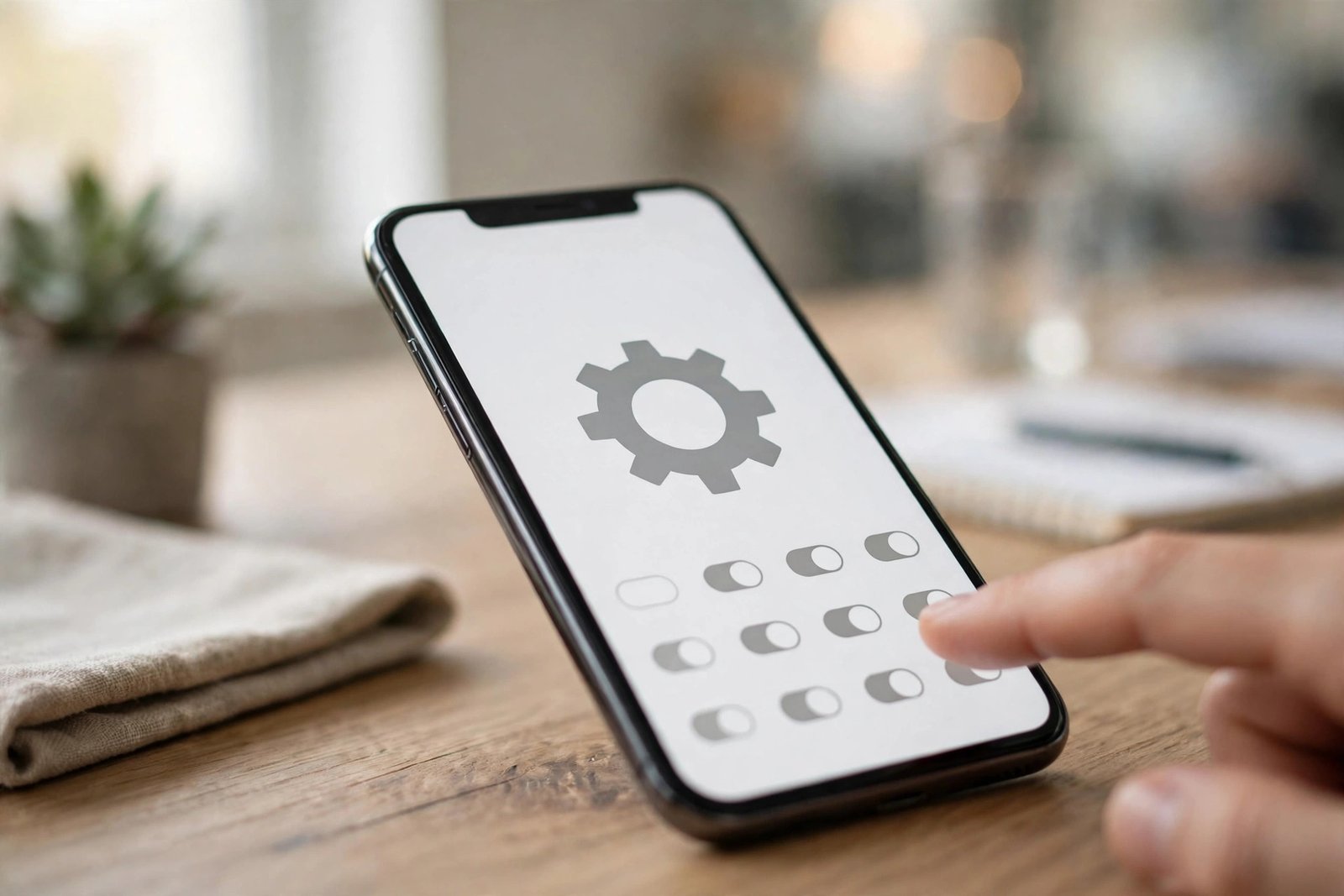
- Open Settings → System → Reset options. On Samsung: Settings → General management → Reset.
- Choose “Reset Wi-Fi, mobile & Bluetooth”. Do NOT choose a factory reset — you only want the network reset.
- Confirm and restart. The phone clears all network settings and reboots.
- Reconnect to your Wi-Fi fresh and test for a few hours before changing anything else.
Repeated disconnects make every page load fail, which is why people often blame the browser. If Chrome still refuses to load pages even on a stable connection, our guide to Chrome pages not loading covers the browser-side fixes separately.
7. Update Android and Router Firmware
Outdated software on either end causes drops that no setting can fix. Android updates frequently include Wi-Fi driver fixes, and router manufacturers patch connection bugs in firmware updates.
- Update Android. Go to Settings → System → System update and install anything pending.
- Update the router firmware. Log in to the router’s admin page (usually 192.168.1.1 or 192.168.0.1) and check for firmware updates.
- Update your apps too. An outdated system app can interfere with connectivity — update everything in the Play Store.
Google publishes its own troubleshooting steps alongside each Android release, so if a brand-new update seems to be the trigger, check Google’s official Android Help pages for the latest guidance on connection issues. Updates occasionally introduce new Wi-Fi bugs, and Google documents workarounds there first.
8. Band and Channel Fixes When an Android Phone Keeps Disconnecting From Wifi
Your router broadcasts on two bands — 2.4 GHz (long range, slower) and 5 GHz (short range, faster) — and each band has channels that can get crowded by neighbours’ routers.
- Try the 2.4 GHz band for stability. If your phone drops on 5 GHz far from the router, connect to the 2.4 GHz network instead — it travels through walls far better.
- Change the Wi-Fi channel. In the router admin page, switch the 2.4 GHz channel to 1, 6 or 11 (the non-overlapping channels) and pick whichever has least interference.
- Turn off “band steering” temporarily. Some routers force phones between bands automatically; disabling it lets you lock the phone to the stable band.
One side note: Bluetooth shares the 2.4 GHz band with Wi-Fi, so heavy Bluetooth use can make drops worse on crowded networks. If you also fight with wireless headphones or speakers, see our Windows 11 Bluetooth troubleshooting guide for the broader picture on wireless interference.
9. Test in Safe Mode to Rule Out Apps
A third-party app — especially VPNs, “Wi-Fi booster” apps, antivirus apps or automation tools — can interfere with the connection. Safe Mode disables all third-party apps so you can test cleanly.
- Boot into Safe Mode. Hold the power button, then long-press “Power off” until “Reboot to safe mode” appears. Tap OK.
- Connect to Wi-Fi and use the phone normally for an hour or two.
- If the drops stop in Safe Mode, an app is the cause. Restart normally and uninstall recently installed or suspicious apps one by one, starting with VPNs and network tools.
- If the drops continue in Safe Mode, the problem is in the system or hardware — move to fix 10.
10. Contact Your ISP or Phone Maker
If your android phone keeps disconnecting from wifi after all ten fixes, the fault is outside your control — either the internet line or the phone’s Wi-Fi hardware.
- Call your ISP if other devices drop too. Ask them to check the line quality and the router they supplied — a failing line card or modem causes exactly this pattern.
- Test the phone on a completely different network (a friend’s Wi-Fi, office Wi-Fi). Drops everywhere = phone hardware; drops only at home = your network.
- Contact the phone manufacturer while under warranty. A Wi-Fi chip that drops on every network needs professional repair or replacement.
- Document the pattern first. Note when drops happen, on which networks, and what you already tried — support teams solve documented cases far faster.
- Samsung owners can follow the model-specific steps on Samsung’s official support troubleshooting page before booking a repair.
What to Avoid
- Do not install “Wi-Fi booster” or “signal fixer” apps from unknown sources. They cannot improve your radio hardware and many are adware or worse.
- Do not factory-reset the phone as a first step. A network settings reset (fix 6) fixes the same problems without wiping your data.
- Do not keep restarting the router every hour. If restarts only help for minutes, the root cause is still there — work through the fixes instead.
- Do not change ten settings at once. Change one thing at a time and test, so you know exactly what fixed it.
- Do not ignore the pattern. Drops only in one room, only at night, or only on one network each point to a different fix — the diagnose table exists for this reason.
FAQ
Why does my Android phone keep disconnecting from WiFi when the screen turns off?
This is almost always a battery-saver or Wi-Fi sleep setting. Android restricts background network activity to save power. Go to your Wi-Fi advanced settings and set “Keep Wi-Fi on during sleep” to Always, and check fix 5 for the full battery-saver checklist.
My phone says “Connected, no internet” — is that the same problem?
Not quite. Your phone holds the Wi-Fi link but the router has no internet to share. Restart the router (fix 1), check whether other devices work, and if none do, call your ISP. The ten fixes here target the disconnect-reconnect cycle, not a dead internet line.
Does a VPN cause Wi-Fi to disconnect?
A VPN does not usually drop the Wi-Fi radio itself, but a failing VPN tunnel stops all traffic — pages, videos and messages all fail, which feels identical. Disconnect the VPN and test (fix 5). If everything works without it, switch VPN servers or providers.
Should I use 2.4 GHz or 5 GHz to stop drops?
Use 2.4 GHz for stability at distance and through walls, and 5 GHz for speed near the router. If your phone drops on 5 GHz in the bedroom but the router is in the living room, switch to 2.4 GHz there (fix 8). This is normal behaviour, not a defect.
Will resetting network settings delete my photos?
No. Resetting network settings only clears saved Wi-Fi networks, Bluetooth pairings and mobile-data settings (fix 6). Your photos, apps, messages and files stay untouched. You will just need to re-enter Wi-Fi passwords.
My phone drops Wi-Fi only at work. What should I do?
Office and campus networks often kick idle devices off to free capacity, and they may block personal phones from staying connected. Forget the network and reconnect (fix 2), turn off auto-switch to mobile data (fix 4), and if it persists, ask your IT team whether personal devices are throttled.
Conclusion
An android phone that keeps disconnecting from wifi is annoying, but it is rarely a serious fault. In most cases the fix is a two-minute restart, a forgotten-and-rejoined network, or one overzealous setting like auto-switch to mobile data or battery saver. Start at fix 1, follow the diagnose table to skip ahead when a symptom matches, and change one thing at a time so you know what worked.
If you walked through all ten fixes and the drops continue on every network, the phone’s Wi-Fi hardware may need professional attention — contact the manufacturer while the phone is still under warranty. For more step-by-step troubleshooting guides like this one, visit the TechSBSInfo homepage and browse the full library.
[…] Is Wi-Fi on? Your phone prefers Wi-Fi whenever it is connected. If the Wi-Fi network has no internet, your phone may sit on the dead Wi-Fi instead of using mobile data. Turn Wi-Fi off to test your cellular connection on its own. If your Wi-Fi keeps dropping too, see our separate guide on Android phones disconnecting from Wi-Fi. […]