

When you see android hotspot connected but no internet on your laptop or tablet, it feels confusing. Your device says it is connected. The Wi-Fi signal looks strong. But no page loads and no app can reach the internet. The good news is that this problem is almost always simple to fix. In most cases, a stuck hotspot session, a data limit, or a wrong setting is the cause. Work through the fixes below in order, from simplest to hardest, and you will likely be back online in a few minutes. For more step-by-step troubleshooting guides, the TechSBSInfo home page covers many common phone and computer problems.
Table of Contents
- Fix 1: Turn the Hotspot Off and Back On
- Fix 2: Restart Both Devices
- Fix 3: Check That Mobile Data Works on Your Phone
- Fix 4: Check and Remove Hotspot Data Limits
- Fix 5: Turn Off Your VPN
- Fix 6: Check Your Carrier Plan and APN Settings
- Fix 7: Disconnect Extra Devices
- Fix 8: Switch the Hotspot Band Between 2.4 GHz and 5 GHz
- Fix 9: Reset Network Settings to Fix Android Hotspot Connected But No Internet
- Fix 10: Update Android or Call Your Carrier
Quick Checks Before You Start
Run through this quick list first. Many people fix the problem in under a minute.
- Make sure mobile data is turned on and working on the phone that shares the hotspot.
- Check that you have not used up your mobile data or hotspot allowance.
- Move the hotspot phone to a spot with a stronger signal, such as near a window.
- Turn off any VPN app on both the phone and the connected device.
- Keep the hotspot phone charged or plugged in while the hotspot runs.
- Check that no other device is hogging the connection with a large download.
Diagnose the Problem: Match Your Symptom to the Fix
| Symptom | Likely Cause | Go to Fix |
|---|---|---|
| Connected, but no page or app loads at all | Hotspot session is stuck | Fix 1 |
| Hotspot keeps dropping or is very slow for everyone | Too many devices, or weak phone signal | Fix 2, Fix 7 |
| The phone itself has no internet either | Mobile data or carrier problem | Fix 3 |
| The hotspot worked fine until today | Data or hotspot limit reached | Fix 4 |
| Internet stops only when a VPN is on | VPN routing conflict | Fix 5 |
| You just changed SIM, plan, or phone | Wrong APN settings, or no tethering in your plan | Fix 6 |
| One device connects fine, another gets no internet | Wi-Fi band mismatch on that device | Fix 8 |
| Nothing above helped | Corrupt network settings | Fix 9 |
Fix 1: Turn the Hotspot Off and Back On
This simple restart clears the stuck hotspot session that causes most cases of android hotspot connected but no internet. It takes ten seconds and fixes the problem more often than anything else.
- On your Android phone, open Settings.
- Tap Network & internet, then Hotspot & tethering.
- Turn the Wi-Fi hotspot toggle off.
- Wait about 10 seconds so the connection fully closes.
- Turn the Wi-Fi hotspot toggle back on.
- On your laptop or tablet, disconnect from the hotspot network and reconnect to it.
If the internet works after the toggle, you are done. If not, keep going to Fix 2.
Fix 2: Restart Both Devices
A restart clears temporary glitches on both sides of the connection. Restart the phone that shares the hotspot and the device that connects to it. A phone restart is especially important, because it refreshes the mobile data connection and the hotspot service at the same time.
- Turn off the hotspot on your phone first.
- Press and hold the phone’s Power button, then tap Restart.
- While the phone restarts, restart your laptop or tablet too.
- Once both are back on, turn the hotspot on again and reconnect.
If your Windows laptop refuses to connect to any Wi-Fi network properly, our Windows 11 Wi-Fi fix guide walks through driver and adapter fixes that can also help here.
Fix 3: Check That Mobile Data Works on Your Phone
A hotspot only shares what the phone itself receives. If mobile data is broken on your phone, every connected device will show android hotspot connected but no internet too. This check tells you whether the problem is the hotspot or your phone’s data connection.
- Turn the hotspot off for a moment.
- Open your phone’s browser and try to load any website over mobile data.
- If the page loads, your mobile data is fine — move on to Fix 4.
- If the page does not load, toggle Mobile data off and on in Settings.
- Try switching your network mode: go to Settings > Network & internet > SIMs, and change the preferred network type to 4G or 5G.
If mobile data itself refuses to work on your phone, follow our detailed mobile data troubleshooting guide before trying the hotspot again.
Fix 4: Check and Remove Hotspot Data Limits
Android lets you set a data limit for the hotspot. Once that limit is reached, connected devices stay connected but get no internet — exactly the symptom you are seeing. Many people set this limit months ago and forget about it.
- On your phone, open Settings.
- Tap Network & internet, then Hotspot & tethering.
- Look for Data limit, Set data limit, or Turn off hotspot automatically.
- If a limit is set, turn it off or raise it well above your normal usage.
- Also check your main mobile data limit under Settings > Network & internet > SIMs > Data warning & limit.
- Restart the hotspot and reconnect your device.
Your carrier may also cap hotspot data separately from regular data. Check your carrier’s app or account page to see how much hotspot data you have left this month.
Fix 5: Turn Off Your VPN
A VPN changes how internet traffic is routed. On many phones, an active VPN blocks or breaks the hotspot connection, so devices connect to the hotspot but cannot reach the internet. This is one of the most overlooked causes of android hotspot connected but no internet.
- Open your VPN app on the hotspot phone and disconnect it completely.
- Also check the connected laptop or tablet, and disconnect any VPN running there.
- Turn the hotspot off and back on (see Fix 1).
- Reconnect and test the internet.
If the internet works with the VPN off, your VPN is the cause. Some VPN apps have a “split tunneling” or “allow tethering” option in their settings — enable it if you must use the VPN while hotspotting. If your VPN has no such option, use the VPN only on the connected device instead of on the phone.
Fix 6: Check Your Carrier Plan and APN Settings
Some mobile plans do not include hotspot (tethering) at all, or they block it once a small allowance runs out. In that case the phone connects devices normally, but the carrier refuses to pass internet traffic. A wrong APN (Access Point Name) after a SIM change or phone reset can cause the same symptom.
- Check your carrier’s app or website to confirm your plan includes hotspot data.
- If you recently changed your SIM or plan, restart your phone so it can pull fresh carrier settings.
- On your phone, go to Settings > Network & internet > SIMs > Access point names.
- Make sure the correct APN for your carrier is selected. Do not edit values unless your carrier tells you to.
- If the APN looks wrong or empty, tap the three-dot menu and choose Reset to default.
- Restart the phone, turn the hotspot back on, and test again.
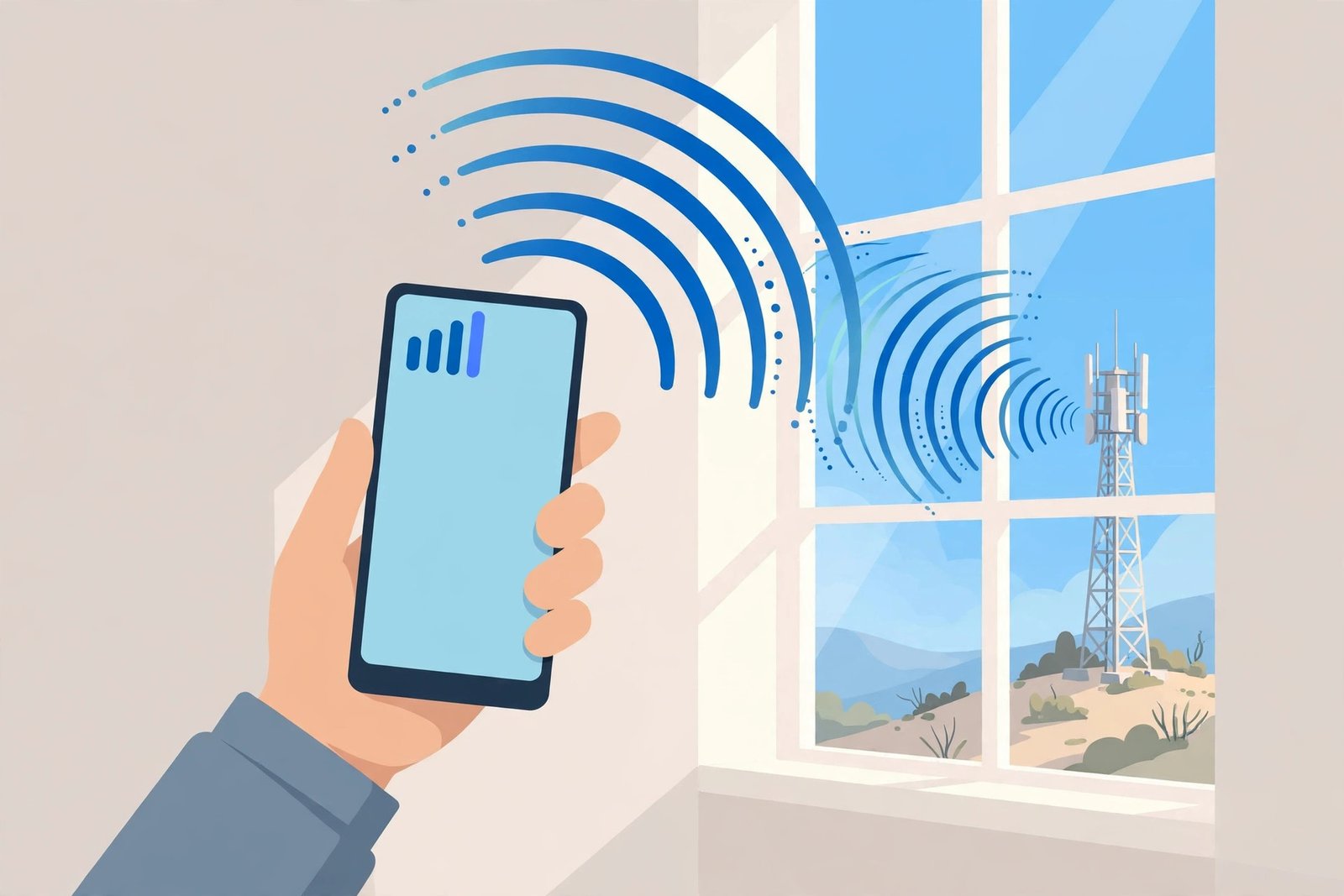
If you are unsure how tethering should be set up on your device, Google’s official guide to sharing a mobile connection explains the hotspot steps for different Android versions.
Fix 7: Disconnect Extra Devices
A phone’s hotspot has limited power. When too many devices connect at once — especially if one of them is downloading updates or streaming video — the rest may show as connected but get no usable internet. Older phones also cap how many devices can connect at all.
- On the hotspot phone, open Settings > Network & internet > Hotspot & tethering > Wi-Fi hotspot.
- Look at the list of connected devices.
- Disconnect devices you do not need right now, or ask others to pause big downloads.
- Some phones let you set a maximum number of connections — lower it to 2 or 3 for a stable connection.
- Reconnect only your main device and test the internet.
If the internet returns with fewer devices, your hotspot was simply overloaded.
Fix 8: Switch the Hotspot Band Between 2.4 GHz and 5 GHz
Your phone’s hotspot broadcasts on a Wi-Fi band, usually 2.4 GHz or 5 GHz. Some older laptops and tablets cannot see or properly use the 5 GHz band, and some devices struggle with 2.4 GHz in crowded areas. If one device connects but gets no internet while another works fine, the band is a prime suspect.
- On your phone, open Settings > Network & internet > Hotspot & tethering > Wi-Fi hotspot.
- Tap AP Band, Hotspot frequency, or a similar option.
- If it is set to 5 GHz, change it to 2.4 GHz — this band reaches farther and works with almost every device.
- If it is already on 2.4 GHz, try switching to 5 GHz for faster, less crowded speeds.
- Save the change, restart the hotspot, and reconnect.
The 2.4 GHz band is the safer choice when you are unsure. It is slower at best, but it connects reliably through walls and with older hardware.
Fix 9: Reset Network Settings to Fix Android Hotspot Connected But No Internet
When settings get corrupted — after a system update, a bad app, or months of changes — nothing else may work. Resetting network settings returns Wi-Fi, mobile data, Bluetooth, and hotspot settings to their defaults without deleting your photos, apps, or files. You will need to re-enter saved Wi-Fi passwords afterward.
- On your phone, open Settings.
- Go to System > Reset options (on Samsung phones, try General management > Reset).
- Tap Reset Wi-Fi, mobile & Bluetooth or Reset network settings.
- Confirm the reset with your PIN or fingerprint.
- Restart your phone when the reset finishes.
- Set up your hotspot again from scratch and reconnect your device.
Test the internet right after the reset, before restoring any old settings, so you know the reset itself did the job.
Fix 10: Update Android or Call Your Carrier
If nothing above worked, the problem may be a software bug or a carrier-side block. Both are fixable, but they need different actions.
- Check for a system update: go to Settings > System > System update and install anything available. Updates often include fixes for tethering and mobile data bugs.
- Update your carrier services app if your phone has one.
- If you have a second phone or can borrow one, test the hotspot from it. If that works, the problem is in your phone’s software.
- Call your carrier’s support line and ask two questions: is hotspot included in your plan, and is there any block on tethering for your line?
- Ask the carrier to refresh your line’s data services, which can clear provisioning errors on their side.
You can also check the official Android help pages for device-specific support options and contact channels. Keep a note of what you tried, so you can tell the support agent exactly which steps did not work — it speeds up the call a lot.
What to Avoid
- Do not keep toggling random settings without testing between changes. Change one thing, test, then move on.
- Do not install “hotspot booster” apps from unknown sources. Most do nothing, and some steal data.
- Do not edit APN values manually unless your carrier gives you the exact settings. Wrong values can break mobile data completely.
- Do not root your phone or flash custom firmware just to fix a hotspot. The risk is far bigger than the problem.
- Do not factory reset your phone as a first step. A network settings reset (Fix 9) fixes the same issues without wiping your data.
- Do not ignore your data allowance. Burning through your whole plan on a hotspot can bring surprise charges.
- Do not leave your hotspot open without a password. Strangers can join and slow you down or abuse your data.
Frequently Asked Questions
Why does my hotspot say connected but there is no internet?
The most common reasons are a stuck hotspot session, a data or hotspot limit that has been reached, an active VPN, or a carrier plan that does not include tethering. Work through the fixes above in order — most people solve it with Fix 1 or Fix 4.
Can my carrier block my hotspot?
Yes. Many plans include little or no hotspot data, and some prepaid plans block tethering entirely. When the carrier blocks it, your devices connect to the hotspot normally but get no internet. Check your plan details or call your carrier to confirm.
Does a VPN stop hotspot internet from working?
It can. A VPN on the hotspot phone changes how traffic is routed and often blocks connected devices from reaching the internet. Turn the VPN off and restart the hotspot to test. Some VPN apps offer a split-tunneling option that allows tethering to work.
How many devices can I connect to an Android hotspot?
Most Android phones allow 5 to 10 devices, but the practical limit is lower. Each extra device shares the same mobile connection, so speeds drop fast. For the best experience, keep it to 2 or 3 devices at a time.
Why does my hotspot keep turning off by itself?
Android turns the hotspot off automatically to save battery when no device is connected, or when a data limit or timeout is reached. Check the hotspot settings for an auto-off option and keep the phone plugged in during long sessions.
Why is my hotspot connected but very slow?
Slow hotspot internet usually means a weak mobile signal on the phone or too many devices sharing the connection. Move the phone to a better spot, disconnect devices you do not need, and switch the hotspot band to 2.4 GHz for a steadier signal (see Fix 8).
Is USB tethering better than a Wi-Fi hotspot?
USB tethering is often more stable and faster because it uses a cable instead of Wi-Fi, and it charges your phone at the same time. If your Wi-Fi hotspot keeps failing, connect your phone to the laptop with a USB cable, then enable USB tethering under Hotspot & tethering.
Does using a hotspot drain the battery faster?
Yes, noticeably. Broadcasting Wi-Fi while downloading data is one of the heaviest things a phone can do. Keep the phone plugged in during long hotspot sessions, and turn the hotspot off when you are done to save both battery and data.
Will resetting network settings delete my files?
No. A network settings reset only clears Wi-Fi passwords, Bluetooth pairings, and mobile network settings. Your photos, apps, messages, and files stay untouched.
Conclusion
Seeing android hotspot connected but no internet is annoying, but it is rarely a serious problem. A quick hotspot toggle fixes it most of the time. If not, check your data limits, turn off your VPN, confirm your carrier plan supports tethering, and reset your network settings as a last resort. One of these ten fixes solves the problem for almost everyone.
If your connection is back, bookmark this guide for the next time the hotspot acts up. And if pages still refuse to load in your browser after the hotspot works again, our Chrome pages not loading guide will help you sort that out next.