

Chrome pages not loading is one of the most frustrating problems you can hit on a computer. You click a link, the tab spins for ages, and nothing ever appears. Sometimes you get a stark error such as “This site can’t be reached”. Sometimes the page stays plain white. Either way, your work stops.
The good news: the cause is almost always simple, and the fix usually takes only a few minutes. In our experience at TechSBSInfo, nine out of ten cases come down to one of four things: a temporary connection glitch, a broken cache or cookie, a misbehaving extension, or a DNS hiccup. This guide walks you through nine fixes in order, from the simplest checks to deeper network repairs. Work through them one by one and test the page after each step. Most readers get their sites opening again by Fix 5.
Table of Contents
- Quick Checks
- Diagnose: Match Your Symptom to the Cause
- 1. Reload the Page Properly and Check the Address
- 2. Chrome Pages Not Loading on Every Site? Check Your Internet Connection
- 3. Try the Same Page in an Incognito Window
- 4. Restart Chrome and Install Any Updates
- 5. Clear Your Browsing Data: Cache and Cookies
- 6. Disable Your Extensions One by One
- 7. Turn Off Your VPN and Check Proxy Settings
- 8. Flush Your DNS Cache and Reset the Network
- 9. Reset Chrome Settings to Their Defaults
- What to Avoid
- FAQ
Quick Checks
Before you change anything, run through these quick checks. They take two minutes and often reveal the cause straight away.
- Look at your network icon in the Windows taskbar. If it shows no connection or a warning triangle, the problem is your internet, not Chrome.
- Try the same site on your phone (turn Wi-Fi off first, so it uses mobile data). If it loads there, the site itself is fine.
- Try the page in a different browser, such as Edge or Firefox. If it opens there, the fault lies inside Chrome.
- Note the exact error message. “This site can’t be reached”, ERR_CONNECTION_TIMED_OUT, ERR_NAME_NOT_RESOLVED, “Aw, Snap!”, or a blank page each point to a different cause — the diagnose table below maps them for you.
- Ask yourself when it started. Did pages stop loading right after you installed an extension, a VPN, or a Windows update? That timing is a strong clue.
Diagnose: Match Your Symptom to the Cause
| Symptom | Likely cause | Go to fix |
|---|---|---|
| “This site can’t be reached” or ERR_CONNECTION_TIMED_OUT on every site | No internet connection or a router problem | Fix 2 |
| A blank white page that never finishes loading | Corrupt cache or a broken cookie | Fix 5 |
| The page loads in Incognito mode but not in a normal window | A faulty extension or bad site data | Fix 3, then 6 |
| One website fails while every other site works | That site is down, blocked, or mistyped | Fix 1, then 7 |
| ERR_NAME_NOT_RESOLVED | A DNS problem — Chrome can’t turn the address into a server | Fix 8 |
| “Aw, Snap!” crashes on heavy pages | Low memory or a bad extension | Fix 4, then 6 |
| Pages start loading, then stall halfway | VPN, proxy, or a weak Wi-Fi signal | Fix 7, then 2 |
1. Reload the Page Properly and Check the Address
It sounds too simple, but a surprising number of loading failures are caused by a mistyped address or a one-off failed load. A normal refresh sometimes just reuses the same broken request, so do a hard refresh instead. This forces Chrome to fetch a fresh copy of the page.
Follow these steps:
- Click in the address bar and read the address carefully. Look for typos such as a missing letter, an extra full stop, or “htpps” instead of “https”.
- Press Ctrl + F5 on your keyboard. This is a hard refresh — Chrome skips its cache and downloads the page again.
- If the page still fails, try opening it on your phone using mobile data. If it fails there too, the website itself is probably down, and no fix on your PC will help — you just have to wait.
- If the address came from a bookmark or an old link, search for the site in Google and open the fresh result instead. Old links sometimes point to pages that no longer exist.
If the address is correct and the site works on your phone, move on to Fix 2.
2. Chrome Pages Not Loading on Every Site? Check Your Internet Connection
When Chrome pages are not loading on every site you try, the browser is rarely the culprit — your connection is. Chrome cannot open pages if Windows itself has no working route to the internet, so verify the connection before touching any browser settings.
Work through these steps:
- Click the network icon in the taskbar (bottom-right of the screen). Confirm it says “Connected” on your Wi-Fi or Ethernet network.
- Open another app that uses the internet, such as your email program or the Microsoft Store. If nothing connects, the problem is definitely your network.
- Restart your router: unplug its power cable, wait a full 30 seconds, then plug it back in. Give it two minutes to reconnect, then try Chrome again. This single step fixes a huge share of loading problems.
- If you use Wi-Fi, move closer to the router or try a wired Ethernet cable. A weak signal can make pages start loading and then stall.
- As a test, share your phone’s mobile hotspot with the PC and try the page. If it loads over the hotspot, your home broadband or router needs attention, not Chrome.
If your Wi-Fi keeps dropping or refuses to connect at all, our step-by-step guide to Windows 11 Wi-Fi not working walks you through the deeper wireless repairs. If the connection is fine but Chrome still won’t load pages, continue to Fix 3.
3. Try the Same Page in an Incognito Window
An Incognito window opens with your extensions disabled and a clean, temporary set of cookies. This makes it a perfect diagnostic tool: if the page loads in Incognito but not in your normal window, you know the problem lives in your extensions or your saved site data — not in your internet connection.
Follow these steps:
- Press Ctrl + Shift + N to open a new Incognito window. You will see the dark Incognito theme so you know you’re in the right place.
- Type or paste the page address into the Incognito window and press Enter.
- If the page loads normally, the cause is almost certainly a broken extension or corrupt browsing data. Continue to Fix 5 and Fix 6 — they will clear it.
- If the page still fails in Incognito, extensions and cookies are probably innocent. Skip ahead to Fix 4 and the network fixes from Fix 7 onward.
Keep the Incognito result in mind as you continue. It tells you whether to focus on Chrome’s insides or on the network underneath.
4. Restart Chrome and Install Any Updates
Chrome sometimes gets into a bad state after running for days: background processes hang, memory fills up, and pages stop loading even though everything else looks normal. A full restart clears this. While you’re at it, check for updates, because Google regularly fixes loading bugs in new releases.
We keep a library of step-by-step browser repair guides on our blog, and the restart-and-update routine below is the starting point of nearly all of them.
Follow these steps:
- Close every Chrome window. Then check the taskbar corner (the small arrow near the clock) — if you see the Chrome icon there, right-click it and choose Exit, so no background process keeps running.
- Wait ten seconds, then open Chrome again from your Start menu or desktop shortcut.
- Try the page that was failing.
- If it still fails, update Chrome: click the three-dot menu in the top-right corner, go to Help, then About Google Chrome. Chrome checks for updates automatically on this page.
- If an update is found, let it install, then click Relaunch. Test your page again after the restart.
An outdated Chrome can struggle with modern websites, so don’t skip the update check even if a restart seemed to help.
5. Clear Your Browsing Data: Cache and Cookies
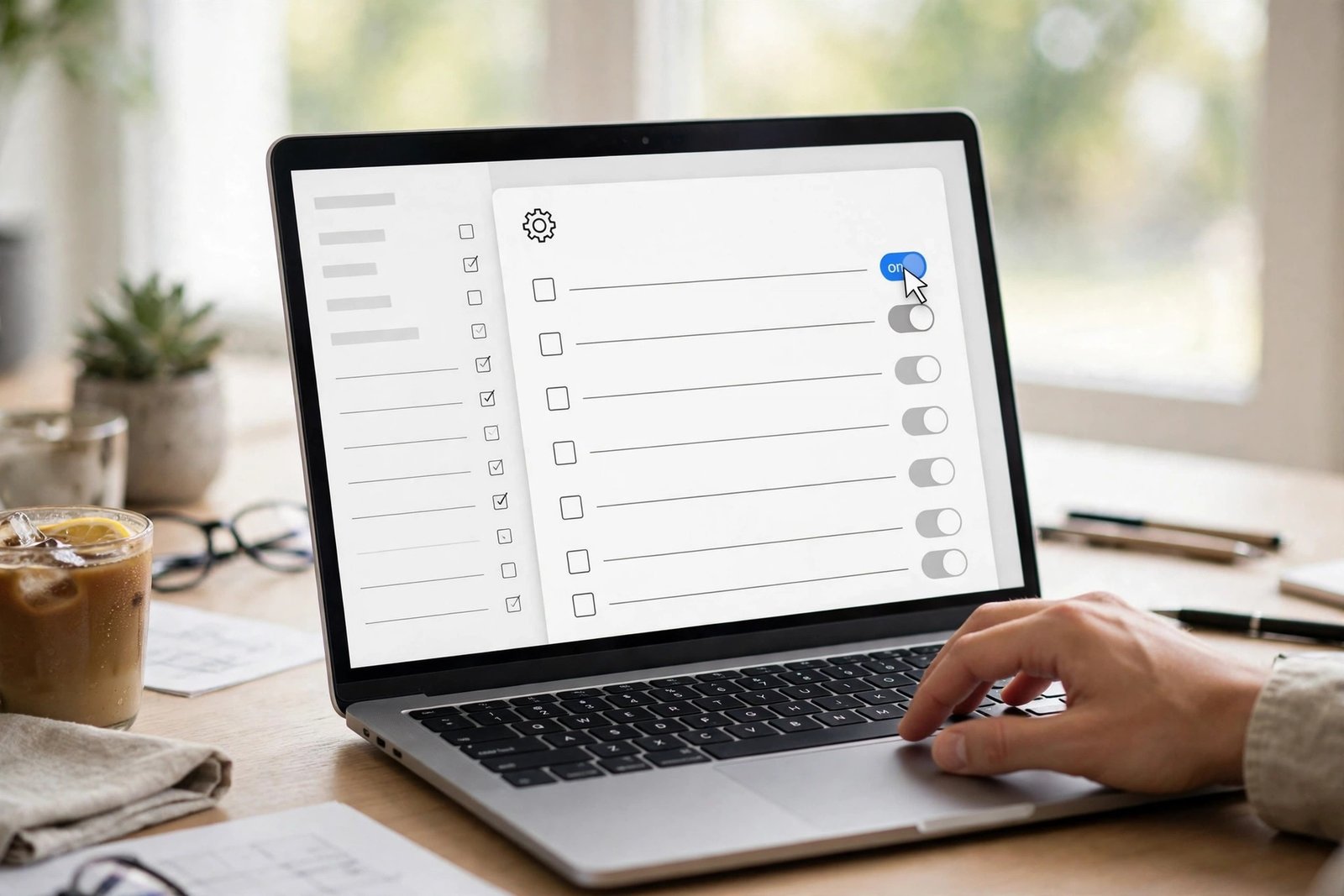
Chrome stores copies of pages (the cache) and small site files (cookies) to load websites faster. When these stored files become corrupt or out of date, they can block pages from loading entirely — you get blank screens or endless spinners even though your internet works fine. Clearing them forces Chrome to fetch everything fresh.
Follow these steps:
- Press Ctrl + Shift + Delete. The “Delete browsing data” panel opens.
- Next to “Time range”, choose All time from the dropdown. A shorter range often misses the corrupt files.
- Tick Cookies and other site data and Cached images and files. Leave “Browsing history” ticked or unticked as you prefer — it doesn’t affect loading.
- Click Delete data and wait for Chrome to finish.
- Close Chrome completely and reopen it, then try your page again.
Two things to know: clearing cookies signs you out of most websites, so have your passwords handy (your saved passwords are not deleted). And if you only want the official instructions, Google’s own guide to deleting and managing cookies in Chrome explains each option in detail.
If pages load again, the corrupt data was the cause. If not, your extensions are the next suspect.
6. Disable Your Extensions One by One
Extensions run inside every page you open. Ad blockers, VPN extensions, script blockers, and even shopping helpers can misfire and stop pages from loading — sometimes only on certain sites, which makes the fault hard to spot. The Incognito test in Fix 3 already hinted at this; now let’s prove it.
Follow these steps:
- Type chrome://extensions in the address bar and press Enter. Your full extension list appears.
- Toggle off every extension using the switch in each card. Don’t uninstall them yet — just disable.
- Try the failing page. If it loads, an extension was blocking it.
- Re-enable your extensions one at a time, testing the page after each one. When the page breaks again, you’ve found the culprit.
- For the faulty extension, click Remove to uninstall it, or check its settings for an option like “allow this site” if you want to keep it.
Pay special attention to ad blockers and VPN or proxy extensions — they intercept page requests by design, so they are the most common offenders. If you need the extension, look for an updated version in the Chrome Web Store before giving up on it.
7. Turn Off Your VPN and Check Proxy Settings
A VPN routes all your traffic through a distant server. If that server is slow, overloaded, or blocked by the website, pages will stall or refuse to load — even though Chrome itself is healthy. Proxy settings can cause the same symptom, especially if a program changed them without telling you.
Follow these steps:
- If you use a VPN app or a VPN extension, disconnect it completely and try the page. If pages load with the VPN off, the VPN server was the problem — try a different server location in your VPN app.
- If you don’t use a VPN, check Windows proxy settings: press Windows + I to open Settings, then go to Network & internet and click Proxy.
- Under “Manual proxy setup”, make sure Use a proxy server is turned off — unless you deliberately use a proxy.
- Also check “Automatically detect settings” is turned on, which is the correct default for most home networks.
- Return to Chrome and test the page again.
One warning: if you’re on a work or school network, the proxy may be managed by your organisation. Don’t change those settings without asking your IT administrator first.
8. Flush Your DNS Cache and Reset the Network
When you type a website address, Windows uses DNS to translate it into a server number. Windows keeps a local DNS cache, and if an entry in it goes stale or corrupt, Chrome can’t find the site — you’ll see ERR_NAME_NOT_RESOLVED or endless loading. Flushing the cache forces a fresh lookup. If that isn’t enough, resetting the network stack repairs deeper Windows networking damage.

Follow these steps:
- Press Windows + S, type Command Prompt, right-click it, and choose Run as administrator. Click Yes on the permission prompt.
- Type
ipconfig /flushdnsand press Enter. You should see “Successfully flushed the DNS Resolver Cache.” - Type
netsh winsock resetand press Enter. This repairs the Windows network layer that Chrome relies on. - Restart your computer — the reset only takes effect after a reboot.
- After restarting, open Chrome and test the page.
You can also clear Chrome’s own DNS memory: type chrome://net-internals/#dns in the address bar, press Enter, and click Clear host cache. This is safe and takes two seconds.
These commands only clear temporary network data. They don’t delete any of your files, settings, or bookmarks.
9. Reset Chrome Settings to Their Defaults
If nothing above worked, Chrome’s own settings may be damaged — a changed startup page, a broken search engine setting, or a security policy left behind by old software. Resetting restores Chrome’s original settings without deleting your bookmarks, history, or saved passwords.
Follow these steps:
- Click the three-dot menu in the top-right corner and open Settings.
- On the left sidebar, click Reset settings.
- Click Restore settings to their original defaults.
- Read the confirmation box — it lists exactly what will change — then click Reset settings.
- Restart Chrome and test your pages.
Resetting disables your extensions (you can re-enable the trustworthy ones later) and clears temporary site data. It does not uninstall Chrome and does not touch your personal files. If pages still won’t load after a reset, the fault is almost certainly outside Chrome — your network, your security software, or the websites themselves — and a clean Chrome reinstall is the final option.
What to Avoid
When pages won’t load, frustration tempts people into risky “fixes”. Avoid these:
- Don’t download “Chrome fixer” or “PC booster” tools from random websites. They rarely fix anything and often install adware. Only download software from official sources.
- Don’t turn off your antivirus permanently. If you suspect it blocks Chrome, add Chrome as an exception instead — your security software’s own help pages show how.
- Don’t edit the Windows registry to fix a browser problem. One wrong entry can stop Windows booting, and registry edits are never needed for page-loading issues.
- Don’t reinstall Chrome before trying the nine fixes above. Reinstalling costs you time and risks your data, while the earlier fixes solve the problem in most cases.
- Don’t change your DNS servers to random addresses copied from forum posts. If you ever experiment with public DNS, note down your original settings first so you can change them back.
- Don’t ignore the exact error message. It is the fastest clue you have — ERR_NAME_NOT_RESOLVED means DNS, a blank page means cache or cookies, and “Aw, Snap!” means memory or an extension.
FAQ
Why do some websites load in Chrome but others don’t?
This usually means your internet and Chrome are both fine. The failing site may be temporarily down, or an extension may be blocking it, or your DNS cache may hold a stale entry for that address. Test the site on your phone’s mobile data first. If it works there, clear your browsing data (Fix 5) and flush your DNS (Fix 8).
How can I tell whether the problem is my internet or Chrome itself?
Open the same page in a different browser, such as Edge or Firefox. If it loads there, the problem is inside Chrome — focus on Fixes 3 to 6 and 9. If it fails in every browser and in other apps too, the problem is your internet connection — focus on Fix 2.
Will clearing my browsing data delete my saved passwords?
No — as long as you don’t tick the “Passwords and other sign-in data” box. Clearing cache and cookies only removes temporary page copies and site sign-in tokens. You will be signed out of websites and need to log in again, but your saved passwords stay in Chrome.
Where can I find Google’s official help for Chrome loading errors?
Google maintains its own troubleshooting checklist called Fix connection and loading errors in Chrome. It covers the official steps for connection problems, and it’s a good second opinion if you want to confirm anything in this guide.
Should I just reinstall Chrome?
Reinstall only as a last resort, after Fix 9 (resetting settings) has failed. Before reinstalling, turn on Chrome sync or export your bookmarks so nothing is lost. In practice, a settings reset fixes the same problems a reinstall would, with far less hassle.
Conclusion
Pages refusing to load in Chrome feels serious, but the fix is usually straightforward. Start simple: hard-refresh the page, check your connection and restart your router, then test in an Incognito window. If those don’t work, clear your browsing data, disable your extensions, and check your VPN and proxy settings. Deeper network repairs — flushing DNS and resetting Chrome — handle the stubborn cases that remain.
Work through the nine fixes in order rather than jumping ahead, and test the page after each step so you know exactly what solved it. You can read more about how we test every guide before publishing on our about page. With the right fix applied, your sites should be opening again in minutes.
[…] If the 404 appears only in Chrome while other browsers load the page fine, the fault may lie with the browser itself rather than your site — see our guide on Chrome pages that will not load. […]
[…] on your phone or in a private window. If pages will not load in any browser, check our guide on Chrome pages not loading to rule out a browser problem […]
[…] pages refuse to load in Chrome at all, the browser itself may need attention — our Chrome pages not loading guide covers that side of the […]
[…] keeps crashing or freezing while you test, sort that out first with a dedicated guide such as how to fix Chrome pages that will not load — you cannot diagnose a site reliably from a broken […]
[…] Try a different browser. If Chrome fails but Firefox works, the issue sits in one browser. For general Chrome page problems, see our guide to Chrome pages not loading. […]