

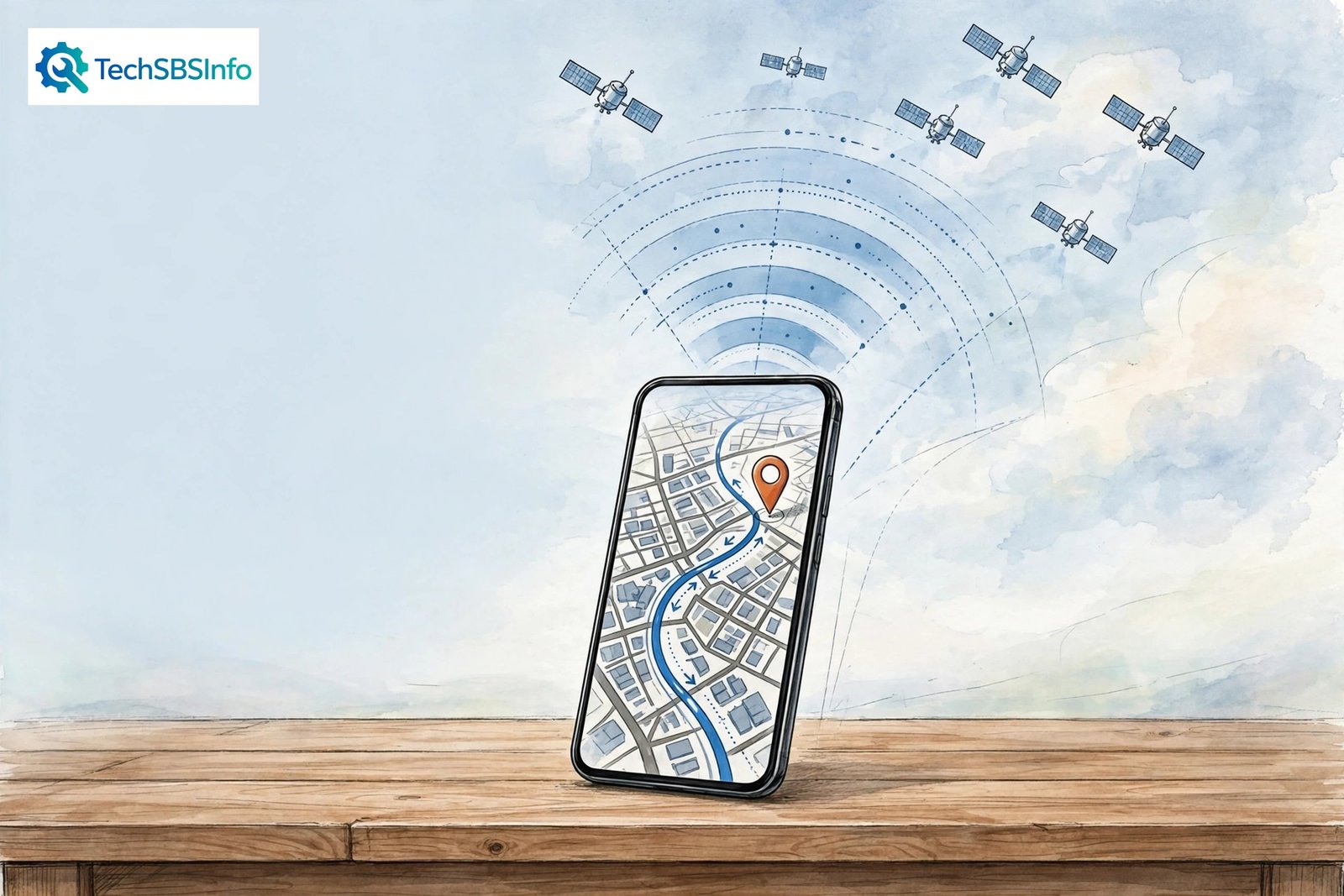
android gps not accurate is almost always caused by your phone struggling to “see” the satellites, not by a broken GPS chip. Your phone works out its position by combining signals from GPS satellites, nearby Wi-Fi networks, Bluetooth beacons, and mobile towers — and when any part of that mix is weak, the blue dot drifts, jumps, or freezes. The good news is that the fix is usually a setting, not a repair. This guide walks you through 10 fixes in order, from the quickest to the most thorough, so you can find the exact break and get pinpoint accuracy back.
Table of contents
- Quick checks
- Diagnose your problem
- 1. Restart your phone to reset the GPS radio
- 2. Step outside and give the satellites a clear view
- 3. Turn Location on and switch to Precise mode
- 4. Switch on Google Location Accuracy and Wi-Fi/Bluetooth scanning
- 5. Toggle Airplane mode to force a fresh satellite lock
- 6. Calibrate the compass with a figure-8 motion
- 7. Give the app the right location permission
- 8. Stop Battery Saver from throttling your GPS
- 9. Clear the map app’s cache and update everything
- 10. Still getting android gps not accurate? Check the case and reset network settings
- What to avoid
- FAQ
- Conclusion
Quick checks
Before you touch any deep settings, run through this 60-second list. Most people find their problem here:
- Is Location actually turned on? Swipe down the Quick Settings panel and check the Location tile.
- Are you indoors, underground, or surrounded by tall buildings? GPS needs a line of sight to the sky.
- Is Airplane mode on? It switches off the radios your phone uses to help locate you.
- Is Battery Saver or Power saving mode active? It throttles the GPS radio to save power.
- Does the app have permission to use your precise location, not just an approximate one?
- Are you wearing a thick or metal phone case? Metal blocks satellite signals surprisingly well.
- Is your phone’s system software up to date? Updates often include GPS and radio fixes.
- Does the problem happen in every app, or just one? Open Google Maps and compare — if Maps is fine, the problem is the other app’s settings, not your GPS.
Diagnose your problem
| Symptom | Likely cause | Go to fix |
|---|---|---|
| Blue dot jumps around or sits a block away | Low-accuracy location mode, Wi-Fi/Bluetooth scanning off, weak satellite signal | Fix 3, Fix 4, Fix 2 |
| Location is stuck at an old spot and never follows you | App lacks the right permission, or Battery Saver paused location updates | Fix 7, Fix 8 |
| Compass arrow points the wrong way while navigating | Compass sensor is uncalibrated or there is magnetic interference | Fix 6 |
| GPS works fine outside but dies indoors | Normal behaviour — GPS needs satellite line-of-sight; Wi-Fi scanning may be off | Fix 2, Fix 4 |
| Location was perfect, then went wrong after an update | The update reset a setting, or old cached location data is stale | Fix 3, Fix 9 |
| Every app shows the wrong location everywhere | Location switched off, Airplane mode on, or a deeper radio problem | Fix 1, Fix 5, Fix 10 |
| Your position lags several seconds behind you | Battery Saver is throttling updates, or the signal is too weak to refresh often | Fix 8, Fix 2 |
| One app is wrong but Google Maps is fine | That app’s permission is set to approximate, or its data is corrupted | Fix 7, Fix 9 |
1. Restart your phone to reset the GPS radio
The simplest fix works more often than people expect. Your phone’s GPS radio can get stuck in a bad state — holding on to old satellite data or a frozen location session — and a restart clears it completely.
- Press and hold the power button, then tap Restart. Do not just lock and unlock the screen.
- Wait for the phone to boot fully, then open Google Maps.
- Tap the target/location button in the bottom-right corner to centre the map on your position.
- Give it 30–60 seconds. The first lock after a restart (a “cold start”) is always slower.
If the blue dot snaps to your real position after the restart, you are done. A stuck GPS session was the whole problem, and there is nothing wrong with your phone.
2. Step outside and give the satellites a clear view
Your phone needs signals from at least four GPS satellites to calculate an accurate position, and those signals are weak — they cannot pass through roofs, thick concrete, or deep underground spaces. Indoors, your phone falls back on Wi-Fi and Bluetooth positioning, which is far less precise. This is why android gps not accurate complaints spike inside shopping malls, offices, and basements.
- Walk outside or to a window with a wide view of the sky.
- Hold the phone with the screen facing up so the antenna has the clearest path.
- Avoid standing right against tall buildings — they bounce signals around and confuse the calculation (this is called the “urban canyon” effect).
- Wait a minute or two. A fresh satellite lock takes time, especially if you have just travelled a long distance.
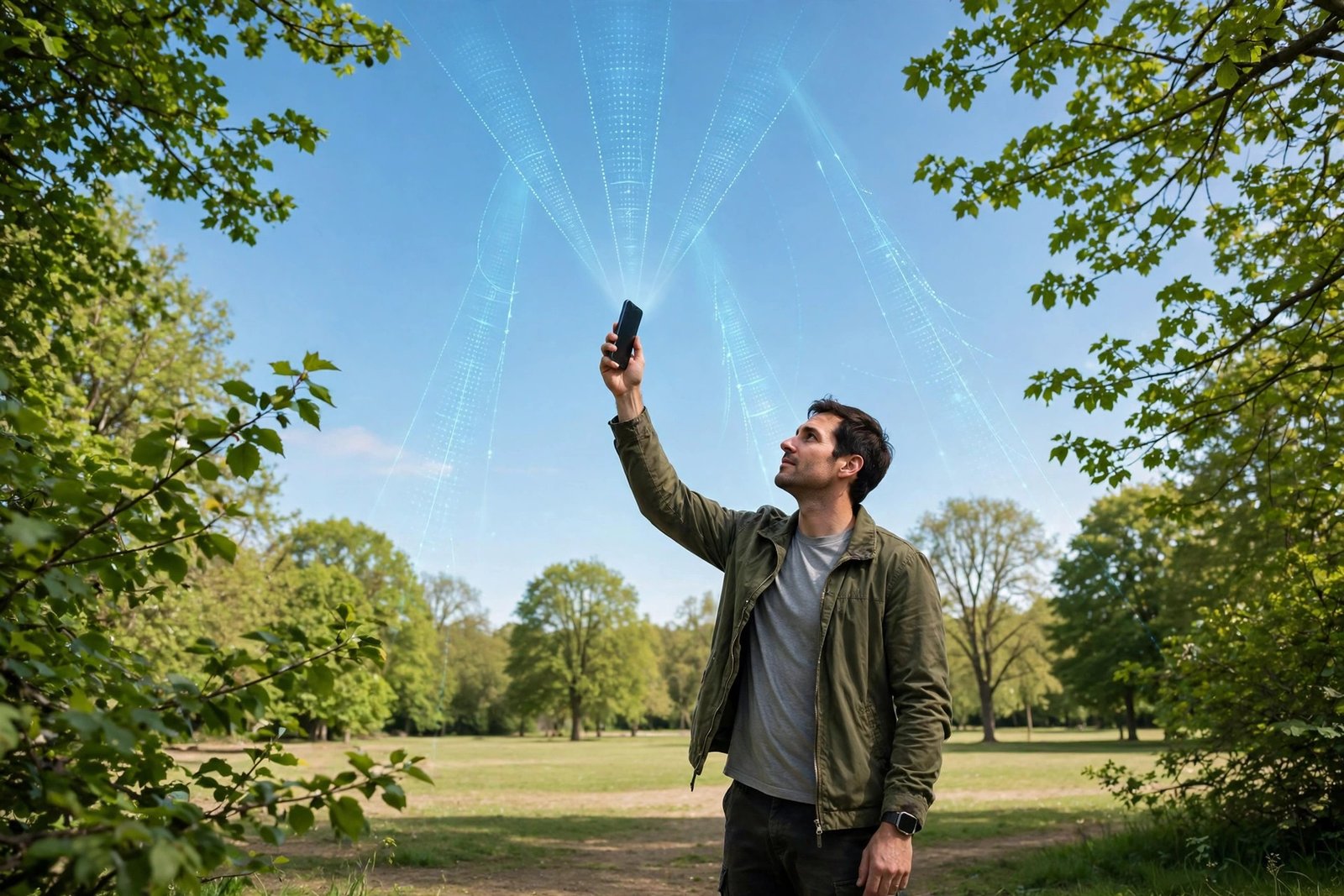
This fix also doubles as a diagnosis: if your location is perfect outdoors but poor indoors, your GPS hardware is healthy and the problem is purely environmental. No repair or replacement will change that — it is just physics.
3. Turn Location on and switch to Precise mode
Android has two levels of location detail, and many phones quietly run on the weaker one. Precise location uses the GPS satellites for accuracy down to a few metres. Approximate location only narrows you down to a general area — a whole neighbourhood — which looks exactly like android gps not accurate.
- Open Settings and go to Location. Make sure the master Location switch is turned on.
- Go to Settings > Apps, pick the app that shows the wrong location (for example, Google Maps), and tap Permissions > Location.
- Set the access level to Allow all the time (for navigation apps) or Allow only while using the app.
- Switch on Use precise location. This single toggle is the fix for a huge number of “GPS is off by a block” cases.
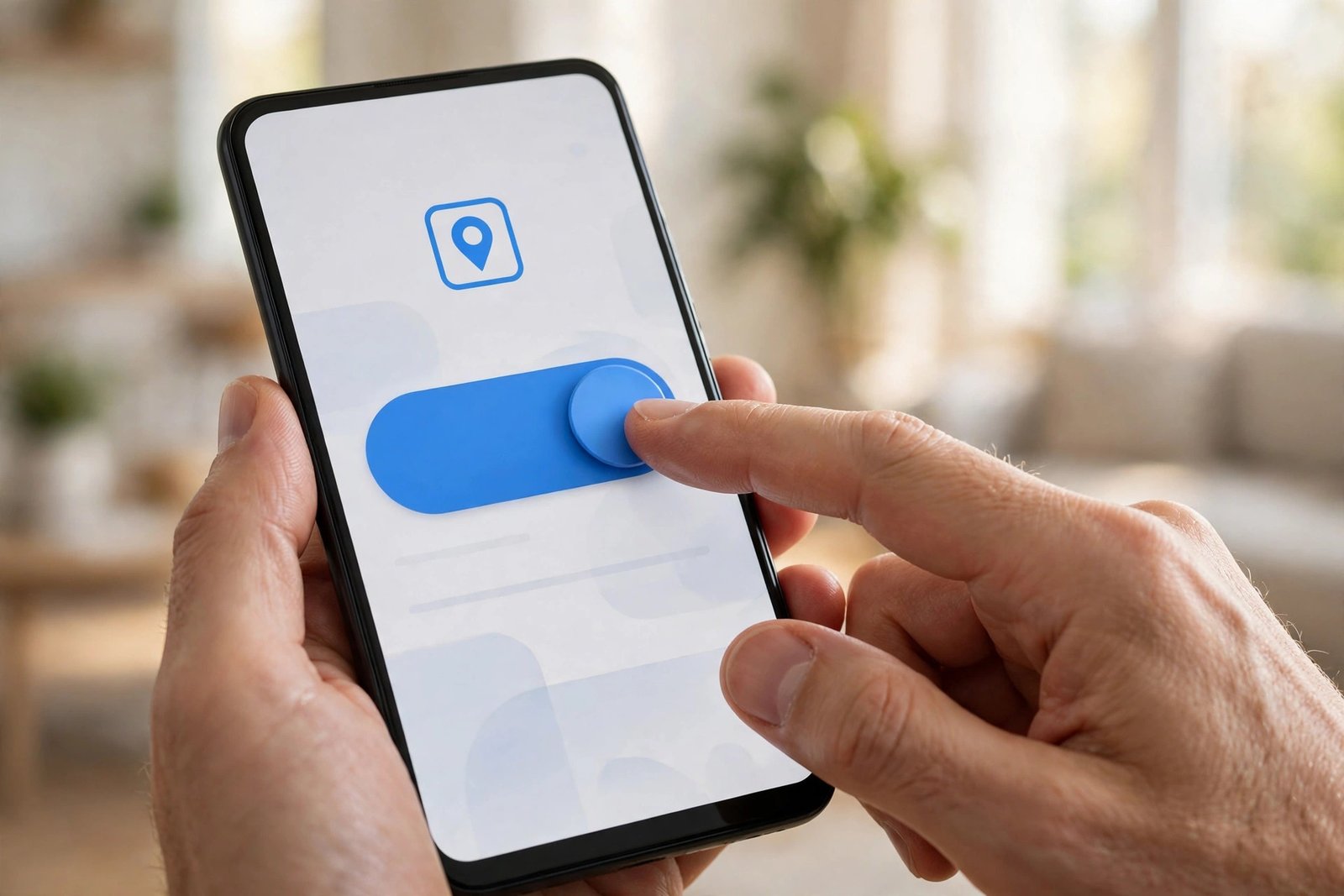
Google’s official help page for turning location on or off walks through these same switches if you want the manufacturer’s reference — see the official Android location help for the full steps on your exact Android version. After changing the setting, reopen the app and test: the blue dot should now sit much closer to your real position.
4. Switch on Google Location Accuracy and Wi-Fi/Bluetooth scanning
Even with Location turned on, Android has a deeper accuracy booster that is often switched off: Google Location Accuracy (sometimes called “Improve Location Accuracy”). When it is on, your phone combines GPS satellites with nearby Wi-Fi networks, Bluetooth beacons, and mobile towers to pin you down — especially indoors, where pure GPS cannot reach. When it is off, your phone relies on satellites alone, and android gps not accurate is the result.
- Open Settings > Location > Location services (on some phones: Settings > Location > Advanced).
- Tap Google Location Accuracy and switch it on.
- On the same screen, make sure Wi-Fi scanning and Bluetooth scanning are both switched on. These let your phone detect nearby networks for positioning even when Wi-Fi itself is turned off.
- Go back outside or near a window and let the phone re-lock for a minute.
Google’s own guide to improving location accuracy on Android explains exactly what this feature does and when it helps most — the official Google Maps location help is worth a read if you want the full technical background. In practice, switching this on is the single biggest indoor-accuracy improvement most people can make.
5. Toggle Airplane mode to force a fresh satellite lock
Sometimes the phone is not talking to the satellites properly at all — it is clinging to stale assistance data from the mobile network. Toggling Airplane mode forces every radio (GPS, mobile, Wi-Fi, Bluetooth) to drop and reconnect cleanly.
- Swipe down from the top of the screen to open Quick Settings.
- Tap the Airplane mode icon to switch it on. Wait a full 20–30 seconds.
- Tap it again to switch it off.
- Open your map app and give it up to a minute to rebuild its satellite lock.
This is the modern equivalent of “turn it off and on again” for your radios, and it takes less than a minute. If your location was stuck at a place you visited hours ago, this fresh handshake is usually what unsticks it.
6. Calibrate the compass with a figure-8 motion
Your navigation arrow does not just use GPS — it uses the phone’s compass (magnetometer) to work out which way you are facing. When the compass is uncalibrated, Maps can show your position correctly but point you in completely the wrong direction, which feels like android gps not accurate even though the coordinates are right.
- Open Google Maps and tap the blue dot showing your location.
- Tap Calibrate compass (on some versions it appears under the blue dot’s details).
- Hold the phone and move it in a figure-8 motion three or four times, as the on-screen animation shows.
- Watch the compass accuracy indicator change from Low to Medium to High.
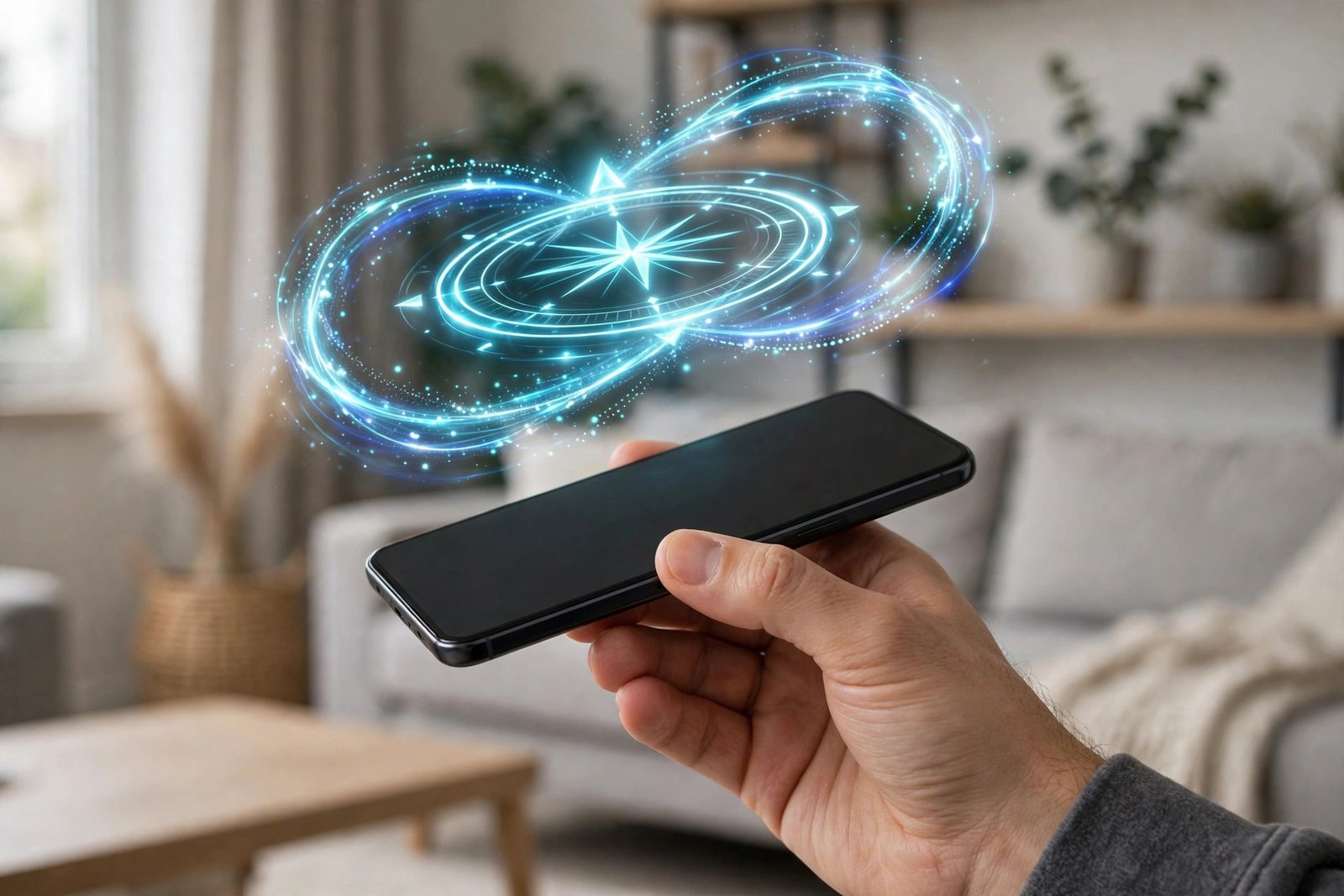
Do this away from magnetic interference: car dashboard mounts with magnets, magnetic phone cases, speakers, and even some bag clasps can throw the compass off. If you navigate with a magnetic car mount, expect to recalibrate more often.
7. Give the app the right location permission
Android lets you grant location access per app — and a surprising number of “GPS is broken” cases turn out to be one app silently running on denied or approximate permission while everything else works fine. This is especially common after installing an app in a hurry and tapping through the permission prompts.
- Open Settings > Apps and select the app with the bad location.
- Tap Permissions > Location and check what it is set to. Don’t allow means the app is guessing from your IP address — wildly inaccurate.
- Choose Allow only while using the app as a minimum. For turn-by-turn navigation or fitness tracking, choose Allow all the time so the app can keep tracking when the screen is off.
- Make sure Use precise location is switched on for that app.
If you have been wrestling with permission prompts that keep reappearing or resetting themselves, our guide to fixing location permission resetting on Android walks through that exact problem step by step. Fix the permission, restart the app, and test again — the improvement is usually instant.
8. Stop Battery Saver from throttling your GPS
Battery Saver is the silent killer of GPS accuracy. To save power, it reduces how often the GPS radio wakes up, limits background location updates, and can pause tracking entirely when the screen is off. The result looks like android gps not accurate: your position lags behind you, updates in jumps, or freezes mid-journey.
- Swipe down Quick Settings and check whether Battery Saver (or Power saving mode) is on. Turn it off while you need accurate navigation.
- For a permanent fix, go to Settings > Apps, pick your navigation or fitness app, and tap Battery.
- Set it to Unrestricted (wording varies: “Don’t optimise”, “Unrestricted”, or “Allow background activity”). Do not leave it on “Optimised” if you need live tracking.
- On Samsung phones, also check Settings > Battery > Background usage limits and make sure your app is not in the Deep sleeping or Sleeping apps list.
- Turn off Adaptive battery restrictions for the specific app if your phone offers per-app control.
Aggressive power management is a known issue across many Android brands, and it causes more than just GPS trouble — it also delays notifications and background sync. We cover the same battery-optimisation settings in our guide on fixing Gmail notifications not working, because the underlying cause is identical: the phone putting an app to sleep that you need awake.
9. Clear the map app’s cache and update everything
If the phone’s GPS works in one app but not another — or your location was fine until recently — the app’s own stored data is a prime suspect. Corrupted cache can make a map app show stale positions, and outdated apps can misbehave after a system update changes how location works underneath them.
- Update the app: open the Play Store, tap your profile icon, go to Manage apps & device, and update Google Maps (and any other affected app).
- Update the system: go to Settings > System > System update and install any pending Android update. These often include GPS, radio, and modem fixes.
- Clear the cache: go to Settings > Apps > Maps > Storage & cache and tap Clear cache. Do not tap Clear storage/data unless you are happy to re-download offline maps and sign in again.
- Restart the app and test your location again.
Clearing the cache is safe — it only removes temporary files, not your saved places or settings. If the app was the problem, accuracy usually returns immediately after this step. For more step-by-step Android troubleshooting guides like this one, browse the TechSBSInfo blog.
10. Still getting android gps not accurate? Check the case and reset network settings
If you have worked through all nine fixes and android gps not accurate is still haunting every app, look at the two remaining suspects: physical signal blockage and corrupted network configuration.
Check your case and accessories:
- Remove any metal or very thick case and test again. Metal blocks the weak satellite signals, and some “rugged” cases are effectively Faraday cages.
- Remove magnetic mounts, magnetic ring holders, and wallet cases with magnetic clasps — they interfere with the compass and can distort GPS readings.
- If accuracy improves with the case off, the case was the problem. Switch to a slim plastic or silicone case.
Reset your network settings:
- Go to Settings > System > Reset options (on Samsung: Settings > General management > Reset).
- Tap Reset Wi-Fi, mobile & Bluetooth (wording varies by manufacturer).
- Confirm. This erases saved Wi-Fi passwords and Bluetooth pairings, but it does not delete your photos, apps, or files.
- Reconnect to Wi-Fi, go outside, and let the phone build a fresh satellite lock.
This reset clears corrupted “assisted GPS” data — the helper information your phone downloads from the network to find satellites faster. When that data goes stale or corrupt, every location reading suffers, and only a reset flushes it out.
If nothing has worked: test with a free GPS status app from the Play Store to see how many satellites your phone can actually see. If it sees zero satellites outdoors with a clear sky, the GPS hardware or antenna may genuinely be faulty — at that point, contact the manufacturer’s support or a repair shop rather than changing more settings.
What to avoid
- Do not install “GPS booster” or “GPS fixer” apps from unknown developers. They cannot improve your hardware’s signal, and many are adware or malware. The fixes above do everything a legitimate app could do.
- Do not factory reset your phone as a first step. It wipes everything and rarely fixes GPS issues, because the cause is almost always settings or environment. It is a last resort, not a starting point.
- Do not assume the phone is broken. In the vast majority of cases, the cause is a blocked sky view, a switched-off accuracy setting, or Battery Saver — all fixable in minutes.
- Do not navigate with a magnetic car mount while expecting perfect accuracy. The magnet distorts the compass, and the metal blocks satellite signals. Use a non-magnetic mount instead.
- Do not turn Location off entirely to “reset” it and forget to turn it back on. Check the master switch after every troubleshooting session.
- Do not sideload modded map apps or “cracked” navigation APKs. They will not fix your GPS, they cannot be trusted with your location data, and they are a classic malware vector.
FAQ
Why is my Android GPS suddenly inaccurate when it worked fine before?
A sudden drop in accuracy is usually caused by a changed setting, not failing hardware. The most common triggers are a system update that switched off Google Location Accuracy or reset an app permission, Battery Saver being enabled, or moving somewhere with worse satellite visibility. Work through Fixes 3, 4, and 8 first.
Why does my GPS work outside but not inside buildings?
GPS satellite signals are extremely weak and cannot penetrate roofs and thick walls reliably. Indoors, your phone falls back on Wi-Fi and Bluetooth positioning, which is far less precise. Switching on Google Location Accuracy and Wi-Fi/Bluetooth scanning (Fix 4) gives your phone the best possible indoor estimate, but it will never match an outdoor satellite lock.
Can a phone case really affect GPS accuracy?
Yes. Metal cases and thick rugged cases can block or weaken the satellite signals reaching your phone’s antenna. Magnetic accessories distort the compass, which makes the navigation arrow point the wrong way. If your accuracy changed when you got a new case, test with the case removed (Fix 10).
How do I calibrate the GPS on Android?
Open Google Maps, tap the blue dot showing your location, then tap Calibrate compass and move the phone in a figure-8 motion until the accuracy indicator reads High. This calibrates the compass sensor, which controls the direction arrow — see Fix 6 for the full steps. There is no user-facing “GPS calibration” beyond this; the satellite side recalibrates itself whenever it gets a clear signal.
Why does Google Maps show the wrong location but another app is fine?
When one app is wrong and others are right, the problem is that app’s permission or data — not your GPS hardware. Check that the app has precise location permission (Fix 7), then clear its cache and update it (Fix 9). If only Google Maps is wrong, clearing the Maps cache alone usually fixes it.
Does Battery Saver really make GPS less accurate?
Yes. Battery Saver reduces how often the GPS radio activates and can stop background location updates entirely, so your position lags, jumps, or freezes. Navigation and fitness apps should be set to Unrestricted battery usage if you need live, accurate tracking — see Fix 8.
Conclusion
When you see android gps not accurate on your phone, the cause is rarely broken hardware. Start with the quick checks, then work through the 10 fixes in order: restart the phone, step into the open, switch on Precise location and Google Location Accuracy, recalibrate the compass, fix the app’s permission, and stop Battery Saver from throttling the GPS. Most readers will have pinpoint accuracy back by Fix 4. If this guide helped you, you will find plenty more step-by-step troubleshooting articles on the TechSBSInfo homepage covering Android, Windows, Chrome, and the apps you use every day.
[…] but still jumpy or wrong, the permission is fine and the signal is the problem. Our guide to fixing inaccurate GPS on Android walks through calibration and accuracy […]
[…] If apps like offline maps or camera apps show write errors, remounting often fixes them too. For persistent map download failures, see our guide to fixing offline map data problems on Android. […]
[…] and step counting. If your location arrow spins or points the wrong way too, read our guide on fixing inaccurate Android GPS — the two problems often share the same faulty […]