

You turn your phone sideways to watch a video, and nothing happens. The screen stays stuck in portrait. Or it rotates once and then freezes. android screen rotation not working is one of the most annoying Android glitches because it feels like the phone is ignoring you. The good news is that the cause is almost always simple: a setting that got switched off, a confused sensor, or a temporary software hiccup.
In most cases, the fix takes less than a minute. Work through the eight fixes below in order, starting with the quick checks. Most people solve the problem at Fix 1 or Fix 2. If those do not help, the later fixes cover sensors, apps, and a safe settings reset.
Table of Contents
- Quick Checks — Try These First
- Diagnose the Problem: Symptom, Cause and Fix
- Fix 1: Turn On Auto-Rotate in Quick Settings
- Fix 2: Turn On Auto-Rotate in Display Settings
- Fix 3: Check the Accessibility Auto-Rotate Setting
- Fix 4: Restart Your Phone
- Fix 5: Test Rotation in a Different App
- Fix 6: Test the Accelerometer Sensor
- Fix 7: Clear Cache and Update Your Apps and System
- Fix 8: Reset All Settings If Android Screen Rotation Not Working Persists
- What to Avoid
- Frequently Asked Questions
- Conclusion
- Helpful Official Resources
Quick Checks
Do these 30-second checks before anything else. One of them usually reveals the pattern.
- Is Auto-rotate actually on? Swipe down twice from the top of the screen. If the Auto-rotate tile is dim or says Portrait, tap it to turn it on.
- Are you touching the screen while rotating? Touching the screen can lock the current orientation on some phones. Turn the phone without touching the display.
- Does it fail in every app? Open your gallery or a video app and rotate. If rotation works there, the first app simply does not support landscape.
- Did it break after an update or a drop? A recent system update points to a software glitch. A drop or bump points to a damaged sensor — skip to Fix 6.
- Is your phone in a case or on a stand? Thick magnetic cases and some car mounts can confuse the orientation sensor. Take the case off and test again.
- Is battery saver or a power mode on? Aggressive power-saving modes can limit sensor activity on some devices. Turn battery saver off and test.
Diagnose the Problem: Symptom, Cause and Fix
| Symptom | Cause | Go to Fix |
|---|---|---|
| Screen never rotates in any app | Auto-rotate is turned off | Fix 1, then Fix 2 |
| Quick Settings shows Portrait or Landscape instead of Auto-rotate | Orientation is locked to one mode | Fix 1 |
| Screen rotates on the home screen but not in one app | That app does not support landscape mode | Fix 5 |
| Rotation worked, then stopped after an update | Temporary system glitch | Fix 4, then Fix 7 |
| Screen rotates slowly, or only at extreme angles | Accelerometer sensor is miscalibrated or failing | Fix 6 |
| Rotation stops when battery saver is on | Power mode is limiting the sensor | Quick Checks, then Fix 4 |
| Screen rotates the wrong way (upside down) | Sensor calibration is off | Fix 6 |
| Nothing above helps | Corrupt system setting | Fix 8 |
Fix 1: Turn On Auto-Rotate in Quick Settings
This is the cause in the majority of cases. The Auto-rotate toggle is easy to hit by accident in the Quick Settings panel, and many people do not notice it switched off.
- Swipe down from the top of the screen with one finger.
- Swipe down again with two fingers to open the full Quick Settings panel.
- Find the Auto-rotate tile. You may need to swipe left to see a second page of tiles.
- If the tile is dim, or it says Portrait or Landscape, tap it.
- The tile should now glow or say Auto-rotate, which means it is on.
- Turn your phone sideways to test.
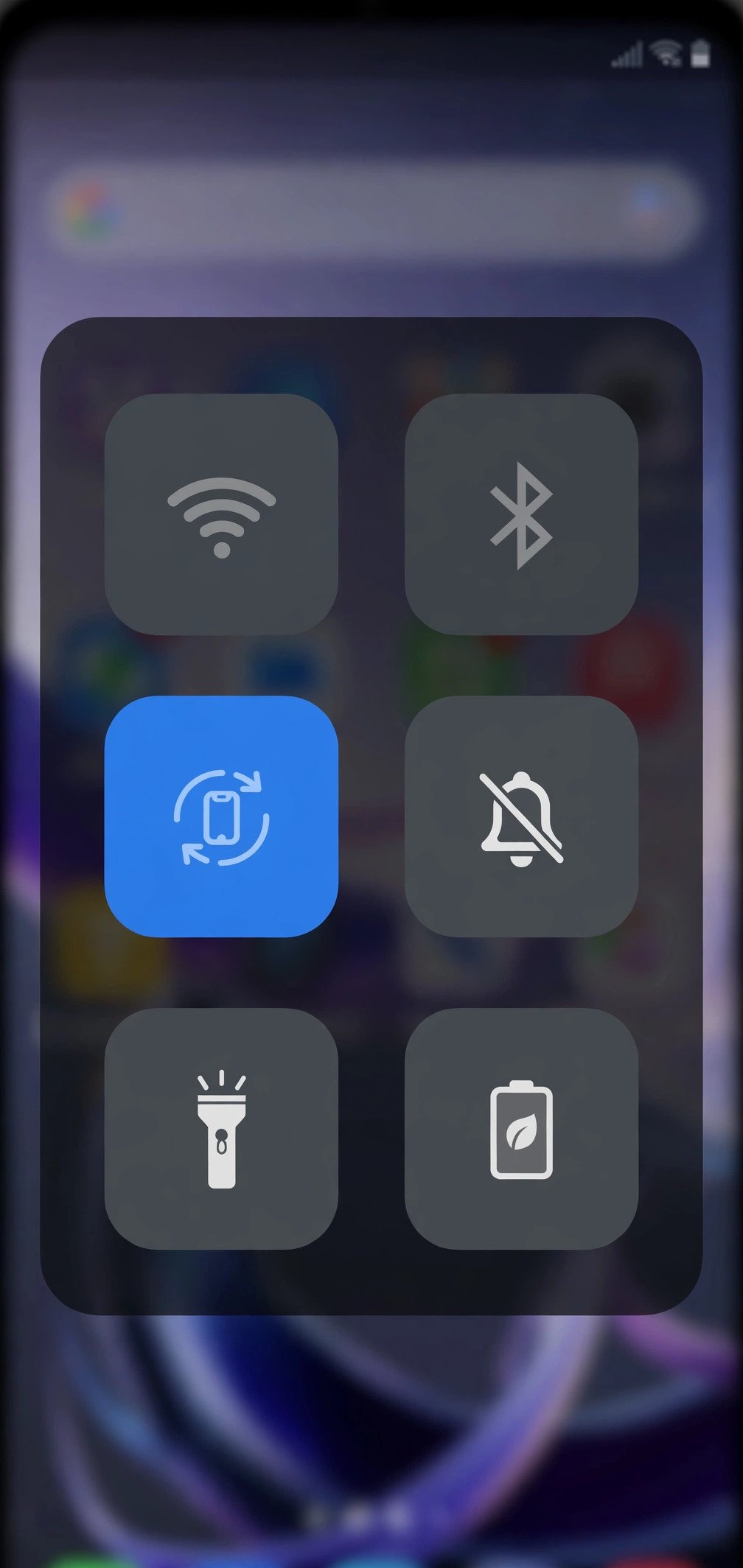
If the Auto-rotate tile is missing from the panel, tap the edit (pencil) icon at the bottom of Quick Settings and drag the Auto-rotate tile back into the active area.
Fix 2: Turn On Auto-Rotate in Display Settings
If the Quick Settings tile is already on but the screen still will not rotate, check the same setting in the Settings app. The two should match, but on some phones they can get out of sync.
- Open the Settings app.
- Tap Display.
- Look for Auto-rotate screen and make sure the switch is on.
- On newer Pixel phones, this lives under Display and touch instead of Display.
- On Samsung phones, you can also check Settings, then Display, then Screen orientation.
- Turn your phone sideways to test.
Fix 3: Check the Accessibility Auto-Rotate Setting
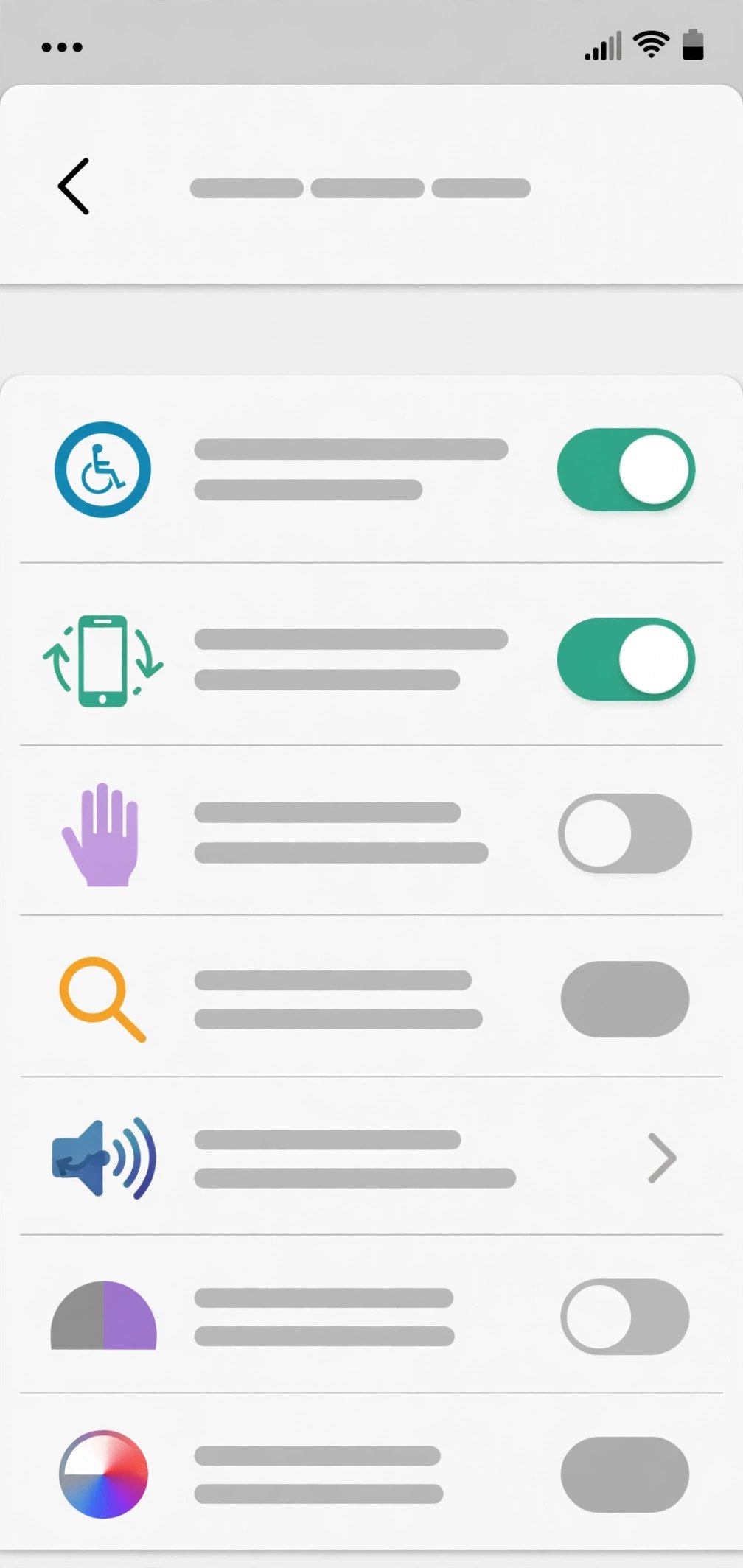
Android has a second auto-rotate switch under Accessibility. If this one is off, it can override the Display setting on some devices.
- Open the Settings app.
- Tap Accessibility.
- Look for Auto-rotate screen and turn the switch on.
- If you use TalkBack, note that Google recommends keeping auto-rotate off while TalkBack is active, because rotation can interrupt spoken feedback.
- Turn your phone sideways to test.
Fix 4: Restart Your Phone
A restart clears temporary glitches in the sensor service and the system process that handles orientation. It is the simplest fix for rotation that stopped working suddenly.
- Press and hold the power button.
- Tap Restart (or Power off, wait 30 seconds, then power on).
- After the phone boots, turn Auto-rotate on again if needed.
- Open any app that supports landscape and rotate the phone.
If your phone also runs hot during normal use, heat can make sensors behave strangely. See our guide on why your Android phone overheats while charging and let the device cool down before testing rotation again.
Fix 5: Test Rotation in a Different App
Some apps are locked to portrait by design. Banking apps, many social apps, and some launchers never rotate no matter what your settings say. This is normal and not a fault.
- Open an app that is known to support landscape, such as YouTube, Gallery, or Chrome.
- Turn the phone sideways without touching the screen.
- If the screen rotates here, your settings are fine — the first app simply does not rotate.
- Also test the home screen. On many phones the launcher only rotates if you enable it: long-press the home screen, tap Home settings, and turn on Allow Home screen rotation or Rotate to landscape mode.
Fix 6: Test the Accelerometer Sensor
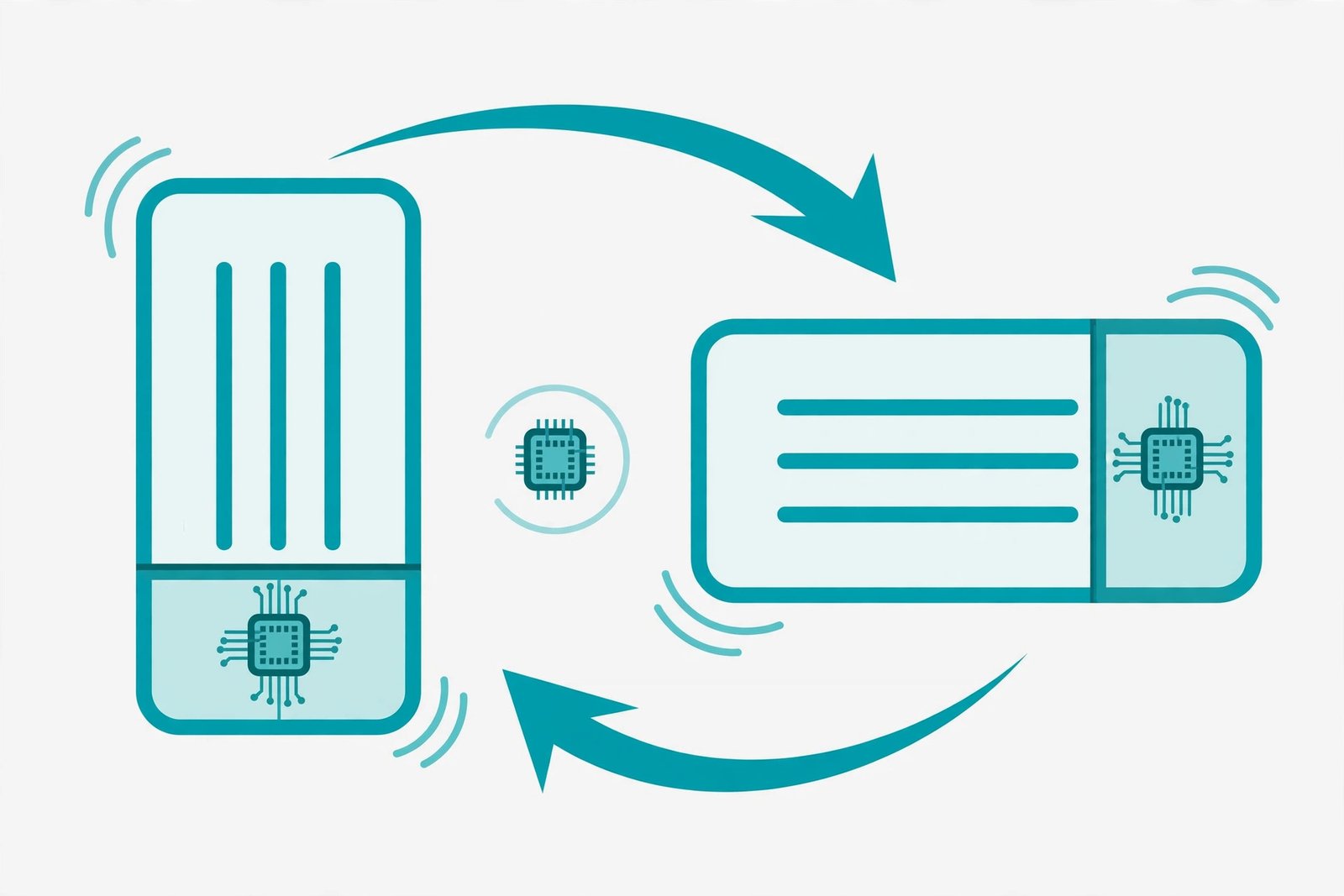
Your phone decides when to rotate using its accelerometer (and on some phones, the gyroscope). If this sensor is miscalibrated or damaged, android screen rotation not working is the result even when every setting is correct.
- Install a free sensor test app from the Google Play Store, or use your manufacturer’s built-in hardware test if one exists.
- Open the test and look at the accelerometer readings.
- Lay the phone flat, then tilt it slowly in each direction.
- The numbers should change smoothly as you tilt. Frozen or jumping numbers mean the sensor is stuck.
- Some phones let you calibrate: look for a calibrate or reset option in the sensor test, or under Settings, then Display or Motion settings.
- If the sensor shows no response at all, the hardware is likely damaged — contact the manufacturer’s service center.
Motion sensors also drive features like GPS direction and step counting. If your location arrow spins or points the wrong way too, read our guide on fixing inaccurate Android GPS — the two problems often share the same faulty sensor.
Fix 7: Clear Cache and Update Your Apps and System
A corrupt cache in the system interface or an outdated app can break rotation for one app or for the whole phone.
- Open Settings, then Apps.
- Tap the app that will not rotate, then tap Storage.
- Tap Clear cache. Do not tap Clear data unless you are ready to sign in again.
- Open the Play Store, tap your profile icon, then Manage apps and device.
- Tap Update all to bring every app up to date.
- Go to Settings, then System, then System update, and install any pending update.
- Restart the phone and test rotation again.
Clearing cache also frees up space, which keeps the whole system healthier. If storage warnings pop up while you do this, see our guide on fixing Android storage full errors.
Fix 8: Reset All Settings If Android Screen Rotation Not Working Persists
If nothing above helped, a corrupted system setting may be blocking rotation. Reset all settings restores every system setting to its default without deleting your photos, apps, or files. It is safe, but you will need to re-enter Wi-Fi passwords and re-adjust preferences afterward.
- Open Settings.
- Tap System, then Reset options.
- Tap Reset all settings (on Samsung: Settings, then General management, then Reset, then Reset all settings).
- Confirm with your PIN or password.
- After the phone restarts, turn Auto-rotate on in Quick Settings.
- Test rotation in a video app.
Do not do a full factory reset for this problem unless the manufacturer tells you to. A factory reset erases everything and is almost never needed for a rotation issue.
What to Avoid
- Do not install random “rotation control” apps from unknown sources — stick to the built-in settings.
- Do not tap Clear data when Clear cache is enough — you will lose logins for no reason.
- Do not factory reset as a first step — try the settings reset in Fix 8 first.
- Do not ignore a phone that was recently dropped — a dead sensor needs a repair shop, not more settings changes.
- Do not test rotation while touching the screen — your touch can lock the orientation on some phones.
- Do not assume every app should rotate — many apps are portrait-only by design.
Frequently Asked Questions
Why is android screen rotation not working even though auto-rotate is on?
The Accessibility auto-rotate switch may be off, the app may not support landscape, or the accelerometer sensor may be stuck. Work through Fix 3, Fix 5, and Fix 6 in that order.
How do I know if my accelerometer sensor is broken?
Open a sensor test app and tilt the phone. If the accelerometer numbers do not change at all, the sensor is not responding and likely needs hardware repair.
Can a phone case stop the screen from rotating?
Yes. Thick cases, especially magnetic ones, can interfere with the orientation sensor. Remove the case and test again before trying deeper fixes.
Why does my screen rotate on YouTube but not in other apps?
Video apps force landscape during playback. Other apps may be locked to portrait by their developers. This is normal app behavior, not a phone fault.
Will resetting all settings delete my photos?
No. Reset all settings only restores system preferences like Wi-Fi, Bluetooth, and display options. Your photos, apps, and files stay untouched.
Does battery saver affect screen rotation?
On some phones, aggressive power-saving modes limit sensor activity, which can pause auto-rotation. Turn battery saver off and test.
Conclusion
android screen rotation not working looks dramatic but is usually a one-tap fix. Check the Auto-rotate tile in Quick Settings first, then the Display and Accessibility switches. If the settings are all correct, restart the phone, test in a video app, and check the accelerometer sensor. The settings reset in Fix 8 clears anything left over.
If the sensor shows no response at all, or rotation died right after a drop, take the phone to an authorized service center — no software fix can repair damaged hardware. For other annoying Android glitches, like a keyboard that keeps disappearing, our Android troubleshooting guides walk through those step by step too.
[…] the screen also behaves oddly when you rotate the phone, check our guide on screen rotation not working properly — display glitches and keyboard glitches often share a […]
[…] means the loop is broken further down — continue. For screens with other misbehaviours, our Android screen rotation not working guide covers the sensor-adjacent […]
[…] Keep Gboard updating automatically. The prediction models improve constantly, and staying current is free accuracy. For screens that rotate unexpectedly while you type, see Android screen rotation not working. […]