

android location permission keeps resetting on your phone? You are not imagining it. Android really can take an app’s location access away on its own. Since Android 11, the system automatically removes permissions from apps you have not opened for a while. One-time grants also expire the moment you close the app. The good news is that in almost every case this is a setting, not a fault. Work through the 7 fixes below in order and your location permission will stay put.
This guide covers Android 11 and newer, including Pixel, Samsung, Xiaomi, OnePlus, and other brands. Each fix takes about two minutes. The first four solve the problem for most people. If your android location permission keeps resetting, the seven fixes below address every common cause in turn.
Table of contents
- Quick checks
- Diagnose your problem
- 1. Grant the permission the right way — stop choosing “Only this time”
- 2. Turn off “Remove permissions if app is unused”
- 3. Check the master Location switch
- 4. Turn off battery optimisation for the app
- 5. Allow background location for apps that genuinely need it
- 6. Update the app, Google Play Services, and Android
- 7. When android location permission keeps resetting anyway: check profiles, admin apps, and reset app preferences
- What to avoid
- FAQ
- Conclusion
Quick checks
Before you change anything, run through this 60-second list. Most people spot why their android location permission keeps resetting:
- Pull down Quick Settings. Is the Location tile switched on?
- When the app last asked, did you tap Only this time? That grant dies as soon as you close the app.
- Open the app’s App info page. Is Remove permissions if app is unused (or Pause app activity if unused) switched on?
- Is Battery saver or a brand power mode active? These can strip background access.
- Is the app installed from the Play Store and up to date? Sideloaded or outdated apps misbehave more.
Diagnose your problem
| Symptom | Likely cause | Go to fix |
|---|---|---|
| The app asks for location again every time you open it | You granted “Only this time” — a one-time permission | Fix 1 |
| The permission is gone after weeks of not opening the app | Android’s auto-reset removed it | Fix 2 |
| Every app lost location access at once | The master Location switch got turned off | Fix 3 |
| Permission holds while the app is open, but drops in the background | Battery optimisation, or background location was never granted | Fix 4, Fix 5 |
| The permission reset right after an update or a restart | An app or system update glitch | Fix 6 |
| The location option is greyed out and cannot be changed | A work profile, parental control, or device-admin app is enforcing a policy | Fix 7 |
| A website keeps asking for location in Chrome | Browser site permissions are separate from app permissions | FAQ |
1. Grant the permission the right way — stop choosing “Only this time”
The most common reason a permission “resets” is that it was never permanent. When an app asks for location, Android offers three choices. Only this time is a one-time grant. It expires the moment you leave the app. The next launch asks again. That is by design, not a bug.
Many people tap it out of habit and then wonder why the app keeps asking. The fix takes thirty seconds:
- Open the app and let it ask for location, or go to Settings > Apps, tap the app, then Permissions > Location.
- Choose Allow only while using the app instead of Only this time.
- On Android 12 and newer, also check the Use precise location toggle on this screen. If precise location is off, some apps keep re-asking because they cannot get the accuracy they need.
- Avoid Ask every time unless you truly want a prompt on each launch.
Google’s own guide to changing app permissions on Android explains what each option does and where to find them if your menus look different.
2. Turn off “Remove permissions if app is unused”
This is the real auto-reset, and it catches almost everyone. Since Android 11, the system watches for apps you have not opened for a few months. When it finds one, it quietly removes its permissions — including location — and may stop its notifications too. You did nothing wrong. Your phone did exactly what it was told to do.
This is a privacy feature, not a malfunction. But for apps you use rarely yet still need — a parking app, a travel app, a delivery app — it is maddening. Turn it off per app:
- Go to Settings > Apps and tap the app.
- Open Permissions (on some phones this is under App info).
- Switch off Remove permissions if app is unused. On Pixel phones it may be called Pause app activity if unused.
- Repeat for every app whose location access must survive long idle periods.
Leave the toggle on for apps you genuinely abandoned. There is no downside to switching it off for apps you trust — it changes nothing about battery or performance. It only stops Android from revoking access.
Not sure which apps already lost their permissions? Check in one place: go to Settings > Privacy > Permission manager > Location. This screen lists every app and its current level — allowed all the time, allowed only while in use, or not allowed. Any app sitting on “not allowed” that should not be is a candidate for Fix 1 and Fix 2.
3. Check the master Location switch
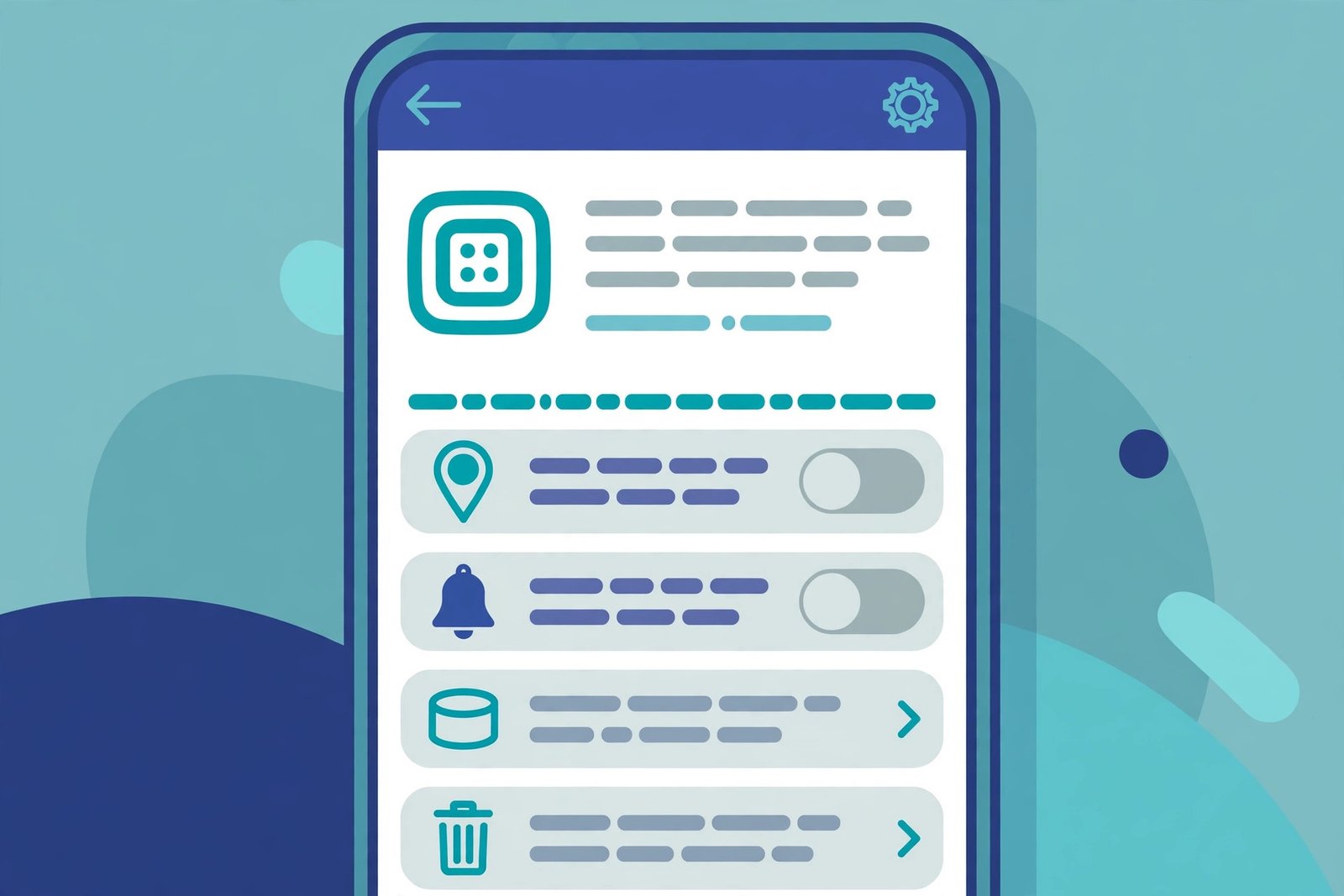
Sometimes the problem is not the app’s permission at all. Android has a master Location switch. If it gets turned off — by a Quick Settings mis-tap, a routine, or a power-saving mode — every app loses location access at once. Each app’s permission still says “allowed,” but nothing can actually use it. That looks like a mass reset.
- Swipe down twice from the top of the screen and check the Location tile. Tap it back on if it is grey.
- Or go to Settings > Location and switch on Use location.
- On the same screen, open Location services and make sure Google Location Accuracy is on. It blends GPS, Wi-Fi, and mobile networks for faster, steadier fixes.
- If you use Bixby Routines, Samsung Modes, or a similar automation, check that none of them toggles Location off on a schedule.
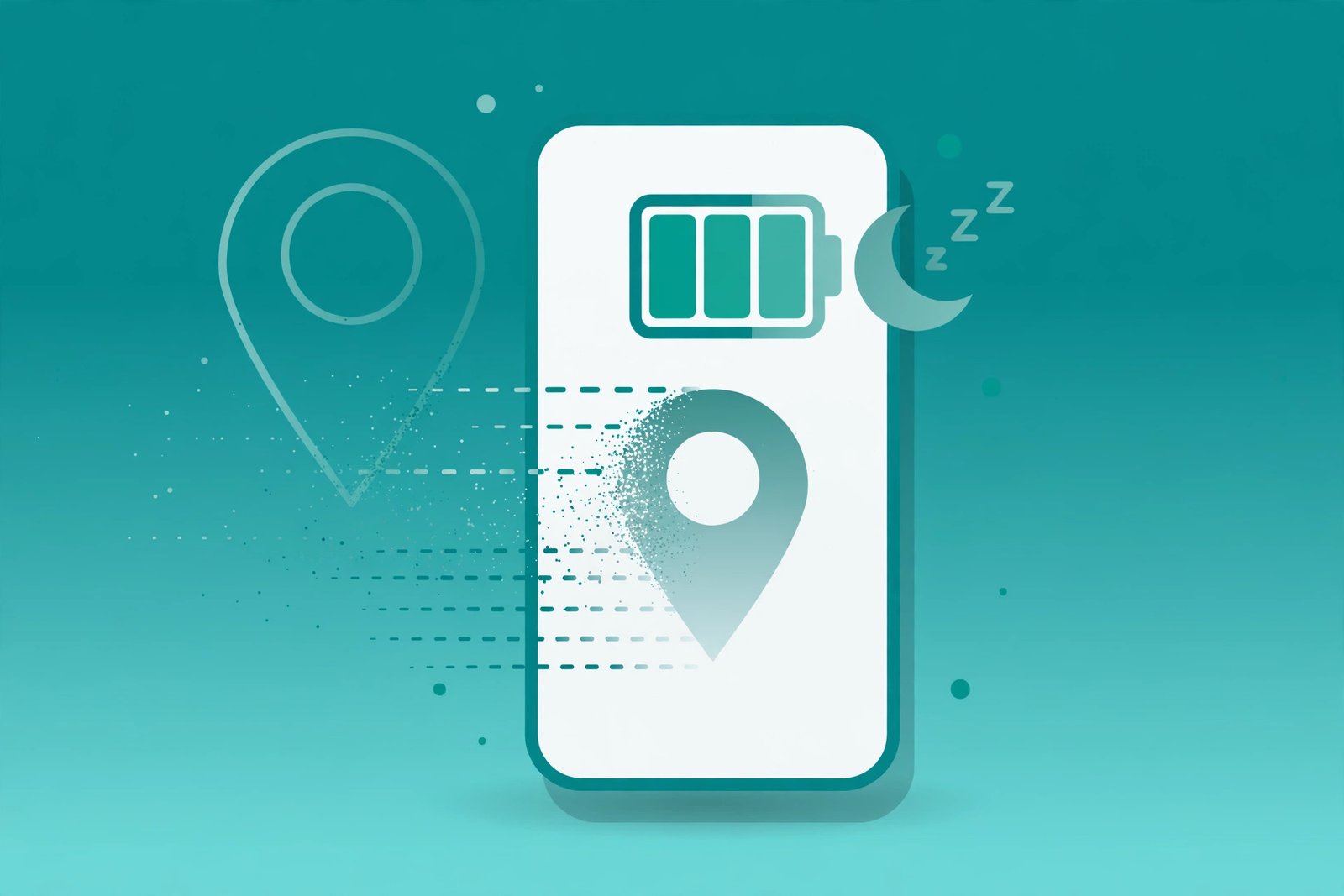
4. Turn off battery optimisation for the app
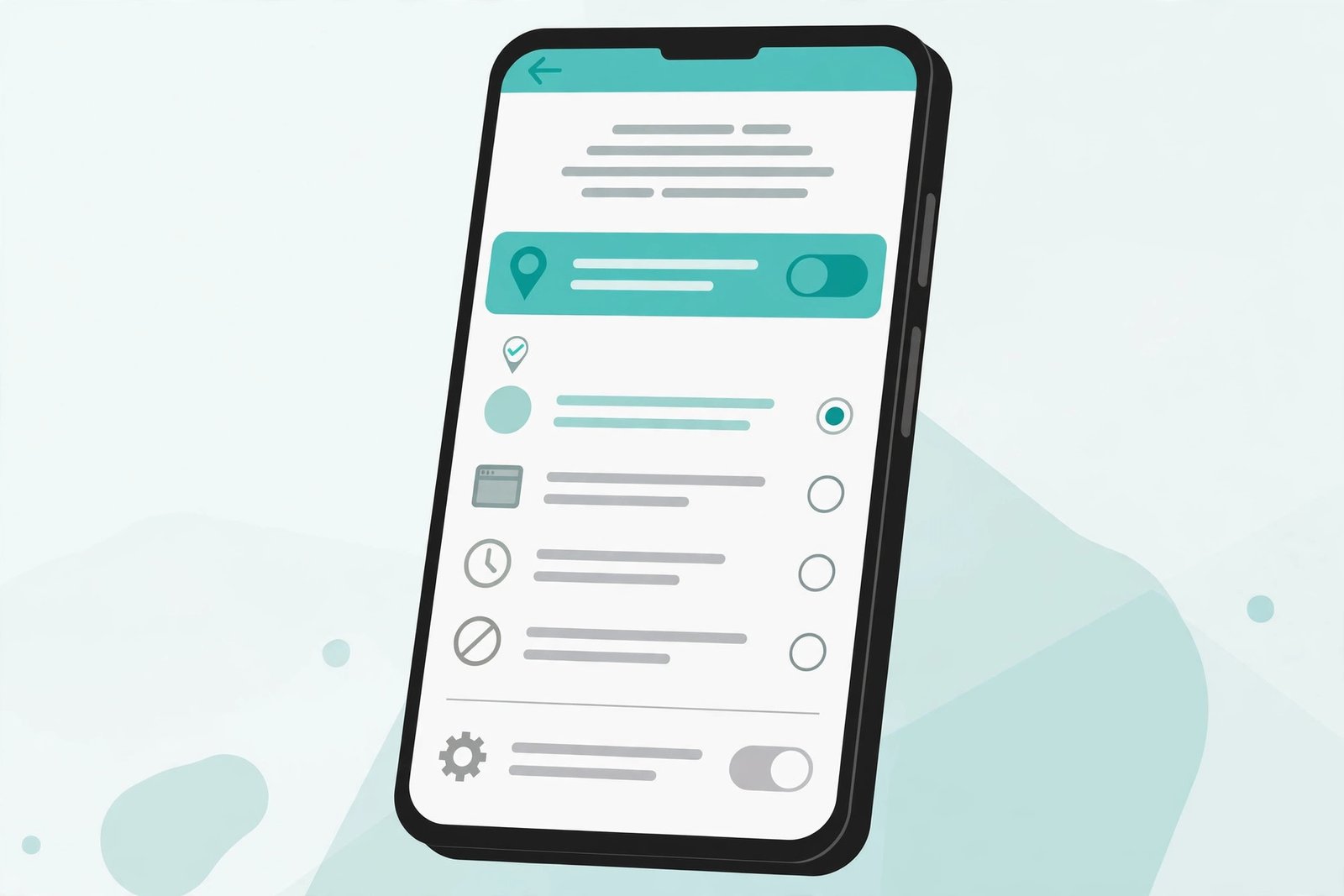
Battery optimisation is the other big permission killer. Android — and especially Samsung’s One UI and Xiaomi’s MIUI — aggressively restricts apps running in the background to save power. An app that loses its background privileges can also lose its location grant, or keep the grant on paper while being blocked from using it. The app then asks again, and you read it as a reset.
This is also the same mechanism that silently kills background alerts, which is why the fix overlaps with our guide on Gmail notifications not working — aggressive power management breaks more than one thing at a time.
- Go to Settings > Apps, tap the app, then Battery (on some phones: App battery usage).
- Select Unrestricted. On Xiaomi, choose No restrictions. On Samsung, open Settings > Battery > Background usage limits and make sure the app is not in the sleeping or deep-sleeping list.
- If you run a phone-wide Battery saver or Power saving mode, expect background location to suffer while it is on. That is normal. Turn the saver off when you need the app to track you.
- Google’s battery guidance confirms that unrestricted background activity is the intended setting for apps you depend on.
5. Allow background location for apps that genuinely need it
Android splits location into two levels. Allow only while using the app covers the screen-on moments. Anything that must track you with the app closed — turn-by-turn navigation, a run tracker, a family safety app — needs Allow all the time. Without it, the app hits a wall the moment it goes to the background, and some apps respond by asking for permission again.
Only grant this to apps that truly need it. A torch app or a calculator has no business tracking you overnight.
- Go to Settings > Apps, tap the app, then Permissions > Location.
- Select Allow all the time. On Android 11 and newer, you cannot grant this from the pop-up — you must come to this screen deliberately. That friction is intentional.
- If location is now allowed but still jumpy or wrong, the permission is fine and the signal is the problem. Our guide to fixing inaccurate GPS on Android walks through calibration and accuracy settings.
6. Update the app, Google Play Services, and Android
Sometimes a reset really is a bug. A bad app update can corrupt its stored permission state. A system update can shuffle permission databases. A stale Google Play Services — the component that actually delivers location to apps — can drop requests silently. Updates are the cure for all three.
Before anything else, do the simplest thing of all: restart your phone. A restart clears temporary permission glitches that survive a settings change, and it takes a minute.
- Open the Play Store, tap your profile picture, then Manage apps & device > Update all.
- Go to Settings > System > System update (on Samsung: Settings > Software update) and install anything waiting.
- Update Google Play Services from the Play Store as well — search for it directly if it does not appear in your update list. Because Play Services sits between Android and every app’s location request, an outdated copy can mimic a permission problem perfectly: the grant is there, but the data never arrives.
- Then clear the app’s cache, which wipes corrupted temporary data without touching your logins: Settings > Apps > [app] > Storage & cache > Clear cache. Do not tap Clear storage unless you are ready to sign in again.
7. When android location permission keeps resetting anyway: check profiles, admin apps, and reset app preferences
If every fix above failed, something with higher authority is overriding your choices. Three usual suspects:
- Check for a work profile. Go to Settings > Accounts or look for apps with a small briefcase badge. A work profile is managed by your employer, and its policies can restrict location on work apps. You cannot override those — talk to your IT admin.
- Check device-admin and parental-control apps. Go to Settings > Security > Device admin apps (wording varies). Parental controls, antivirus suites, and company MDM tools can all lock or revoke location permissions. If you installed one and forgot, this is where it hides.
- Reset app preferences. As a last resort before anything drastic, go to Settings > System > Reset options > Reset app preferences. This returns every app permission to its default state — annoying for an afternoon, because you will re-grant things once — but it clears corrupted permission records that survive normal fixes. After the reset, re-grant location properly using Fix 1.
What to avoid
- Do not install “permission lock,” “GPS keeper,” or similar apps from outside the Play Store. Many are adware or malware wearing a helpful mask.
- Do not grant Allow all the time to every app that asks. It drains your battery and hands your movements to apps that do not need them.
- Do not disable Google Play Services to “protect” your permissions. It delivers location to nearly every app — disabling it breaks location everywhere.
- Do not jump to a factory reset. It wipes your phone and almost never fixes what is, at heart, a permission setting.
- Do not ignore the system notification about unused apps. It lists exactly which apps lost which permissions, so you can re-grant in seconds.
FAQ
Why does Android ask for location permission every time I open an app?
You almost certainly tapped Only this time when it first asked. That grant expires when you close the app. Choose Allow only while using the app instead (Fix 1) and the asking stops.
Is it normal for Android to reset permissions by itself?
Yes. Since Android 11, auto-reset removes permissions from apps you have not used for a few months. It is a privacy feature, not a fault. Switch off Remove permissions if app is unused for apps you want to keep (Fix 2).
Will turning off “Remove permissions if app is unused” drain my battery?
No. That toggle only controls whether Android revokes permissions from idle apps. It changes nothing about how the app runs or how much power it uses.
Why does this happen more on Samsung or Xiaomi phones?
Those brands add their own battery managers on top of Android’s. Apps land in sleeping or restricted lists and lose background access. Set the app to Unrestricted (Fix 4) to stop it.
A website in Chrome keeps asking for my location. Is that the same problem?
No — browser site permissions are separate from app permissions. In Chrome, go to Settings > Site settings > Location and set the site to Allow. The app fixes above do not affect websites.
Should I just set every app to “Allow all the time”?
No. Reserve background location for apps that genuinely need it — navigation, fitness tracking, family safety. For everything else, Allow only while using the app is the right balance of function and privacy.
Do Android updates reset location permissions?
They should not, but it happens. Major version upgrades sometimes shuffle the permission database, and a buggy security patch can flip individual grants. If permissions broke right after an update, run Fix 6 first, then re-grant once using Fix 1. It rarely happens twice in a row.
Conclusion
When your android location permission keeps resetting, the culprit is almost always one of three things: a one-time grant that expired, Android’s auto-reset for unused apps, or battery optimisation strangling background access. Fixes 1 through 4 in this guide resolve the vast majority of cases in under ten minutes.
If location is granted but still behaves badly, browse our other troubleshooting guides — including the GPS accuracy walkthrough linked above — or start from the TechSBSInfo homepage to find the right fix for whatever your phone throws at you next.
[…] Think of it as house-training the brightness: the reset gives you a puppy that learns your actual preferences instead of the previous owner’s. Give it a few days of normal adjustments before judging. If location-based features are also flaky, see Android location permission resetting. […]