

You walk into sunlight and the screen stays dim. You go to bed and it blinds you. When android auto brightness not working leaves your screen at the wrong brightness for the room, the adaptive loop — sensor reads light, system adjusts screen — has broken somewhere.
The usual suspects are a toggled-off setting, a sensor blinded by dirt or a screen protector, or the adaptive learning having learned bad habits. This guide restores automatic brightness in order, from the one-tap toggle to a settings reset. Nothing here deletes your data.
Table of Contents
- Quick Checks
- Diagnosing android auto brightness not working
- Fix 1: Toggle Adaptive Brightness Off and On
- Fix 2: Reset the Brightness Learning
- Fix 3: Clean the Light Sensor
- Fix 4: Remove the Screen Protector Over the Sensor
- Fix 5: Restart the Phone
- Fix 6: Update the Software
- Fix 7: Reset All Settings
- What to Avoid
- Frequently Asked Questions
- Conclusion
- Helpful Official Resources
Quick Checks
Instant checks first.
- Open Settings > Display and confirm “Adaptive brightness” is actually on — updates and other people toggle it.
- Try the manual brightness slider. If the slider does nothing at all, the problem is the display, not the auto feature.
- Check Battery Saver is off — it can cap brightness and override adaptive behaviour.
- Remove the phone from any dark case and test — some cases shadow the sensor.
- Note whether the screen is stuck dim or stuck bright — stuck dim suggests a blinded sensor; stuck bright suggests the toggle or learning.
Diagnosing android auto brightness not working
| Symptom | Cause | Go to Fix |
|---|---|---|
| Toggle was off | Setting disabled | Fix 1 |
| Brightness wrong in learned patterns | Bad adaptive learning | Fix 2 |
| Always thinks it is dark | Dirty or covered sensor | Fix 3, then Fix 4 |
| Stopped after applying screen protector | Protector over sensor | Fix 4 |
| Stopped after a system update | Software bug | Fix 6 |
| Manual slider also dead | Display/system fault | Fix 7, then service |
Fix 1: Toggle Adaptive Brightness Off and On
The master switch. If it got flipped — by an update, a “battery tips” notification, or another user — nothing else matters.
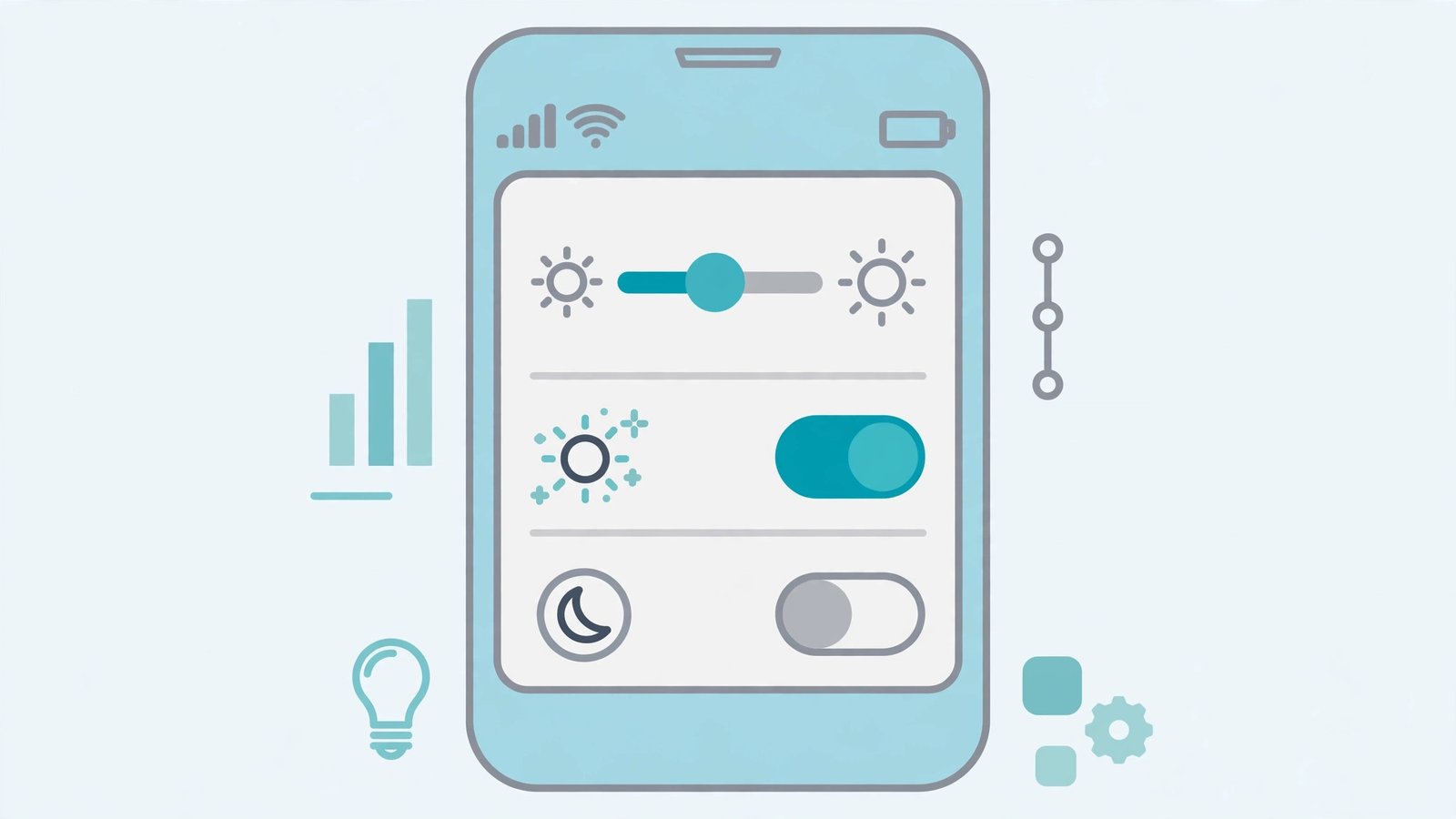
- Open Settings > Display.
- Find “Adaptive brightness” (may be called “Auto brightness” or “Automatic brightness”).
- If it is off, turn it on. Test by covering the top of the phone with your hand — the screen should dim.
- If it is already on, turn it off, wait ten seconds, and turn it back on — this restarts the adaptive loop.
- Move between a bright and dark room and watch the screen respond.
The hand-over-sensor test is the instant diagnostic: cover the earpiece area and the screen should dim within seconds; uncover and it should brighten. No response means the loop is broken further down — continue. For screens with other misbehaviours, our Android screen rotation not working guide covers the sensor-adjacent symptom.
Fix 2: Reset the Brightness Learning
Adaptive brightness learns your preferences: when you adjust the slider, it remembers what brightness you like at each ambient level. Bad training — from weeks of manual overrides in odd lighting — teaches it wrong.
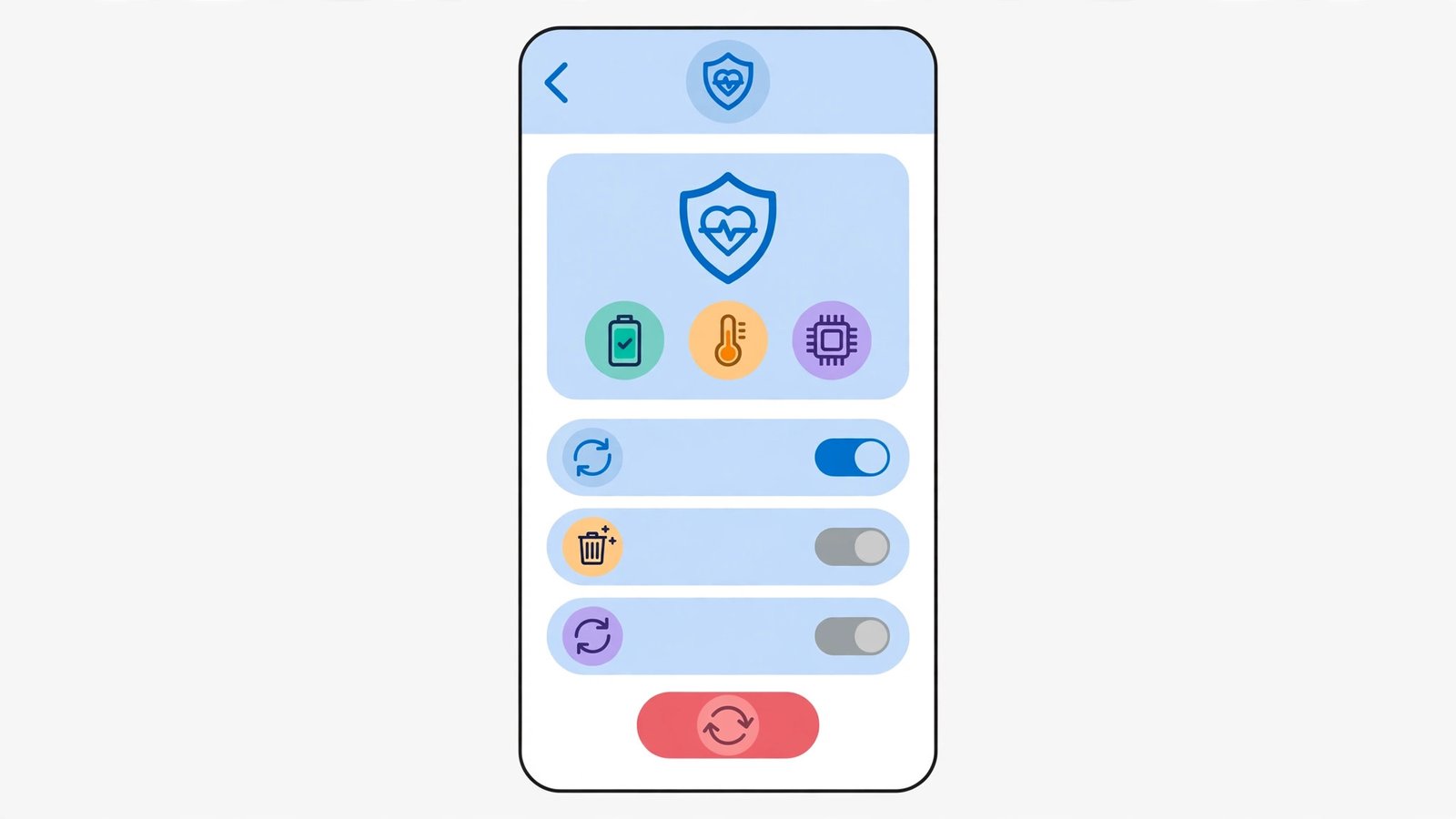
- Go to Settings > Apps > See all apps.
- Find “Device Health Services” (on Pixels; other brands call it differently — look for a system service with “health” or “device” in the name).
- Tap Storage & cache > Clear storage (this resets the learned brightness model, not your data).
- Alternatively, simply toggle Adaptive brightness off for a day of normal use, then back on — it relearns from scratch.
- After resetting, use the phone normally for a few days, adjusting the slider when needed — each adjustment trains the fresh model.
Think of it as house-training the brightness: the reset gives you a puppy that learns your actual preferences instead of the previous owner’s. Give it a few days of normal adjustments before judging. If location-based features are also flaky, see Android location permission resetting.
Fix 3: Clean the Light Sensor
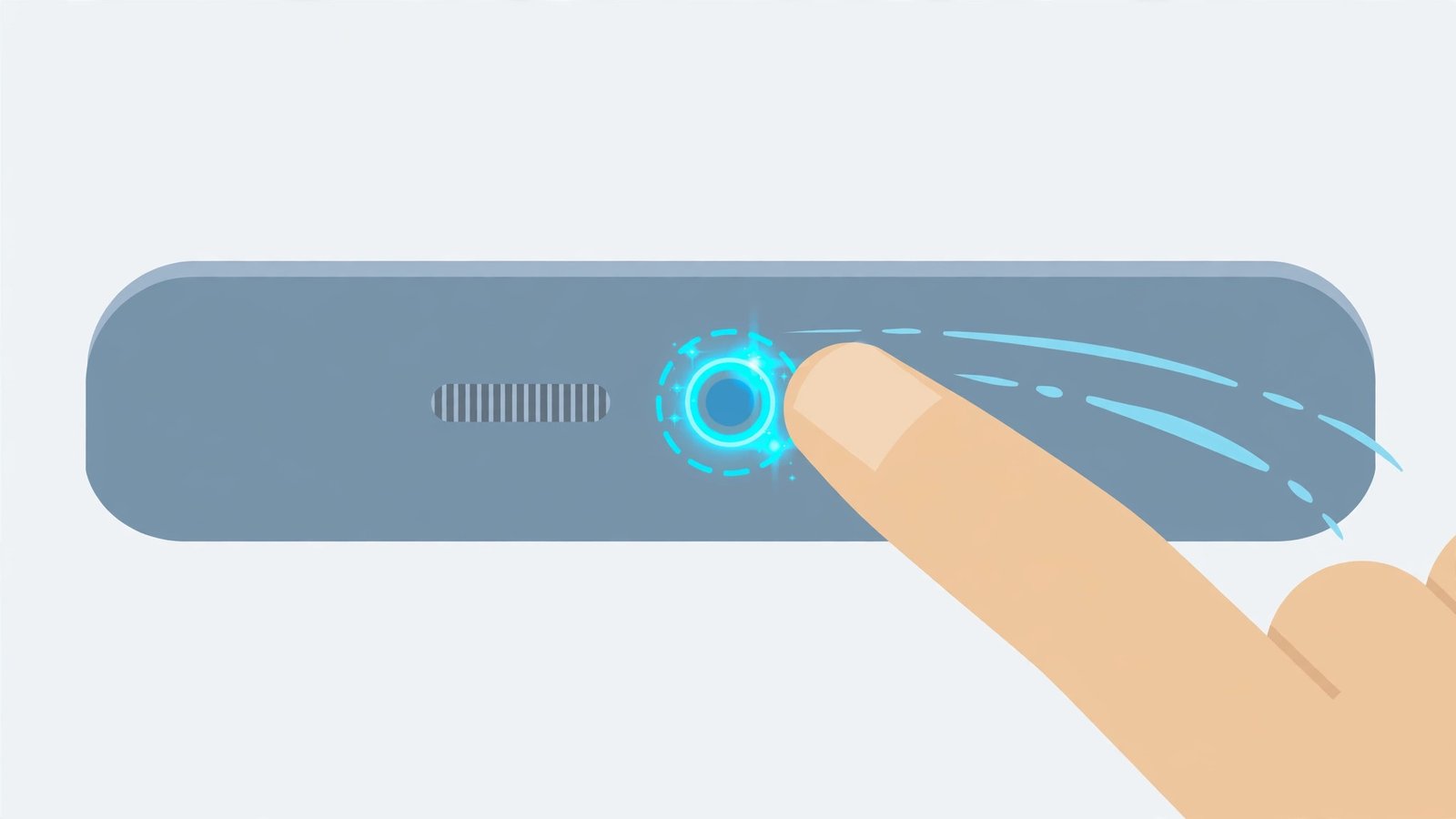
The ambient light sensor lives near the earpiece at the top of the screen. A film of grease makes it read “dark” all day — so the screen stays dim.
- Power off the screen (or the phone).
- Wipe the top bezel and earpiece area firmly with a clean microfiber cloth.
- Pay attention to the tiny sensor window — it is easy to miss next to the camera.
- Remove any grime around the earpiece grille too.
- Test with the hand-cover diagnostic from Fix 1.
This is the fix for “stuck dim” more often than any setting. The sensor cannot do its job through a layer of face oil. A quick wipe belongs in everyone’s monthly phone hygiene. For GPS sensor troubles, our Android GPS not accurate guide is the sibling read.
Fix 4: Remove the Screen Protector Over the Sensor
A misaligned or low-quality screen protector over the sensor blinds auto brightness completely — and some “privacy” protectors dim the sensor’s view deliberately.
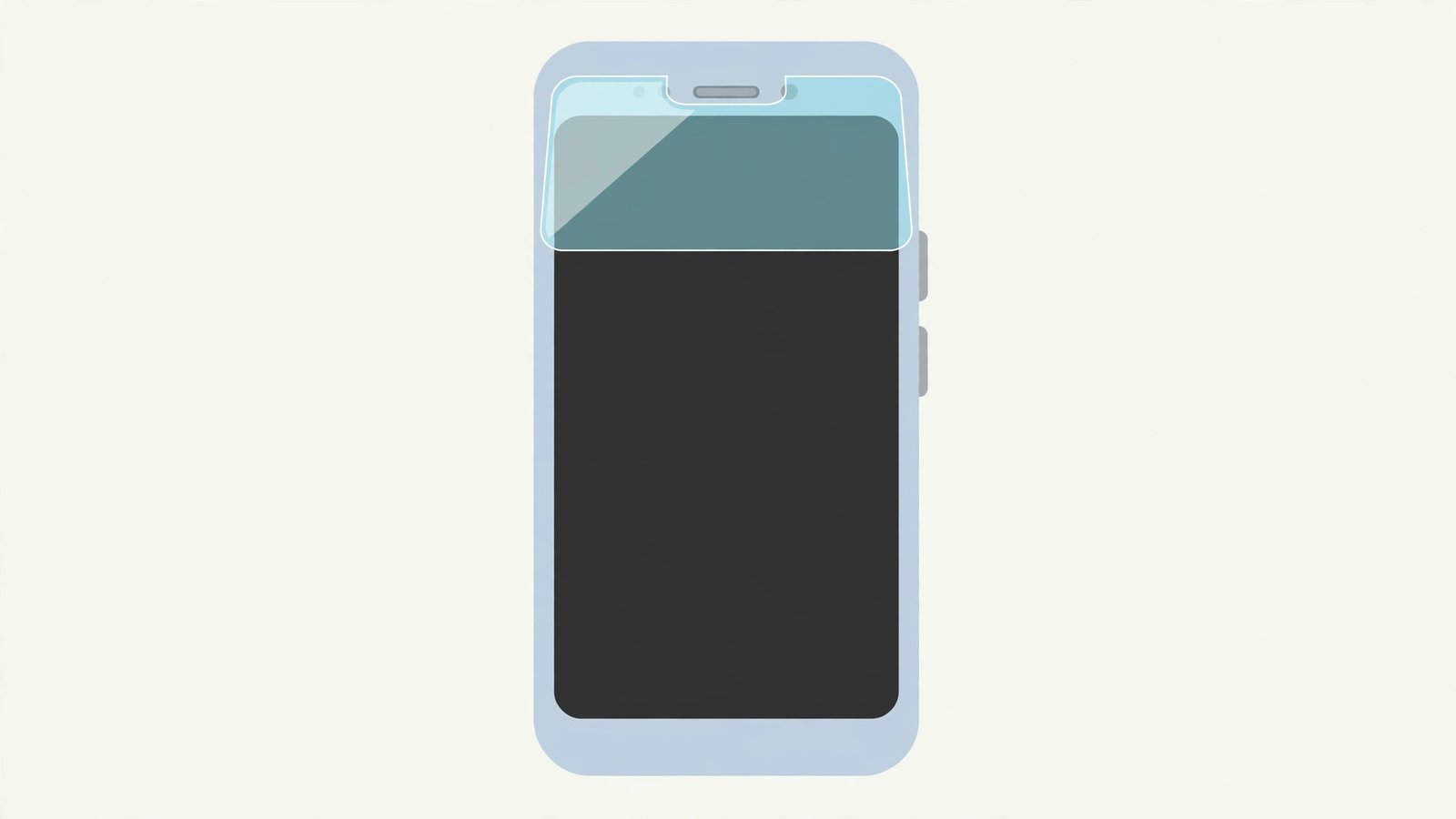
- Check whether your screen protector covers the sensor area (top bezel, near the earpiece/camera).
- If it does, peel it off and test auto brightness immediately.
- If brightness returns, the protector was the problem — replace it with one that has a proper cutout for the sensors.
- Avoid ultra-cheap protectors without sensor cutouts; they are a common cause of this exact issue.
- While the protector is off, clean the screen (Fix 3) before applying the new one.
If the problem started the day you applied a protector, you have already diagnosed it. Good protectors cost little more and cut holes where the phone needs to see. For keyboards that vanish like sensors get covered, see Android keyboard keeps disappearing.
Fix 5: Restart the Phone
The sensor service can stall like any software. A restart reloads it cleanly.
- Restart the phone normally.
- After booting, toggle Adaptive brightness off and on once (Fix 1).
- Test with the hand-cover diagnostic.
- If a restart fixes it temporarily but it breaks again in days, an app is likely interfering — check for “display”, “night mode”, or “battery” apps and uninstall suspects.
Temporary fixes that relapse point at third-party interference. The restart proves the hardware works; the relapse names software as the saboteur.
Fix 6: Update the Software
System updates fix sensor bugs — and occasionally introduce them. Either way, being current is the right state.
- Go to Settings > System > System update and install anything pending.
- Also update your apps via the Play Store — display-related apps can interfere.
- After updating, re-test auto brightness.
- If the problem started right after an update, check the manufacturer’s forums for known issues — and report it. A patch usually follows.
- As a workaround while waiting, use the manual slider — it always works.
Do not fear updates because one caused trouble; the fix for update-caused bugs is almost always the next update. Stay current and the sensor stack stays healthy.
Fix 7: Reset All Settings
When nothing else works, reset all system settings. This restores every setting to defaults without deleting your apps, photos, or files.
- Go to Settings > System > Reset options > “Reset all settings” (wording varies: “Reset settings”).
- Confirm. The phone restarts with default settings.
- Re-enable Adaptive brightness and test.
- Reconfigure Wi-Fi, Bluetooth pairings, and other settings afterwards — they reset too.
- This is not a factory reset: your data stays. Only settings revert.
Reset-all-settings is the deep clean for “something, somewhere, is misconfigured and I cannot find it”. It is safe, quick, and resolves the stubborn cases where a buried setting blocks the sensor loop.
What to Avoid
- Do not cover the sensor area with stickers or thick cases.
- Do not install “brightness control” apps — they fight the built-in adaptive system.
- Do not judge adaptive brightness in the first hour after a reset — it needs days to learn.
- Do not use a screen protector without sensor cutouts.
- Do not factory-reset the phone for a brightness issue — Reset All Settings (Fix 7) is enough.
- Do not ignore Battery Saver’s brightness cap — it overrides adaptive brightness by design.
Frequently Asked Questions
Why is my screen too dim even at full manual brightness?
That is a different problem from auto brightness — possibly a display fault, “Extra dim” accessibility setting, or a failing backlight. Check Settings > Accessibility > Extra dim first.
How does adaptive brightness learn?
When you move the manual slider, the phone records your preferred brightness for the current ambient light. Over days, it builds a personal curve. Resetting (Fix 2) restarts the learning.
Why does auto brightness keep turning itself off?
Some battery-saver modes and third-party “optimizer” apps toggle it. Check Battery Saver settings and uninstall optimizer apps.
Can a case affect auto brightness?
Yes — cases with high edges or flip covers can shadow the sensor. Test with the case off; if brightness returns, the case is the problem.
Is adaptive brightness bad for battery?
The opposite — it lowers brightness in dark rooms, saving significant power. Leaving it on is one of the easiest battery wins.
Why is auto brightness too aggressive — dimming when I do not want it to?
It learned from you — or from accidental slider touches. Every manual adjustment trains the model, including the ones you made while half-asleep or handing the phone to someone else. Reset the learning (Fix 2) and retrain deliberately for a few days: adjust the slider only when you genuinely want a different brightness. The model follows your lead.
Does auto brightness work in direct sunlight?
Up to the phone’s maximum brightness — and many phones add a temporary “sunlight boost” beyond the normal max when the sensor detects bright outdoor light. If the screen still looks dim outdoors, check that no power-saving mode is capping brightness, and give the sensor a wipe (Fix 3). A phone at true maximum in sunlight is doing everything it can.
Why does the brightness change when I tilt the phone?
The sensor’s view changes. Tilting can point the sensor at your hand, your shirt, or away from the light source, and the phone reacts to what the sensor sees. This is normal behaviour, not a fault. If it bothers you, the learned model (Fix 2) smooths out overreactions as it learns your preferences across positions.
Can I set different brightness levels for day and night?
Not natively on a schedule — adaptive brightness learns one continuous curve. But Bedtime Mode (or your brand’s routines app) can dim the screen on a schedule as a workaround. Set a routine: at your bedtime, enable Bedtime Mode or set brightness low; in the morning, restore adaptive. It is two routines instead of one setting, but it works.
Conclusion
When android auto brightness is not working, the sensor loop needs unblocking: confirm the toggle, reset the learning, clean the sensor, and check the screen protector. The hand-cover test tells you in seconds whether the loop is alive. Give a reset model a few days to learn your preferences, and the screen will meet every room at exactly the right brightness.