

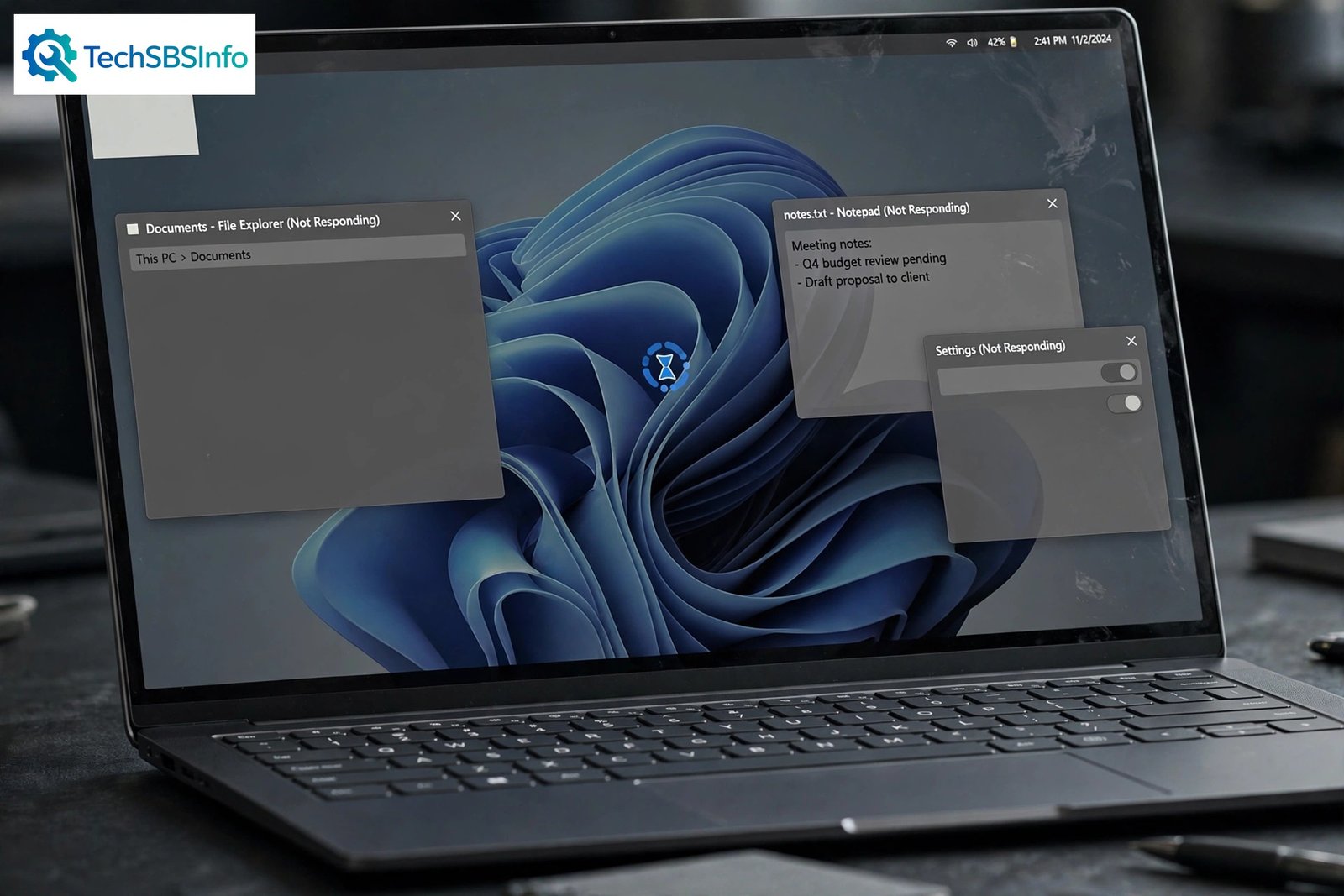
If your windows 11 keeps freezing randomly, you are not alone. The screen locks up without warning. The mouse stops moving. Nothing responds, and you have to hold the power button to shut the PC down. Then everything works fine for a while — until it happens again.
A random freeze is different from a one-time crash. One freeze can be caused by a glitch. Repeated, random freezes point to a real problem underneath. The good news is that the most common causes are simple: overheating, low memory, a bad driver, or a corrupt system file. This guide walks you through the fixes in order, from the easiest to the most advanced. You do not need to be a tech expert. Just follow the steps, and check after each fix whether the freezing has stopped.
Table of Contents
- Quick Checks
- Diagnose Why Windows 11 Keeps Freezing Randomly
- Fix 1: Force Restart and Unplug Extra Devices
- Fix 2: Close Heavy Apps and Free Up RAM
- Fix 3: Cool Down an Overheating PC
- Fix 4: Install Windows and Driver Updates
- Fix 5: Repair System Files with SFC and DISM
- Fix 6: Test in Safe Mode
- Fix 7: Check Your RAM for Errors
- Fix 8: Free Up Disk Space and Check the Drive
- Fix 9: Do a Clean Boot to Find the Conflicting App
- What to Avoid
- Frequently Asked Questions
- Conclusion
- Helpful Official Resources
Quick Checks
Try these fast checks first. They take only a few minutes and often stop the freezing right away.
- Restart your PC properly from the Start menu instead of holding the power button.
- Unplug USB devices you do not need, such as extra drives, webcams, or adapters.
- Check that your laptop or desktop vents are not blocked by a blanket, bag, or desk wall.
- Close programs you are not using, especially browsers with many open tabs.
- Make sure your charger is plugged in if you are on a laptop, and the battery is not critically low.
- If only one program freezes, end that program in Task Manager instead of restarting the whole PC.
Diagnose Why Windows 11 Keeps Freezing Randomly
Random freezes leave clues. Match what you see with this table, then jump to the fix that fits.
| Symptom | Cause | Go to Fix |
|---|---|---|
| The whole screen locks up and the mouse stops too | Overheating CPU or a hardware problem | Fix 3 |
| The screen freezes but the mouse cursor still moves | Display driver issue | Fix 4 |
| Freezes start when you open many apps or tabs | Low RAM or one app using too much memory | Fix 2 |
| Freezes began right after a Windows update | Faulty update or an incompatible driver | Fix 4 |
| Freezes happen with a blue screen error | Failing RAM or corrupt system files | Fix 5 and Fix 7 |
| Freezes only in one program, like a game or browser | That program or its add-ons | Fix 2 |
| Freezes when the PC has been on for a long time | Heat build-up or a memory leak in an app | Fix 3 |
Fix 1: Force Restart and Unplug Extra Devices
Start with the simplest step. A full shutdown clears the memory and stops stuck processes.
- Hold the power button for about 10 seconds until the PC turns off.
- Unplug all USB devices except your keyboard and mouse.
- If it is a desktop, unplug the power cable for 30 seconds, then plug it back in.
- Turn the PC on and use it normally for a while.
- If the freezing stops, plug your USB devices back in one at a time to find the faulty one.
A single bad USB device — a failing external drive or a damaged cable — can freeze the whole system. If your computer restarts by itself instead of freezing, read our guide on Windows PC keeps restarting to find the right fix for that problem.
Fix 2: Close Heavy Apps and Free Up RAM
When your memory fills up, Windows has nowhere to work and the screen locks up. Task Manager shows you exactly which app is eating your RAM.
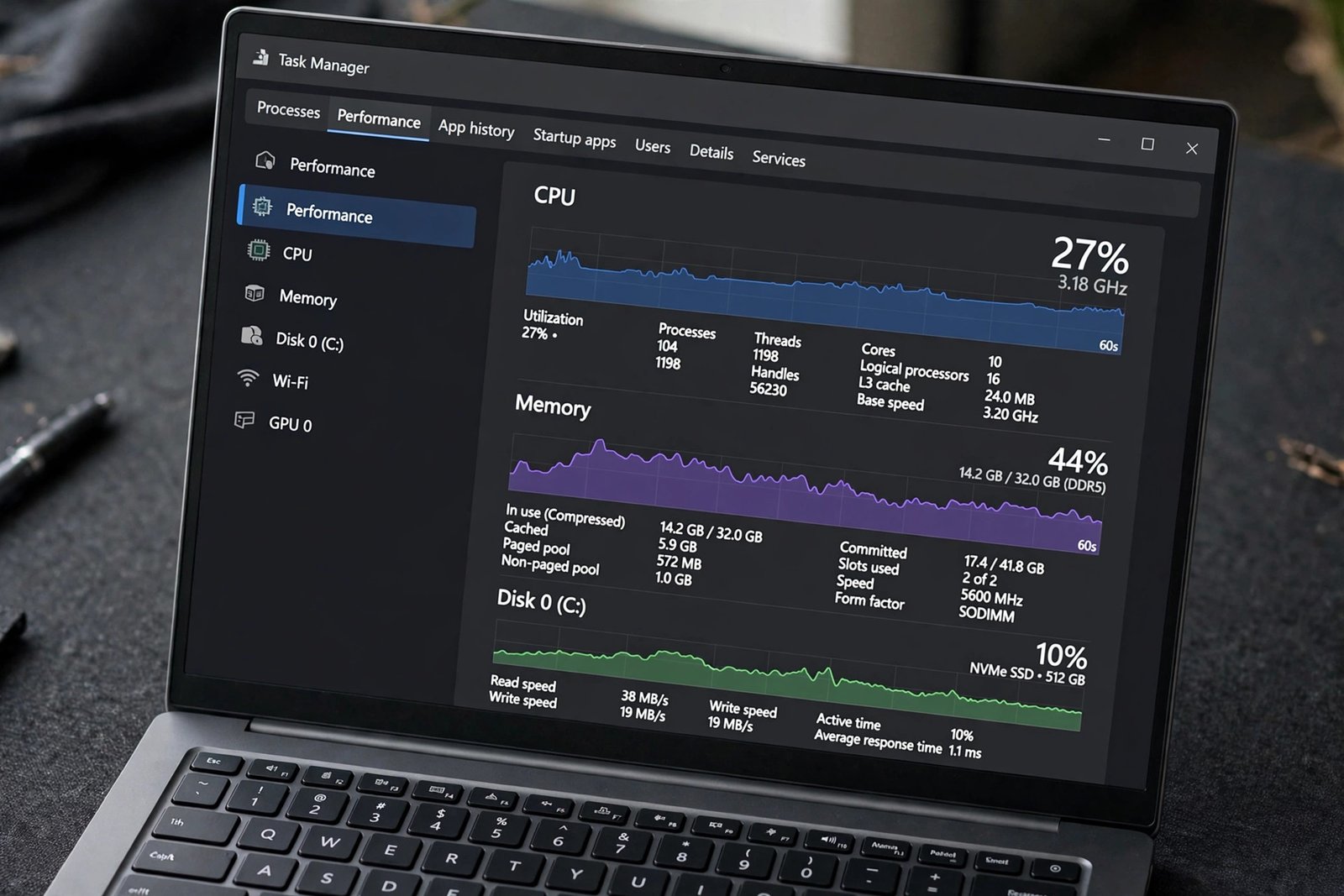
- Press Ctrl + Shift + Esc to open Task Manager.
- Click the Processes tab and then click the Memory column to sort by usage.
- Look for any app using a very large share of memory.
- Right-click that app and choose End task. Save your work in other apps first.
- Click the Performance tab and watch the Memory graph for a few minutes.
- If memory stays above 90 percent during normal use, close background apps you do not need.
- Press Windows + R, type
msconfig, and on the Startup tab disable programs you do not need at boot. Or use Settings > Apps > Startup to turn them off.
Browsers are the most common memory hogs. Each open tab uses memory, and dozens of tabs can freeze a PC with 8 GB of RAM or less. If only your browser freezes while the rest of Windows works, see our guide on Chrome keeps crashing for browser-specific fixes.
Fix 3: Cool Down an Overheating PC
Heat is one of the top reasons a Windows 11 PC freezes at random. When the processor gets too hot, it slows down or locks up to protect itself. Laptops are affected most, but dusty desktops freeze too.
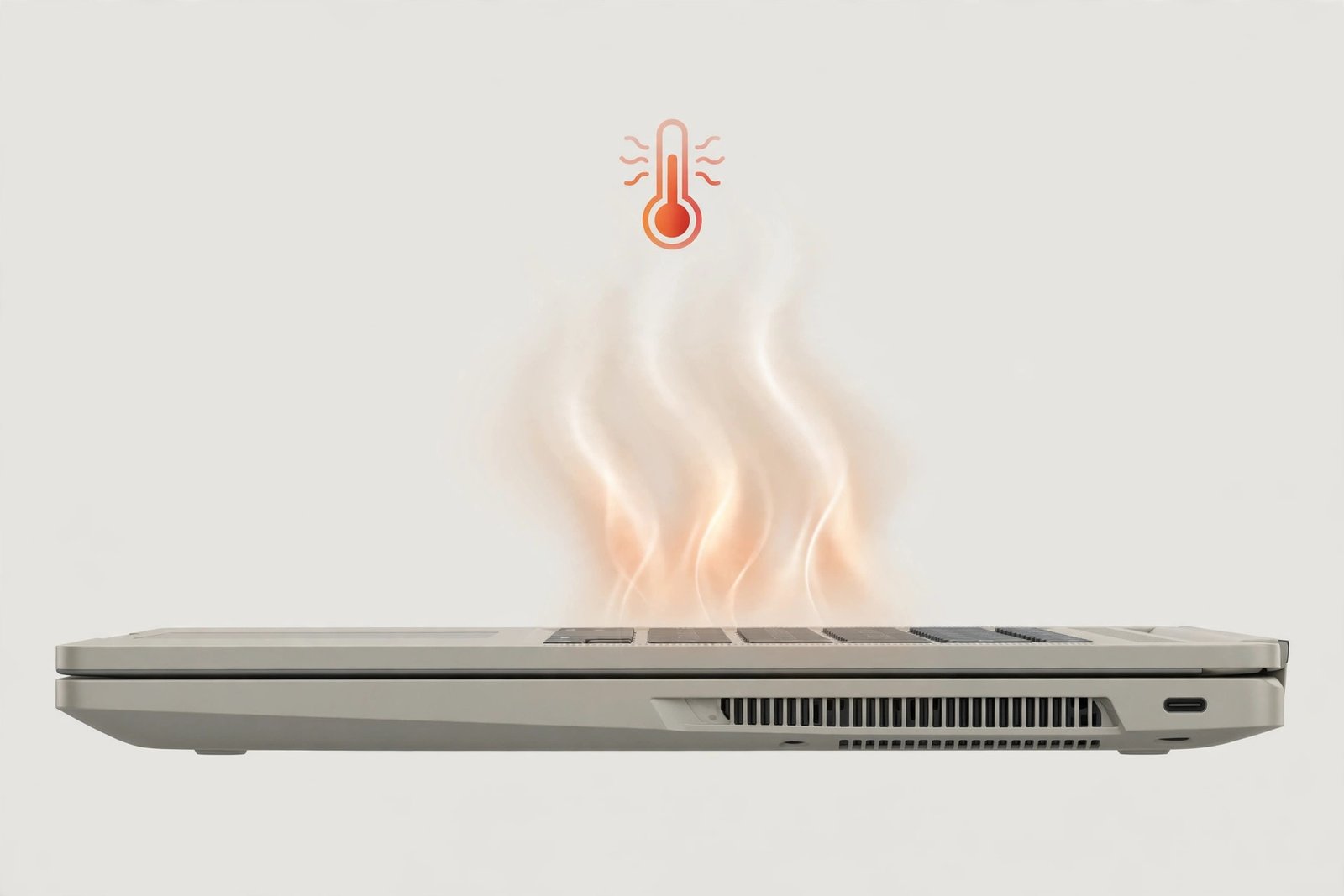
- Feel the bottom of the laptop or the side of the desktop. If it is very hot, let it cool down for 20 minutes.
- Make sure all vents are open and not blocked by bedding, your lap, or a bag.
- Place a laptop on a hard, flat surface — never on a pillow or blanket.
- Clean dust from the vents with short bursts of compressed air. Hold fans still with a finger so they do not spin too fast.
- Check that the internal fans are spinning. If a fan is silent while the PC is hot, it may be dead.
- For a laptop, consider a simple cooling pad. It is cheap and lowers temperatures noticeably.
- In Task Manager, check whether one process keeps the CPU near 100 percent. A stuck process creates heat and freezes.
If your PC only freezes during games or video editing, heat is the likely cause. Heavy tasks push the processor to its limit, and weak cooling cannot keep up.
Fix 4: Install Windows and Driver Updates
Outdated or broken drivers are a leading cause of random freezes. Windows Update delivers both system fixes and driver updates, so start there.
- Open Settings and go to Windows Update.
- Click Check for updates and install everything offered.
- Restart the PC when asked, even if you are in the middle of something.
- Go back to Windows Update and click Advanced options, then Optional updates.
- Install any driver updates listed there, especially display and chipset drivers.
- If a freeze started right after an update, go to Settings > Windows Update > Update history > Uninstall updates, and remove the most recent one.
- Visit your laptop or motherboard maker’s official support page and download the latest graphics driver for your exact model. Do not use third-party driver updater tools.
Display drivers deserve special attention. A corrupt graphics driver can freeze the screen while the mouse still moves. Installing a fresh driver from the maker’s site fixes this in many cases. If updates themselves keep failing on your PC, our Windows update error troubleshooting guide walks through that problem step by step.
Fix 5: Repair System Files with SFC and DISM
Corrupt Windows system files can freeze your PC at random moments. Windows has two built-in tools that find and repair these files: SFC and DISM. Both are free and safe to run.
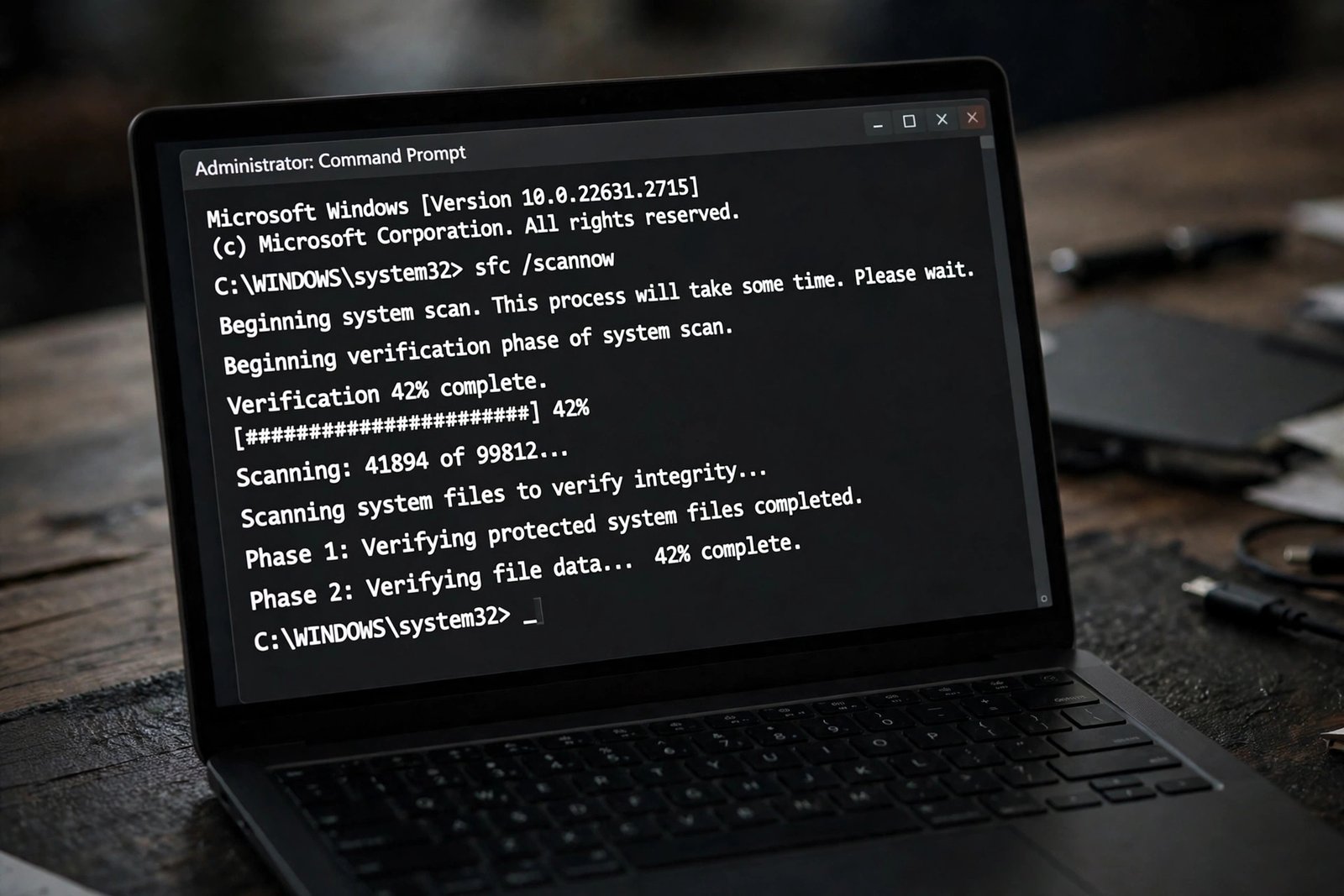
- Click Start, type
cmd, right-click Command Prompt, and choose Run as administrator. - Type
sfc /scannowand press Enter. - Wait for the scan to finish. It can take 15 to 30 minutes. Do not close the window.
- If it says it found and fixed corrupt files, restart your PC.
- If problems remain, run this command next:
DISM /Online /Cleanup-Image /RestoreHealth. - Wait for DISM to finish, then run
sfc /scannowonce more. - Restart the PC and use it normally to check whether the freezing is gone.
These tools only repair Windows files. They do not delete your documents, photos, or installed programs. Running them is safe, and it is one of the first things a technician would try.
Fix 6: Test in Safe Mode
Safe Mode starts Windows with only the basic drivers and services. If the freezing stops in Safe Mode, a driver or startup program is the cause. If it still freezes in Safe Mode, the problem is likely hardware.
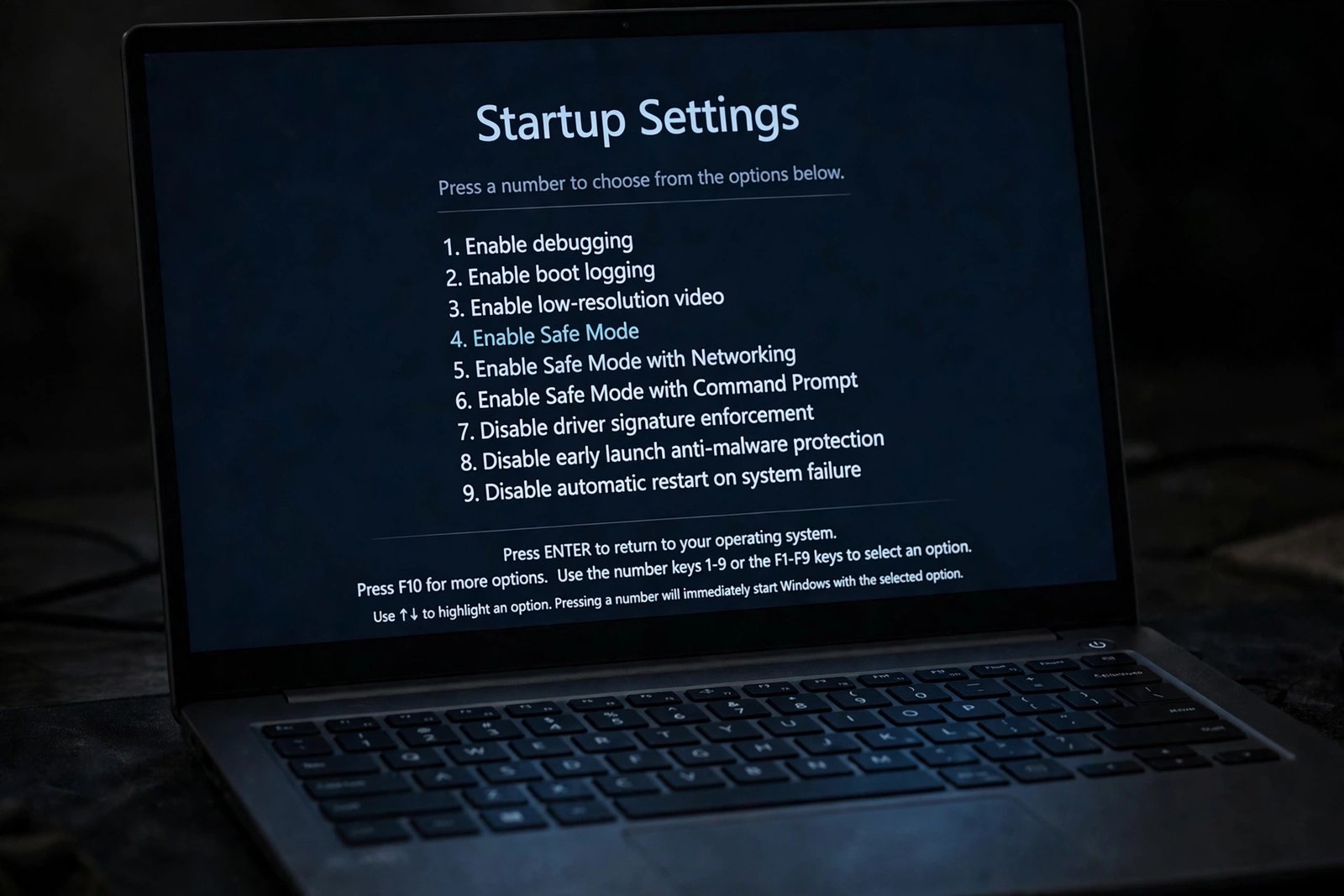
- Open Settings and go to System > Recovery.
- Under Advanced startup, click Restart now.
- When the blue screen appears, choose Troubleshoot > Advanced options > Startup Settings.
- Click Restart. When the list appears, press 4 for Safe Mode.
- Use the PC in Safe Mode for a while. Open a few programs and see if it freezes.
- If it works fine in Safe Mode, a third-party driver or program is causing the freezes. Go to Fix 9 for a clean boot.
- To leave Safe Mode, just restart the PC normally.
Safe Mode looks plain — the screen resolution is low and many features are off. That is normal. It is a test environment, not a way to use your PC every day.
Fix 7: Check Your RAM for Errors
Faulty memory is a common hardware cause of random freezes. Windows includes a free memory test called Windows Memory Diagnostic. It checks your RAM sticks for errors.
- Press Windows + R, type
mdsched.exe, and press Enter. - Choose “Restart now and check for problems”.
- The PC restarts and the test runs automatically. It takes several minutes.
- When the test finishes, Windows boots normally and shows the result in a notification.
- If the result reports hardware problems, one of your RAM sticks is failing.
- On a desktop, you can test each stick alone by removing the others and running the PC. Replace the faulty stick.
- On a laptop with sealed memory, a failed test means a repair shop visit.
Do not skip this fix if your freezes come with blue screens or happen during heavy multitasking. Bad RAM causes exactly that pattern. Memory problems get worse over time, so catching them early saves you from data loss.
Fix 8: Free Up Disk Space and Check the Drive
A nearly full drive makes Windows slow and unstable. When the system drive has almost no free space, freezes become common. A failing drive causes freezes too.
- Open Settings > System > Storage and check how much free space is on your C: drive.
- If less than 10 percent is free, delete files you do not need or move them to another drive.
- Click Temporary files in Storage settings, select the categories, and click Remove files.
- Uninstall large programs you no longer use from Settings > Apps > Installed apps.
- Open Command Prompt as administrator and type
chkdsk C: /f /rto check the drive for errors. - If Windows asks to schedule the check for the next restart, type Y and press Enter, then restart.
- Listen for clicking or grinding sounds from a traditional hard drive. Those sounds mean the drive is failing — back up your files immediately.
An SSD that is nearly full also slows down sharply. Aim to keep at least 15 to 20 percent of your system drive free. If freezes started alongside very slow boot times, our Windows 11 slow startup fix guide covers the startup side of the problem.
Fix 9: Do a Clean Boot to Find the Conflicting App
A clean boot starts Windows with only Microsoft services. If the freezing stops, one of your startup programs is the culprit. You then turn programs back on in groups to find the bad one.
- Press Windows + R, type
msconfig, and press Enter. - Go to the Services tab and tick “Hide all Microsoft services”.
- Click Disable all, then click OK.
- Open Task Manager with Ctrl + Shift + Esc and go to the Startup apps tab.
- Disable every startup app, then restart the PC.
- Use the PC normally. If it no longer freezes, a disabled program was the cause.
- Re-enable programs a few at a time, restarting between groups, until the freezing returns. The last group holds the culprit.
Common offenders include old antivirus tools, system “optimizers”, and outdated hardware utilities. Once you find the program, update it or uninstall it. You can leave the other programs enabled.
What to Avoid
- Do not download “driver updater” or “PC booster” tools from random websites — many contain malware.
- Do not edit the Windows registry to fix freezing — one wrong change can break your system.
- Do not turn off your antivirus permanently — scan for malware instead with Windows Security.
- Do not keep force-shutting down without investigating — repeated hard shutdowns can corrupt files.
- Do not open the PC to reseat parts unless you are comfortable doing it — static discharge can damage components.
- Do not reinstall Windows as a first step — try the repairs above first, since most freezes do not need a reinstall.
Frequently Asked Questions
Why does my Windows 11 PC freeze but the mouse still moves?
This usually points to the display driver. The graphics driver has crashed while the rest of the system keeps running. Update your graphics driver from the maker’s official site, as described in Fix 4.
Can a Windows update cause random freezing?
Yes. A bad update or a driver delivered through Windows Update can start the freezing. If the timing matches an update, uninstall the most recent update in Settings > Windows Update > Update history.
Is random freezing a sign of a virus?
It can be, but it is not the most common cause. Run a full scan with Windows Security first. If the scan is clean, work through the fixes above — heat, memory, and drivers are far more likely.
Should I reinstall Windows 11 to fix freezing?
Only as a last resort. A reinstall takes hours and wipes your programs. The nine fixes in this guide solve most freezing problems without one. Try them all before considering a reinstall.
How do I know if freezing is caused by hardware?
If the PC still freezes in Safe Mode, or the memory test reports errors, hardware is the likely cause. Overheating, failing RAM, and dying drives are the three hardware causes to check first.