

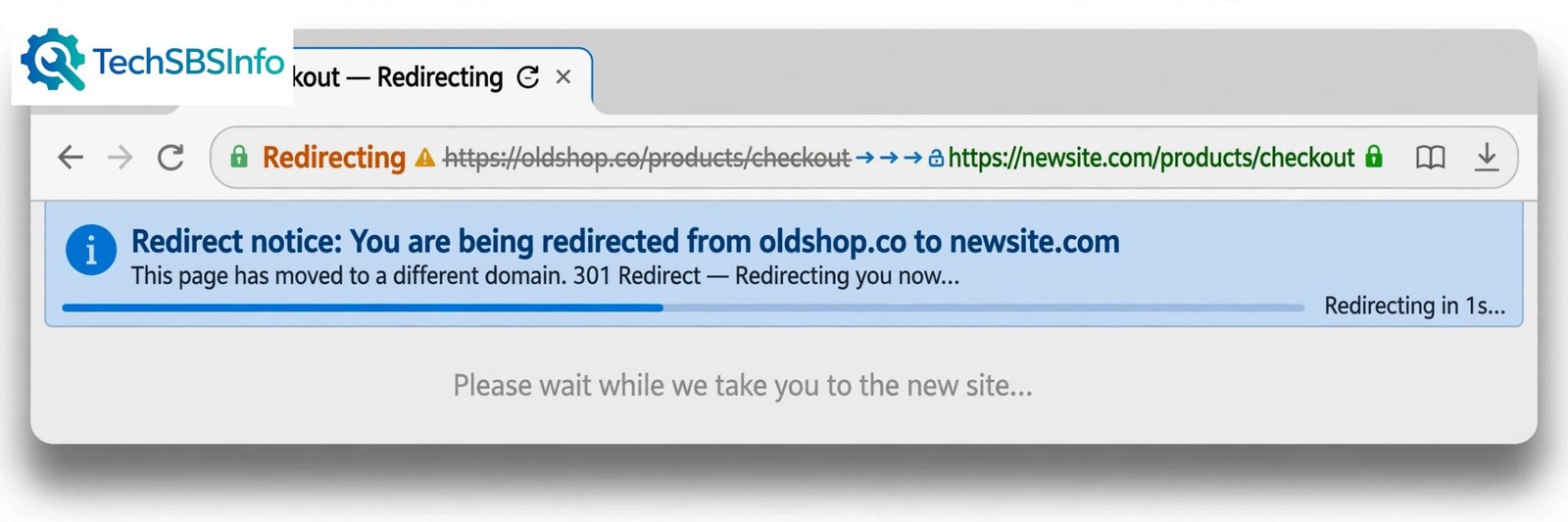
When wordpress redirects to another url, your visitors type your domain and land on a completely different website. That is alarming. It can cost you traffic, trust, and sales while it lasts.
The good news is that most causes are simple. A wrong setting, a leftover redirect rule, or a plugin working too aggressively can all do this. In rare cases, the cause is a hacked site. This guide walks you through every common cause from simplest to hardest, so you can find yours and fix it step by step.
Table of Contents
- Quick Checks
- Diagnose the Redirect
- Fix 1: Check Your Site URLs
- Fix 2: Deactivate Plugins to Find the Redirect Source
- Fix 3: Inspect the .htaccess File for Bad Redirect Rules
- Fix 4: Clean Up Rules in Your Redirect Plugin
- Fix 5: Search and Replace Old URLs in the Database
- Fix 6: Scan Your Site for a Malware Redirect Hack
- Fix 7: Clear Caches and Check Hosting-Level Redirects
- What to Avoid
- Frequently Asked Questions
- Conclusion
- Helpful Official Resources
Quick Checks
Try these fast checks before you change anything. They take only a few minutes and often reveal the cause.
- Open your site in a private or incognito window to rule out your browser cache.
- Try a different browser and a different device, such as your phone.
- Check whether only the homepage redirects, or every page on the site.
- Write down the exact destination URL. A spammy or unrelated domain points to malware.
- Check whether wp-admin redirects too, or only the front end of the site.
- Think about what changed recently: a migration, a new plugin, or new settings.
- Ask your hosting provider whether they changed anything on the server.
Diagnose the Redirect
Match what you see to the likely cause, then jump to the matching fix. This saves you from changing things that are not broken.
| Symptom | Cause | Go to Fix |
|---|---|---|
| The whole site redirects to a different domain after a setting change or a move | Wrong WordPress Address or Site Address | Fix 1 |
| The redirect started after installing or updating a plugin | A plugin conflict or a redirect plugin rule | Fix 2 |
| The redirect happens even with every plugin turned off | A bad rule in the .htaccess file | Fix 3 |
| Only some pages redirect, or redirects you set up yourself misbehave | Wrong rules in your redirect plugin | Fix 4 |
| You moved to a new domain and old URLs still point to the old one | Old URLs left behind in the database | Fix 5 |
| The site redirects to spam, casino, or pharma sites, often only for logged-out visitors | A malware redirect hack | Fix 6 |
| The redirect comes and goes, or only appears on some networks | A cached redirect or a hosting/CDN-level rule | Fix 7 |
Fix 1: Check Your Site URLs When wordpress redirects to another url
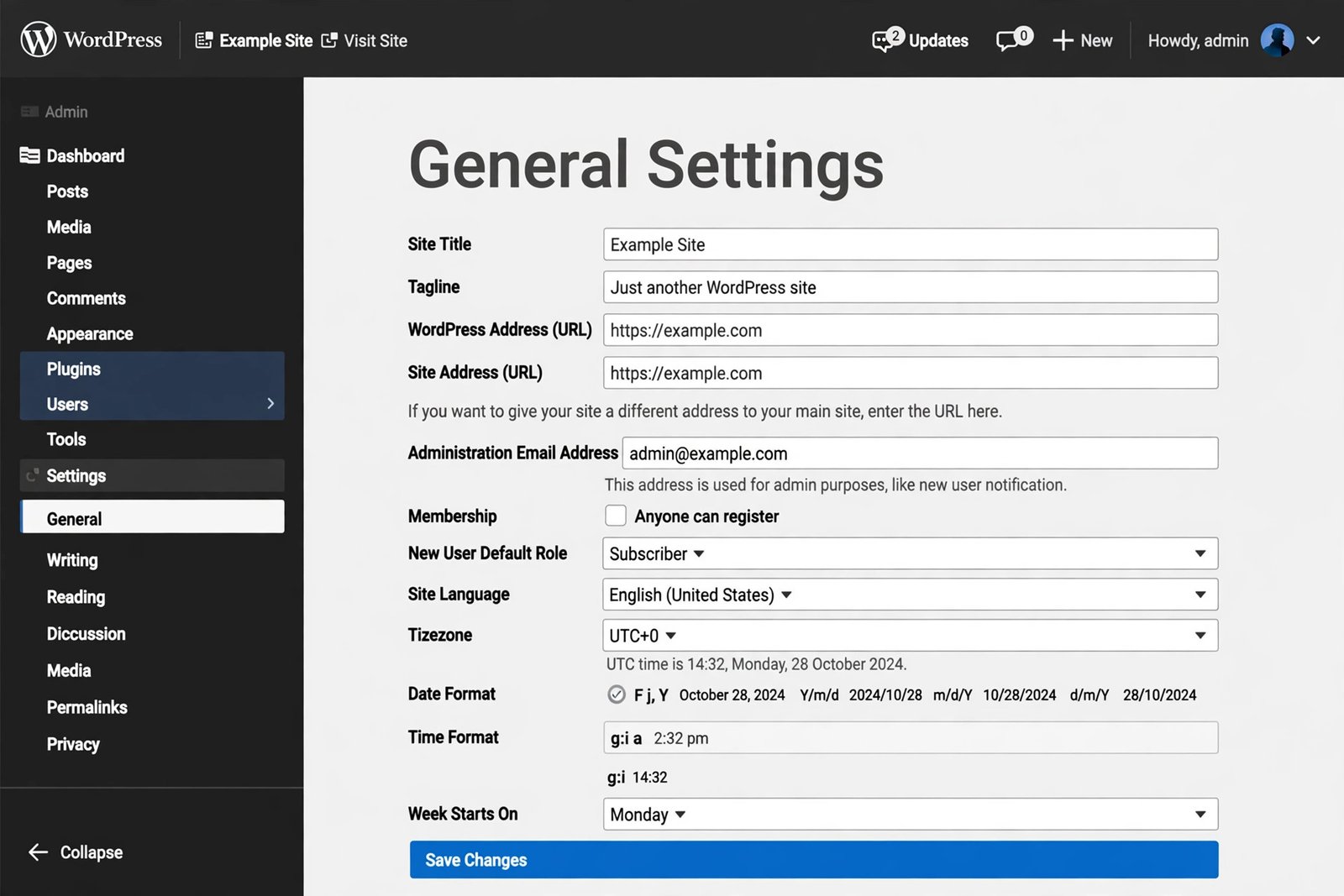
Wrong site URLs are the most common reason wordpress redirects to another url. WordPress stores two URL settings, and both must point to your real domain.
| Setting | What it controls |
|---|---|
| WordPress Address (URL) | Where the WordPress core files are installed |
| Site Address (URL) | The address visitors use to reach your site |
Follow these steps:
- Log in to wp-admin and go to Settings → General.
- Look at the WordPress Address (URL) and Site Address (URL) fields.
- Both should show your real domain, with the correct choice of http or https and www or non-www.
- Fix any wrong value and click Save Changes.
- Test your site in a private window.
If wp-admin also redirects and you cannot reach the settings page, check wp-config.php:
- Open your hosting file manager or connect with FTP.
- Open wp-config.php in the site root.
- Look for lines defining WP_HOME and WP_SITEURL. These override the settings page.
- Correct them to your real domain, or remove them if they are wrong.
- Save the file and test the site again.
Fix 2: Deactivate Plugins to Find the Redirect Source
Plugins can redirect visitors. Security plugins, SEO plugins, and maintenance-mode plugins sometimes add redirects you did not expect. A plugin conflict can also trigger strange redirect behavior, since plugin conflicts cause many odd WordPress problems.
- In wp-admin, go to Plugins → Installed Plugins.
- Select all plugins, choose Deactivate from the bulk actions menu, and apply.
- Test your site in a private window.
- If the redirect stops, reactivate your plugins one by one, testing the site after each one.
- When the redirect returns, you have found the culprit. Check its settings for a redirect option, or replace it with a better plugin.
- If you cannot reach wp-admin at all, connect with FTP and rename the /wp-content/plugins/ folder to /wp-content/plugins-off/. This disables every plugin at once. Rename it back when you are done testing, then deactivate plugins from the dashboard instead.
Keep a note of which plugin caused the problem so you do not reinstall it blindly later.
Fix 3: Inspect the .htaccess File for Bad Redirect Rules
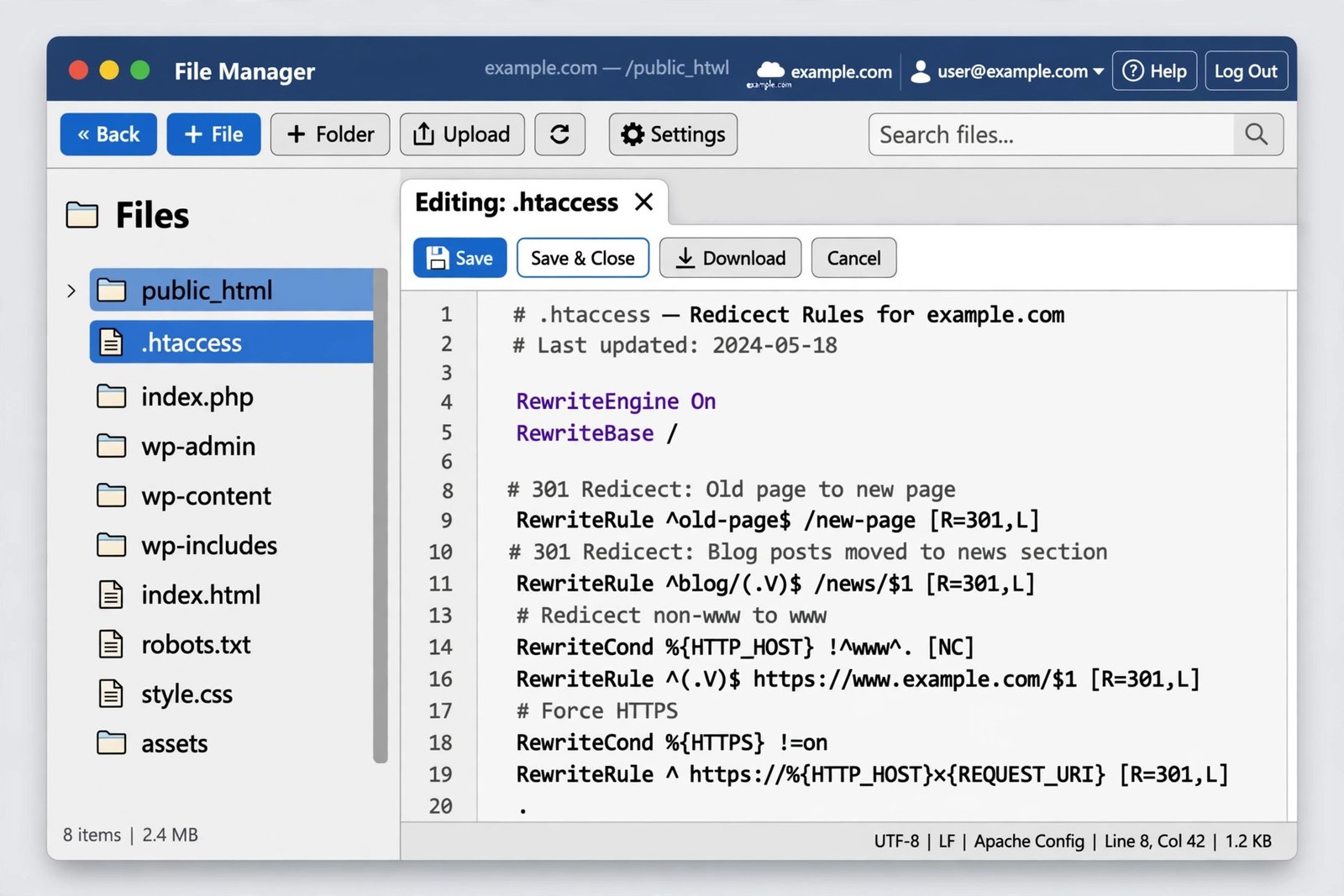
The .htaccess file sits in your site root and can redirect every visitor before WordPress even loads. A bad rule here survives plugin deactivation, which is why this fix comes after Fix 2.
- Open your hosting file manager or FTP client and go to the site root.
- Turn on the option to show hidden files so you can see .htaccess.
- Download a backup copy of the file to your computer before changing anything.
- Look for lines starting with Redirect, RedirectMatch, or RewriteRule that point to another domain.
- Comment out or remove the suspicious rules.
- Save the file and test your site in a private window.
- If you are unsure which rule is guilty, replace the whole file with the default WordPress rules below and test again.
Default WordPress .htaccess:
# BEGIN WordPress
<IfModule mod_rewrite.c>
RewriteEngine On
RewriteRule .* - [E=HTTP_AUTHORIZATION:%{HTTP:Authorization}]
RewriteBase /
RewriteRule ^index\.php$ - [L]
RewriteCond %{REQUEST_FILENAME} !-f
RewriteCond %{REQUEST_FILENAME} !-d
RewriteRule . /index.php [L]
</IfModule>
# END WordPress
This default block contains no redirects to other domains. If your site works with this file, the problem was one of the rules you removed.
Fix 4: Clean Up Rules in Your Redirect Plugin
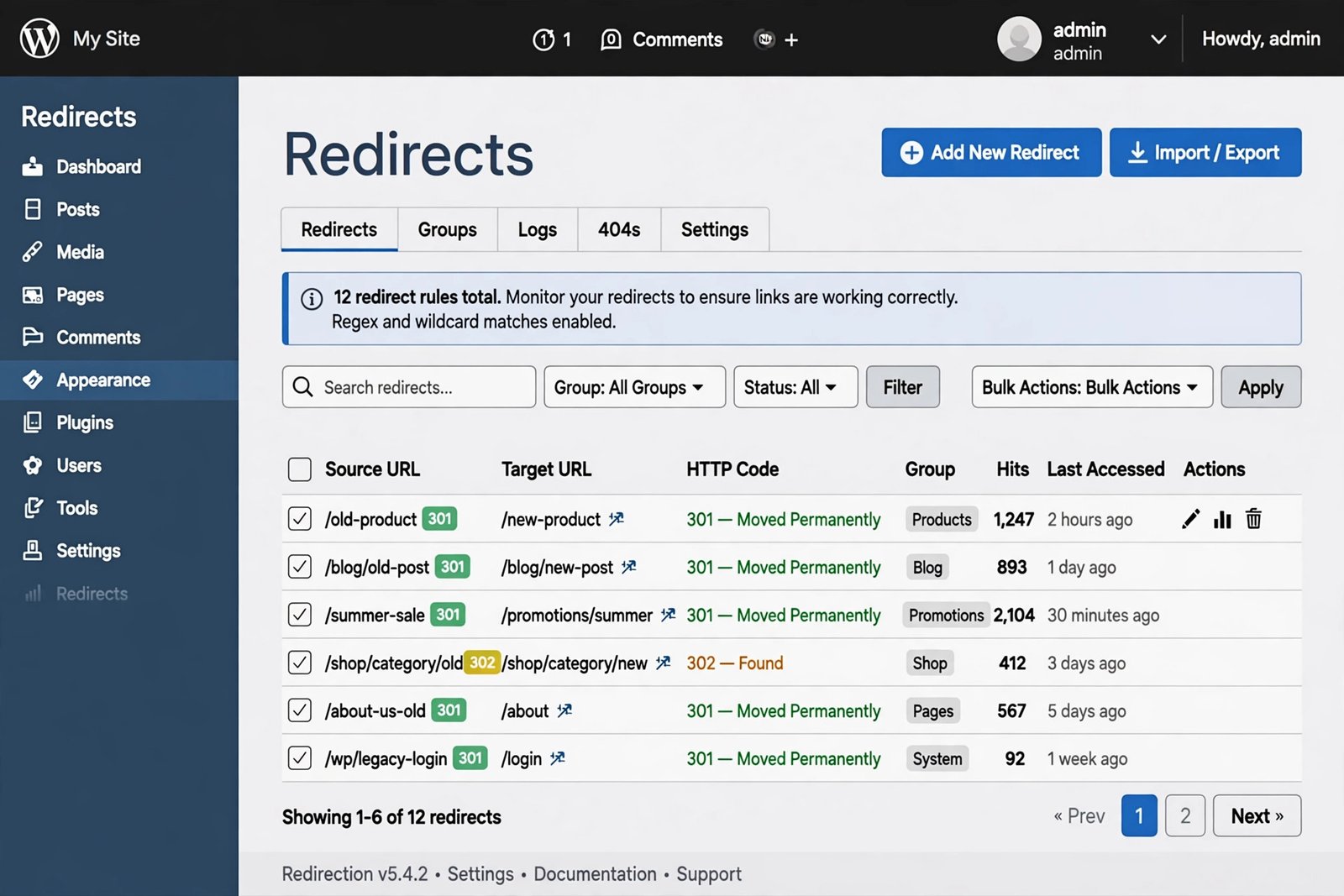
If you use a redirect plugin, one wrong rule can redirect your whole site. Wildcard rules are the usual suspect. A rule like /(.*) matched against everything sends every page to the target.
- Open your redirect plugin’s list of redirect rules.
- Sort or search by the source URL and look for rules matching your homepage or broad patterns.
- Check for redirect loops: rule A points to page B, while another rule points B back to A.
- Look for rules you created for an old migration or test and forgot to remove.
- Delete or correct the bad rules.
- Test your homepage and several inner pages in a private window.
Also check whether the plugin logs show unexpected 301 hits. The log tells you exactly which rule fired for each redirect, which makes the culprit easy to spot.
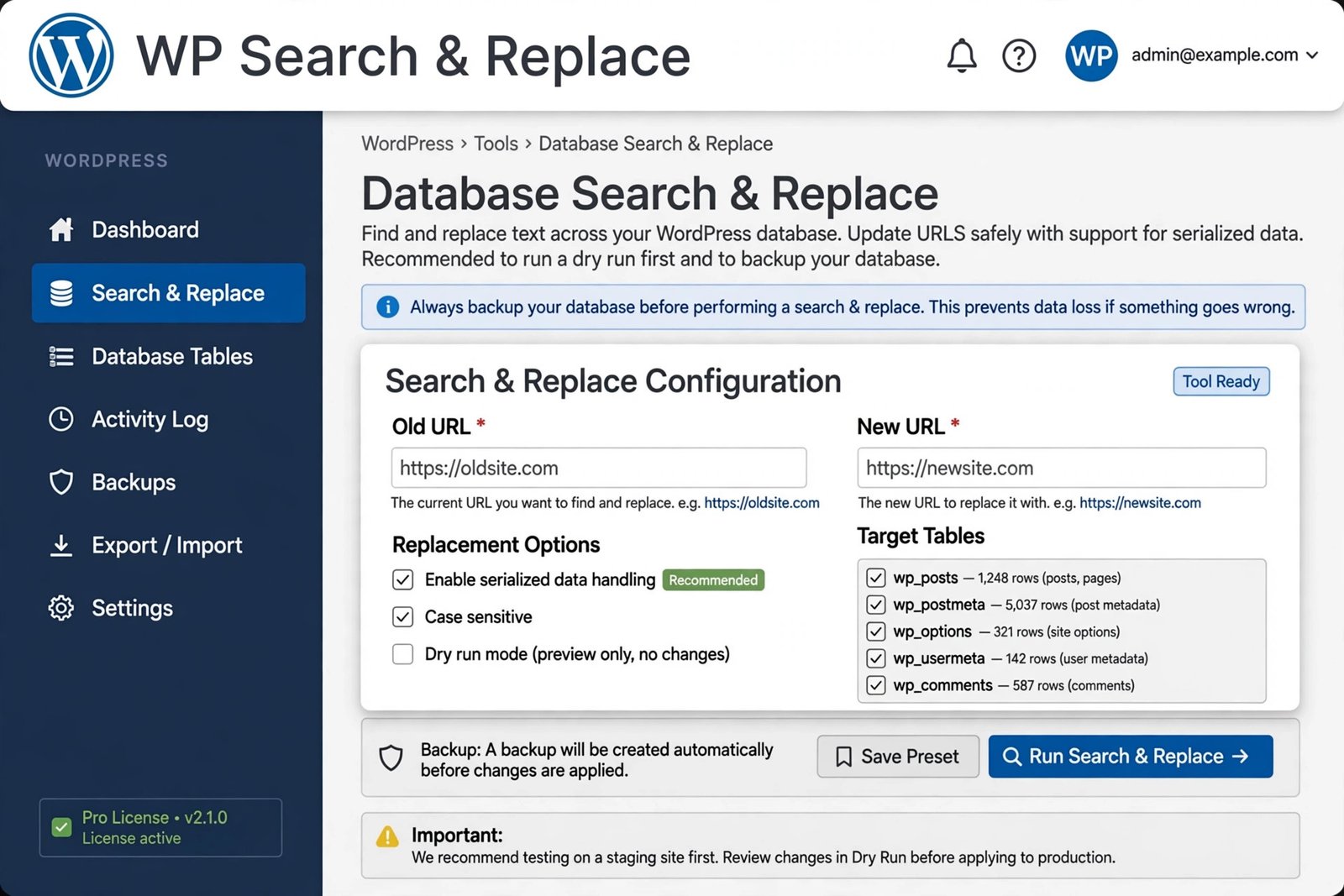
Fix 5: Search and Replace Old URLs in the Database
After moving to a new domain, old URLs hide in posts, widgets, menus, and settings. Until they are replaced, parts of your site keep sending visitors to the old address, which looks exactly like wordpress redirects to another url.
- Back up your full database before you touch anything.
- Do NOT run a raw find-and-replace in phpMyAdmin. WordPress stores serialized data, and a naive replace corrupts it.
- Use a proper search-and-replace tool that understands serialized data. A dedicated plugin from the official directory or the WP-CLI
search-replacecommand both work. - Replace the old domain with the new one across all tables.
- Check the siteurl and home rows in the wp_options table to confirm they show the new domain.
- Clear every cache and test the site in a private window.
Take your time with this step. A rushed database edit causes more damage than the redirect itself.
Fix 6: Scan Your Site for a Malware Redirect Hack
Sometimes wordpress redirects to another url is not a setting at all. Hacked sites often redirect visitors to spam, casino, adult, or fake pharma websites. The redirect may only trigger for logged-out visitors or for traffic coming from search engines, which is why the site looks fine to you while visitors complain.
- Run a scan with your host’s malware scanner or a reputable security plugin from the official directory.
- In your file manager, sort wp-content by modification date and inspect recently changed files for unknown code.
- Check your active theme’s functions.php and any must-use plugins for injected redirect scripts.
- Replace WordPress core, themes, and plugins with clean copies from official sources.
- Change every password: hosting, FTP, database, and all WordPress users.
- Reset the WordPress security salts in wp-config.php to log out any intruders.
- Ask your host to confirm the server itself is clean, then request a review of your site.
Do not delay this fix. A hacked redirect gets worse over time and can get your domain flagged by browsers and search engines.
Fix 7: Clear Caches and Check Hosting-Level Redirects
Redirects get cached. Your browser, your caching plugin, and your CDN can all keep serving an old redirect long after you fixed the real cause. Hosting panels and domain registrars can also add redirects you forgot about.
- Clear your browser cache, then test in a private window.
- Purge the cache in your caching plugin.
- Purge the cache at your CDN if you use one.
- Check your CDN dashboard for page rules or bulk redirects pointing to the other URL.
- Check your hosting control panel for domain redirects or addon-domain forwarding.
- Check your domain registrar for URL forwarding you may have set up and forgotten.
- Wait a little while after each change. Some caches take time to clear everywhere.
If your site shows nothing at all instead of redirecting, the problem is different — work through our guide on WordPress website not loading instead.
What to Avoid
- Do not edit the database with raw SQL find-replace. It corrupts serialized data.
- Do not delete .htaccess without downloading a backup copy first.
- Do not install “redirect fixer” plugins from unknown sources. Some are malware in disguise.
- Do not ignore a spam redirect and hope it goes away. Hacked redirects get worse.
- Do not change DNS settings to fix a redirect. DNS does not cause URL redirects.
- Do not keep a wildcard redirect rule “just in case.” Remove rules you do not need.
Frequently Asked Questions
Why does wordpress redirects to another url happen right after I move my site?
A move leaves the old domain in your settings and database. Check the Site Address in Settings → General first, then run a proper search and replace on the database as described in Fix 1 and Fix 5.
Is an HTTP to HTTPS redirect the same problem?
No. Redirecting http to https on the same domain is normal and desirable. This guide covers redirects that send visitors to a different domain or website.
Can a wrong redirect hurt my search rankings?
Yes. A wrong redirect sends visitors and search engines to the wrong place instead of your content. Fix it quickly, then check that your important pages return a normal 200 response.
My wp-admin redirects too, so I cannot change any settings. What now?
Use FTP or your hosting file manager. You can disable plugins by renaming the plugins folder, fix .htaccess directly, and correct the WP_HOME and WP_SITEURL values in wp-config.php. If the login page itself misbehaves, see our guide on WordPress login page not working.
I fixed the redirect, but now some pages show a 404 error. What should I do?
Leftover redirect rules sometimes mask broken URLs. Work through our WordPress 404 error fix guide to repair the remaining links.
How do I know it is malware and not just a wrong setting?
Malware redirects usually point to spammy or unrelated websites, trigger only for logged-out visitors or search traffic, and start suddenly without any change from you. A wrong setting redirects everyone, including you, to a domain you recognize.
Conclusion
When wordpress redirects to another url, work through the causes in order: site URL settings, plugins, .htaccess, redirect plugin rules, the database, malware, and cached or hosting-level redirects. Most cases are solved in the first three fixes. Take backups before each change, test in a private window, and remove rules you no longer need. Your visitors — and search engines — will land where they should.
Helpful Official Resources
- WordPress.org documentation on the Settings General screen — explains the WordPress Address and Site Address fields.
- WordPress developer guide on migrating a site to a new URL — the official steps for changing domains safely.
[…] Many hosts offer free certificates that install in one click. If the status shows pending, wait up to an hour before moving on. For help with sites that load but redirect wrongly after changes, see our guide on WordPress redirect problems. […]