


Finding your wordpress website not loading is stressful. Visitors see a blank page or an error, and every minute of downtime costs trust. The good news is that most loading failures come from a short list of causes: your own connection, a hosting outage, a DNS or domain problem, or a broken plugin or theme. This guide works through 10 fixes in order, from the quickest checks to the last resort of restoring a backup. Follow them one by one and do not skip ahead, because the simplest fix is usually the right one.
- Quick Checks — Do These First
- Diagnose Table: Symptom, Cause and Fix
- 1. Rule Out Your Own Connection First
- 2. Check Your Hosting Provider’s Status Page
- 3. Check Your Domain and DNS Settings
- 4. Clear Your Browser Cache and Try Incognito Mode
- 5. Find the Real Error Behind Your WordPress Website Not Loading
- 6. Deactivate Your Plugins via FTP
- 7. Switch Back to a Default WordPress Theme
- 8. Restore a Clean .htaccess and Check for a Hack
- 9. Ask Your Host About the PHP Version and Memory Limit
- 10. Restore Your Site From a Backup
- What to Avoid
- FAQ
- Conclusion
Quick Checks
- Try wp-admin first. Open
yourdomain.com/wp-admin. If the login page loads but the front of the site does not, the problem is almost certainly a theme or plugin issue, not your hosting. - Check your host’s status page. Most hosts publish live server status. If there is an active incident, the fix is to wait — nothing on your site needs changing.
- Ask whether the domain renewed. An expired domain takes the entire site offline at once. Check your registrar account for the expiry date.
- Test the site on mobile data. Turn off Wi-Fi on your phone and load the site over mobile data. If it loads there, the fault is with your own network, not the site.
- Run an uptime checker. A free website uptime checker tells you whether the site is down for everyone or just for you. This single result decides which half of this guide applies to you.
- Try an incognito window. A corrupt browser cache can make a healthy site look broken. Incognito mode loads the site with a clean cache.
Diagnose Table
| Symptom | Likely cause | Go to fix |
|---|---|---|
| Completely blank white page | PHP fatal error from a plugin or theme | Fix 5, 6, 7 |
| “This site can’t be reached” or a timeout | Server outage or DNS problem | Fix 2, 3 |
| Site loads on your phone but not your computer | Your local network, cache or firewall | Fix 1, 4 |
| Site loads for other people but not for you | Your ISP, VPN or browser extensions | Fix 1 |
| Visitors get redirected to spam sites | Your site has been hacked | Fix 8 |
| Site starts loading then fails | PHP memory limit or a heavy plugin | Fix 9 |
| Nothing loads after a nameserver change | DNS is still propagating | Fix 3 |
| Site goes up and down at random | Server resource limits on your hosting plan | Fix 2, 9 |
1. Rule Out Your Own Connection First
When a site will not load, the fault is often on your side of the screen. Check this before you assume the site is broken.
- Load a different website. Open a search engine or a news site. If nothing loads, your internet connection is down — restart your router and reconnect.
- Try a second device. Open the site on another phone, tablet or computer on the same network. If it loads there, the problem is with the first device.
- Switch to mobile data. Turn off Wi-Fi on your phone and load the site over your mobile network. If it works on mobile data, your home or office network is blocking or failing to reach the server.
- Run an uptime checker. Enter your domain into a free uptime checker. If it reports the site as up, the site is fine and the problem sits with your connection, VPN or firewall.
- Disable your VPN and ad blocker. VPNs and aggressive ad blockers sometimes block legitimate sites. Turn them off briefly and reload.
- Check your firewall or security software. Over-strict security software can block a site after an update. Add your domain to its allow list and test again.
If the site loads for everyone except you, keep working on your own setup. If it is down for everyone, move to Fix 2. On a Windows laptop that cannot reach any website at all, our guide to fixing Wi-Fi problems on Windows 11 walks through the network checks in detail.
2. Check Your Hosting Provider’s Status Page
Servers go down. Data centres have power cuts, hardware fails, and hosts carry out maintenance. Before you change a single setting, confirm your server is actually running.

- Open your host’s status page. Almost every hosting company has one, often at a address like
status.yourhost.com. Look for active incidents affecting your server or data centre. - Log in to your hosting control panel. If the control panel itself will not load, that strongly suggests a wider outage rather than a problem with your site.
- Check your email. Hosts usually send maintenance notices in advance. Search your inbox for messages from your host about scheduled work.
- Check the uptime checker result again. If the checker shows the site down from several locations worldwide, the server itself is the prime suspect.
- Contact your host’s support. If the status page shows no incident but the site is still down everywhere, open a support ticket. Tell them the exact error message and when it started. They can check server logs you cannot see.
- Wait for confirmed outages. If the host confirms an outage, do not reinstall anything or change DNS settings. Changing things during an outage only creates new problems to fix later.
Most genuine outages are fixed by the host within a few hours. If your host has repeated unexplained outages, that is a sign to consider a more reliable provider — but move only after your site is back up and backed up.
3. Check Your Domain and DNS Settings
If the server is healthy but the domain does not lead visitors to it, the site will not load. Domain and DNS problems are silent and easy to overlook.

- Confirm the domain has not expired. Log in to your domain registrar and check the expiry date. An expired domain stops resolving, and the site vanishes for everyone at once. Renew it immediately if it has lapsed.
- Check for recent nameserver changes. If you recently pointed the domain to a new host or changed DNS records, those changes need time to spread across the internet. Full propagation can take 24 to 48 hours, during which the site may load for some visitors and not for others.
- Flush your local DNS cache. Your computer may be holding on to old DNS information. On Windows, open Command Prompt and run
ipconfig /flushdns, then reload the site. - Verify the DNS records. In your registrar or DNS panel, check that the main records point to your host’s server. If you are unsure what they should be, ask your host — do not guess, because wrong records keep the site down.
- Test with a DNS lookup tool. Free online DNS checkers show what the rest of the world sees for your domain. If different regions show different results, propagation is still in progress.
- Be patient after a fix. Once DNS is corrected, wait the full propagation window before declaring the fix a failure. Constantly changing records resets the waiting time.
Domain problems feel dramatic because the whole site disappears, but they are usually fixed with a renewal or a short wait.
4. Clear Your Browser Cache and Try Incognito Mode
A corrupt or outdated cache can make a perfectly healthy site look broken. Your browser may be showing you a saved, broken copy instead of the live site.
- Do a hard refresh first. Press Ctrl + F5 on Windows (or Cmd + Shift + R on a Mac). This forces the browser to fetch a fresh copy of the page instead of using the cache.
- Clear the cache for the site. In your browser settings, clear cached images and files. You do not need to clear passwords or history — cached files alone are enough for this test.
- Open an incognito or private window. Incognito mode loads the site with no cache, no cookies and no extensions. If the site loads there, your normal browser profile is the problem.
- Try a different browser. If the site fails in Chrome but loads in Edge or Firefox, the issue is browser-specific. Update the failing browser and disable its extensions one by one.
- Disable browser extensions. Ad blockers, privacy tools and script blockers can break page loading. Turn them off temporarily and reload the site.
If the site loads in incognito but not in your normal window, clear the full browser cache and sign out of any saved sessions on the site. This fix takes two minutes and resolves more “broken site” reports than most people expect.
5. Find the Real Error Behind Your WordPress Website Not Loading
A completely blank white page — the famous white screen of death — means WordPress hit a PHP error it could not recover from. Instead of guessing, you can make WordPress show you the actual error.

- Open
wp-config.php. Connect through your host’s file manager or an FTP client and findwp-config.phpin your site’s root folder. Download a backup copy before editing. - Enable debug mode. Add these three lines just above the line that says
/* That's all, stop editing! */:
   define( 'WP_DEBUG', true );
   define( 'WP_DEBUG_LOG', true );
   define( 'WP_DEBUG_DISPLAY', false );
This writes errors to a log file instead of showing them to visitors.
- Reload the broken page. Visit your site once more. WordPress will record the error silently.
- Read the debug log. Open
wp-content/debug.log. The most recent entries name the file and line number that caused the failure — very often a specific plugin or theme file. - Note the culprit. If the log points to a plugin, go to Fix 6. If it points to your theme, go to Fix 7. If it is unclear, keep the log text handy for your host’s support team.
- Turn debug mode off when finished. Change the three lines back to
false(or remove them). Leaving debug mode on can expose sensitive paths to visitors.
The official WordPress debugging documentation explains these settings in full. A debug log turns a mystery into a named file, which makes every later fix far easier.
6. Deactivate Your Plugins via FTP
Plugins are the single most common cause of a WordPress site that suddenly stops loading. One bad update can break everything. If wp-admin still loads, deactivate plugins from the dashboard. If it does not, use FTP.
- Connect via FTP or your host’s file manager. Any method that lets you browse your site’s files will work.
- Open the
wp-contentfolder. Inside it you will see a folder calledplugins. - Rename the plugins folder. Change
pluginsto something likeplugins-disabled. This deactivates every plugin at once without deleting anything. - Reload your site. If the site loads now, a plugin was the cause. If it still does not load, rename the folder back and move to Fix 7.
- Restore the folder name. Change
plugins-disabledback toplugins. All plugins stay deactivated, which is exactly what you want. - Reactivate plugins one by one. In wp-admin, turn plugins back on one at a time, reloading the site after each. When the site breaks again, you have found the culprit.
- Deal with the broken plugin. Leave it deactivated, check for an update from its official source, or replace it with an alternative. Report the problem to the plugin’s developer.
Never delete the plugins folder outright — renaming is safe and reversible. If a plugin you rely on keeps breaking the site, look for a maintained alternative on wordpress.org rather than an older copy from a random download site.
7. Switch Back to a Default WordPress Theme
If plugins are not the cause, the theme is the next suspect. A theme update or a bad edit to theme files can white-screen the entire site, including wp-admin.
- Connect via FTP or your host’s file manager and open
wp-content/themes. - Identify your active theme. If you are unsure which folder is active, check the debug log from Fix 5 or ask your host.
- Rename the active theme’s folder. Add
-disabledto the folder name, for examplemytheme-disabled. WordPress cannot load a theme whose folder is missing. - Let WordPress fall back. When the active theme is unavailable, WordPress automatically switches to a default theme such as Twenty Twenty-Four, if one is installed. Reload your site.
- Interpret the result. If the site loads with the default theme, your theme was the problem. If it still does not load, rename the folder back and continue to Fix 8.
- Fix or replace the theme. Reinstall a fresh copy of the theme from its official source, or switch to a well-maintained theme. If you edited theme files directly, those edits are lost when you reinstall — which is why custom changes belong in a child theme.
A default WordPress theme will look plain, but it proves the rest of your site is healthy. Style can be restored later; getting the site loading again comes first.
8. Restore a Clean .htaccess and Check for a Hack
The .htaccess file controls how your server handles requests. A corrupt .htaccess can break every page at once. Worse, hackers often modify it to redirect your visitors to spam sites.
- Back up the current file. Download
.htaccessfrom your site’s root folder so you can restore it if needed. It may be hidden — enable “show hidden files” in your FTP client. - Replace it with the WordPress default. Delete the existing
.htaccessand create a new one containing only this:
   # BEGIN WordPress
   <IfModule mod_rewrite.c>
   RewriteEngine On
   RewriteBase /
   RewriteRule ^index\.php$ - [L]
   RewriteCond %{REQUEST_FILENAME} !-f
   RewriteCond %{REQUEST_FILENAME} !-d
   RewriteRule . /index.php [L]
   </IfModule>
# END WordPress- Reload your site. If it loads now, the old
.htaccesswas corrupt. Keep the default version. - Look for signs of a hack. Unexpected admin users, pages you did not create, redirects to spam or pharmacy sites, and strange files in your folders all point to a compromised site.
- Scan the site. Use your host’s malware scanner, or install a reputable security plugin from wordpress.org and run a full scan. Remove anything it flags.
- Change every password. Reset your WordPress admin password, hosting password and FTP password. A hacked site often means stolen credentials.
If the site was hacked, cleaning it is only half the job — update WordPress, themes and plugins immediately afterwards, because outdated software is how most attackers get in.
9. Ask Your Host About the PHP Version and Memory Limit
WordPress runs on PHP, and it needs enough memory to do its job. An outdated PHP version or a low memory limit can stop a site from loading, especially after updates that demand more resources.
- Check your current PHP version. Your hosting control panel usually shows it under PHP settings. WordPress publishes minimum requirements — if your version is older, that alone can break the site.
- Upgrade to a supported PHP version. Most hosts let you switch PHP versions in one click. Choose a recent supported version such as PHP 8.x, then test your site. Very old plugins or themes may dislike new PHP, which the debug log from Fix 5 will reveal.
- Raise the memory limit. Add this line to
wp-config.php, above the “stop editing” comment:
define( 'WP_MEMORY_LIMIT', '256M' );This gives WordPress more memory for heavy pages and plugins.
- Ask your host to check the server logs. If the site still fails, your host can read the server error logs, which often show memory exhaustion or process limits being hit.
- Review your hosting plan’s limits. Cheap shared plans throttle CPU and memory. If your site has grown, repeated resource-limit failures mean it is time for a stronger plan — not more plugins promising to “optimise” the problem away.
PHP and memory issues often appear right after a WordPress or plugin update, because newer code needs more resources. If the failure started on update day, this fix deserves priority.
10. Restore Your Site From a Backup
If none of the fixes above bring the site back, stop troubleshooting and restore. A good backup returns you to a working site in minutes, and you can investigate the cause afterwards from a position of safety.
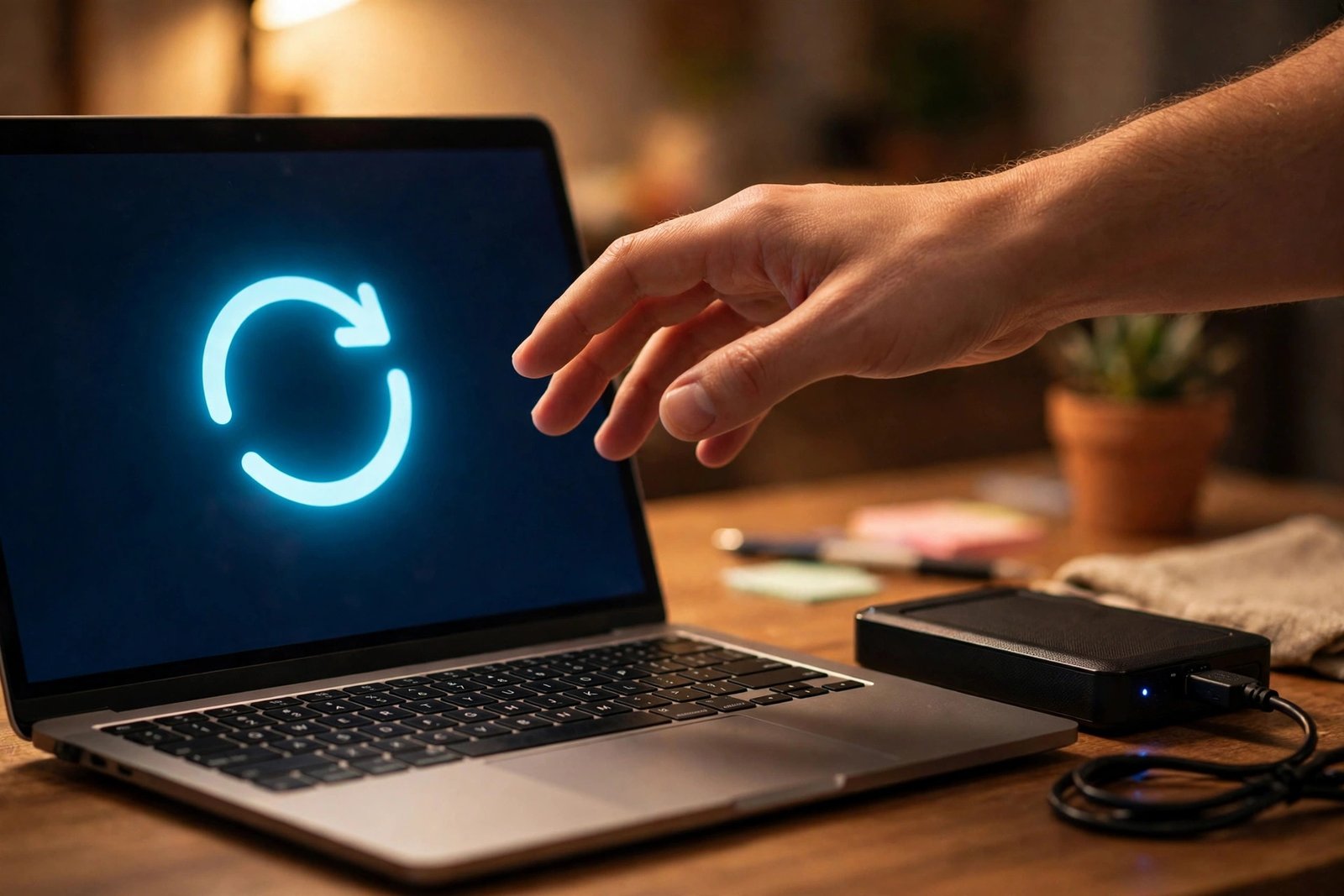
- Check your host’s automatic backups first. Many hosts take daily backups. Open your control panel and look for the backup or restore section.
- Pick a backup from before the failure. Choose the most recent backup dated before the site stopped loading. Restoring a backup taken after the failure may restore the problem too.
- Restore files and database together. A WordPress site needs both. Most host restore tools handle both in one step — confirm both are included before you start.
- Use your own backup if the host has none. If you keep backups through a backup plugin or manual copies, restore the files via FTP and import the database through your host’s database tool.
- Test thoroughly after restoring. Load the homepage, several posts and wp-admin. Log in and check that everything works.
- Update and investigate. Once the site is live, update WordPress, themes and plugins, then re-apply changes cautiously. If you can identify what broke the site, you can avoid repeating it.
Going forward, keep automatic backups running at all times — daily for an active site. The restore you never need is far cheaper than the downtime you suffer without one.
What to Avoid
Desperation leads to bad decisions. These mistakes make a down site worse.
- Never pay random “site fix” services from ads. Pop-up adverts promising instant WordPress repairs are often scams. Use your host’s official support or a developer you can verify.
- Never install pirated (“nulled”) themes or plugins. Cracked copies frequently contain malware that breaks sites or steals data. They are a leading cause of the exact outage you are fixing.
- Do not install “speed booster” plugins from unofficial sources. Miracle optimisation plugins from random download sites often inject bad code. Get plugins only from wordpress.org or trusted developers.
- Do not edit WordPress core files. Core edits are wiped out by updates and can break the site in strange ways. Custom code belongs in a child theme or a custom plugin.
- Do not leave WP_DEBUG switched on. Debug mode can expose file paths and database details to visitors. Always turn it off after troubleshooting.
- Do not change DNS records you do not understand. One wrong record can extend your downtime by another 48 hours. Ask your host to verify any DNS change before you save it.
FAQ
Why is my WordPress site suddenly not loading?
The most common causes are a hosting outage, an expired domain, a DNS problem, or a broken plugin or theme update. Work through the quick checks at the top of this guide first — they identify the cause in most cases within minutes.
How do I know if my site is down for everyone or just for me?
Load the site on your phone using mobile data with Wi-Fi turned off, and run your domain through a free uptime checker. If it loads on mobile data or the checker says it is up, the problem is your own network or browser. If it fails everywhere, the problem is with the site or its hosting.
What is the WordPress white screen of death?
It is a blank white page with no error message, caused by a PHP fatal error that WordPress cannot recover from. A faulty plugin or theme is the usual trigger. Enabling WP_DEBUG, as described in Fix 5, reveals the actual error so you can target the real cause.
Can a single plugin really break my whole site?
Yes. A plugin runs on every page load, so one bad update can white-screen the entire site including the dashboard. Renaming the plugins folder via FTP, as described in Fix 6, deactivates everything safely and lets you find the culprit by reactivating plugins one by one.
My domain renewed but the site still does not load. Why?
DNS changes need time to propagate across the internet — up to 24 to 48 hours. During that window the site may work for some visitors and not others. Flush your local DNS cache, wait the full period, and avoid changing records again in the meantime.
Where can I find official WordPress troubleshooting help?
The official WordPress troubleshooting FAQ covers the most common problems with answers from the WordPress documentation team. For anything beyond this guide, it is the safest place to continue.
Conclusion
A wordpress website not loading feels like a disaster, but it is almost always one of a handful of fixable causes. Start with the quick checks, confirm whether the problem is your connection or the site itself, then work through the ten fixes in order. Most sites are back online long before the backup restore becomes necessary — and every fix in this guide uses safe, reversible steps.
For more step-by-step troubleshooting, browse the TechSBSInfo blog, learn more about us, or return to the homepage.
[…] If your site looks very different with the default theme, do not worry. This is only a test. Your content and settings stay intact when you switch back. A broken theme can also cause wider problems, so if your whole site is down, see our guide on a WordPress website not loading. […]
[…] the equation entirely, so every refresh shows your latest edit. If pages will not load at all, our WordPress website not loading guide is the […]
[…] first red line and you will solve script problems in minutes. If the site will not load at all, our WordPress website not loading guide is the […]
[…] update” tickets vanish. If the site will not load at all rather than loading old content, our WordPress website not loading guide is the right […]
[…] is not fully active. And if the site will not load at all rather than serving stale pages, our WordPress website not loading guide is the right […]