

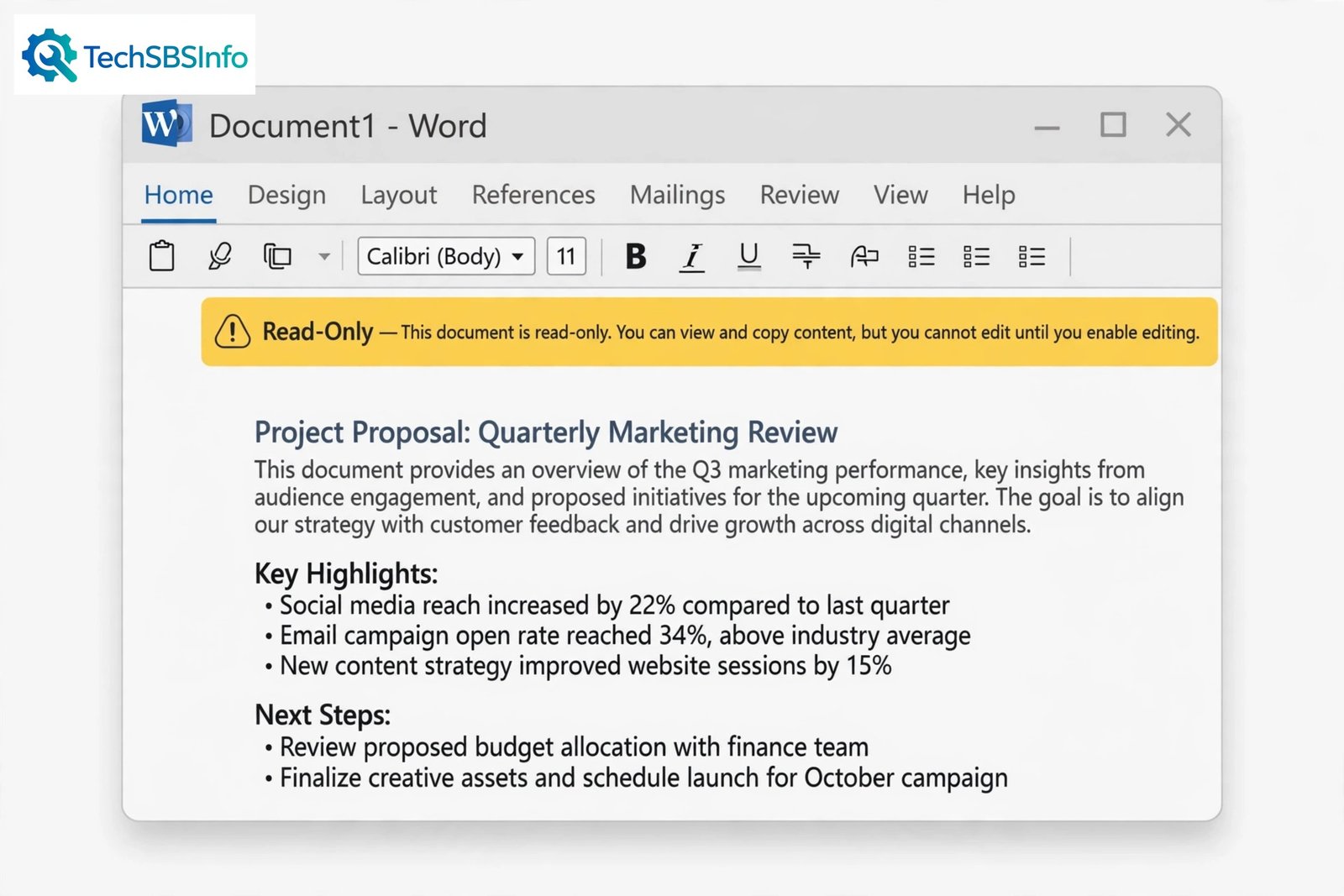
You open an important document, start typing, and nothing happens. The screen shows a warning, the title bar says Read-Only, and every edit is blocked. If you are facing microsoft word read only mode, the good news is that it is almost always easy to fix.
Word locks a document for a reason: to protect you from unsafe files, to respect the file’s own settings, or because someone else controls the file. Once you know which reason applies to your document, you can unlock it in under a minute.
This guide walks you through the exact causes, one by one, and gives you 8 simple fixes in order from easiest to hardest. You do not need any technical skills. Just follow the steps, and your document will be editable again.
Table of Contents
- Quick Checks
- Diagnose: Why microsoft word read only mode Appears
- Fix 1: Click Enable Editing in the Protected View Banner
- Fix 2: Uncheck the Read-Only Attribute in File Properties
- Fix 3: Unblock a File Downloaded From the Internet
- Fix 4: Close the Document on Other Devices and Check Sharing
- Fix 5: Save an Editable Copy With Save As
- Fix 6: Remove the Author’s Editing Restrictions
- Fix 7: Fix OneDrive Sync and Storage Problems
- Fix 8: Repair a Damaged Document and Confirm Office Is Activated
- What to Avoid
- Frequently Asked Questions
- Conclusion
- Helpful Official Resources
Quick Checks
Before you try the full fixes below, run through these quick checks. One of them usually solves the problem in seconds.
- Look for a yellow or red banner at the top of the document. If you see Enable Editing, click it. That alone fixes most cases.
- Check the title bar. If it says Read-Only next to the file name, the file’s own properties are the cause. Jump to Fix 2.
- Close the document and reopen it. A one-time glitch sometimes locks the file, and a fresh open clears it.
- Make sure the file is not open on another computer, tablet, or phone signed into the same account.
- Check that your Microsoft 365 subscription or Office licence is active. An unlicensed copy can restrict editing.
- Try opening a different Word document. If every document is read-only, the problem is with Word or Office itself, not the file.
- If the file came as an email attachment, save it to your Desktop first, then open the saved copy.
Diagnose: Why microsoft word read only mode Appears
Word never locks a document without a reason. Use this table to match what you see on screen to the cause, then jump straight to the matching fix. This saves you from trying fixes you do not need.
| Symptom | Cause | Go to Fix |
|---|---|---|
| A yellow banner says PROTECTED VIEW above the document | Word opened the file in Protected View because it came from the internet, an email attachment, or an unsafe location | Fix 1 |
| The title bar shows Read-Only next to the file name | The file’s Read-only attribute is ticked in Windows file properties | Fix 2 |
| Windows says the file came from another computer and may be blocked | The downloaded file is blocked by Windows security | Fix 3 |
| Word says the file is locked for editing by another user | The document is open on another device or being edited by someone it was shared with | Fix 4 |
| You can open the file but Save does nothing useful | The original is locked, so you need your own editable copy | Fix 5 |
| A bar says Marked as Final, or formatting tools are greyed out | The author marked the document as final or added editing restrictions | Fix 6 |
| OneDrive shows a sync error, or the file will not save | OneDrive storage is full, or the file has a sync conflict | Fix 7 |
| Word reports the file is corrupted, or a banner says Unlicensed Product | The document is damaged, or Office is not activated | Fix 8 |
Fix 1: Click Enable Editing in the Protected View Banner
Protected View is the most common cause of read-only documents. When Word opens a file from the internet, an email attachment, or a location it does not trust, it opens the file in a safe read-only mode. You can read everything, but you cannot change anything until you tell Word the file is safe.
Follow these steps:
- Look at the top of the document window, just below the ribbon.
- Find the yellow banner that says PROTECTED VIEW.
- Click the Enable Editing button on that banner.
- Word will reload the document, and you can now type, format, and save normally.
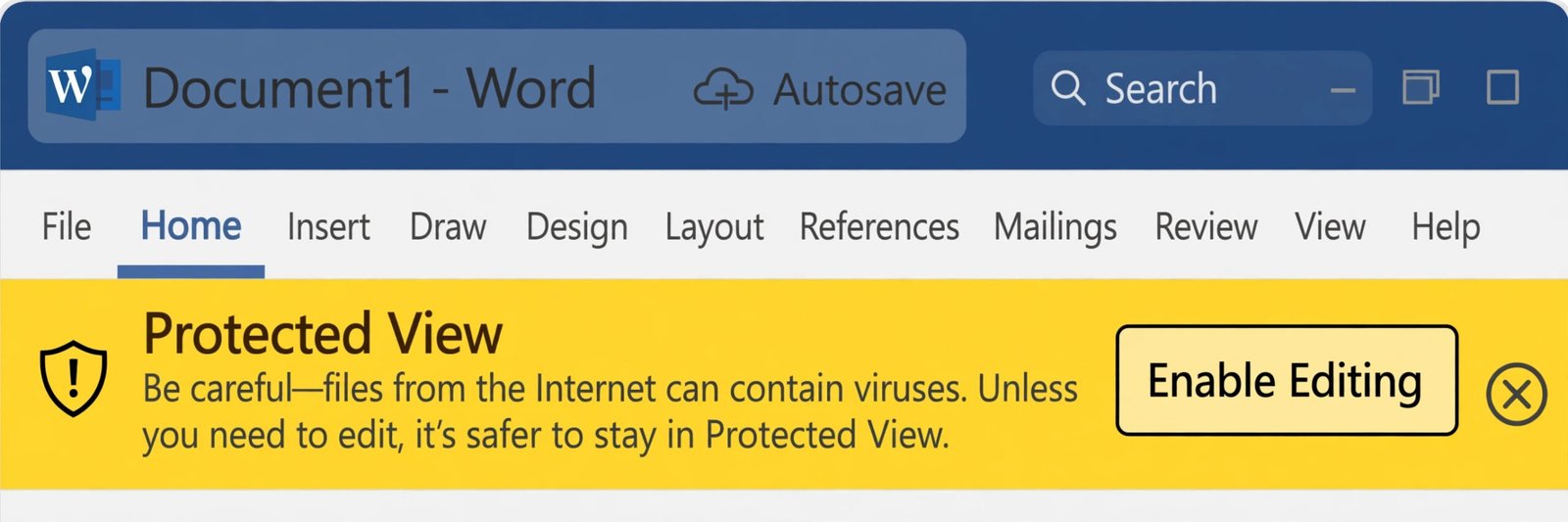
Important: Only click Enable Editing if you trust the file. If you downloaded it from a stranger’s email or a suspicious website, stay in Protected View and delete the file instead. Protected View exists to protect your computer from viruses hidden in documents.
If the Enable Editing button is greyed out or missing, your system administrator may have locked Protected View settings on a work computer. In that case, ask your IT department for help rather than trying to bypass it.
Fix 2: Uncheck the Read-Only Attribute in File Properties
Every file in Windows has a Read-only attribute. When this box is ticked, Windows tells every program, including Word, to open the file without allowing changes. This often happens with files copied from a USB drive, a CD, or another computer.
Follow these steps:
- Close the document in Word.
- Open File Explorer and find the document.
- Right-click the file and choose Properties.
- In the General tab, look at the bottom under Attributes.
- If the Read-only box is ticked, click it to untick it.
- Click Apply, then click OK.
- Open the document in Word again. It should now be editable.
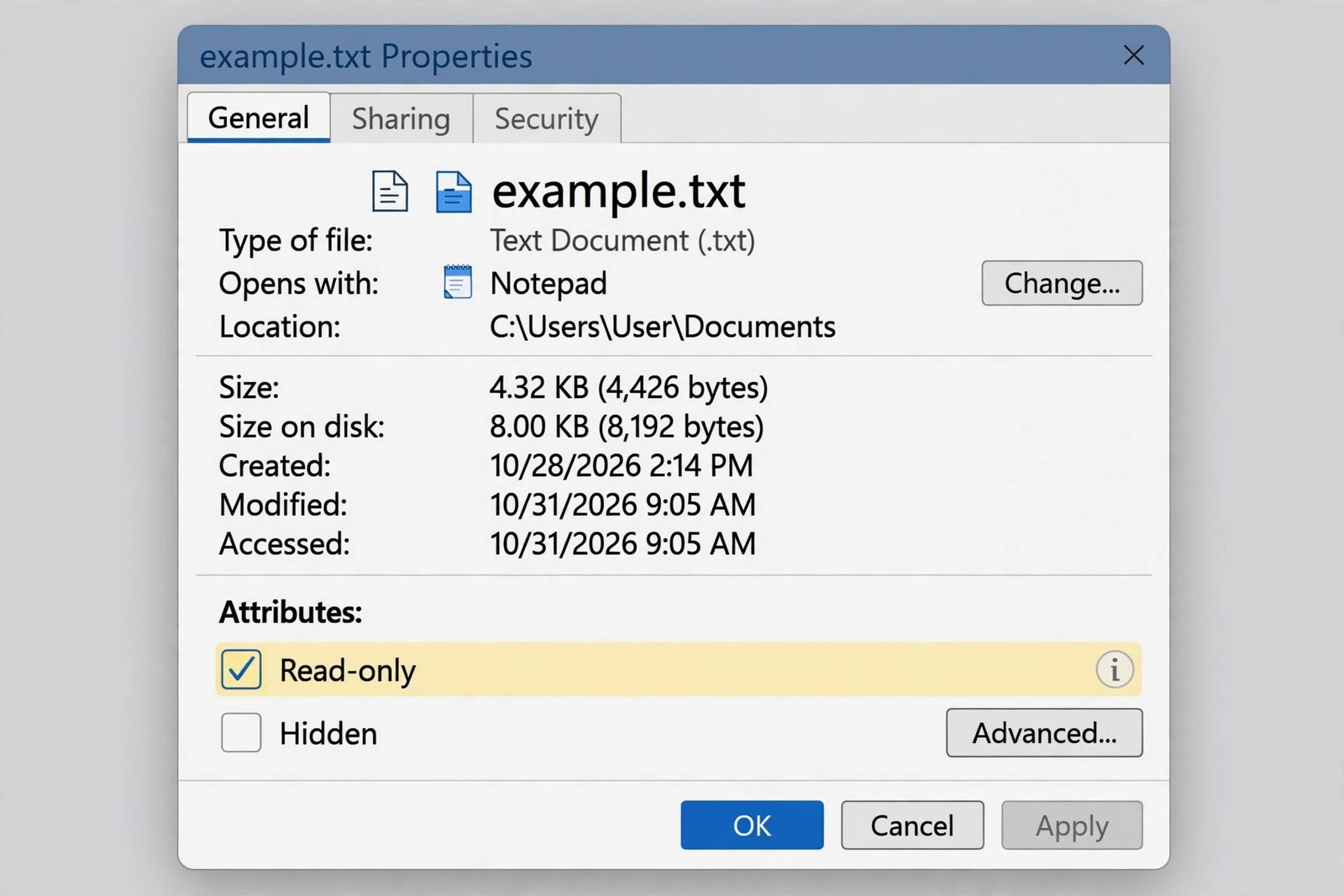
If the box keeps ticking itself again, the file may be stored in a folder where you do not have write permission, such as a shared network folder. Ask the folder owner to give you edit permission, or copy the file to your Desktop and change the attribute there.
Fix 3: Unblock a File Downloaded From the Internet
Windows marks files downloaded from the internet as coming from another computer. Word treats these files with extra caution and may keep them read-only even after you click Enable Editing once.
Follow these steps:
- Close the document in Word.
- Find the file in File Explorer, right-click it, and choose Properties.
- In the General tab, look at the bottom of the window.
- If you see a Security note saying the file came from another computer and might be blocked, tick the Unblock checkbox next to it.
- Click Apply, then click OK.
- Reopen the file in Word and click Enable Editing if the banner appears.
This fix pairs well with Fix 1. Unblocking the file at the Windows level stops Word from treating it as dangerous every time you open it.
Fix 4: Close the Document on Other Devices and Check Sharing
Word locks a document when it is already open somewhere else. If the file is open on your laptop while you try to edit it on your desktop, or if someone you shared it with has it open, Word shows a locked for editing message.
Follow these steps:
- Read the exact message Word shows. It usually names the other user or device.
- Close the document on every other device where it might be open, including phones and tablets.
- If the file was shared with you through OneDrive or SharePoint, ask the other person to close it.
- Wait about a minute for the lock to clear, then reopen the file.
- If Word offers you a read-only copy or a local copy option, choose the local copy only if you are sure nobody else is editing it.
If you keep seeing the lock message even though the file is closed everywhere, the lock file may be stuck. Restart your computer, which clears temporary lock files, and try again.
Fix 5: Save an Editable Copy With Save As
Sometimes the original file simply cannot be unlocked. The folder may be read-only, the file may sit on a locked network drive, or the permissions may belong to someone else. In that case, the fastest solution is to make your own editable copy.
Follow these steps:
- With the read-only document open in Word, click File in the top-left corner.
- Click Save As (or Save a Copy in newer versions).
- Choose a location you control, such as your Desktop or Documents folder.
- Give the file a clear name, for example adding “edited” to the end.
- Click Save.
- Close the original and work only in the new copy from now on.
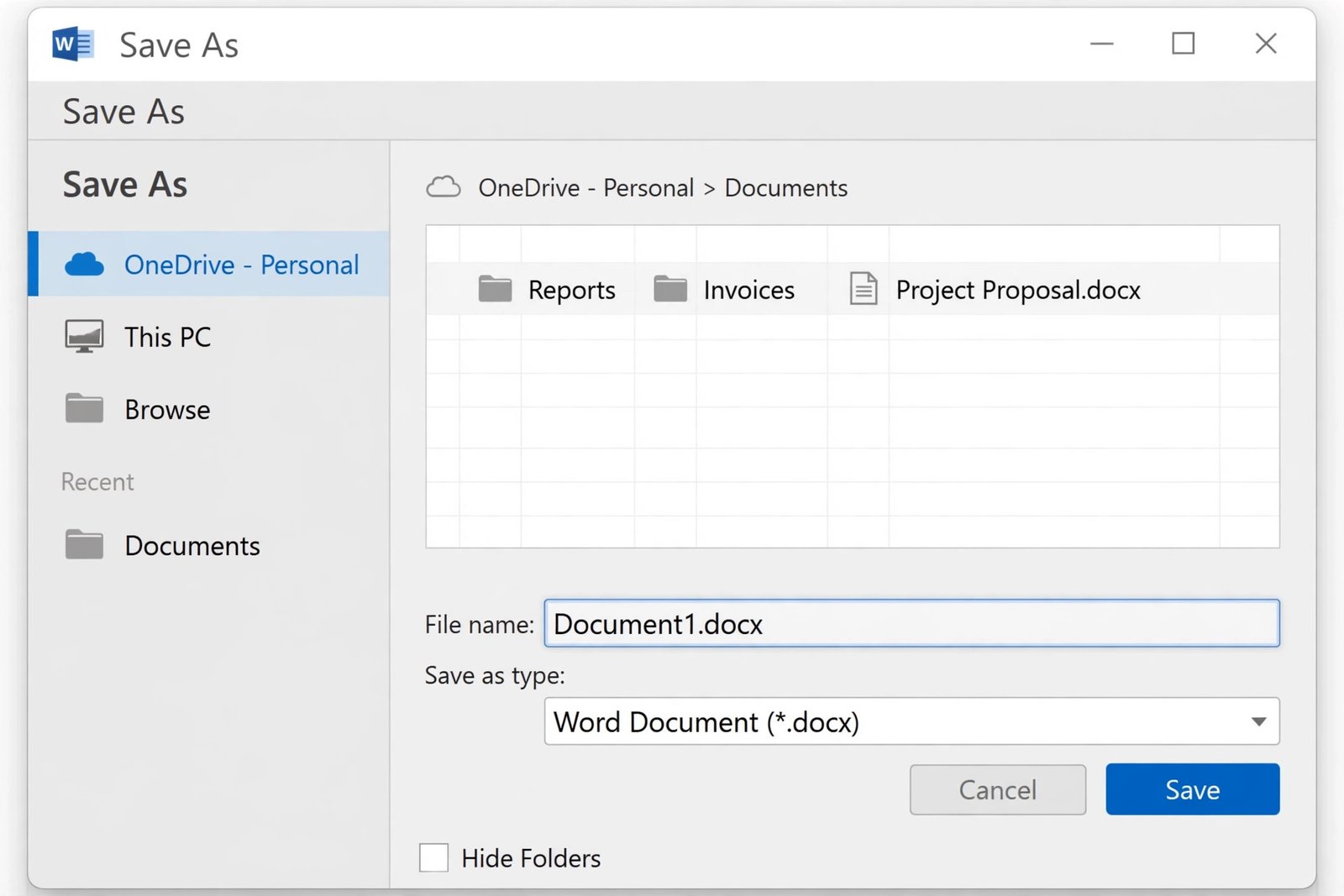
The new copy is a normal file with no read-only lock, so you can edit and save it freely. This fix is also useful when you received a file by email and only need your own working version of it.
Fix 6: Remove the Author’s Editing Restrictions
Sometimes the person who created the document locked it on purpose. They may have clicked Mark as Final to signal the document is finished, or used Restrict Editing to allow only comments or tracked changes.
Follow these steps to check:
- Look for a banner at the top saying MARKED AS FINAL. If you see it, click Edit Anyway to unlock it.
- If formatting tools are greyed out, go to the Review tab on the ribbon.
- Click Restrict Editing in the Protect group.
- Look at the panel on the right. If it says the document is protected, click Stop Protection.
- If Word asks for a password, you must get it from the document’s author. There is no safe way around an unknown password, and tools that claim to crack it should not be trusted.
- Once protection is off, save the document.
If you are the author and want to prevent this problem for others, avoid using Mark as Final on drafts that still need edits. Use it only for truly finished documents.
Fix 7: Fix OneDrive Sync and Storage Problems
If your document lives in OneDrive, sync problems can force it into read-only mode. This happens when your OneDrive storage is full, when there is a sync conflict between two versions, or when the file was shared from someone else’s OneDrive.
Follow these steps:
- Click the OneDrive cloud icon in the taskbar notification area.
- Check for sync errors or warnings next to your files.
- If storage is full, free up space or move the document to a local folder outside OneDrive.
- If there is a sync conflict, choose which version to keep, then let the sync finish before editing.
- If the file was shared from someone else’s OneDrive, ask them to give you edit permission instead of view-only permission.
- After sync is healthy, reopen the document and check that editing works.
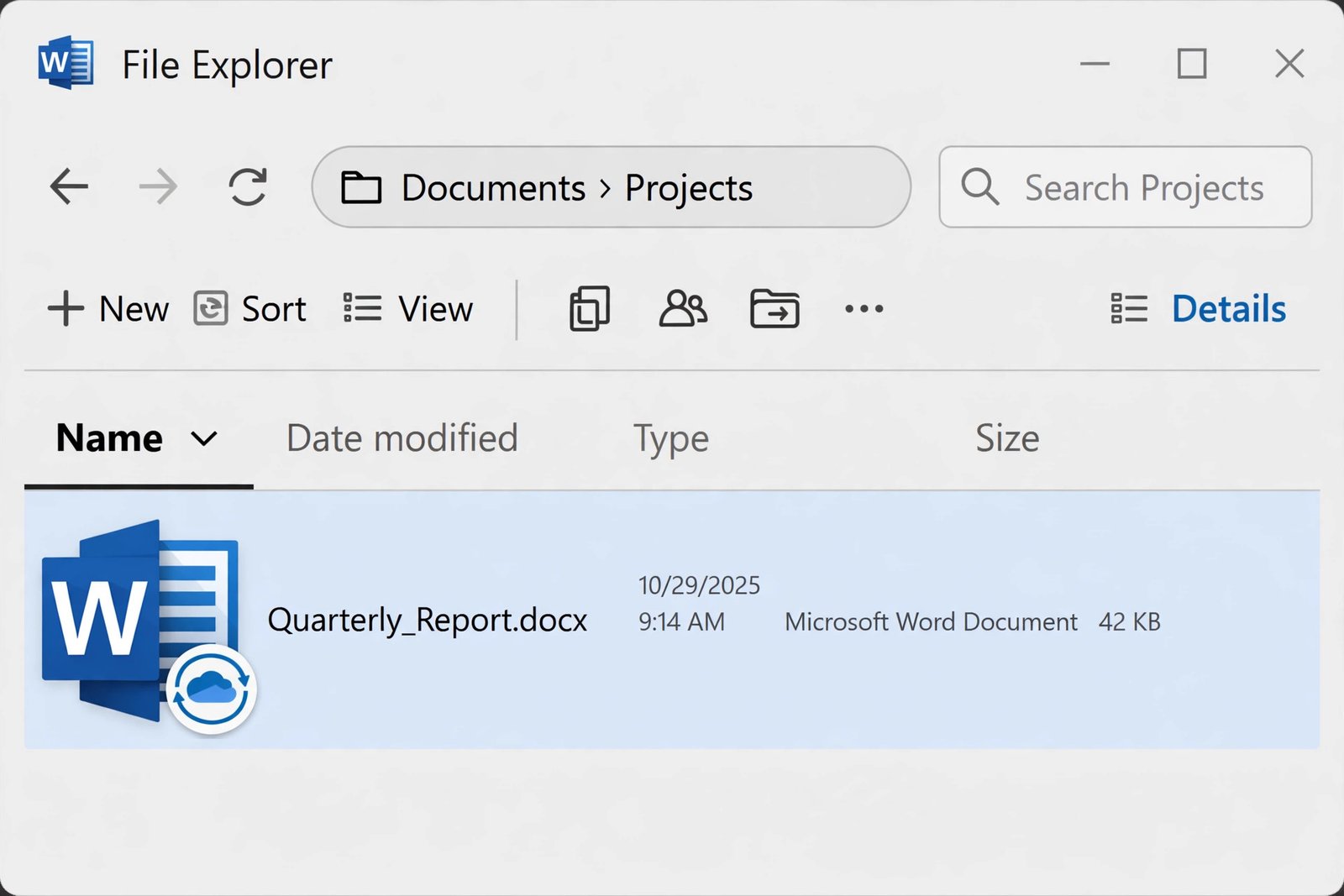
If Word freezes or stops responding while you work through these steps, see our guide on Word not responding to get the app stable first.
Fix 8: Repair a Damaged Document and Confirm Office Is Activated
If none of the fixes above worked, two deeper causes remain: the document file itself is damaged, or your copy of Office is not activated. An unlicensed Office installation can block editing entirely.
Follow these steps:
- In Word, click File, then Open, then Browse.
- Select the damaged document, but do not double-click it.
- Click the small arrow next to the Open button and choose Open and Repair.
- Let Word attempt the repair, then check if the document is editable.
- If Word shows an Unlicensed Product banner, go to File, then Account.
- Check your subscription or licence status. Sign in with the account that owns the licence, or renew the subscription if it expired.
- Restart Word after fixing activation and reopen the document.
If the repair fails and the file is important, try opening it in another program as a last resort. Similar file troubles happen in other Office apps too, so our guides on Excel files that won’t open and PDF files that won’t open on Windows use the same repair logic. If Word itself crashes the moment it launches, follow Office apps crashing on startup before trying the file again.
What to Avoid
- Do not download “Word unlocker” tools from unknown websites. Many contain malware.
- Do not try to crack or remove an author’s password with shady software. Ask the author instead.
- Do not disable your antivirus to stop read-only mode. The antivirus is protecting you.
- Do not turn off Protected View for all files in Trust Center settings. That removes an important safety layer.
- Do not keep editing a read-only copy and assume your changes saved. They did not. Always use Save As.
- Do not ignore the Unlicensed Product warning. Editing limits will keep coming back until Office is activated.
Frequently Asked Questions
Why does my Word document keep opening in read only mode every time?
The most common reason is that the file came from the internet or an email, so Word opens it in Protected View each time. Click Enable Editing, then save the file. If the Read-only attribute is ticked in the file’s Properties, untick it so the change sticks.
Can I edit a read-only Word document without the password?
It depends on the type of lock. A Protected View banner or a Read-only attribute needs no password and is easy to remove. But if the author protected the document with a password under Restrict Editing, you need that password from the author.
How do I turn off read only mode in Word permanently?
There is no single switch, because read-only has several causes. For your own files, untick the Read-only attribute in Properties and save files in folders you own. For downloaded files, unblock them once in Properties. Word will then open them normally.
Why is the Enable Editing button greyed out?
This usually means your work or school administrator disabled it through policy, or your Office copy is not activated. On a work computer, contact your IT department. On a personal computer, check your licence under File, then Account.
Does using Save As remove the read-only lock?
Yes. Save As creates a brand-new file in a location you choose, and the new copy does not carry the original’s read-only attribute or block status. It is the simplest fix when the original file cannot be unlocked.
Is it safe to click Enable Editing on a downloaded document?
Only if you trust the source. If you downloaded it from an official website or received it from someone you know, it is generally safe. If it came from an unknown sender or a suspicious site, stay in Protected View or delete the file.
Conclusion
microsoft word read only mode looks alarming, but it is Word’s way of protecting you or respecting someone else’s settings. In most cases, one click on Enable Editing or one unticked checkbox in the file’s Properties solves everything. Work through the fixes in order, starting with the Protected View banner, and you will have an editable document in minutes. And remember: whenever the original cannot be unlocked, Save As gives you a fresh copy you fully control.