

You saved a page on your laptop, but chrome bookmarks not syncing means it never shows up on your phone. Frustrating, but almost always fixable.
Chrome syncs your bookmarks, passwords, and settings through your Google Account. When the sync chain breaks — usually because you are signed out, sync is paused, or one device has a wrong setting — your bookmarks stop traveling between devices. The fixes below start with the simplest checks and move to the deeper ones, so work through them in order.
Table of Contents
- Quick Checks
- Diagnose: Why chrome bookmarks not syncing Keeps Happening
- Fix 1: Confirm You Are Signed In on Every Device
- Fix 2: Resume a Paused Sync
- Fix 3: Turn Bookmarks On in Sync Settings
- Fix 4: Sign Out and Sign Back In
- Fix 5: Update Chrome to the Latest Version
- Fix 6: Check Your Sync Passphrase and Encryption
- Fix 7: Clean Up Duplicates and Missing Folders in Bookmark Manager
- Fix 8: Back Up Your Bookmarks and Reset Sync
- What to Avoid
- Frequently Asked Questions
- Conclusion
Quick Checks
Try these first — most chrome bookmarks not syncing cases are solved here:
- Open Chrome on each device and check the profile icon at the top right. If it shows “Sign in,” you are not synced yet.
- On your phone, make sure the same Google Account is signed in as on your computer.
- Check your internet connection. Sync needs an active connection to upload and download changes.
- Wait a few minutes. Sync can take a short while after you add a bookmark, especially on mobile data.
- Restart Chrome on the device where the bookmark is missing, then open the bookmarks bar again.
- Make sure Chrome is updated — very old versions can fail to sync. See Fix 5 for the steps.
Diagnose: Why chrome bookmarks not syncing Keeps Happening
| Symptom | Cause | Go to Fix |
|---|---|---|
| New bookmarks appear on one device only | That device is not signed in to Chrome | Fix 1 |
| “Sync paused” shows under your profile name | Your sign-in session expired, often after a password change | Fix 2 |
| Bookmarks never arrive on other devices, but history does | The Bookmarks data type is turned off in sync settings | Fix 3 |
| Sync toggle is off or your profile shows “Sync is off” | You were signed out, or someone turned sync off | Fix 4 |
| Sync works on some devices but fails on one old device | Outdated Chrome version on that device | Fix 5 |
| “Sync passphrase” prompt, or sync stuck at “Setting up” | An old custom passphrase is blocking encryption | Fix 6 |
| Bookmarks appear twice, or folders look different per device | Duplicate folders from merged sync data | Fix 7 |
| Nothing helps, or sync has been broken for weeks | Corrupted local sync data | Fix 8 |
Fix 1: Confirm You Are Signed In on Every Device
Chrome only syncs bookmarks between devices that use the same Google Account. Check each one:
- On your computer, open Chrome and click the profile icon at the top right.
- Confirm it shows your name and email address — not “Sign in” or a guest profile.
- On your phone, open Chrome and tap the three-dot menu, then Settings.
- Tap the account name at the top and verify it is the same account as on your computer.
- On a second computer, repeat step 1 and 2.
- If any device uses a different account or a guest profile, switch it to the correct account and wait a few minutes.
Fix 2: Resume a Paused Sync
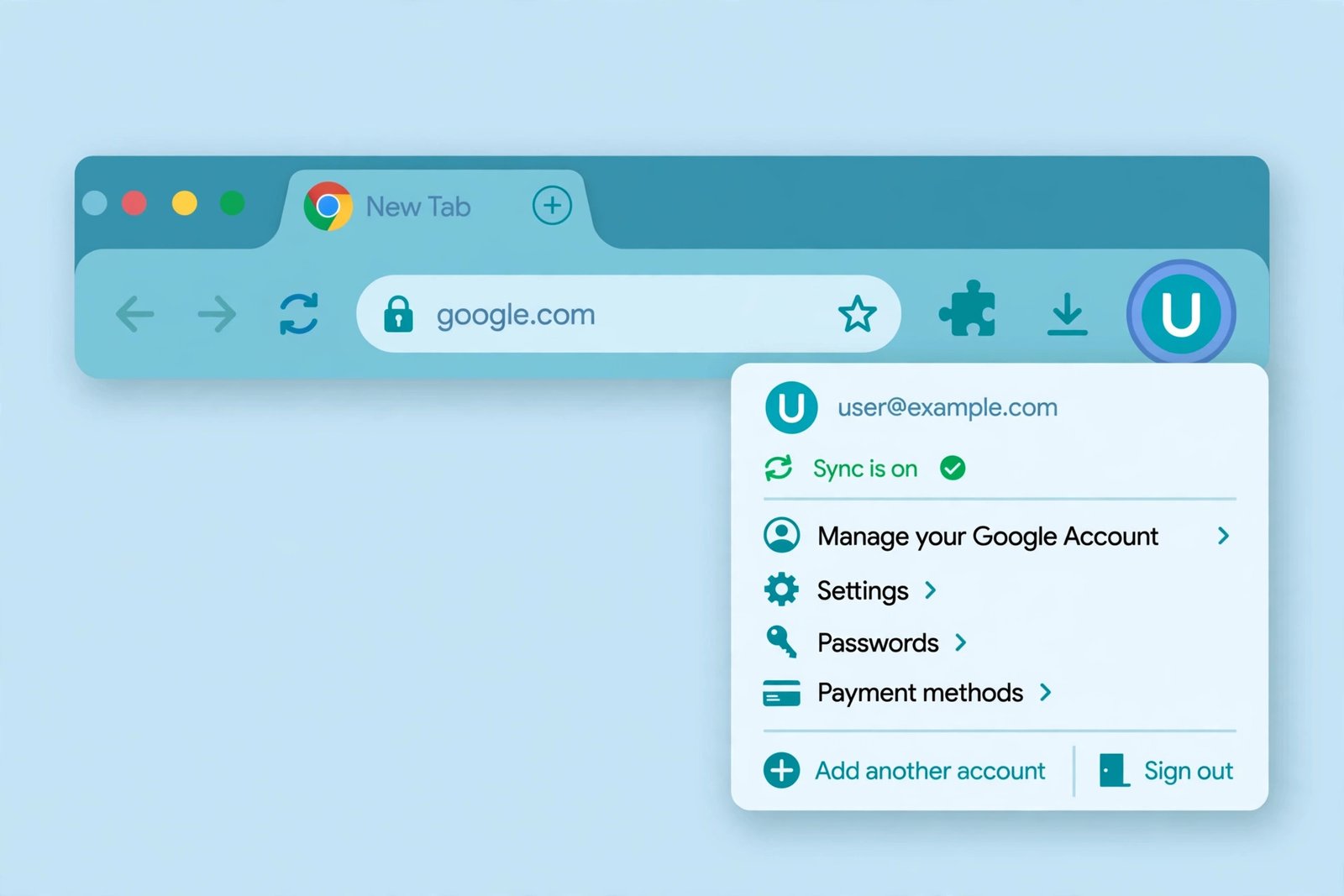
Chrome sometimes pauses sync on its own, especially after you change your Google password. A paused sync is the top reason for chrome bookmarks not syncing after a password change:
- On your computer, open Chrome and click the profile icon at the top right.
- Look for the message “Sync paused” or “Sign in again” under your name.
- Click Sign in again (or Turn on sync) and enter your Google password.
- If a two-step verification prompt appears, complete it on your phone.
- Wait two to three minutes, then check the bookmarks bar on the other device.
Fix 3: Turn Bookmarks On in Sync Settings
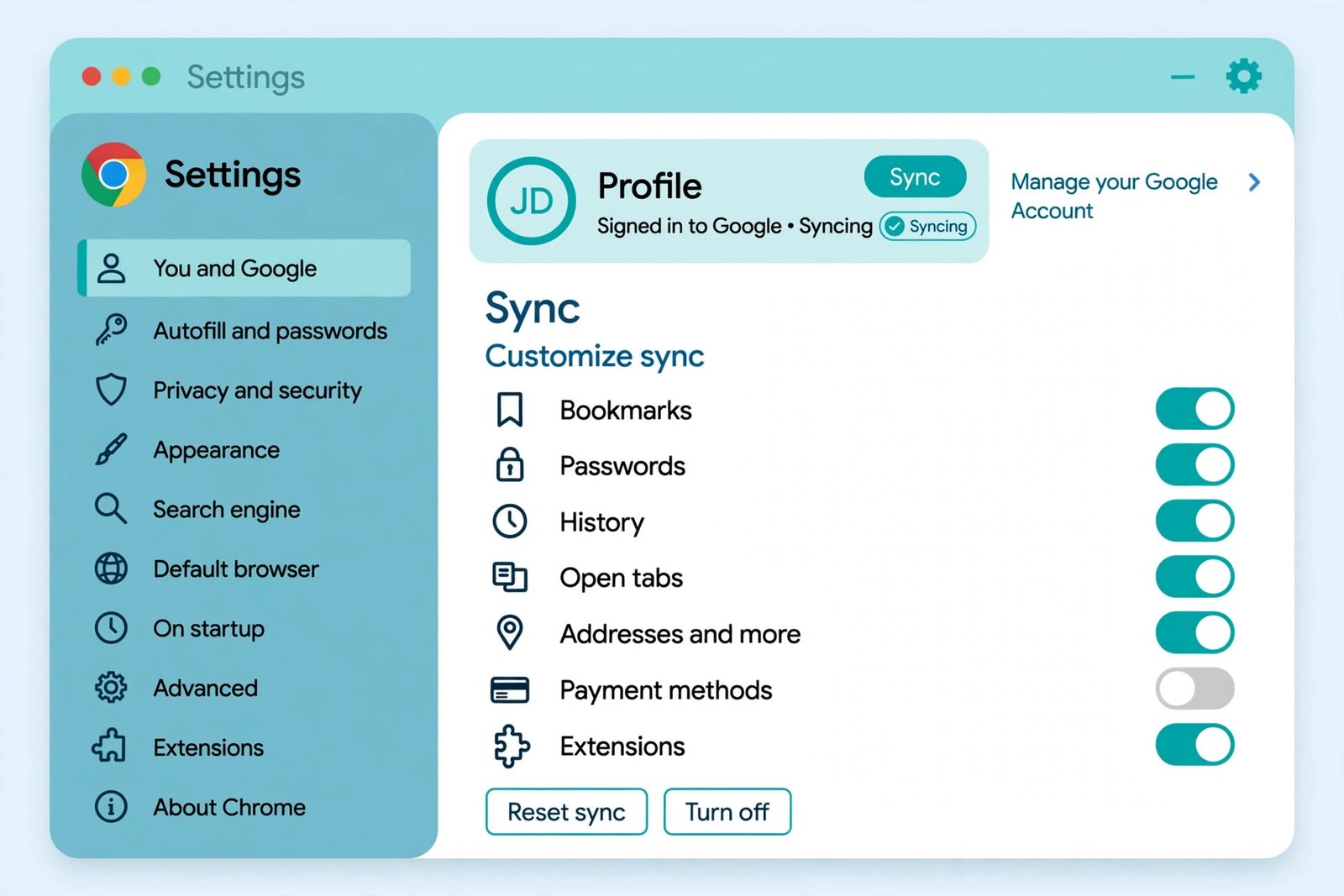
Chrome lets you choose which data types sync. If Bookmarks is switched off, everything else can sync fine while chrome bookmarks not syncing continues:
- On your computer, open Chrome and go to Settings.
- Click You and Google, then click Sync and Google services.
- Click Manage what you sync.
- If Sync everything is selected, leave it — your bookmarks are covered.
- If Customize sync is selected, make sure the Bookmarks toggle is turned on.
- Do the same check on your other devices, including your phone:
- On Android, tap the three-dot menu, then Settings, then your account name.
- Confirm Bookmarks is enabled in the sync options.
- Add a test bookmark on one device and wait a few minutes to confirm it appears elsewhere.
Fix 4: Sign Out and Sign Back In
A stale sign-in session can silently break sync. Signing out and back in refreshes your account token and fixes many chrome bookmarks not syncing cases:
- In Chrome, click the profile icon at the top right.
- Click Sign out (on some versions: Turn off sync, which also signs you out of Chrome).
- Close Chrome completely and reopen it.
- Click the profile icon again and click Sign in (or Turn on sync).
- Sign in with your Google Account and confirm with Yes, I’m in when asked to turn on sync.
- Your locally stored bookmarks stay on the device; they will re-upload once sync reconnects.
- If Chrome also keeps forgetting your website logins, read our guide on Chrome keeps logging me out before continuing.
Fix 5: Update Chrome to the Latest Version
Old Chrome builds can lose compatibility with Google’s sync servers. Updating takes less than a minute:
- On your computer, open Chrome and click the three-dot menu at the top right.
- Go to Help, then About Google Chrome.
- Chrome will automatically check for updates and download them.
- Click Relaunch to restart Chrome with the update applied.
- On your phone, open the Play Store (Android) or App Store (iPhone).
- Search for Chrome and tap Update if one is available.
- After updating both sides, add a test bookmark and confirm it syncs.
- If Chrome feels slow or sluggish while syncing, our Chrome high CPU usage fix can help.
Fix 6: Check Your Sync Passphrase and Encryption
If you set a custom sync passphrase in the past and later forgot it, new devices cannot decrypt your synced data — a hidden cause of chrome bookmarks not syncing:
- On your computer, open Chrome and go to Settings, then You and Google.
- Click Sync and Google services, then look for an Encryption option.
- If it asks for a passphrase you do not remember, you have two choices:
- Enter the passphrase if you can find it (check your password manager).
- Reset it: on the sync page, look for Reset sync or follow the prompt to clear the passphrase from Google’s servers.
- Resetting the passphrase deletes the encrypted data from Google’s servers, but your bookmarks stay on the devices where they are currently saved.
- After the reset, sign in on each device again and confirm bookmarks begin syncing.
- Going forward, use the standard “Encrypt synced data with your Google Account” option instead of a custom passphrase — it is simpler and just as protected.
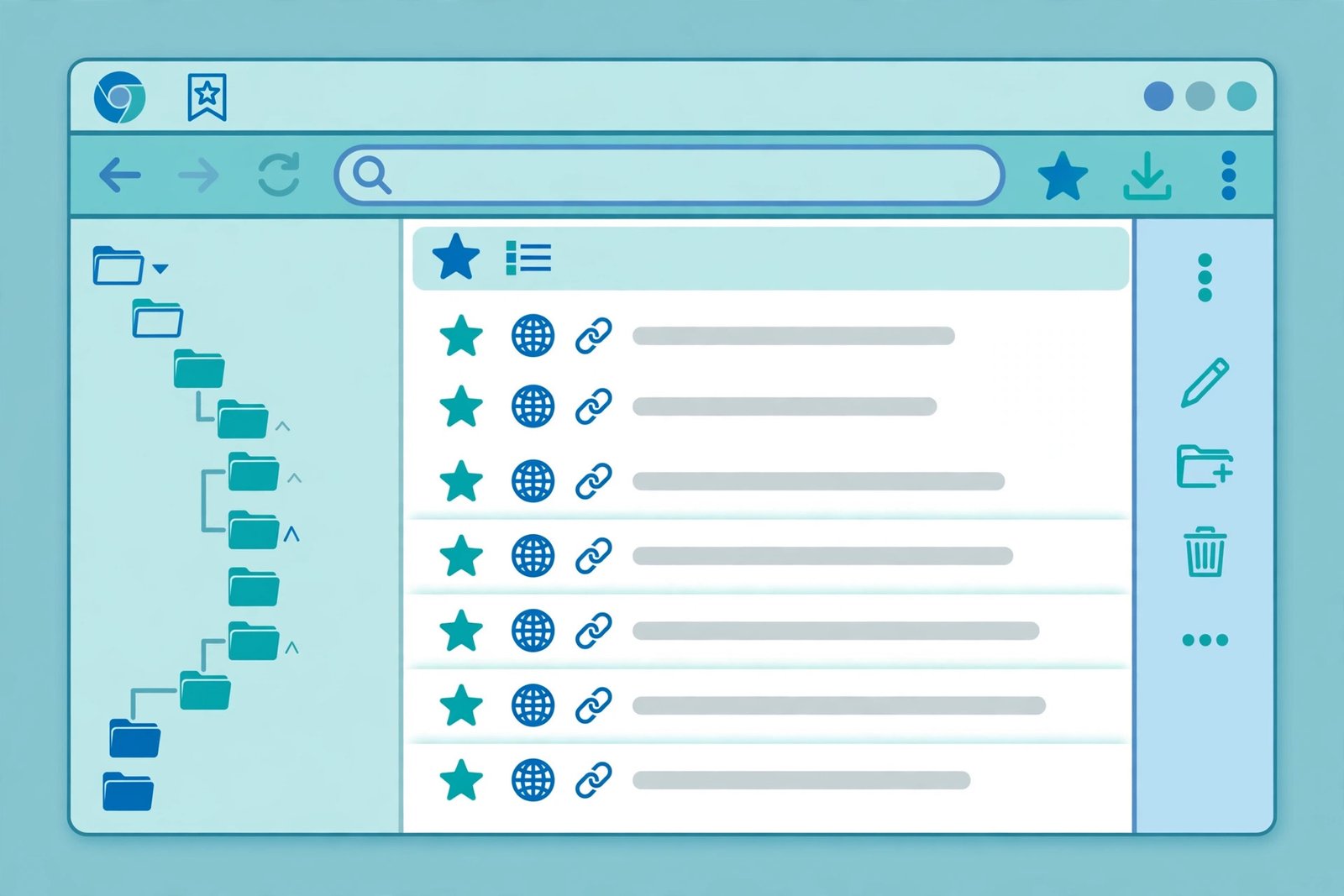
Fix 7: Clean Up Duplicates and Missing Folders in Bookmark Manager
When sync merges data from several devices, you can end up with duplicate folders like two “Bookmarks bar” folders. That looks like chrome bookmarks not syncing because new bookmarks land in the wrong folder:
- On your computer, press Ctrl + Shift + O (or Cmd + Option + B on Mac) to open the Bookmark Manager.
- Expand the folder tree on the left and look for duplicate folder names.
- Open each duplicate and check where your newest bookmarks actually went.
- Drag the real bookmarks into the main Bookmarks bar folder.
- Delete the empty duplicate folders by right-clicking them and choosing Delete.
- Use the search box at the top of Bookmark Manager to find a missing bookmark by name — it may be in a folder you did not expect.
- If you want to start clean, export a backup first: click the three-dot menu in Bookmark Manager and choose Export bookmarks, then save the HTML file somewhere safe.
Fix 8: Back Up Your Bookmarks and Reset Sync
If nothing above worked, reset sync on the problem device. This clears the corrupted local sync state and rebuilds it from your Google Account:
- Open the Bookmark Manager with Ctrl + Shift + O (Cmd + Option + B on Mac).
- Click the three-dot menu and choose Export bookmarks to save an HTML backup.
- In Chrome, go to Settings, then You and Google, then Sync and Google services.
- Click Review your synced data or go to the Google Dashboard sync page and choose to clear synced data if offered.
- Sign out of Chrome, close it, and reopen it.
- Sign back in and turn sync on again with Sync everything selected.
- Wait up to ten minutes — the first sync after a reset can take a while.
- Check that your bookmarks returned. If anything is missing, use the HTML backup: in Bookmark Manager, click the three-dot menu and choose Import bookmarks to restore it.
- If your bookmarks are gone together with your passwords, our guide on Chrome saved passwords disappeared covers recovering both.
What to Avoid
- Do not delete bookmarks on one device “to clean up” while sync is broken — the deletion can sync later and wipe them everywhere.
- Do not use two different Google Accounts across devices and expect bookmarks to merge — they will not.
- Do not install “sync booster” or “bookmark sync” extensions from unknown developers — they can read all your bookmarks.
- Do not turn sync off and on repeatedly in quick succession — give each change several minutes to finish.
- Do not reset your sync passphrase before exporting a bookmarks backup — the reset clears server-side data first.
- Do not blame your internet provider for chrome bookmarks not syncing when other websites load fine — if Chrome pages are not loading, fix that separately first.
Frequently Asked Questions
Why is chrome bookmarks not syncing even though I am signed in?
Being signed in is only half the chain. Check that sync is actually running (not paused), that the Bookmarks toggle is enabled in sync settings, and that every device uses the same Google Account. Fix 1 through Fix 3 cover these in order.
How long should bookmark sync take?
Usually seconds to a few minutes on a stable connection. If a new bookmark has not appeared on your other device after 15 minutes with Chrome open on both, something is blocking sync — start with Fix 2.
Can I sync bookmarks to a phone with a different Google Account?
No. Chrome syncs only between devices signed in to the same Google Account. Use Chrome profiles to keep two accounts separate on one computer instead.
Will signing out of Chrome delete my bookmarks?
No. Signing out keeps your local bookmarks on that device; it only stops uploading and downloading changes. To be extra safe, export an HTML backup from the Bookmark Manager first (Fix 8, step 2).
Do I need the internet for bookmarks to sync?
Yes, sync requires an active connection. Bookmarks saved offline will sync automatically once the device reconnects, as long as sync is on and you are signed in.
Conclusion
Most chrome bookmarks not syncing problems come down to a paused session, the wrong account, or a disabled Bookmarks toggle. Work through the eight fixes in order — sign in on every device, resume paused sync, check your sync settings, sign out and back in, update Chrome, resolve any passphrase prompt, tidy up the Bookmark Manager, and reset sync only as a last resort with a backup in hand. Your bookmarks should then appear on every device where you are signed in.