

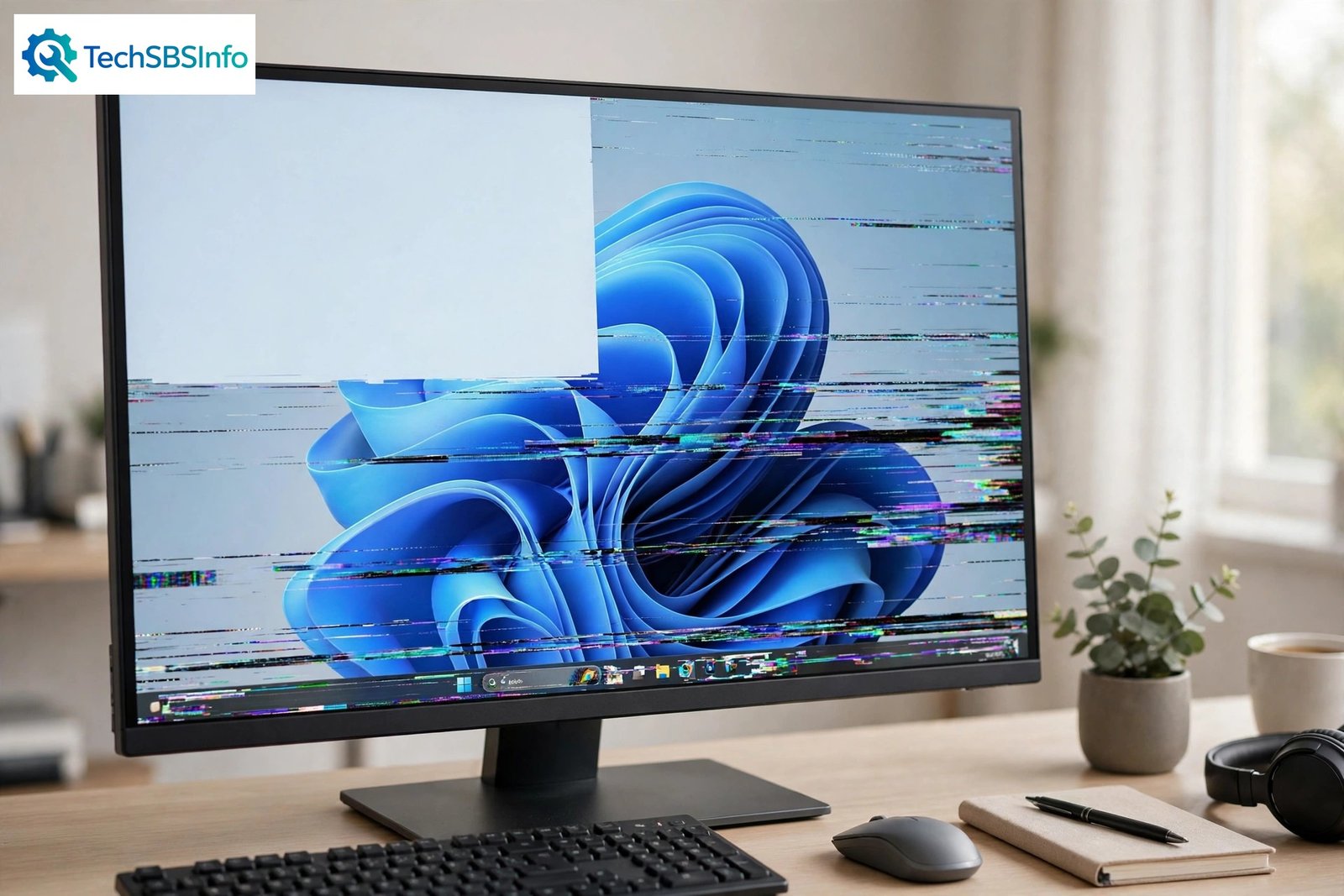
A flickering screen makes your PC almost impossible to use. The good news is that windows 11 screen flickering is usually caused by just two things: a display driver problem or an incompatible app. That means most people can fix it at home in a few minutes, without any tools or paid software.
The fastest way to narrow it down is the Task Manager test. Press Ctrl + Shift + Esc to open Task Manager. If Task Manager flickers along with everything else, your display driver is the likely culprit. If Task Manager stays steady while the rest of the screen flickers, an incompatible app is probably causing it. This single check tells you exactly which fixes below to focus on.
This guide walks you through the fixes in order, from the simplest and quickest to the more thorough. Start at Fix 1 and work down — most readers stop by Fix 4 or Fix 5.
Table of Contents
- Quick Checks
- Diagnose: Match Your Symptom to the Fix
- Fix 1: Reset the Graphics Driver Instantly
- Fix 2: Run the Task Manager Flicker Test
- Fix 3: Check and Reseat Your Display Cable
- Fix 4: Change the Display Refresh Rate
- Fix 5: Update the Display Driver
- Fix 6: Roll Back the Driver When windows 11 screen flickering Starts After an Update
- Fix 7: Update or Uninstall the Incompatible App
- Fix 8: Test in Safe Mode
- Fix 9: Check for Windows Updates and Display Settings
- What to Avoid
- Frequently Asked Questions
- Conclusion
- Helpful Official Resources
Quick Checks
- Press Windows logo key + Ctrl + Shift + B to reset your graphics driver. You will hear a beep and the screen may go black for a second.
- Restart your PC. A surprising number of flicker cases clear after a clean restart.
- Unplug any docking station, USB hub, or adapter and connect the monitor directly to your PC.
- Try a different cable (HDMI or DisplayPort) if you have a spare — damaged cables are a common hidden cause.
- Open Task Manager with Ctrl + Shift + Esc and watch whether it flickers too.
- If the flickering started right after an update, note the date — you may need to roll back the driver (see Fix 6).
Diagnose: Match Your Symptom to the Fix
| Symptom | Cause | Go to Fix |
|---|---|---|
| Whole screen flickers, including Task Manager | Display driver is outdated, corrupt, or wrong for your GPU | Fix 1, Fix 5 |
| Flickering started right after a Windows update | New driver version conflicts with your hardware | Fix 6 |
| Rest of the screen flickers but Task Manager is steady | An incompatible app is drawing over the screen | Fix 7 |
| Flicker appears only on an external monitor | Loose cable, faulty cable, or wrong refresh rate | Fix 3, Fix 4 |
| Screen flashes black for a second and returns | Graphics driver crashed and restarted itself | Fix 1, Fix 5 |
| Flicker appears in games or video only | Refresh rate mismatch or GPU setting conflict | Fix 4, Fix 9 |
| Flicker persists even in Safe Mode or the BIOS | Hardware fault: monitor, cable, or GPU | Professional repair needed |
Fix 1: Reset the Graphics Driver Instantly
Windows has a built-in shortcut that restarts your graphics driver without rebooting. This is the fastest thing to try and takes about five seconds.
- Press Windows logo key + Ctrl + Shift + B all at the same time.
- You will hear a short beep. The screen may blink or go black for a moment.
- Your open apps stay open — nothing is closed or lost.
- If the flickering stops, you are done. Keep an eye on it for the rest of the day.
- If the flickering returns later, move on to Fix 5 and update the driver properly.
This trick works because it forces the GPU driver to reload, clearing temporary glitches in the same way a restart clears a stuck app.
Fix 2: Run the Task Manager Flicker Test
This test tells you whether the problem is the display driver or an app. Do this before changing anything else so you do not waste time on the wrong fix.
- Press Ctrl + Shift + Esc to open Task Manager.
- Look at the Task Manager window and the screen behind it for at least ten seconds.
- If Task Manager flickers along with everything else, the display driver is almost certainly the problem. Skip to Fix 5.
- If Task Manager stays steady while the desktop flickers, an incompatible app is the cause. Skip to Fix 7.
- If you cannot open Task Manager normally, press Ctrl + Alt + Delete and choose Task Manager from the list.
This test is the official first step recommended for windows 11 screen flickering because it splits the whole problem into two clear paths.
Fix 3: Check and Reseat Your Display Cable
If you use an external monitor, a loose or damaged cable is one of the most common causes of flicker. This fix costs nothing and takes two minutes.
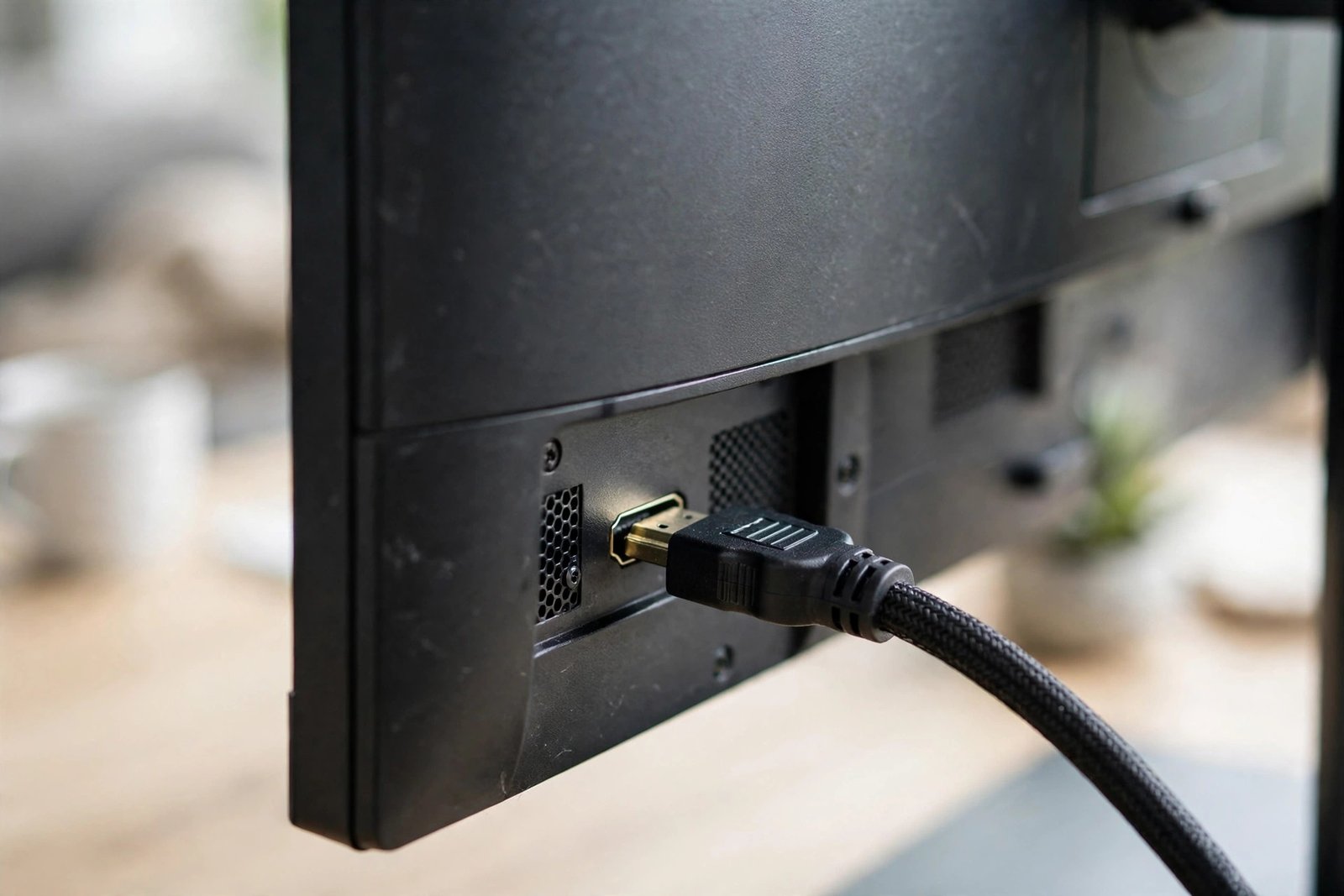
- Power off the monitor and unplug the cable from both the monitor and the PC.
- Look at the connector pins for bent pins, dust, or damage.
- Plug the cable back in firmly on both ends. It should click or sit fully flush.
- If your GPU has a second port, try that port instead.
- If you have a spare HDMI or DisplayPort cable, swap it in and test.
- Move any USB 3.0 hubs, phone chargers, or power adapters away from the video cable — they can cause interference.
Laptop users can skip this fix unless they connect an external display. On a laptop, the cable is internal, so focus on the driver fixes instead.
Fix 4: Change the Display Refresh Rate
A refresh rate your monitor cannot handle cleanly can cause a steady flicker. Setting the right rate often stops it immediately.
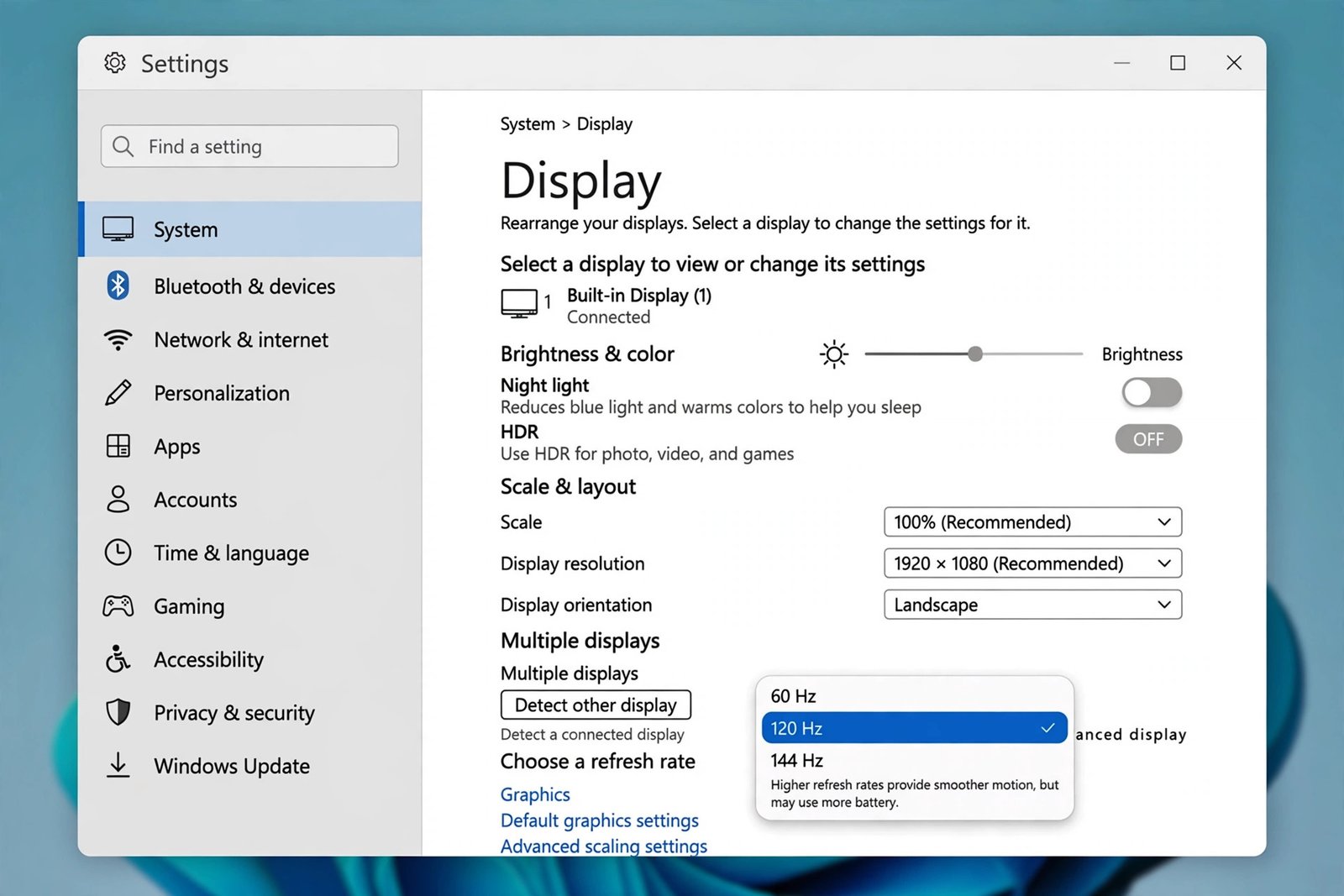
- Right-click the desktop and choose Display settings.
- Scroll down and click Advanced display.
- Under Choose a refresh rate, open the dropdown.
- Pick the recommended or native rate for your monitor (often 60 Hz, 120 Hz, or 144 Hz).
- If the flickering started after you raised the rate, step it back down one level and test.
- Click Keep changes only after watching the screen for ten seconds.
If you use a docking station or an adapter, the maximum stable rate may be lower than your monitor’s top spec. When in doubt, 60 Hz is the safest baseline to test with.
Fix 5: Update the Display Driver
An outdated or corrupt display driver is the most common software cause of flicker. Updating it replaces the broken driver with the version Windows currently recommends.
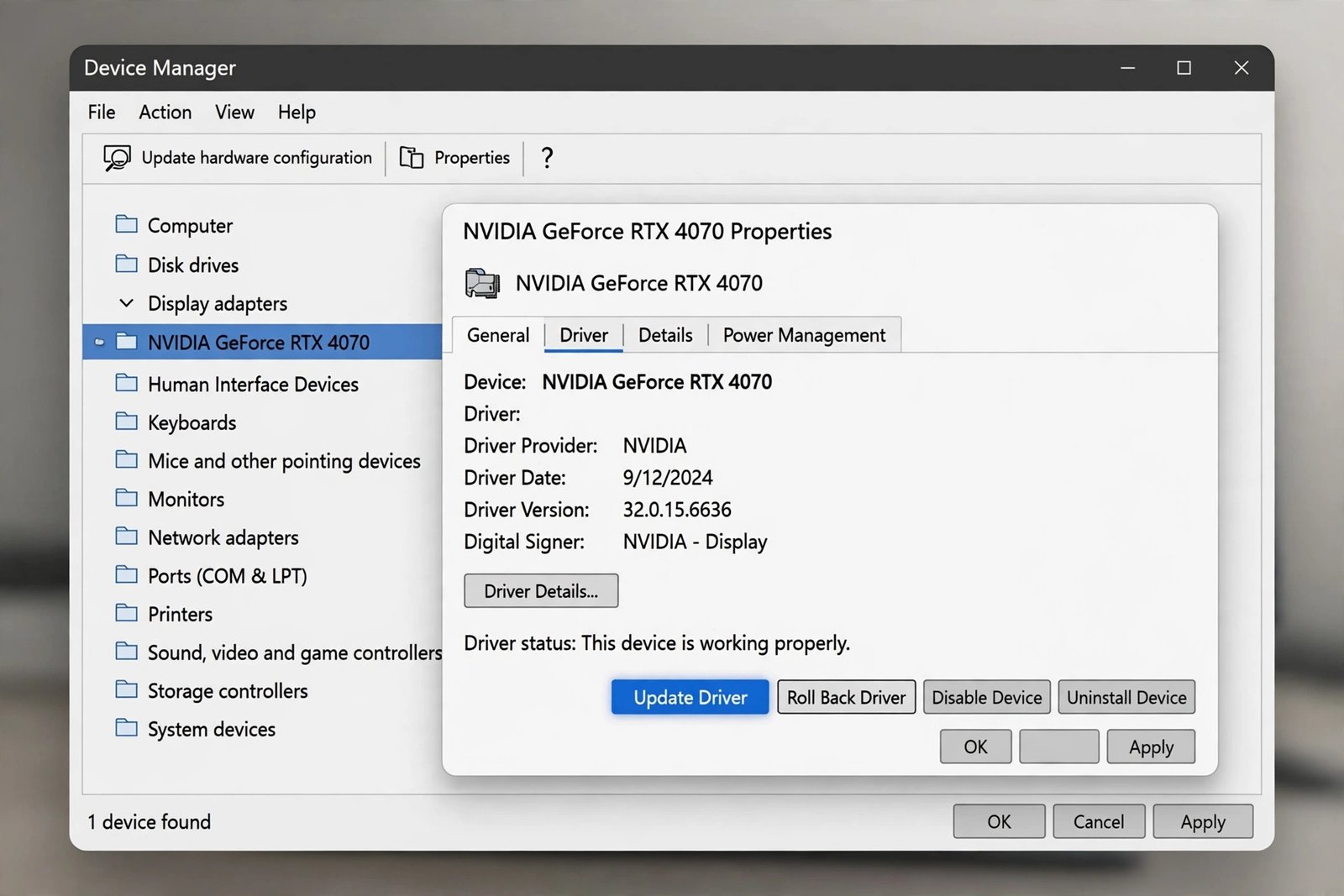
- Click Start, type device manager, and open Device Manager.
- Expand Display adapters.
- Right-click your graphics card (it may say Intel, NVIDIA, AMD, or Microsoft Basic Display Adapter) and choose Update driver.
- Select Search automatically for drivers and wait for Windows to finish.
- Restart your PC when prompted, then check whether the flicker is gone.
- If Windows says the best driver is already installed, visit your PC maker’s website and download the latest graphics driver from there.
If updating does not help, a clean reinstall is the next step. Right-click the adapter, choose Uninstall device, tick Attempt to remove the driver if shown, restart, and Windows will reinstall a fresh copy. Related driver crashes can also cause sudden shutdowns — see our guide on why a Windows PC keeps restarting if restarts happen alongside the flicker.
Fix 6: Roll Back the Driver When windows 11 screen flickering Starts After an Update
If the flickering began right after a Windows Update, the new driver version is probably incompatible with your hardware. Rolling back restores the previous working version.
- Open Device Manager (Start > type device manager).
- Expand Display adapters and right-click your graphics card.
- Choose Properties, then open the Driver tab.
- Click Roll Back Driver and choose a reason, then click Yes.
- Restart your PC and check the screen.
- If the Roll Back Driver button is greyed out, Windows has no older driver saved — move on to Fix 7 or reinstall the driver from your PC maker’s site.
You need administrator rights to roll back a driver. If you share the PC, ask the person with an admin account to do this step. After a rollback, Windows Update may offer the same driver again — you can pause updates for a week while the maker fixes it (see Fix 9).
Fix 7: Update or Uninstall the Incompatible App
If Task Manager stayed steady in Fix 2, an app is causing the flicker. This often happens with apps that overlay the screen, such as old screen recorders, outdated antivirus tools, or some third-party themes.
- Think about which app you installed or updated just before the flicker started.
- Open Start > Settings > Apps > Installed apps.
- Sort by date installed so the newest apps appear first.
- Click the three dots on a suspect app and choose Uninstall.
- If the app came from the Microsoft Store, open the Store, go to Library, and update all apps first — an update may already fix the conflict.
- Test the screen after each uninstall. When the flicker stops, you have found the culprit.
- Check the app maker’s website later for a Windows 11–compatible version before reinstalling.
Common offenders include very old desktop gadgets, screen dimmers, and custom cursor tools. If your screen issues involve apps crashing rather than flickering, our guide on Chrome keeps crashing covers a similar diagnose-and-remove approach for browsers.
Fix 8: Test in Safe Mode
Safe Mode starts Windows with only basic drivers and no third-party apps. This tells you whether the cause is software or hardware.
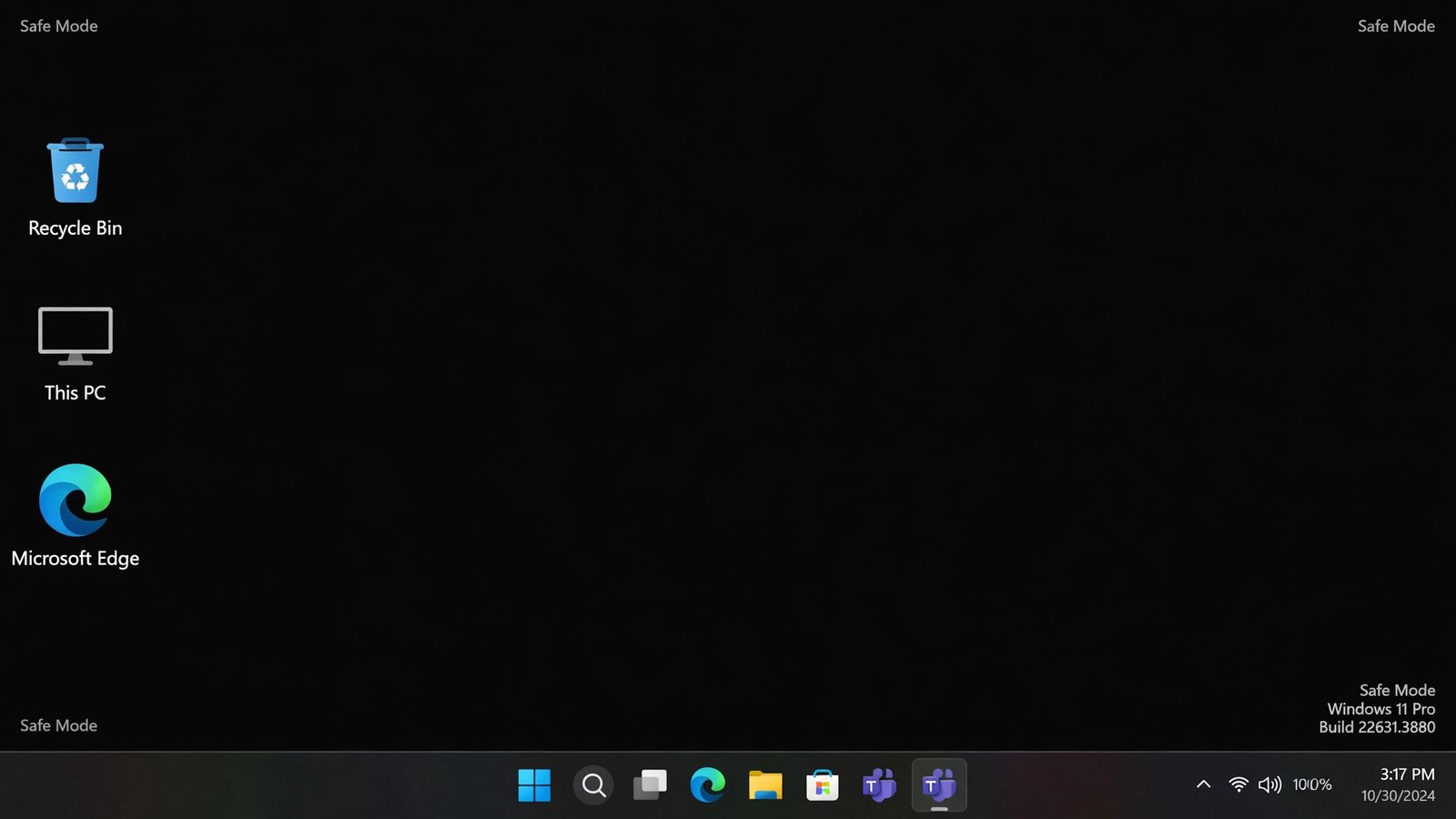
- Hold Shift and click Start > Power > Restart.
- When the blue Choose an option screen appears, choose Troubleshoot > Advanced options > Startup Settings > Restart.
- Press 4 or F4 to start in Safe Mode.
- Watch the screen for a minute:
- No flicker in Safe Mode — the cause is software. Work through Fix 5, Fix 6, and Fix 7 again carefully.
- Flicker continues in Safe Mode — suspect hardware: the cable, the monitor, or the GPU.
- Restart normally to leave Safe Mode.
If the flicker continues in Safe Mode, test with a different monitor if you have one. If the laptop screen itself flickers in Safe Mode, it is likely a hardware repair — contact the manufacturer while the warranty covers it.
Fix 9: Check for Windows Updates and Display Settings
Once the immediate flicker is under control, tidy up the remaining settings that can trigger it again.
- Open Start > Settings > Windows Update and click Check for updates. Install any pending updates and restart.
- Go to Settings > System > Display > Graphics and turn off Variable refresh rate if your monitor does not support it well.
- If you use HDR, try turning it off under Settings > System > Display > HDR — some monitors flicker when HDR toggles on and off.
- In Settings > Bluetooth & devices > Devices, remove any display-related devices you no longer use, such as old wireless displays.
- If updates keep reinstalling a bad driver, use Pause updates for one week while you wait for a fixed version.
Keeping Windows and your graphics driver on versions that play nicely together is the best long-term prevention. A PC that also starts slowly after updates may benefit from our Windows 11 slow startup fix, since update-related driver problems often show up there too.
What to Avoid
- Do not download drivers from random driver updater sites — use Device Manager or your PC maker’s official site.
- Do not install cracked, patched, or activator versions of GPU tools — they often bundle malware.
- Do not flash your GPU BIOS or monitor firmware unless the manufacturer instructs you to.
- Do not ignore flicker that appears in Safe Mode or the BIOS — that points to hardware, and software fixes will not help.
- Do not crank the refresh rate to the maximum without checking your cable supports it — the cable is often the limit.
- Do not keep reinstalling the same app that caused the flicker — find an updated version first.
Frequently Asked Questions
Why does windows 11 screen flickering happen?
The two most common causes are a faulty or outdated display driver and an incompatible app. Less often, the cause is a loose cable, a wrong refresh rate, or failing monitor hardware. The Task Manager test in Fix 2 tells you which of the two main causes applies to you.
Will resetting the graphics driver delete my files?
No. Pressing Windows logo key + Ctrl + Shift + B only restarts the graphics driver. Your files, open documents, and apps are untouched. The screen simply blinks for a second.
How do I know if the flickering is a hardware problem?
If the flicker continues in Safe Mode or appears on the BIOS screen before Windows loads, it is almost certainly hardware — usually the monitor, the cable, or the GPU. Connect a different monitor to confirm before paying for a repair.
Can a Windows update cause the screen to flicker?
Yes. Updates sometimes install a display driver version that does not work well with your hardware. If the flicker started right after an update, roll the driver back using Fix 6 and pause updates for a week.
Should I uninstall my display driver completely?
Only as a last resort. Try update and roll back first. A full uninstall followed by a restart lets Windows reinstall a fresh copy, which can fix deep corruption — but you will briefly lose your display settings.
Does screen flickering damage the monitor?
The flicker itself does not damage the monitor, but the underlying cause might. A failing cable or overheating GPU deserves attention even if the picture looks fine between flickers. Fix the root cause rather than living with it.
Conclusion
windows 11 screen flickering looks alarming, but it almost always comes down to a driver or an app. Start with the five-second graphics reset, run the Task Manager test to pick your path, then update, roll back, or remove the real culprit. Cable and refresh-rate checks catch the hardware side in minutes.
Work through the fixes in order and you will most likely have a steady screen again today. If the flicker survives Safe Mode, let a repair professional take over — that is a hardware job, not a software one. For more display and speed trouble, our Windows 11 sound not working guide covers another common driver-related fix on the same settings pages.