

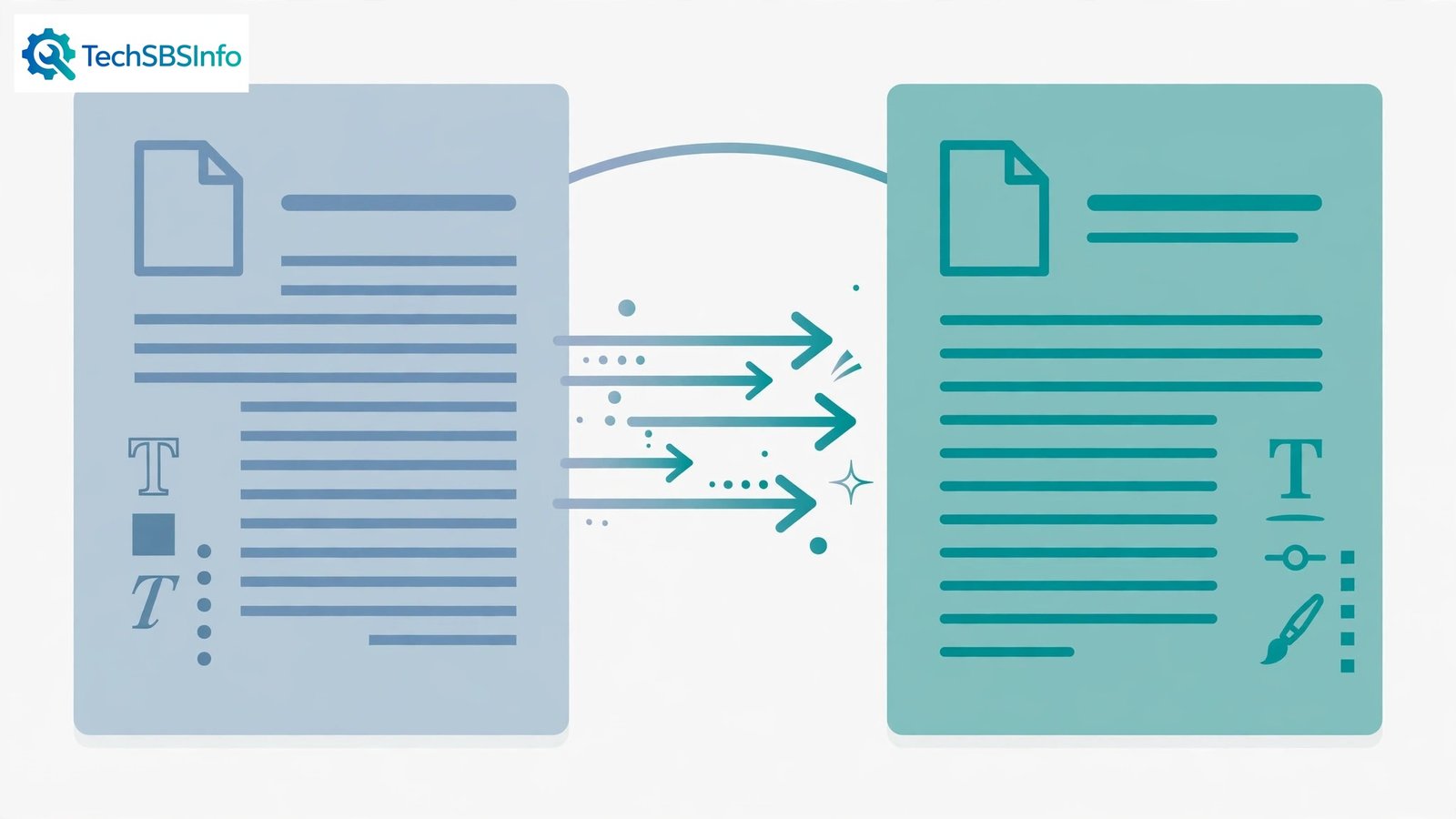
You format a document perfectly. You close it, reopen it — and the fonts are different. Or you email it to a colleague and it comes back looking nothing like what you sent. When microsoft word document formatting changes by itself, the document is not haunted: something in the font, template, or style chain is substituting, updating, or conflicting.
Formatting shifts happen for concrete reasons: missing fonts replaced silently, styles set to auto-update, compatibility mode dumbing things down, or a corrupt template. This guide pins each cause down in order. Your document will look the same everywhere it is opened.
Table of Contents
- Quick Checks
- Diagnosing microsoft word document formatting changes
- Fix 1: Embed Fonts in the File
- Fix 2: Stop Styles Updating on Open
- Fix 3: Use Styles Instead of Direct Formatting
- Fix 4: Fix Compatibility Mode
- Fix 5: Rebuild the Normal Template
- Fix 6: Set the Right Paste Options
- Fix 7: Save in the Modern .docx Format
- What to Avoid
- Frequently Asked Questions
- Conclusion
- Helpful Official Resources
Quick Checks
Fast orientation before the fixes.
- Open the document on the same PC it was created on. If it looks right there but wrong elsewhere, fonts are the issue (Fix 1).
- Check the title bar for “Compatibility Mode” — it limits modern formatting (Fix 4).
- Ask whether the changes appear after someone else edits it — styles may be updating (Fix 2).
- Compare the file extension: .doc behaves differently from .docx (Fix 7).
- Check if only pasted sections change — paste is importing foreign styles (Fix 6).
Diagnosing microsoft word document formatting changes
| Symptom | Cause | Go to Fix |
|---|---|---|
| Fonts change on another PC | Fonts not embedded, substituted | Fix 1 |
| Formatting shifts on reopen, same PC | Styles auto-updating or template issue | Fix 2, then Fix 5 |
| Changes after a colleague edits | Their styles/paste overwriting yours | Fix 3, then Fix 6 |
| Old .doc file, formatting degrades | Compatibility mode | Fix 4, then Fix 7 |
| Pasted text brings wild formatting | Paste importing styles | Fix 6 |
| Random shifts with no pattern | Corrupt Normal template | Fix 5 |
Fix 1: Embed Fonts in the File
The most common cause of “looks different on another computer”: the document uses fonts the other PC does not have, so Word silently substitutes lookalikes.
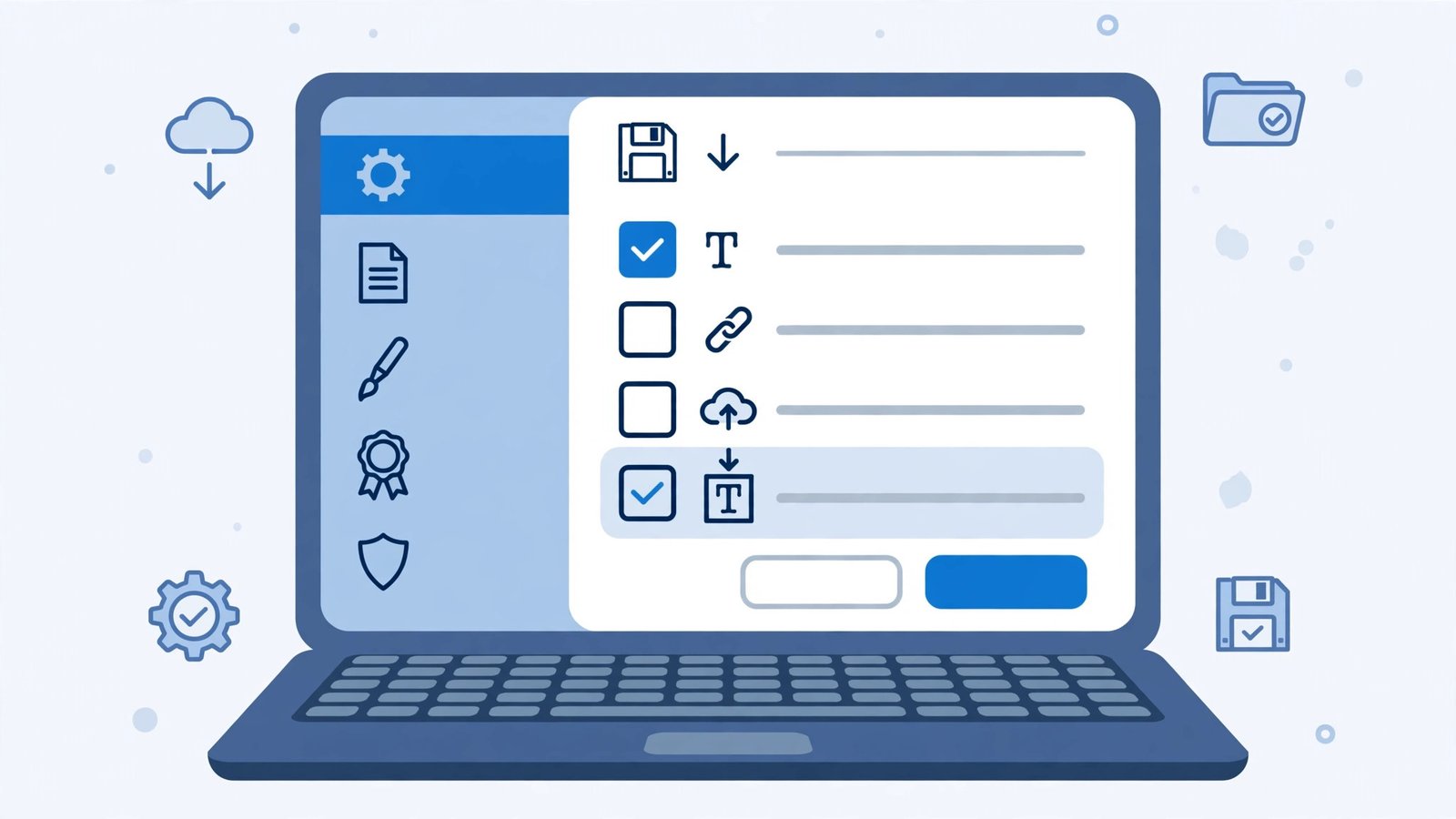
- In Word, go to File > Options > Save.
- Tick “Embed fonts in the file”.
- Also tick “Embed only the characters used in the document” to keep the file small (untick it if others will edit the text, so all characters are available).
- Click OK and save the document.
- Send the newly saved file — the fonts travel inside it now.
- Note: some licensed fonts forbid embedding. If a font will not embed, switch to a common or open-licensed font for shared documents.
Embedding is the professional answer for any document that leaves your PC. The file gets a little bigger, but what you see is what everyone sees. For documents that will not open at all elsewhere, our Microsoft Word not responding guide covers the more severe end.
Fix 2: Stop Styles Updating on Open
Word styles can be set to “Automatically update” — meaning the style redefines itself from your direct formatting every time, cascading changes through the document unpredictably.
- On the Home tab, open the Styles pane (the small launcher arrow in the Styles group).
- Right-click a style that keeps changing (often Normal) and choose Modify.
- Untick “Automatically update” if it is on.
- Also untick “Add to the Styles gallery” if the style is a one-off — gallery pollution causes confusion.
- Click OK. Repeat for any other misbehaving styles.
- Also check the template link: on the Developer tab, click “Document Template” to open the Templates and Add-ins dialog, and untick “Automatically update document styles”.
“Automatically update document styles” is the notorious one: with it on, opening the document re-applies the attached template’s styles, overwriting your careful formatting. Turning it off freezes your formatting as you left it. For read-only file issues, see Microsoft Word document read-only mode.
Fix 3: Use Styles Instead of Direct Formatting
Direct formatting (selecting text and making it bold, 14pt, blue) is fragile: it gets overridden by style updates, paste operations, and template changes. Styles are the robust alternative.
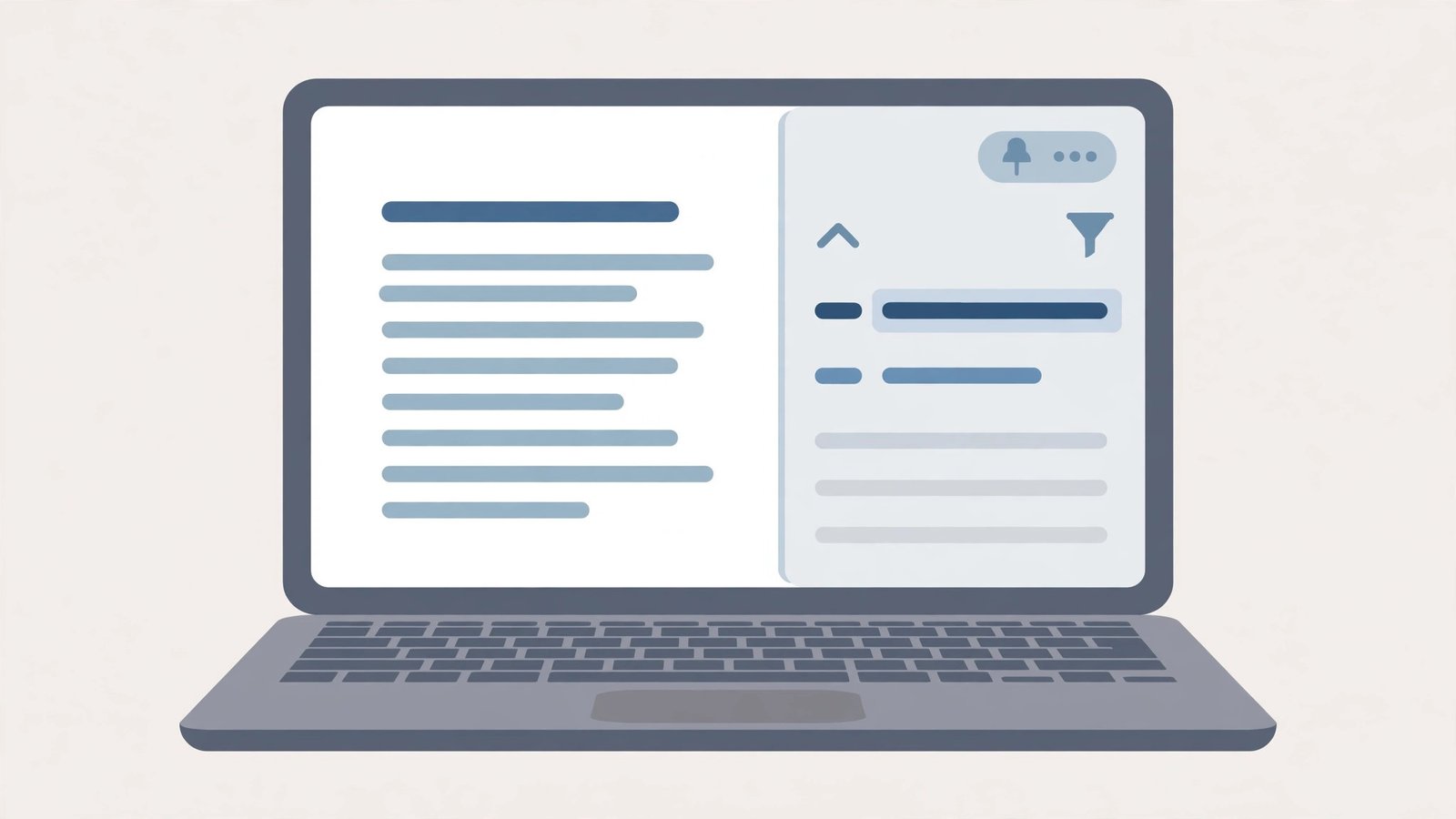
- Open the Styles pane (Home tab launcher).
- Instead of formatting text directly, apply a style: Heading 1 for titles, Normal for body, and so on.
- To customise, right-click a style > Modify — change the font, size, colour once, and every paragraph using that style updates consistently.
- For one-off emphasis, use character styles (like “Emphasis”) rather than direct bold/italic.
- When pasting, use “Merge Formatting” so pasted text adopts the destination’s styles (see Fix 6).
This is a habit change more than a fix, but it is the permanent cure for formatting drift. Documents built on styles are stable; documents built on direct formatting are accidents waiting to happen. For Excel-side formatting woes, our Excel file not opening guide is the sibling read.
Fix 4: Fix Compatibility Mode
Compatibility Mode (for .doc files and old templates) disables modern formatting features and can subtly alter layout on every save.
- Check the title bar for “Compatibility Mode”.
- Go to File > Info and click “Convert” to upgrade the document to .docx.
- Save. The Compatibility Mode label disappears.
- Review the document — conversion is faithful, but check complex tables and text boxes once.
- If the document must stay .doc for others with ancient Word, accept the limitations rather than fighting them.
Conversion is one-way per save, so keep a backup of the original .doc under a different name if it matters. Modern format, modern behaviour, no silent downgrades.
Fix 5: Rebuild the Normal Template
Every Word document is based on a template — usually Normal.dotm. When that template corrupts, new and existing documents develop random formatting tics.
- Close Word completely.
- Press Windows + R, type
%appdata%\Microsoft\Templates, and press Enter. - Find Normal.dotm and rename it to Normal.dotm.old (do not delete it yet).
- Reopen Word — it creates a fresh, clean Normal.dotm automatically.
- Test with a new document and reopen the problem file.
- If the problem is gone, delete the .old file after a week of stable use. If Word misbehaves worse, close Word and rename it back.
This is the deep fix for “formatting changes for no reason I can find”. The template is invisible infrastructure — when it rots, everything built on it wobbles. For Office-wide startup failures, see Office apps crashing on startup.
Fix 6: Set the Right Paste Options
Pasting is the number one importer of formatting chaos: web pages and other documents inject their styles, which then override yours.

- After pasting, click the Paste Options icon and choose “Merge Formatting” (adopts your styles) or “Keep Text Only” (drops all formatting).
- To set the default: File > Options > Advanced > Cut, copy, and paste section.
- Set “Pasting between documents” and “Pasting from other programs” to “Merge Formatting”.
- For web content, “Keep Text Only” as the default saves endless cleanup.
- After pasting, select the pasted text and press Ctrl+Spacebar to strip direct character formatting, or Ctrl+Q for direct paragraph formatting.
Paste defaults are a set-and-forget win. “Merge Formatting” for documents, “Keep Text Only” for the web — configure once, and pasted text stops vandalising your formatting.
Fix 7: Save in the Modern .docx Format
The old .doc format cannot represent some modern formatting, so Word approximates — and approximations shift on every open and save.
- Go to File > Save As and choose “Word Document (*.docx)” as the type.
- If File > Options > Save shows “Save files in this format: Word 97-2003 Document”, change it to “Word Document (*.docx)”.
- Resave the file. Check formatting once after conversion.
- Share the .docx — every modern Word, and most alternatives, opens it faithfully.
There is no reason to use .doc in current workflows. The modern format is more robust, smaller, and immune to the silent downgrades that plague the old one.
What to Avoid
- Do not use exotic fonts for shared documents unless you embed them.
- Do not leave “Automatically update document styles” on — it is a formatting time bomb.
- Do not paste web content with “Keep Source Formatting” — you import the site’s styles.
- Do not edit the Normal.dotm template file directly unless you mean to change defaults for everything.
- Do not keep working in .doc format “to be safe” — .docx is safer.
- Do not apply direct formatting over styles and wonder why styles “do not work” — clear direct formatting first (Ctrl+Spacebar).
Frequently Asked Questions
Why do fonts change when I email my document?
The recipient’s PC lacks your fonts, so Word substitutes. Embed the fonts (Fix 1) or use common fonts for shared documents.
Why does formatting change when I reopen the file on the same computer?
Styles are auto-updating (Fix 2) or the Normal template is corrupt (Fix 5). Both are fixable in minutes once identified.
My colleague’s edits reformat my whole document. Why?
Their paste operations import foreign styles, or their template updates yours. Ask them to use Merge Formatting when pasting (Fix 6), and turn off “Automatically update document styles” (Fix 2).
Is .docx really better than .doc?
Yes, in every practical way: more robust, smaller files, full modern feature support, and no silent formatting downgrades. Convert old files (Fix 7) and do not look back.
Can a corrupt template affect existing documents?
Yes — documents attached to a corrupt Normal.dotm inherit its problems. Rebuilding the template (Fix 5) fixes new documents; existing ones may need their styles reapplied.
Why does my document look different when printed?
The printer driver substitutes fonts it does not have and applies its own margins, so the printed page can shift from the screen. Always check Print Preview before printing important documents. Embedding fonts (File > Options > Save > “Embed fonts in the file”) and setting the correct paper size for your printer close most of the gap between screen and paper.
Can Windows updates change my Word formatting?
Indirectly, yes. Updates can replace fonts, reset the default printer (which changes layout, since Word paginates for the active printer), or update Office itself with new defaults. If formatting shifted right after an update, check your default printer first — a changed printer is the most common culprit — then look at font substitutions.
Why does Normal.dotm matter so much?
Normal.dotm is the template every blank document is born from. Its styles, margins, and fonts become every new document’s starting point. When it corrupts, every new document inherits the corruption — which is why renaming it (forcing Word to build a fresh one) fixes such a wide range of formatting weirdness. Treat it as the foundation: keep it clean and back it up if you customise it heavily.
Should I worry if formatting changes only in one document?
No — that is actually good news. A single-document problem means your Word installation and templates are fine; the corruption or odd setting lives in that file alone. Copy the content (without the final paragraph mark, which carries section formatting) into a fresh document based on Normal.dotm, and the problem stays behind.
Conclusion
When microsoft word document formatting changes on its own, the cause is in the chain: unembedded fonts, auto-updating styles, compatibility mode, or a tired template. Embed the fonts, freeze the styles, convert the format, and paste cleanly. Formatting that stays put is not luck — it is these settings, set correctly, once.