

Introduction
android storage full but nothing stored is a message situation almost every Android user meets sooner or later: your phone warns that storage is almost full, yet when you look through your photos, videos, and apps, there is seemingly nothing large enough to fill the space. The good news is that this is almost never a hardware fault. In most cases, the storage is being eaten by hidden cache files, app leftover data, duplicated media folders, a bloated System or Other category, or a simple misreading of the storage counter.
This guide explains exactly where that phantom storage goes and walks you through nine fixes in the simplest order, so you can reclaim gigabytes of space without losing anything important.
Table of Contents
- Quick Checks Before You Start
- Diagnose the Problem First
- Fix 1: Restart Your Phone
- Fix 2: Find Where the Missing “Android Storage Full But Nothing Stored” Space Went
- Fix 3: Clear Cached Data of the Heaviest Apps
- Fix 4: Empty the Trash and Downloads Folder
- Fix 5: Delete WhatsApp and Messenger Media Duplicates
- Fix 6: Offload Unused Apps and Remove Leftover App Data
- Fix 7: Wipe the System Cache Partition
- Fix 8: Move Photos and Videos to the Cloud or an SD Card
- Fix 9: Factory Reset as the Last Resort
- What to Avoid
- Frequently Asked Questions
- Conclusion
Quick Checks Before You Start
Run through this short list before touching any settings. Each check takes less than a minute. If these quick checks do not clear the android storage full but nothing stored warning, move on to Fix 1.
- Check the exact number. Go to Settings > Storage and note how much free space is left. Phones often warn you at 10% remaining, so “full” may really mean “less than 2 GB free.”
- Look at the “Other” or “System” bar. If those two segments look unusually large, hidden data is the likely cause.
- Check whether photos are in the bin. Deleted photos sit in the trash for 30 days and still use storage until emptied.
- Check Downloads. One forgotten folder of PDFs, APKs, and videos can be several gigabytes.
- Note your total storage. A 32 GB phone fills up far faster than you expect, because the system itself uses 10–15 GB.
- Back up anything precious. Before deleting in bulk, make sure photos and chats are backed up.
Diagnose the Problem First
Match your symptom to the likely cause, then jump to the matching fix.
| Symptom | Likely cause | Go to fix |
|---|---|---|
| Storage shows full but gallery looks empty | Photos are in the trash bin, or media is duplicated in app folders | Fix 4 and Fix 5 |
| The “Other” or “System” segment is huge | Bloated app caches, update leftovers, or corrupted media thumbnails | Fix 3 and Fix 7 |
| One app (like WhatsApp) uses several GB | Chat media, voice notes, and status downloads pile up silently | Fix 5 |
| Storage was fine, then filled up overnight | A failed system update or a runaway app download | Fix 1 and Fix 3 |
| Old phone, many uninstalled apps over the years | Leftover data folders from deleted apps | Fix 6 |
| Everything looks normal but space keeps shrinking | System cache partition needs wiping | Fix 7 |
| Nothing works and storage is still full | Corrupted storage counter or deep system issue | Fix 9 |
Fix 1: Restart Your Phone
A restart sounds too simple, but it clears temporary system files, stops runaway background processes, and forces Android to recalculate the storage counter. Sometimes the “storage full” warning is simply stale data from a process that already finished.
- Press and hold the power button.
- Tap Restart (or Power off, wait 10 seconds, then power on).
- After the phone boots, open Settings > Storage and check the numbers again.
- If the warning is gone or the free space increased, a stuck process was the cause.
If the numbers are unchanged, move on to Fix 2.
Fix 2: Find Where the Missing “Android Storage Full But Nothing Stored” Space Went
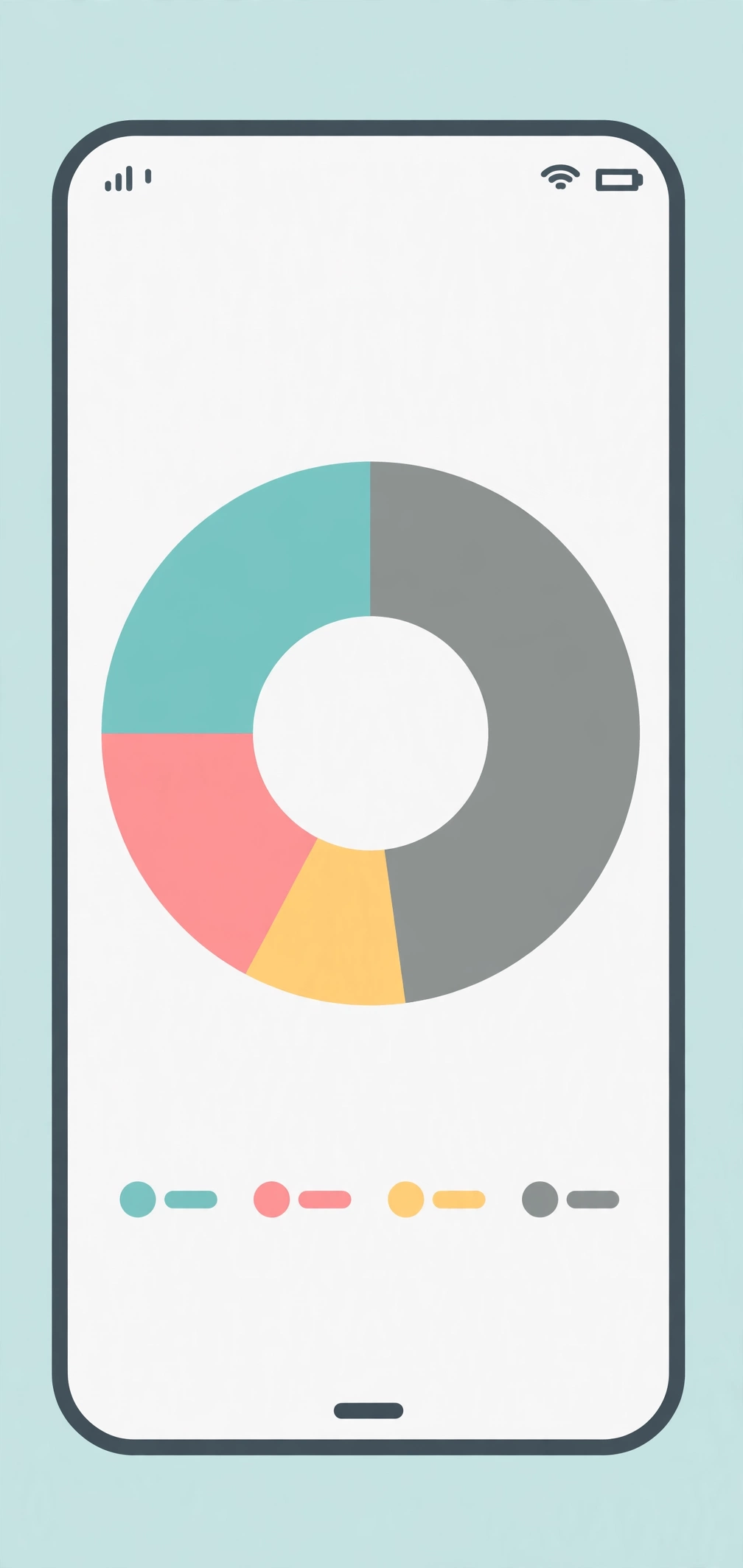
Android’s storage screen shows where every gigabyte actually lives. The android storage full but nothing stored mystery usually solves itself right here, because one category — often Other or System — turns out to be far bigger than expected.
- Open Settings > Storage.
- Wait a few seconds while Android scans and calculates each category.
- Look at the segments: Apps, Images, Videos, Audio, Documents, System, and Other (sometimes called “Miscellaneous”).
- Tap any segment to see which apps or files are the biggest contributors inside it.
- Write down the two biggest categories. Those are your targets for the next fixes.
If you cannot see the internal storage details at all, or the storage screen itself refuses to load, our guide to internal storage not showing on Android covers that exact problem.
Fix 3: Clear Cached Data of the Heaviest Apps
Every app keeps a cache of temporary files: thumbnails, web pages, map tiles, and ad data. Over months, the cache of a browser or a social media app can grow to several gigabytes. Clearing cache is completely safe — it deletes temporary files only, not your logins, chats, or saved data.
- Go to Settings > Apps (or Apps & notifications).
- Tap See all apps, then tap the three-dot menu and choose Sort by size if available.
- Open the biggest apps one by one — browsers, social media apps, and shopping apps are the usual suspects.
- Tap Storage & cache, then tap Clear cache.
- Do not tap Clear data / Clear storage — that wipes the app’s login and settings.
- Repeat for every app whose cache is larger than a few hundred megabytes.
Check Settings > Storage afterward. Many users recover 3–10 GB from this single fix. Google’s own guide to freeing up storage on Android also recommends clearing cached data as one of the first steps.
Fix 4: Empty the Trash and Downloads Folder
Deleted files are not truly gone until you empty the trash. On many Android phones, the Photos app keeps deleted items for 30 days, and the Files app has its own bin. Meanwhile, the Downloads folder quietly collects installers, documents, and videos you opened once and forgot.
- Open your Files app (Files by Google or your manufacturer’s app).
- Open the Downloads folder and delete anything you no longer need — old APK files, PDFs, and videos are the biggest wins.
- Open the app’s Trash or Recycle bin section.
- Select everything in the trash and tap Delete or Empty trash to remove it permanently.
- Open your Photos app, go to Library > Bin (or Trash), and permanently delete old items there too.
Do this for every file manager and gallery app on the phone, because each one keeps its own separate trash.
Fix 5: Delete WhatsApp and Messenger Media Duplicates
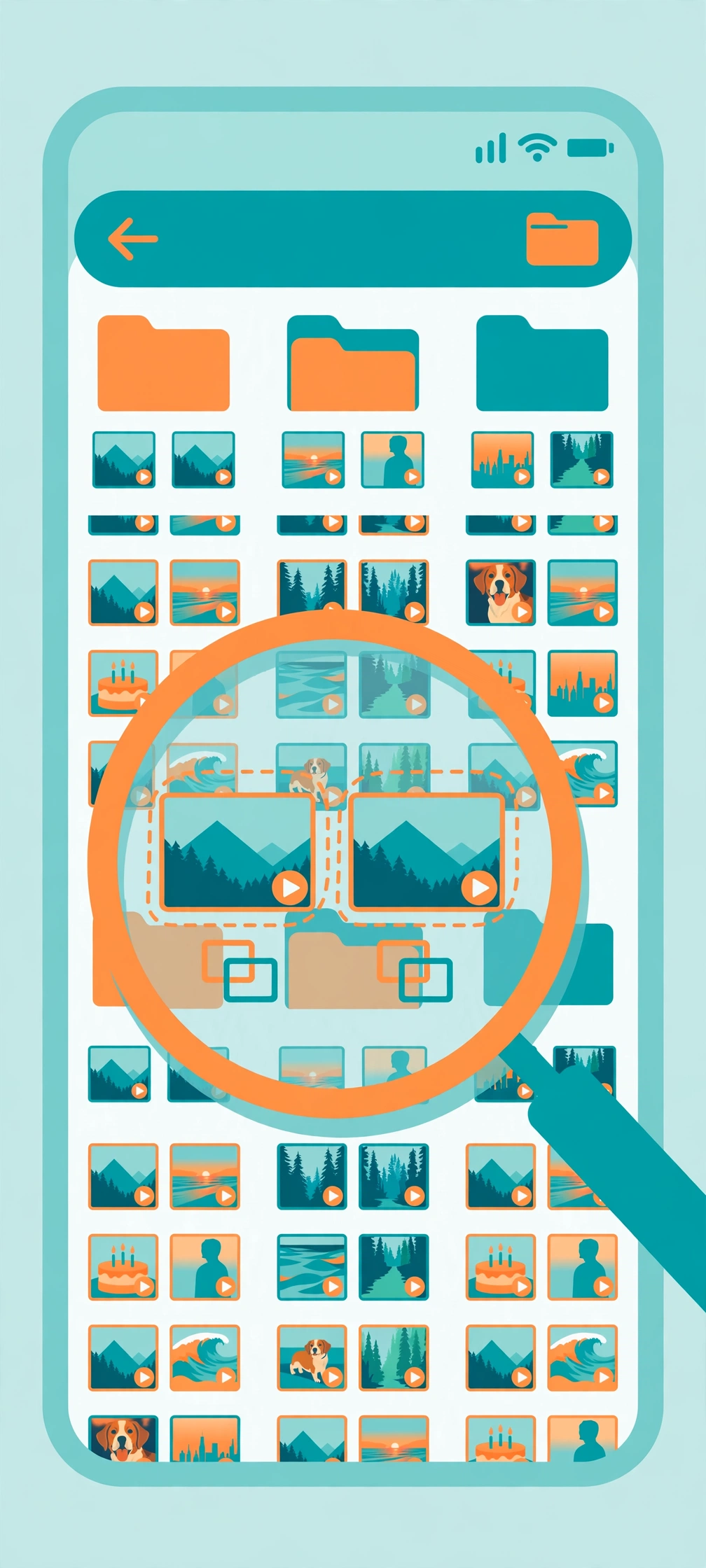
Messaging apps are the biggest hidden storage eaters on most phones. Every photo, video, voice note, and viewed status gets saved into folders like WhatsApp/Media, and the same image often exists in two or three places: the chat, your gallery, and the app’s sent folder. Over a year or two, this easily reaches 10–20 GB.
- Open WhatsApp > Settings > Storage and data > Manage storage.
- Look at the Larger than 5 MB section and review big videos first — these are the fastest way to free space.
- Delete forwarded videos and memes you will never watch again.
- Open your Files app and navigate to Internal storage > WhatsApp > Media.
- Check the .Statuses folder (viewed statuses saved automatically) and WhatsApp Voice Notes — delete what you do not need.
- Repeat the same cleanup for Messenger, Telegram, and any other chat app you use.
A useful habit going forward: turn off auto-download for media in chat apps, or set it to Wi-Fi only, so the pile stops growing again.
Fix 6: Offload Unused Apps and Remove Leftover App Data
Apps you installed once and forgot still occupy space, and worse, apps you uninstalled often leave behind their data folders. These orphans sit in Internal storage > Android > data and obb, invisible in the app list.
- Go to Settings > Apps and sort by Least used if your phone supports it.
- Uninstall every app you have not opened in months.
- After uninstalling, open your Files app and go to Internal storage > Android > data.
- Look for folders named after apps you already removed (for example, a folder named like the uninstalled game’s package).
- Delete those leftover folders — the app is gone, so its data is useless.
- Also check Internal storage > Android > obb for leftover game files.
Be careful to delete only folders belonging to apps you have uninstalled. When in doubt, leave the folder alone.
Fix 7: Wipe the System Cache Partition
The system cache partition is a separate storage area where Android keeps temporary system files, including pieces of old system updates. It is invisible in the normal storage breakdown, which is why android storage full but nothing stored can persist even after you clean every app. Wiping it deletes only temporary system data — your apps, photos, and settings stay untouched.

- Back up anything important first, as a safety habit.
- Power the phone completely off.
- Press and hold Volume Up + Power together until the phone vibrates and the recovery menu appears. (On some models it is Volume Down + Power — check your manufacturer’s instructions.)
- Use the volume buttons to highlight Wipe cache partition and press the power button to select it.
- Confirm, wait for the process to finish, then select Reboot system now.
The first boot after this takes a little longer. Afterward, check Settings > Storage — many users recover several gigabytes that no cleaner app could reach.
Fix 8: Move Photos and Videos to the Cloud or an SD Card
Photos and videos are the largest honest storage consumers. If your breakdown shows Images or Videos as the biggest segment, the real fix is to move them off the phone’s internal memory rather than deleting them.
- Turn on backup in Google Photos (or your preferred cloud service) and wait until everything is uploaded.
- In Google Photos, tap your profile picture and choose Free up space on this device — this removes the local copies of everything already backed up.
- If your phone has a microSD slot, move videos and large files to the card: open the Files app, select the files, and choose Move to > SD card.
- Set your camera app to save new photos to the SD card by default.
Keep in mind that on most modern phones the cloud backup is the more reliable option, since fewer new models include an SD card slot. More details about Android’s storage options are available on the official Android website.
Fix 9: Factory Reset as the Last Resort
If every fix above still leaves you seeing the android storage full but nothing stored message, the storage counter itself may be corrupted, or deep system files may be damaged. A factory reset wipes everything and gives Android a clean start. Only do this after trying Fixes 1–8, and only with a full backup.
- Back up everything: photos to Google Photos, chats to Google Drive, contacts to your Google account.
- Go to Settings > System > Reset options (on Samsung: Settings > General management > Reset).
- Tap Erase all data (factory reset).
- Read the warning carefully, then confirm.
- After the reset, set up the phone and restore your backup.
If the phone still reports full storage after a factory reset with nothing restored, the internal storage chip may be failing, and the phone needs professional service.
What to Avoid
- Do not install “RAM booster” or “storage cleaner” apps. Most are ad-filled, and many create more junk files than they remove. Android manages its own storage better than these apps do.
- Do not delete folders you do not recognize in Android/data. System and active-app folders live there; deleting the wrong one can break apps.
- Do not tap “Clear data” when you mean “Clear cache.” Clearing data logs you out and deletes the app’s saved content.
- Do not factory reset before backing up. Once the reset runs, unbacked-up photos and chats are gone permanently.
- Do not trust apps that claim to “double your storage.” No app can create storage that does not physically exist; they only compress or move files, often with quality loss.
- Do not ignore the storage warning for weeks. A completely full phone cannot install security updates and may start crashing.
Frequently Asked Questions
Why does my phone say storage is full when I have no apps?
Because the system itself, pre-installed apps, update files, and hidden caches use most of the space. On a 32 GB phone, the Android system can occupy 12–15 GB before you install a single app. Check the System and Other segments in Settings > Storage.
What is the “Other” storage on Android?
The Other category collects everything that does not fit the standard labels: app data that is not cache, system update leftovers, thumbnails, and files in miscellaneous folders. Fixes 3, 5, 6, and 7 in this guide shrink it step by step.
Is it safe to clear cached data?
Yes. Clearing cache removes temporary files only. Your logins, messages, photos, and settings remain. You may notice an app loads a little slower the first time after clearing, because it rebuilds its cache.
Can a virus cause storage to fill up?
It is rare on Android, but possible with aggressive adware or a malicious app downloading files in the background. If storage fills rapidly for no visible reason, check Settings > Apps for apps you do not remember installing, and uninstall them.
Why does storage fill up again after I free space?
Usually because of auto-downloading chat media, app caches rebuilding, or photos syncing back. Turn off media auto-download in WhatsApp and other chat apps, and repeat the cache cleanup every few months to keep the phone healthy.
Does an SD card fix the “storage full” problem?
Partly. An SD card gives you room for photos, videos, and documents, but apps and most system data must stay on internal storage. It helps a lot if media is your biggest category, but it will not fix a bloated system cache.
Conclusion
The android storage full but nothing stored problem looks mysterious, but it almost always comes down to the same handful of culprits: bloated caches, trash bins that were never emptied, duplicated chat media, leftover data from deleted apps, and an invisible system cache partition. Work through the fixes in order, starting with a simple restart and the storage breakdown screen, and most phones recover several gigabytes within an hour — without deleting a single photo you care about. If you want more step-by-step Android help, you will find it on the TechSBSInfo blog, and you can read more about who we are on our About page. Storage problems can even slow down other devices in your home — a full drive is also a common reason a computer drags, as we explain in our guide to fixing slow Windows 11 startup.
[…] Fix 2, and see our guide on Android storage showing full when nothing is stored […]
[…] card is simply full — a completely full card can behave like a read-only card. See our guide on Android storage full with nothing stored if your storage numbers look […]