

Finding your Microsoft Teams microphone not working right before an important call is one of the most frustrating tech problems. You can hear everyone else perfectly, but they cannot hear a word you say. The good news is that this is almost never a serious fault. In most cases it is a muted button, the wrong device selected, or a Windows privacy setting blocking Teams from reaching your mic.
This guide walks you through 9 fixes in order, from the simplest to the most involved. Work through them one at a time. Most readers get their mic back within the first three steps. TechSBSInfo writes every guide like this from scratch, so the steps below are clear, current, and written for real people, not technicians.
Table of Contents
- Quick checks
- Diagnose your problem
- 1. Unmute yourself in Teams and check the physical mute button
- 2. Select the correct microphone in Teams device settings
- 3. Make a Teams test call
- 4. Check Windows microphone privacy settings
- 5. Set the right default input in Windows sound settings
- 6. Run the Windows audio troubleshooter
- 7. Update your audio drivers (Microsoft Teams microphone not working at driver level)
- 8. Close other apps and turn off audio enhancements
- 9. Update or reinstall Microsoft Teams
- What to avoid
- FAQ
- Conclusion
Quick checks
Before diving into the full fixes, run through this list. These take under two minutes and solve the problem for most people.
- Look at the mute button. In the meeting controls, the mic icon should not have a line through it. Tap it to unmute.
- Check for a physical mute. Many headsets have a mute switch on the cable, the earcup, or the boom arm. USB desk mics often have a button too. Make sure it is off.
- Move the boom arm. If the boom is flipped up or pushed away from your mouth, many headsets mute automatically. Bring it down close to your mouth.
- Replug the headset. Unplug it, wait a few seconds, then plug it back in. If it is Bluetooth, disconnect and reconnect it, and make sure it is charged and not connected to your phone at the same time.
- Test the mic outside Teams. Open the Voice Recorder app in Windows and record a few seconds. If the mic works there, the problem is inside Teams. If it does not, the problem is in Windows.
- Restart Teams fully. Right-click the Teams icon in the system tray (bottom-right corner) and choose Quit. Then open Teams again. A stuck process often holds onto the mic.
Diagnose your problem
Use this table to match what you are seeing to the right fix.
| Symptom | Likely cause | Go to fix |
|---|---|---|
| Mic icon has a line through it, or headset boom feels switched off | You are muted in Teams or the hardware mute is on | Fix 1 |
| Teams is using your laptop mic instead of your headset | Wrong input device selected in Teams | Fix 2 |
| Nobody hears you but the mic works in other apps | Teams device settings are wrong | Fix 2 or 3 |
| Mic works everywhere except Teams | Windows privacy settings blocking Teams | Fix 4 |
| The mic does not appear in Windows sound settings | Disabled device or driver problem | Fix 5 or 7 |
| The mic volume is very low or cuts in and out | Input level too low, or audio enhancements interfering | Fix 5 or 8 |
| The mic stopped working after a Windows update | Outdated or broken audio driver | Fix 7 |
| The mic works for a minute, then drops out | Another app grabbed the mic, or Teams cache is corrupt | Fix 8 or 9 |
1. Unmute yourself in Teams and check the physical mute button
This sounds obvious, but it is the single most common cause. Teams remembers your mute state. If you muted yourself in a previous call, you may still be muted when the next one starts. Check the meeting toolbar first.
- Look at the meeting controls toolbar at the bottom of the meeting window.
- If the mic icon shows a line through it, you are muted. Click Unmute mic (or press Ctrl + Shift + M).
- Click the small arrow next to the mic icon and choose More audio settings to see which microphone is active.
- Now check your hardware. Look for a mute button on your headset cable, earcup, or USB mic body, and make sure it is switched off.
- If your headset has a boom arm, flip it down towards your mouth. On many models, an upright boom means muted.
2. Select the correct microphone in Teams device settings
Teams does not always pick the mic you expect. If you plugged in a headset after Teams started, Teams may still be listening to your laptop’s built-in mic, or to a webcam mic from across the room. Fix the device selection directly.
- In Teams, click the three dots (Settings and more) next to your profile picture or initials.
- Choose Settings, then select Devices.
- Under Audio settings, open the Microphone dropdown.
- Pick the exact device you want to use, for example your headset or USB mic. Do not leave it on the system default if you have several mics.
- Speak and watch the small level indicator next to the dropdown. If the bar moves, Teams is hearing you.
- In a meeting, you can change this faster: click the arrow next to the mic icon, choose More audio settings, and pick the mic there.
3. Make a Teams test call
The Teams test call is a brilliant diagnostic tool. It records a short message and plays it back, then gives you a summary of your mic, speaker, and connection quality. It tells you in one minute whether the problem lives inside Teams or somewhere else.
- Open Teams and go to Settings and more > Settings > Devices.
- Click Make a test call and follow the Test Call Bot’s instructions.
- Record a short sentence when asked, then listen to the playback.
- If the playback is clear, your mic and Teams settings are fine, and the problem was probably a meeting-specific issue like being muted.
- If the bot cannot hear you, the problem is in your device setup. Go back to the fixes above and check the mic selection and privacy settings.
- Microsoft’s own support team recommends the same test-call approach in their official Teams microphone troubleshooting guide, which also covers mute states and physical mic checks.
4. Check Windows microphone privacy settings
This is the fix that solves the problem for a huge number of readers. Windows has privacy toggles that can block apps from using your microphone. After a Windows update, these sometimes get reset. Teams can look perfectly configured, yet hear nothing, because Windows itself is blocking access.
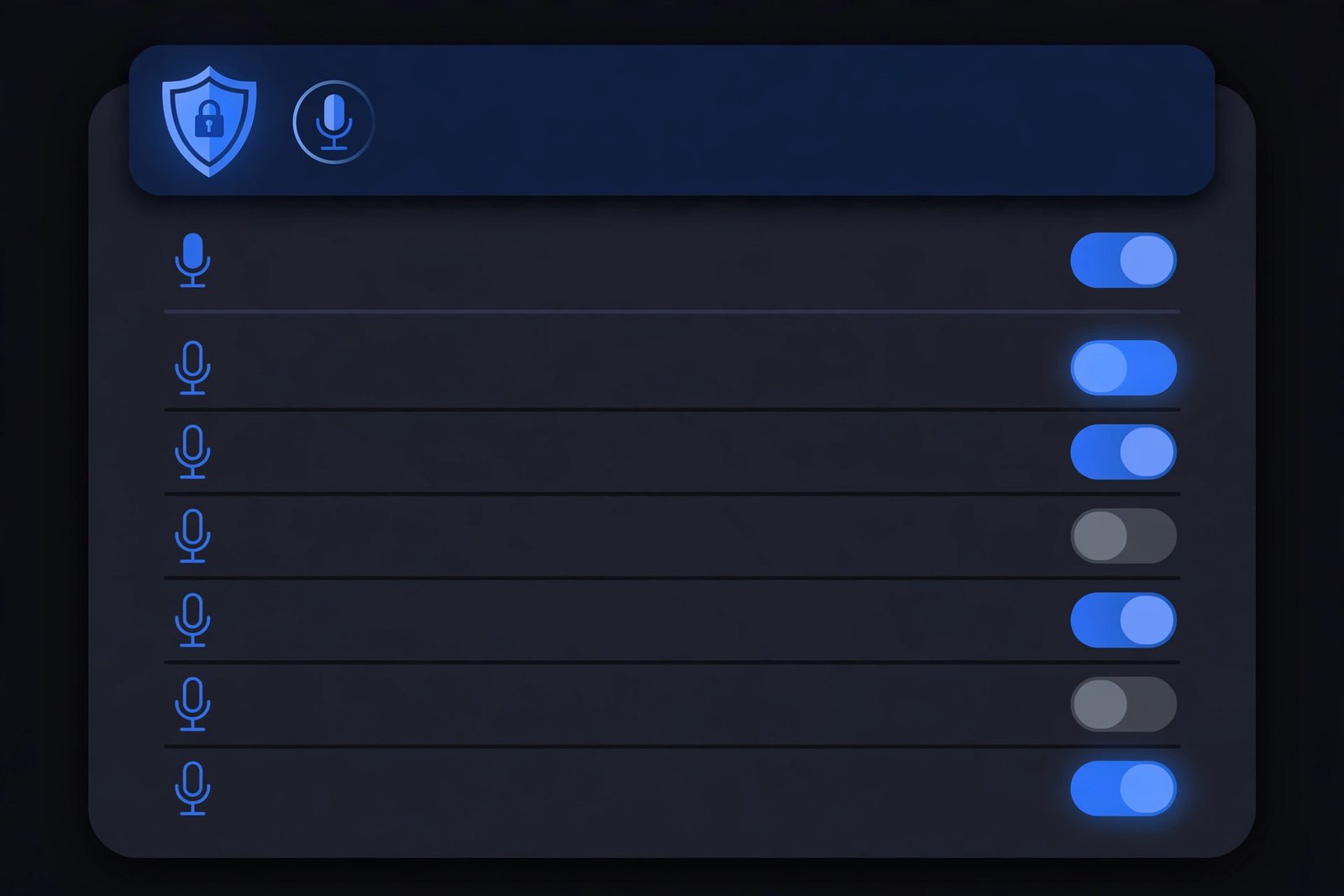
- Press the Windows key and type Microphone privacy settings, then open it from the Start menu.
- Make sure Microphone access is turned on.
- Make sure Let apps access your microphone is turned on.
- In the list of apps, find Microsoft Teams and make sure its toggle is on.
- Scroll down and make sure Let desktop apps access your microphone is turned on as well. The Teams desktop app counts as a desktop app.
- If the toggles were already on, switch them off and back on again. This re-applies the permission and often clears the block.
- Close Teams completely and reopen it, then test again.
- Microsoft documents exactly these steps in their short Microphone not working? support article, which is worth bookmarking alongside this guide.
5. Set the right default input in Windows sound settings
Even when Teams picks the right mic, Windows itself may have the wrong default input device. This matters because Teams often follows the system default. A few minutes in Windows sound settings can sort this out.
- From the Start menu, open Settings, then go to System > Sound.
- Under Input, find Choose a device for speaking or recording and select your microphone from the list.
- If your mic is not listed, click Add device to pair it, or scroll to the Advanced section and check Manage sound devices to see if it is disabled there. If it is, enable it.
- Next to Volume, make sure the input slider is set to a healthy level (around 75 or higher) and the mic is not muted.
- Speak and watch the input level meter. It should move as you talk. If it stays flat, the mic is not sending any signal to Windows at all.
- If the meter never moves, open Advanced > More sound settings, go to the Recording tab, right-click your mic, and choose Enable. This catches mics that Windows has quietly disabled.
- If your PC has wider sound trouble beyond Teams, such as no output sound anywhere, our Windows 11 sound not working guide walks through the full system-level checks.
6. Run the Windows audio troubleshooter
Windows includes a built-in troubleshooter that can detect and fix common audio problems automatically. It is quick, safe, and worth trying before you touch any drivers.
- Open Settings and go to System > Troubleshoot > Other troubleshooters.
- Find Audio (or Recording Audio on some versions) and click Run.
- Follow the on-screen prompts. The tool will test your input device and may offer fixes such as re-enabling a disabled mic or resetting a service.
- Accept the suggested fixes and let the tool finish.
- Restart Teams and join a test call to confirm the mic works.
- You can find more step-by-step troubleshooting like this on our blog, where we cover Windows, Chrome, and Office problems in the same plain style.
7. Update your audio drivers (Microsoft Teams microphone not working at driver level)
If the mic stopped working after a Windows update, or if Windows does not recognise the mic properly at all, the audio driver is a prime suspect. Drivers are the small software pieces that let Windows talk to your hardware. When they are outdated or corrupt, the mic can vanish or go silent.
- Right-click the Start button and choose Device Manager.
- Expand Audio inputs and outputs.
- Right-click your microphone device and choose Update driver, then Search automatically for drivers. Windows will look for and install an available update.
- If the mic behaves strangely right after an update, try Roll back driver instead. This returns the driver to the previous working version.
- Also expand Sound, video and game controllers and check the main audio device there for the same options.
- Only ever update drivers through Device Manager or your PC maker’s official support page. Never install a random “driver updater” tool from the internet. They bundle junk, and some are outright malware.
- Restart your PC after a driver change, then test the mic in Teams again.
8. Close other apps and turn off audio enhancements
Only one app can fully control a microphone at a time. If Zoom, a recording app, or your browser is holding the mic, Teams may get silence. Windows audio enhancements can cause similar trouble by distorting or muting the input.
- Close other apps that might use the mic: video call apps, voice recorders, game chat overlays, and browser tabs on meeting sites.
- Right-click the volume icon in the taskbar and open Sound settings.
- Click Sound control panel (under Advanced), then open the Recording tab.
- Double-click your microphone, go to the Enhancements tab, and tick Disable all enhancements. Some mics have this under a different tab, so look around.
- On the same properties window, check the Levels tab and make sure the level is high and not muted.
- Reopen Teams and test. Clearing conflicting apps fixes a surprising number of “mic works, then stops” cases.
9. Update or reinstall Microsoft Teams
If every setting looks right and the mic works in other apps, Teams itself may be the problem. A corrupt cache or an outdated build can break the mic even when everything else is perfect.
- In Teams, click your profile picture and choose Check for updates. Install any update offered and restart Teams.
- If updates do not help, do a clean reinstall. Go to Settings > Apps > Installed apps, find Microsoft Teams, and choose Uninstall.
- Restart your PC, then download Teams again from the official Microsoft website. Do not use third-party download sites.
- Sign back in and run a test call. A fresh install clears the corrupted settings that sometimes block the mic.
What to avoid
When your mic stops working, it is tempting to try drastic steps. Avoid these mistakes.
- Do not download driver updater tools. They are unnecessary and often unsafe. Use Device Manager or your PC maker’s official site.
- Do not change five settings at once. Change one thing, then test. If you change everything at once, you will never know what actually fixed it.
- Do not ignore the physical mute button. It is the most embarrassing cause of all, and everyone has done it.
- Do not buy a new mic first. Nine times out of ten the mic is fine. Rule out settings before spending money.
- Do not reinstall Windows. This is never the right fix for a Teams mic problem. The steps above will find the real cause.
- Do not share sensitive info in mic test apps. If a random website asks you to “test your mic online”, think twice before granting it microphone access.
FAQ
Why is my mic working in other apps but not in Teams?
This almost always points to Teams-specific settings or Windows privacy permissions. Teams has its own device selection under Settings > Devices, and it can pick the wrong mic even when other apps work fine. More often, Windows privacy settings are blocking Teams while allowing other apps. Work through Fix 4 first, then Fix 2.
Teams says my mic is not detected. What does that mean?
It means Teams cannot see the microphone as an available input device. Check that the headset is plugged in properly, reconnect a Bluetooth mic, and look in Windows Sound settings to see if the mic appears there. If it is missing from Windows too, the driver or the hardware connection is the problem. Fix 5 and Fix 7 cover this.
How do I test my mic in Teams without joining a meeting?
Go to Settings and more > Settings > Devices and click Make a test call. The Test Call Bot records a short message and plays it back, so you can confirm the mic works without bothering anyone. Fix 3 walks you through it.
Should I use a Bluetooth headset for Teams calls?
Bluetooth headsets work fine, but they add extra failure points. The headset may connect to your phone instead of your PC, or the battery may run low mid-call. If you have recurring mic trouble, try a wired headset or USB mic to see if the problem disappears. That tells you whether Bluetooth is the culprit.
Will reinstalling Teams delete my chats?
No. Your chats, files, and meetings live in your Microsoft account, not on your PC. When you reinstall and sign back in, everything returns. The reinstall only clears the local cache and settings, which is exactly what you want when a corrupt setting is blocking the mic.
Where can I learn more about the people behind these guides?
You can read about who we are and how we write on our About page. Every guide is written from scratch and tested against the real steps, so you get fixes that actually work.
Conclusion
A Microsoft Teams microphone that stops working is stressful, but it is rarely broken hardware. Start with the simple checks: unmute yourself, check the physical mute button, and make sure Teams has the right device selected. If that does not help, the Windows privacy settings in Fix 4 are the next most likely culprit, followed by the default input device and the audio driver.
Work through the fixes in order, testing after each one. The moment the test call plays your voice back, you know you are done. And if you run into a different Windows problem down the line, the TechSBSInfo homepage is a good place to start looking for the next guide.