


You double-click a document and Word tells you it is locked for editing by another user. You can open a read-only copy, but you cannot type a word. When microsoft word file locked for editing appears, the file is not broken. Something, or someone, is holding it open, and Word is protecting it from conflicting edits.
The lock is usually honest: a colleague really does have the file open, or Word crashed earlier and left a lock file behind. This guide starts with the human checks, then moves to the hidden lock files and settings that cause false locks, and ends with the copy trick that always lets you keep working.
Table of Contents
- Why This Error Happens
- Quick Checks
- Diagnosing the Problem
- Fix 1: Check Who Has the File Open
- Fix 2: Close the File on Your Other Devices
- Fix 3: Delete the Owner File
- Fix 4: Close All Word Instances and Restart
- Fix 5: Turn Off the File Explorer Preview Pane
- Fix 6: Check OneDrive and SharePoint Sync
- Fix 7: Save a Copy Under a New Name
- Fix 8: Restart Your Computer
- Fix 9: Turn Off Mark as Final and Check Editing Restrictions
- Fix 10: Clear the Read-Only Attribute and Check File Permissions
- Fix 11: Open and Repair the Document
- What to Avoid
- Frequently Asked Questions
- Conclusion
Why This Error Happens
1. Another User Really Has the File Open
This is the most common cause, and the message is telling the truth. When a document sits on a shared drive or in SharePoint, Word locks it for the first person who opens it. Everyone else gets a read-only copy. The lock lifts the moment the other person closes the file. The name in the message tells you who to ask, so start there before you try anything technical.
2. Word Crashed and Left an Owner File Behind
Every time you open a Word document, Word creates a small hidden lock file called the owner file. It normally deletes that file when you close the document. If Word crashes, or the computer loses power, the owner file stays behind. Word then thinks the document is still open, even though nobody is using it. Deleting that file clears the false lock in seconds.
3. You Have the File Open on Another Device
The “another user” in the message is often you. If the same document is open on your laptop and your tablet, or in Word on your phone, the second copy opens read-only. Cloud storage makes this easy to forget, because the file follows you everywhere. Closing it on the other device releases the lock at once.
4. The File Explorer Preview Pane Is Holding the File
Windows File Explorer can lock a file just by showing a preview of it. If the Preview Pane is on and you click the document once in a folder, Explorer opens a preview, and Word sees the file as in use. This cause surprises people because they never actually opened the file. Turning the pane off removes the lock.
5. OneDrive or SharePoint Has Not Finished Syncing
Files stored in OneDrive or SharePoint can lock while they sync. If the file is still uploading, or if a sync conflict has created a second copy, Word may refuse to open it for editing. A paused sync, a full OneDrive, or a file checked out in SharePoint all produce the same locked message.
6. The File Is Marked as Final or Checked Out
A document marked as Final is locked on purpose, so nobody can change it by accident. A file checked out from a SharePoint library is locked for everyone except the person who checked it out. Both are deliberate protections, not errors. The fix is to turn off the Final marking or check the file back in, not to force the file open.
Quick Checks
Run these checks before you delete anything. They take about a minute.
- Read the name in the lock message. If it is a colleague, message them and ask them to close the file.
- Check whether the file is open on your phone, tablet, or another computer, and close it there.
- Open the folder and look for a hidden file starting with ~$ and the document name. That is the owner file.
- Close File Explorer, or click a different file in the folder, to release any preview lock.
- Check the OneDrive icon in the taskbar. If it shows syncing or an error, wait or fix the sync first.
- Try opening a different Word document. If that works, the lock is specific to this file, not Word itself.
Diagnosing the Problem
| Symptom | Cause | Go to Fix |
|---|---|---|
| Message names a colleague | Another user has it open | Fix 1 |
| Message names you | File open on another device | Fix 2 |
| Lock remains after a crash | Owner file left behind | Fix 3 |
| Lock appears right after clicking the file | Preview Pane lock | Fix 5 |
| File is in OneDrive or SharePoint | Sync or check-out lock | Fix 6 |
| Lock will not clear at all | Hidden Word process still running | Fix 4, Fix 8 |
Fix 1: Check Who Has the File Open
If the message names a real person, believe it. The fastest fix is a message, not a technical trick. Ask them to save and close the file, then try opening it again.
- Read the full lock message and note the name it gives.
- Message or call that person and ask them to close the document.
- Wait a few seconds after they close it, then double-click the file again.
- If they are not available, click Notify in the dialog if Word offers it, so Word alerts you when the file is free.
- If you only need to read the file, open the read-only copy and do not save over it.
Never delete a lock file while someone is genuinely editing. You could lose their unsaved work or create two conflicting versions. If the named person says the file is not open on their computer, the lock is probably a leftover owner file, so move on to Fix 3. Microsoft’s own guide to unlock a file that has been locked for editing gives the same advice: confirm no one is using the file before you remove anything.
Fix 2: Close the File on Your Other Devices
When microsoft word file locked for editing names you as the other user, the file is open somewhere you forgot about. A tablet on the sofa, a phone in your pocket, or a second computer can all hold the lock.
- Check Word on your phone and tablet for the open document.
- Close the document on each device, or close the Word app entirely.
- On a second computer, close Word or at least close that document.
- Wait about thirty seconds for the cloud service to register the change.
- Open the file again on your main computer.
Also check Word for the web. If the document is open in a browser tab, that counts as open too. Close the tab. If you use OneDrive, check the OneDrive app on your phone as well, since it can keep a file session alive. This fix is embarrassingly simple, and it solves a large share of “locked by myself” cases.
Fix 3: Delete the Owner File
The owner file is a tiny hidden file Word creates beside your document. Its name starts with ~$ followed by the document name. When Word closes normally, it deletes this file. When Word crashes, the file stays, and Word treats the document as still open.
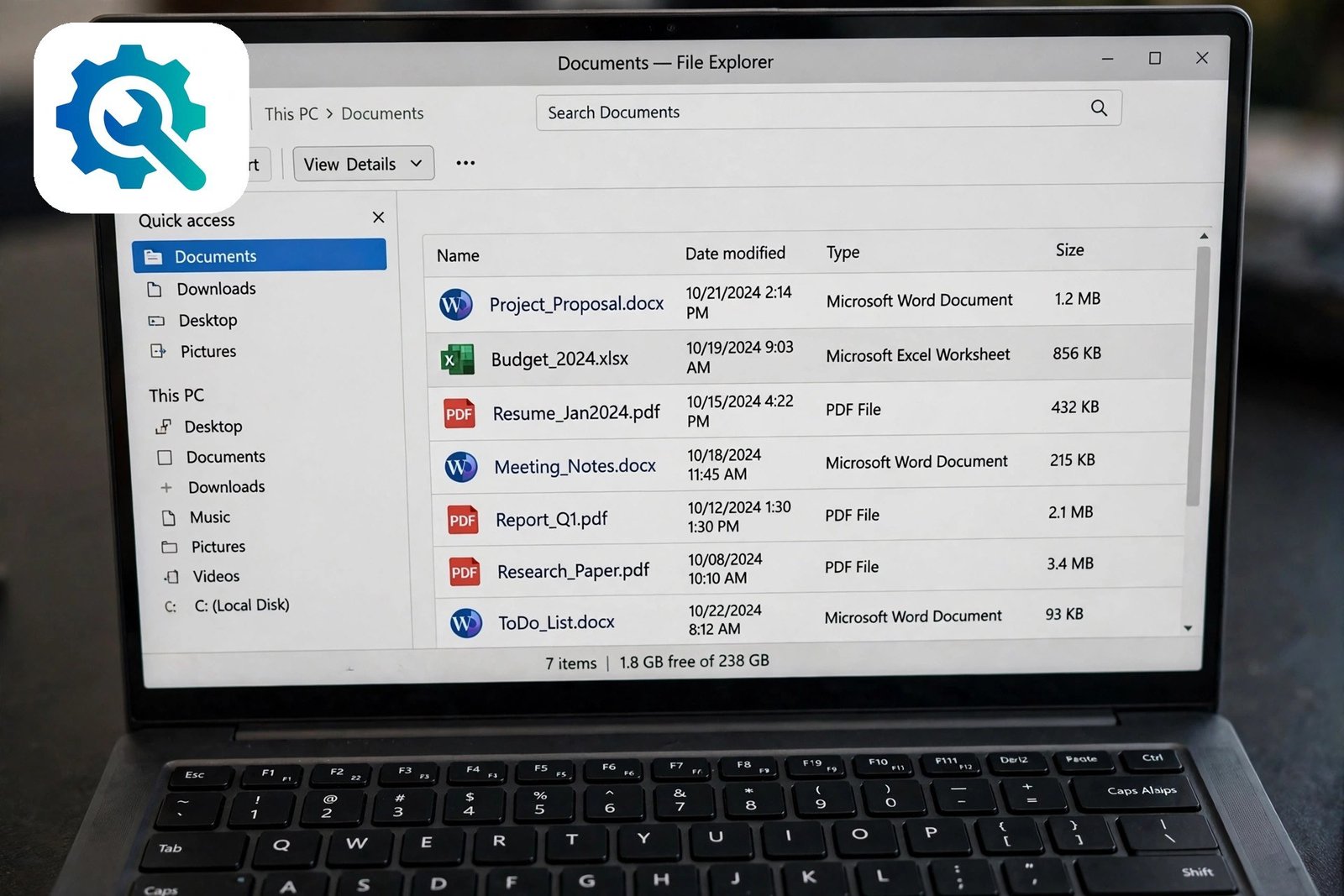
- Close all Word windows completely.
- Open the folder that holds the document in File Explorer.
- Click View and tick Hidden items so hidden files appear.
- Find the file named ~$ followed by your document name, for example ~$Report.docx.
- Delete that file only. Do not delete your actual document.
- Double-click your document to open it for editing.
If you cannot see the owner file, make sure hidden items are shown, as above. If the file will not delete because it is in use, a Word process is still running in the background, so go to Fix 4 first. Microsoft explains this exact process in its support article on the locked-file error, and its guide to solving the File in Use error describes the same leftover temporary file problem.
Fix 4: Close All Word Instances and Restart
Sometimes Word is still running invisibly in the background with your document open. You closed the window, but the process did not end. Word still holds the lock, and no new copy can edit the file.
- Close every Word window you can see.
- Press Ctrl + Shift + Esc to open Task Manager.
- Look under Processes for Microsoft Word or WINWORD.EXE.
- Select each Word process and click End task.
- Open the document again and check whether the lock is gone.
Be careful to end only Word processes, not other programs. If you had unsaved work in another Word document, ending the task will lose it, so save everything first. If Word keeps running in the background after you close it, an add-in may be keeping it alive, and disabling add-ins is worth trying next. Our guide to Microsoft Word not responding covers frozen Word processes in more depth.
Fix 5: Turn Off the File Explorer Preview Pane
The Preview Pane shows a small preview of a file when you click it once in File Explorer. That preview opens the file just enough for Word to treat it as in use. The lock appears even though you never opened the document.

- Open File Explorer and go to the folder with the document.
- Click View in the ribbon at the top.
- Click Preview Pane to turn it off.
- Click a different file in the folder, then click your document once.
- Double-click the document to open it in Word.
You can turn the Preview Pane back on later if you like it. The lock only happens while the pane is showing a preview of that exact file. If the problem returns every time you browse the folder, leave the pane off for Word documents, or open documents from inside Word with File > Open instead of double-clicking them in Explorer.
Fix 6: Check OneDrive and SharePoint Sync
Cloud files add a second layer of locking. OneDrive sync, SharePoint check-out, and co-authoring rules can all keep a file locked after the human cause is gone. Check the cloud state before you assume Word is at fault.
- Click the OneDrive cloud icon in the taskbar and check for sync errors.
- If sync is paused, resume it and wait for the file to finish syncing.
- If the file is in SharePoint, open the library in your browser and check whether it is checked out.
- If it is checked out to you, check it back in, or discard the check-out if you do not need the changes.
- If a sync conflict created a copy with your computer name in the file name, open the newest copy and merge the changes by hand.
Also check your OneDrive storage. A full OneDrive cannot sync, and files can lock in a half-synced state. Free up space or move files out of OneDrive if needed. If the document is shared with you and the owner gave you view-only access, no fix will unlock editing. Ask the owner to grant edit access, as our guide to Microsoft Word document read only mode explains.
Fix 7: Save a Copy Under a New Name
If the lock will not clear and you need to keep working now, stop fighting it. Open the read-only copy and save it under a new name. You get an editable document at once, and you can sort out the original later.

- Open the locked document as a read-only copy.
- Go to File > Save As and choose a location.
- Give the copy a new name, such as adding today’s date.
- Click Save and start editing the copy.
- Later, compare the copy with the original and keep the newest version.
Tell your colleagues you are working in a copy, so nobody edits the original at the same time and creates two versions. When the original lock clears, delete the older version to avoid confusion. This fix is also the safest option when the lock message names a colleague who is actively working, since it lets you work without disturbing them. If the document is protected rather than locked, our guide on Microsoft Word cannot edit document explains the difference and the fixes.
Fix 8: Restart Your Computer
A restart clears every hidden lock at once: stuck Word processes, leftover owner files that would not delete, Preview Pane locks, and half-finished sync sessions. It is the blunt fix, but it works when nothing else has.
- Save any open work in other programs.
- Close all programs, including Word and File Explorer.
- Restart your computer from the Start menu.
- After the restart, open the document before opening anything else.
- If the lock is gone, open your other programs one at a time.
Before you restart, also check your antivirus software. Some antivirus tools lock files while they scan them, and a large Word document can stay locked for a minute or two. If the lock appears only when you open a file straight after saving it, wait thirty seconds and try again. If the document’s formatting changes on its own after these steps, our guide to Microsoft Word document formatting changes may help. As a final safety step, keep a backup copy of important documents, so a locked file never becomes a lost file.

Fix 9: Turn Off Mark as Final and Check Editing Restrictions
A document marked as Final is locked on purpose, so nobody can change it by accident. Editing restrictions do the same thing in a different way. Neither one is a fault, and neither is cleared by deleting the owner file in Fix 3, which is why they need their own fix. If your file opens read-only with no other user named, check these two settings.
- Open the document and go to File > Info.
- Look for a yellow banner or a Protect Document button that says the file is marked as Final.
- Click Protect Document > Mark as Final again to turn the marking off.
- Go to Review > Restrict Editing and look at the pane on the right.
- If editing is restricted, click Stop Protection. If Word asks for a password, you need it from the person who protected the file.
Do not try to force past a password you do not have. Ask the document owner or your IT administrator for the password, or ask them to remove the protection. If the file is on SharePoint and checked out by someone else, only that person or an administrator can release it, as in Fix 6.
Fix 10: Clear the Read-Only Attribute and Check File Permissions
A file can be locked by Windows itself, not by Word. If the file’s read-only attribute is ticked, or your Windows account does not have permission to change the file, Word opens it read-only no matter what you do inside Word. This happens often with files copied from a USB stick, an email attachment, or a shared folder.
- Close Word completely.
- In File Explorer, right-click the file and choose Properties.
- On the General tab, untick Read-only under Attributes, then click Apply and OK.
- In the same Properties window, click the Security tab and check that your account has permission to modify the file.
- If you do not have permission, ask the file owner or an administrator to grant it, or copy the file into a folder you own, such as your Documents folder, and open the copy.
If the file sits on a USB stick, a CD, or a network folder you can only read, copy it to your local Documents folder first. A local copy you own removes the permission problem at once, and you can move it back when you are done.
Fix 11: Open and Repair the Document
If the file itself is damaged, Word may lock it rather than risk making the damage worse. The Open and Repair tool checks the document’s internal structure and fixes what it can, and it works even when a normal double-click only opens a read-only copy.
- Open Word to a blank document, without opening your file first.
- Go to File > Open > Browse and find your document.
- Click the small arrow next to the Open button, then choose Open and Repair.
- Wait for Word to check the file. If it repairs the document, save it under a new name with File > Save As.
- Open the saved copy and check that you can edit it.
If the repair fails, the file may be too damaged to fix this way. Open the read-only copy and use the copy trick in Fix 7, so you keep your text and rebuild the formatting in the new file. Keep the original file as a backup until you are sure the copy holds everything you need.
What to Avoid
- Do not delete the owner file while someone else is editing the document. You can lose their work.
- Do not rename the original file to dodge the lock. That creates confusion and duplicate versions.
- Do not use third-party “file unlocker” tools from unknown websites. Task Manager and a restart do the same job safely.
- Do not save over a read-only copy when Word warns you. Save a new copy instead, as in Fix 7.
- Do not ignore the name in the lock message. It tells you exactly who to ask.
- Do not keep the file open on five devices at once. Close it where you are not using it.
Frequently Asked Questions
Why does Word say the file is locked by me?
Because the file is open on another device you own, or Word crashed earlier and left an owner file behind. Close the file on your other devices first, then delete the owner file as in Fix 3.
What is the ~$ file next to my document?
It is the owner file. Word creates it when you open a document, and deletes it when you close the document. It holds the name of the person who has the file open. If Word crashes, the file stays behind and causes a false lock. Deleting it is safe once Word is closed.
Can I unlock a file that is marked as Final?
Yes, if you have permission. Open the document, go to File > Info, and click Protect Document > Mark as Final again to turn the marking off. If the file is on SharePoint and checked out by someone else, only that person or an administrator can release it.
Why is the file locked only sometimes?
The lock depends on timing. If a colleague opens the file first, you get the lock. If the file is still syncing in OneDrive, you get the lock. If File Explorer previews it, you get the lock. The cause changes with the situation, so check the message and the circumstances each time.
Will restarting my computer delete my document?
No. A restart only closes programs and clears temporary locks. Your document stays on the disk exactly as it was. Save any unsaved work first, because unsaved changes in open programs can be lost.
Conclusion
When microsoft word file locked for editing appears, start with the human answer: find out who has the file open and ask them to close it. If the answer is you, close it on your other devices. If nobody has it open, delete the owner file and close any hidden Word processes.
Most locks clear with one of the first few fixes, and the full set of 11 fixes covers the rest. The copy trick in Fix 7 keeps you working when the lock will not budge, and a restart clears whatever is left. Keep your files in one place, close them when you are done, and let OneDrive finish syncing, and you will see this message far less often.