

If outlook not receiving emails is your current problem, start here: in almost every case, your messages are safe. They are either sitting on the mail server waiting for Outlook to collect them, or they have been quietly diverted by a filter, rule or folder you have not looked in yet. What follows is a practical, step-by-step route from the simplest checks to the deeper repairs, so you can work down the list until your inbox starts updating again. You do not need to be technical — each fix below is written as plain steps anyone can follow.
- Quick Checks — Do These First
- Diagnose Table: Symptom, Cause and Fix
- 1. Turn Off Work Offline and Check Your Connection Status
- 2. Check Your Internet Connection
- 3. Restart Outlook Properly
- 4. Manually Update the Folder
- 5. Check Focused, Other and Sorting
- 6. Check Junk Email and Blocked Senders
- 7. Review Your Rules and Forwarding
- 8. Clear a Stuck Outbox and Free Mailbox Storage
- 9. Repair Your Outlook Profile
- 10. Clear Saved Credentials and Re-Add the Account
- What to Avoid
- FAQ
- Conclusion
Quick Checks
Run through these five checks before anything else. They solve a large share of “outlook not receiving emails” reports on their own.
- Is Outlook working offline? Look at the status bar at the bottom of the Outlook window. If it says Working Offline or Disconnected, that is your problem — fix 1 resolves it.
- Can you get online at all? Open your browser and load any page. If nothing loads, Outlook cannot sync until your connection is back.
- Is mail arriving in webmail? Sign in to your mailbox through a browser (for example, Outlook on the web). If new mail is visible there, the server is fine and the problem is in the Outlook app — keep following this guide.
- Has your password changed recently? A changed password, or an expired sign-in session, silently stops syncing. Outlook may not always warn you clearly.
- Is there a message stuck in your Outbox? A single stuck outgoing message can block the whole send/receive cycle for some account types.
Diagnose Table
| Symptom | Likely cause | Go to fix |
|---|---|---|
| Status bar shows Working Offline or Disconnected | Offline mode is enabled, or Outlook lost the server connection | Fix 1 |
| Browser loads pages but Outlook shows nothing new | Sync is paused or the folder has not updated | Fixes 2, 4 |
| Mail appears in webmail but not in the Outlook app | Client-side issue: local data, credentials or profile | Fixes 3, 9, 10 |
| Some senders’ mail never arrives, but the rest is fine | Junk filtering or a blocked sender | Fix 6 |
| Mail arrives for weeks, then everything vanishes | An inbox rule moving or deleting mail, or forwarding enabled | Fix 7 |
| Inbox looks empty but the message count says otherwise | Message list is sorted or filtered (oldest first, or a view filter) | Fix 5 |
| You can send but not receive | Full mailbox storage, or a stuck Outbox blocking sync | Fix 8 |
| Nothing at all works, across restarts | Corrupted profile or bad cached credentials | Fixes 9, 10 |
1. Turn Off Work Offline and Check Your Connection Status
The single most common reason for outlook not receiving emails is also the most embarrassing to miss: Outlook is in Work Offline mode. It happens easily — one accidental click, a keyboard shortcut, or Outlook entering offline mode itself after a network drop, and the app sits quietly doing nothing while you wait for mail.
- Open Outlook and look at the status bar along the bottom of the window. It should say Connected or Connected to: Microsoft Exchange.
- If it says Working Offline, go to the Send/Receive tab at the top of the window.
- Click Work Offline once so it is no longer highlighted.
- Wait one to two minutes and watch the status bar. It should change to Connected, and new mail should begin downloading.
- If the status bar says Disconnected or Trying to connect even after you turned offline mode off, move on to fix 2 — the underlying issue is your network, not the setting.
2. Check Your Internet Connection
Outlook cannot collect mail without a working connection, and a connection can be partly broken — enough for some apps to limp along, but not enough for Outlook to hold a sync session. This is especially common on hotel, office and public Wi-Fi, where captive portals or VPNs interfere.
- Open your browser and try loading two or three different websites. If none of them load, your connection is down.
- If you are on Wi-Fi, try moving closer to the router, then disconnect and reconnect to the network.
- Restart your router if no device in the house can get online: unplug it for about 30 seconds, plug it back in, and wait two minutes.
- If your browser works fine but Outlook still shows Disconnected, disable any VPN temporarily and check whether Outlook connects — some VPNs block the ports Outlook needs.
- If connection problems are a recurring theme on your machine, our guide on fixing Wi-Fi problems in Windows 11 walks through the deeper network repairs.
3. Restart Outlook Properly
Many sync problems are transient: a half-failed background connection that Outlook keeps retrying without ever starting fresh. A full restart forces a brand-new session and clears these. Do not just click the X — make sure the process actually stops.
- In Outlook, go to File and choose Exit to close it properly.
- Wait about ten seconds, then check that Outlook is really gone: press Ctrl + Shift + Esc to open Task Manager, look under Apps and Background processes for Outlook, and end the task if it is still listed.
- Reopen Outlook and give it up to two minutes to reconnect and download.
- If your inbox starts filling up, the problem was a stuck session — no further fixes needed.
- If nothing changes, the fault is more persistent, so continue with fix 4.
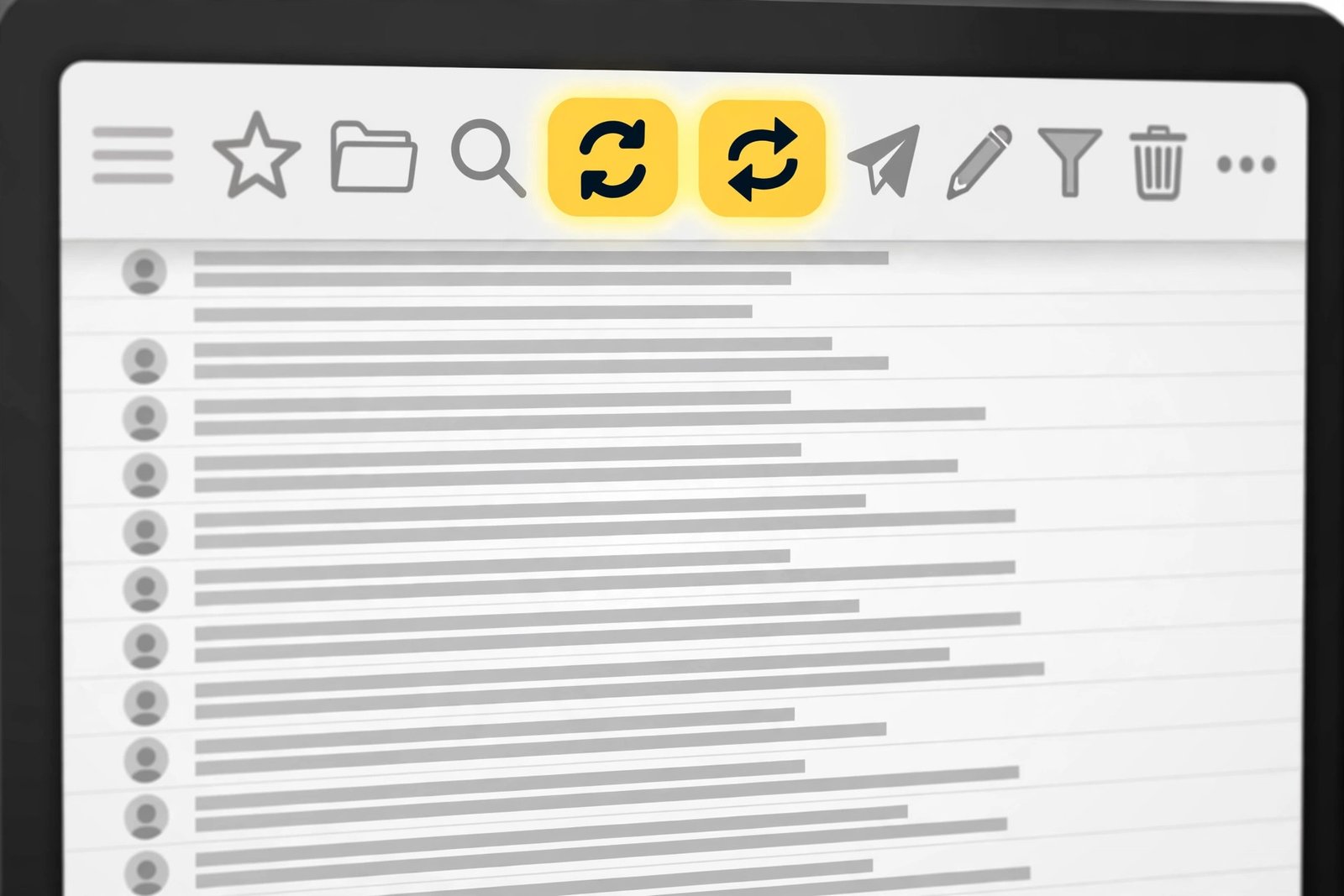
4. Manually Update the Folder
Sometimes Outlook is online and connected but has simply stopped refreshing a particular folder on its own. A manual send/receive tells it to pull right now, and it also shows you any error message that automatic syncing was swallowing silently.
- Open the folder that is missing mail — usually the Inbox.
- Go to the Send/Receive tab and click Send/Receive All Folders.
- Watch the bottom status bar for progress, such as Synchronising subscribed folders.
- If an error appears, read it carefully — it usually names the cause, for example an authentication failure or a server time-out.
- To make automatic syncing more reliable in future, you can also click Send/Receive Groups, choose Define Send/Receive Groups, and check that your account is set to include the Inbox and to sync on a schedule.
5. Check Focused, Other and Sorting
New mail is often arriving perfectly well — it is just not where you are looking. Modern Outlook splits mail into Focused and Other tabs, and a single changed sort order can bury today’s mail under months of old messages.
- At the top of the message list, click the Other tab and look for your missing mail there.
- Click Filter above the message list and make sure it is set to All rather than Unread or another filtered view.
- Check the sort order: choose Filter, then Sort, then Date, and set Newest on top.
- Press Ctrl + Home to jump to the top of the message list and confirm the newest message is genuinely the newest.
- If mail was hiding in Other, right-click one of the misplaced messages and choose Move to Focused so Outlook learns the sender belongs there in future.
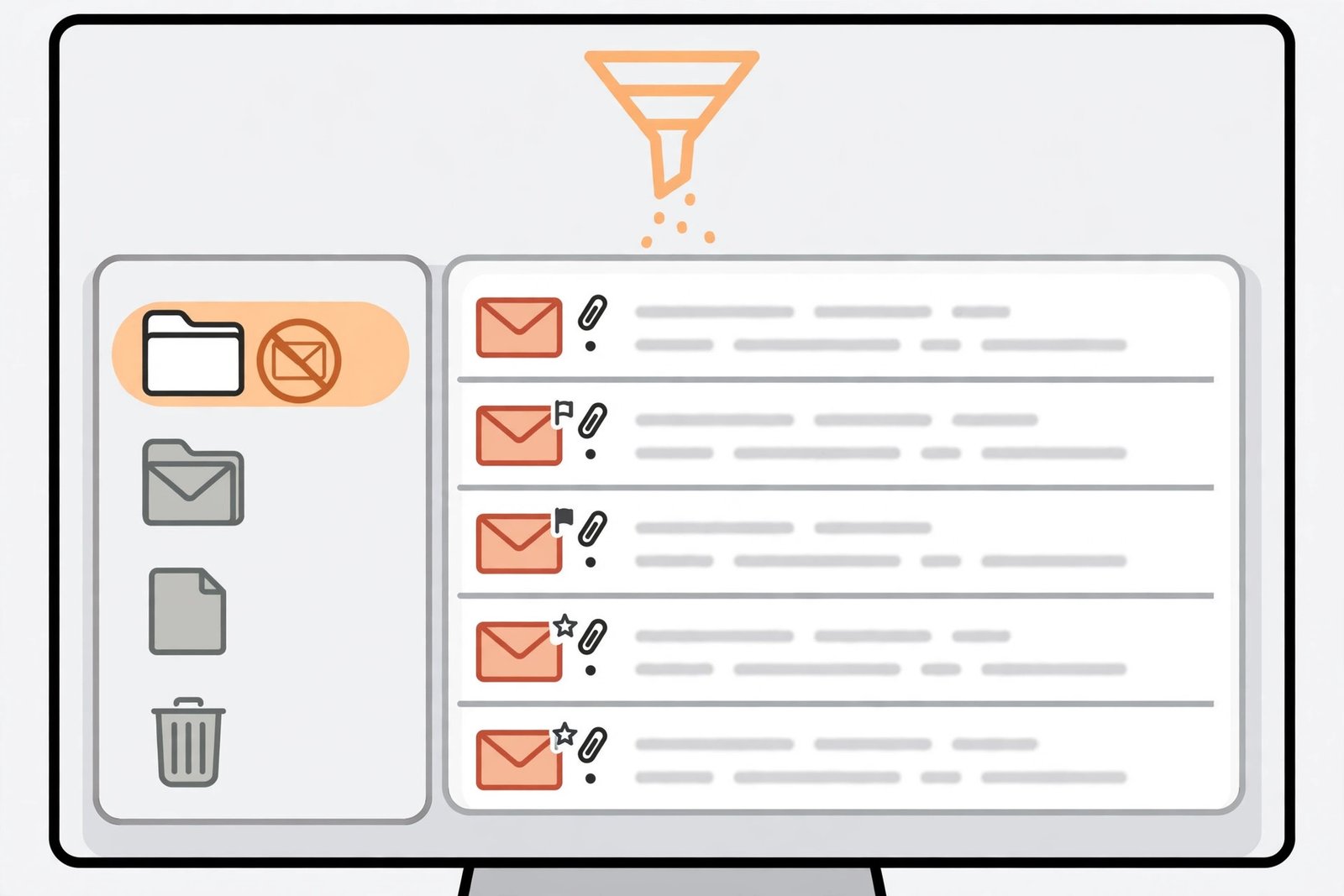
6. Check Junk Email and Blocked Senders for Outlook Not Receiving Emails
Over-aggressive spam filtering is a classic cause of outlook not receiving emails from specific people — newsletters, school emails, receipts and new contacts are the usual victims. The messages are not lost; they are sitting in the Junk Email folder.
- Open the Junk Email folder and search for the missing message.
- If you find it, right-click the message and choose Junk, then Not Junk (or Mark as not junk) so it returns to your inbox and Outlook learns from it.
- Check your blocked senders list: in Outlook settings, open Junk Email settings and review the blocked senders and domains for anything added by mistake.
- Add important senders to your Safe senders list so their future mail skips the junk filter.
- If a particular sender still never gets through after you marked their mail as not junk, ask them to check whether their own mail provider is having delivery problems — the block may be at their end.
7. Review Your Rules and Forwarding
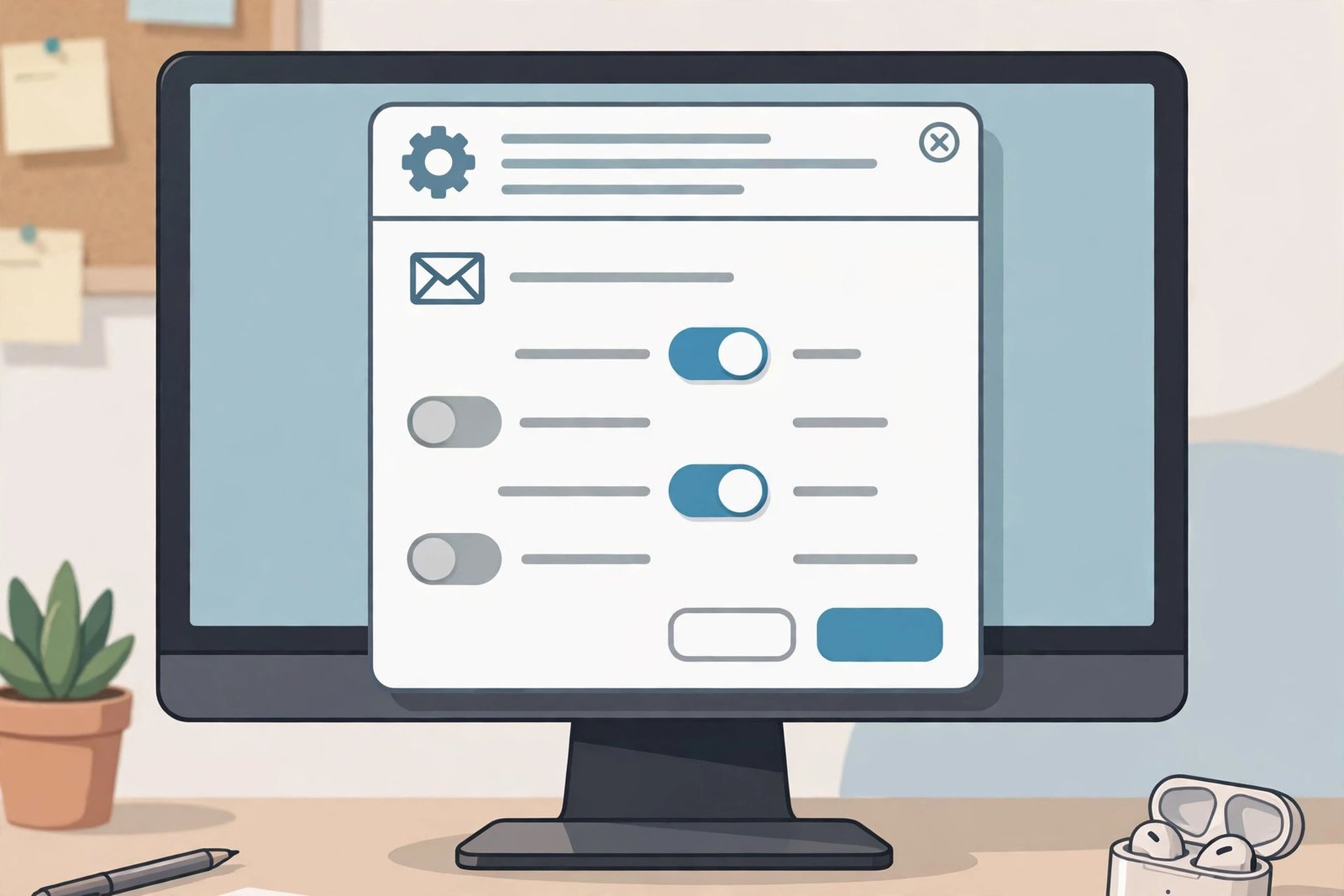
Rules run silently in the background and can move or delete mail the instant it arrives. A rule created months ago — or by a shared mailbox setup — can quietly divert everything into a folder you never open. Forwarding is another quiet culprit: if it was ever turned on, your mail may be going to a different address entirely.
- In Outlook settings, open Mail, then Rules, and read through every rule carefully.
- Look for any rule that moves mail to another folder, marks it as read, or deletes it. Disable suspicious rules one at a time and test.
- Pay special attention to rules with broad conditions like “apply to all messages” — these are the ones that cause the most damage.
- Still in settings, open Mail, then Forwarding, and make sure forwarding is off unless you deliberately set it up.
- After changing rules or forwarding, send yourself a test email from another address to confirm new mail lands in the inbox.
8. Clear a Stuck Outbox and Free Mailbox Storage
A message wedged in the Outbox can block the entire send/receive cycle for that account, and a full mailbox is even more serious: when your storage is full, new mail bounces back to the sender and cannot be recovered — freeing space later does not bring those messages back. Microsoft documents both of these in its official troubleshooting guide for sending and receiving mail in Outlook.com.
- Open the Outbox folder. If a message is sitting there unsent, open it, check for a huge attachment (Outlook.com rejects messages with attachments over 25 MB), and either delete it or shrink the attachment.
- Check your mailbox storage: in Outlook on the web, open settings and look at your storage usage.
- If storage is full or nearly full, delete old mail from the Inbox, Sent Items, Deleted Items and Junk Email folders, then empty the Deleted Items folder — mail in Deleted Items still counts against your quota.
- Ask anyone whose mail you missed while storage was full to re-send it — bounced mail cannot be recovered by you.
- Going forward, archive old mail regularly so a full mailbox never blocks you again.
9. Repair Your Outlook Profile
When everything above checks out — you are online, webmail works, no rules or junk filtering are at fault — the Outlook profile itself may be corrupted. The profile stores your account configuration and the connection to the local data file, and damage here stops syncing even though the account is perfectly healthy on the server. This is one of the most reliable deeper fixes, and Microsoft describes the process in its official guide to email that is not syncing.
- In Outlook, go to File, then Account Settings, then Account Settings again.
- On the Email tab, select your account and click Repair.
- Follow the on-screen prompts. Outlook will check the account settings and connection, and fix what it finds.
- When the repair finishes, restart Outlook and wait a few minutes for it to resynchronise.
- If the repair fails or changes nothing, the profile may be too damaged to repair in place — move on to fix 10, which replaces the profile rather than patching it.
10. Clear Saved Credentials and Re-Add the Account
The last resort for outlook not receiving emails in the desktop app is a clean slate: remove the account’s saved sign-in details from Windows and add the account back fresh. This fixes corrupted cached passwords and broken authentication tokens that repair cannot reach, and it is safe — your mail lives on the server and comes back down when you reconnect.
- Close Outlook completely (use Task Manager as in fix 3 to be sure it has exited).
- Open the Windows Control Panel, go to User Accounts, then Credential Manager, then Windows Credentials.
- Remove every entry related to your mail: anything mentioning Outlook, MicrosoftOffice, MicrosoftAccount, or your mail server names.
- Reopen Outlook and sign in to your account again when prompted, entering your current password carefully.
- If Outlook still fails after a clean sign-in, remove the account entirely from File > Account Settings, restart Outlook, and add the account back as new. Your mail will re-download from the server — allow plenty of time on a slow connection.
What to Avoid
- Do not download “Outlook repair tools” from random websites. Third-party fixers and “driver updaters” are a common source of malware, and they cannot fix anything the built-in repair (fix 9) cannot. Only use Outlook’s own repair or official Microsoft guidance.
- Do not delete your account as a first step. Removing and re-adding is a last resort (fix 10), not an opener. Check the simple causes first — most are one-click fixes.
- Do not disable your antivirus permanently. If you suspect your security software is blocking sync, test with it paused for a few minutes, then turn it back on. A permanently disabled antivirus is a bigger problem than delayed email.
- Do not forward mail to yourself as a workaround and forget about it. It masks the real fault and can trigger spam filters on your own messages.
- Do not ignore a full mailbox. As explained in fix 8, mail that bounces while your storage is full is gone for good — freeing space does not recover it.
- Do not use cracked or “activated” copies of Office. Aside from being illegal, tampered software is a frequent source of exactly these kinds of broken behaviours. If your Office install is not genuine, that is the first thing to fix.
FAQ
Why is Outlook not receiving emails but I can still send them?
Sending and receiving use separate paths. Sending usually works through a simple outgoing connection, while receiving depends on folder sync, rules, junk filtering and mailbox storage. A full mailbox, a rule moving incoming mail, or a paused sync are the most common explanations — work through fixes 5, 6, 7 and 8 in order.
How do I know if my emails are lost or just not showing?
Sign in to your mailbox through a web browser. If the missing mail appears there, nothing is lost — the problem is in the Outlook app on your computer, and the fixes in this guide apply. If the mail is missing from webmail too, ask the sender to re-send it and check your rules, forwarding and storage (fixes 7 and 8).
Outlook says “Connected” but no new mail arrives — what now?
“Connected” only means Outlook can reach the server, not that it is syncing every folder. Manually update the folder (fix 4), check Focused/Other and your sort order (fix 5), and look in Junk Email (fix 6). If all of those are clear, repair the profile (fix 9).
Will repairing my profile or re-adding my account delete my emails?
No. With the standard modern account types, your mail is stored on the mail server, not only on your computer. Repairing the profile (fix 9) or re-adding the account (fix 10) only rebuilds the local connection — your messages re-download afterwards. To be extra safe, you can export a backup of your mail first via File > Open & Export > Import/Export.
My inbox stopped updating after I changed my password. What should I do?
Outlook may keep trying the old password silently. Close Outlook, clear the saved credentials as described in fix 10, reopen Outlook, and sign in with the new password. If you use two-step verification, remember you may need an app-specific password rather than your normal account password.
Could my antivirus or firewall be blocking Outlook?
Yes, it is possible — especially with strict third-party security suites. The usual sign is Outlook showing Disconnected while everything else works. Check your security software for a blocked-applications list and make sure Outlook is allowed, or pause protection briefly to test. Never leave protection disabled permanently; if it turns out to be the cause, add Outlook as a permanent exception instead.
Conclusion
When outlook not receiving emails is the problem, the fault is almost always on your own machine — offline mode, a paused sync, a hiding filter or rule, a full mailbox, or a tired profile — rather than lost mail. Start with the quick checks, work through the ten fixes in order, and stop as soon as mail flows again. For most people, the answer turns up in the first four fixes.
If you found this guide useful, the TechSBSInfo blog has more step-by-step troubleshooting guides in the same plain style, and you can read more about us to see how we write and test every fix. New to the site? Start at the TechSBSInfo homepage to browse all our guides by problem.
[…] old address you no longer check. If you suspect your email itself is the problem, see our guide on fixing emails that never arrive to sort out delivery first. You can still fix the site with the remaining steps below — recovery […]