

A windows laptop battery not charging when the charger is plugged in is frustrating. The battery icon may say “plugged in, not charging.” The percentage may stay frozen for hours. In many cases the cause is simple: a loose connection, a tired adapter, a confused driver, or a hidden charge-limit setting. This guide walks you through 10 fixes in order, from the easiest check to the last resort. At TechSBSInfo, we test every step before recommending it, so you can work through them with confidence.
Table of Contents
- Fix 1: Check the Power Source and Cable Connection
- Fix 2: Inspect and Test the Charger Adapter
- Fix 3: Clean the Charging Port
- Fix 4: Perform a Power Drain (Hard Reset)
- Fix 5: Reinstall the Battery Driver in Device Manager
- Fix 6: Run the Windows Troubleshooter for Windows Laptop Battery Not Charging
- Fix 7: Turn Off the Battery Charge Limit or Smart Charging
- Fix 8: Update Windows, Drivers and BIOS
- Fix 9: Generate a Battery Report With Powercfg
- Fix 10: Reseat or Replace the Battery
Quick Checks Before You Start
- Note the exact message on the battery icon: “plugged in, not charging”, “slow charger”, or a frozen percentage.
- Check whether the charger LED or the laptop charge light is on.
- Try a different wall socket before changing any settings.
- Make sure you are using the original charger that came with your laptop.
- Save your work — some fixes below need a restart.
Diagnose the Problem
| Symptom | Likely cause | Go to fix |
|---|---|---|
| “Plugged in, not charging” message, charger light off | Loose connection or faulty charger | Fix 1, Fix 2 |
| Battery stuck at 60%, 80% or another round number | Charge-limit or smart-charging setting | Fix 7 |
| Battery percentage frozen after a Windows update | Battery driver problem | Fix 5, Fix 8 |
| “Slow charger” warning on screen | Underpowered or third-party charger | Fix 2 |
| No charge light and laptop only runs on AC power | Dead battery or failed charging circuit | Fix 9, Fix 10 |
| Charging works after restart but stops later | Stuck power state | Fix 4 |
Fix 1: Check the Power Source and Cable Connection
A bad power source is the most common reason a windows laptop battery not charging message appears. Start here before touching any software.
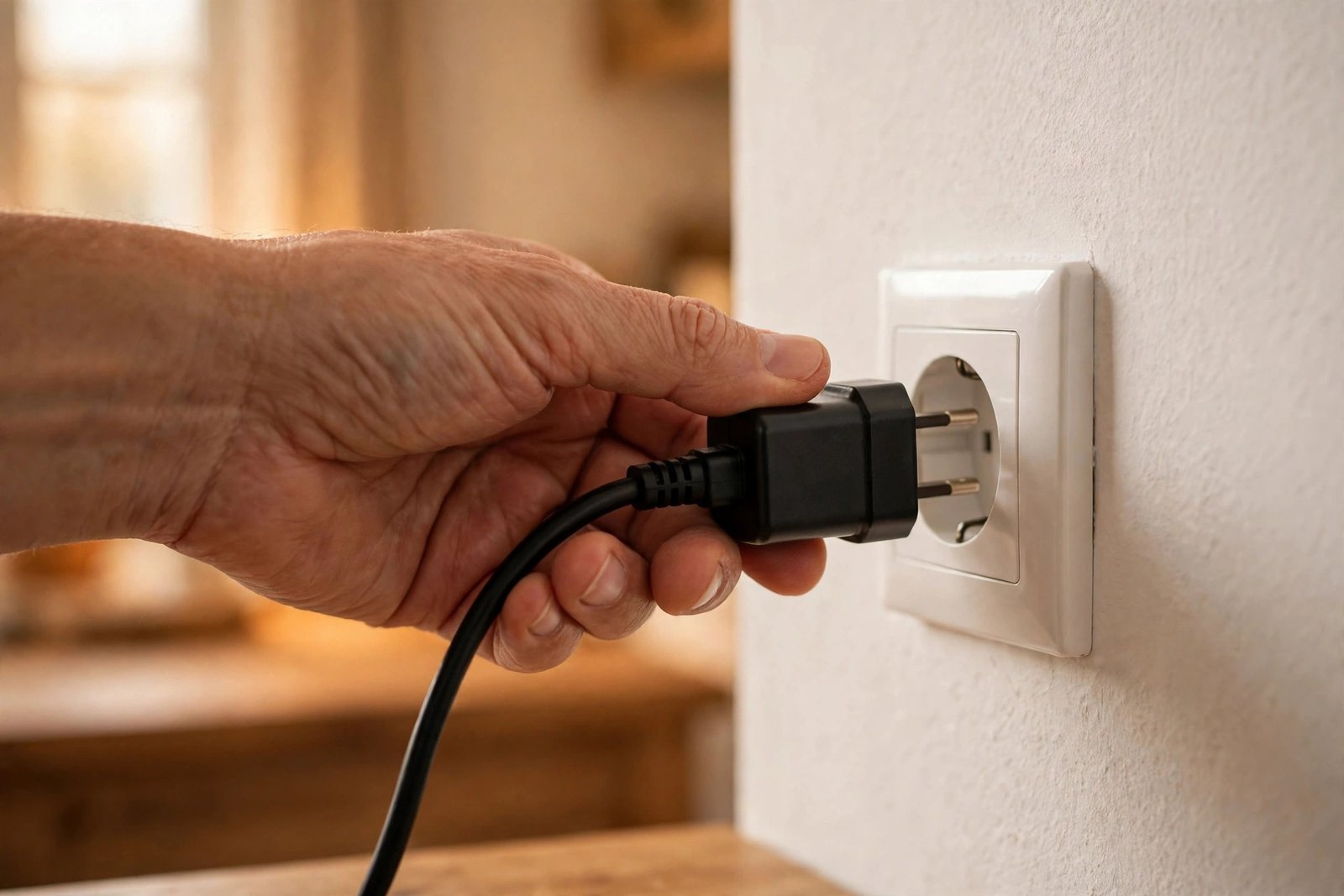
- Unplug the charger from the wall and from the laptop, then plug both ends back in firmly.
- Push the cable fully into the adapter brick — this two-piece joint loosens over time.
- Try a different wall socket, not a power strip. Power strips can fail quietly.
- If your laptop charges through USB-C, try a different USB-C port on the laptop. Some ports charge faster than others.
- Watch the charge light for 30 seconds after plugging in.
Fix 2: Inspect and Test the Charger Adapter
Chargers fail more often than batteries. A worn adapter can still look fine on the outside.
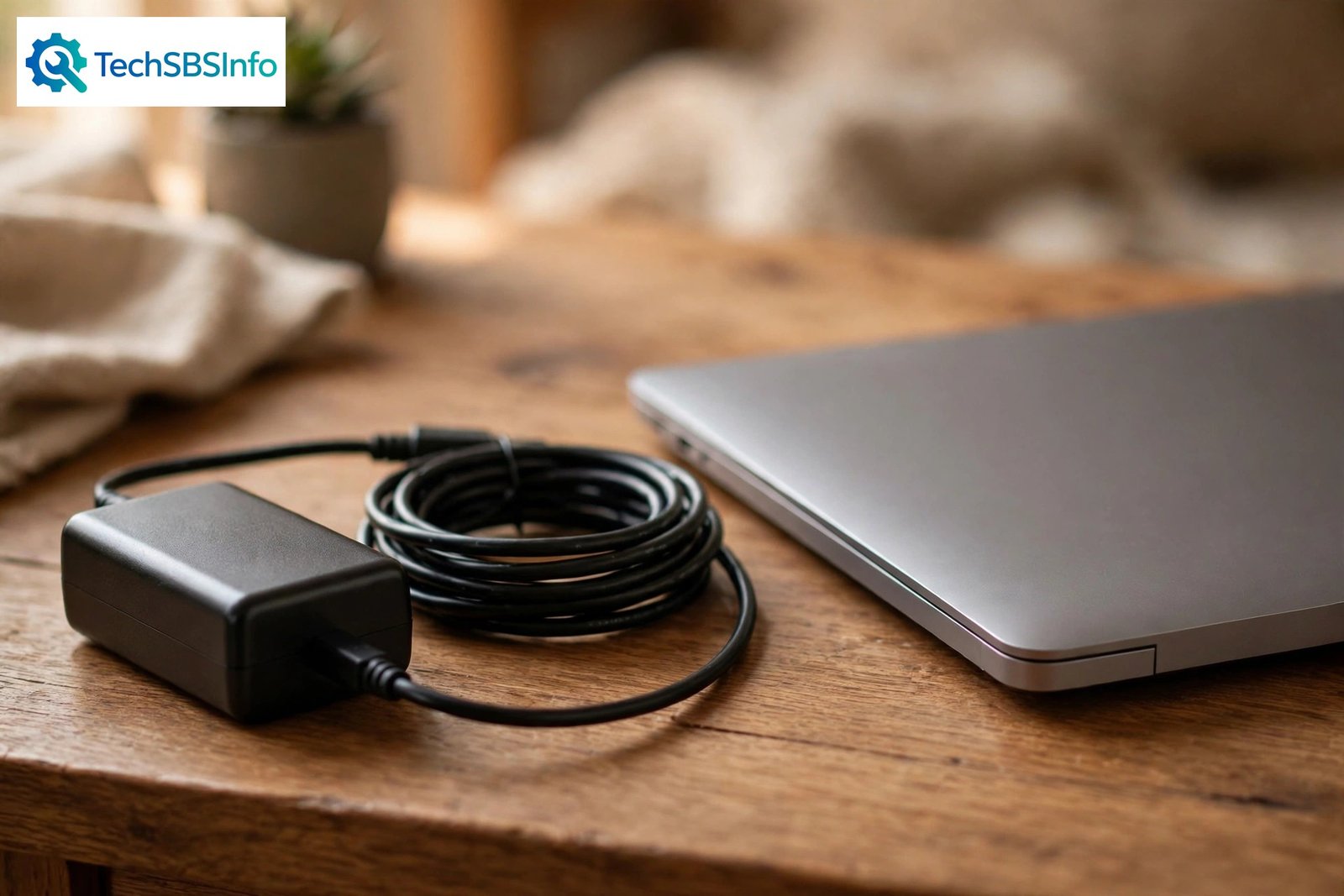
- Look along the whole cable for cuts, kinks, melted spots or exposed wire. Replace the charger if you find any.
- Smell the adapter brick. A burnt smell means it has failed inside — stop using it.
- Check the wattage printed on the adapter and compare it with what your laptop needs. A 45W charger cannot properly charge a laptop that expects 90W.
- Borrow a matching charger from the same laptop model and test it for 10 minutes. If charging starts, your adapter is the problem.
- Use only the original charger or a genuine replacement from your laptop maker. Cheap unbranded chargers can report the wrong wattage to Windows.
Fix 3: Clean the Charging Port
Dust, lint and crumbs build up inside the charging port. Even a thin layer can break the connection.
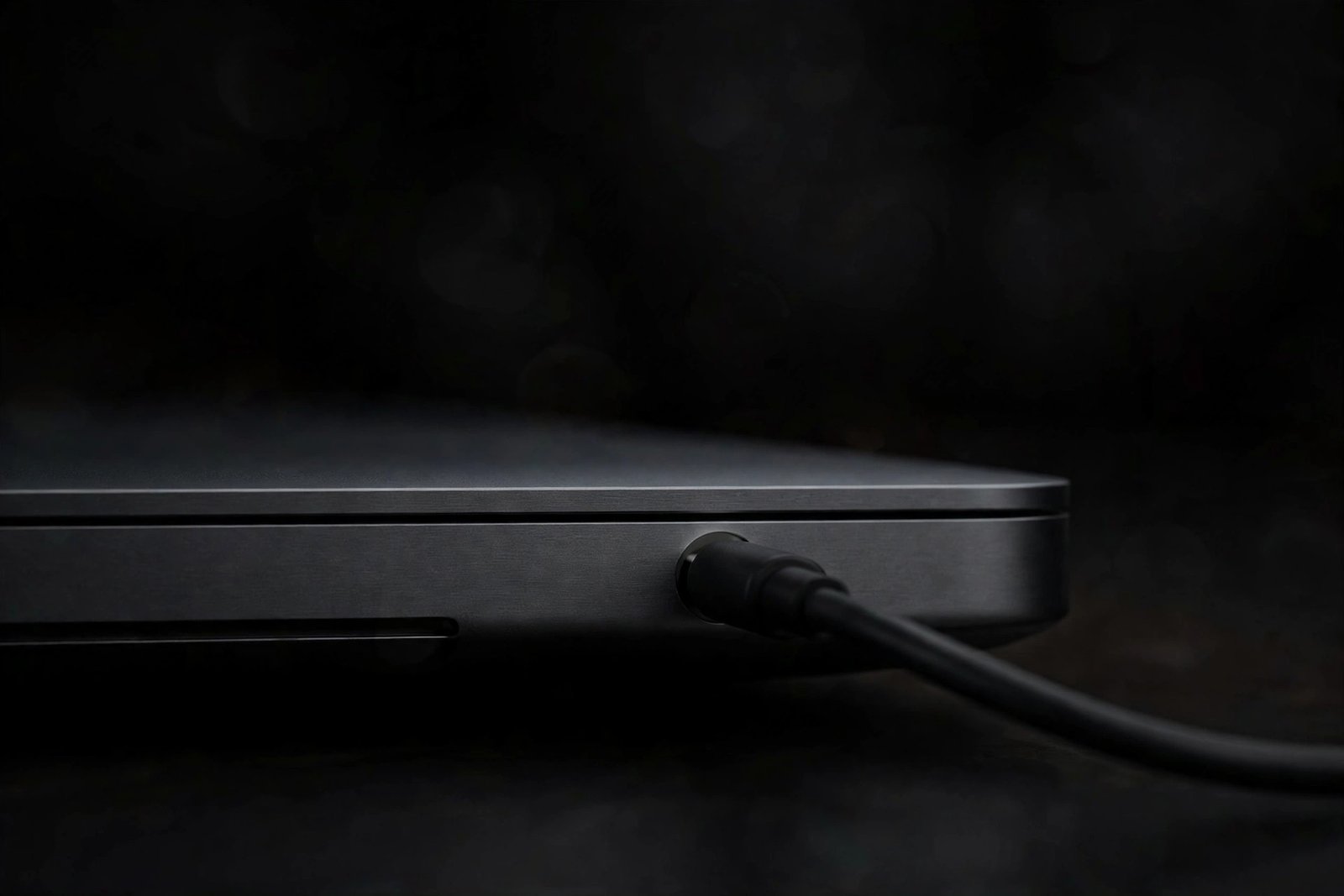
- Shut the laptop down completely and unplug everything.
- Shine a flashlight into the charging port and look for lint or bent pins.
- Blow out dust with short bursts of compressed air. Hold the can upright.
- If there is no compressed air, use a dry wooden toothpick to lift out lint gently. Never use metal objects.
- For USB-C ports, check both sides of the small tab inside the port.
- Plug the cable back in and confirm the charge light turns on.
Fix 4: Perform a Power Drain (Hard Reset)
Windows and the battery controller can get stuck in a wrong state. A power drain clears that state without touching your files.
- Shut the laptop down fully. Do not use Sleep or Hibernate.
- Unplug the charger and every USB device, dongle and memory card.
- If the battery is removable, take it out.
- Press and hold the power button for 30 seconds, then release it.
- If the battery was removable, put it back in now.
- Plug the charger into the wall and the laptop, then power on.
- Check the battery icon after 5 minutes to see if charging has resumed.
Fix 5: Reinstall the Battery Driver in Device Manager
The battery driver tells Windows how to talk to the battery hardware. After a Windows update this driver can become confused, and the classic symptom is “plugged in, not charging.”
- Press Windows + X and select Device Manager.
- Expand the Batteries section.
- Right-click Microsoft ACPI-Compliant Control Method Battery and choose Uninstall device.
- If you see Microsoft AC Adapter, leave it alone — only remove the battery driver.
- Restart the laptop. Windows will reinstall the driver automatically during startup.
- Plug in the charger and check whether the battery starts charging.
- If the problem returns after the next Windows update, repeat these steps once more before moving on.
Fix 6: Run the Windows Troubleshooter for Windows Laptop Battery Not Charging
Windows 11 has a built-in power troubleshooter that finds common charging mistakes automatically.
- Open Settings with Windows + I.
- Go to System, then Troubleshoot, then Other troubleshooters.
- Find Power in the list and click Run.
- Follow the on-screen prompts and let it finish completely.
- Apply every fix it suggests, then restart the laptop.
- Check the battery icon after the restart.
Fix 7: Turn Off the Battery Charge Limit or Smart Charging
Some laptops stop charging at 60% or 80% on purpose. This protects long-term battery health, but it looks exactly like a charging fault. Makers call it different names: Conservation Mode, Battery Health Charging, Battery Care Mode, or Smart charging. For more step-by-step hardware walkthroughs like this one, browse our Windows 11 Hardware & Devices guides.
- Look at the battery icon on the taskbar. A small heart on the icon means Smart charging is active.
- Open Settings, then System, then Power & battery, and look for any “Smart charging” message.
- Open your laptop maker’s app: Lenovo Vantage, Dell Power Manager, MyASUS, HP BIOS tools, or the Surface app.
- Find the battery section and switch the mode to Full charge, Standard, or Charge to 100%.
- On a Surface, open the Surface app, go to Battery & charging, and choose Charge to 100%. Microsoft explains how Smart charging works on its official support page.
- Restart the laptop and confirm the battery now charges past the old limit.
Fix 8: Update Windows, Drivers and BIOS
Old firmware and drivers can break charging after months of working fine. Updates from official sources often fix this.
- Open Settings, then Windows Update, and install all pending updates. Restart when asked.
- Open Device Manager, expand Batteries and System devices, and check for any device with a yellow warning icon.
- Visit your laptop maker’s official support site and download the latest BIOS and chipset drivers for your exact model.
- Install the BIOS update while the laptop is plugged into AC power. Never run a BIOS update on battery alone.
- Install the chipset and power-management drivers from the same official page.
- Restart and test charging again.
Fix 9: Generate a Battery Report With Powercfg
If the battery still will not charge, check whether the battery itself is worn out. Windows can build a detailed health report in under a minute.
- Open Terminal or Command Prompt as administrator.
- Type
powercfg /batteryreportand press Enter. - Windows saves an HTML report and shows you the file path.
- Open the report in your browser and compare Design Capacity with Full Charge Capacity.
- If the full charge capacity is far below the design capacity, the battery is worn out and likely needs replacement.
- Look at the Recent usage section for sudden drops, which point to a failing cell.
- Microsoft’s official guide to caring for your battery in Windows explains how to read this report and keep lithium-ion batteries healthy.
Fix 10: Reseat or Replace the Battery
When every software fix fails, the battery itself is the last suspect.
- If your battery is removable, shut down, remove it, clean the metal contacts with a dry cloth, and reseat it firmly.
- If your battery is internal, do not open the laptop unless you are comfortable doing so. Let a technician handle it.
- Order a replacement only from your laptop maker or an authorized seller. Match the exact model number.
- After installing a new battery, charge it to 100% once, then use it normally.
- If a brand-new battery still does not charge, the charging circuit on the motherboard may be faulty — this needs professional repair.
What to Avoid
- Never use cheap unbranded chargers that do not match your laptop’s wattage.
- Never open a swollen battery or press on it. Stop using the laptop and get professional help.
- Never download “driver updater” tools or battery “booster” apps from unofficial sites — use Device Manager and your maker’s official site only.
- Never run a BIOS update while the laptop is on battery power alone.
- Never ignore a “slow charger” warning for weeks; the wrong charger stresses the battery.
- Never leave a fully drained laptop uncharged for months — deep discharge can kill the battery permanently.
FAQ
Why does my laptop say “plugged in, not charging”?
This usually means the charger connection is loose, the adapter is failing, the battery driver is confused, or a charge-limit setting is active. Work through Fix 1 to Fix 7 above in order — most users find the cause there.
My battery is stuck at 80%. Is it broken?
Probably not. Many laptops cap charging at 60% or 80% to protect battery health. Check your maker’s battery app and switch the mode to full charge, as shown in Fix 7.
Can a Windows update stop my battery from charging?
Yes. Updates sometimes break the battery driver. Reinstalling the Microsoft ACPI-Compliant Control Method Battery driver (Fix 5) and installing the latest official drivers (Fix 8) usually solves it.
How do I know if my battery needs replacement?
Run powercfg /batteryreport as shown in Fix 9. If the full charge capacity is much lower than the design capacity, or the report shows sudden drops, the battery is worn out.
Is it safe to use my laptop while it is plugged in all day?
Yes, modern laptops manage this safely, and many switch to a battery-protection mode automatically. To learn more tips like this, visit our blog for regular troubleshooting guides.
Conclusion
A windows laptop battery not charging is rarely a mystery once you check things in the right order. Start with the cable and charger, clean the port, reset the power state, fix the battery driver, and check the charge-limit settings. Only then look at updates, the battery report, and replacement. Most readers fix the problem within the first seven steps. If you still need help after trying everything, read more about TechSBSInfo and get in touch — we publish new fixes every week.