


When a wordpress user cannot log in after password reset, the situation feels unfair. The user followed every step. They asked for a reset link, opened the email, chose a new password, and saved it. Then they typed that new password into the login form, and WordPress said no. They try again, more slowly. Still no. Now they are locked out of a site they own or work on, and the password they just set is useless.
The good news is that this problem almost always has a clear cause. The user may have clicked an old link, typed the password with a hidden space, or tried to log in while a plugin or a bad cookie blocked them. Sometimes the password never saved at all because the reset email went to the wrong address. This guide explains each cause in plain words and walks you through eleven fixes in order, from the simplest check to a password reset with WP-CLI. Follow them one by one and the user will be back inside the dashboard.
If the reset email never arrives in the first place, read our guide on fixing the WordPress password reset email first, because you cannot reset a password without that email.
Table of Contents
- Why This Error Happens
- Quick Checks
- Diagnose: Match Your Symptom to the Cause
- Fix 1: Request One Fresh Reset Link and Use It Once
- Fix 2: Type the New Password by Hand, Slowly
- Fix 3: Check Caps Lock, Spaces, and the Keyboard Layout
- Fix 4: Clear Cookies and Try a Private Window
- Fix 5: Check That the Reset Email Went to the Right Address
- Fix 6: Test With All Plugins Deactivated
- Fix 7: Let an Administrator Set the Password by Hand
- Fix 8: Check the User Account in the Dashboard
- Fix 9: Reset the Password in the Database as a Last Resort
- Fix 10: Turn Off Two-Factor Authentication for a Short Test
- Fix 11: Reset the Password With WP-CLI
- What to Avoid
- Frequently Asked Questions
- Conclusion
Why This Error Happens
1. The User Clicked an Old Reset Link
Every time you request a password reset, WordPress creates a new link and cancels the old ones. If a user requests the link twice and then clicks the first email, that link is already dead. The reset page may still open, and it may even let the user choose a password, but the password is never saved. When a wordpress user cannot log in after password reset, an old link is the most common cause of all, and it is also the easiest to fix.
2. The New Password Was Typed With a Hidden Space
Copying and pasting a password is fast, but it often adds a space at the start or the end. That space becomes part of the password, so the password the user saved is not the password they think they saved. The same thing happens when a password manager fills in an old password, or when the browser fills in a saved password from before the reset. The user types the right password and still fails, because the saved password has an extra character they cannot see.
3. Caps Lock or the Wrong Keyboard Layout Changes the Password
A password with capital letters will fail if Caps Lock is on, and it will also fail on a keyboard set to the wrong language. Some keyboards swap letters like Y and Z, or move symbols like @ to a different key. The user types what looks right on the screen, but the computer receives different characters. This cause is easy to miss because the password field hides the letters with dots.
4. A Stale Cookie Keeps the Old Login Session
WordPress uses cookies to remember who is logged in. A damaged or outdated cookie can send the browser back to an old session, or block the new login completely. The user enters the right password, but the browser keeps showing the login screen as if nothing happened. Clearing cookies fixes this in seconds, yet many people never think to try it.
5. A Security Plugin Blocks the Login
Security plugins protect the login page from attacks, and they sometimes block real users by mistake. A plugin may limit login attempts and lock the account after a few failed tries. Another may block logins from certain countries or from a VPN. A third may change the login page address entirely, so the user is trying to log in on a page that no longer works. The problem often starts after a security plugin is installed or updated.
6. The Password Never Saved Because the Account or Email Is Wrong
If the reset email went to an old email address, the user who needs it never sees it. If the account has a different username from the one the user typed, the reset link resets nothing useful. And if the user account itself is damaged in the database, the new password may fail to save at all. In each case the user did everything right, but the reset never reached the right account.
Quick Checks
- Request one fresh reset link and use it within a few minutes.
- Type the new password by hand instead of pasting it.
- Check Caps Lock and make sure the keyboard layout is correct.
- Clear your browser cookies and try again in a private window.
- Confirm the reset email arrived at the right email address.
- Try logging in with the username instead of the email address, and then the other way round.
- Check whether another administrator can log in normally.
Diagnose: Match Your Symptom to the Cause
| Symptom | Cause | Go to Fix |
|---|---|---|
| You requested the link more than once | The first link was cancelled by the second request | Fix 1 |
| The password works nowhere, not even when typed slowly | A hidden space or a paste error changed the saved password | Fix 2 |
| The password fails but looks right on screen | Caps Lock or the wrong keyboard layout | Fix 3 |
| The login page reloads with no error message | A stale cookie is blocking the new session | Fix 4 |
| The reset email went to an old address, or never arrived | Wrong email address on the account | Fix 5 |
| Login broke after a new security plugin | A plugin is blocking the login | Fix 6 |
| You are an admin helping another user | Set their password by hand from the dashboard | Fix 7 |
| The user account looks wrong or missing | Account problem in the Users list | Fix 8 |
| Nothing else works and you are fully locked out | The password must be reset in the database | Fix 9 |
Fix 1: Request One Fresh Reset Link and Use It Once
This is the first step because it fixes the most common cause in under two minutes.
- Go to the login page and click Lost your password.
- Type the username or the email address, then click the button once.
- Wait for the email, and open only the newest message.
- Click the reset link in that email and set a new password.
- Do not request another link while you wait. Each new request cancels the previous link.
- Log in at once with the new password, using the same browser window.
- If the email takes more than ten minutes, check the spam folder before requesting again.
- If you already requested several links, ignore all the older emails and use only the newest one.
Write the new password down on paper for this test, so you know exactly what you typed. If this fresh link works, the old links were the whole problem.

Fix 2: Type the New Password by Hand, Slowly
Pasting a password is convenient, but it is also the easiest way to save a password with a hidden space in it.
- Open the reset link and choose a new password.
- Type the password by hand instead of pasting it.
- Use a simple test password first, such as a word with a number at the end, so you can be sure of every character.
- After saving, type the same password by hand into the login form.
- Do not let the browser or a password manager fill the field for you during this test.
- If the simple password works, log in and change it to a strong password from inside the dashboard.
- Update your password manager with the new password only after you have logged in successfully.
- If typing by hand still fails, the saved password is not what you think it is, and the next fixes will help.
This test removes the paste error, the password manager, and the browser autofill all at once. If the login works now, one of those three was the cause.
Fix 3: Check Caps Lock, Spaces, and the Keyboard Layout
A password field hides what you type, so a small keyboard problem can waste an hour. Check the basics before you assume the site is broken.
- Look at the Caps Lock light on your keyboard and switch it off if it is on.
- Click into the password field and type the password into a plain text document first, where you can see it.
- Check every character carefully, then copy it from the document into the password field.
- Delete the copy in the document afterwards, so the password is not left lying around.
- Check the keyboard language in your taskbar or menu bar. It should match the language you normally type in.
- If you use a laptop with a number pad, make sure Num Lock is in its normal state.
- Try a different keyboard if you have one, especially if some keys feel sticky or unresponsive.
This sounds too simple to matter, but support teams see it every day. A single swapped letter is enough to lock a user out, and the dots in the password field hide the mistake completely.
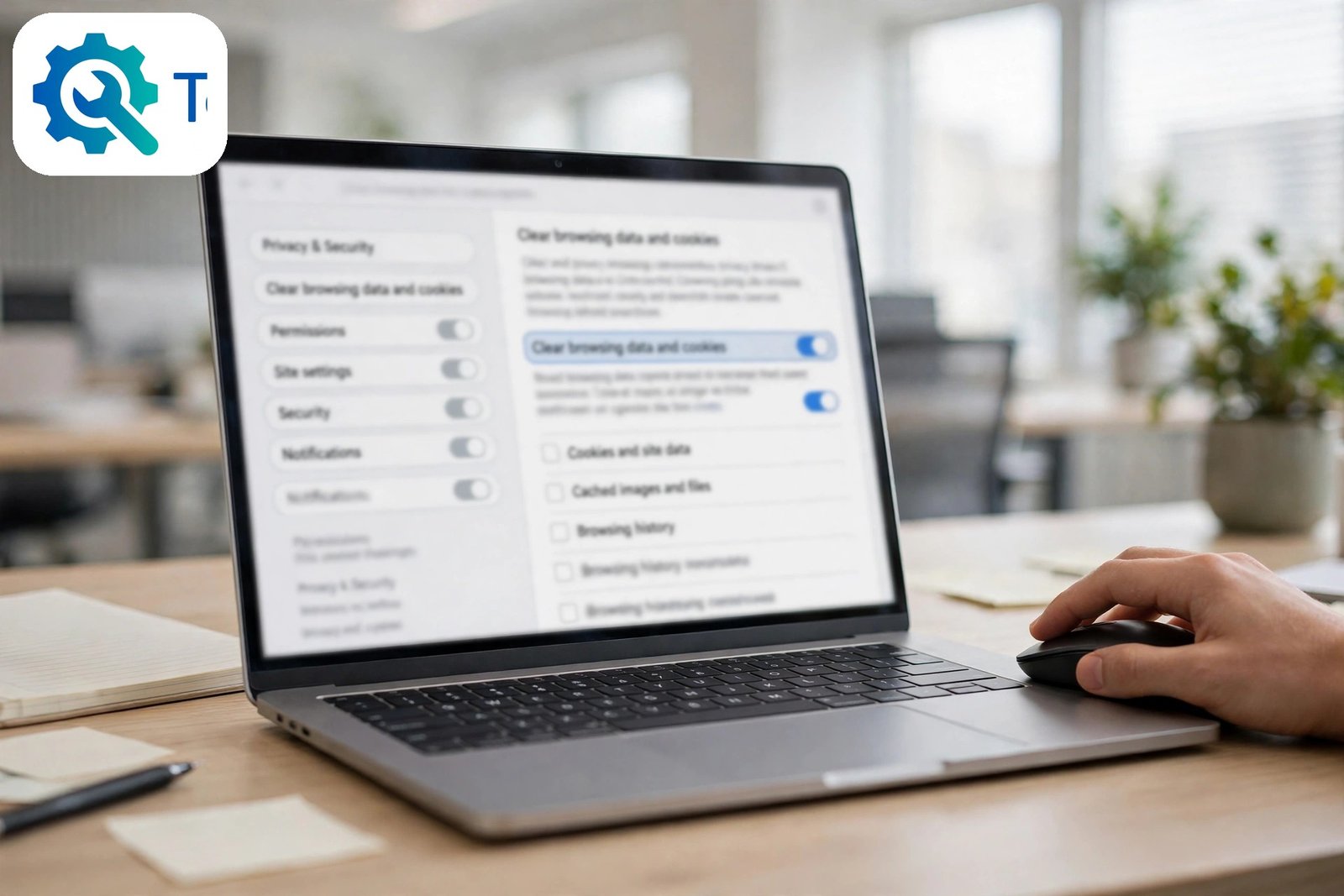
Fix 4: Clear Cookies and Try a Private Window
A damaged cookie can block a login even when the password is right. Clearing cookies takes a minute and fixes it.
- Open a private or incognito window in your browser.
- Go to the login page and try the new password there.
- If it works in the private window, your normal browser has a bad cookie or a bad saved password.
- Go back to your normal browser and clear cookies for your site.
- In Chrome, open Settings, then Privacy and security, then Delete browsing data, and choose cookies for your site.
- Close the browser completely, open it again, and try the login once more.
- Also clear any saved password for the site in your browser settings, so it does not fill in the old one.
- If the private window fails too, the problem is not your browser, and the next fixes apply.
A private window is a clean test because it has no cookies, no saved passwords, and no extensions running. When a login works there but not in the normal window, the browser is the problem, not the site.
Fix 5: Check That the Reset Email Went to the Right Address
If the reset email went to an address the user no longer checks, the whole reset fails silently.
- Ask the user which email address they used on the reset form.
- Check the address saved on their account in the Users list, if you can log in as an administrator.
- If the saved address is old, update it to the address the user actually checks.
- Send a fresh reset link to the correct address and use it within a few minutes.
- Check whether the email arrived in spam, and mark it as Not Spam if it did.
- If the user cannot remember which email they registered with, try the other addresses they own.
- If no email arrives at any address, the site mail system may be broken. Read our guide on fixing the WordPress password reset email and set up an SMTP plugin.
An administrator can also check the Users list to confirm the account exists at all. If the account is missing, the user may have registered on a different site, or under a different name.
Fix 6: Test With All Plugins Deactivated
A security plugin can lock a user out after a few failed login attempts, and it may keep them locked out long after the password is fixed.
- If you can log in as an administrator, go to Plugins and deactivate your security plugin first.
- Try the login again with the new password.
- If it works, open the security plugin settings and look for a lockout list or a failed login limit.
- Remove the user from the lockout list and raise the limit, or turn off the lockout feature for trusted users.
- If you cannot log in as an administrator at all, you need file access. Open your hosting file manager or FTP, go to the wp-content/plugins folder, and rename the security plugin folder by adding -off to its name.
- Renaming the folder deactivates the plugin at once.
- Try the login again. If it works, rename the folder back and fix the plugin settings from inside the dashboard.
- If deactivating plugins does not help, the cause is elsewhere. This is the same method used to find a WordPress plugin conflict, and it is safe as long as you rename the folder back afterwards.
Never leave a security plugin deactivated for long. Fix its settings and turn it back on, because your login page needs that protection.

Fix 7: Let an Administrator Set the Password by Hand
If you are an administrator helping another user, you can skip the reset email entirely and set their password yourself.
- Log in to the dashboard as an administrator.
- Go to Users, then All Users, and find the user who cannot log in.
- Click Edit under their name to open their profile page.
- Scroll down to Account Management and click the button to set a new password.
- Type a new password, or use the Generate Password button, and write the password down.
- Click Update User to save it.
- Send the password to the user through a safe channel, such as a phone call or a private message, and ask them to log in at once.
- Ask them to change the password to their own choice from inside the dashboard after they log in.
This fix works even when the site mail system is broken, because no email is involved. It is also the fastest way to help a user who is waiting. The official WordPress guide to resetting passwords explains this method and the email method side by side: WordPress guide to resetting your password.
Fix 8: Check the User Account in the Dashboard
Sometimes the account itself is the problem, not the password. A quick look in the Users list will show it.
- Log in as an administrator and open Users, then All Users.
- Search for the username or email address and check that the account exists.
- Check the role shown next to the name. It should match what the user needs, such as Subscriber or Editor.
- If the role is wrong, change it from the Quick Edit menu or the profile page.
- Check whether there are two accounts with similar names. The user may be logging in with the wrong one.
- Look for a note or a message from a plugin that says the account is blocked or awaiting approval.
- Some membership plugins hold new accounts until an admin approves them. Approve the account if that is the case.
- If the account looks fine but login still fails, the password data may be damaged, and Fix 9 is the next step.
If the user is being sent back to the homepage instead of the dashboard after logging in, that is a different problem. Read our guide on fixing a WordPress site that redirects to another address and our guide on fixing too many redirects after SSL.
Fix 9: Reset the Password in the Database as a Last Resort
This is the last resort, for when nobody can log in at all. Take a full backup first, and stop if any step feels unclear.
- Make a full backup of your site, including the database, and download it to your computer.
- Open your hosting control panel and find the database tool, which is often phpMyAdmin.
- Open your WordPress database and find the users table, which is usually called wp_users.
- Find the row for the locked-out user and click Edit.
- Find the user_pass field and delete its contents.
- Type the new password into that field, then set the function dropdown next to it to MD5.
- MD5 is an old format, but WordPress accepts it here and upgrades it to a modern format the next time the user logs in.
- Click Go to save the row, then try logging in with the new password at once.
- Ask the user to change their password from inside the dashboard after they log in.
Do not change any other field in the users table. The user_login and user_email fields must stay exactly as they are, or the account will break further. If a login problem appears after a database change, restore the backup and ask your host for help. Before you try the database again, check the account itself in the official WordPress guide to the Users screen.

Fix 10: Turn Off Two-Factor Authentication for a Short Test
Some sites use a two-factor plugin that asks for a code from a phone app after the password. If that code is out of step, or the app was set up on an old phone, the login fails even when the new password is right. The user blames the password, but the second step is the real block.
- Ask the user whether the site asks them for a code after they type their password.
- If it does, ask an administrator to open the user’s profile and turn off two-factor authentication for that account.
- If the user has backup codes from when they set up two-factor authentication, ask them to try one of those codes.
- Try logging in with the new password and no second step.
- If the login works now, the two-factor setup is the problem. Set it up again from scratch with a fresh code, and save the new backup codes somewhere safe.
- Turn two-factor authentication back on as soon as the test is done. An account without that second step is much easier for an attacker to open.
Do not leave two-factor authentication off for long. It is there to protect the account, and the test only needs a few minutes. If turning it off does not help, turn it back on and move to the next fix.
Fix 11: Reset the Password With WP-CLI
WP-CLI is a command-line tool for WordPress that many hosts provide. It can set a password directly, without the reset email and without opening the database. This is an advanced fix, so stop here and ask your host for help if any step feels unclear.
- Log in to your hosting terminal or SSH and go to the main folder of your WordPress site.
- Type the command
wp user update USERNAME --user_pass='NEW-PASSWORD'and press Enter. - Replace USERNAME with the real username of the locked-out account, and NEW-PASSWORD with the new password.
- The command should reply with a short success message. If it shows an error instead, write the error down exactly.
- Try logging in with the new password at once, in a private browser window.
- Ask the user to change the password to their own choice from inside the dashboard after they log in.
- If your host does not offer WP-CLI or terminal access, ask their support team to run the reset for you. Most hosts will do this after checking that you own the site.
This fix works even when the reset email is broken and the database feels too risky to touch. It changes one thing only, the password for one user, and it leaves every other setting alone.
What to Avoid
- Do not keep requesting reset links over and over. Each new request cancels the previous one.
- Do not paste passwords from a chat message or an email without checking for extra spaces.
- Do not share the new password in a public place. Send it privately and ask the user to change it.
- Do not delete the user account and create a new one. The old account owns posts and comments that would be lost or orphaned.
- Do not edit the database without a full backup saved on your computer first.
- Do not use a nulled plugin or theme from an unofficial download site. These often contain hidden code that breaks login and puts your site at risk.
- Do not leave a security plugin deactivated after testing. Fix its lockout settings and turn it back on.
- Do not use the same password on several sites. If one site leaks it, every site that shares it is at risk.
Frequently Asked Questions
Why does my new password not work right after I reset it?
The most common reason is an old reset link. Each new request cancels the previous link, so only the newest email works. Another common reason is a hidden space added when the password was pasted. Request one fresh link, type the new password by hand, and try again.
I reset my password but the login page just reloads. What is wrong?
A stale cookie is the usual cause. The browser keeps sending the old session instead of starting a new one. Try logging in from a private window. If it works there, clear the cookies in your normal browser and try again.
Can a security plugin lock me out after a password reset?
Yes. Many security plugins limit failed login attempts and lock the account for a while. If you tried the wrong password a few times before the reset, you may still be locked out. Wait for the lockout to end, or ask an administrator to remove your name from the lockout list.
How can an administrator reset my password without the email?
An administrator can open Users, then All Users, click Edit on your profile, and set a new password in the Account Management section. This needs no email at all, and it works even when the site mail system is broken.
Is it safe to reset a password in the database?
It is safe when you have a full backup and you change only the user_pass field for one user. Use the MD5 function for the new password, because WordPress accepts it and upgrades it on the next login. Never change other fields in the users table, and restore the backup if anything goes wrong.
Why does WordPress say my password is wrong when I know it is right?
Check Caps Lock and your keyboard layout first, because the password field hides what you type. Then check whether a password manager or the browser is filling in an old password. Type the password by hand in a private window to rule out the browser completely.
Conclusion
When a wordpress user cannot log in after password reset, do not assume the site is broken. Start with one fresh link, type the password by hand, and check Caps Lock and cookies. Those simple steps solve most cases in a few minutes. If they do not, check the email address on the account, test your security plugin, and let an administrator set the password by hand. The database reset is there as a last resort, and it works when nothing else does.
Work through the eleven fixes in order and test after each one. Do not change five things at once, because then you will never know which change fixed it. Once the user is back inside the dashboard, ask them to choose a strong password of their own and to store it in a password manager. A password that is typed once and forgotten is the next lockout waiting to happen.
If the login page itself will not load, our guide on fixing the WordPress login page covers that problem step by step.