

If zoom audio not working on pc is ruining your meetings, you are not alone. This is one of the most common Zoom problems on Windows. The good news: in almost every case, the cause is a wrong setting, a muted device, or a permission that got blocked after a Windows update. You do not need to be technical to fix it. Work through the quick checks first. Most people get their sound back within five minutes. If those do not work, the ten fixes below cover every common cause, from Zoom’s audio settings to the Windows volume mixer. Follow them in order, simplest first.
Table of Contents
- Quick Checks Before You Start
- Diagnose Your Problem in 30 Seconds
- 1. Unmute Yourself and Join Computer Audio
- 2. Test Your Speaker and Microphone Inside Zoom
- 3. Select the Correct Speaker and Microphone
- 4. Check the Windows Volume Mixer
- 5. Allow Zoom to Use Your Microphone in Windows
- 6. Reconnect Your Headset or Bluetooth Device
- 7. Update Zoom to the Latest Version
- 8. Update Your Audio Drivers Through Windows Update
- 9. Fix Echo and Cutting-Out Audio in Advanced Settings
- 10. Reinstall Zoom if Zoom Audio Not Working on PC Keeps Coming Back
- What to Avoid
- FAQ
- Conclusion
Quick Checks Before You Start
Run through these in under a minute. They fix zoom audio not working on pc for most people.
- Are you muted? Look at the microphone icon in the bottom-left of the meeting. A red line through it means you are muted. Click it to unmute.
- Did the host mute you? If you cannot unmute yourself, the host may have muted everyone. Send a chat message and ask to be unmuted.
- Did you join computer audio? If you see a “Join Audio” button instead of a microphone, click it and choose “Join with Computer Audio”. Without this, Zoom sends no sound at all.
- Is your PC volume muted? Press the volume keys on your keyboard. Check that the speaker icon in the taskbar is not crossed out.
- Is your Bluetooth headset connected to your phone instead of your PC? Many headsets pair with only one device at a time. If it is connected to your phone, Zoom gets no audio.
- Does your headset have a physical mute button? Many headsets and webcams have a mute switch on the cable or earcup. Flip it off.
- Are you running the latest Zoom version? Old versions develop audio bugs that updates fix. You will update properly in Fix 7.
Diagnose Your Problem in 30 Seconds
Match your symptom to the likely cause, then jump to the fix.
| Symptom | Likely cause | Go to fix |
|---|---|---|
| You cannot hear anyone, but they can hear you | Wrong speaker selected, output muted, or Windows volume mixer has Zoom muted | Fix 3, Fix 4 |
| Others cannot hear you, but you hear them fine | Wrong microphone selected, mic muted, or Windows blocked Zoom’s mic access | Fix 1, Fix 3, Fix 5 |
| Audio cuts in and out or sounds robotic | Bluetooth conflict, outdated driver, or poor connection | Fix 6, Fix 8 |
| Everyone hears an echo | Speakers feeding back into the mic, or two devices joined with audio | Fix 9 |
| No speaker or microphone appears in Zoom at all | Driver problem, privacy block, or Zoom needs a restart | Fix 5, Fix 7, Fix 8 |
| Audio works, then dies in the middle of a meeting | Bluetooth headset timed out, driver crashed, or USB device dropped | Fix 6, Fix 8 |
| Zoom says your microphone is being used by another app | Another program (browser, Teams, recorder) grabbed the mic first | Fix 6, Fix 10 |
1. Unmute Yourself and Join Computer Audio
This sounds too simple. It still fixes a surprising number of cases.
- In the meeting, look at the bottom-left controls.
- If the microphone icon has a red slash, click it once to unmute.
- If you see a “Join Audio” button instead, click it, then click “Join with Computer Audio”.
- Still no sound? Click the small arrow next to the microphone icon, then click “Leave Computer Audio”. Wait a few seconds, then rejoin computer audio. This resets the audio connection.
- If the meeting used “Join Audio” from a phone dial-in earlier, leave that phone call. Two audio paths at once cause echo and dead sound.
2. Test Your Speaker and Microphone Inside Zoom
Zoom has a built-in test that tells you exactly which device is broken. Use it before changing anything else.
- Click the arrow next to the microphone icon in the meeting controls.
- Click “Test Speaker & Microphone”.
- A ringtone plays. If you hear it, click “Yes”. If not, click “No, Try Another Speaker” until you hear it.
- Now speak into your microphone. Zoom replays your voice. If you hear the replay, click “Yes”. If not, try another microphone from the list.
- Click “End Test” when done.
- If the test works here but meetings still have no sound, the problem is likely Windows-level. Keep going to Fix 4 and Fix 5.
- Zoom’s own support team recommends this exact test as the first diagnostic step. Their guide to testing your audio settings walks through the same screens if you want the official reference.
3. Select the Correct Speaker and Microphone
Zoom often picks the wrong device. This happens when you plug in a headset after Zoom is open, or when Windows changes your default device after an update.
- In Zoom, click your profile picture, then click “Settings”.
- Click the “Audio” tab on the left.
- Under “Speaker”, open the drop-down menu. Pick the device you actually want sound from, such as your headphones or your laptop speakers.
- Click “Test Speaker” to confirm sound comes from the right place.
- Under “Microphone”, open the drop-down menu and pick the microphone you are actually using.
- Watch the “Input Level” bar while you talk. It should move. If it stays flat, the wrong microphone is selected.
- Untick “Automatically adjust microphone volume” if your voice keeps fading in and out. Then set the input slider to around three-quarters.
- To change devices during a meeting, click the arrow next to the microphone icon. You can switch speaker and microphone without leaving the meeting.
4. Check the Windows Volume Mixer
Zoom can be muted in Windows even when everything else plays sound. This is a classic cause of zoom audio not working on pc when YouTube and music work fine.
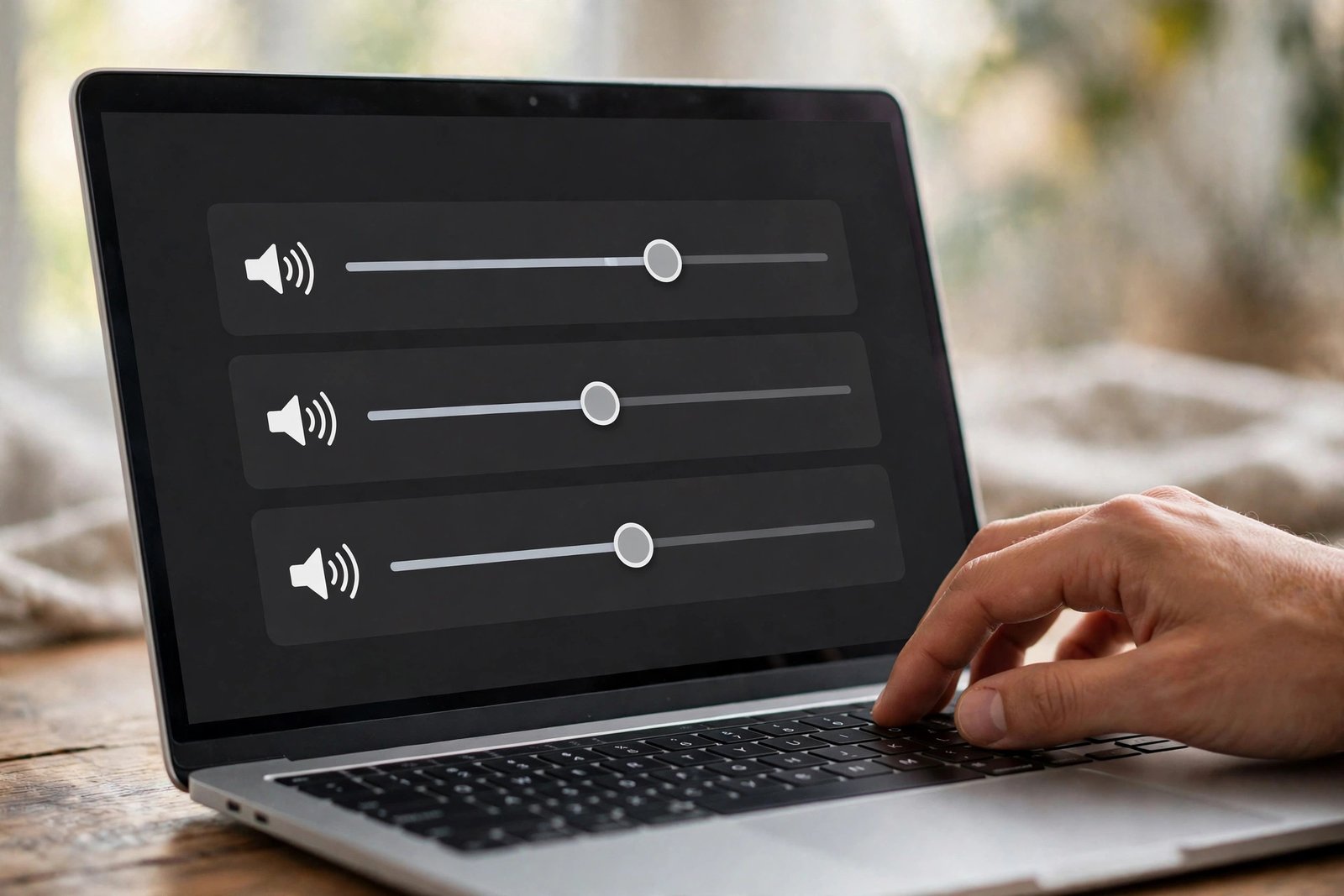
- Right-click the speaker icon in the bottom-right of your taskbar.
- Click “Open Volume Mixer” (on Windows 11: “Sound settings” then “Volume mixer”).
- Look for the Zoom entry in the list of apps.
- If Zoom’s slider is at zero or muted, drag it up and unmute it.
- While you are there, check that your correct output device is chosen at the top of the Sound settings page.
- Click “Sound settings”, then under “Output”, make sure the right speakers or headphones are selected as the default.
- If the problem affects your whole PC and not just Zoom, our Windows 11 sound not working guide walks through the system-wide fixes in detail.
5. Allow Zoom to Use Your Microphone in Windows
Windows privacy settings can block Zoom from touching your microphone. After major Windows updates, this permission sometimes resets itself. Your mic then works in every app except Zoom.
- Press the Windows key and type “Microphone privacy settings”. Open it.
- Make sure “Microphone access” is turned on.
- Make sure “Let apps access your microphone” is turned on.
- Scroll down to “Let desktop apps access your microphone” and turn that on too. Zoom is a desktop app, so this one matters most.
- Restart Zoom after changing these settings. The change does not always apply until the app restarts.
- If your camera is also blocked, check “Camera privacy settings” the same way. One bad update can block both.
6. Reconnect Your Headset or Bluetooth Device
Headsets are the single most common hardware cause of Zoom audio problems. The fix is usually physical.
- Unplug your wired headset or USB microphone. Wait ten seconds. Plug it back into a different USB port if you can.
- For Bluetooth: open Windows Settings, then Bluetooth & devices. Remove the headset, then pair it again from scratch.
- Make sure the headset is connected for both calls and media. In the device’s Bluetooth settings, “Voice” or “Hands-free” must be enabled. Some headsets connect for music but not for calls, which breaks Zoom.
- Charge your Bluetooth headset. A low battery causes audio to cut out mid-meeting.
- If another program is using the microphone, close it. Teams, Discord, a browser tab, or a voice recorder can lock the mic so Zoom gets nothing.
- Try a different headset or your laptop’s built-in mic and speakers. If Zoom works with the built-in devices, your headset is the problem, not Zoom.
7. Update Zoom to the Latest Version
Audio bugs get fixed in Zoom updates. If you are months behind, you may be fighting a bug that no longer exists.
- Open Zoom and click your profile picture.
- Click “Check for Updates”.
- Install any update it finds, then restart Zoom.
- If the updater fails, download the latest version from the official Zoom download page and install it over your current copy. Never download Zoom from random “free download” sites.
- After updating, redo the speaker and microphone test from Fix 2. Updates sometimes reset your selected devices.
8. Update Your Audio Drivers Through Windows Update
Outdated or corrupt audio drivers cause crackling, missing devices, and audio that dies mid-meeting. Fix this the safe, official way.
- Press the Windows key, type “Windows Update”, and open it.
- Click “Check for updates” and install everything offered.
- Then click “Advanced options” and look for “Optional updates”. Install any audio or driver updates listed there.
- Restart your PC after driver updates. This step is not optional. Audio drivers only reload properly after a restart.
- Do not download “driver updater” programs from the internet. Most are junk or malware. Windows Update is the safe source, and your PC maker’s official support page is the backup.
- To double-check a device, open Device Manager, expand “Audio inputs and outputs”, right-click your device, and choose “Update driver”, then “Search automatically for drivers”.
9. Fix Echo and Cutting-Out Audio in Advanced Settings
If your audio works but echoes, sounds robotic, or cuts out, the problem is usually audio processing, not a broken device.
- Open Zoom Settings and click the “Audio” tab.
- Under “Suppress background noise”, try “Auto” first. If your voice cuts out, set it to “Low”.
- Scroll to “Advanced” at the bottom of the Audio tab.
- If you see “Signal processing by Windows audio device drivers”, try disabling it. On some PCs, Windows processing fights with Zoom’s own processing and mangles the sound.
- For echo: wear headphones. Echo happens when your speakers play meeting sound and your microphone picks it up again. Headphones break the loop instantly.
- If you joined the meeting from two devices, such as your PC and your phone, leave computer audio on one of them. Two active audio paths in the same room always echo.
- Zoom’s official troubleshooting guide for speaker and microphone issues covers these device and settings checks in full if you want a second opinion from the source.
10. Reinstall Zoom if Zoom Audio Not Working on PC Keeps Coming Back
If every fix works for a while and the problem returns, Zoom’s installation itself may be damaged. A clean reinstall gives you a fresh start.
- Close Zoom completely. Right-click its icon in the system tray and choose “Quit”.
- Open Windows Settings, then Apps, then Installed apps.
- Find Zoom, click the three dots, and choose “Uninstall”.
- Restart your PC.
- Download Zoom again from the official Zoom website and install it fresh.
- Sign in, redo the audio test from Fix 2, and reselect your speaker and microphone.
- Do not install “cracked” or “pro unlocked” Zoom copies from unofficial sites. They are a common source of malware and will not fix your audio.
What to Avoid
- Do not download driver updater tools. They promise to fix your audio and usually install junk instead. Use Windows Update.
- Do not download Zoom from unofficial sites. Cracked copies and “free pro” installers carry malware. Get Zoom only from Zoom’s official site.
- Do not disable Windows audio services. Guides that tell you to stop “Windows Audio” in Services are fixing the wrong thing and can mute your whole PC.
- Do not change registry settings for audio. One wrong registry edit can break sound system-wide. Every fix in this guide works without touching the registry.
- Do not ignore the physical mute button. Before any software fix, check your headset cable, webcam, and keyboard for a hardware mute switch.
- Do not run two meetings at once. A second Zoom window, Teams call, or browser meeting tab can steal your microphone and camera.
FAQ
Why can others hear me but I can’t hear them?
Your microphone side is fine. The problem is on the speaker side. Check that the correct speaker is selected in Zoom’s Audio settings, then check the Windows volume mixer to make sure Zoom is not muted there. This split symptom almost always points to Fix 3 or Fix 4.
Why does my Zoom audio stop working when I join a meeting?
You probably joined without computer audio. Click the “Join Audio” button and choose “Join with Computer Audio”. If you already joined audio, leave it and rejoin to reset the connection, as described in Fix 1.
Why does my Bluetooth headset work for music but not Zoom?
Your headset may be connected for media only, not for calls. Zoom needs the “hands-free” or “voice” profile. Remove the headset in Bluetooth settings and pair it again, making sure call audio is enabled. Low battery can cause the same behaviour.
Do I need to restart Zoom after changing audio devices?
Yes, often. Zoom does not always pick up a newly plugged-in headset or a changed Windows default device until it restarts. Close Zoom fully, plug in your device, then open Zoom again.
Does Zoom need microphone permission on Windows?
Yes. Windows can block desktop apps from the microphone in privacy settings. If your mic works everywhere except Zoom, open “Microphone privacy settings” and turn on “Let desktop apps access your microphone”, then restart Zoom. See Fix 5.
Why does Zoom echo when nobody else’s call echoes?
Echo comes from your setup, not the meeting. Your speakers are feeding meeting sound back into your microphone. Wear headphones, lower your speaker volume, or move the microphone further from the speakers. If you joined from a phone and a PC at the same time, leave audio on one of them.
Conclusion
Zoom audio not working on pc almost always comes down to one of a handful of causes: you are muted, computer audio was never joined, the wrong device is selected, Zoom is muted in the Windows volume mixer, or Windows blocked the microphone permission. Start with the quick checks, then work through the ten fixes in order. Each one takes only a few minutes, and together they cover every common cause we have seen.
If you want more step-by-step help with Windows and app problems, take a look around the TechSBSInfo homepage, where we keep our latest guides. You can read more troubleshooting guides on the blog, and if you are curious about who writes these guides and how we test every fix, the About page has the full story.