

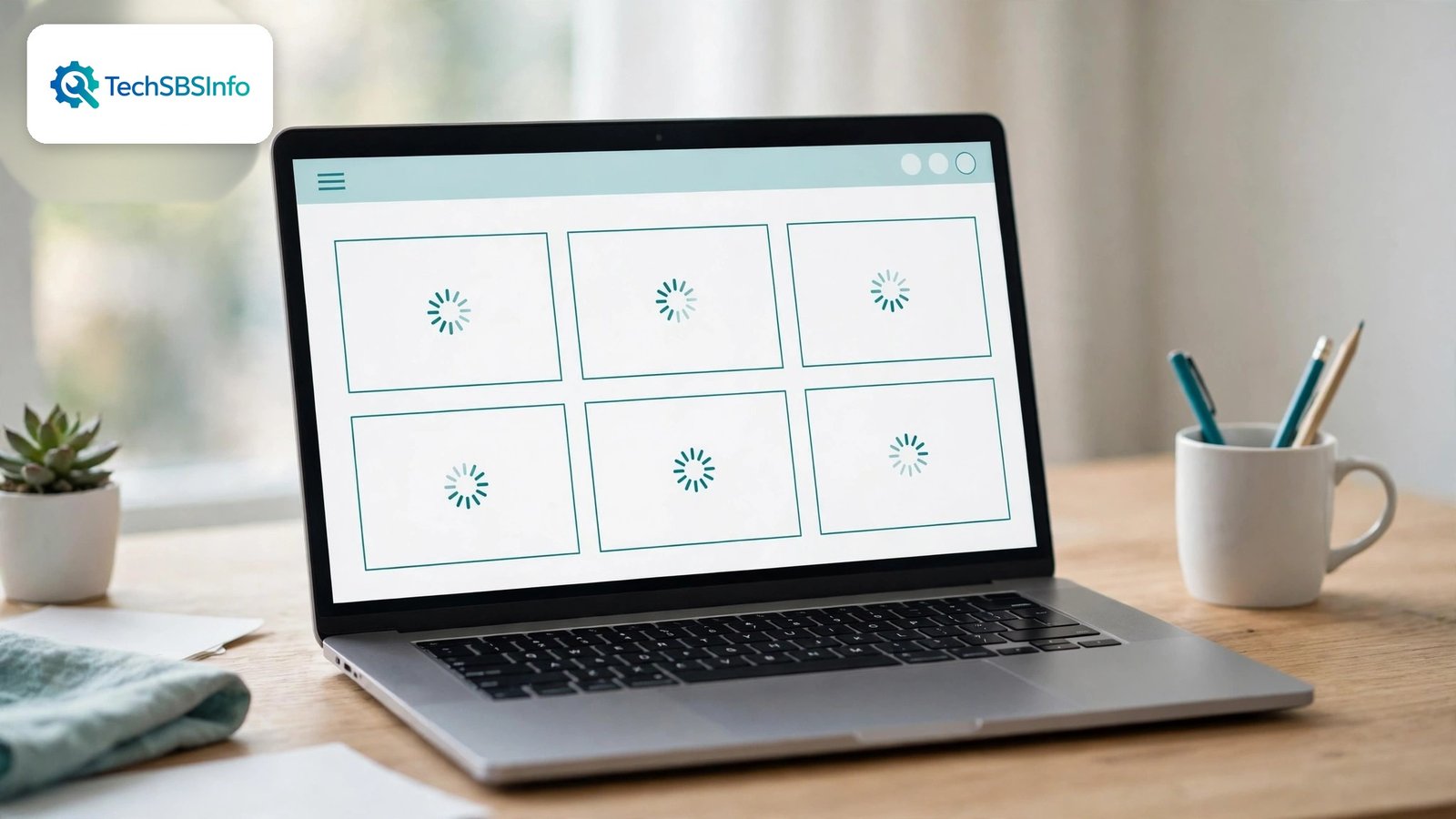
When wordpress dashboard widgets not loading is the problem, your admin area feels broken even though your site still works. You log in and see the dashboard, but the boxes are empty. The At a Glance box shows nothing. The Activity box spins forever. The Quick Draft box will not save. Your website looks fine to visitors, but the control panel you use every day has gone blank.
The good news is that this problem is usually caused by something simple. The widgets may be hidden in Screen Options, a plugin may have broken the JavaScript that loads them, or a cache may be serving an old broken copy of the dashboard. This guide explains each cause in plain words and walks you through eleven fixes in order, from the simplest check to reinstalling the WordPress core files. Follow them one by one and your dashboard widgets will come back.
If the whole dashboard will not load at all, rather than just its widgets, read our guide on fixing the WordPress block editor when it will not load first, because a page that cannot load needs a different set of fixes.
Table of Contents
- Why This Error Happens
- Quick Checks
- Diagnose: Match Your Symptom to the Cause
- Fix 1: Check Screen Options and Turn the Widgets Back On
- Fix 2: Refresh the Page and Clear Your Browser Cache
- Fix 3: Try a Different Browser and a Private Window
- Fix 4: Test With All Plugins Deactivated
- Fix 5: Switch to a Default Theme for a Short Test
- Fix 6: Check the Browser Console for JavaScript Errors
- Fix 7: Update WordPress, Your Theme, and Your Plugins
- Fix 8: Purge Every Cache and Reset the Dashboard Layout
- Fix 9: Increase the PHP Memory Limit
- Fix 10: Turn Off Widgets That Fetch Data From Outside Your Site
- Fix 11: Reinstall the WordPress Core Files
- What to Avoid
- Frequently Asked Questions
- Conclusion
Why This Error Happens
1. The Widgets Are Hidden in Screen Options
Every dashboard widget can be switched on and off in the Screen Options panel at the top of the page. A single accidental click can hide a widget, and a plugin can hide several at once. The widgets are not broken. They are simply switched off, and the dashboard looks empty for no other reason. When wordpress dashboard widgets not loading is reported, this is the first thing to check, because it is the most common cause and the fastest to fix.
2. A JavaScript Error Stops the Widgets From Loading
Dashboard widgets load with JavaScript, the code that makes web pages interactive. If one script has an error, it can stop every widget after it from loading. A plugin that adds its own dashboard widget is the usual suspect, because its script runs on the same page. A theme can do the same thing if it loads a broken script in the admin area. The page itself loads fine, but the widgets never finish.
3. A Plugin Conflict Breaks the Dashboard
Plugins share the same dashboard page, and one bad plugin can break the rest. A plugin that was updated yesterday may now clash with another plugin, or with the current version of WordPress. A plugin that tries to fetch data from an outside service can also hang the dashboard if that service is slow or down. The widgets wait for data that never arrives, and the boxes stay blank.
4. An Outdated WordPress, Theme, or Plugin
WordPress, themes, and plugins change often, and they must stay in step with each other. An old plugin running on a new WordPress version can fail in small ways, such as a widget that never loads. An old theme can load old scripts that clash with new ones. The problem often starts the day WordPress updates itself, while the plugins stay on their old versions.
5. A Cache Serves a Broken Copy of the Dashboard
Caching is meant for visitors, not for the admin area. But a cache plugin set up wrongly can store a copy of the dashboard and serve it to you, complete with its old errors. A server cache or a CDN cache can do the same thing. You fix the real problem, but the cache keeps showing you the broken copy, so it looks as if nothing worked.
6. A Slow Server or a Failed Outside Request
Some dashboard widgets fetch data from outside your site, such as news feeds and update notices. If your server is slow, or if the outside service is down, those widgets wait and wait. A single slow widget can hold up the whole dashboard, because the page waits for every widget before it finishes loading. A weak hosting plan with too little memory makes this worse.
Quick Checks
- Open Screen Options at the top of the dashboard and tick the missing widgets.
- Refresh the dashboard page and wait a full minute for slow widgets to load.
- Clear your browser cache and try again.
- Try a different browser to rule out a browser problem.
- Check whether the problem started after you installed or updated a plugin.
- Check whether your site is running the latest version of WordPress.
- Look at the bottom of the screen for a small error message or a loading spinner that never stops.
Diagnose: Match Your Symptom to the Cause
| Symptom | Cause | Go to Fix |
|---|---|---|
| Some widgets are missing, others load fine | The missing widgets are hidden in Screen Options | Fix 1 |
| All widgets are blank after a browser update | Browser cache serving an old broken page | Fix 2 |
| Widgets load in one browser but not another | Browser problem, extension, or stale cookies | Fix 3 |
| Widgets broke after a new plugin or update | A plugin is breaking the dashboard | Fix 4 |
| Widgets broke after a theme change | The theme loads a broken admin script | Fix 5 |
| The dashboard shows a spinner that never stops | A JavaScript error is stopping the widgets | Fix 6 |
| Widgets broke after a WordPress update | Outdated theme or plugin clashing with the new version | Fix 7 |
| Fixes work, then the problem comes back | A cache is serving the old broken dashboard | Fix 8 |
Fix 1: Check Screen Options and Turn the Widgets Back On
This takes thirty seconds and fixes the problem more often than any other step.
- Open your WordPress dashboard.
- Look at the top right corner of the screen for a tab called Screen Options.
- Click it to open the panel.
- You will see a list of checkboxes, one for each dashboard widget.
- Tick the boxes for every widget you want to see, such as At a Glance, Activity, Quick Draft, and WordPress Events and News.
- Close the panel and look at your dashboard. The widgets should appear at once.
- If a widget is ticked but still does not show, drag it by its title bar. It may be hidden at the bottom of a long column.
- If the Screen Options tab itself is missing, move to the next fix, because something is stopping the dashboard scripts from loading.
Do not assume a widget is broken before you check this panel. Site owners hide widgets by accident more often than they expect, and a single click puts them back.

Fix 2: Refresh the Page and Clear Your Browser Cache
A dashboard that loads slowly can look broken when it is only slow. Give it a fair chance before you change anything.
- Press F5 or click the refresh button and wait a full minute.
- Watch the loading spinners. If they stop and the widgets appear, the problem was a slow server, not a broken widget.
- If the widgets still do not appear, clear your browser cache.
- In Chrome, open Settings, then Privacy and security, then Delete browsing data, and choose cached images and files.
- Close the browser completely, open it again, and log in to the dashboard.
- Try the dashboard again and watch whether the widgets load.
- If you use a keyboard shortcut to hard refresh, press Ctrl and F5 together on Windows, or Command, Shift and R together on a Mac.
A hard refresh forces the browser to download fresh copies of every script instead of using the old ones it stored. That alone fixes many widget problems after an update.
Fix 3: Try a Different Browser and a Private Window
Your browser may be the problem, not your site. A browser extension, a saved setting, or a damaged cookie can stop dashboard scripts from running.
- Open a private or incognito window in your browser and log in to the dashboard there.
- If the widgets load in the private window, an extension or a cookie in your normal browser is the cause.
- Go back to your normal browser and turn off your extensions one by one, testing the dashboard after each one.
- Ad blockers and privacy extensions are the usual suspects, because they can block the scripts that load widgets.
- Try a completely different browser, such as Firefox if you normally use Chrome.
- If the widgets load in the other browser, clear the cookies and the cache in your first browser.
- If the widgets fail in every browser, the problem is on the site, and the next fixes apply.
Testing in a second browser takes two minutes and saves you from changing site settings for a problem that lives on your own computer.
Fix 4: Test With All Plugins Deactivated
A plugin is the most likely cause when the widgets worked last week and stopped this week. This test finds it fast.
- Before you start, write down which plugins are active, or take a screenshot of the Plugins page.
- Go to Plugins, then Installed Plugins, and deactivate every plugin.
- Open the dashboard and check whether the widgets have come back.
- If the widgets load now, one of your plugins is the cause.
- Reactivate your plugins one by one, checking the dashboard after each one.
- When the widgets break again, the last plugin you turned on is the culprit.
- Keep that plugin deactivated and check its settings, or contact its developer.
- If deactivating all plugins does not help, reactivate them all and move to the next fix.
Dashboard widget plugins and security plugins are the usual suspects, because they add code to the dashboard page itself. This is the same method used to find a WordPress plugin conflict, and it works because it removes every suspect at once. A similar test helps when the WordPress media library will not load, because that page breaks for the same reasons.

Fix 5: Switch to a Default Theme for a Short Test
Themes can load their own scripts into the admin area, and a broken theme script can stop the widgets from loading.
- Go to Appearance, then Themes, and activate a default theme such as Twenty Twenty-Four.
- Open the dashboard and check whether the widgets have come back.
- If the widgets load with the default theme, your theme is part of the problem.
- Switch back to your own theme and check whether it was recently updated.
- Look in the theme settings for any dashboard option or admin feature, and turn it off for the test.
- Contact the theme developer and tell them the exact time the problem started and which widgets fail.
- Do not edit the theme files yourself unless you know how WordPress loads admin scripts, because a small mistake can break the whole admin area.
If the default theme does not fix the problem either, your theme is innocent and the cause lies somewhere else. Switch back to your own theme and continue with the next fix.
Fix 6: Check the Browser Console for JavaScript Errors
The browser console is a tool that shows errors on the page. It often names the exact file that broke your widgets, which makes the fix much easier.
- Open the dashboard in Chrome and press F12 to open the developer tools.
- Click the Console tab at the top of the tools panel.
- Refresh the dashboard page and watch the console as it loads.
- Look for red error messages. Each one shows a file name and a line number.
- If the file name includes a plugin folder, that plugin is the cause. Deactivate it and test again.
- If the file name includes your theme folder, your theme is the cause. Switch to a default theme and test again.
- Take a screenshot of the errors before you change anything, so you can show it to the plugin or theme developer.
- If the console is empty, JavaScript is not the problem, and the cause is more likely a cache or a server issue.
You do not need to understand the error message in full. The file name alone is usually enough to point at the plugin or theme that broke the page. JavaScript problems also cause the WordPress JavaScript not loading problem on the front of the site, so the same fix often helps in both places.
Fix 7: Update WordPress, Your Theme, and Your Plugins
Old code is a common cause of widgets that stop loading, especially after WordPress updates itself. Bringing everything up to date fixes many small clashes at once.
- Make a full backup of your site before you update anything.
- Go to Dashboard, then Updates, and check which updates are waiting.
- Update WordPress first if an update is available, then update your theme, then your plugins.
- Update one thing at a time and check the dashboard after each update, so you know which update fixed it.
- If a plugin has no update and its last update was more than a year ago, consider replacing it with a plugin that is still maintained.
- Check the WordPress version your theme and plugins say they support. If they support an older version only, contact the developer.
- After all updates, clear your browser cache and open the dashboard again.
Never update everything at once without a backup. If an update breaks the site, the backup lets you go back in minutes. Updates are safe when you test after each one, and they fix more problems than they cause.

Fix 8: Purge Every Cache and Reset the Dashboard Layout
If fixes seem to work and then the problem comes back, a cache is serving you the old broken dashboard. This fix clears every cache and resets the layout to a clean state.
- Purge the cache in your cache plugin, if you use one.
- Open your hosting dashboard and purge the server cache too.
- If you use a CDN such as Cloudflare, purge its cache as well.
- In your cache plugin settings, make sure it does not cache pages for logged-in users.
- Turn off any setting that caches the admin area or the dashboard.
- Clear your browser cache and log in again.
- If a widget is still in the wrong place, open Screen Options, untick it, save, then tick it again. This resets its position.
- If the dashboard is still broken, read our guide on fixing a WordPress cache that will not clear, because a cache that cannot be purged needs its own fix.
Once every cache is clear, the dashboard you see is the real dashboard, not a stored copy. Test it once more and watch whether the widgets load and stay loaded.

Fix 9: Increase the PHP Memory Limit
Dashboard widgets need memory to run, and a site with a low memory limit can starve them. The page loads, but the widgets run out of room halfway through and never finish. Raising the limit gives them the space they need.
- Open Tools, then Site Health, then Info, and look at the Server section to see your current memory limit.
- If the limit is below 256M, it is worth raising. A limit of 256M is a healthy minimum for a site with several plugins.
- Make a backup copy of your wp-config.php file and download it to your computer first.
- Open wp-config.php and add the line
define('WP_MEMORY_LIMIT', '256M');above the line that says “That is all, stop editing”. - Save the file, refresh the dashboard, and watch whether the widgets load.
- If your host caps the memory below 256M, ask their support team to raise it for you.
- Do not raise the memory limit to hide a broken plugin. If the widgets still stay blank, the cause is elsewhere, and the next fixes apply.
This change is safe when you back the file up first, and it helps the whole admin area, not just the widgets. A site that runs out of memory in the dashboard will soon run out of memory elsewhere too.
Fix 10: Turn Off Widgets That Fetch Data From Outside Your Site
Some dashboard widgets fetch their content from other servers, such as news feeds and update notices. If that outside server is slow or down, the widget waits and waits, and it can hold up the whole dashboard while it does. Turning those widgets off shows whether an outside feed is the hold-up.
- Open Screen Options at the top of the dashboard and untick the WordPress Events and News widget.
- Untick any other widget that shows news, feeds, or data from outside your site.
- Refresh the dashboard and watch whether the other widgets load now.
- If they load, the outside feed was the problem. Leave those widgets off until the feed service is back, then tick them on again.
- If a plugin widget fetches outside data, deactivate that plugin for a short test, using the method from Fix 4.
- Check the plugin settings for a refresh interval, and set it to once a day instead of every hour, so a slow feed cannot block the dashboard so often.
A dashboard that waits on another server is a dashboard that breaks whenever that server has a bad day. Widgets that show only your own site data should always load first, and outside feeds should never be allowed to hold them up.
Fix 11: Reinstall the WordPress Core Files
This is the last resort, for when a core WordPress file is damaged and nothing else has worked. Reinstalling replaces the core files with fresh copies, while keeping your content, plugins, themes, and settings exactly as they are.
- Make a full backup of your site, including the database, before you start.
- Go to Dashboard, then Updates, in your admin area.
- Look for the Re-install Now button on the Updates page and click it.
- Wait for WordPress to download a fresh copy of the core files and install them. Do not close the page while it runs.
- After the reinstall finishes, clear your browser cache and open the dashboard again.
- Check whether the widgets load now, and check a few other admin pages too.
- If you cannot reach the Updates page at all, ask your hosting provider to reinstall the core files for you. Most hosts can do this in a few minutes.
- Do not delete the wp-content folder during this fix. Your uploads, plugins, and themes live there, and deleting it would wipe them out.
A reinstall fixes damage from a failed update or a broken file without touching anything you created. If the widgets still fail after a clean reinstall, the cause is a plugin, a theme, or the server, and your host support team is the next step.
What to Avoid
- Do not assume a widget is broken before you check Screen Options. A hidden widget is not a broken widget.
- Do not install a dashboard plugin from an unknown site. Only use plugins from WordPress.org or a vendor you trust.
- Do not use a nulled plugin or theme from an unofficial download site. These often contain hidden code that breaks the dashboard.
- Do not update everything at once without a backup. Update one thing at a time and test after each one.
- Do not ignore the browser console. It often names the exact plugin that broke the widgets.
- Do not leave all plugins deactivated after testing. Reactivate them one by one and find the culprit.
- Do not let your cache plugin cache pages for logged-in users. The admin area should never be cached.
- Do not keep an abandoned plugin that has not been updated for a year. Replace it with one that is still maintained.
Frequently Asked Questions
Why are my dashboard widgets blank but my site works fine?
The dashboard and the front of your site load different scripts. A JavaScript error, a plugin conflict, or a hidden Screen Options setting can break the dashboard widgets while the public site keeps working. Check Screen Options first, then test with your plugins deactivated.
How do I get a missing widget back?
Open Screen Options at the top of the dashboard and tick the box for the missing widget. If the box is ticked but the widget still does not show, drag it by its title bar, because it may be hidden at the bottom of a long column. If the Screen Options tab is missing, a script error is stopping the dashboard from loading properly.
Can a plugin stop all dashboard widgets from loading?
Yes. A single plugin with a JavaScript error can stop every widget after it from loading. Deactivate all plugins and check the dashboard. If the widgets come back, reactivate the plugins one by one until you find the one that breaks them.
Why do the widgets load in one browser but not another?
A browser extension, a stale cache, or a damaged cookie in the first browser is the usual cause. Try a private window first. If the widgets load there, clear the cookies and the cache in your normal browser and turn off your extensions one by one.
Should I update WordPress to fix the widgets?
Updating helps when the problem started after a WordPress update left your theme or plugins behind. Update WordPress, your theme, and your plugins one at a time, testing the dashboard after each one. Always make a full backup before you update anything.
What does a red error in the browser console mean?
It means a script on the page failed to run. The error shows a file name, and that file name usually tells you which plugin or theme caused the failure. Take a screenshot of the error and deactivate the plugin named in it, then test the dashboard again.
Conclusion
When wordpress dashboard widgets not loading is the problem, start with the simplest checks. Open Screen Options and tick the missing widgets back on. Refresh the page, clear your browser cache, and try a different browser. Those steps solve most cases in a few minutes. If they do not, test your plugins one by one, check the browser console for the file that broke, and bring WordPress, your theme, and your plugins up to date.
Work through the eleven fixes in order and test after each one. Do not change five things at once, because then you will never know which change fixed it. Once the widgets are back, keep an eye on the dashboard for a few days, especially after updates. A healthy dashboard loads quickly and shows every widget you expect, and that is exactly how it should stay.
For the official guide to what each dashboard widget does, see the WordPress dashboard documentation. For general help with common WordPress problems, see the WordPress working with WordPress FAQ.