

Menus do not drop down. Sliders sit frozen. The block editor shows a blank page. When wordpress javascript not loading breaks your site, the HTML arrives but the behaviour does not — because the scripts either never loaded or crashed on the first line.
JavaScript failures come from conflicts (two scripts fighting), missing files, aggressive optimisation, or wrong permissions. This guide finds the break with the browser console, then fixes it — from deactivating plugins to re-uploading core files. Back up before the file-level fixes; the rest are safe.
Table of Contents
- Quick Checks
- Diagnosing wordpress javascript not loading
- Fix 1: Read the Browser Console
- Fix 2: Deactivate Plugins
- Fix 3: Switch to a Default Theme
- Fix 4: Fix jQuery and Defer Conflicts
- Fix 5: Turn Off JS Minification
- Fix 6: Re-Upload Core Files
- Fix 7: Check File Permissions
- What to Avoid
- Frequently Asked Questions
- Conclusion
- Helpful Official Resources
Quick Checks
Fast orientation before the console.
- Hard-refresh (Ctrl+F5) — a stale cached script can fake a broken one.
- Test in Incognito to rule out browser extensions interfering.
- Check whether wp-admin works. If admin is fine but the front end is broken, the theme is suspect; if both break, a plugin or core issue.
- Note when it started: after a plugin/theme update, after enabling optimisation, after migrating?
- Check the site on your phone — if scripts fail everywhere, it is server-side, not your browser.
Diagnosing wordpress javascript not loading
| Symptom | Cause | Go to Fix |
|---|---|---|
| Console shows errors naming a plugin file | Plugin script conflict | Fix 2 |
| Everything interactive dead after theme change | Theme scripts | Fix 3 |
| Errors about jQuery undefined | jQuery loading order | Fix 4 |
| Broke after enabling optimisation | Minify/combine mangling | Fix 5 |
| Console shows 404s for script files | Missing files | Fix 6 |
| Console shows 403s for script files | Permissions | Fix 7 |
Fix 1: Read the Browser Console
The console names the broken file, the line, and the error. Ten seconds here replaces an hour of guessing.
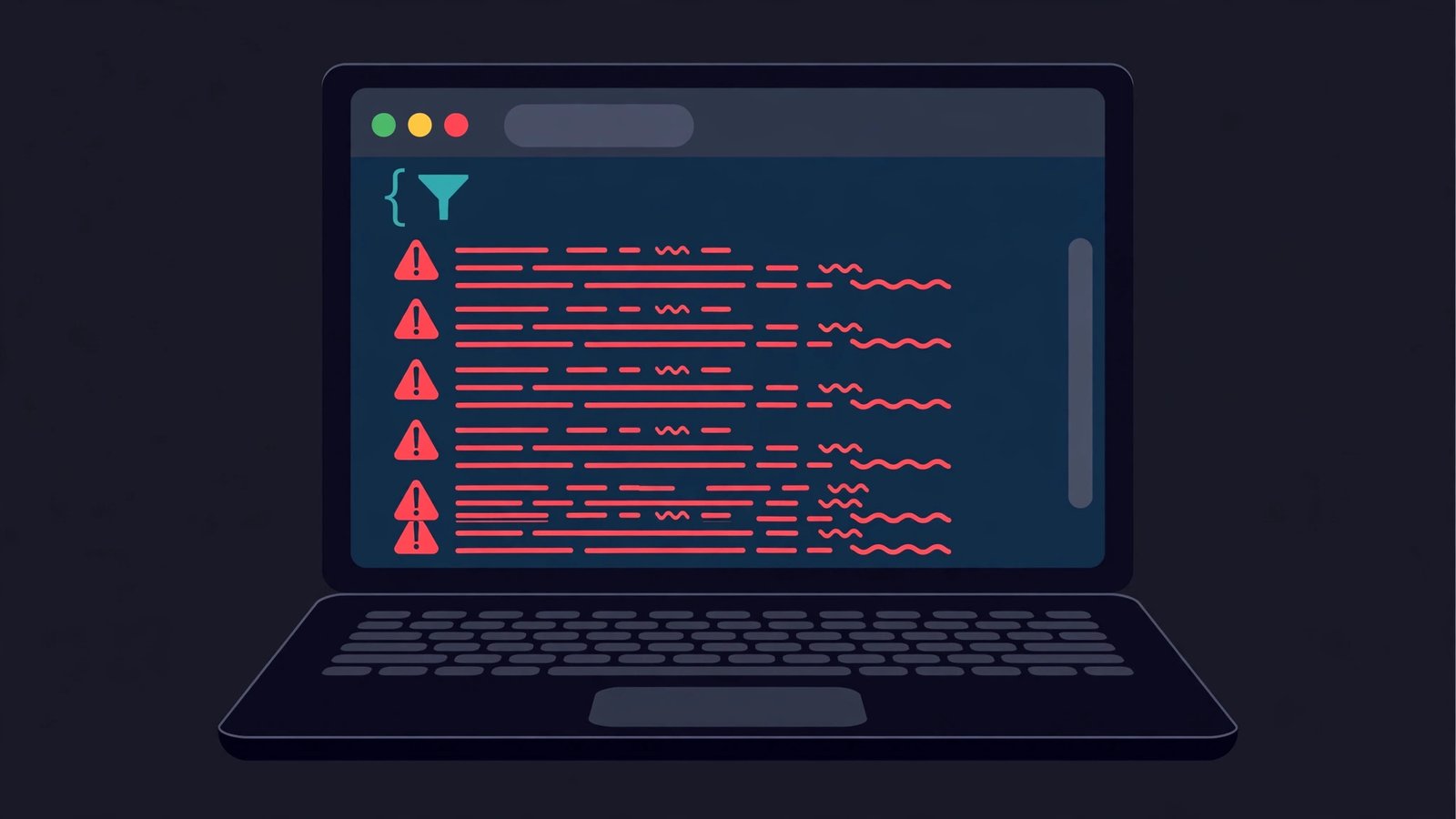
- Open the broken page in Chrome and press F12.
- Click the Console tab. Red entries are errors — read the first one; later errors are often knock-on effects.
- Note the filename:
wp-content/plugins/some-plugin/...means a plugin;wp-content/themes/...means the theme;wp-includes/...means core. - Click the filename to see the offending line.
- Common messages and meanings: “jQuery is not defined” (load order, Fix 4), “404” (missing file, Fix 6), “blocked” (optimisation or security plugin, Fix 5).
- Keep the console open while you apply the fixes below — watch errors disappear as you find the cause.
The console is the single most valuable diagnostic in web work. Learn to read the first red line and you will solve script problems in minutes. If the site will not load at all, our WordPress website not loading guide is the companion.
Fix 2: Deactivate Plugins
Plugins are the top cause of script conflicts — one bad actor can break every script on the page.
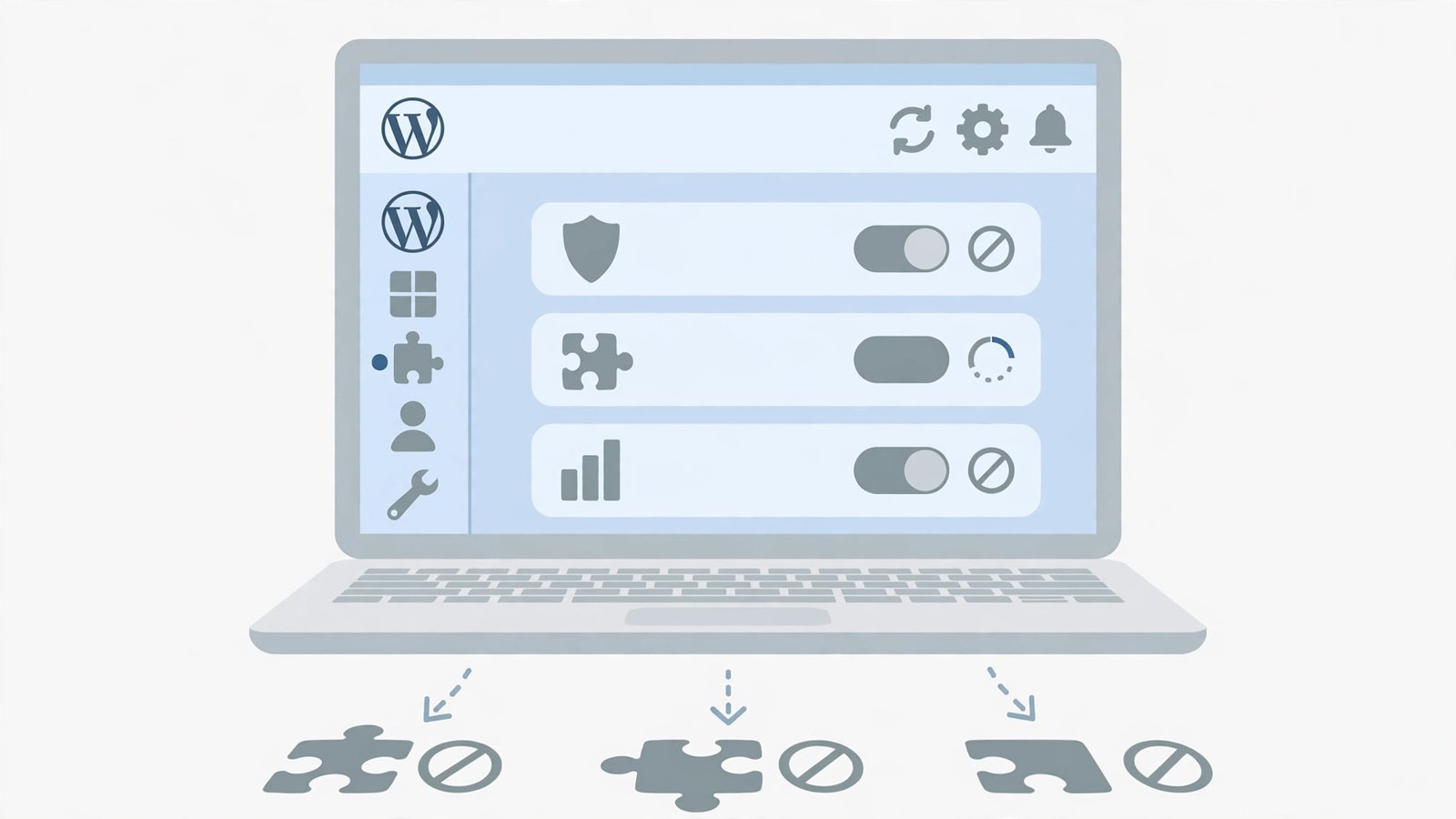
- In wp-admin > Plugins, tick all plugins, choose Deactivate from the bulk menu, and Apply. (If wp-admin is broken, rename plugin folders via FTP to deactivate.)
- Reload the broken page. If scripts work, a plugin was guilty.
- Reactivate plugins one by one (or in small groups), testing the page after each.
- When scripts break again, the last reactivated plugin is the culprit — leave it off and find an alternative or contact its developer.
- Check the culprit’s settings first: sometimes a single option (like its own optimisation or script-loading setting) causes the conflict.
Bulk-deactivate is fast and safe — deactivating does not delete settings. For the general method applied to any misbehaviour, our WordPress plugin conflict fix guide covers it in depth.
Fix 3: Switch to a Default Theme
If scripts still fail with all plugins off, the theme is next. A theme with broken or outdated scripts kills interactivity site-wide.
- Go to Appearance > Themes and activate a default theme (Twenty Twenty-Four or similar).
- Reload the broken page. If scripts work, your theme was the cause.
- Check for a theme update — the developer may have fixed the scripts already.
- If no update helps, contact the theme developer with the console errors (Fix 1) — they pinpoint the broken file.
- As a last resort, switch themes permanently or hire a developer to fix the theme’s scripts.
Never debug a broken theme on the live site longer than necessary — visitors see the breakage too. A staging copy is the professional place for theme surgery. If the block editor specifically is dead, see WordPress block editor not loading.
Fix 4: Fix jQuery and Defer Conflicts
WordPress ships jQuery, and many scripts depend on it loading first. “Defer” and “async” optimisations — or plugins loading their own jQuery — scramble the order.
- In the console (Fix 1), look for “jQuery is not defined” or “$ is not a function” — the fingerprints of order problems.
- In your optimisation plugin, find the JavaScript defer/async settings and turn them off temporarily.
- Test the page. If scripts return, re-enable defer/async but exclude jQuery and the broken scripts from it (most optimisers have an exclusion list).
- Check for plugins loading their own jQuery copy — two jQuerys fight. Deactivate the offender or its “load jQuery” option.
- Never deregister WordPress’s built-in jQuery to “use a CDN version” unless you know exactly what depends on the bundled one.
Script order is fragile: jQuery first, then everything that uses it. Deferring jQuery while its dependents load normally is the classic self-inflicted break. Exclusion lists are the surgical fix. For editor-loading troubles, our Elementor editor not loading guide is related.
Fix 5: Turn Off JS Minification
Minification rewrites scripts to be smaller. Occasionally it rewrites them to be broken — especially older scripts with unusual syntax.
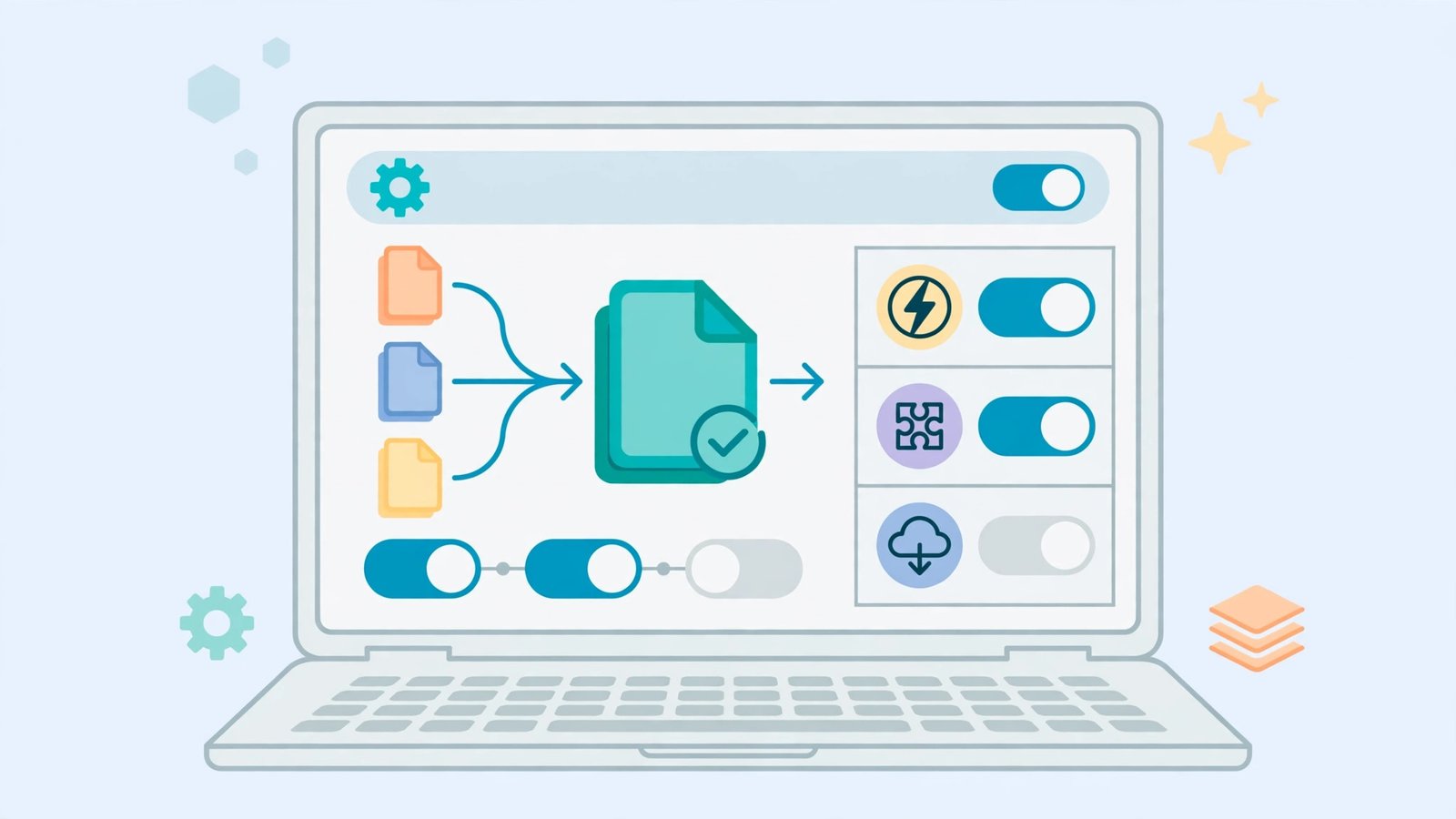
- In your optimisation/caching plugin, turn off JavaScript minification and combining.
- Purge all caches.
- Test the page. If scripts work, minification was mangling them.
- Re-enable minification but exclude the broken scripts via the plugin’s exclusion list.
- If exclusions do not help, leave JS minification off — its speed gains are modest compared to a working site.
- During development, keep all script optimisation off; enable it only on the finished site.
Minification is a production optimisation. Developing or debugging with it on means chasing ghosts — the code running is not the code you wrote. Switch it off while diagnosing, always.
Fix 6: Re-Upload Core Files
If the console shows 404s for wp-includes or wp-admin scripts, core files are missing or corrupt — failed updates and bad migrations cause this.
- Back up the site (files and database).
- Download a fresh WordPress zip from WordPress.org matching your version.
- Via FTP, re-upload the
wp-adminandwp-includesfolders, overwriting the existing ones. - Do NOT overwrite
wp-content(your themes, plugins, uploads live there) orwp-config.php. - Reload the page and watch the console — the 404s should be gone.
- If the WordPress version is unknown, the fresh copy’s version mismatch can cause issues — check the version in wp-admin > Updates first, or ask your host.
Re-uploading core is safe precisely because it avoids wp-content and wp-config.php. It restores the hundreds of core scripts to pristine condition. For debugging with logs, the official guide below (Fix 7’s companion) shows how to enable WP_DEBUG.
Fix 7: Check File Permissions
Scripts the server refuses to serve (403 errors in the console) are a permissions problem.
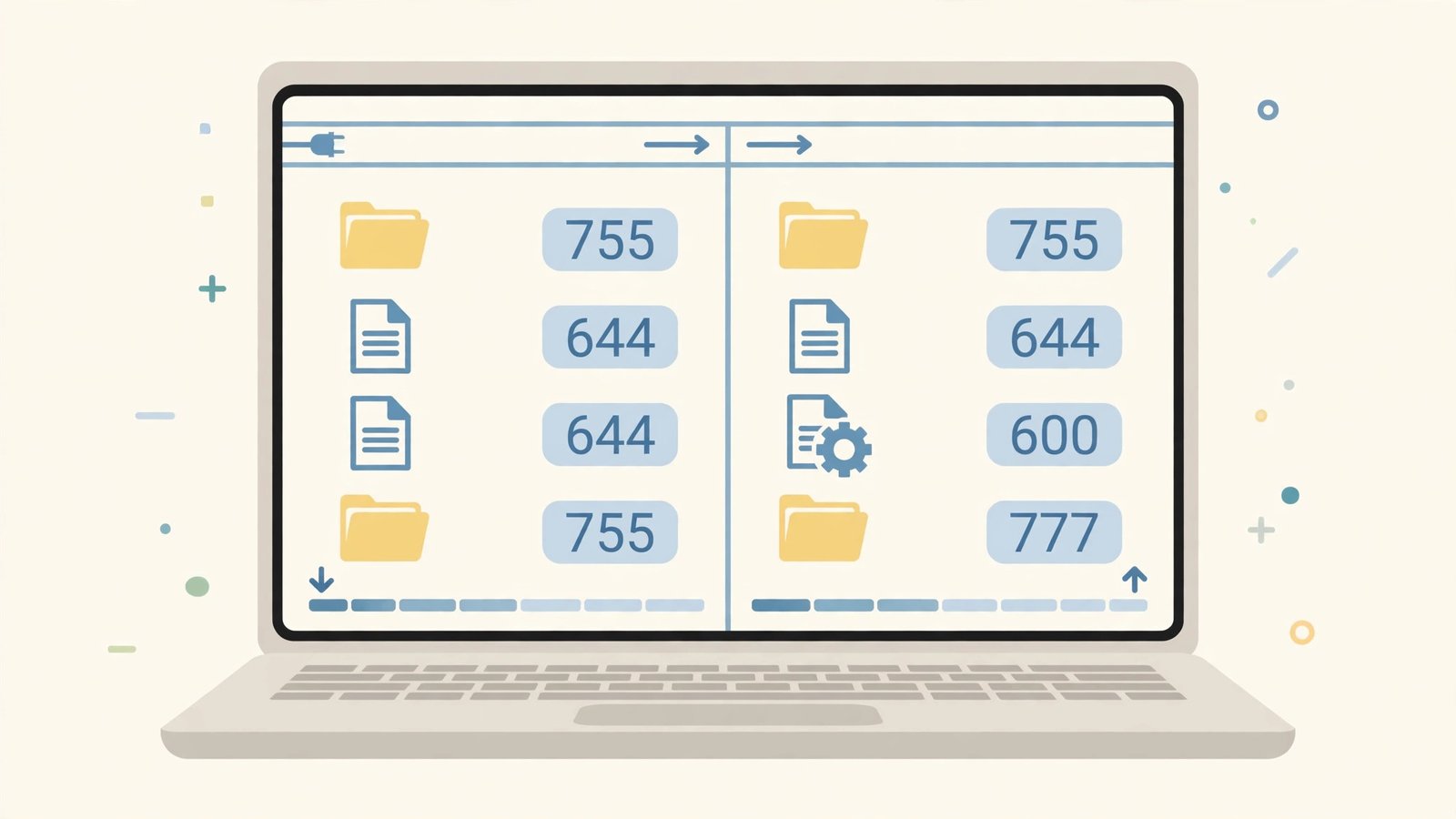
- In the console, confirm 403 (Forbidden) errors on script files.
- Via FTP, check the script files’ permissions — they should typically be 644, folders 755.
- Correct any that are wrong (0 or overly restrictive modes block the web server).
- Also check file ownership if your host uses it — files owned by the wrong user can 403.
- Test the page again.
Permission issues often follow migrations or manual uploads. The console’s 403 is unambiguous: the file exists, the server just will not serve it. Your host can fix ownership issues you cannot.
What to Avoid
- Do not combine/minify scripts while debugging — you are debugging transformed code.
- Do not load two copies of jQuery — deregister the duplicate, do not add a third.
- Do not edit minified files directly — fix the source and regenerate.
- Do not ignore the console’s first error — later errors are usually consequences.
- Do not deactivate plugins one-by-one from the start — bulk-deactivate first, it is faster.
- Do not overwrite wp-content when re-uploading core — that is where your site lives.
Frequently Asked Questions
Why do menus and sliders stop working suddenly?
A JavaScript error halts all scripts after it. One broken plugin script (Fix 2) or a mangled minified bundle (Fix 5) freezes every interactive element on the page.
What does “jQuery is not defined” mean?
A script tried to use jQuery before it loaded — an order problem from defer/async settings (Fix 4) or a duplicate jQuery (Fix 4). Exclude jQuery from deferring.
Can a caching plugin break JavaScript?
Yes — via minification/combining (Fix 5) or by serving stale script versions. Purge thoroughly and test with optimisation off before blaming anything else.
Why does wp-admin work but the front end is broken?
The theme’s scripts are the likely cause (Fix 3) — admin uses different scripts. Switch to a default theme to confirm.
Is it safe to re-upload WordPress core files?
Yes, if you avoid wp-content and wp-config.php (Fix 6). Core folders contain only WordPress’s own files, and fresh copies fix corruption cleanly. Back up first anyway.
Why does my JavaScript work in the footer but not the header?
Dependencies. Scripts in the header run before jQuery and other libraries finish loading, so anything depending on them fails. The footer runs last, when everything is available. WordPress’s enqueue system exists to solve exactly this — register your script with its dependencies and let WordPress place it correctly, instead of hardcoding script tags in the header.
Can ad blockers break my site’s JavaScript?
Yes, and it is maddening to debug. Ad blockers match script URLs and filenames against filter lists — a script named “ads.js” or served from a flagged domain gets blocked for visitors running blockers, while your own browser (without one) works fine. Rename suspicious script files and avoid ad-like naming. Test your site with a popular ad blocker installed to see what visitors see.
Why does my custom JS vanish after a plugin update?
You edited the plugin’s files directly, and the update replaced them. Like theme edits, plugin file edits are disposable — updates wipe them without warning. Keep custom JavaScript in a child theme, a custom functionality plugin, or the Customizer’s Additional CSS/JS area. Then updates can come and go without touching your code.
Should I use a plugin to add custom JavaScript?
For small snippets, a lightweight code-snippets plugin or the child theme is cleaner than a heavy “custom JS” plugin. Each plugin adds load time and a potential conflict point. If you already run a snippets plugin for other code, add your JavaScript there — one well-chosen tool beats three overlapping ones.
Conclusion
When wordpress javascript is not loading, the console is your compass: read the first red error, identify the file’s owner (plugin, theme, core), and apply the matching fix. Deactivate in bulk, tame minification, respect script order, and re-upload core when files are missing. Interactive elements return the moment the blocking error is gone — usually within minutes of finding it.