

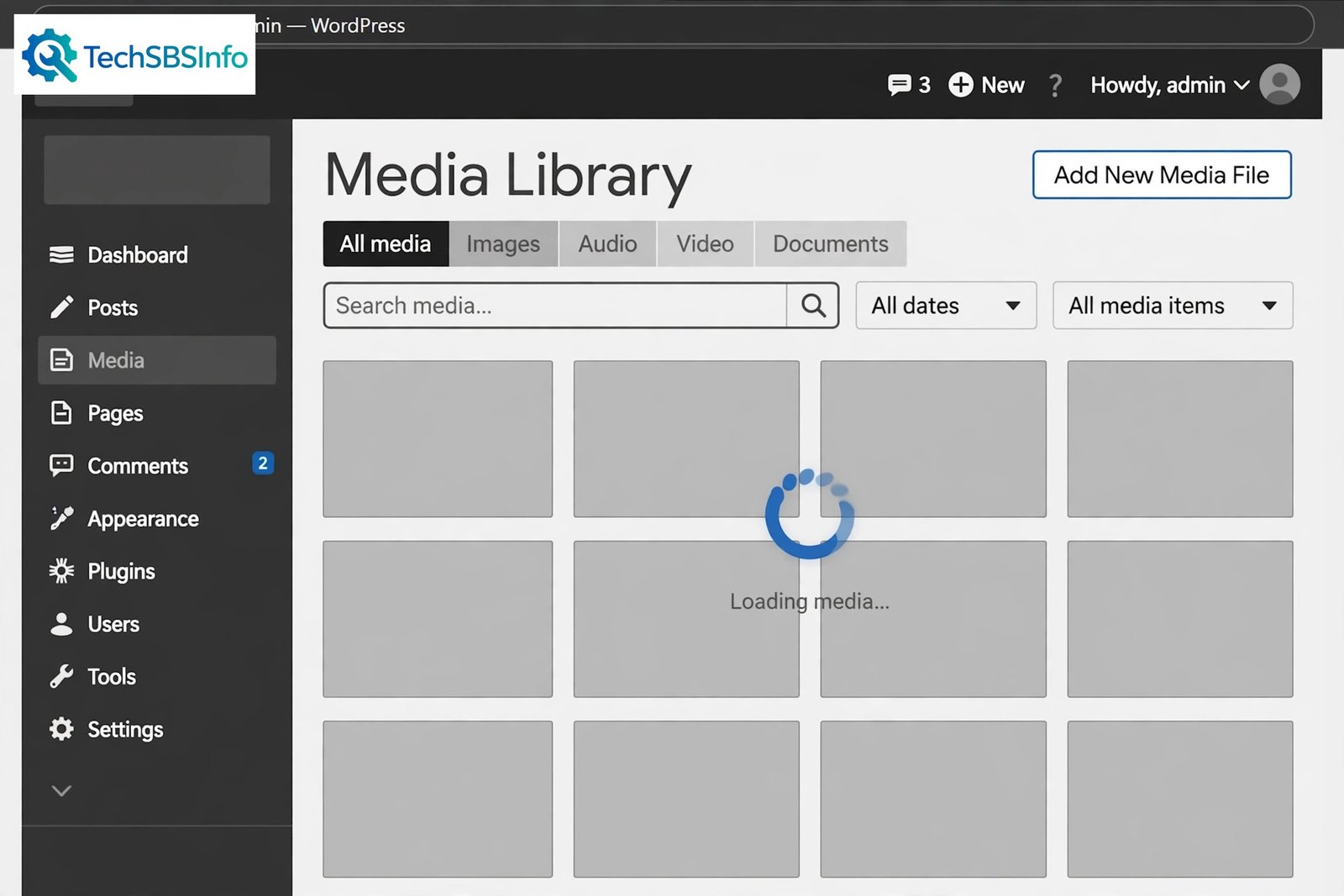
If wordpress media library not loading is what you see every time you open Media > Library, you are not alone. Instead of your images, you may see grey boxes, an endless spinner, or a completely blank page.
The media library loads your images with JavaScript and small background requests. When anything blocks those requests, the grid never appears. The good news is that the causes are limited and most of them are simple to fix.
This guide walks you through 7 fixes in order from the simplest to the most advanced. Work through them one by one. Most people solve the problem in the first three fixes.
Table of Contents
- Quick Checks
- Diagnose: Match Your Symptom
- Fix 1: Hard Refresh When WordPress Media Library Not Loading
- Fix 2: Check the Browser Console for JavaScript Errors
- Fix 3: Deactivate Plugins to Find the Conflict
- Fix 4: Switch to a Default WordPress Theme
- Fix 5: Increase the PHP Memory Limit
- Fix 6: Fix File and Folder Permissions
- Fix 7: Reinstall WordPress Core Files
- What to Avoid
- Frequently Asked Questions
- Conclusion
Quick Checks
Try these fast checks first. Each takes less than a minute.
- Open the media library in a private or incognito window to rule out bad browser cache.
- Press Ctrl + F5 on Windows or Cmd + Shift + R on Mac to hard refresh the page.
- Try a different browser to see if the problem is browser-specific.
- Log out of WordPress and log back in to refresh your session.
- Check that your internet connection is stable and not dropping requests.
- Wait one minute and reload. A busy server can delay the media grid.
If none of these help, move on to the diagnose table below.
Diagnose: Match Your Symptom
| Symptom | Cause | Go to Fix |
|---|---|---|
| Grey boxes with a spinning loader that never stops | A JavaScript or background request failure | Fix 1, Fix 2 |
| “No media files found” even though files exist on the server | Permission or database records issue | Fix 6 |
| New uploads never appear in the library grid | Low PHP memory or blocked upload request | Fix 5, Fix 6 |
| Library worked fine until a new plugin or update | Plugin or theme conflict | Fix 3, Fix 4 |
| Blank white area where the image grid should be | Corrupted core file or fatal PHP error | Fix 7 |
Fix 1: Hard Refresh When WordPress Media Library Not Loading
Your browser may be loading an old cached copy of the admin scripts. A hard refresh forces it to download fresh files.
- Go to Media > Library in your WordPress dashboard.
- Press Ctrl + F5 (Windows) or Cmd + Shift + R (Mac).
- Wait for the page to fully reload and check the grid.
- If the spinner is still stuck, clear your browser cache completely:
- Open browser settings and find Privacy or History.
- Choose Clear browsing data for cached images and files.
- Reload the media library and check again.
- Try the library in a private or incognito window. If it works there, your normal browser cache was the problem.
If uploads themselves also fail with errors, read our guide on image upload failed in WordPress.
Fix 2: Check the Browser Console for JavaScript Errors
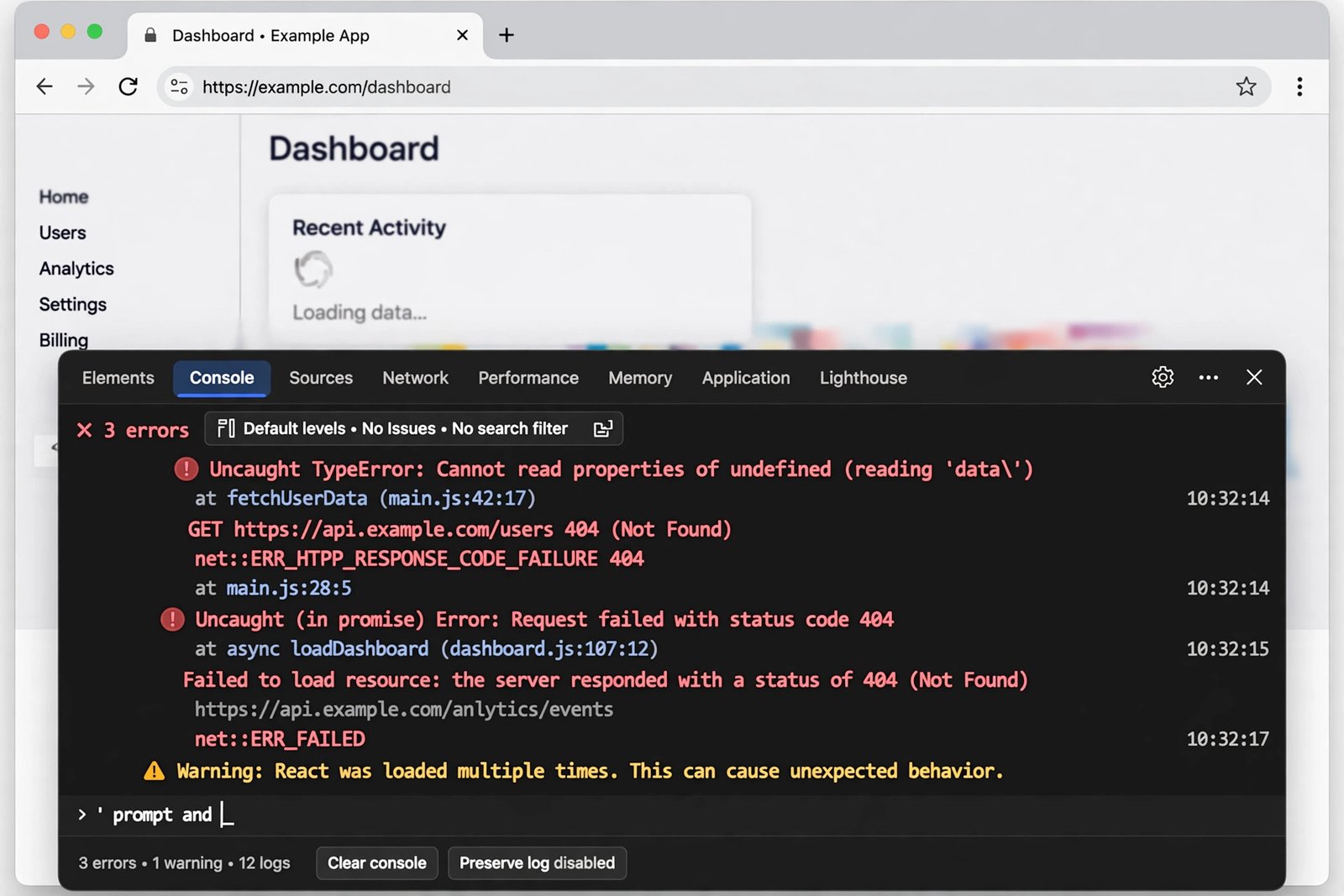
The media grid is built by JavaScript. If a script throws an error, the grid never finishes loading. The browser console shows you exactly which script broke.
- Open the media library page.
- Press F12 on Windows or Cmd + Option + J on Mac to open the developer tools.
- Click the Console tab at the top of the panel.
- Look for red error messages. These tell you what went wrong.
- If an error names a plugin file (for example, a path under
/wp-content/plugins/), that plugin is the likely cause. Jump to Fix 3. - If you see errors about blocked or failed network requests, click the Network tab, reload the page, and look for requests marked in red.
- Take a screenshot or copy the error text. You will need it if you contact your hosting support later.
Fix 3: Deactivate Plugins to Find the Conflict
Plugins are the most common cause of this problem. A single poorly coded plugin can break the admin JavaScript for the whole site.
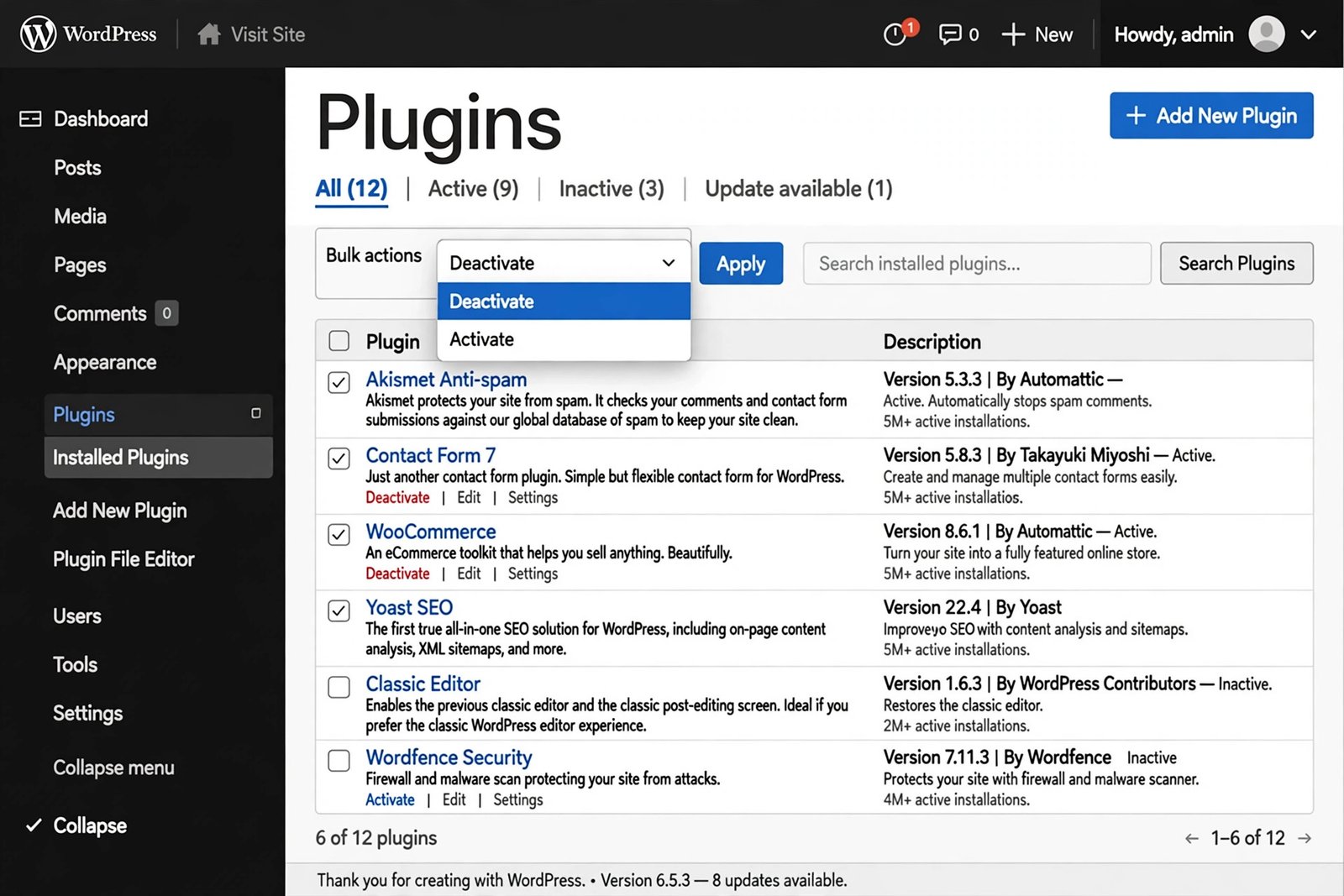
- Go to Plugins > Installed Plugins in your dashboard.
- Select all plugins using the checkbox at the top of the list.
- Choose Deactivate from the bulk actions menu and click Apply.
- Open Media > Library and check if the grid now loads.
- If the library works, one of the plugins was the cause. Now find it:
- Reactivate your plugins one by one.
- Check the media library after each activation.
- When the library breaks again, the last plugin you activated is the culprit.
- Keep the faulty plugin deactivated and look for an updated version or a replacement.
Security and optimization plugins are frequent offenders because they modify scripts or block requests. For a deeper walkthrough, see our WordPress plugin conflict fix guide.
Fix 4: Switch to a Default WordPress Theme
If deactivating plugins did not help, your theme may be the problem. Themes can load their own admin scripts that clash with the media library.
- Go to Appearance > Themes in your dashboard.
- Activate a default WordPress theme such as Twenty Twenty-Four.
- Open Media > Library and check if the grid loads now.
- If it works, your old theme is causing the conflict. Contact the theme author or switch themes.
- If it still does not work, switch back to your normal theme and continue to Fix 5.
Fix 5: Increase the PHP Memory Limit
WordPress needs enough server memory to build image thumbnails and load the library. When memory runs out, the background requests fail silently and the grid stays empty.
First, check your current limit:
- Install the free Site Health information view: go to Tools > Site Health > Info and open the Server section.
- Look for the PHP memory limit value.
- If it shows 128M or less, it is likely too low for a media-heavy site.
Now raise the limit with the wp-config.php method:
- Open your hosting file manager or connect with an FTP client.
- Find the file wp-config.php in your site’s root folder.
- Download a backup copy to your computer first.
- Edit the file and add this line just above the line that says “stop editing”:
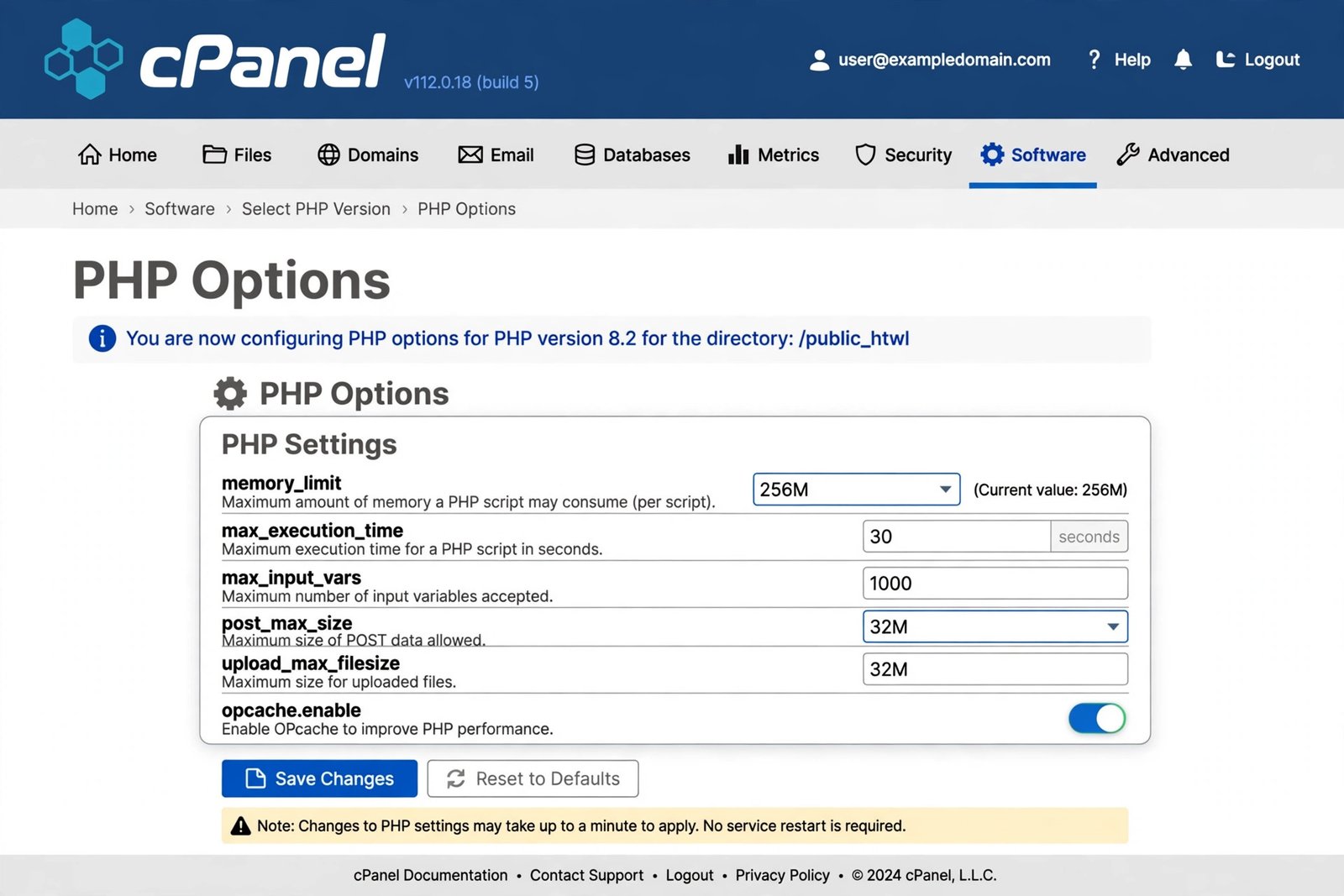
define( 'WP_MEMORY_LIMIT', '256M' );- Save the file and upload it back to the server.
- Reload the media library and check the grid.
If your host allows it, you can also raise the limit from your hosting control panel under PHP settings.
Low memory can also trigger fatal errors elsewhere in the admin. If you see white screens on other pages too, our WordPress critical error fix guide can help.
Fix 6: Fix File and Folder Permissions
WordPress must be able to read the files in your uploads folder. If server permissions are wrong, the library cannot display the images even though the files exist.
The correct values are:
- 755 for folders
- 644 for files
- wp-config.php can be stricter at 440 or 400
Here is how to set them with an FTP client:
- Connect to your site with your FTP client.
- Right-click the wp-content/uploads folder and choose File permissions.
- Enter 755 and apply it to the folder, its subfolders, and files if your client offers that option.
- Then select the files inside uploads, set them to 644, and apply.
- Never set anything to 777. That value gives full access to everyone and is a security risk.
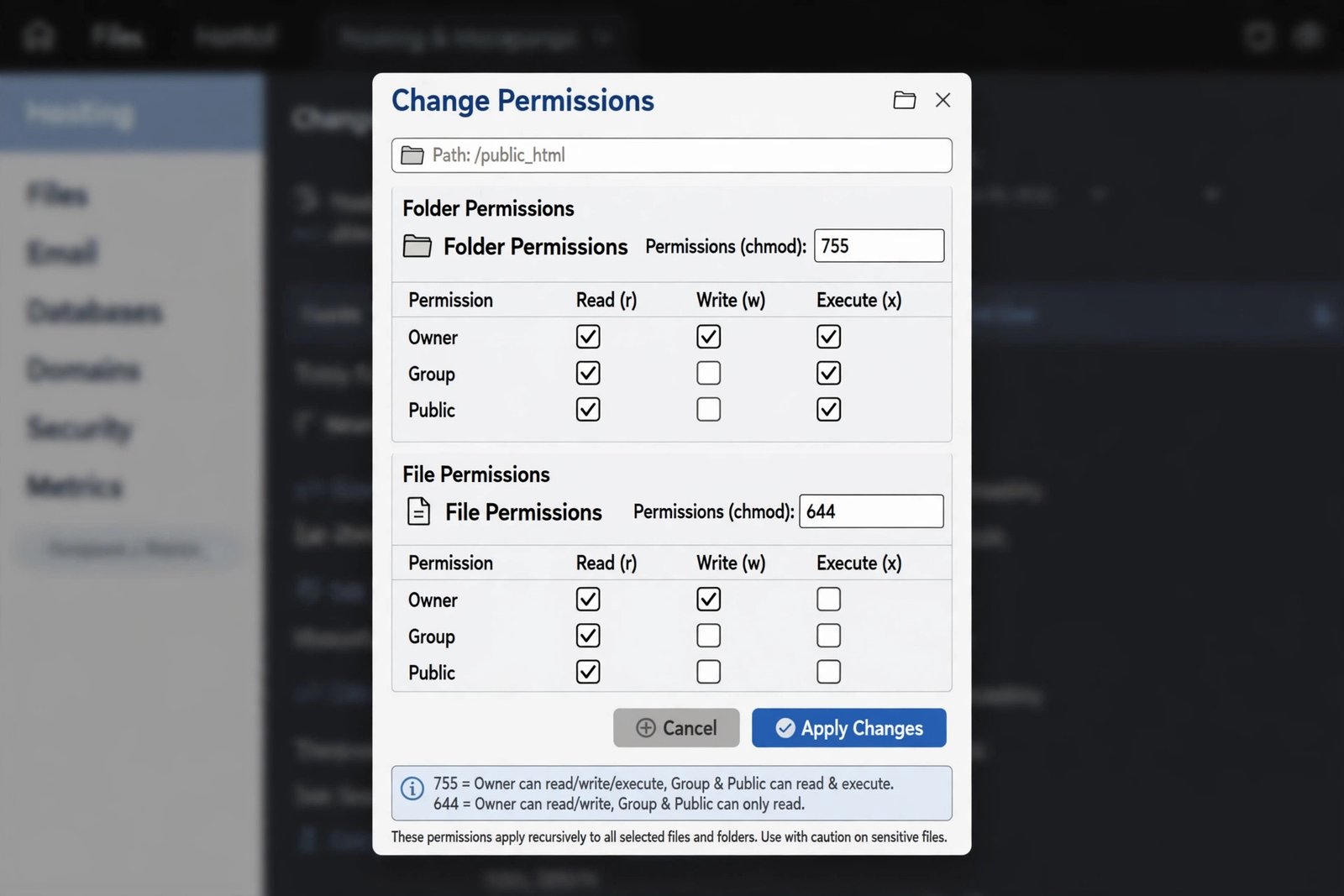
Reload the media library after changing permissions. If the grid appears, the permissions were blocking it.
Fix 7: Reinstall WordPress Core Files
If nothing else worked, a core file may be corrupted or missing. Reinstalling core files is safe. It replaces the WordPress software files but keeps your content, themes, plugins, and database untouched.
- Go to Dashboard > Updates in your admin panel.
- If an update is available, click Update now and wait for it to finish.
- If no update is available, click the Re-install now button under the current version.
- Wait for the process to complete. Do not close the page during the reinstall.
- Open Media > Library and check the grid.
Still stuck? If the whole admin feels slow or other pages fail to load, caching or server issues may be involved. See our guide on WordPress website not loading for server-side checks.
What to Avoid
- Do not set file permissions to 777. It creates a serious security hole.
- Do not install a nulled or pirated plugin hoping it fixes the issue. They often contain malware.
- Do not edit core WordPress files directly. Reinstall them instead using Fix 7.
- Do not raise the memory limit to an extreme value like 1024M. Ask your host what is reasonable first.
- Do not delete the uploads folder or your image files. The problem is almost never the files themselves.
- Do not ignore the browser console. Guessing wastes far more time than reading the actual error.
Frequently Asked Questions
Why is the wordpress media library not loading, but my site still looks fine?
The front of your site and the admin area use different scripts. A JavaScript error can break the media grid while the public pages keep working. Fix 2 shows you how to spot the error.
Can a new plugin really break the media library?
Yes. It is one of the most common causes. Plugins that add admin scripts, block requests, or change the upload folder can stop the grid from loading. Fix 3 walks you through finding the bad plugin.
How do I know if low PHP memory is the problem?
Open Tools > Site Health > Info > Server and check the PHP memory limit. If it is low and your library holds many large images, memory is a strong suspect. Fix 5 explains how to raise it.
Will reinstalling WordPress delete my images or posts?
No. Reinstalling core files only replaces the WordPress software files. Your uploads, posts, pages, themes, plugins, and database stay exactly as they are.
The library loads in one browser but not another. What does that mean?
That points to a browser cache or extension problem. Clear the cache, disable extensions, or use a private window as described in Fix 1. The issue is on your computer, not your server.
Do I need to contact my hosting provider?
Only as a last step. If all 7 fixes fail, send your host a screenshot of the console errors from Fix 2. That gives them exactly what they need to help you faster.
Conclusion
A wordpress media library not loading is frustrating, but it is almost always fixable without losing any files. Start with a hard refresh, check the console, and test for plugin conflicts. Those three steps solve the problem for most site owners.
If you needed the advanced fixes, consider what changed on your site just before the problem started. A new plugin, a theme update, or a server change is usually the trigger. Keep your plugins and themes updated from official sources, and your media library will keep loading smoothly.
Helpful Official Resources
- Official WordPress Media Library guide — how the library stores and displays your media.
- WordPress wp-config.php reference for memory settings — official documentation on raising memory limits.