

When windows 11 wifi not working ruins your morning, the fix is usually simpler than you think. Most cases come down to a stuck adapter, a confused router, or a setting that changed itself. Work through the fixes below in order, and you will probably be back online within a few minutes. For more step-by-step help, the TechSBSInfo home page has guides for many other Windows problems too.
Table of Contents
- Fix 1: Toggle Wi-Fi Off and Back On When Windows 11 WiFi Not Working
- Fix 2: Make Sure Airplane Mode Is Off
- Fix 3: Restart Your PC
- Fix 4: Restart Your Router and Modem
- Fix 5: Move Closer to the Router and Reduce Interference
- Fix 6: Forget the Network and Reconnect
- Fix 7: Run the Windows 11 Network Troubleshooter
- Fix 8: Check That the Wi-Fi Adapter Is Enabled
- Fix 9: Update Your Wi-Fi Driver
- Fix 10: Reset the TCP/IP Stack and Flush the DNS Cache
- Fix 11: Stop Windows Turning Off Your Wi-Fi Adapter to Save Power
- Fix 12: Use Network Reset as a Last Resort
Quick checks before you start
- Look at your router. Are its lights on and steady? No lights usually means a power or ISP problem, not a Windows problem.
- Check another device. If your phone connects fine, the problem is in your Windows 11 PC.
- Make sure no one is downloading huge files or streaming on many devices at once.
- If you use a laptop, check for a physical Wi-Fi switch or a function key (often Fn + F2 or similar) that toggles wireless.
- Note the exact error message on your PC, such as “No internet, secured” or “Can’t connect to this network.” It helps you pick the right fix.
Diagnose your symptom first
| Symptom | Likely cause | Go to fix |
|---|---|---|
| Wi-Fi icon shows “No internet, secured” | Router or ISP issue, or IP address problem | Fix 4, Fix 10 |
| No Wi-Fi networks appear at all | Wi-Fi turned off, adapter disabled, or driver missing | Fix 1, Fix 8, Fix 9 |
| Wi-Fi works but drops every few minutes | Power saving settings or weak signal | Fix 5, Fix 11 |
| “Can’t connect to this network” error | Wrong password or corrupted saved profile | Fix 6 |
| Wi-Fi option is missing from Settings | Adapter disabled, driver problem, or hardware switch off | Fix 8, Fix 9 |
| Internet is very slow on Wi-Fi only | Interference, channel congestion, or outdated driver | Fix 5, Fix 9 |
Fix 1: Toggle Wi-Fi Off and Back On When Windows 11 WiFi Not Working
This is the fastest fix. It forces the wireless adapter to start a fresh connection.
- Click the network, sound, or battery icons in the bottom-right corner of the taskbar to open Quick Settings.
- Click the Wi-Fi button to turn it off. Wait about 10 seconds.
- Click it again to turn it back on.
- Wait for your network name to appear, then click it and connect.
- If nothing appears, click Refresh network list to force a new scan.
Tip: This simple toggle clears many temporary glitches. Always try it first before anything harder.
Fix 2: Make Sure Airplane Mode Is Off
Airplane mode turns off every wireless radio, including Wi-Fi. It is easy to switch on by accident with a keyboard shortcut.
- Open Quick Settings from the taskbar corner.
- Look for the Airplane mode button. If it is highlighted, click it to turn it off.
- You can also go to Settings > Network & internet > Airplane mode and make sure the switch is off.
- Wait a few seconds, then check whether your Wi-Fi network appears.
Tip: If you never use Airplane mode, you can remove its button from Quick Settings so you do not hit it by mistake.
Fix 3: Restart Your PC
A restart clears stuck network services and half-finished driver tasks. It solves more problems than people expect.
- Save your open work and close your programs.
- Click Start > Power > Restart. Use Restart, not Shut down, because Fast Startup can skip a full refresh on shutdown.
- After the PC boots, wait a minute, then try connecting to Wi-Fi again.
Tip: If Wi-Fi worked fine yesterday and broke today, a restart after a Windows update is often all it needs.
Fix 4: Restart Your Router and Modem
If your PC is fine but the network itself is confused, restarting the equipment fixes it. This step helps when every device has trouble, or when Windows says “No internet, secured.”
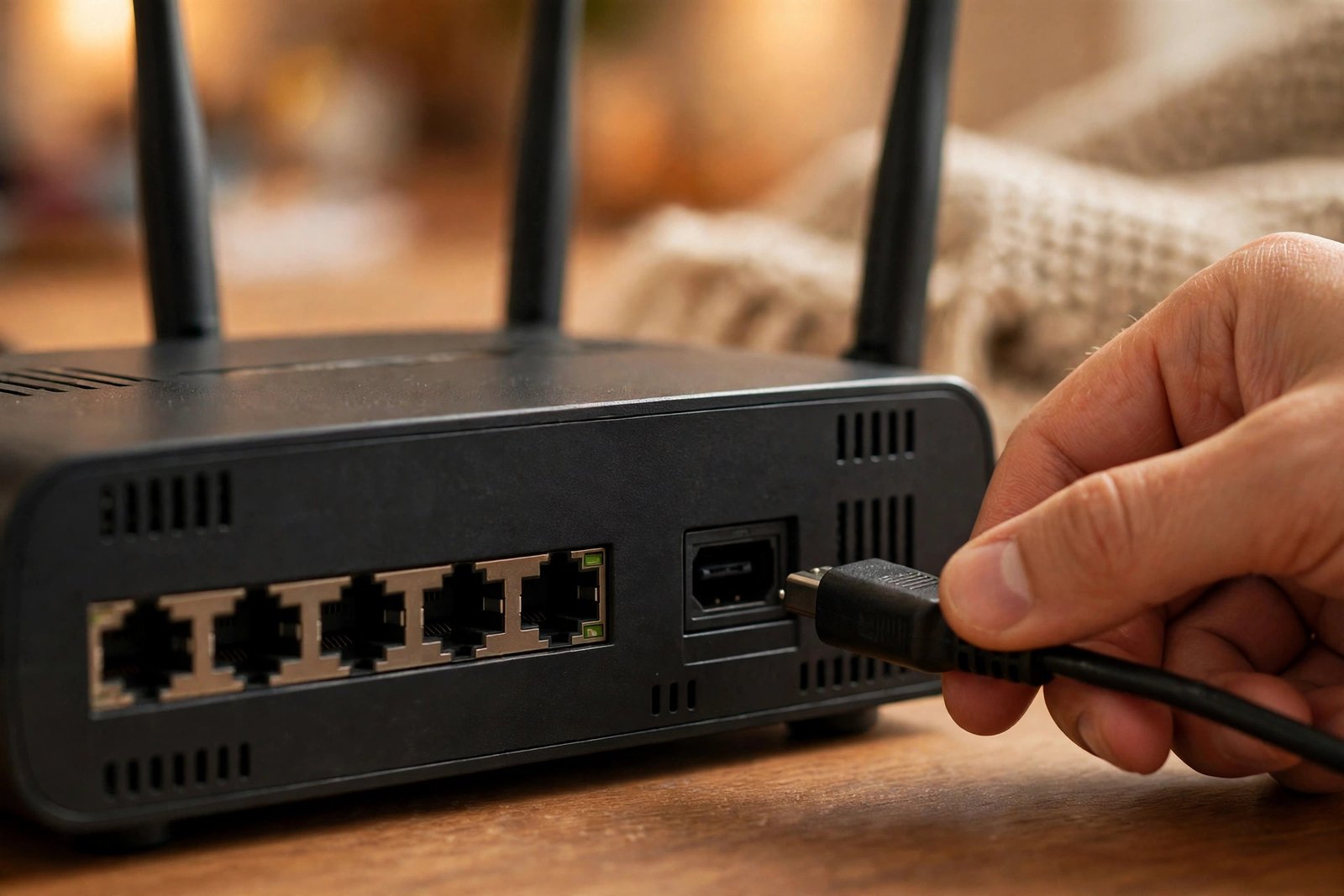
- Unplug the power cable from your router. If you have a separate modem, unplug that too.
- If your modem has a backup battery and its lights stay on, remove the battery as well.
- Wait at least 30 seconds. This lets the equipment fully power down.
- Plug the modem back in first and wait until its lights stop blinking.
- Plug the router back in and wait a few minutes until it is fully started.
- On your PC, try connecting to Wi-Fi again.
Warning: Everyone using that network will lose connection for a few minutes. Tell others in the house before you unplug anything.
Fix 5: Move Closer to the Router and Reduce Interference
A weak signal causes drops, slow speeds, and failed connections. Walls, floors, and other electronics all weaken Wi-Fi.
- Move your laptop closer to the router, ideally in the same room, and test again.
- Keep the router out in the open, not inside a cabinet or behind a TV.
- Move the router away from microwaves, baby monitors, and thick concrete walls.
- If your router broadcasts two networks (2.4 GHz and 5 GHz), try the other one. The 2.4 GHz band reaches farther; the 5 GHz band is faster but shorter range.
- If the signal improves when you are close, consider moving the router to a more central spot.
Tip: The Wi-Fi icon in the taskbar shows signal strength. One or two bars means the signal is too weak where you sit.
Fix 6: Forget the Network and Reconnect
Saved network profiles can get corrupted. Deleting yours and starting fresh often fixes “Can’t connect to this network” errors.
- Go to Settings > Network & internet > Wi-Fi.
- Click Manage known networks.
- Find your network in the list and click Forget.
- Go back and click Show available networks in the taskbar Wi-Fi panel.
- Select your network, click Connect, and type the password carefully.
Tip: Make sure Caps Lock is off when typing the password. Many “can’t connect” cases are just a typo.
Warning: You will need the Wi-Fi password again, so have it ready before you forget the network.
Fix 7: Run the Windows 11 Network Troubleshooter
Windows 11 has a built-in troubleshooter that checks common problems automatically. It is worth running before you change anything manually. Our Windows 11 Network & Internet guides cover more tools like this one.

- Go to Settings > System > Troubleshoot.
- Click Other troubleshooters.
- Find Network and Internet and click Run. On some versions it may open the Get Help app instead — just follow its questions.
- Let the scan finish, then apply any fix it suggests.
- Restart your PC if it asks you to, then test your connection.
Tip: The troubleshooter sometimes finds nothing. That does not mean your PC is fine — just move on to the next fix.
Fix 8: Check That the Wi-Fi Adapter Is Enabled
If no Wi-Fi networks appear at all, the wireless adapter itself may be disabled. This happens after updates, or when a physical switch is turned off.
- Press Windows key + X and choose Device Manager.
- Expand Network adapters.
- Look for your wireless adapter. Its name usually contains words like “Wireless,” “Wi-Fi,” or “WLAN.”
- If it shows a small down arrow, right-click it and choose Enable device.
- If it shows a yellow warning icon, right-click it and open Properties to read the error code.
- If no wireless adapter is listed at all, check for a physical Wi-Fi switch on your laptop and make sure it is on.
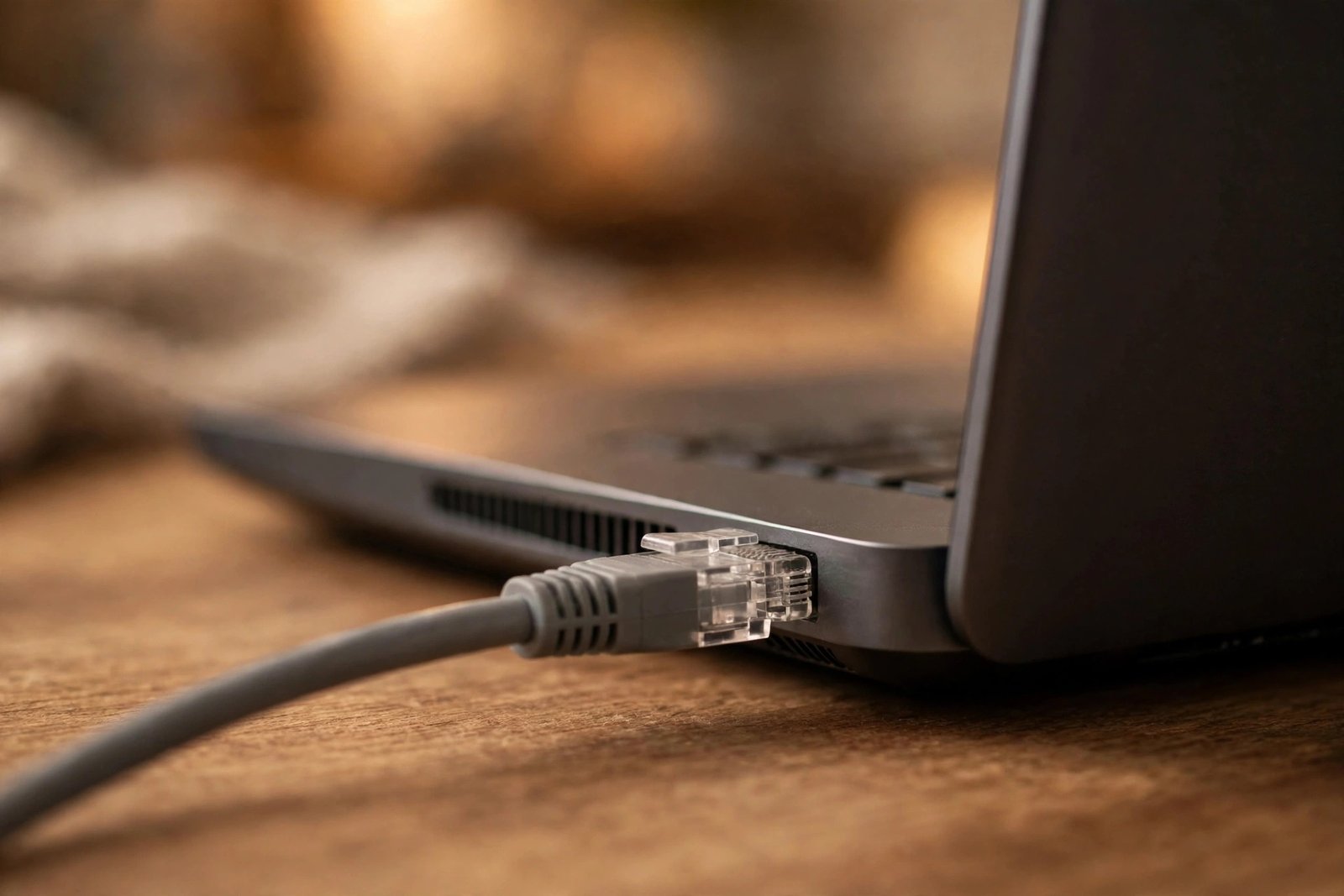
Extra test: If you have an Ethernet cable, plug your PC directly into the router. If the internet works over the cable, your router and ISP are fine, and the problem is only with wireless. You can then focus on the Wi-Fi-specific fixes in this guide.
Fix 9: Update Your Wi-Fi Driver
Outdated or broken drivers are one of the most common causes of Wi-Fi failure. This is especially true right after a Windows update.
- Press Windows key + X and choose Device Manager.
- Expand Network adapters and right-click your Wi-Fi adapter.
- Choose Update driver, then Search automatically for drivers.
- Wait for Windows to check and install anything it finds.
- If Windows finds nothing, visit your PC maker’s official support website on another device, download the latest wireless driver for your exact model, copy it to a USB drive, and install it on your PC.
- Restart your PC after the driver installs.
Warning: Only download drivers from your PC manufacturer’s official website or Windows Update. Never use “driver updater” programs from random websites — many bundle adware or malware.
Fix 10: Reset the TCP/IP Stack and Flush the DNS Cache
If you connect to Wi-Fi but get “No internet,” your network settings may be stuck with a bad IP address or old DNS data. These commands reset the core networking parts of Windows.
- Click Start, type command prompt, right-click Command Prompt, and choose Run as administrator. Click Yes on the prompt.
- Type each command below and press Enter after each one, in this order:
netsh winsock resetnetsh int ip resetipconfig /releaseipconfig /renewipconfig /flushdns
- Close the window and restart your PC.
- Try connecting to Wi-Fi again.
Tip: The ipconfig /flushdns step clears old website address records, which also fixes cases where Wi-Fi works but some sites will not load.
Warning: Only run network commands from guides you trust. Random scripts from unknown sites can change settings you did not intend to touch.
Fix 11: Stop Windows Turning Off Your Wi-Fi Adapter to Save Power
Windows can switch off the wireless adapter to save battery. On some PCs this causes random disconnections, especially on laptops.
- Press Windows key + X and choose Device Manager.
- Expand Network adapters and right-click your Wi-Fi adapter.
- Choose Properties, then open the Power Management tab.
- Uncheck Allow the computer to turn off this device to save power.
- Click OK and restart your PC.
Tip: If you use a laptop on battery a lot, also go to Settings > System > Power & battery and check that your power mode is not set to the most aggressive battery saver while you need stable Wi-Fi.
Fix 12: Use Network Reset as a Last Resort
Network reset removes all network adapters and returns every network setting to its default. Use it only when nothing else worked.
- Go to Settings > Network & internet > Advanced network settings.
- Click Network reset.
- Click Reset now, then Yes to confirm.
- Your PC will restart. After it boots, you will need to reconnect to Wi-Fi and type your password again.
Warning: Network reset deletes all saved Wi-Fi passwords and VPN profiles. You may also need to reinstall VPN software or virtual network switches afterwards.
Microsoft also publishes its own official Wi-Fi troubleshooting guide, which covers many of these steps with extra detail if you want a second opinion.
What to avoid
- Do not download “driver updater” tools, Wi-Fi booster apps, or registry cleaners from unknown websites. Get drivers only from Windows Update or your PC maker’s official site.
- Do not run random network commands or scripts copied from unknown forums. Stick to the commands in this guide.
- Do not factory-reset your router until you have tried a simple 30-second restart. A factory reset wipes all your settings.
- Do not pay for “remote support” pop-ups or calls claiming your Wi-Fi is infected. Those are scams.
- Do not change advanced adapter settings (like roaming aggressiveness or channel width) unless you know exactly what they do. Wrong values can make things worse.
FAQ
Why does my Wi-Fi keep disconnecting on Windows 11?
The most common cause is power management. Windows turns the adapter off to save battery. Follow Fix 11 to disable that option, and also check that you are not too far from the router (Fix 5).
Why is the Wi-Fi option missing from Settings?
The adapter is probably disabled or its driver is missing. Check Fix 8 to re-enable it, and Fix 9 to update the driver. Also look for a physical Wi-Fi switch on your laptop.
What does “No internet, secured” mean?
It means your PC reached the router but the router has no internet connection, or your PC failed to get a valid IP address. Restart the router (Fix 4), then reset the TCP/IP stack (Fix 10). If other devices have internet, the problem is in your PC’s settings.
Why does my network say “not secure”?
That warning appears when your router uses an old security standard like WEP or TKIP. Microsoft explains how to improve your Wi-Fi security, including switching to WPA2 or WPA3 in your router’s settings.
Should I use network reset?
Only as a last step. It works well for stubborn problems, but it deletes all saved Wi-Fi passwords and VPN settings. Try Fixes 1 through 11 first.
Conclusion
When Windows 11 Wi-Fi stops working, start with the easy steps: toggle Wi-Fi, check Airplane mode, restart your PC, and restart your router. Those four fix most cases. If the problem continues, work through the driver, power, and network setting fixes in order. The TechSBSInfo blog keeps adding Windows 11 guides, and you can learn more about who writes these guides on our About page.
[…] top reasons a download freezes partway through. If your connection itself is the problem, start by fixing your internet connection first, since no update trick will help until the network is […]
[…] your Wi-Fi keeps dropping or refuses to connect at all, our step-by-step guide to Windows 11 Wi-Fi not working walks you through the deeper wireless repairs. If the connection is fine but Chrome still […]
[…] whether Windows itself lost Wi-Fi. If your whole PC keeps dropping the connection, our guide on Windows 11 Wi-Fi not working walks through that […]
[…] connection problems are a recurring theme on your machine, our guide on fixing Wi-Fi problems in Windows 11 walks through the deeper network […]
[…] cannot arrive on a dead connection. If your PC keeps dropping its connection, our guide on fixing Wi-Fi problems on Windows 11 will help you stabilise it […]