

The Short Answer
Your phone says it is connected to Wi-Fi, the signal icon looks full, yet nothing loads. When you see android wifi connected without internet, it means your phone successfully reached your router, but the path from your router to the actual internet is broken — or a wrong setting on your phone is blocking the connection. This is one of the most common Android problems, and the good news is that it is almost always fixable in a few minutes.
For android wifi connected without internet, the fastest fixes are simple: turn airplane mode on and off, forget the Wi-Fi network and join it again, restart your router, or reset your phone’s network settings. Below you will find 10 fixes in order from easiest to most involved. Work through them one at a time and test your connection after each step — most people are back online by fix 4.
Table of Contents
- Quick Checks to Try First
- Diagnose the Problem: What Your Symptoms Mean
- Fix 1: Confirm the Problem — Android Wifi Connected Without Internet on All Devices or Just Yours
- Fix 2: Toggle Airplane Mode On and Off
- Fix 3: Forget the Wi-Fi Network and Reconnect
- Fix 4: Restart Your Router and Modem
- Fix 5: Restart Your Android Phone
- Fix 6: Change Your DNS Settings
- Fix 7: Turn Off Data Saver, VPN, and Adaptive Connectivity
- Fix 8: Reset Network Settings
- Fix 9: Update Android and Check for an ISP Outage
- Fix 10: When Nothing Works — Deeper Checks
- What to Avoid
- FAQ
- Conclusion
Quick Checks to Try First
If you see android wifi connected without internet, run these one-minute checks before changing any setting. They reveal the pattern fast.
- Do other devices have internet? If your laptop also shows no internet on the same Wi-Fi, the problem is your router or ISP — jump to Fix 4 and Fix 9.
- Does mobile data work? Turn off Wi-Fi and try mobile data. If data works, the fault is strictly in the Wi-Fi path.
- Did it work an hour ago? A sudden failure after months of stability points to your router or ISP, not your phone settings.
- Check for a captive portal. On hotel, cafe or office Wi-Fi, open your browser — you may need to accept terms on a login page before the internet opens.
Diagnose the Problem: What Your Symptoms Mean
| Symptom | Likely cause | Go to fix |
|---|---|---|
| No device has internet on this Wi-Fi | Router or ISP problem | Fix 4, Fix 9 |
| Only your Android phone is affected | Phone setting (DNS, VPN, Data Saver) | Fix 2, Fix 6, Fix 7 |
| Started after an Android update | Software bug or changed setting | Fix 8, Fix 9 |
| Works on mobile data, not Wi-Fi | Wi-Fi configuration issue | Fix 3, Fix 6 |
| Browser shows a login/terms page | Captive portal not accepted | Quick Checks |
| Intermittent — works, then stops | Router instability or interference | Fix 4, Fix 10 |
Fix 1: Confirm the Problem — Android Wifi Connected Without Internet on All Devices or Just Yours
When you have android wifi connected without internet, this single test decides the whole direction of your troubleshooting. Check another device on the same Wi-Fi network — a laptop, tablet or someone else’s phone.
- Test a second device on the same Wi-Fi. If it also has no internet, skip phone fixes entirely — go to Fix 4 (router) and Fix 9 (ISP).
- Test your phone on a different Wi-Fi network. If your phone gets internet elsewhere, your phone is fine and your home network is the problem.
- Test with mobile data. Turn Wi-Fi off. If mobile data works, you have confirmed the issue is isolated to Wi-Fi.
Fix 2: Toggle Airplane Mode On and Off
Airplane mode forces every radio in your phone to restart cleanly — Wi-Fi, mobile data and Bluetooth. It is the fastest way to clear the stuck connection state behind android wifi connected without internet.
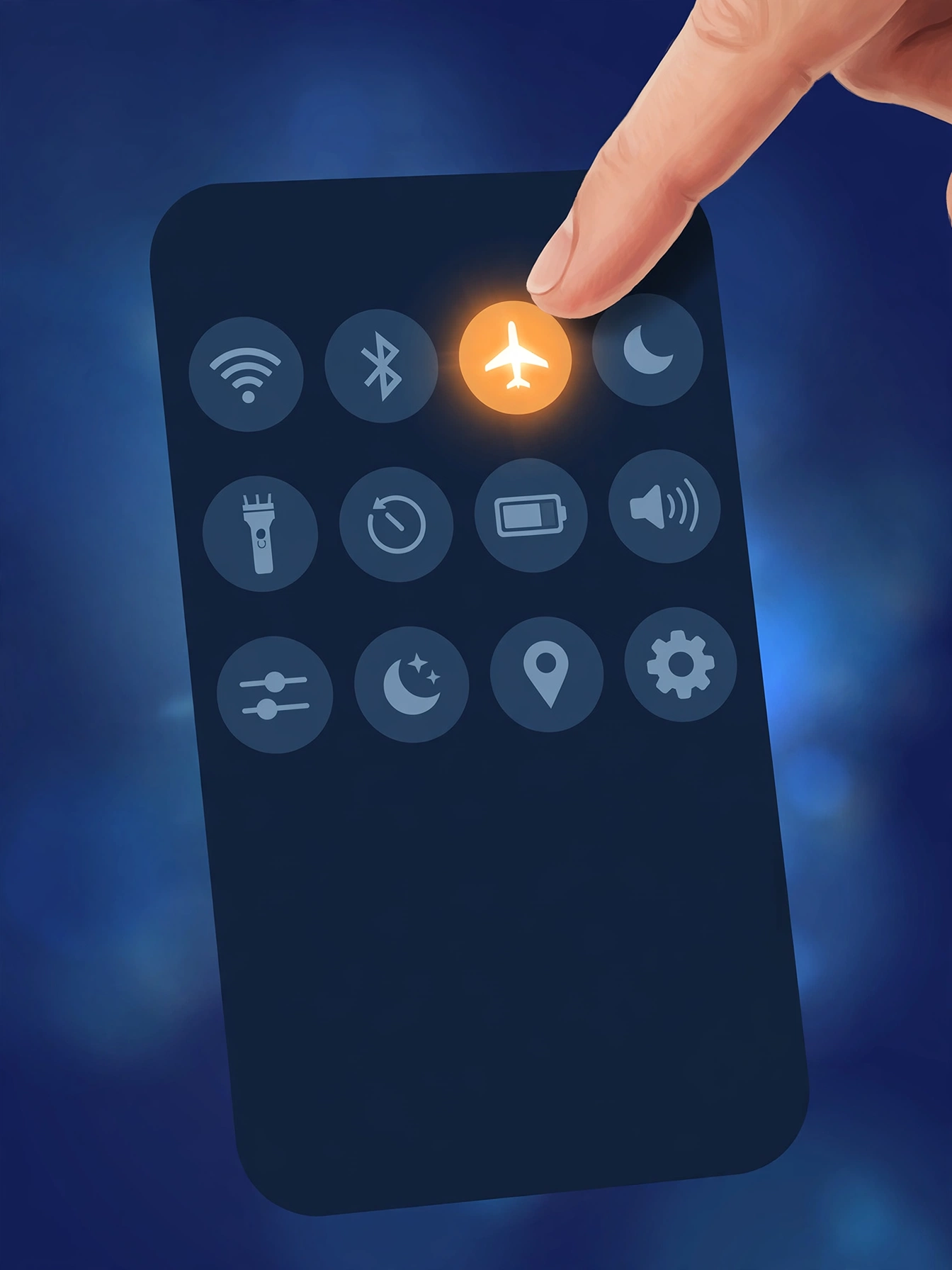
- Swipe down from the top of the screen to open Quick Settings.
- Tap the airplane icon to turn airplane mode ON. Wait 30 seconds.
- Tap it again to turn it OFF. The phone reconnects to Wi-Fi and mobile data fresh.
- Test a website immediately. If it loads, you are done — a stuck radio was the whole problem.
Fix 3: Forget the Wi-Fi Network and Reconnect
A corrupt saved network profile — wrong security type cached, stale IP, expired authentication — is a top cause of android wifi connected without internet.
- Open Settings → Network & internet → Internet.
- Tap the gear icon next to your network and choose Forget.
- Toggle Wi-Fi off and back on, then select your network and enter the password carefully.
Fix 4: Restart Your Router and Modem
When no device on the network has internet, the router or modem is the prime suspect. A proper power-cycle clears far more than a quick reboot button press.
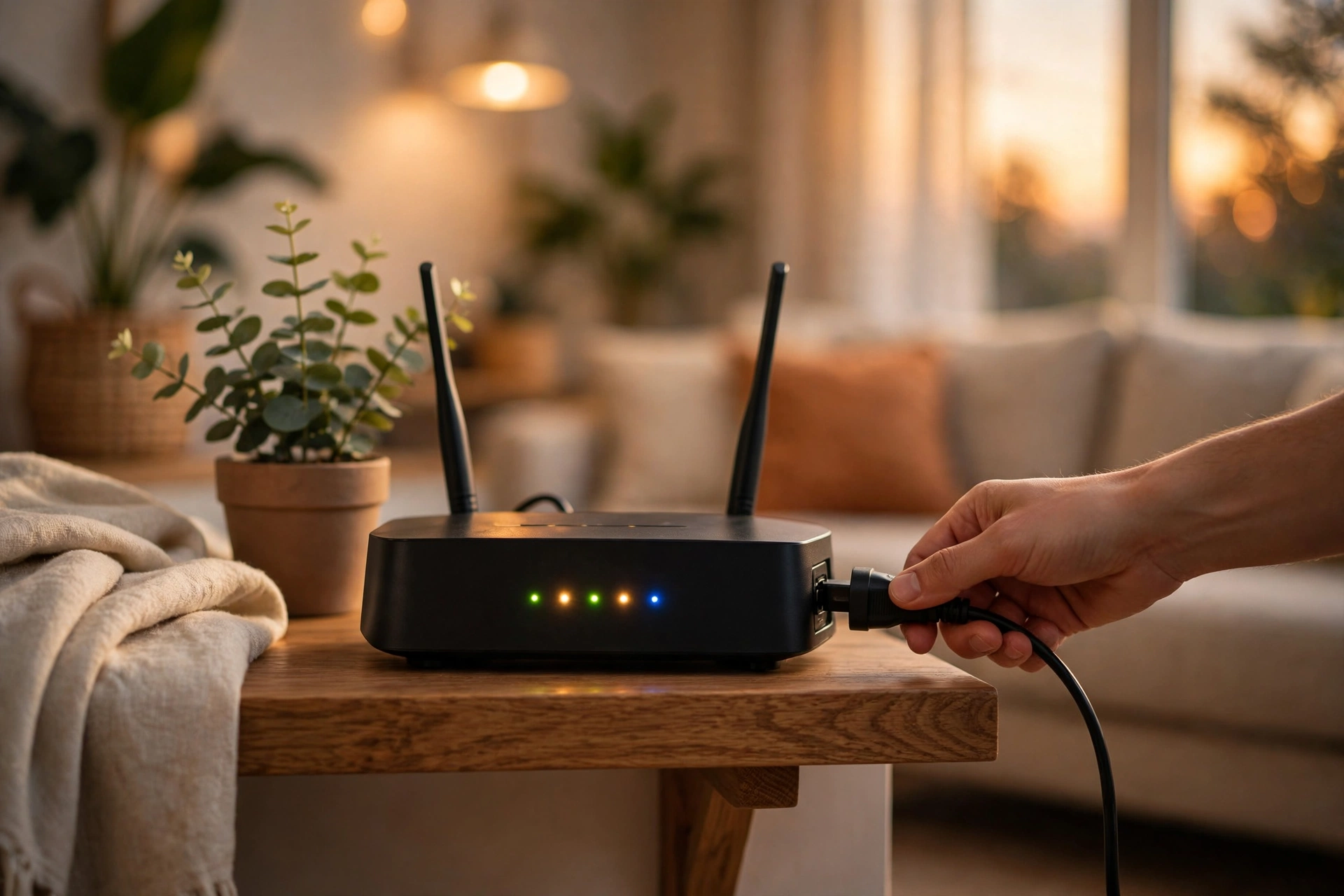
- Unplug both the router and the modem from power (not just the reboot button).
- Wait a full 60 seconds. This lets the modem fully release its connection to your ISP.
- Plug in the modem first, wait for its lights to stabilise, then plug in the router.
- Wait 3 minutes for everything to reconnect, then test on your phone.
Fix 5: Restart Your Android Phone
A simple restart clears temporary system glitches in the network stack that survive toggles. Hold the power button, tap Restart, and test again once the phone boots.
Fix 6: Change Your DNS Settings
DNS turns website names into addresses your phone can reach. If your router’s default DNS is slow or broken, pages fail even though Wi-Fi shows connected. Switching to a public DNS often fixes it instantly.

Option A — Private DNS (easiest, works on Android 9 and newer):
- Open Settings → Network & internet → Private DNS.
- Select Private DNS provider hostname and enter
dns.google. - Save and test your connection.
Option B — Static DNS for one Wi-Fi network:
- Open Settings → Network & internet → Internet, tap the gear next to your network.
- Tap Advanced → IP settings → Static.
- Set DNS 1 to
8.8.8.8and DNS 2 to8.8.4.4, then save.
Fix 7: Turn Off Data Saver, VPN, and Adaptive Connectivity
Several helpful-sounding features can silently block your internet. Check all three:
Data Saver:
- Open Settings > Network & internet > Data Saver (or Connections > Data usage > Data saver).
- Turn it off and test. Data Saver can block background and even foreground data on some networks.
VPN:
- Open Settings > Network & internet > VPN.
- If a VPN is connected, disconnect it and test. A dead or misconfigured VPN server produces exactly the “connected, no internet” symptom.
Adaptive Connectivity / Wi-Fi preferences:
- Open Settings > Network & internet > Adaptive connectivity (on Samsung: Settings > Connections > Wi-Fi > ⋮ > Advanced).
- Turn off Adaptive connectivity or Switch to mobile data automatically temporarily.
- Also check Randomized MAC under your network’s advanced settings — on a few older routers, the random MAC address causes the router to refuse internet access. Switching it to Device MAC can help.
Fix 8: Reset Network Settings
This clears all saved Wi-Fi networks, Bluetooth pairings and mobile-data settings without touching your photos, apps or files.
- Open Settings → System → Reset options (Samsung: General management → Reset).
- Choose “Reset Wi-Fi, mobile & Bluetooth” — not a factory reset.
- Confirm, restart, and reconnect to your Wi-Fi fresh.
Fix 9: Update Android and Check for an ISP Outage
An Android update bug:
- Open Settings → System → System update and install anything pending — updates often include connectivity fixes.
- If the problem started right after an update, check Google’s official Android Help pages for known issues with that release.
An internet provider outage:
- Check your ISP’s status page or outage map from mobile data.
- Call your ISP if the outage map shows problems in your area — no phone setting can fix a dead line.
Fix 10: When Nothing Works — Deeper Checks
- Try a static IP. In your network’s advanced settings, switch IP settings to Static and assign an address in your router’s range (e.g. 192.168.1.50) with gateway 192.168.1.1. This bypasses DHCP problems.
- Check the router’s blocked-devices list. Log in to the router admin page and make sure your phone’s MAC address is not blocked or under parental controls.
- Test in Safe Mode. Hold power, long-press “Power off”, choose Safe Mode. If the internet works there, a third-party app is interfering.
What to Avoid
- Do not factory-reset your phone as a first step. A network settings reset (Fix 8) fixes the same issues without wiping your data.
- Do not install “internet booster” apps from unknown sources. They cannot fix DNS or router problems and many are adware.
- Do not change router settings you do not understand. One wrong DHCP or DNS change on the router affects every device in the house.
- Do not ignore the “all devices vs one device” test. Skipping Fix 1 wastes hours fixing a phone when the router was the problem.
FAQ
Why does my phone say “Connected, no internet” when the Wi-Fi signal is full?
The signal bars only measure the link between your phone and the router. “No internet” means the router itself cannot reach the internet, or your phone’s DNS/VPN settings are blocking the path. Work through Fix 4 (router) and Fix 6 (DNS) first.
Will resetting network settings delete my photos or apps?
No. It only clears saved Wi-Fi networks, Bluetooth pairings and mobile-data settings. Photos, apps, messages and files are untouched — you just re-enter Wi-Fi passwords afterwards.
Why does Wi-Fi work on my laptop but not on my Android phone?
Your laptop and phone use different network stacks and settings. The usual phone-side culprits are Private DNS, a VPN, Data Saver, or a corrupt saved network — Fix 6 and Fix 7 cover all of them.
Does toggling airplane mode really fix Wi-Fi problems?
Surprisingly often, yes. It restarts every radio cleanly and clears stuck connection states that survive a Wi-Fi toggle alone. It takes 30 seconds and is always worth trying first.
Can a VPN cause the “connected without internet” message?
Yes — it is one of the most common causes. A dead or misconfigured VPN server blocks all traffic while Wi-Fi stays connected. Disconnect the VPN and test (Fix 7); if the internet returns, the VPN was the culprit.
Should I use a static IP address to fix this?
Only as a later step (Fix 10). A static IP bypasses DHCP problems, but it can cause conflicts if you pick an address the router already assigned. Try the simpler fixes first.
My Wi-Fi works everywhere except at home. What does that mean?
Your phone is fine — your home network is the problem. Focus on Fix 4 (router restart), check for an ISP outage (Fix 9), and look at the router’s blocked-devices list (Fix 10).
How do I know if it is an ISP outage or my router?
Check your ISP’s outage map from mobile data. If neighbours report the same problem, it is the ISP. If only your house is affected and a full modem+router power cycle does not help, the router itself is the likely fault.
Conclusion
Seeing android wifi connected without internet on your phone is frustrating, but the cause is almost always simple: a stuck radio, a corrupt saved network, a tired router, or one overzealous setting like Data Saver or a VPN. Start with Fix 1’s device test, then work through the fixes in order — most people are back online by Fix 4.
For more step-by-step troubleshooting, browse the TechSBSInfo blog, learn more about us, or return to the homepage.
[…] works so often. If your phone shows the same “connected but no internet” pattern, our Android Wi-Fi connected but no internet guide covers the mobile […]
[…] Fix Android Wi-Fi Connected but No Internet […]
[…] and Fixes 2 and 10 will cover it. For Wi-Fi that connects but has no internet at all, our guide to Android Wi-Fi connected without internet covers that […]
[…] itself drops or shows connected without internet, the download cannot succeed, and our guide to Android Wi-Fi connected with no internet covers the connection […]
[…] that connects but carries no internet is a network fault, and our guide to Android Wi-Fi connected no internet covers it in […]