


Few things are more annoying than opening the Play Store to download an app and being greeted with a vague “Server error” message instead. A proper google play store server error fix does not require any technical skill — the message almost always comes from your own phone or connection, not from Google’s servers, and a few simple checks will have you downloading apps again within minutes.
The error usually appears because the Play Store app has corrupted temporary data, your Google account has lost its sync, or your phone’s date and time are wrong. Less often, the cause is a weak network, full storage, or an outdated Play Store version. This guide walks you through nine proven steps in the order that fixes the problem fastest, starting with the quickest checks and ending with the deeper resets. Follow them one by one, and test the Play Store after each step.
Table of Contents
- Quick Checks
- Diagnose the Problem
- Why the Google Play Store Server Error Fix Starts With Your Connection
- Fix 1: Check Your Internet Connection
- Fix 2: Force Stop the Play Store and Clear Its Cache
- Fix 3: Clear Play Store Data and Sign In Again
- Fix 4: Set Date and Time to Automatic
- Fix 5: Remove and Re-Add Your Google Account
- Fix 6: Clear Cache of Google Play Services and Download Manager
- Fix 7: Uninstall Play Store Updates
- Fix 8: Free Up Storage Space
- Fix 9: Restart Your Phone and Check for System Updates
- What to Avoid
- Frequently Asked Questions
- Conclusion
- Helpful Resources
Quick Checks
- Toggle Airplane mode on for 10 seconds and off again — this resets your network connection and clears many server errors instantly.
- Switch between Wi-Fi and mobile data to see whether the error follows one connection or both.
- Open Settings > Date & time and make sure Automatic date & time is turned on, because a wrong clock breaks Google’s secure connection.
- Force stop the Play Store once: Settings > Apps > Google Play Store > Force stop, then reopen it.
- Check that you have at least 1 GB of free storage under Settings > Storage, since the Play Store needs working space for temporary files.
Diagnose the Problem
| Symptom | Cause | Go to Fix |
|---|---|---|
| “Server error” appears as soon as the Play Store opens | Corrupted Play Store cache or data | Fix 2, Fix 3 |
| Error on Wi-Fi but the Play Store works on mobile data | Network or DNS problem on the Wi-Fi side | Fix 1 |
| Error started right after you changed your Google password | Account sync is broken | Fix 5 |
| Error only when downloading or updating apps | Download Manager or Play Services cache is stuck | Fix 6 |
| Error persists after clearing the cache | Outdated or damaged Play Store version | Fix 7 |
| Error appears together with a low-storage warning | No room for temporary files | Fix 8 |
| Error on every network and after every fix above | System-level glitch or outdated software | Fix 9 |
Why the Google Play Store Server Error Fix Starts With Your Connection
The “Server error” message is misleading. It sounds like Google’s servers are down, but in practice Google’s servers are almost never the problem. Your phone talks to the Play Store through an encrypted connection that depends on three things being correct on your side: a working network, the right date and time, and a valid signed-in Google account. If any one of those is off, the handshake fails and the Play Store shows the generic “Server error” instead of explaining what actually went wrong.
That is why this guide starts with the connection and the clock before touching any app data. Each fix below targets one link in that chain. Work through them in order, and test the Play Store after every step by pulling down to refresh the home screen. The moment the error disappears, you have found your broken link — there is no need to continue with the remaining steps.
Fix 1: Check Your Internet Connection
Before changing anything on your phone, rule out the network. The Play Store needs a stable connection, and a half-working Wi-Fi network is the single most common trigger for the server error.
- Open a browser and load any website. If it loads slowly or not at all, the network is the problem, not the Play Store.
- Turn Airplane mode on, wait 10 seconds, then turn it off. This forces your phone to reconnect cleanly.
- If you are on Wi-Fi, move closer to the router, or forget the network (Settings > Network & internet > Wi-Fi, tap the network, Forget) and reconnect with the password.
- Try switching to mobile data temporarily. If the Play Store works on mobile data, the issue is with your Wi-Fi network or its DNS settings.
- Restart your router by unplugging it for 30 seconds if other devices are also struggling.
If the Play Store loads fine on a different network, the error was never on your phone — keep an eye on that Wi-Fi network, and consider restarting the router whenever it happens again.
Fix 2: Force Stop the Play Store and Clear Its Cache
The Play Store stores temporary files to load faster, and when those files get corrupted, the app can throw a server error on every launch. Clearing the cache deletes only those temporary files — your installed apps, account, and settings stay untouched.

- Open Settings > Apps > See all apps.
- Find and tap Google Play Store.
- Tap Force stop and confirm.
- Tap Storage & cache, then tap Clear cache.
- Reopen the Play Store and check whether the error is gone.
This fixes the problem in a large share of cases and takes under a minute, so it is always worth doing before anything more drastic.
Fix 3: Clear Play Store Data and Sign In Again
If clearing the cache did not help, the Play Store’s saved data — your preferences, search history, and local account state — may be damaged. Clearing data resets the app to a fresh state. You will need to accept the terms again, but your installed apps and purchases are tied to your Google account, not to the phone, so nothing is lost.
- Open Settings > Apps > See all apps > Google Play Store.
- Tap Storage & cache, then tap Clear storage (it may be called Clear data on some phones).
- Confirm when asked — this only resets the Play Store app itself.
- Open the Play Store, accept the terms, and let it sign you in with your existing Google account.
- Try browsing and downloading an app.
If the server error disappears now, the old app data was the culprit. If it persists, the problem lies deeper — in the account, the system services, or the network — and the next fixes address those.
Fix 4: Set Date and Time to Automatic
This fix surprises people, but it is one of the most reliable. Google’s servers verify your phone’s identity using security certificates, and those certificates are only valid within a specific time window. If your phone’s clock is even a few minutes off, the secure connection fails and the Play Store reports it as a server error.
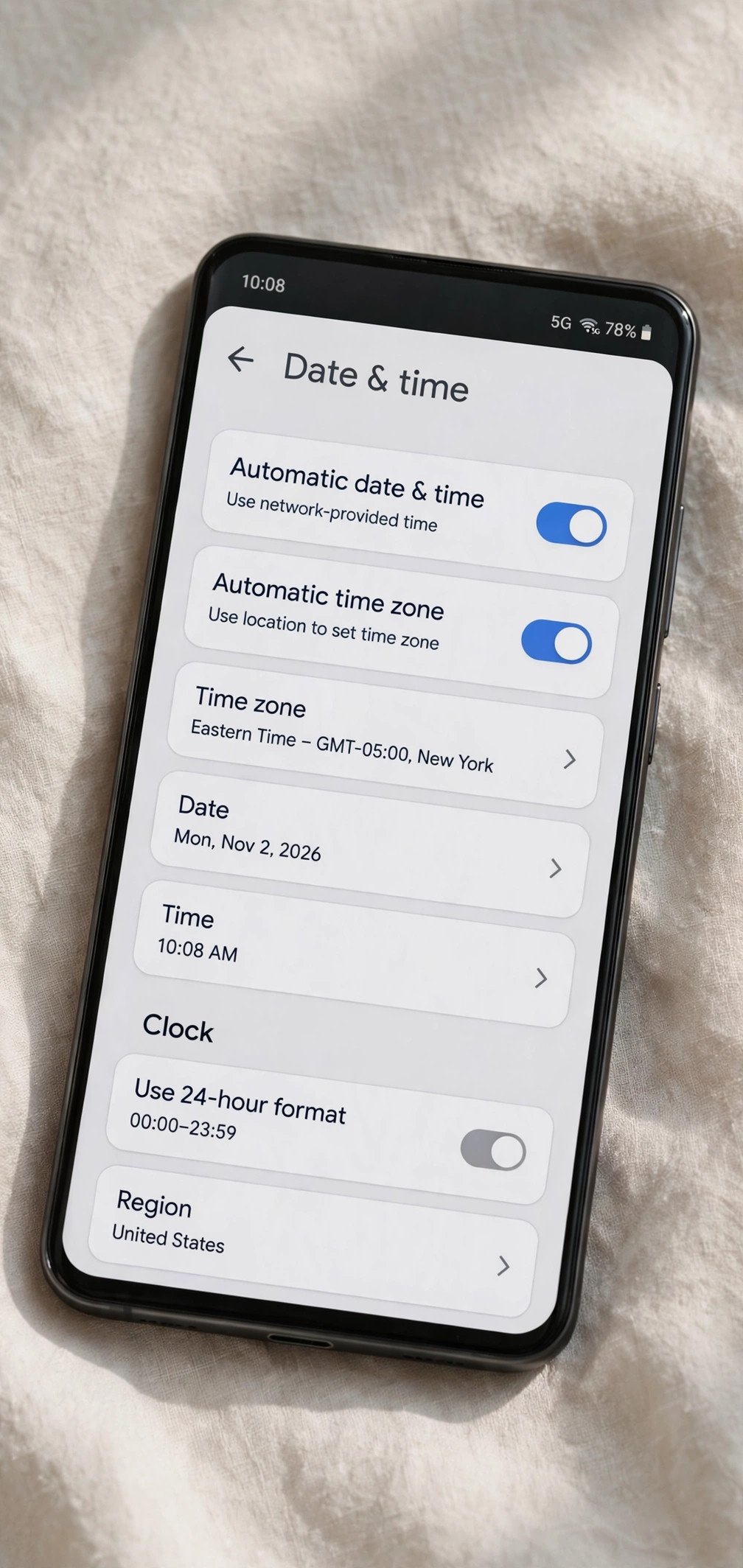
- Open Settings > System > Date & time (on Samsung: Settings > General management > Date and time).
- Turn on Set time automatically (it may be called Automatic date & time).
- Turn on Set time zone automatically as well.
- Go back and reopen the Play Store.
If the toggles were already on, turn them off, wait a few seconds, and turn them back on to force a fresh sync with the network time. Travellers who have crossed time zones see this error often, because the phone sometimes keeps the old time zone.
Fix 5: Remove and Re-Add Your Google Account
When your Google account loses its authentication — after a password change, a security alert, or a sync glitch — the Play Store cannot verify who you are and shows a server error. Removing the account and adding it back creates a clean login.
- Open Settings > Passwords & accounts (on Samsung: Settings > Accounts and backup > Manage accounts).
- Tap your Google account, then tap Remove account and confirm.
- Restart your phone — this clears any leftover authentication tokens.
- Go back to Settings > Passwords & accounts > Add account > Google and sign in again with your email and password.
- Open the Play Store and test it.
Note that removing your Google account also removes its synced contacts, calendar events, and emails from the phone temporarily — they all come back when you sign in again, because they are stored in your Google account online. Your photos, files, and downloaded apps on the phone are not affected.
Fix 6: Clear Cache of Google Play Services and Download Manager
The Play Store does not work alone. Google Play Services handles the background connection to Google, and Download Manager handles the actual file downloads. If either one’s cache is corrupted, the Play Store can show a server error even though the Play Store app itself is fine.
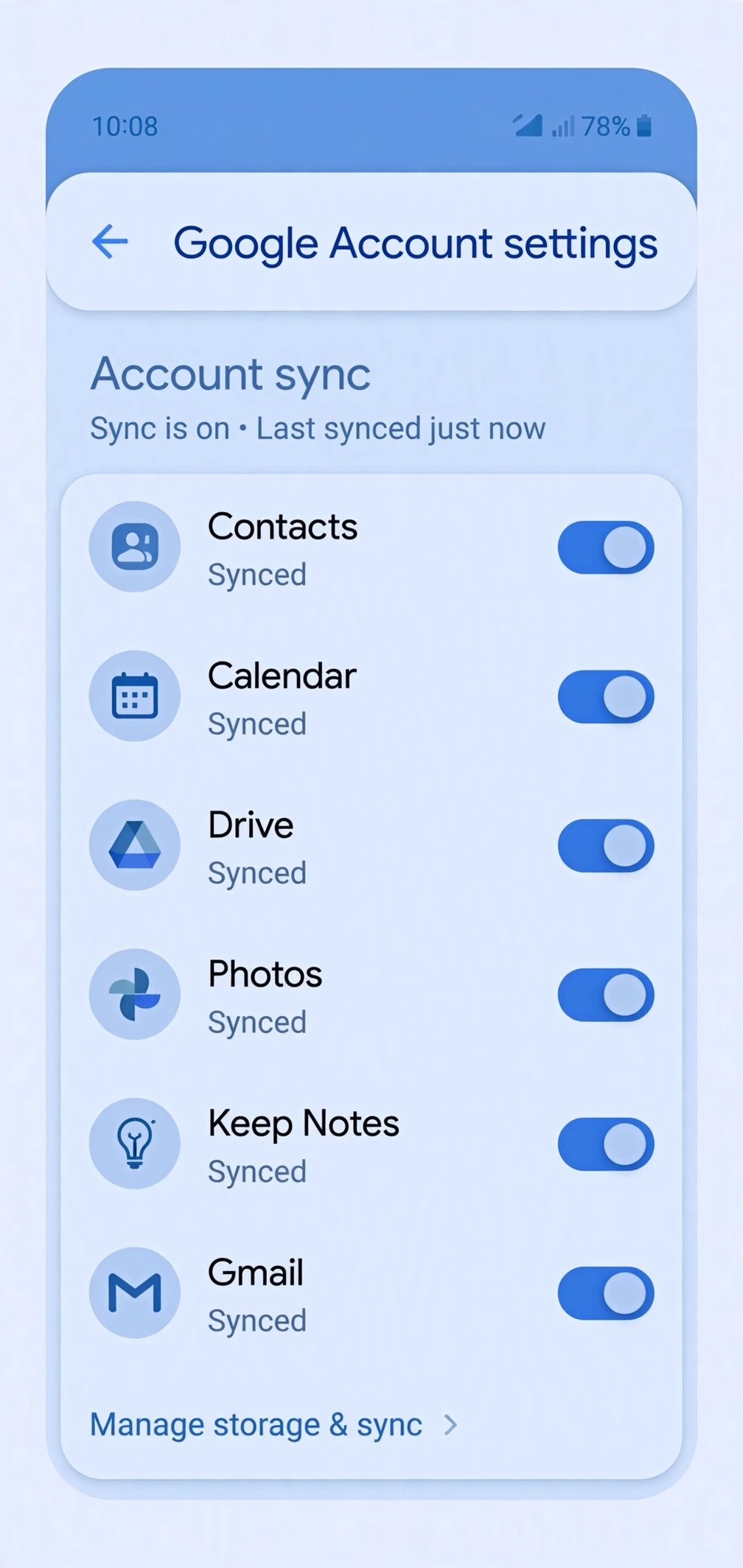
- Open Settings > Apps > See all apps.
- Tap the three-dot menu and enable Show system (or Show system apps).
- Find Google Play Services, tap Storage & cache, then Clear cache. Do not tap Clear storage here — that can cause wider problems.
- Go back and find Download Manager, then clear its cache the same way.
- Restart your phone and reopen the Play Store.
Clearing only the cache of these system components is safe. Avoid clearing their data unless a support guide specifically tells you to, because that can temporarily break other Google features until they re-sync.
Fix 7: Uninstall Play Store Updates
The Play Store updates itself in the background, and occasionally a new version arrives with a bug that causes the server error on certain phones. Rolling the Play Store back to the version that came with your phone removes that possibility.
- Open Settings > Apps > See all apps > Google Play Store.
- Tap the three-dot menu in the top corner and choose Uninstall updates.
- Confirm — this returns the Play Store to its factory version, which is always a stable release.
- Open the Play Store. It will work in the older version and then update itself again quietly in the background, usually to a fixed release.
If the error disappears with the factory version but returns after the Play Store updates itself again, wait a few days — Google typically fixes bad updates quickly, and the next update usually resolves it.
Fix 8: Free Up Storage Space
The Play Store needs free space for temporary download files, and when your storage is nearly full, downloads and even browsing can fail with a server error. Android usually warns you, but the warning is easy to miss.
- Open Settings > Storage and check how much free space you have — aim for at least 1 GB free.
- Tap Free up space (or use Files by Google > Clean) to remove junk files, old downloads, and duplicate photos.
- Uninstall apps you no longer use: Settings > Apps, sort by least used, and remove a few large ones.
- Move photos and videos to Google Photos or a computer, then delete the local copies.
- Reopen the Play Store after freeing space.
This fix also speeds up your whole phone, so it is worth doing even if storage turns out not to be the cause of the server error.
Fix 9: Restart Your Phone and Check for System Updates
If every fix above has failed, finish with the two system-level steps. A full restart clears stuck background processes that the earlier force-stops may have missed, and a system update can fix bugs in the networking or security components the Play Store depends on.

- Press and hold the power button and tap Restart. Wait for the phone to fully boot, then test the Play Store before opening anything else.
- Open Settings > System > System update (on Samsung: Settings > Software update > Download and install) and install any available update.
- If you use a VPN, turn it off temporarily — some VPN servers are blocked or throttled by Google, which produces exactly this error.
- As a final check, try the Play Store on a completely different network, such as a friend’s Wi-Fi or mobile data.
If the error still appears after all nine steps on every network, the issue may be temporary on Google’s side after all — wait a few hours and try again before assuming the phone is at fault.
What to Avoid
- Do not download the Play Store or Play Services as an APK from random websites — modified versions can contain malware and will not fix a server error.
- Do not clear data (instead of just cache) on Google Play Services — that can break Gmail, Maps, and other Google apps until everything re-syncs.
- Do not factory reset your phone for a Play Store error before trying the account and cache fixes above — a reset is rarely necessary here.
- Do not keep retrying downloads dozens of times on a broken connection — failed attempts can queue up and make the error stick around longer.
- Do not disable system apps like Download Manager to “save battery” — the Play Store needs them running.
- Do not trust “Play Store fixer” apps from outside the Play Store itself — they cannot repair Google’s services and often show intrusive ads.
Frequently Asked Questions
What does the “Server error” in the Play Store actually mean?
It means your phone failed to complete its secure conversation with Google’s servers. The cause is almost always on your side — a bad network, wrong date and time, corrupted app data, or a broken account login — rather than Google’s servers being down.
Will clearing Play Store data delete my installed apps?
No. Clearing data only resets the Play Store app itself. Your installed apps, purchases, and subscriptions are tied to your Google account and reappear as soon as you sign back in.
Why does the Play Store work on mobile data but not on Wi-Fi?
That points to a problem with the Wi-Fi network itself — its DNS settings, a captive portal login page, or router restrictions. Forget the network and reconnect, restart the router, or keep using mobile data for downloads until the Wi-Fi is fixed.
Can a wrong date and time really cause a server error?
Yes. Google uses security certificates that are only valid for a specific time period. If your phone’s clock is wrong, the certificate check fails and the connection is rejected, which the Play Store reports as a server error.
Is it safe to remove and re-add my Google account?
Yes. Your emails, contacts, calendar, and photos are stored in your Google account online and sync back when you sign in again. Only the local copies are removed temporarily, and nothing is permanently deleted.
Why does the server error keep coming back after I fix it?
A returning error usually means the root cause was not fully addressed — often a VPN that reconnects automatically, a Wi-Fi network with DNS problems, or an outdated Play Store version that keeps reinstalling itself. Check Fix 1, Fix 7, and Fix 9 again.
Should I install the Play Store from an APK site to fix this?
No. The Play Store is a system app that cannot be properly replaced by a downloaded APK, and third-party APK sites are a common source of malware. Use the built-in fixes in this guide instead.
How long should I wait if Google’s servers are actually down?
True Play Store outages are rare and usually resolved within a few hours. If all nine fixes fail on every network, wait three to four hours and try again before taking any further action.
Conclusion
The Google Play Store server error looks alarming, but it is one of the most fixable problems on Android. In most cases the answer is a cleared cache, a corrected clock, or a refreshed Google account login — all things you can do in a few minutes without losing any data. Work through the nine steps in order, testing after each one, and your Play Store will be downloading apps again long before you reach the end of the list.
[…] answer is in Fixes 1 to 7. If the Play Store itself shows errors instead of a payment decline, our Google Play Store server error fix guide covers store errors, and a weak connection can also interrupt a purchase — our Android […]
[…] the cache is fine whatever the number says. If the Play Store itself will not update the app, our Google Play Store server error fix guide covers store […]
[…] set your alarms again from scratch. If the Play Store itself will not open or update apps, our Google Play Store server error fix guide covers that side of the […]
[…] database that stopped saving changes. If the Play Store will not update the app at all, our Google Play Store server error fix guide covers store […]
[…] and storage checks. If the Play Store shows a server error instead of “Pending”, our Google Play Store server error fix guide covers that […]
[…] details for a version and update prompt. For store errors that block updates entirely, our guide to Google Play Store server error fix covers the store […]