

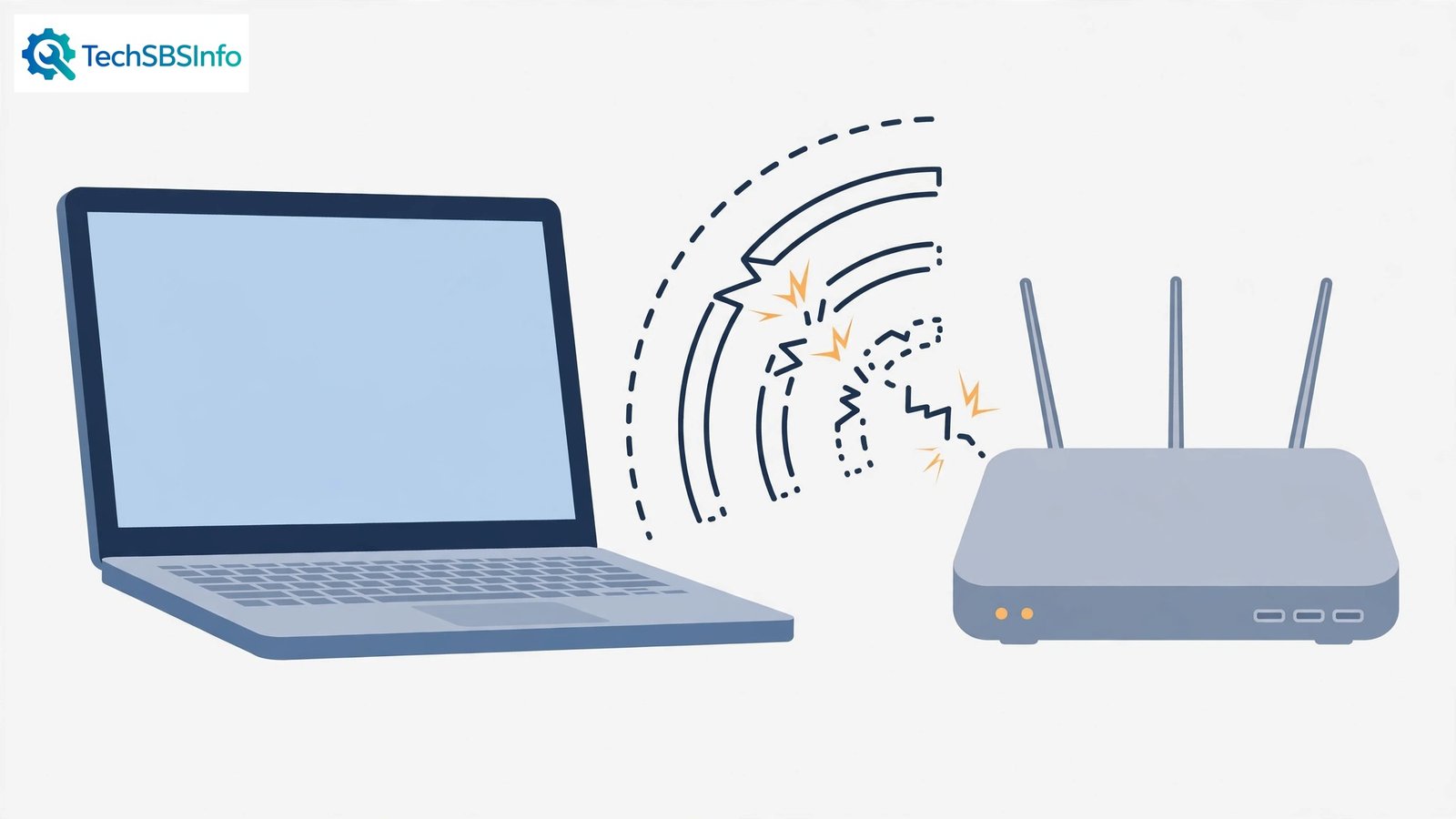
You are in the middle of a video call, and the Wi-Fi drops. It reconnects. Ten minutes later, it drops again. Your phone stays connected the whole time, which makes it personal: when windows 11 wi-fi disconnects frequently on one PC while every other device is fine, the problem lives in that PC — not in your router or your internet provider.
The usual suspects are a buggy Wi-Fi driver, Windows powering the adapter off to save energy, a corrupt network profile, or wireless interference. This guide works through them from the quickest wins to the deeper repairs. Test your connection for a while after each fix — stability, not speed, is what you are measuring.
Table of Contents
- Quick Checks
- Diagnosing windows 11 wi-fi disconnects frequently
- Fix 1: Restart the Router and Move Closer
- Fix 2: Update the Wi-Fi Driver
- Fix 3: Stop Windows Powering Off the Adapter
- Fix 4: Forget the Network and Reconnect
- Fix 5: Reset the Network Stack
- Fix 6: Switch the Wi-Fi Band or Channel
- Fix 7: Check VPN and Security Software
- Fix 8: Test with a USB Wi-Fi Adapter
- What to Avoid
- Frequently Asked Questions
- Conclusion
- Helpful Official Resources
Quick Checks
Rule out the environment before blaming Windows.
- Restart your router: unplug it for 30 seconds, plug it back in, and wait two minutes.
- Move the laptop closer to the router temporarily. If drops stop, distance or interference is the issue.
- Check whether other devices drop too. If they do, the router or provider is at fault — not your PC.
- Make sure the laptop is plugged in. Some power plans throttle the Wi-Fi adapter on battery.
- Turn off any VPN temporarily — VPNs can drop and take the Wi-Fi state with them.
Diagnosing windows 11 wi-fi disconnects frequently
| Symptom | Cause | Go to Fix |
|---|---|---|
| Drops started after a Windows update | Buggy new Wi-Fi driver | Fix 2 |
| Drops when on battery, fine when plugged in | Adapter power saving | Fix 3 |
| Drops every few minutes like clockwork | Corrupt network profile or DHCP issue | Fix 4, then Fix 5 |
| Drops only in one room | Interference or weak signal | Fix 1, then Fix 6 |
| Drops with VPN connected | VPN or firewall conflict | Fix 7 |
| Drops on every network, everywhere | Failing adapter or deep driver issue | Fix 2, then Fix 8 |
Fix 1: Restart the Router and Move Closer
Even when the PC is the suspect, the router deserves a fresh start — and signal strength is the simplest variable to test.
- Unplug the router’s power cable for a full 30 seconds, then plug it back in.
- Wait two minutes for it to fully reconnect to your provider.
- Move the laptop within a few metres of the router, with no walls between.
- Use the PC normally for 30 minutes. If nothing drops, the issue is range or interference, not Windows.
- If drops continue even next to the router, the PC is confirmed as the problem — continue below.
Router restarts clear stale DHCP leases and overheated firmware states. It is the oldest trick in networking because it works so often. If your phone shows the same “connected but no internet” pattern, our Android Wi-Fi connected but no internet guide covers the mobile side.
Fix 2: Update the Wi-Fi Driver
A buggy Wi-Fi driver is the single most common cause of frequent disconnects on Windows 11, especially after system updates.

- Press Windows + X and choose Device Manager.
- Expand “Network adapters” and find your Wi-Fi adapter (often Intel, Realtek, or Qualcomm).
- Right-click it and choose “Update driver” > “Search automatically for drivers”.
- If Windows finds nothing, visit your laptop maker’s official support page, search your exact model, and download their latest Wi-Fi driver.
- Install it and restart the PC.
- If drops started right after a driver update, do the reverse: right-click the adapter > Properties > Driver tab > “Roll Back Driver”.
The maker’s driver is almost always better than the generic one Windows installs. Intel, in particular, releases Wi-Fi driver fixes regularly — grabbing the latest from the maker is worth the five minutes. Never use third-party driver updater tools. If other devices also drop, read our Android phone keeps disconnecting Wi-Fi guide for the phone side.
Fix 3: Stop Windows Powering Off the Adapter
Windows loves to switch the Wi-Fi adapter off to save power — and on some laptops it does this aggressively, causing exactly the drop-reconnect cycle you are seeing.
- Open Device Manager (Windows + X > Device Manager).
- Expand “Network adapters”, right-click your Wi-Fi adapter, and choose Properties.
- Go to the Power Management tab.
- Untick “Allow the computer to turn off this device to save power”.
- Click OK.
- Also go to Settings > System > Power & battery > Power mode and set it to “Best performance” while testing.
- Use the laptop on battery for a while and watch for drops.
This one checkbox fixes an enormous number of “disconnects on battery” cases. If your power plan is customised by the manufacturer, check their power utility too — some add their own aggressive Wi-Fi power saving.
Fix 4: Forget the Network and Reconnect
A corrupt wireless profile — the saved bundle of your network’s name, password, and security settings — causes rhythmic disconnects. Forgetting it forces Windows to build a fresh one.
- Open Settings > Network & internet > Wi-Fi.
- Click “Manage known networks”.
- Find your network, click it, and choose “Forget”.
- Restart the PC.
- Reconnect to your network from the Wi-Fi list, entering the password carefully.
- If your router has separate 2.4 GHz and 5 GHz network names, try each one separately and note which is stable.
Forgetting also clears any stale security settings left over from router changes. It takes a minute and fixes the “drops every 10 minutes exactly” pattern, which is often a failed re-authentication.
Fix 5: Reset the Network Stack
When the TCP/IP stack or Winsock catalog corrupts, connections drop under load. These commands rebuild the network plumbing.

- Open Command Prompt as administrator (Start > type
cmd> right-click > Run as administrator). - Run these commands one at a time, pressing Enter after each:
netsh winsock resetnetsh int ip resetipconfig /releaseipconfig /renewipconfig /flushdns- Restart the PC.
- If drops persist, do the full reset: Settings > Network & internet > Advanced network settings > Network reset > Reset now.
- Reconnect to Wi-Fi afterwards with your password.
The command sequence is safe and takes two minutes. The full network reset is stronger — it reinstalls all adapters — so keep it as the second punch. Have your Wi-Fi password ready before either.
Fix 6: Switch the Wi-Fi Band or Channel
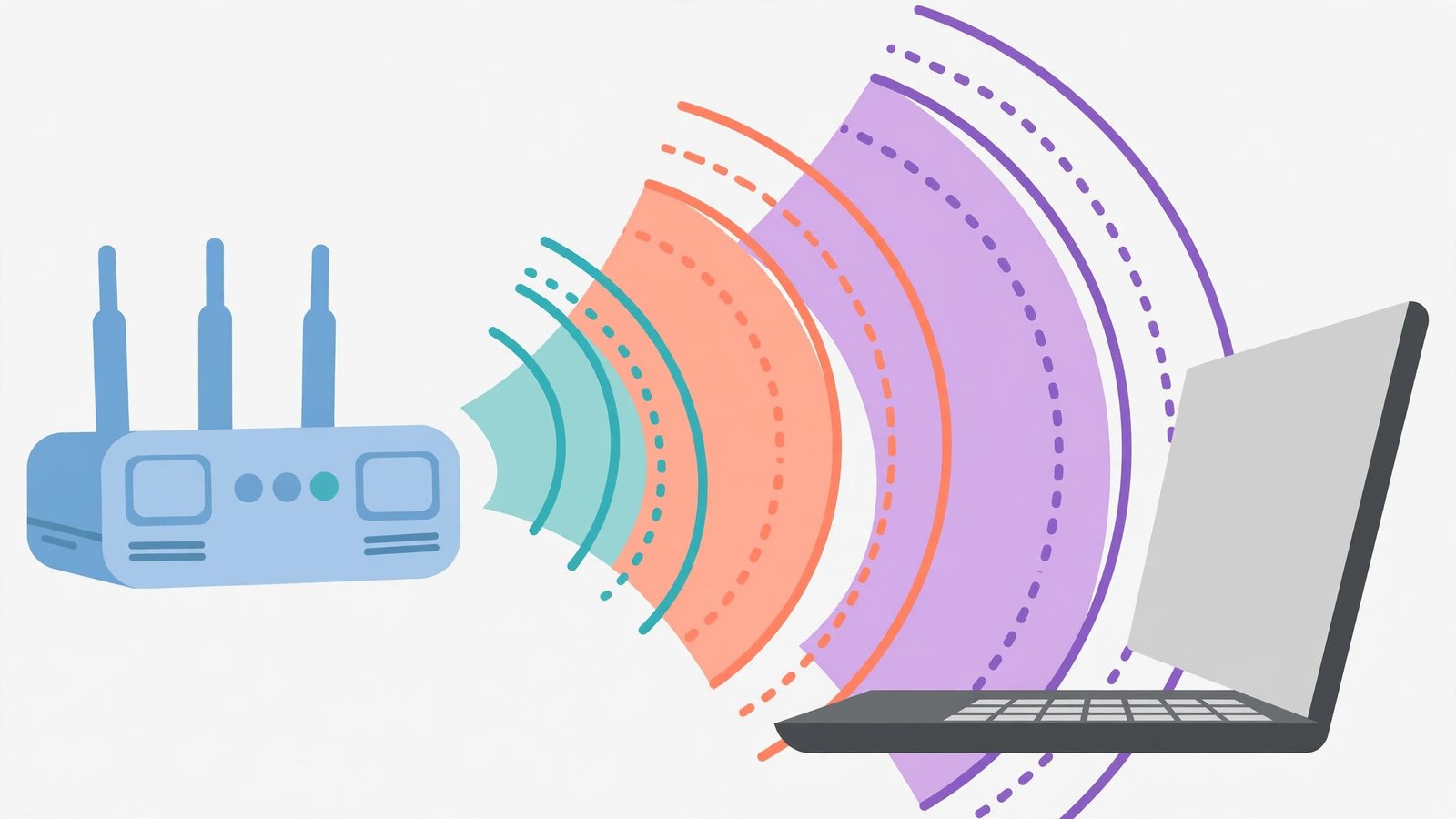
The 2.4 GHz band is crowded — neighbours’ routers, microwaves, baby monitors, and Bluetooth all fight over it. Moving to 5 GHz (or a clearer channel) can end interference drops.
- In Device Manager, open your Wi-Fi adapter’s Properties > Advanced tab.
- Look for “Preferred Band” and set it to “5 GHz” (or “Prefer 5 GHz”).
- Look for “Roaming Aggressiveness” and set it to a middle value — the highest setting makes the adapter jump between access points too eagerly.
- On the router side, log into your router’s admin page and set the 2.4 GHz channel to 1, 6, or 11 (the non-overlapping channels).
- If your router combines both bands under one name, consider splitting them so you can choose.
5 GHz is faster and less crowded but shorter range; 2.4 GHz reaches further but fights more interference. If the laptop is far from the router, 2.4 GHz on a clear channel may actually be more stable.
Fix 7: Check VPN and Security Software
VPN clients and aggressive firewall software insert themselves into the network path. When they glitch, the Wi-Fi appears to drop even though the wireless link is fine.
- Disconnect your VPN completely (not just pause it) and test for an hour.
- If drops stop, update the VPN client or try a different VPN protocol in its settings.
- Temporarily disable your third-party firewall or antivirus network shield and test.
- If the security software is guilty, add your network as trusted or switch to Windows Security, which is well-behaved with Wi-Fi.
- Check for multiple VPN clients installed — two fighting VPNs cause constant drops.
Do not leave your security software disabled permanently — test, identify, then fix or replace. If Windows updates are part of your troubles, our Windows update error troubleshooting guide helps keep the updater healthy.
Fix 8: Test with a USB Wi-Fi Adapter
If nothing above stabilises the connection, test whether the built-in adapter hardware is at fault.
- Borrow or buy an inexpensive USB Wi-Fi adapter.
- Plug it in and let Windows install its driver.
- Disable the built-in adapter in Device Manager (right-click > Disable device).
- Connect through the USB adapter and use the PC normally.
- If drops stop, the built-in adapter is failing or hopelessly driver-cursed — the USB adapter is a fine permanent fix.
- If drops continue on the USB adapter too, the problem is environmental (interference) or router-side.
A USB adapter is also a practical workaround while you arrange a proper repair. For general Wi-Fi failure rather than drops, our Windows 11 Wi-Fi not working guide is the right companion.
What to Avoid
- Do not keep resetting the router every hour — if only one PC drops, the router is not the problem.
- Do not install “Wi-Fi booster” utilities from random sites — they add instability.
- Do not set Roaming Aggressiveness to maximum “for a stronger signal” — it causes more drops, not fewer.
- Do not disable IPv6 as a first resort — it rarely helps and can break things.
- Do not edit the registry for Wi-Fi tweaks you found on forums — the settings above cover the real fixes.
- Do not ignore the power-management checkbox — it is the cause more often than any exotic setting.
Frequently Asked Questions
Why does my Wi-Fi disconnect frequently on Windows 11 but not on my phone?
Because the fault is in the PC: its driver, its power settings, or its network profile. Phones use entirely different Wi-Fi chips and drivers, so they sail through conditions that trip up a buggy Windows driver.
Will a new router fix frequent disconnects?
Only if multiple devices drop. When a single Windows 11 PC drops while everything else stays connected, a new router changes nothing — fix the PC’s driver and settings instead.
Why does Wi-Fi drop more on battery power?
Windows throttles the Wi-Fi adapter to save battery, and some laptops do it aggressively. Untick “Allow the computer to turn off this device to save power” (Fix 3) and test on the Best performance power mode.
Can a VPN cause Wi-Fi to disconnect?
Yes. A struggling VPN client can drop its tunnel repeatedly, which looks and feels like Wi-Fi disconnecting. Test with the VPN fully disconnected (Fix 7) before blaming the wireless.
Is it worth changing the Wi-Fi channel?
In crowded areas like apartment blocks, absolutely. Channels 1, 6, and 11 on 2.4 GHz do not overlap, so picking the emptiest of the three reduces interference drops noticeably.
Conclusion
When windows 11 Wi-Fi disconnects frequently, the PC is telling you something specific: update the Wi-Fi driver, stop Windows powering the adapter off, rebuild the network profile, and calm the band settings. Work through the eight fixes in order and give each one a real stability test — an hour of normal use, not thirty seconds. Stable Wi-Fi is almost always a configuration away, and once you find the guilty setting, the drops stop for good.