

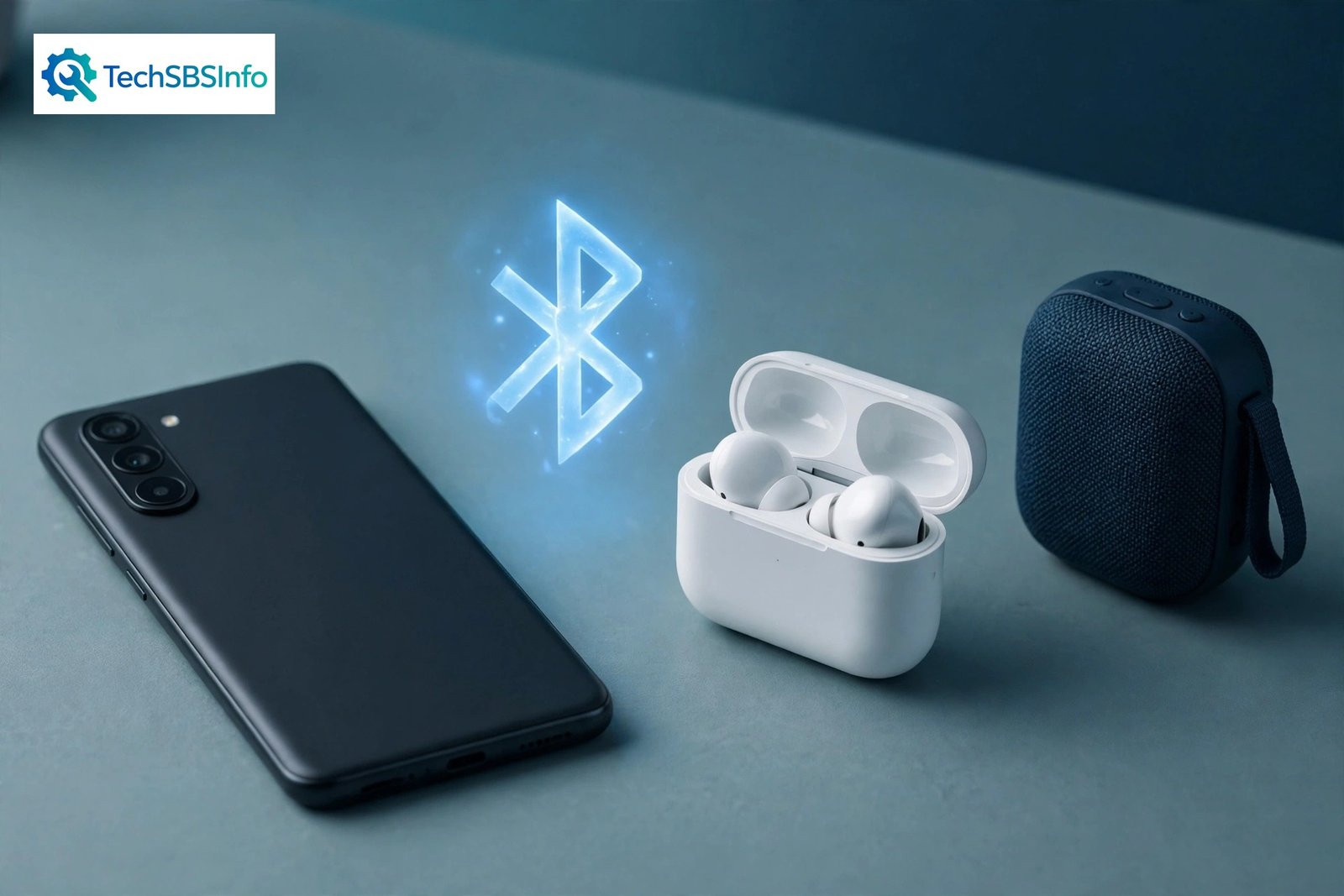
If android bluetooth device not pairing is the problem on your phone right now, you are not alone. Few things are more frustrating than brand-new earbuds or a speaker that simply refuses to show up in your phone’s device list. The good news is that in almost every case, the cause is small and fixable. A missed pairing mode, a stale saved connection, a wrong passcode, or another phone quietly holding on to the accessory — these are the usual suspects, and each has a simple fix.
This guide walks you through 9 proven fixes in order, starting with the easiest and ending with the strongest. Work through them one by one, and stop as soon as your accessory pairs. Most readers solve the problem within the first three fixes.
Table of Contents
- Fix 1: Turn Bluetooth Off and Back On
- Fix 2: Put the Accessory in Real Pairing Mode
- Fix 3: Forget the Old Entry and Pair Again
- Fix 4: Enter the Right PIN — Try 0000 or 1234
- Fix 5: Restart Your Phone and the Accessory
- Fix 6: Clear the Bluetooth Cache and Storage
- Fix 7: Free the Accessory from Other Devices
- Fix 8: Update Your Phone and Test in Safe Mode
- Fix 9: Reset Network Settings When Android Bluetooth Device Not Pairing Persists
- What to Avoid
- Frequently Asked Questions
Quick checks before you start
- Charge both devices. A low battery can stop some earbuds, watches, and speakers from entering pairing mode at all.
- Stay close. Keep the accessory within 1 metre (about 3 feet) of your phone while pairing. Walls and distance cause most “device not found” cases.
- Check for a current connection. Make sure the accessory is not already connected to another phone, tablet, laptop, or TV. Most accessories talk to only one device at a time.
- Confirm Bluetooth is on. Swipe down from the top of your screen and check that the Bluetooth tile is lit.
- Turn off airplane mode. It switches Bluetooth off on many phones.
- Look for the pairing signal. Many earbuds and speakers flash a blue or white light when they are ready to pair. No flashing light usually means no pairing mode.
Find your problem: what the symptom means
| Symptom | Likely cause | Go to fix |
|---|---|---|
| Phone never shows the accessory under “Pair new device” | Accessory is not in pairing mode, or it is too far away | Fix 2 |
| Phone lists the accessory but pairing fails instantly | Corrupt saved pairing entry, or a passcode mismatch | Fix 3, Fix 4 |
| “Couldn’t pair” or “Incorrect PIN or passkey” error | Wrong passcode; many accessories expect 0000 or 1234 | Fix 4 |
| Accessory pairs with a friend’s phone but not yours | Your phone’s Bluetooth cache is stale | Fix 6 |
| No devices appear under “Available devices” at all | Bluetooth toggle is stuck, or a system glitch | Fix 1, Fix 5 |
| Pairing worked yesterday and fails after an update | A bug in the new system update, or an interfering app | Fix 8 |
| Nothing works no matter what you try | Misconfigured Bluetooth and network stack | Fix 9 |
Fix 1: Turn Bluetooth Off and Back On
This sounds too simple to work, yet it clears a surprising number of stuck Bluetooth states. Your phone’s Bluetooth radio can freeze in a half-on state after updates, long uptime, or a failed pairing attempt. A clean toggle resets it. It is a tiny step, yet it clears up more android bluetooth device not pairing complaints than most people expect.
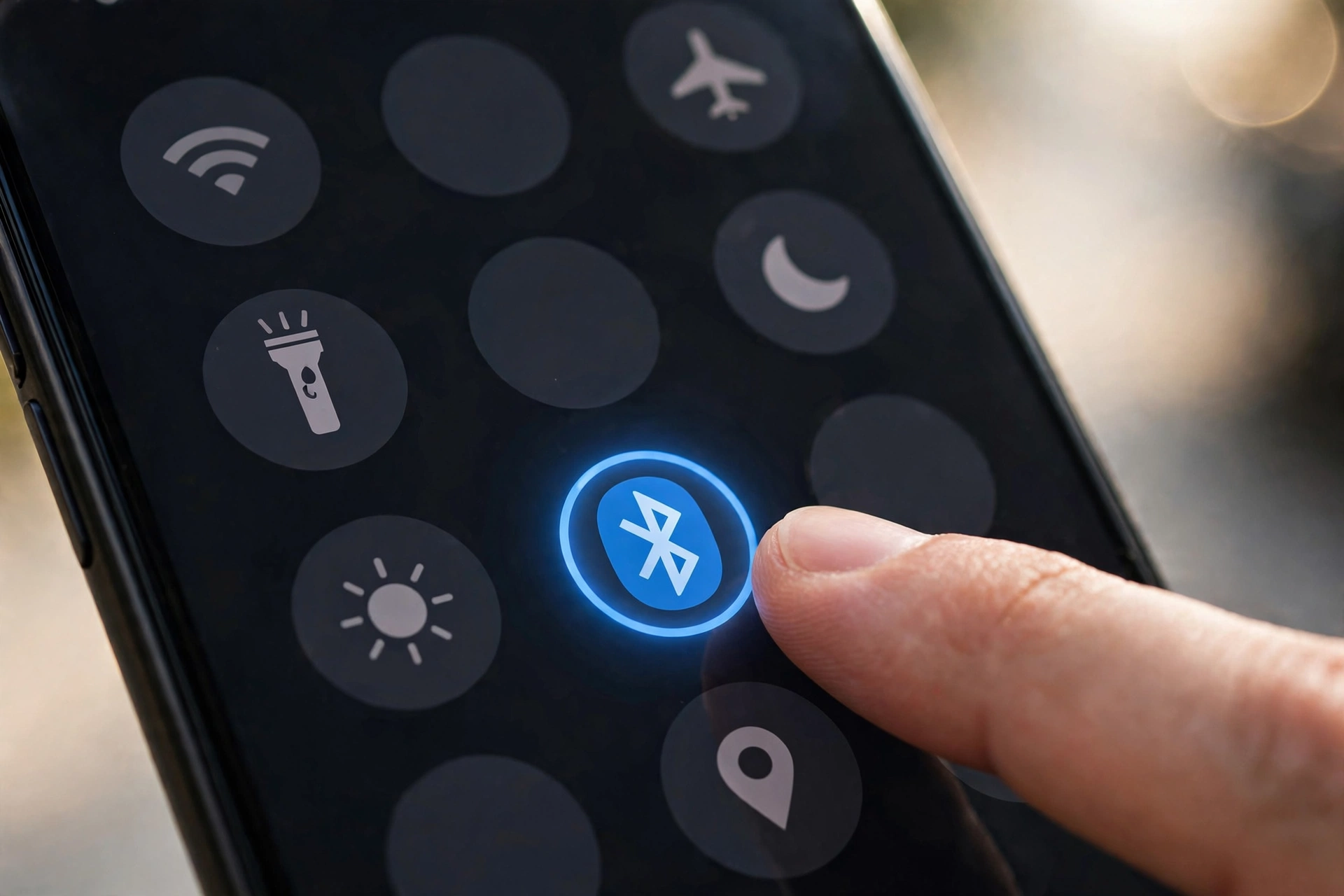
- Swipe down twice from the top of the screen to open the full Quick Settings panel.
- Tap the Bluetooth tile to turn it off. The tile should go dark or grey.
- Wait at least 10 seconds. This gives the radio time to fully shut down.
- Tap the tile again to turn Bluetooth back on.
- Open Settings > Connected devices (on Samsung phones: Settings > Connections > Bluetooth).
- Tap Pair new device and wait up to 30 seconds for your accessory to appear.
If the accessory still does not show up, do not keep tapping refresh — move on to Fix 2. Repeatedly hammering the scan button rarely helps when the real problem is pairing mode.
Fix 2: Put the Accessory in Real Pairing Mode
This is the single most common reason for an android bluetooth device not pairing failure. An accessory that is merely switched on is usually not discoverable. It must be deliberately placed in pairing mode, and the method is different for every brand.
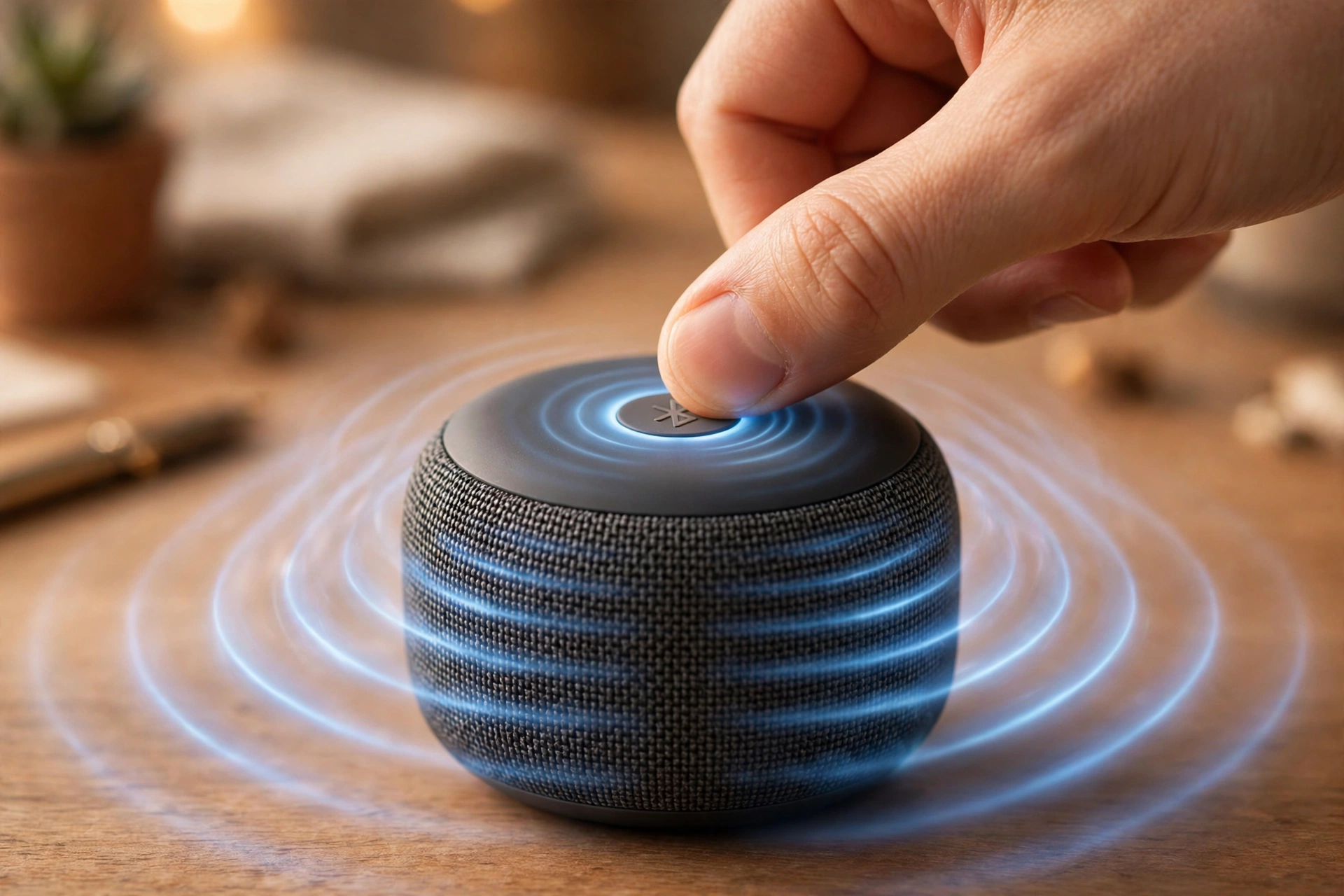
- Find your accessory’s pairing method. Common ones:
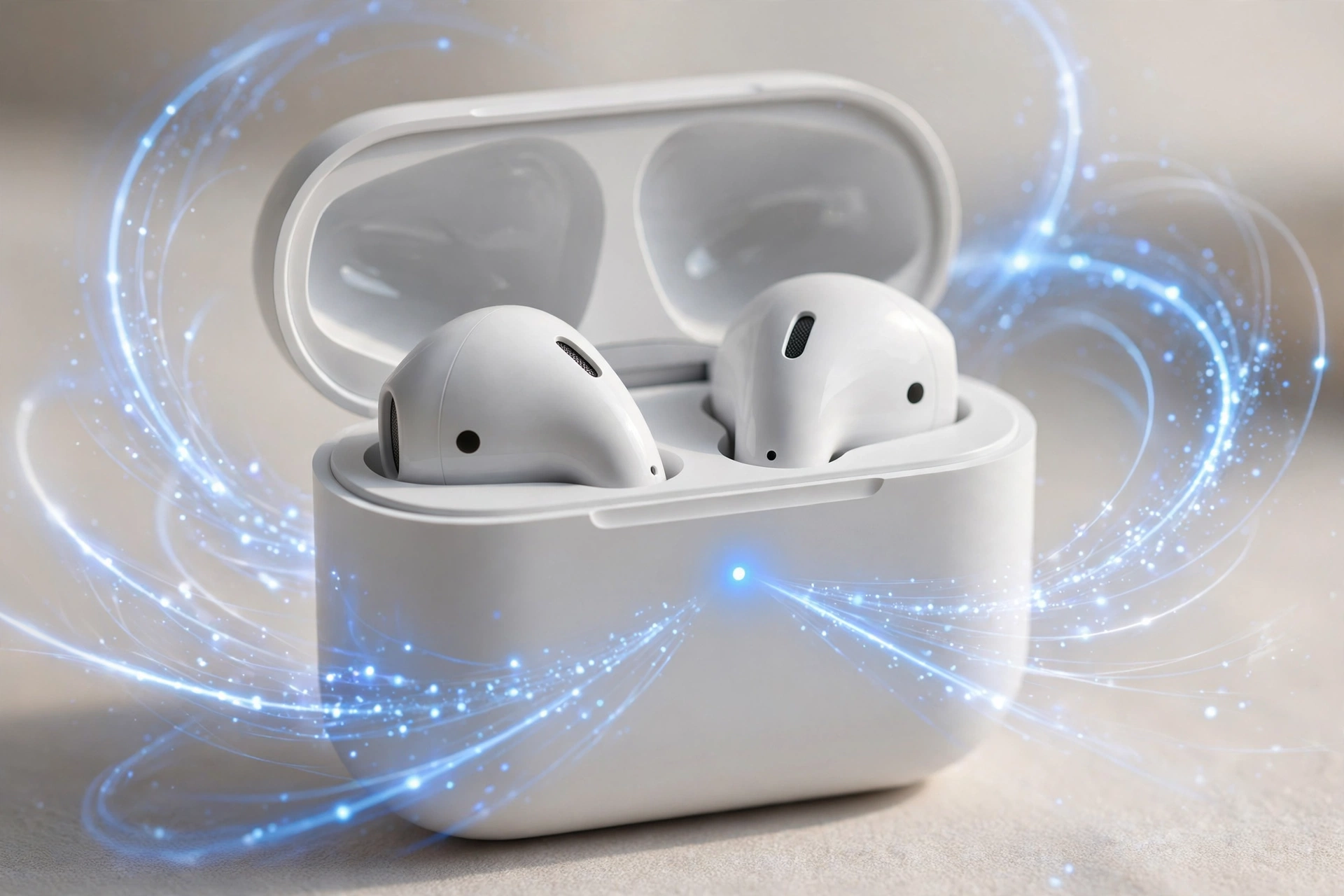
- Earbuds: open the charging case with the buds inside, or press and hold the button on the case for 3–5 seconds.
- Over-ear headphones: press and hold the power or Bluetooth button until the light flashes blue and white.
- Portable speaker: press and hold the dedicated Bluetooth button until you hear a tone.
- Smartwatch: open its Settings > Bluetooth and make it discoverable.
- Car kit: start the car’s pairing search from the infotainment screen.
- Confirm the pairing signal. A flashing blue, white, or alternating red-blue light — or a voice prompt saying “pairing” — means the accessory is discoverable. A steady light usually means it is already connected to something else.
- On your phone, go to Settings > Connected devices > Bluetooth > Pair new device.
- Tap the accessory name the moment it appears. Some accessories leave pairing mode after 60–90 seconds if nothing connects.
If you are unsure of the exact gesture, check the small manual in the box or the maker’s website before guessing. Guessing wastes time because a wrong button press often just turns the volume up. Google’s official guide to finding and setting up Bluetooth devices near your Android phone shows the standard phone-side steps with pictures, and it is worth a look if the Settings path on your phone looks different.
Fix 3: Forget the Old Entry and Pair Again
If you paired this accessory before — even once, even months ago — your phone may be holding a broken pairing record. When the stored keys no longer match the accessory, pairing fails instantly every time. The fix is to delete the old entry completely and start fresh.
- On your phone, open Settings > Connected devices > Bluetooth.
- Under Saved devices (or Paired devices), find the accessory’s name.
- Tap the gear icon next to it.
- Tap Forget (on some phones it is called Unpair).
- Put the accessory back into pairing mode (Fix 2).
- Tap Pair new device on your phone and connect fresh.
This also helps when the accessory name appears greyed out or when tapping it does nothing at all. A stale entry is invisible as a cause, but it blocks every new attempt until it is gone.
Fix 4: Enter the Right PIN — Try 0000 or 1234
Some accessories — especially car kits, older speakers, keyboards, and fitness bands — ask for a passcode during pairing. If you type the wrong one, or your phone auto-submits a wrong saved code, you get “Incorrect PIN or passkey” and the pairing fails.
- When the passcode prompt appears, try these defaults in order:
- 0000
- 1234
- 1111
- Check the accessory’s manual or the sticker inside the battery compartment — some devices print their code there.
- For car kits, the car screen may show a code you must confirm on your phone. Make sure the numbers on both screens match, then tap Pair on each.
- If your phone fills in a code automatically and it fails, forget the device (Fix 3) and try again, typing the code by hand.
Never invent a random six-digit code and hope. The accessory and the phone must agree on the exact same number, and the defaults above cover the vast majority of consumer accessories.
Fix 5: Restart Your Phone and the Accessory
A restart clears temporary software states that a Bluetooth toggle cannot reach. Many android bluetooth device not pairing headaches end right here, with a plain restart. If the phone’s Bluetooth service crashed silently in the background, no amount of toggling will bring it back — but a reboot will.
- Restart your phone. Press and hold the power button, then tap Restart. If there is no Restart option, choose Power off, wait 10 seconds, then power on.
- Power-cycle the accessory. Turn it fully off — not just to sleep — wait 10 seconds, then turn it on again. For earbuds, put them back in the case, close the lid, wait, then reopen it.
- Put the accessory into pairing mode again.
- On your phone, open Settings > Connected devices > Pair new device and try once more.
Restarting both ends matters. Pairing is a two-way handshake, and a glitch on either side breaks it.
Fix 6: Clear the Bluetooth Cache and Storage
Your phone keeps a cache of Bluetooth data and a store of pairing records in a system app called Bluetooth (sometimes Bluetooth Share or Bluetooth MIDI Service). Over time this data can corrupt — especially after system updates — and then no device will pair until it is cleared. Clearing it is safe: it only removes Bluetooth pairings, not your photos, apps, or accounts.
- Open Settings > Apps (or Apps & notifications).
- Tap See all apps.
- Tap the three-dot menu in the corner and choose Show system.
- Find and tap Bluetooth in the list. On some phones you will also see a separate Bluetooth MIDI Service — repeat the steps for it too.
- Tap Storage & cache.
- Tap Clear cache first.
- Then tap Clear storage (or Clear data). This deletes all saved Bluetooth pairings on the phone.
- Restart your phone.
- Put your accessory in pairing mode and pair it fresh.
After this, you will need to re-pair any other Bluetooth accessories you use, such as your car or a second pair of earbuds. It is a small price for a clean Bluetooth system.
Fix 7: Free the Accessory from Other Devices
Many Bluetooth accessories connect to one device at a time. If your earbuds auto-connect to your laptop the moment you open the case, your phone will never get a chance to pair — the accessory simply looks busy.
- Turn off Bluetooth on every nearby device you own: your laptop, tablet, old phone, smart TV, and smartwatch.
- On the device the accessory is currently connected to, unpair or forget it so it does not grab the connection back.
- Turn off Battery Saver on your phone (Settings > Battery > Battery Saver). Some phones throttle Bluetooth scanning when saving power.
- Move away from strong interference: microwaves, USB 3 hubs, and crowded Wi-Fi routers all share the 2.4 GHz band with Bluetooth.
- Put the accessory in pairing mode and try pairing from your phone again.
A small number of premium earbuds and headphones support multipoint — staying connected to two devices at once. If yours does, check the maker’s app: multipoint is sometimes switched off by default and must be enabled there before a second device can join.
Fix 8: Update Your Phone and Test in Safe Mode
If pairing broke right after a system update, or it fails on a phone full of apps you do not recognize, the cause may be software rather than settings. Updates sometimes ship with Bluetooth bugs, and third-party apps — VPNs, automation tools, “cleaner” apps — can interfere with the Bluetooth service.
- Install pending updates. Go to Settings > System > System update (on Samsung: Settings > Software update) and install anything waiting. Updates often include Bluetooth driver fixes.
- Update your apps from the Play Store, especially any companion app for your accessory.
- Test in Safe Mode to rule out app interference:
- Press and hold the power button.
- Long-press Power off until the Reboot to safe mode prompt appears, then tap OK.
- In Safe Mode, try pairing the accessory. If it pairs here, a third-party app is the culprit — uninstall recently added apps one by one.
- Restart the phone normally to leave Safe Mode.
- If the accessory still will not pair, walk through Google’s official Fix Bluetooth problems on Android checklist. It covers edge cases like car-specific pairing and Wear OS watches that this guide does not repeat.
If Safe Mode pairing works, the most common offenders are battery-saver utilities, Bluetooth “manager” apps, and VPN apps that hook into network services. Remove them and test again in normal mode.
Fix 9: Reset Network Settings When Android Bluetooth Device Not Pairing Persists
When every fix above has failed, the phone’s network and Bluetooth configuration itself is likely damaged. A network settings reset rebuilds the Bluetooth stack, Wi-Fi settings, and mobile data configuration from scratch — without deleting your photos, apps, or files.
- Open Settings > System > Reset options. (On Samsung: Settings > General management > Reset.)
- Tap Reset Wi-Fi, mobile & Bluetooth (the exact name varies by brand).
- Read the warning and tap Reset settings, then confirm with your PIN or fingerprint.
- Your phone restarts. All saved Wi-Fi networks, Bluetooth pairings, and VPN settings are erased — write down important Wi-Fi passwords first.
- Reconnect to your Wi-Fi, put the accessory in pairing mode, and pair it fresh.
This is the strongest software fix short of a full factory reset, and it resolves the large majority of stubborn pairing failures. Only consider a factory reset if the reset above changes nothing — and back up your data first if you go that far.
What to avoid
- Do not factory-reset your phone first. A network settings reset (Fix 9) fixes the same Bluetooth problems without wiping your data. A full reset is the last resort, not the first.
- Do not install “Bluetooth booster” or “pairing fixer” apps. They cannot repair the Bluetooth stack, and many show aggressive ads or ask for permissions they do not need.
- Do not keep tapping “Pair” on a half-paired entry. If the pairing stalls, forget the device (Fix 3) and start clean — retrying a broken entry never heals it.
- Do not pair in a crowded signal environment. A room full of active Bluetooth devices, a running microwave, and a busy router is the worst place to attempt a first pairing.
- Do not skip the accessory’s manual. Pairing gestures differ wildly between brands — holding the wrong button for five seconds usually just changes the volume.
- Do not assume the accessory is broken. In our experience, genuine hardware failure is rare. Work through the fixes before buying a replacement.
Frequently Asked Questions
Why won’t my phone find my Bluetooth device at all?
In most cases the accessory is not in pairing mode. A device that is simply switched on is not discoverable — you must trigger pairing mode with the button gesture from its manual, and you should see a flashing light. Also stay within 1 metre of the phone and make sure the accessory is not already connected to another device. See Fix 2 for the full steps.
Why does pairing fail with a “Couldn’t pair” message?
This usually means a passcode mismatch or a corrupt saved entry. Forget the device in your Bluetooth settings, put it back in pairing mode, and try the default passcodes 0000 or 1234 when prompted. Fixes 3 and 4 walk through both.
Can I pair one accessory with two phones at the same time?
Usually not. Most Bluetooth accessories hold one active connection. A few premium earbuds and headphones support multipoint connections to two devices, but the feature is often off by default and must be enabled in the maker’s companion app.
My accessory pairs but keeps disconnecting. Is that the same problem?
Not quite — pairing and holding a connection are different stages. If your device pairs successfully and then drops, read our guide on Android Bluetooth keeps disconnecting, which covers the dropout causes specifically.
Should I reset my whole phone if nothing works?
Try the network settings reset (Fix 9) first — it rebuilds the Bluetooth stack without deleting your data. A full factory reset is the absolute last step, and only after backing everything up.
Does the phone brand matter for these fixes?
The steps are written for stock Android and cover Samsung, Pixel, OnePlus, Xiaomi, and Motorola phones. Menu names differ slightly — Samsung users should look under Settings > Connections > Bluetooth and Settings > General management > Reset — but the logic of every fix is the same.
Why does my car ask me to confirm a code on both screens?
Car kits use a security step where both devices display the same number. Check that the code on your phone matches the code on the car’s screen, then tap Pair or Confirm on each. If they do not match, cancel and start over.
Conclusion
An android bluetooth device not pairing failure feels like a hardware problem, but it is almost always a settings problem — and settings problems have settings fixes. Start with the Bluetooth toggle and real pairing mode, which solve most cases in under two minutes. If the failure is stubborn, forget the old entry, clear the Bluetooth cache, and finally reset the network settings. One of these nine fixes will get your earbuds, speaker, or watch connected.
If your Windows 11 laptop has the same kind of trouble on the PC side, our Windows 11 Bluetooth not working guide covers the ten most effective fixes there. And for more step-by-step Android troubleshooting, browse the TechSBSInfo blog or head back to the TechSBSInfo homepage — new guides are added regularly, written to be read and followed in plain language.