

If android bluetooth keeps disconnecting on your phone, you are not alone. It is one of the most common Android problems. One minute your earbuds play music fine. The next minute the sound stops, or your call drops, or your smartwatch silently loses its connection. The good news is that in almost every case the cause is a setting, wireless interference, or a low battery — not a broken phone. Work through the quick checks below first. Most people get a stable connection back in under five minutes. If the quick checks do not work, the ten fixes further down cover every common cause, from battery optimization to a full network reset. Follow them in order, simplest first.
Table of Contents
- Quick Checks Before You Start
- Diagnose Your Problem in 30 Seconds
- 1. Toggle Bluetooth Off and Back On
- 2. Restart Your Phone and Your Bluetooth Device
- 3. Stay Close and Remove Wireless Interference
- 4. Charge Both Devices Fully
- 5. Forget the Device and Pair It Again
- 6. Turn Off Battery Optimization (the Hidden Reason Android Bluetooth Keeps Disconnecting)
- 7. Clear the Bluetooth App Cache
- 8. Update Your Phone and Your Companion Apps
- 9. Reset Your Network Settings
- 10. Reset the Accessory and Fix Car Bluetooth
- What to Avoid
- Frequently Asked Questions
- Conclusion
Quick Checks Before You Start
Try these quick checks first. They take less than two minutes, and they solve the problem for most people.
- Move your phone and the Bluetooth device within 3 meters (about 10 feet) of each other.
- Turn Bluetooth off, wait 10 seconds, then turn it back on.
- Charge both your phone and the Bluetooth device to at least 50 percent.
- Restart your phone once. A restart clears temporary software glitches.
- Make sure the Bluetooth device is not already connected to another nearby phone or laptop.
- Check that your phone is not in Battery Saver or Ultra Power Saving mode.
- If the device supports multipoint (connecting to two devices at once), disconnect it from the other device for now.
If none of these help, use the diagnose table to find your exact problem, then jump to the matching fix.
Diagnose Your Problem in 30 Seconds
| Symptom | Likely cause | Go to fix |
|---|---|---|
| Bluetooth drops every few minutes, especially when the screen is off | Battery optimization kills the Bluetooth process in the background | Fix 6 |
| Disconnects when you walk to another room | Out of range or blocked by walls and interference | Fix 3 |
| Drops only when the phone or earbuds battery is low | Power saving cuts the Bluetooth radio | Fix 4 |
| Will not reconnect after a drop | Stale pairing data or corrupted Bluetooth cache | Fix 5 or Fix 7 |
| Disconnects only in the car | Car stereo settings or trusted-device settings | Fix 10 |
| Started right after a software update | Update bug or leftover bad cache | Fix 8 or Fix 7 |
| Disconnects only during calls | Call-audio profile glitch or companion app bug | Fix 8 |
| Drops near a microwave or when Wi-Fi is busy | Wireless interference on the 2.4 GHz band | Fix 3 |
1. Toggle Bluetooth Off and Back On
This is the simplest fix, and it works more often than you would expect. Turning Bluetooth off and on forces your phone to drop every active connection and start fresh.
- Swipe down from the top of your screen to open Quick Settings.
- Tap the Bluetooth tile to turn it off.
- Wait 15 seconds. This lets the radio fully power down.
- Tap the tile again to turn Bluetooth back on.
- Wait for your device to reconnect automatically. If it does not, tap the device name under Bluetooth settings.
Airplane mode trick: If the quick toggle does not help, turn on Airplane mode for 30 seconds, then turn it off. This resets all radios at once — Bluetooth, Wi-Fi, and mobile data.
2. Restart Your Phone and Your Bluetooth Device
A restart clears temporary bugs in both devices. Do both, not just the phone, because the problem can live on either side.
- Turn off your Bluetooth device completely. For earbuds, put them back in the charging case and close the lid for 30 seconds.
- Press and hold your phone’s power button, then tap Restart. Do not just lock the screen — do a full restart.
- Wait for your phone to finish starting up.
- Turn your Bluetooth device back on and let it reconnect.
- Test the connection for a few minutes before doing anything else.
If the disconnects return after a restart, keep going. The cause is usually a setting, and the fixes below will find it.
3. Stay Close and Remove Wireless Interference
Bluetooth is a short-range wireless signal. Walls, distance, and other wireless devices can all weaken it until it drops.
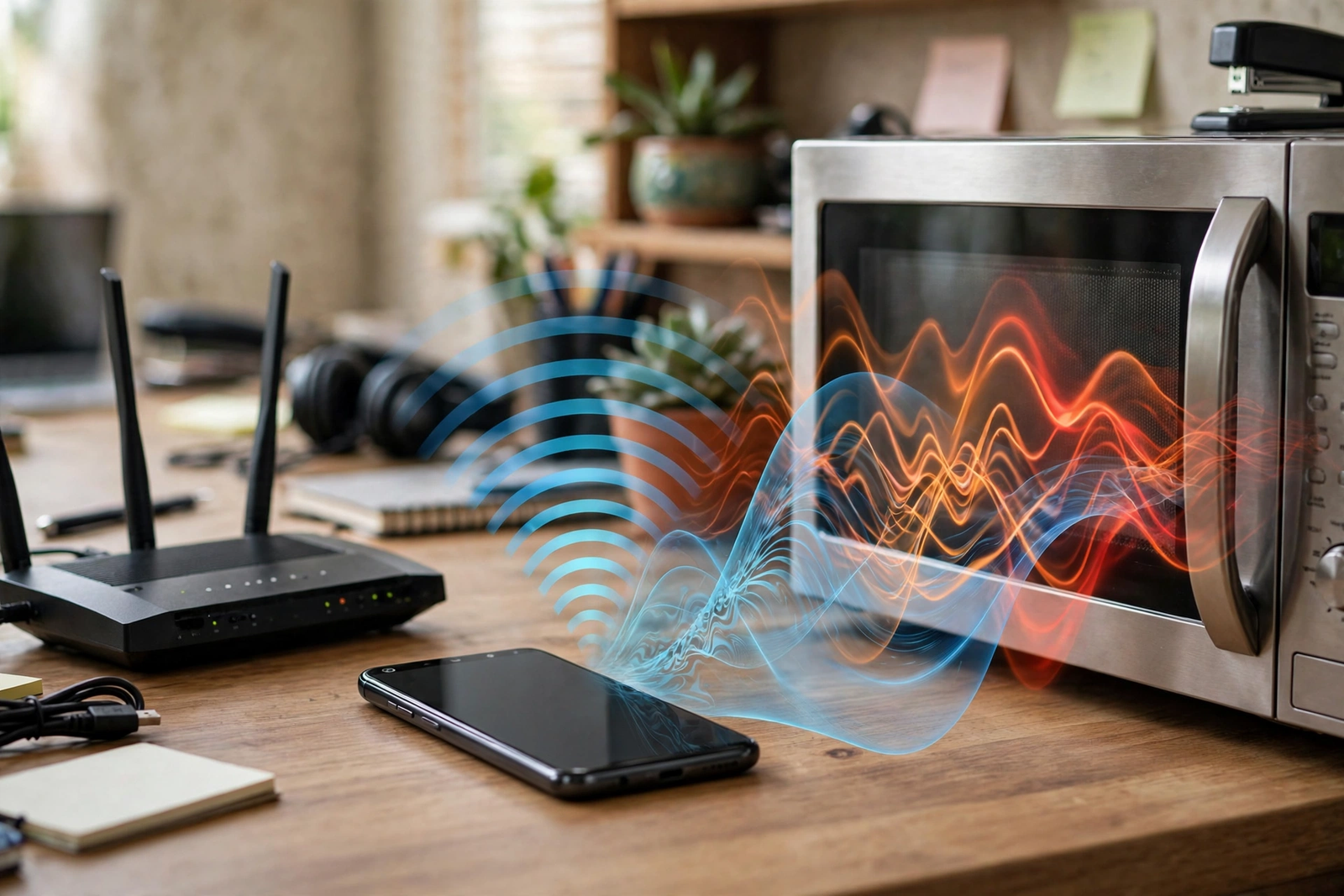
- Keep your phone and the Bluetooth device within 10 meters (33 feet) of each other. For best results, stay in the same room.
- Move away from microwave ovens, baby monitors, and Wi-Fi routers. They all use the same 2.4 GHz frequency as Bluetooth.
- Keep your phone out of thick metal cases, metal-lined bags, and back pockets pressed against a metal chair.
- If you are in a crowded place with many Bluetooth devices (a gym, an office, a train), move to a quieter spot to test.
- Turn off Wi-Fi temporarily to test. If the disconnects stop, your router’s 2.4 GHz signal was the problem. Switching your Wi-Fi to the 5 GHz band usually fixes this permanently.
4. Charge Both Devices Fully
Bluetooth radios use more power than most people realize. When a battery gets low, Android reduces power to the radio, and the connection becomes unstable.
- Charge your phone to at least 50 percent before testing.
- Charge your earbuds, speaker, or smartwatch fully. Many devices warn you at 20 percent, but Bluetooth can start dropping well before that.
- Check the battery level of the accessory in its companion app. Some earbuds show a different level for each earbud — one dead earbud can break the pair’s connection.
- If your earbuds are old and the battery dies in under an hour, the battery itself may be worn out. No setting can fix a dying battery.
- Avoid Battery Saver and Ultra Power Saving modes while using Bluetooth. These modes deliberately limit background wireless activity.
5. Forget the Device and Pair It Again
If the pairing information stored on your phone is corrupted, the connection will keep dropping no matter what else you try. Deleting the pairing and starting over fixes this.
- Open Settings, then tap Connected devices (on Samsung, tap Connections, then Bluetooth).
- Find the problem device in the list and tap the gear icon next to it.
- Tap Forget or Unpair, then confirm.
- Put your Bluetooth device back into pairing mode. For most earbuds, press and hold the button on the case for 3 to 5 seconds. Check the device manual if you are unsure.
- On your phone, tap Pair new device and select the device from the list.
- Test the connection. A fresh pairing often ends weeks of random disconnects.
If your device will not pair at all, the pairing process itself may be the problem. Our detailed Bluetooth pairing guide walks through every pairing error step by step. Google also publishes an official Fix Bluetooth problems on Android page with the same core steps, which is worth checking if you are stuck.
6. Turn Off Battery Optimization (the Hidden Reason Android Bluetooth Keeps Disconnecting)
This is the single most common reason android bluetooth keeps disconnecting on modern phones — and almost nobody knows about it. Android’s battery optimization quietly shuts down the Bluetooth system process when your screen is off, even while you are listening to music or wearing a smartwatch. The fix is to tell Android to leave Bluetooth alone.
On Pixel and most stock Android phones:
- Open Settings, then tap Apps.
- Tap See all apps.
- Tap the three-dot menu in the top-right corner and select Show system.
- Scroll down and tap Bluetooth.
- Tap App battery usage.
- Change the setting from Optimized to Unrestricted.
On Samsung phones:
- Open Settings, then tap Apps.
- Tap the filter icon, turn on Show system apps, then tap OK.
- Tap Bluetooth, then tap Battery.
- Select Unrestricted.
- For extra safety, go to Settings > Battery > Background usage limits and make sure Bluetooth is not listed under sleeping apps.
On other brands (Xiaomi, OnePlus, Oppo, Motorola):
- The steps are similar: find the Bluetooth system app under Settings > Apps, show system apps, and set its battery usage to unrestricted or “Don’t optimize.”
This change may slightly reduce battery life, because Bluetooth now stays fully awake. In practice, most people notice no real difference. If you use a Samsung phone and want the official steps for your exact model, check Samsung’s official support site, where you can look up your device and follow its battery settings guide.
7. Clear the Bluetooth App Cache
Over time, Android stores temporary Bluetooth data — old connection records, failed pairing attempts, stale device profiles. When this cache gets corrupted, connections drop randomly. Clearing it is safe and takes one minute.
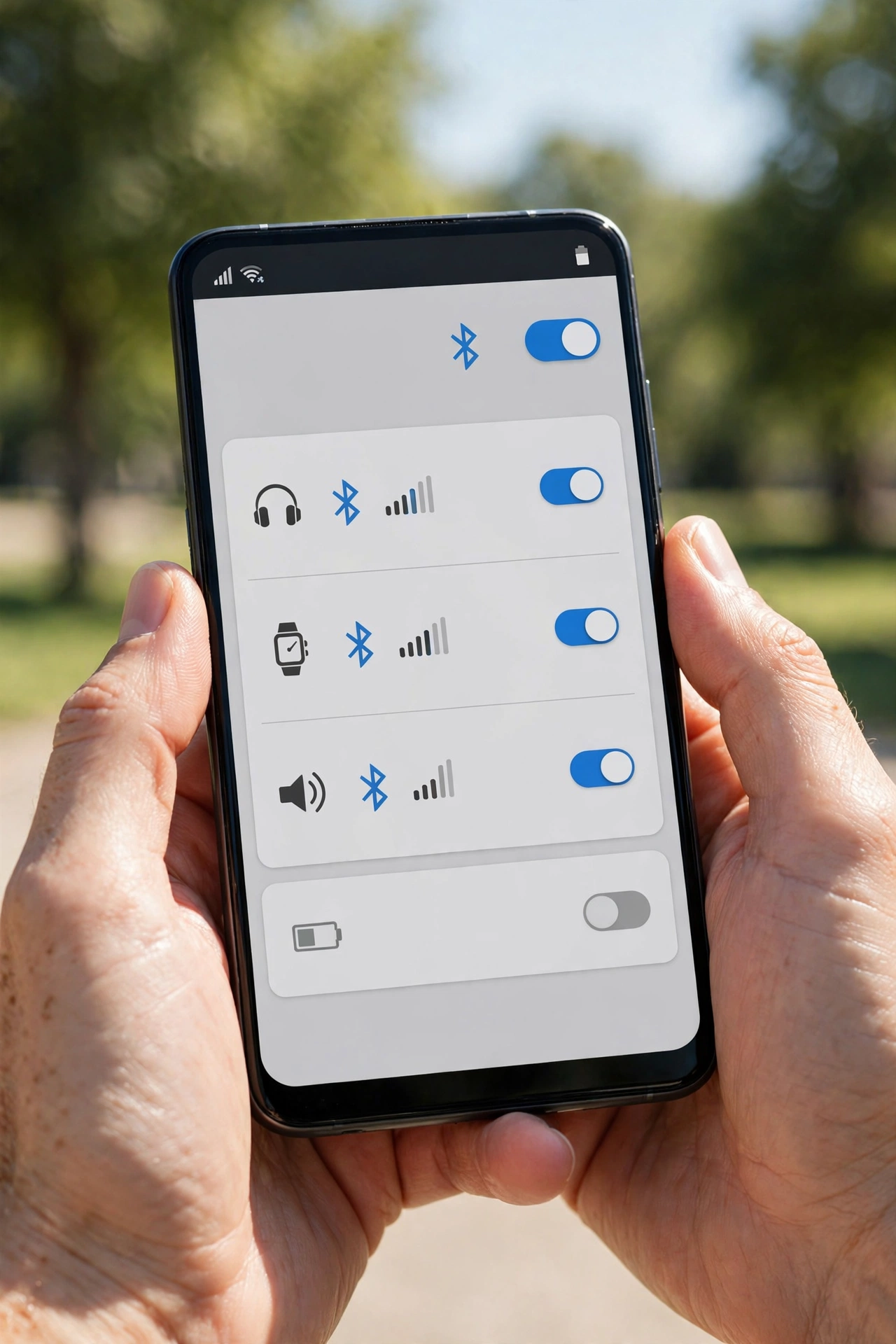
- Open Settings, then tap Apps, then See all apps.
- Tap the three-dot menu and select Show system.
- Tap Bluetooth, then tap Storage & cache.
- Tap Clear cache. Confirm if asked.
- Restart your phone after clearing the cache.
- Reconnect your Bluetooth device and test it.
If clearing the cache does not help, go back to the same screen and tap Clear storage (sometimes called Clear data). This is stronger: it deletes all saved pairings, so you will need to pair your devices again. Do this only if the cache clear failed.
8. Update Your Phone and Your Companion Apps
Software updates regularly fix Bluetooth bugs. If your disconnects started after an update — or if you have not updated in months — an update may be the whole fix.
- Open Settings, tap System, then tap Software update (on Samsung: Settings > Software update). Install any available update.
- Open the Play Store, tap your profile icon, then tap Manage apps & device. Update everything, especially companion apps for your earbuds, watch, or speaker.
- Open the companion app for your Bluetooth device (for example, the earbuds’ own app) and check for a firmware update inside the app. Earbud firmware updates often fix disconnection bugs directly.
- After updating, restart your phone and test the connection for at least 15 minutes.
If Bluetooth audio drops only during voice or video calls on your computer rather than on your phone, the issue may be on the PC side. Our Zoom audio troubleshooting guide covers call-audio problems in detail.
9. Reset Your Network Settings
If nothing above worked, your phone’s saved network configuration may be damaged. Resetting network settings wipes all Wi-Fi, mobile, and Bluetooth settings and rebuilds them from scratch. This fixes deep software problems that survive restarts.
- Open Settings, tap System, then tap Reset options.
- Tap Reset Wi-Fi, mobile & Bluetooth (on Samsung: Settings > General management > Reset > Reset network settings).
- Tap Reset settings and confirm with your PIN or fingerprint.
- Wait for the phone to finish, then restart it.
- Pair your Bluetooth device again from scratch.
Important: This deletes all saved Wi-Fi networks and passwords, all paired Bluetooth devices, and VPN settings. Write down your Wi-Fi passwords first. Your apps, photos, and files are not touched — only network settings are reset.
10. Reset the Accessory and Fix Car Bluetooth
Sometimes the problem is not your phone at all. The Bluetooth accessory itself — or your car’s stereo — can be the weak link.
Reset your earbuds, speaker, or watch:
- Check the device manual for a factory reset. For most true-wireless earbuds, place both earbuds in the case, leave the lid open, and hold the case button for 10 seconds until the light flashes.
- For Bluetooth speakers, hold the power and Bluetooth buttons together for 5 to 10 seconds.
- For smartwatches, use the reset option in the watch’s own settings menu.
- After the reset, pair the device with your phone as if it were brand new.
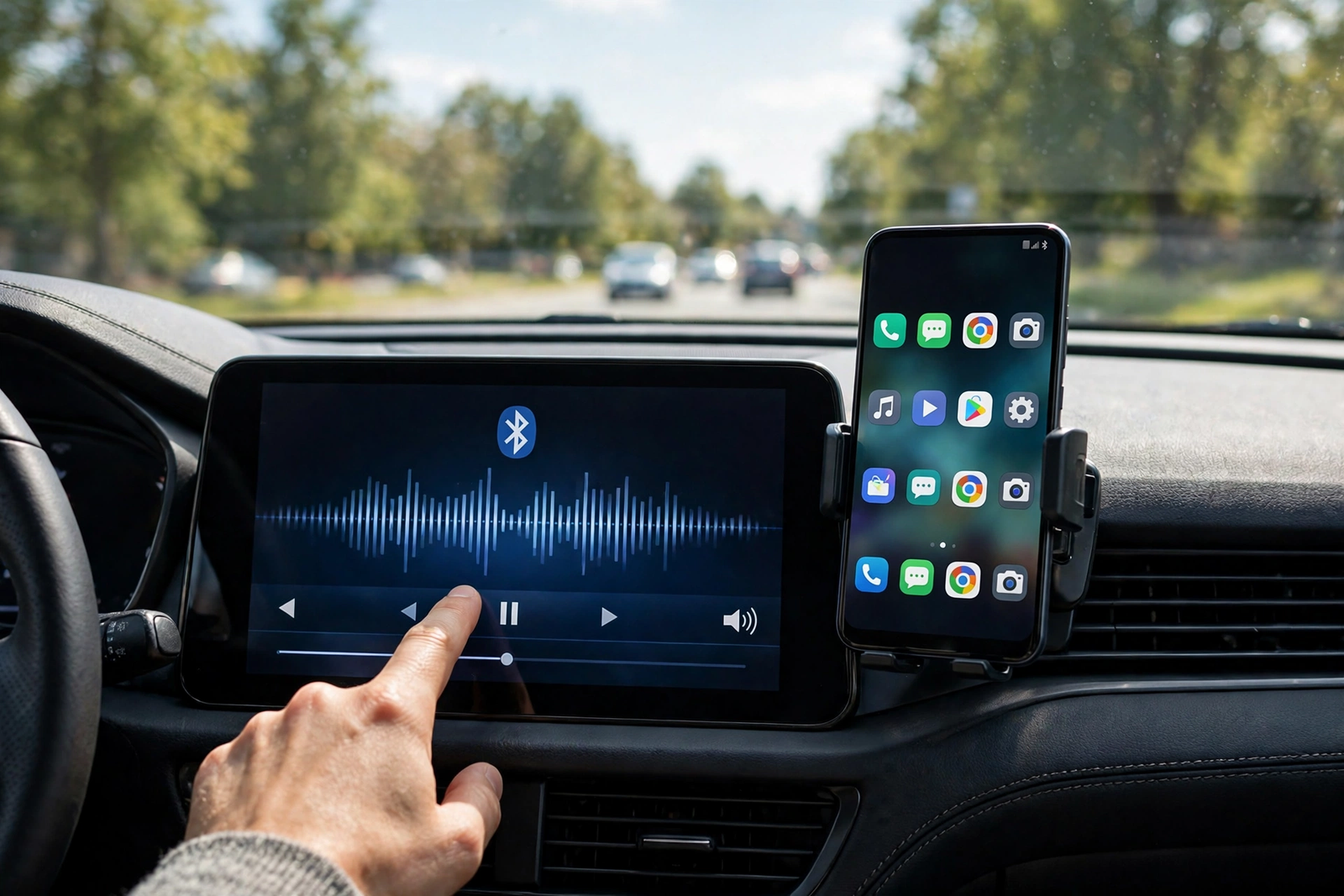
If it only disconnects in your car:
- Delete the phone from your car’s Bluetooth device list, then delete the car from your phone’s paired devices. Pair them again from scratch.
- On your phone, open the car’s device settings and make sure Call audio and Media audio are both turned on.
- Check that your car stereo’s firmware is up to date. Many car makers release updates that fix Bluetooth stability.
- Turn off your car’s Wi-Fi hotspot if it has one — it can interfere with Bluetooth.
- If your car supports both Android Auto and plain Bluetooth, try Android Auto over USB for music. It is far more stable than wireless Bluetooth in cars.
If the same accessory disconnects from two different phones, the accessory itself is almost certainly faulty. If two different accessories both disconnect from your phone, your phone’s Bluetooth hardware may need a service check.
What to Avoid
- Do not factory reset your whole phone. A network-settings reset (Fix 9) fixes the same Bluetooth problems without deleting your apps and photos.
- Do not disable or force-stop the “Bluetooth” or “Bluetooth Share” system app. Some online guides suggest this. It breaks Bluetooth completely instead of fixing it.
- Do not stay connected to two phones at once. Multipoint is convenient, but a second connected phone can steal the audio stream and cause drops. Disconnect the phone you are not using.
- Do not use heavy metal phone cases or keep your phone in a metal-lined bag while using Bluetooth. Metal blocks the signal.
- Do not ignore companion app and firmware updates for your earbuds or watch. Manufacturers fix disconnection bugs in firmware updates all the time.
- Do not leave Maximum Power Saving mode on while listening over Bluetooth. It throttles the Bluetooth radio by design.
- Do not clear data on random system apps hoping one of them is the cause. Only the Bluetooth app’s cache is relevant here.
- Do not buy a new phone before testing. Pair the accessory with a friend’s phone first. If it works fine there, your phone’s settings are the problem — not its hardware.
Frequently Asked Questions
Why does my Bluetooth disconnect when my phone screen turns off?
This is battery optimization at work. Android puts the Bluetooth system process to sleep when the screen is off to save power. Set the Bluetooth app’s battery usage to Unrestricted as shown in Fix 6. This solves the “disconnects when the screen is off” problem in most cases.
Why does Bluetooth disconnect when my battery is low?
When your phone or your earbuds run low on battery, power-saving features reduce power to the Bluetooth radio. The connection becomes unstable and drops. Charge both devices to at least 50 percent (Fix 4) and turn off Battery Saver while using Bluetooth.
Why does my Bluetooth keep disconnecting in my car but works fine at home?
Car stereos have their own Bluetooth software, and it is often older and buggier than your phone’s. Delete the pairing on both sides and pair again, make sure call audio and media audio are both enabled for the car, and check for a car stereo firmware update (Fix 10).
Will resetting network settings delete my photos and apps?
No. Resetting network settings only deletes saved Wi-Fi networks and passwords, paired Bluetooth devices, and VPN settings. Your photos, apps, messages, and files stay exactly where they are. Just write down your Wi-Fi passwords before you start (Fix 9).
How do I know if the problem is my phone or my earbuds?
Test the earbuds with a different phone. If they disconnect there too, the earbuds are faulty. Then test a different Bluetooth device with your phone. If that drops too, the problem is in your phone’s settings — work through the fixes above.
Can a software update really fix Bluetooth disconnects?
Yes. Bluetooth bugs are common in new Android releases, and Google and phone makers fix them in monthly updates. Earbud makers also fix connection bugs through firmware updates in their companion apps. Always update before assuming the hardware is broken (Fix 8).
The problem is on my Windows PC, not my phone. What should I do?
Phone fixes will not help a PC. If your Windows computer’s Bluetooth drops or will not connect, see our separate guide on Windows 11 Bluetooth problems, which covers the PC-side fixes.
Conclusion
When android bluetooth keeps disconnecting, the fix is almost never new hardware. Start with the quick checks, then work through the ten fixes in order. For most people, the answer is one of three things: battery optimization silently killing Bluetooth (Fix 6), a corrupted cache or pairing (Fixes 5 and 7), or wireless interference (Fix 3). Each fix takes only a few minutes, and together they cover every common cause — earbuds, speakers, smartwatches, and car stereos alike.
If you fixed it, try using your device for a full day before declaring victory. Some disconnects only happen after hours of use. And if a friend is fighting the same problem, send them this guide — the battery optimization fix alone saves a lot of frustration. For more step-by-step Android troubleshooting, visit the TechSBSInfo homepage for our full collection of guides.
[…] are different stages. If your device pairs successfully and then drops, read our guide on Android Bluetooth keeps disconnecting, which covers the dropout causes […]