

If chrome keeps logging me out of Gmail, Facebook, your bank, or every other website each time you restart the browser, the problem almost always comes from cookie handling, a broken Chrome profile, or an extension that quietly clears your sessions. Websites remember you through cookies, so when Chrome blocks them or deletes them, every site forgets you and asks you to sign in again.
The good news: this is a settings problem, not a broken browser. The nine fixes below go from the simplest to the deepest, and most people are done after the first three. Work through them in order — each one takes only a few minutes, and none of them will delete your bookmarks or saved passwords unless a fix says so first, with a clear warning.
Table of Contents
- Quick Checks
- Diagnose: Match Your Symptom to the Cause
- Fix 1: Sign Back In When chrome keeps logging me out
- Fix 2: Allow Cookies and Stop Chrome Deleting Them on Exit
- Fix 3: Clear Corrupted Cookies and Cache
- Fix 4: Turn On Chrome Sync
- Fix 5: Disable Extensions That Clear Cookies
- Fix 6: Update Google Chrome
- Fix 7: Test With a Fresh Chrome Profile
- Fix 8: Check Antivirus and Cleaning Software
- Fix 9: Reset Chrome Settings
- What to Avoid
- Frequently Asked Questions
- Conclusion
- Helpful Official Resources
Quick Checks
- Restart Chrome completely and sign in again — a crashed session can fail to restore silently.
- Click your profile icon in the top-right corner. If it says “Paused” or shows no account, your Chrome profile itself is signed out — that is the whole issue.
- Think about any privacy or cleaner extension you installed recently. Tools that promise to “clean cookies” are the most common cause of repeated sign-outs.
- Test one site in an Incognito window. If you stay logged in there, an extension is almost certainly the cause.
- Make sure your computer’s date and time are correct. A wrong clock can break secure login cookies.
- If pages also refuse to load while this happens, our guide on Chrome pages not loading covers that separately.
Diagnose: Match Your Symptom to the Cause
| Symptom | Cause | Go to Fix |
|---|---|---|
| Signed out of every site after restarting Chrome | Cookies blocked or deleted on exit | Fix 2 |
| Chrome profile shows “Paused” or asks you to sign in | Chrome profile itself is signed out | Fix 1 |
| Logged in on some sites, logged out of others | Corrupted cookies for those specific sites | Fix 3 |
| Logged out on all devices at the same time | Chrome Sync paused or account problem | Fix 4 |
| Stay logged in in Incognito, logged out in normal mode | An extension is clearing your cookies | Fix 5 |
| Sign-outs started right after a Chrome update | Outdated build or damaged profile | Fix 6, Fix 7 |
| Logged out every day after your cleaner’s scheduled run | Third-party cleaner deleting sessions | Fix 8 |
| None of the above fixes helped | Broken Chrome settings | Fix 9 |
Fix 1: Sign Back In When chrome keeps logging me out
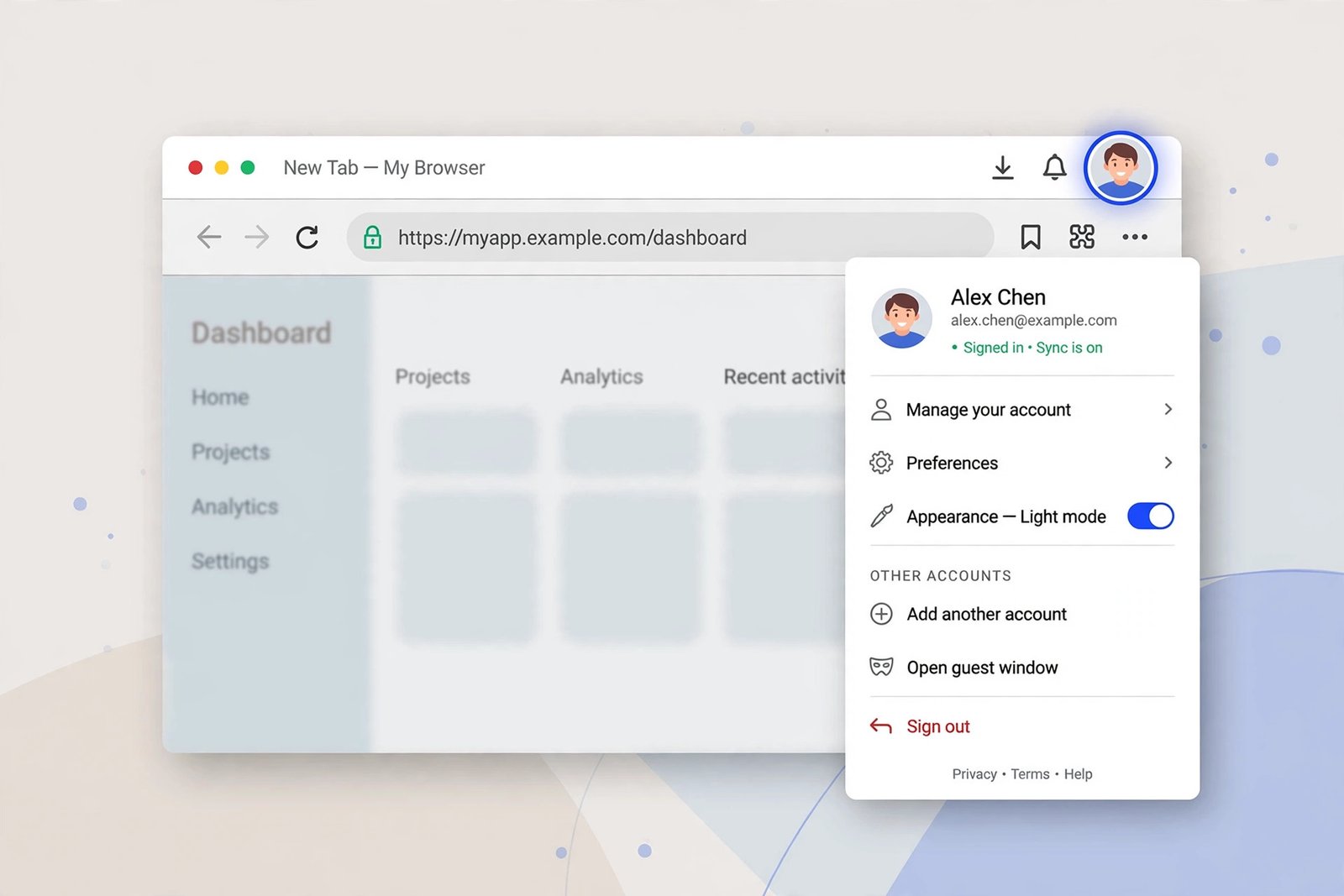
Sometimes Chrome signs you out of its own profile, and from that moment nothing stays logged in. Re-signing into the profile often fixes everything in under a minute.
- Click your profile icon in the top-right corner of Chrome.
- If you see “Paused”, a “Turn on sync” prompt, or no account name, click it.
- Enter your Google account email and password.
- When Chrome asks about sync, choose “Yes, I’m in” — or skip this if you prefer not to sync.
- Fully restart Chrome (close every window), then open a website and check whether your login now sticks.
Fix 2: Allow Cookies and Stop Chrome Deleting Them on Exit
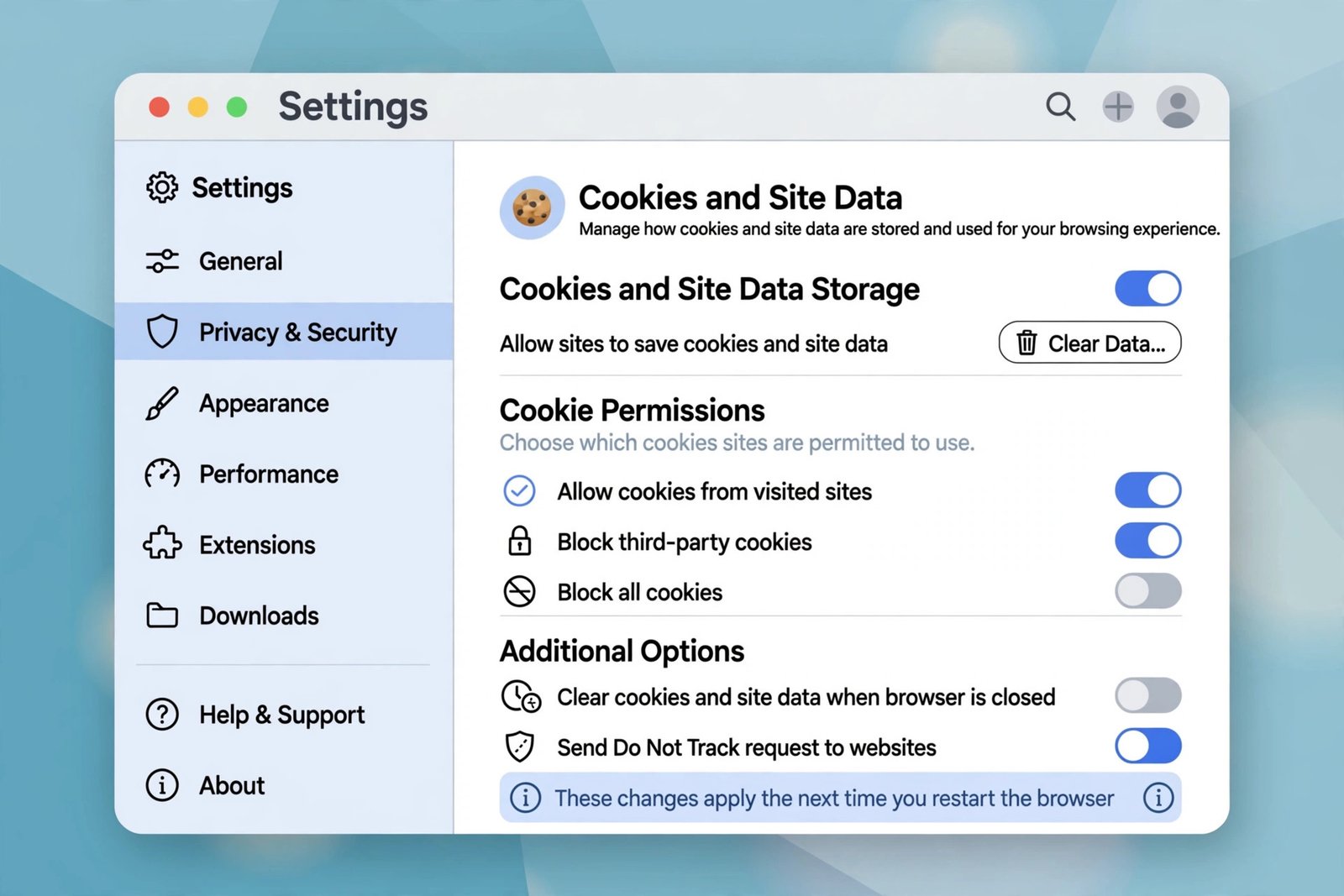
This is the most common cause. If cookies are blocked or set to delete when Chrome closes, no website can keep you signed in.
- Paste
chrome://settings/cookiesinto the address bar and press Enter. - Select “Allow all cookies” — do NOT choose “Block all cookies.”
- If you prefer stricter privacy, “Block third-party cookies” is fine; it does not break logins.
- Scroll to “Sites that can never use cookies” and remove any site that keeps logging you out.
- Now check the exit behavior: go to Settings → Privacy and security → Delete browsing data, open the “On exit” tab, and make sure “Cookies and other site data” is NOT set to clear when Chrome closes.
- Restart Chrome, sign in to one site, close Chrome fully, reopen it, and check whether you are still signed in.
Fix 3: Clear Corrupted Cookies and Cache
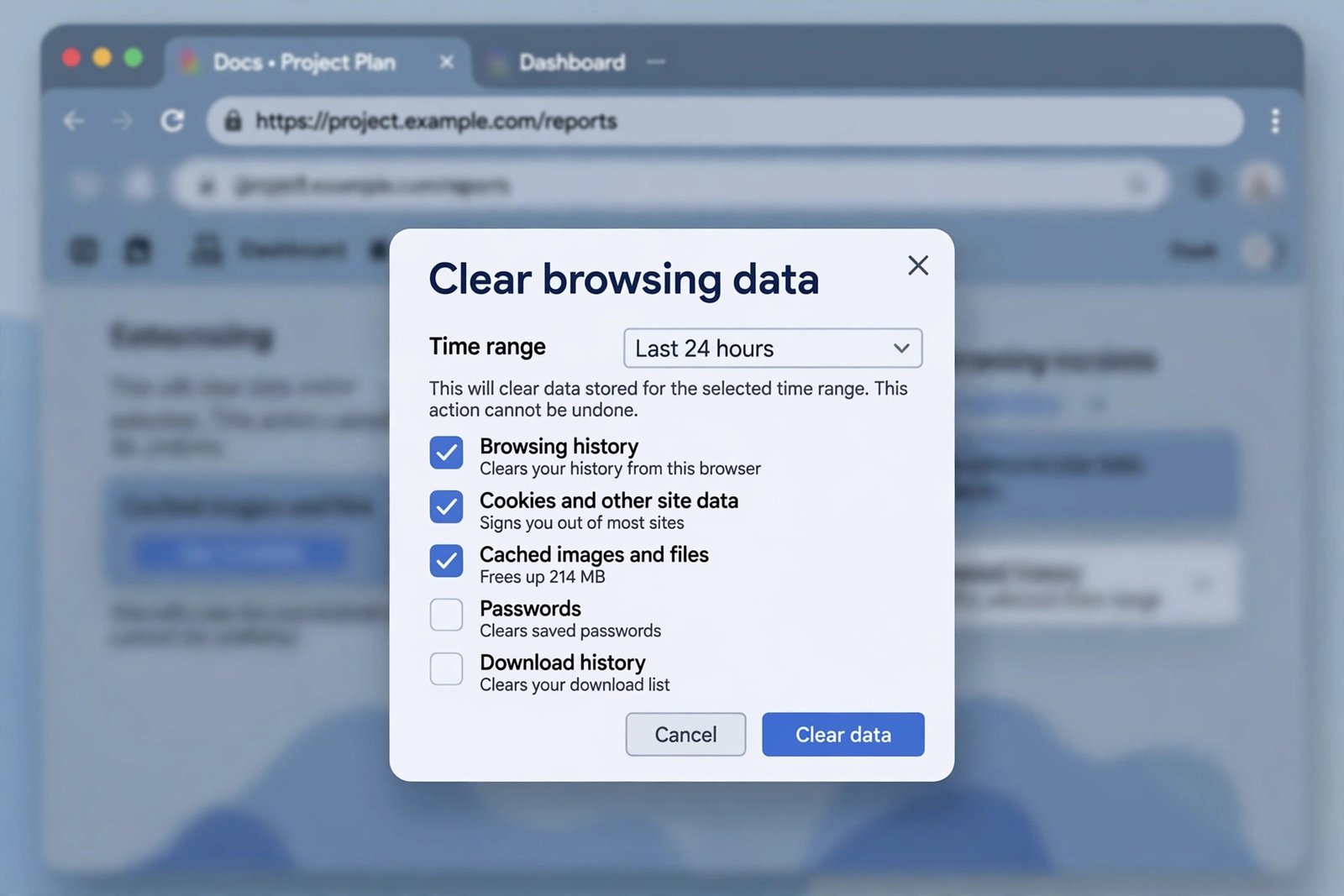
A damaged cookie file can make a site log you out even when your settings are correct. Clearing them gives the site a clean start. Warning: this signs you out of every website once — by design. You will log back in afterwards with fresh, working cookies.
- Paste
chrome://settings/clearBrowserDatainto the address bar and press Enter. - Open the Advanced tab.
- Set the time range to “All time.”
- Check “Cookies and other site data” and “Cached images and files.”
- Click “Clear data.”
- Sign back into your websites one time — from now on, fresh cookies are stored correctly.
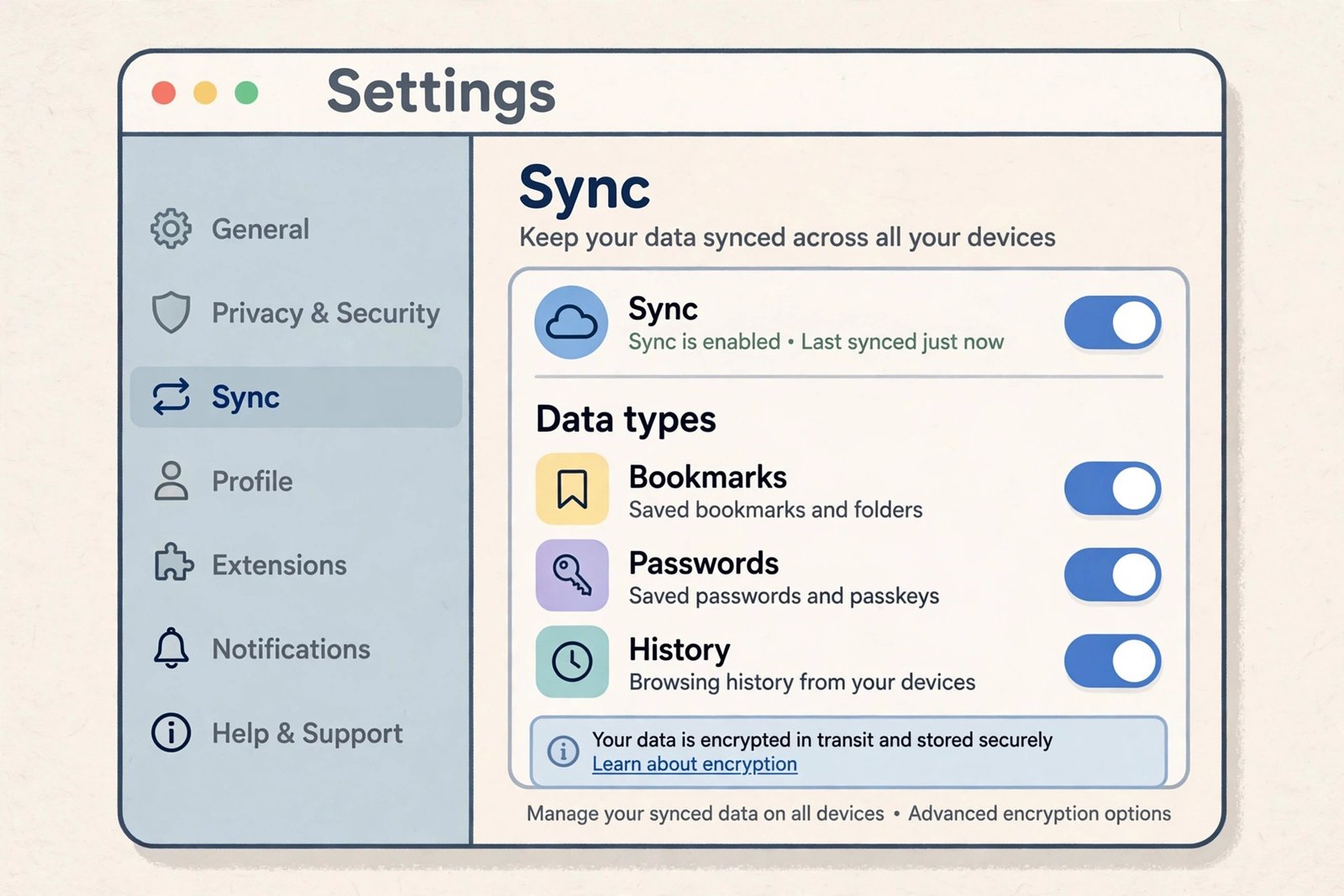
Fix 4: Turn On Chrome Sync
When sync is paused or throwing an error, sign-in state can break across your devices. Getting sync healthy again often stops the logouts.
- Paste
chrome://settings/syncSetupinto the address bar and press Enter. - Make sure Sync is turned on.
- If you see a sync error — for example a passphrase prompt or a “sync isn’t working” message — click “Review” and re-enter your Google password.
- If you set a sync passphrase long ago and forgot it, use the “Reset sync” option on that page. This clears synced data from Google’s servers but keeps everything on your computer.
- Restart Chrome and test your website logins again.
- If your bookmarks also refuse to sync, see our separate guide on Chrome bookmarks not syncing. And if saved logins vanished along with your sessions, read Chrome saved passwords disappeared.
Fix 5: Disable Extensions That Clear Cookies
Cookie-cleaning, privacy, and some ad-blocking extensions delete login sessions as a “feature.” The fastest way to catch one is to test with everything off.
- Paste
chrome://extensionsinto the address bar and press Enter. - Turn off every extension using its toggle — especially cookie cleaners, privacy tools, and ad blockers.
- Restart Chrome and sign in to a website. Close and reopen Chrome.
- If you stay signed in now, an extension was the cause.
- Re-enable your extensions one by one, testing after each one, until the sign-outs return. That extension is the culprit.
- Open the culprit’s options and look for a setting like “clear cookies automatically” or “delete sessions on close” — turn it off, or remove the extension if there is no such setting.
Fix 6: Update Google Chrome
Bugs in old Chrome builds can mishandle cookies and profiles. Updates also repair damaged browser files during installation.
- Paste
chrome://settings/helpinto the address bar and press Enter. - Chrome checks for updates automatically. If one is available, it downloads and installs it.
- Click “Relaunch” when prompted.
- Sign in to a website and test again.
- If Chrome itself feels sluggish during all this, our Chrome high CPU usage fix may help too.
Fix 7: Test With a Fresh Chrome Profile
A corrupted profile can cause sign-outs that no setting will fix. A fresh profile tells you in minutes whether yours is damaged.
- Click your profile icon and choose “Add” to create a new Chrome profile.
- In the new profile, visit a website and sign in.
- Close Chrome completely and reopen it.
- If the new profile stays signed in, your old profile is corrupted.
- Move to the new profile: you can import bookmarks from the old one via Settings → “Import bookmarks and settings.”
- Delete the old profile later from the profile menu → “Manage profiles” → the three-dot menu on the old profile.
Fix 8: Check Antivirus and Cleaning Software
Many antivirus suites and PC cleaners include a “privacy” feature that wipes browser cookies on a schedule. This logs you out of everything every day, no matter what Chrome’s settings say.
- Open your antivirus or system-cleaning program.
- Look for a feature named “privacy cleaner,” “browser cleanup,” or “cookie removal.”
- Either turn that feature off, or add an exception for Chrome’s cookies and sessions.
- Restart Chrome, sign in to a site, and check again after the cleaner’s next scheduled run.
Fix 9: Reset Chrome Settings
If nothing else worked, reset Chrome to its defaults. This is the last resort because it disables extensions and resets your startup pages — but it keeps your bookmarks, history, and saved passwords.
- Paste
chrome://settings/resetinto the address bar and press Enter. - Click “Restore settings to their original defaults.”
- Confirm the reset.
- Sign back into your Chrome profile (Fix 1), then sign in to your websites once more.
- Your logins should now survive restarts.
What to Avoid
- Do not delete Chrome’s profile folder by hand from your file system — you can lose bookmarks and passwords with no undo.
- Do not install “session saver” extensions from unknown developers — many are adware or quietly collect your browsing data.
- Do not block all cookies to “fix” sign-outs — most websites need cookies to keep you logged in at all.
- Do not reset your Google account password over and over hoping it helps — this is a local browser issue, not a password problem.
- Do not download pirated “Chrome optimizer” tools — they often bundle malware. Chrome’s own settings are all you need.
Frequently Asked Questions
Why does Chrome log me out every time I close it?
Because your cookies are being deleted when Chrome closes. Check the “Delete browsing data on exit” setting and look for any extension or cleaner that clears cookies automatically.
Does clearing my cache log me out of websites?
Clearing only “Cached images and files” does not log you out. Clearing “Cookies and other site data” does — that is where websites store your login sessions.
Why am I logged out on my phone too?
If Chrome Sync is paused or you were signed out of your Google Account, the change can affect every synced device. Fix sync on your main computer first, then check your phone.
Can an extension really log me out of websites?
Yes. Extensions that manage cookies, block trackers, or “clean” your browser can delete login sessions. Test in an Incognito window — if you stay logged in there, an extension is the cause.
Will resetting Chrome delete my saved passwords?
No. Resetting Chrome’s settings keeps your saved passwords, bookmarks, and browsing history. It only resets settings, disables extensions, and clears temporary data.
Is it safe to allow all cookies?
Allowing cookies is how websites remember you, and it is safe for normal browsing. If you worry about tracking, choose “Block third-party cookies” instead — blocking every cookie breaks logins.
[…] Chrome signs you out again on its own, read our guide on Chrome keeps logging me out to fix the underlying sign-in […]
[…] in Incognito — is the sensible balance for most people. If logins specifically keep failing, our Chrome keeps logging me out guide digs deeper into that […]
[…] The “ask where to save” toggle is the permanent cure for lost files. One extra click per download buys total certainty about location. For installers and important documents, move them out of Downloads into a proper folder right away — the Downloads folder is a transit lounge, not a home, and treating it that way means a disappearing file is never a disaster. If Chrome keeps logging you out alongside these issues, see Chrome keeps logging me out. […]