

You log into a website, close the tab, come back — and you are logged out again. Or a site shows an error saying cookies are required. When chrome cookies not working is the problem, websites cannot remember you: logins do not stick, shopping carts empty themselves, and preferences reset on every visit.
Cookies are small files sites store in your browser to remember who you are. Chrome gives you fine control over them, and one wrong toggle — or one overzealous extension — can break them silently. The fixes below walk through Chrome’s cookie settings in order. None of them deletes your passwords or bookmarks, so they are safe to try.
Table of Contents
- Quick Checks
- Diagnosing chrome cookies not working
- Fix 1: Allow Cookies in Chrome Settings
- Fix 2: Allow Third-Party Cookies
- Fix 3: Clear Cookies for the Problem Site
- Fix 4: Disable Extensions One by One
- Fix 5: Check Clear-on-Exit and Cookie Blockers
- Fix 6: Reset Chrome Settings
- Fix 7: Update Chrome
- What to Avoid
- Frequently Asked Questions
- Conclusion
- Helpful Official Resources
Quick Checks
Start here — the answer is often embarrassingly simple.
- Check whether the problem affects one site or all sites. One site means that site’s cookies are corrupt (Fix 3); all sites means a global setting (Fix 1).
- Make sure you are not in Incognito mode — Incognito deletes cookies when you close the window, by design.
- Check the address bar for a crossed-out cookie icon or an “eye” icon — Chrome tells you when it blocks cookies.
- Restart Chrome fully (close every window, not just one tab) and test again.
- Try the site in a Guest window (click your profile icon > Guest) — if it works there, an extension or setting in your profile is guilty.
Diagnosing chrome cookies not working
| Symptom | Cause | Go to Fix |
|---|---|---|
| Every site logs you out on restart | Cookies blocked or cleared on exit | Fix 1, then Fix 5 |
| One site broken, others fine | That site’s cookies corrupt | Fix 3 |
| Login buttons or payments fail | Third-party cookies blocked | Fix 2 |
| Problem started after installing an extension | Privacy/ad-block extension | Fix 4 |
| Worked yesterday, broken today | Settings changed or Chrome updated | Fix 6, then Fix 7 |
Fix 1: Allow Cookies in Chrome Settings
The master cookie switch lives in Chrome’s privacy settings. If it got flipped to blocking, no site can remember you.
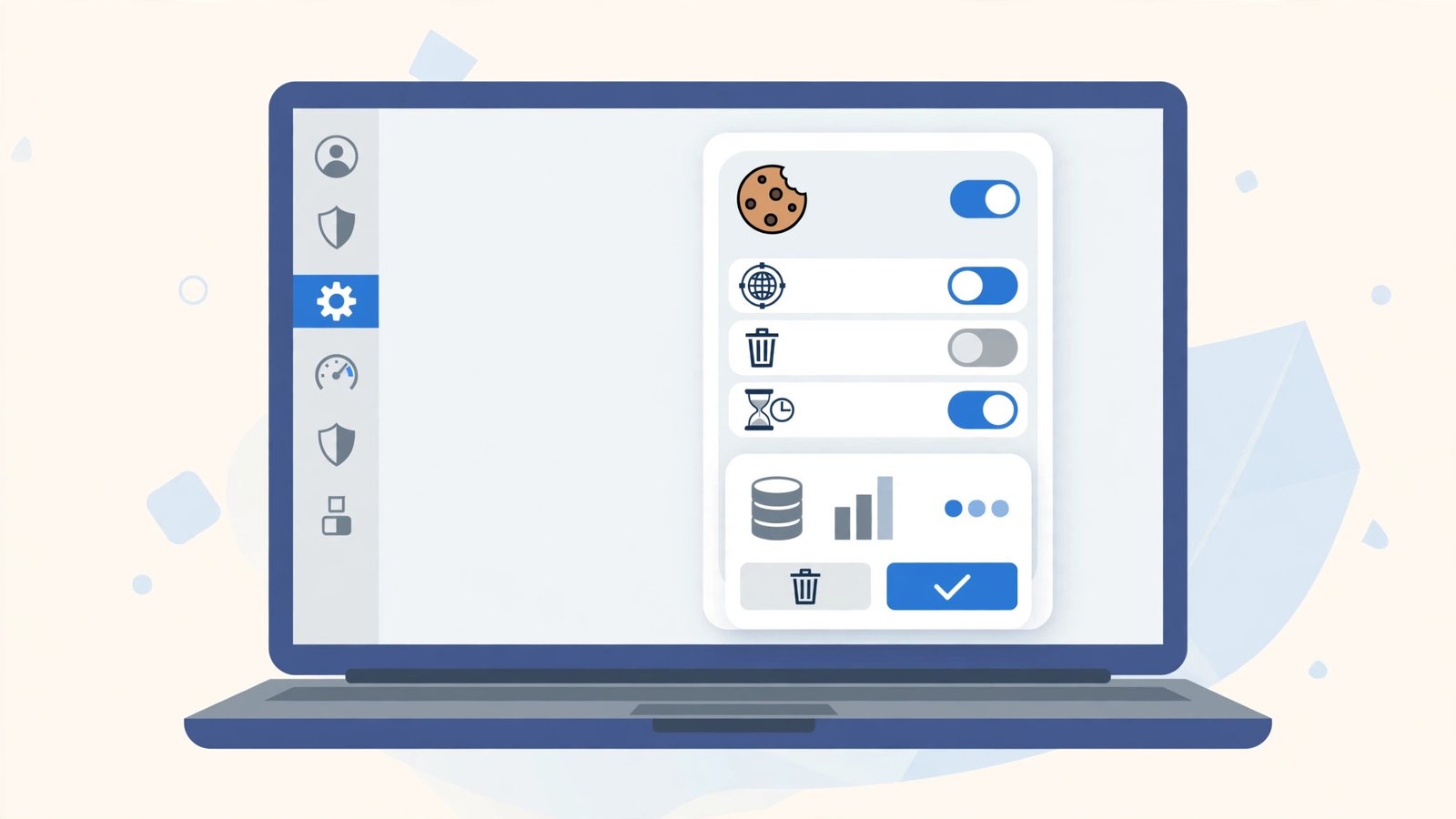
- Open Chrome and go to Settings (three dots > Settings).
- Go to Privacy and security > Third-party cookies (or “Cookies and site data” on some versions).
- Make sure cookies are allowed — choose “Allow third-party cookies” or at minimum “Block third-party cookies in Incognito”.
- Never choose “Block all cookies” or “Block third-party cookies” globally unless you have a specific reason — it breaks logins everywhere.
- Scroll to “Sites that can never use cookies” and remove any site you actually use.
- Restart Chrome and test a login.
If you share the computer, someone else may have tightened these settings. The middle option — allowing cookies normally but blocking third-party cookies in Incognito — is the sensible balance for most people. If logins specifically keep failing, our Chrome keeps logging me out guide digs deeper into that symptom.
Fix 2: Allow Third-Party Cookies
Many sites do not handle logins themselves — they use Google, Facebook, or a payment provider. Those helpers need third-party cookies, and blocking them breaks the login flow.
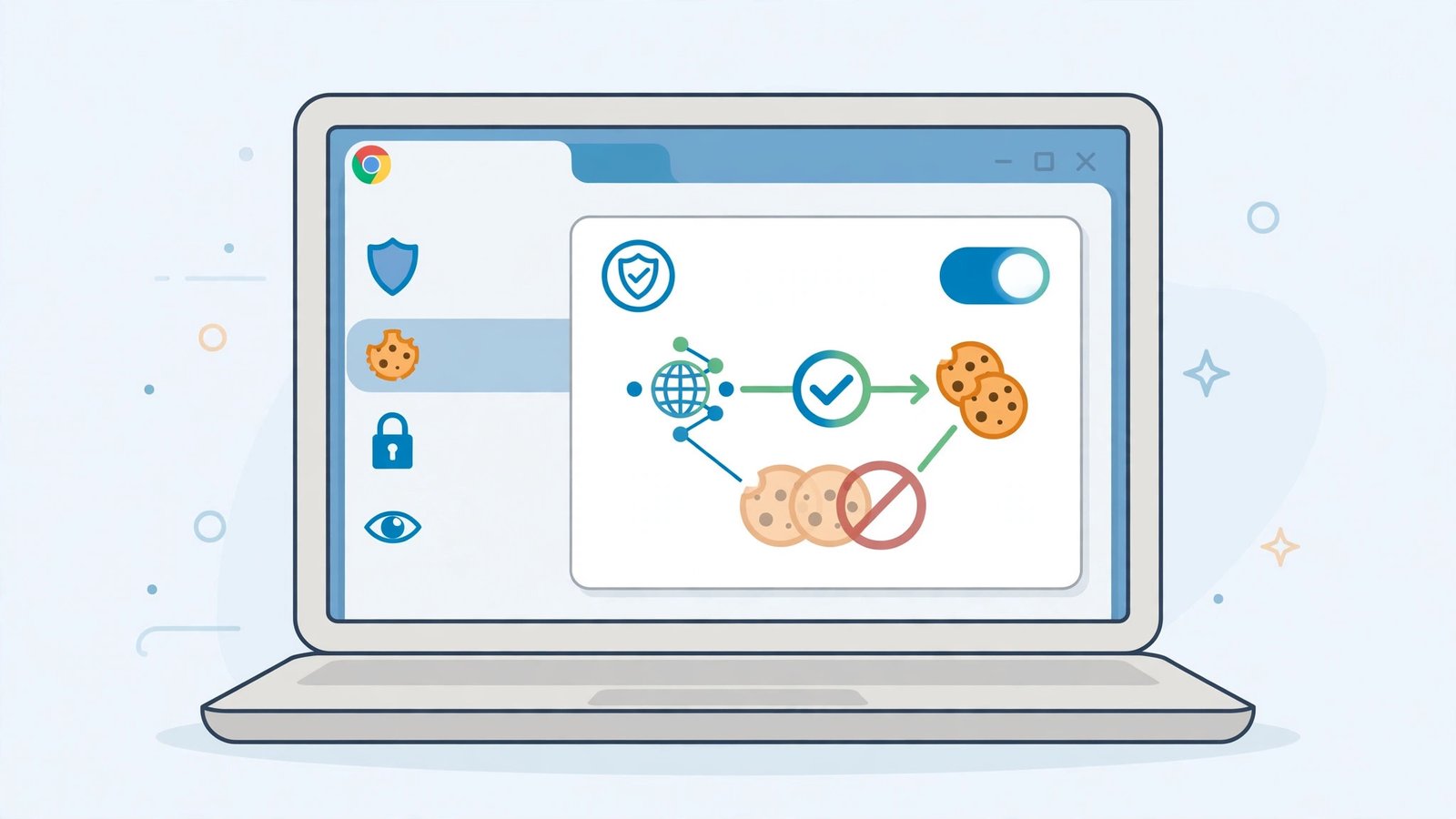
- Go to Settings > Privacy and security > Third-party cookies.
- Select “Allow third-party cookies”.
- Test the failing login or checkout again.
- If you prefer to keep global blocking, use “Allowed to use third-party cookies” > Add, and add just the problem site (e.g.
[*.]example.com). - For embedded content like videos or comment sections that still fail, add those providers too.
The per-site allowlist is the best of both worlds: strict blocking everywhere, with exceptions only for sites you trust. Payment pages are the classic victim here — a blocked third-party cookie silently kills the “Pay with” button.
Fix 3: Clear Cookies for the Problem Site
Cookies corrupt. A half-written cookie from a crashed session can make a site misbehave forever — while every other site works fine. Deleting just that site’s cookies fixes it without logging you out everywhere.
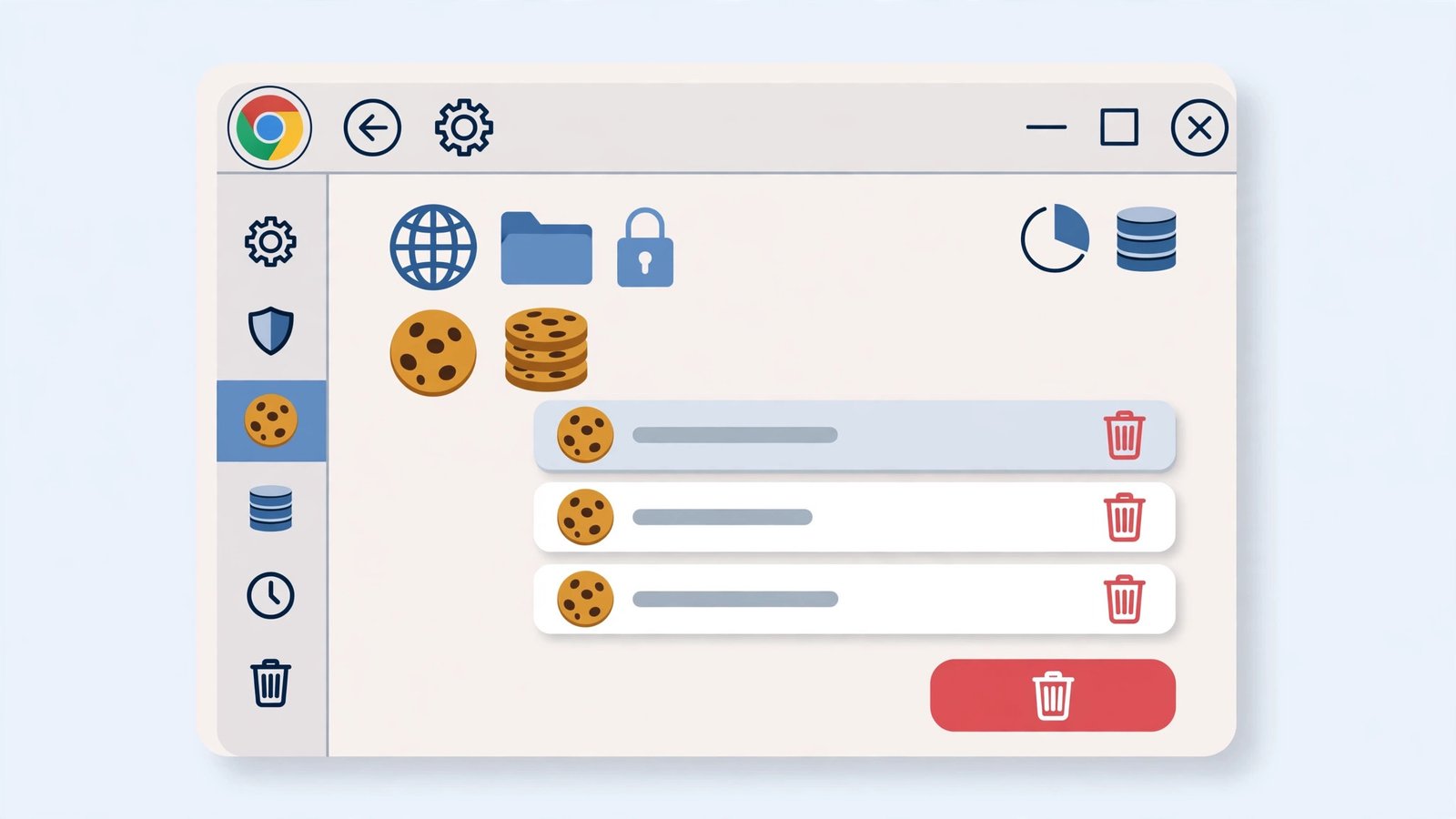
- Go to the problem site in Chrome.
- Click the icon left of the address bar (a tune icon or padlock), then “Cookies and site data” > “Manage on-device site data”.
- Select the site and click Delete (trash icon).
- Alternatively: Settings > Privacy and security > Third-party cookies > “See all site data and permissions”, search for the site, and delete its entries.
- Reload the site and log in fresh.
You will need to log into that one site again — that is the point. This is far better than clearing all cookies, which logs you out of everything. If saved passwords also vanished alongside the cookie trouble, see Chrome saved passwords disappeared.
Fix 4: Disable Extensions One by One
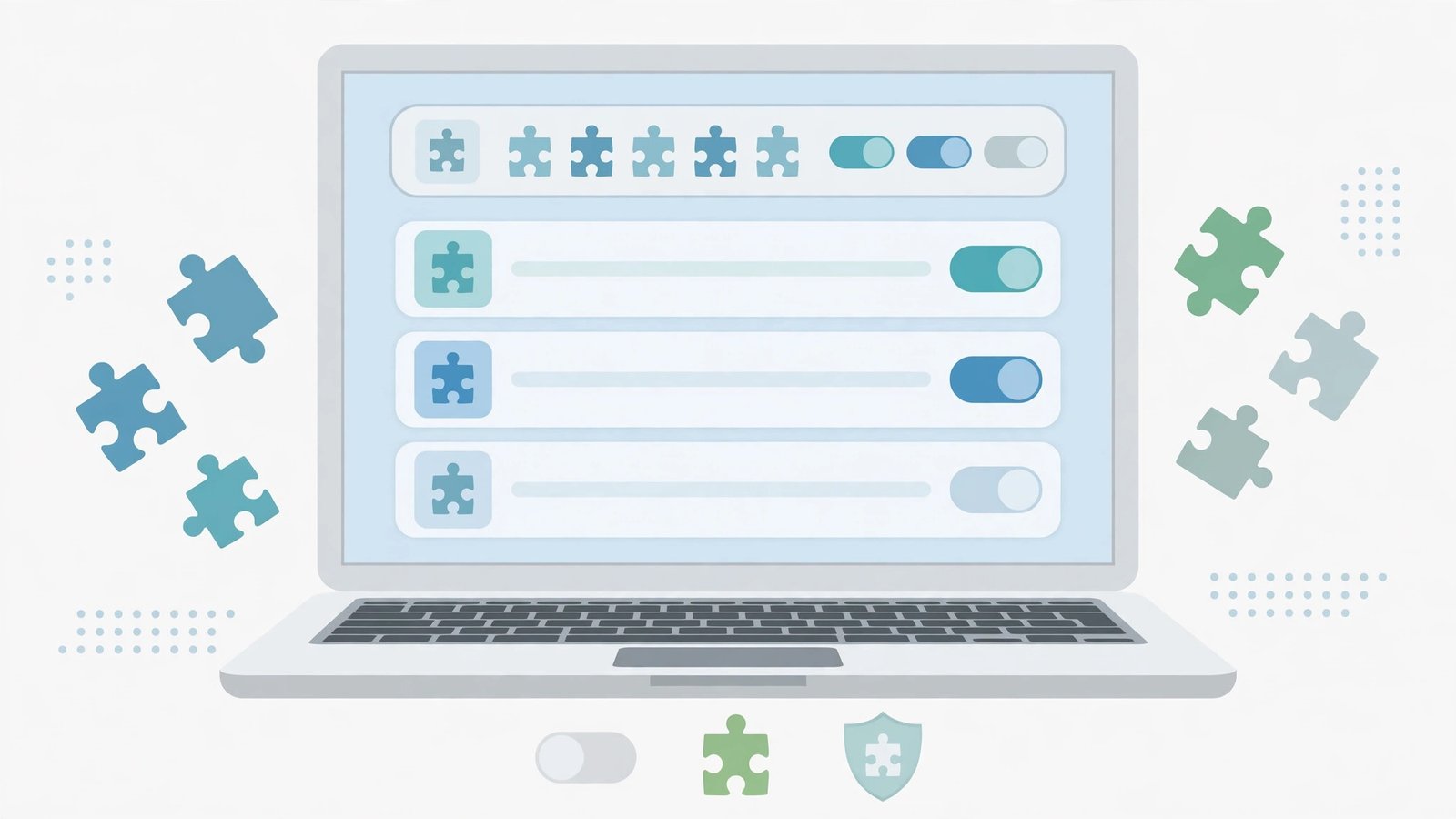
Privacy extensions, ad blockers, and “cookie auto-delete” tools are serial cookie killers. They do exactly what they promise — which is the problem. Some also run “cookie consent auto-clickers” that accept or reject banners on your behalf, which can confuse sites that wait for your choice before setting their cookies. If a site worked before you installed a consent-management extension, that extension is worth suspecting first.
- Go to
chrome://extensions(type it in the address bar). - Toggle OFF every extension.
- Test the failing site. If cookies work now, an extension is guilty.
- Re-enable extensions one at a time, testing the site after each, until the problem returns.
- For the guilty extension, check its settings for a whitelist and add your sites — or replace it with a less aggressive alternative.
- Pay special attention to anything with “cookie”, “privacy”, “ad block”, or “cleaner” in its name.
Cookie-deleting extensions often run on a timer, wiping cookies minutes after sites set them. That produces the maddening “logged in, then logged out” loop. Whitelisting your important sites inside the extension usually solves it without uninstalling.
Fix 5: Check Clear-on-Exit and Cookie Blockers
Chrome can be told to wipe cookies every time it closes. Combined with per-site blocks, this makes logins impossible to keep.
- Go to Settings > Privacy and security > Third-party cookies.
- Open “Sites that clear cookies when you close them” (or similar wording) and remove your sites from the list.
- Check “Sites that can never use cookies” and clear out anything you need.
- Go to Settings > Privacy and security > Clear browsing data > “On exit” (if present) and make sure cookies are not set to clear.
- Check your antivirus or “PC cleaner” software — many have a “browser privacy” feature that deletes cookies on a schedule. Turn that off or whitelist Chrome.
- Restart Chrome and test a login across a full close-and-reopen cycle.
The antivirus angle surprises people: security suites love to “protect your privacy” by nuking cookies hourly. If logins die on a timer even with Chrome closed, look outside Chrome.
Fix 6: Reset Chrome Settings
When settings have been tangled beyond easy untangling — by extensions, policies, or experiments — a reset returns Chrome to sane defaults without deleting bookmarks or passwords.
- Go to Settings > Reset settings.
- Click “Restore settings to their original defaults”.
- Confirm. This resets cookie permissions, startup pages, and disables all extensions (without removing them).
- Re-enable only the extensions you actually need.
- Test your logins.
Reset does not delete your browsing history, bookmarks, or saved passwords — it only resets settings and disables extensions. It is the fastest way to undo a mess of conflicting tweaks. If syncing is part of your setup, our Chrome bookmarks not syncing guide covers sync-specific issues.
Fix 7: Update Chrome
An outdated Chrome can mishandle cookies on modern sites, especially as sites adopt new cookie standards. And a corrupted update can break cookie storage outright.
- Go to Settings > About Chrome (or three dots > Help > About Google Chrome).
- Chrome checks for updates automatically. If one is pending, click “Relaunch” to apply it.
- After updating, test the problem sites.
- If Chrome cannot update (managed device, old OS), the cookie issues may persist — keep Chrome current wherever possible.
- As a final measure, uninstall Chrome, restart the PC, and install a fresh copy from Google’s official site. Sign in to restore your data.
A fresh install rebuilds Chrome’s entire profile storage, which fixes cookie databases that are corrupt beyond what settings can repair. If pages also refuse to load at all, see Chrome pages not loading.
What to Avoid
- Do not choose “Block all cookies” to “stop tracking” — it breaks the entire web’s logins.
- Do not clear all cookies as a first step — you will log yourself out of everything for no reason.
- Do not install multiple cookie-deleting extensions at once — they fight each other.
- Do not blame the website immediately — test in a Guest window first to rule out your setup.
- Do not disable JavaScript hoping it fixes cookies — the two are unrelated.
- Do not ignore your antivirus’s browser-cleaning features — they are a hidden cookie killer.
Frequently Asked Questions
Why does Chrome keep logging me out of websites?
Because the cookies that remember your login are being blocked, deleted on exit, or wiped by an extension. Work through Fix 1 (allow cookies), Fix 4 (extensions), and Fix 5 (clear-on-exit) — one of them is almost always the cause.
Are cookies dangerous? Should I just block them all?
Cookies themselves are harmless text files; the tracking concern is real but blocking everything breaks logins, carts, and preferences. The balanced approach: allow cookies normally, block third-party cookies only where you do not need them.
Why do cookies work in Incognito but not in normal mode?
That points at an extension or a corrupted site cookie in your main profile — Incognito disables extensions by default and uses fresh cookies. Fix 3 and Fix 4 target exactly this.
Will resetting Chrome delete my bookmarks?
No. Resetting settings keeps your bookmarks, history, and saved passwords. It only restores settings to defaults and disables extensions.
A site says “please enable cookies” but they are enabled. Why?
Usually a corrupt cookie for that specific site (Fix 3) or an extension blocking it silently (Fix 4). Delete that site’s cookies first — it resolves this exact message most of the time.
Do shopping carts need cookies to work?
Yes — the cart is usually a cookie (or site data) that remembers what you added as you move between pages. If your cart empties every time you navigate, cookies are being blocked or wiped. Allow cookies for the shop’s domain (Fix 2’s per-site allowlist) and check for cookie-deleting extensions (Fix 4).
Conclusion
When chrome cookies are not working, the culprit is close at hand: a blocked setting, a corrupt site cookie, an aggressive extension, or a clear-on-exit rule. Check the global cookie permission, clean the problem site’s cookies, and interrogate your extensions one by one. Logins that stick, carts that stay full, and preferences that persist are all one correct toggle away.