

Seeing the android sd card read only error on your phone is frustrating. You try to save a photo, delete an old file, or move an app, and nothing works. The card still shows your files, but your phone refuses to write anything new to it.
The good news is that this problem is rarely permanent. Most of the time it is caused by a small lock switch, a loose card, a dirty contact, or a simple software glitch. This guide walks you through 8 fixes, starting with the easiest. Work through them in order and one of them will almost certainly solve your problem.
Table of Contents
- Quick Checks
- Diagnose the Problem
- Fix 1: Restart Your Phone
- Fix 2: Remove and Reinsert the SD Card
- Fix 3: Check the Physical Lock Switch
- Fix 4: Clean the Card’s Metal Contacts
- Fix 5: Check Files, Then Unmount and Remount the Card
- Fix 6: Check the Card on a PC with a Card Reader
- Fix 7: Format the Card to Fix the Android SD Card Read Only Error
- Fix 8: Try a Different SD Card
- What to Avoid
- Frequently Asked Questions
- Conclusion
Quick Checks
- Restart your phone — a restart clears temporary glitches that block writing.
- Make sure the SD card is pushed all the way into the slot.
- Check the card in another phone or a PC to see if the problem follows the card.
- Back up your important files now if you can still read them.
- Skip any “repair tool” app that asks for payment — you do not need it.
Diagnose the Problem
Use this table to match what you see with the most likely cause, then jump to the right fix.
| Symptom | Cause | Go to Fix |
|---|---|---|
| Error appears after moving the card or phone | Card is loose in the slot | Fix 2 |
| Files open fine, but nothing can be saved or deleted | Card is locked or in read-only mode | Fix 3, Fix 6 |
| Problem started suddenly after working fine for months | Dirty contacts or software glitch | Fix 1, Fix 4 |
| Card works in the phone but not in a camera or PC | Lock switch on the adapter is on | Fix 3 |
| Every app shows “storage full” or write failures | Card is full or file system is damaged | Fix 7 |
| No fix works on any device | Card is worn out or failing | Fix 8 |
Fix 1: Restart Your Phone
A simple restart fixes more problems than people expect. Temporary system errors can block write access to the SD card, and restarting clears them.
- Press and hold the power button until the power menu appears.
- Tap Restart (not Power off).
- Wait for the phone to start up fully.
- Try saving a photo or creating a folder on the SD card.
- If the error is gone, you are done — nothing else is needed.
Fix 2: Remove and Reinsert the SD Card
If the card is not seated properly, your phone may only get a partial connection. That can allow reading but block writing.
- Power off your phone completely before touching the card.
- Open the SIM/SD tray with the ejector tool that came with your phone.
- Take the SD card out of the tray carefully.
- Look at the slot for dust or lint, and blow it out gently.
- Place the card back in the tray and make sure it sits flat.
- Push the tray in firmly and power the phone back on.
- Test by saving or deleting a small file on the card.
If your card keeps getting loose, the tray may be worn. A phone case with a tight fit can also press on the tray — try without it.
Fix 3: Check the Physical Lock Switch
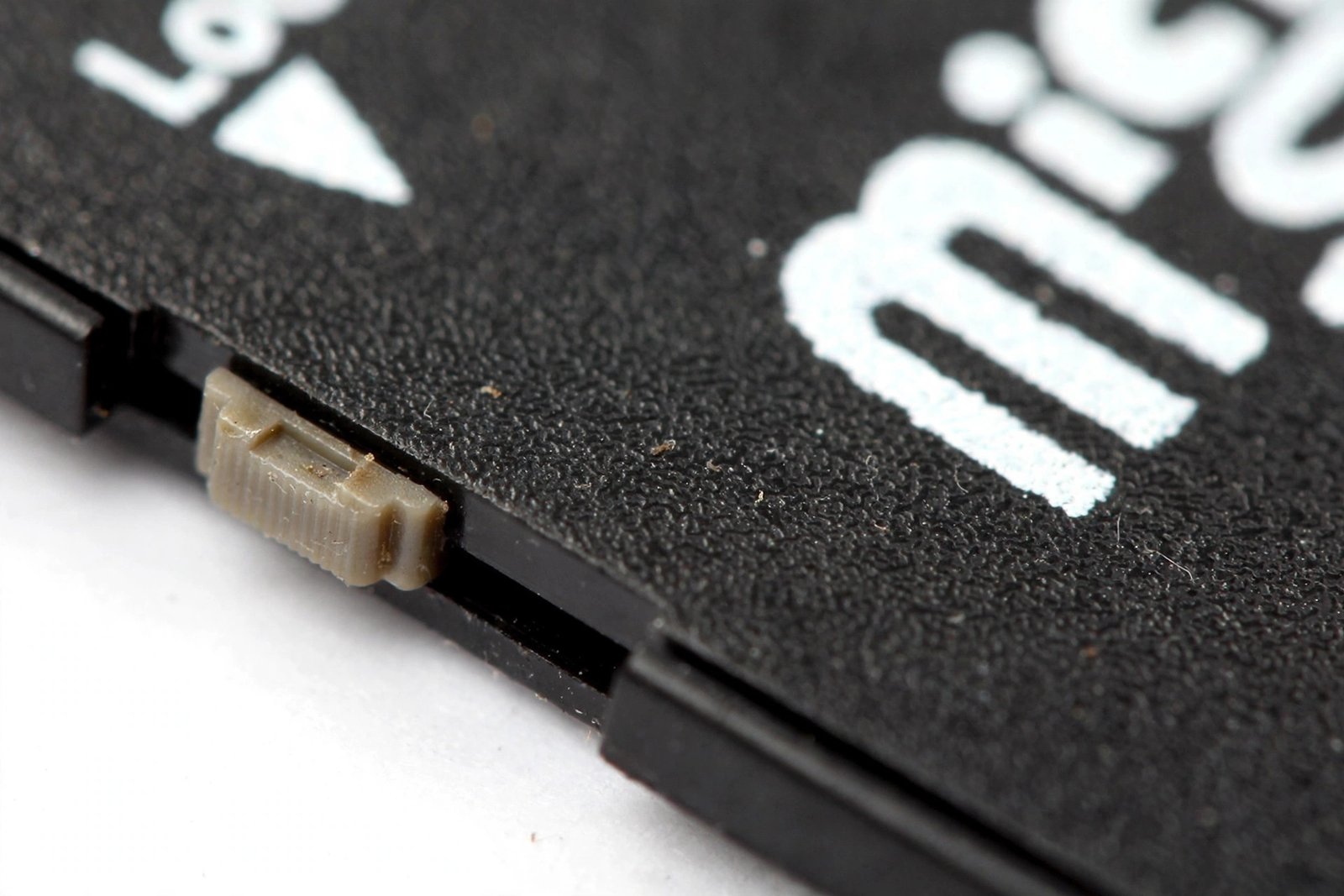
Many SD card adapters have a tiny LOCK switch on the side. When this switch slides to the locked position, the card becomes read-only. This is the most common cause of the problem when a full-size adapter is involved.
- Remove the SD card (and its adapter, if you use one) from your phone.
- Look at the left edge of the adapter for the small sliding switch.
- If the switch is pushed toward LOCK, slide it back to the unlocked position.
- If you use a micro SD card directly in the phone, check that the adapter in your PC or card reader is not locked either.
- Reinsert the card and test saving a file.
This single step solves the problem for a surprising number of people. Always check it before trying anything more complicated.
Fix 4: Clean the Card’s Metal Contacts
Dust, oil from your fingers, and corrosion on the gold contacts can cause a weak connection. A weak connection often shows up as read-only behavior.
- Power off your phone and remove the SD card.
- Look at the gold-colored contact pins on the back of the card.
- Wipe them gently with a dry, soft cloth — a microfiber cloth is ideal.
- If the contacts look dirty, use a cotton swab with a tiny drop of isopropyl alcohol and let it dry fully.
- Do not use water, sandpaper, or anything abrasive.
- Reinsert the card, power on, and test.
Never blow on the contacts with your mouth — the moisture can make corrosion worse.
Fix 5: Check Files, Then Unmount and Remount the Card
First confirm exactly what is happening in your file manager. Then unmounting and remounting the card forces Android to reconnect it cleanly, which clears stuck read-only states.
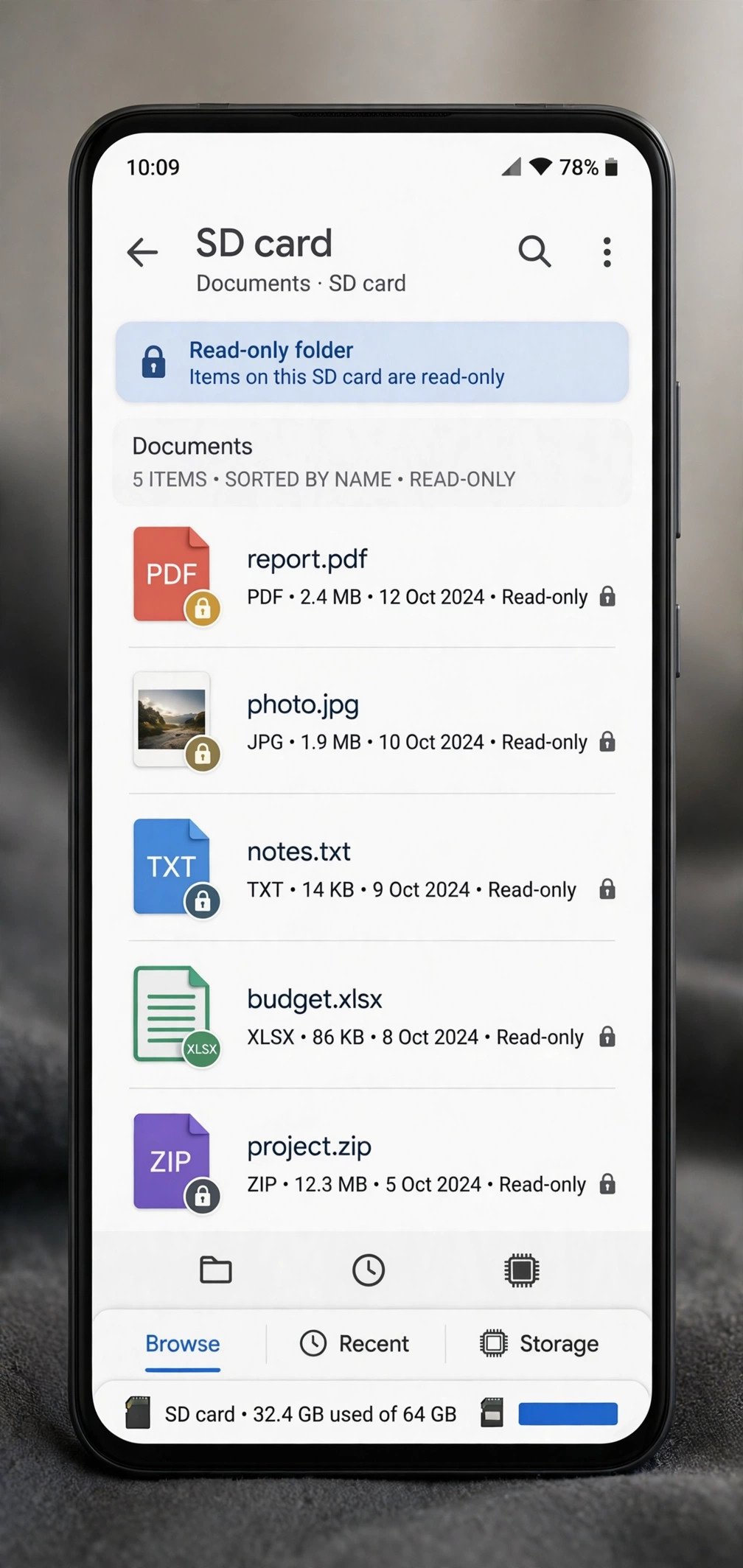
- Open your phone’s Files app or any file manager.
- Browse to the SD card and try to create a new folder.
- Note whether the card shows its used space correctly — if it shows zero space or wrong sizes, the card may need formatting (Fix 7).
- Now go to Settings > Storage.
- Tap your SD card, then tap Unmount (or the eject icon).
- Wait a few seconds, then tap the SD card again and choose Mount.
- Go back to the file manager and test writing again.
If apps like offline maps or camera apps show write errors, remounting often fixes them too. For persistent map download failures, see our guide to fixing offline map data problems on Android.
Fix 6: Check the Card on a PC with a Card Reader
If the phone fixes did not help, check the card on a computer. A PC lets you see whether the read-only attribute is set on the card itself.
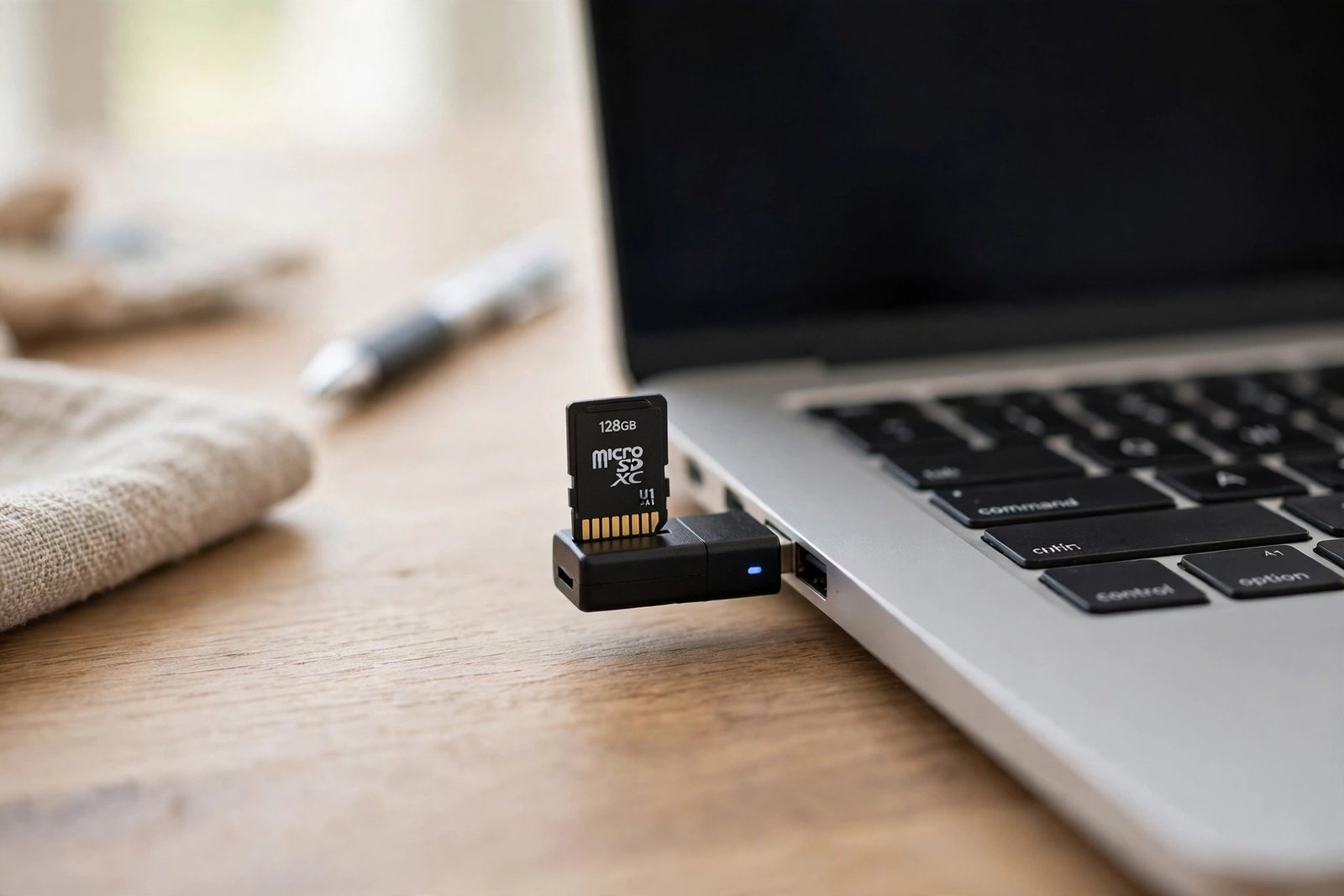
- Copy your important files from the card to the PC first, as a backup.
- Open the card in File Explorer and try creating a new folder on it.
- If Windows blocks writing, right-click the card, open Properties, and check for a read-only setting.
- Advanced users can open Command Prompt as administrator and run:
- Type
diskpartand press Enter. - Type
list disk, thenselect disk X(replace X with your card’s number — be very careful to pick the right disk). - Type
attributes disk clear readonlyand press Enter. - Safely eject the card from the PC.
- Put the card back in your phone and test.
If the card reads fine on the PC but stays read-only in the phone, the issue is with the phone’s card slot or software. If your phone does not detect USB transfers properly either, check our guide on Android USB file transfer not working.
Fix 7: Format the Card to Fix the Android SD Card Read Only Error
Formatting wipes the card and rebuilds its file system. This fixes damage and corruption that cause the android sd card read only error when nothing else works. Only do this after backing up your files, because formatting erases everything.
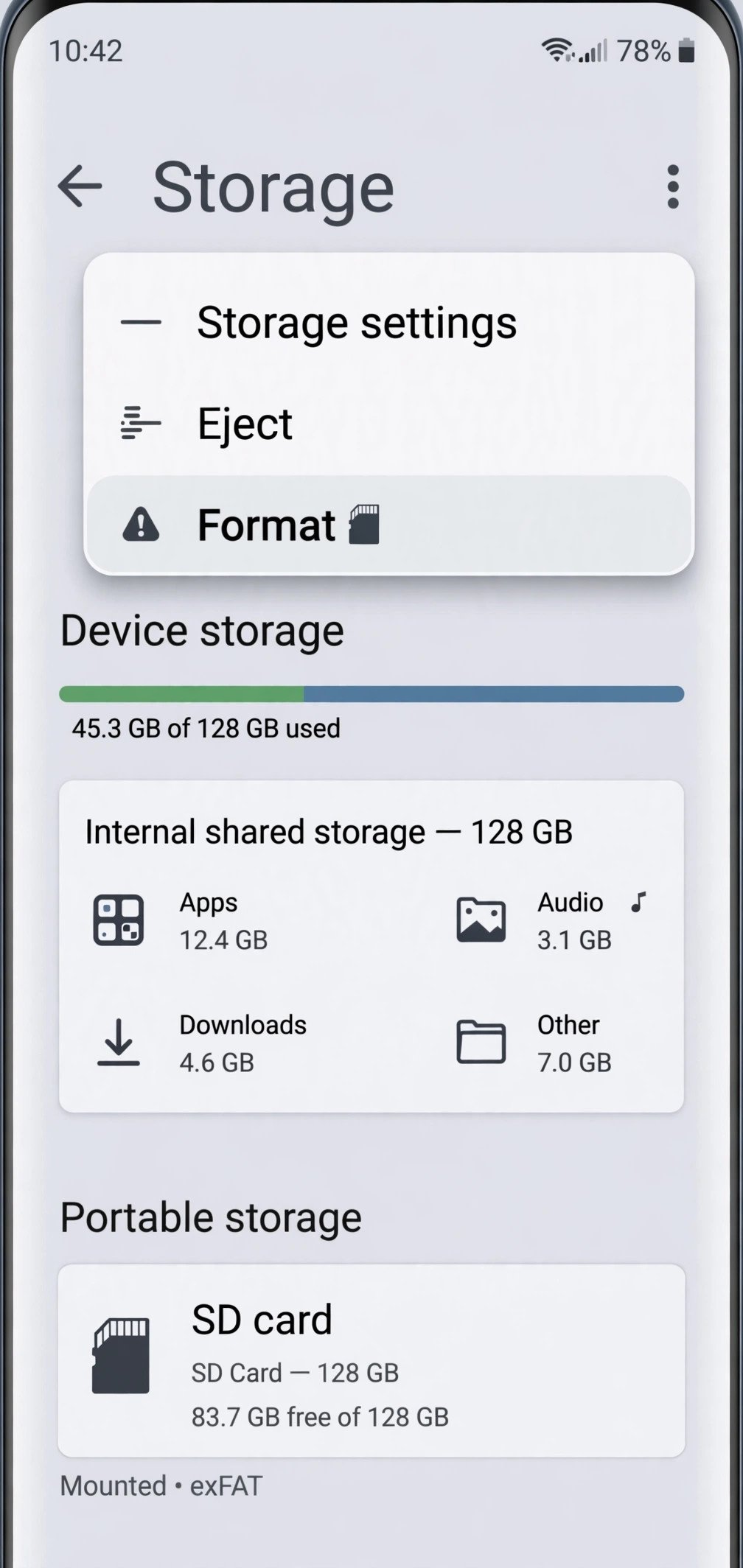
- Back up every file you want to keep to your phone, PC, or cloud storage.
- On your phone, go to Settings > Storage.
- Tap your SD card, then tap the three-dot menu in the corner.
- Choose Storage settings (wording varies by phone brand).
- Tap Format and confirm.
- Choose Portable storage when asked, so the card works in other devices too.
- Wait for the format to finish, then copy a test file to the card.
If the format option is greyed out or fails, format the card on a PC instead using the FAT32 or exFAT file system (exFAT is better for cards larger than 32 GB).
Also check whether your card is simply full — a completely full card can behave like a read-only card. See our guide on Android storage full with nothing stored if your storage numbers look wrong.
Fix 8: Try a Different SD Card
If nothing above worked on any device, the card itself may be worn out. SD cards have a limited number of write cycles, and old or cheap cards can fail into a permanent read-only state to protect your data.
- Borrow another SD card or buy a new one from a trusted brand.
- Insert it into your phone and test writing to it.
- If the new card works, your old card has failed — replace it.
- If the new card also shows the error, your phone’s card slot may be damaged and needs repair.
Before buying, make sure your phone actually detects cards properly — see our guide on Android internal storage not showing for related storage detection issues.
What to Avoid
- Do not format the card before backing up your files — formatting erases everything.
- Do not download paid “SD card repair” tools — they are not needed and some contain malware.
- Do not use pirated software or activators to “unlock” the card — they cannot fix hardware problems and can infect your phone.
- Do not force the lock switch if it is stuck — you can break the adapter.
- Do not ignore the problem — a card that turns read-only on its own is often failing.
Frequently Asked Questions
Why is my SD card suddenly read only on Android?
The most common reasons are a flipped lock switch on the adapter, a loose or dirty card, a software glitch, or file system damage. Work through Fix 1 to Fix 4 first, since those solve most sudden cases.
Can a read only SD card be fixed without losing data?
Yes, usually. Restarting, reseating the card, flipping the lock switch, and cleaning the contacts do not delete anything. Only formatting erases data, so back up your files before Fix 7.
Does the android sd card read only error mean my card is dead?
Not necessarily. Most cases are caused by the lock switch or a glitch and are fully fixable. If the error persists on every device after all 8 fixes, the card is likely worn out and should be replaced.
How do I remove write protection from a micro SD card?
Check the adapter’s lock switch first, then clear the read-only attribute on a PC with the diskpart steps in Fix 6. If that fails, back up your data and format the card as shown in Fix 7.
Will formatting the SD card as internal storage fix the error?
Formatting as portable storage is the safer choice for fixing read-only errors. Adoptable (internal) storage encrypts the card so it only works in that one phone, and it does not fix the underlying cause.
Conclusion
The android sd card read only error looks serious, but it is usually caused by something small — a lock switch, a loose card, dirty contacts, or a glitch that a restart clears. Work through the fixes in order, back up your files before formatting, and do not pay for repair tools you do not need. If the card stays read-only on every device, it has reached the end of its life — replace it with a quality card and move on.