

If android usb file transfer not working is stopping you from copying photos, videos, or documents to your PC, this guide will fix it. The most common reasons are a charge-only cable, the wrong USB mode on the phone, a locked screen, or a broken driver on the PC. Work through the 8 fixes below in order, and you will find the one that gets your transfer running again.
Table of Contents
- Quick Checks
- Diagnose: Match Your Symptom
- Fix 1: Switch to a Data-Capable USB Cable
- Fix 2: Change the USB Mode to File Transfer
- Fix 3: Try a Different USB Port
- Fix 4: Unlock Your Phone and Accept the USB Prompt
- Fix 5: Restart Both Devices
- Fix 6: Set File Transfer as the Default USB Mode
- Fix 7: Update or Reinstall the USB Driver on Windows
- Fix 8: Check the Hardware When Android USB File Transfer Not Working Persists
- What to Avoid
- Frequently Asked Questions
- Conclusion
- Helpful Official Resources
Quick Checks
- Try a different USB cable, preferably the one that came in your phone’s box.
- Check that your phone is unlocked when you plug it in.
- Look for the USB notification on your phone and make sure File transfer is selected.
- Plug the cable directly into a USB port on the PC, not into a hub.
- Try a different USB port on the PC, especially a rear port on a desktop.
Diagnose: Match Your Symptom
| Symptom | Cause | Go to Fix |
| Phone charges but the PC shows nothing | Charge-only cable or wrong USB mode | Fix 1, Fix 2 |
| USB notification never appears on the phone | Faulty cable, port, or phone’s USB port | Fix 1, Fix 3 |
| Phone appears on the PC but folders look empty | Phone is locked or USB permission was denied | Fix 4 |
| “USB device not recognized” error on Windows | Corrupt or missing USB driver | Fix 7 |
| Transfer worked before, stopped without changes | Wrong default USB mode or software glitch | Fix 5, Fix 6 |
| Nothing works on any PC with any cable | Damaged phone USB port or system fault | Fix 8 |
Fix 1: Switch to a Data-Capable USB Cable
The single most common cause of transfer problems is the cable. Many cheap cables are charge-only, which means power flows through them but no data does. Your phone will charge, but your PC will never see it.
- Find the cable that came in your phone’s box and use it first.
- If you do not have the original cable, use a cable you know has worked for data before.
- Avoid very long or very thin cables, which can cause weak data connections.
- Unplug and firmly reconnect both ends of the cable.
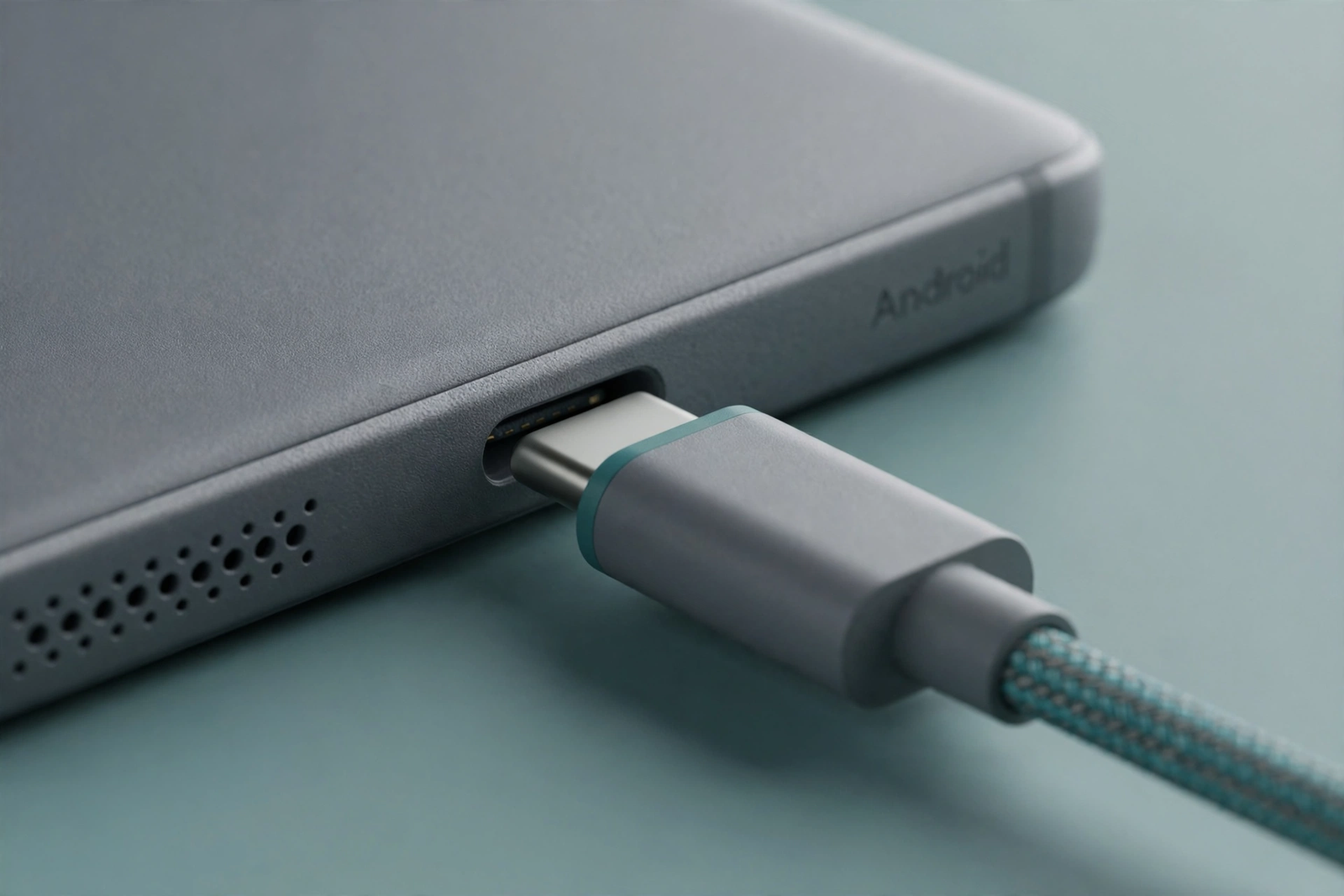
If the phone still only charges after swapping cables, move on to Fix 2.
Fix 2: Change the USB Mode to File Transfer
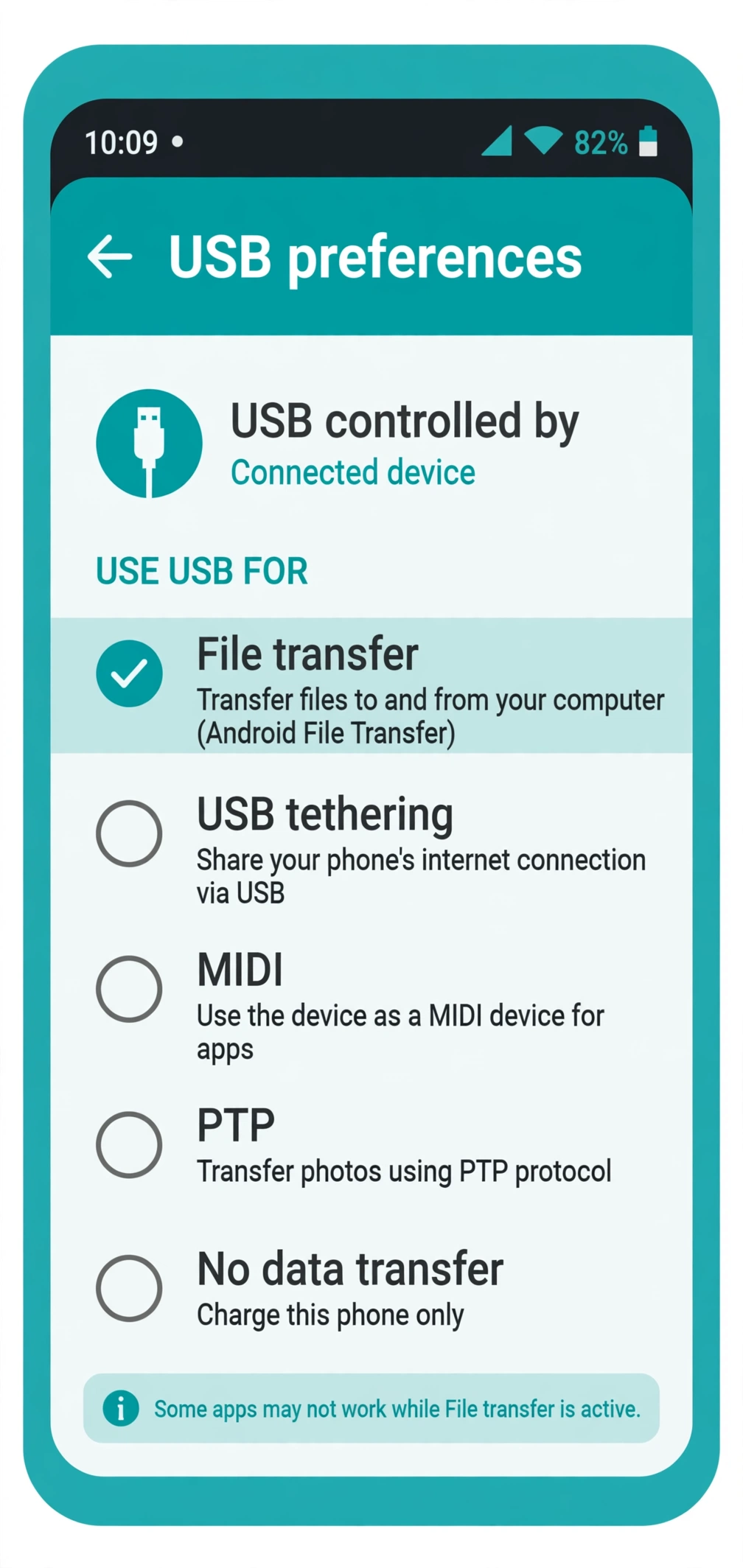
Android phones do not allow file access by default when plugged in. They start in charging-only mode for safety. You must change the USB mode to allow file transfer.
- Plug your phone into the PC.
- Swipe down from the top of your phone to open the notification panel.
- Tap the notification that says something like Charging this device via USB or USB for file transfer.
- In the USB preferences screen, choose File transfer (it may also be called File transfer / Android Auto).
- Check your PC now. Your phone should appear as a device in File Explorer.
If the notification does not appear at all, skip ahead to Fix 3 and Fix 4.
Fix 3: Try a Different USB Port
A single bad USB port on your PC can block the whole transfer. Front-panel ports on desktop PCs are especially unreliable because they connect through internal cables.
- Unplug the phone from the current USB port.
- Plug it directly into a rear USB port on a desktop PC.
- On a laptop, try a port on the opposite side.
- Avoid USB hubs, docking stations, and keyboard USB ports for this test.
- Wait a few seconds and check whether the phone is now detected.
If the phone is detected on one port but not another, the port itself is the problem, and your transfer issue is solved.
Fix 4: Unlock Your Phone and Accept the USB Prompt
Android hides your files until the phone is unlocked. If your screen is locked when you connect the cable, the PC may show the phone as empty or may not show it at all.
- Unlock your phone with your PIN, pattern, or fingerprint.
- Keep the phone unlocked for the whole transfer.
- Watch for a permission prompt like Allow access to phone data? and tap Allow.
- Go back to Fix 2 and confirm File transfer is still selected.
- Open the phone in File Explorer on your PC and browse your folders.
This simple step fixes the problem for many users, because the screen locks again during long transfers and cuts off access. If your PC shows the phone but every folder is empty, also check that the phone’s storage itself is healthy — our guide to fix internal storage not showing on Android can help if files are missing on the phone too.
Fix 5: Restart Both Devices
A temporary software glitch on either side can block USB detection. A restart clears these glitches without changing any settings.
- Unplug the USB cable from both devices.
- Restart your Android phone.
- Restart your PC.
- After both have fully started, plug the cable back in.
- Unlock the phone and set the USB mode to File transfer again (see Fix 2).
Restarts fix stuck USB services and clear half-loaded drivers on the PC side.
Fix 6: Set File Transfer as the Default USB Mode
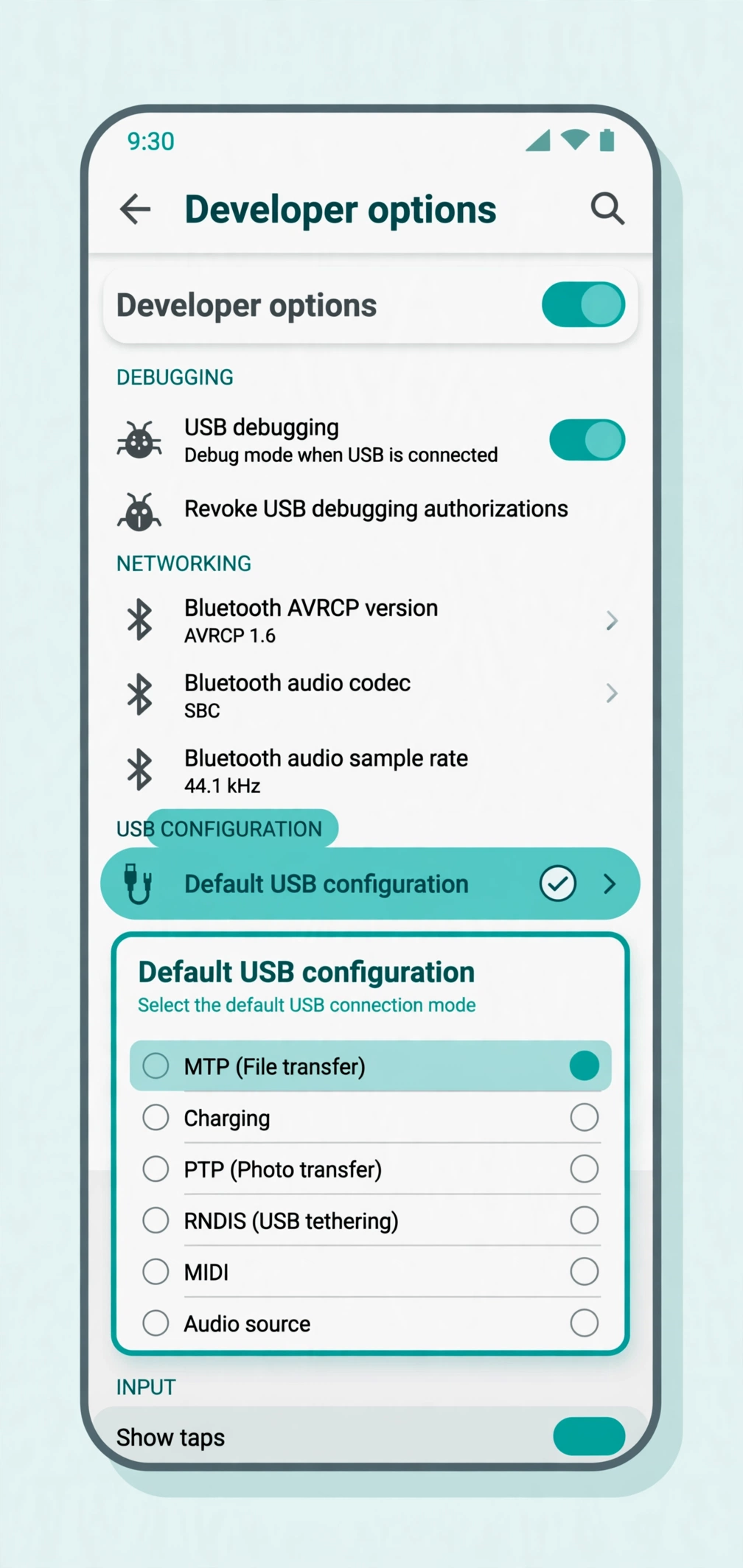
If you have to change the USB mode to File transfer every single time you connect, you can make it the default. This uses the hidden Developer options menu on your phone.
- On your phone, open Settings.
- Go to About phone and find Build number.
- Tap Build number seven times until you see You are now a developer.
- Go back to Settings and open System, then Developer options (on some phones it is under Additional settings).
- Scroll to Default USB configuration and tap it.
- Select File transfer (or MTP on some phones).
- Reconnect the phone to your PC and test.
Fix 7: Update or Reinstall the USB Driver on Windows
When Windows shows a USB device not recognized error, or the phone appears with a yellow warning icon, the USB driver is usually broken. Fixing the driver on the PC side resolves this.
- Connect your phone to the PC and unlock it.
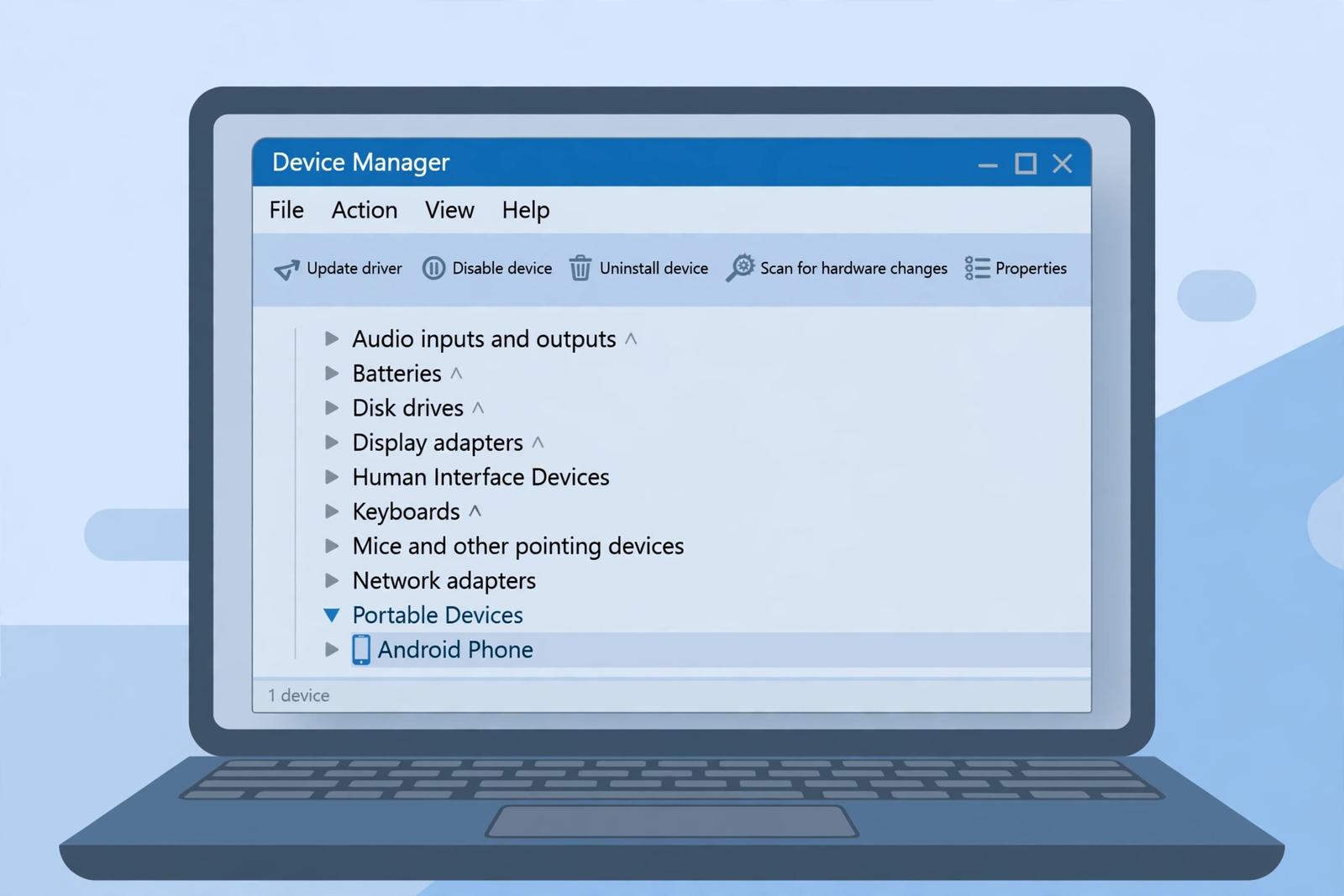
- On the PC, right-click the Start button and open Device Manager.
- Look under Portable Devices or Other devices for your phone.
- If you see a yellow warning icon, right-click the device and choose Update driver.
- Select Search automatically for drivers and let Windows install the right one.
- If that does not help, right-click the device again and choose Uninstall device.
- Unplug the USB cable, wait 10 seconds, and plug it back in.
- Windows will reinstall the driver automatically.
Windows sometimes fails to detect USB hardware of all kinds, not just phones. If you run into a similar detection problem with a printer, our guide to fix a printer not detected by Windows 11 covers the same driver troubleshooting steps.
Fix 8: Check the Hardware When android usb file transfer not working Persists
If none of the fixes above worked, the problem is likely hardware. Before paying for a repair, run these last checks.
- Test your phone on a different PC with a known-good data cable.
- Test a different phone on your PC to confirm the PC side is fine.
- Inspect your phone’s USB port with a flashlight. Remove any lint or dust with a dry wooden toothpick, very gently.
- Check both ends of the cable for bent pins or a loose fit.
- If the port feels loose and no cable sits firmly, the port may need professional repair.
If files are also missing or the storage behaves strangely on the phone itself, the storage could be full or damaged. Our guide on Android storage full with nothing stored explains how to free space safely, and if you use a memory card for transfers, see our guide to fix the SD card read-only error.
What to Avoid
- Do not download shady “driver updater” tools from random websites — use Device Manager or Windows Update only.
- Do not force a damaged cable or bent connector into the phone’s USB port.
- Do not enable random Developer options settings you do not understand.
- Do not wipe your phone’s storage or factory-reset the phone for a USB problem — it almost never helps.
- Do not buy a new cable until you have tested a known data cable first.
Frequently Asked Questions
Why does my Android phone only charge and not transfer files?
This happens for two common reasons. Your cable may be charge-only, or your phone may be in charging-only USB mode. Try a data-capable cable first, then change the USB mode to File transfer as shown in Fix 2.
Do I need to install software on my PC to transfer files from Android?
No. On Windows, Android phones work through the built-in MTP (Media Transfer Protocol) driver. You only need to set the USB mode to File transfer on the phone and unlock it. No extra software is required.
Why does the USB option disappear from my phone’s notification panel?
The USB notification only appears when a data connection is detected. If it never shows up, the cable or the PC’s USB port is probably not passing data. Swap the cable and try a different port on the PC.
Can a dirty charging port stop file transfer?
Yes. Lint and dust packed into the USB port can block the data pins while still letting power through, so the phone charges but no transfer works. Gently clean the port with a dry toothpick and test again.
Why does my PC show my phone but all folders are empty?
Your phone is probably locked. Android blocks file access until you unlock the screen and allow the connection. Unlock the phone, tap Allow on the permission prompt, and the folders will fill in.
Conclusion
When android usb file transfer not working interrupts your day, the fix is usually simple: a data-capable cable, the File transfer USB mode, an unlocked phone, or a fresh USB driver on your PC. Work through the fixes in order, and save the hardware checks for last. Once the connection is stable, your files will copy over without any special software.
[…] the port also fails when you connect the phone to a computer, see our guide on Android USB file transfer not working — a damaged port can cause charging trouble […]
[…] applying fixes. To get those screenshots onto your computer for a side-by-side comparison, our Android USB file transfer not working guide covers the phone-to-PC […]
[…] port surprises everyone the first time. If file transfer over USB is also flaky, our Android USB file transfer not working guide covers the data […]
[…] never appears, the cable is likely charge-only (Fix 2). For the transfer process itself, our Android USB file transfer not working guide covers what comes […]