

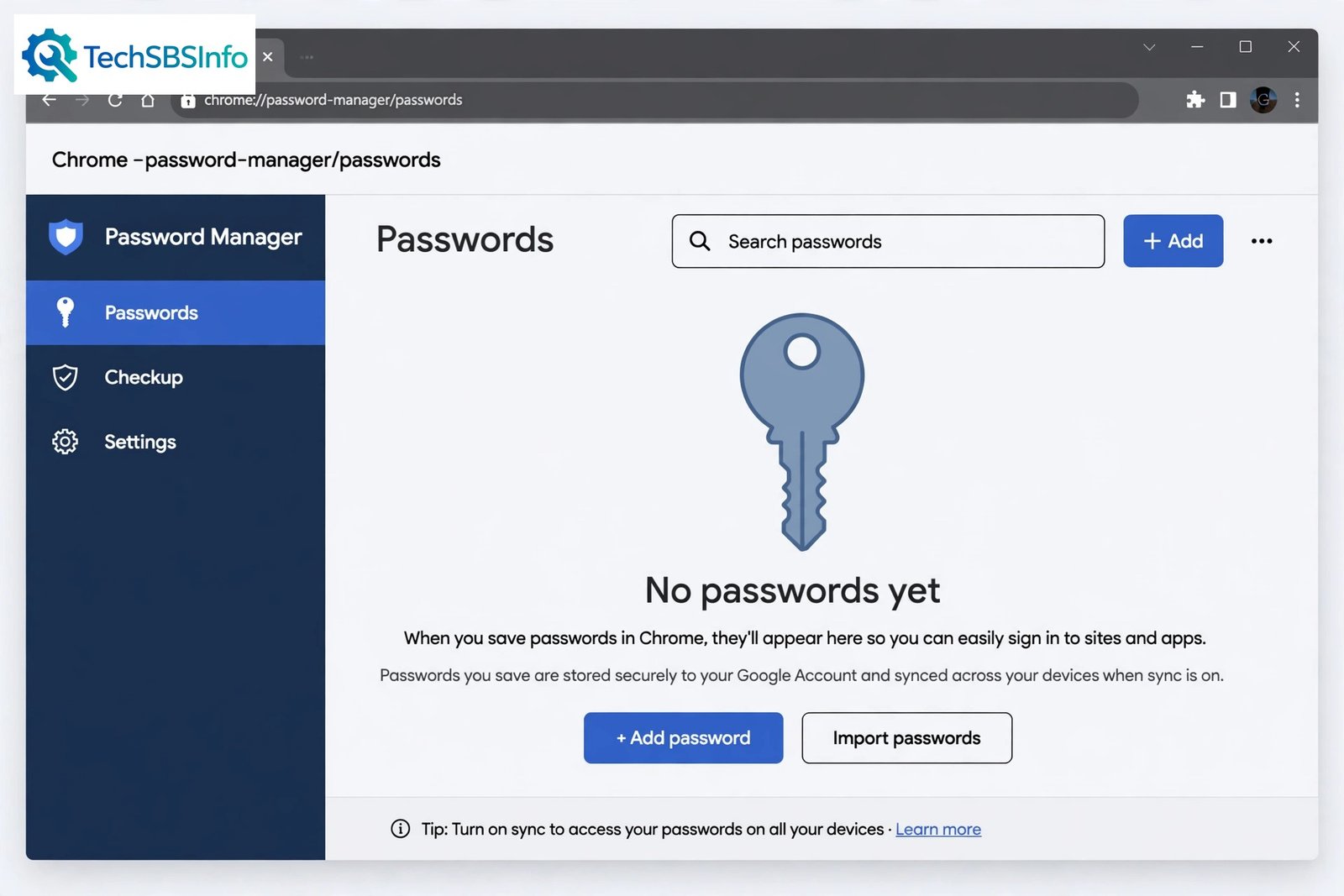
Opening Chrome to find that chrome saved passwords disappeared is stressful, but your logins are rarely gone for good. In most cases, they are still stored safely in your Google Account — Chrome is simply signed out, sync is paused, or you are looking at the wrong browser profile. This guide walks you through simple checks and fixes, in order, so you can recover your saved passwords quickly.
Table of Contents
- Quick Checks
- Diagnose: Match Your Symptom to the Cause
- Fix 1: Sign Back In to Chrome
- Fix 2: Check Google Password Manager and passwords.google.com
- Fix 3: Turn Password Sync Back On
- Fix 4: Switch to the Correct Chrome Profile
- Fix 5: Recover When chrome saved passwords disappeared After a Passphrase Change
- Fix 6: Stop Chrome From Deleting Passwords on Exit
- What to Avoid
- Frequently Asked Questions
- Conclusion
- Helpful Official Resources
Quick Checks
- Look at the profile icon in the top-right corner of Chrome. If you see “Sign in” instead of your name, you are signed out — that alone hides your synced passwords.
- Visit passwords.google.com in any browser and sign in. If your passwords appear there, they were never lost — Chrome just needs to reconnect.
- Check whether Chrome shows a “Sync is paused” or “Paused” message under your profile icon.
- Look for a second Chrome profile: click the profile icon and see if another name or picture is listed.
- Restart Chrome once and check the password list again — a stuck sync session sometimes recovers on its own.
- Make sure you did not recently reset Chrome settings or reinstall it, which can sign you out and stop sync.
Diagnose: Match Your Symptom to the Cause
| Symptom | Cause | Go to Fix |
|---|---|---|
| Password list is empty right after Chrome signed you out | You are signed out or on a different profile | Fix 1 |
| Passwords show on your phone but not on your computer | Password sync is paused or turned off on this device | Fix 3 |
| passwords.google.com shows no passwords either | A sync passphrase is set, or passwords were never synced to the account | Fix 5 |
| Everything looks signed in, but the list is still empty | You are on the wrong Chrome profile or wrong Google Account | Fix 4 |
| Passwords vanish every time you close and reopen Chrome | Chrome is set to clear data on exit, or a cleanup app deletes it | Fix 6 |
| Passwords disappeared right after an update or crash | The local profile data was damaged | Fix 6 |
Fix 1: Sign Back In to Chrome
The single most frequent reason chrome saved passwords disappeared is that Chrome signed you out. Passwords synced to your Google Account stay hidden until you sign back in with the same account.
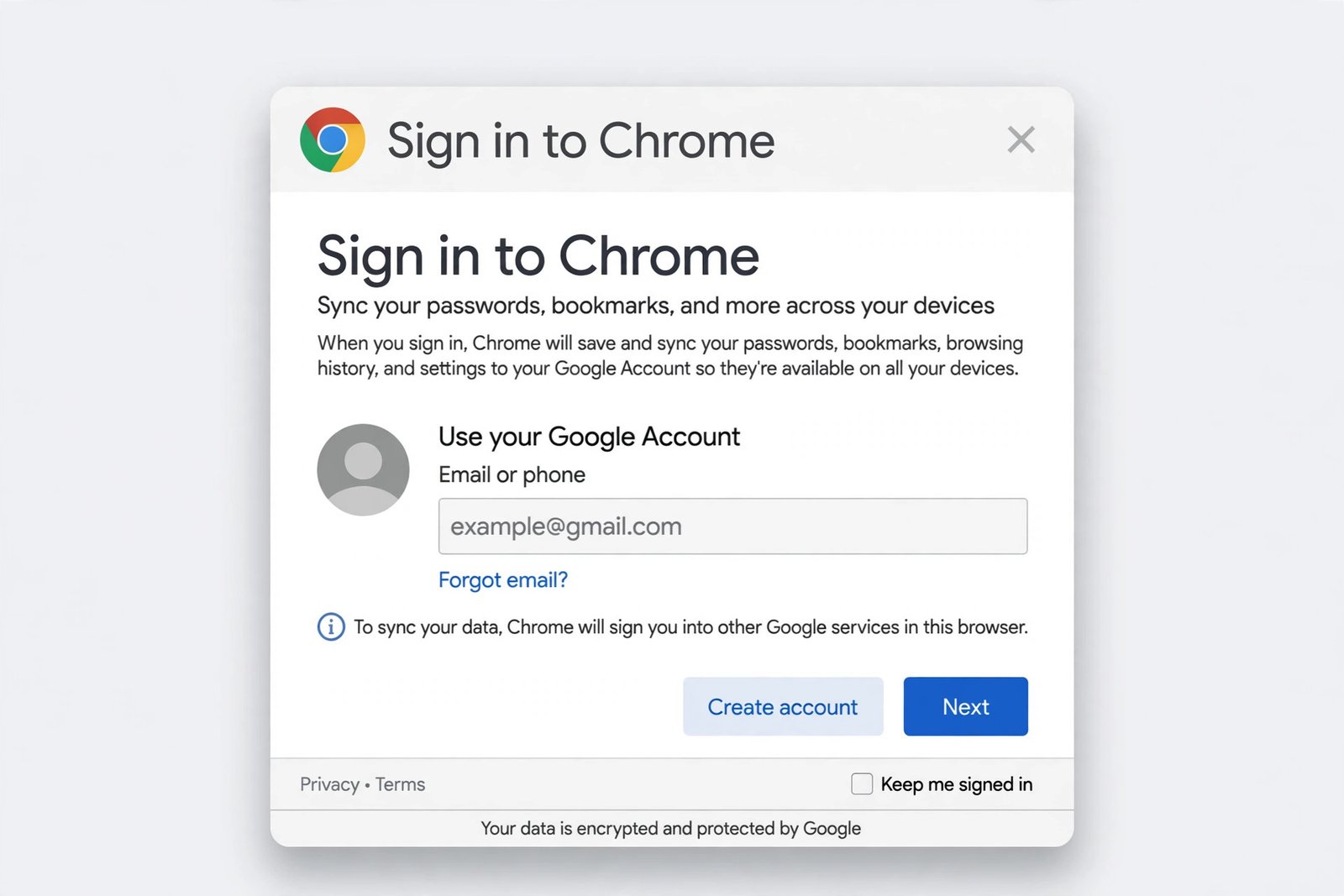
- Open Chrome and click the profile icon in the top-right corner.
- If it says “Sign in” or “Turn on sync”, click it and enter your Google Account email and password.
- Confirm the sign-in prompt and choose “Yes, I’m in” when asked to turn on sync.
- Go to
chrome://password-manager/passwordsand check whether your saved logins have returned. - If Chrome signs you out again on its own, read our guide on Chrome keeps logging me out to fix the underlying sign-in problem.
- If you see a security warning while signing in, see how to fix the connection not private error before continuing.
Fix 2: Check Google Password Manager and passwords.google.com
Your passwords may be sitting safely in your Google Account even when Chrome’s local list looks empty. Checking the online vault tells you instantly whether recovery is possible.
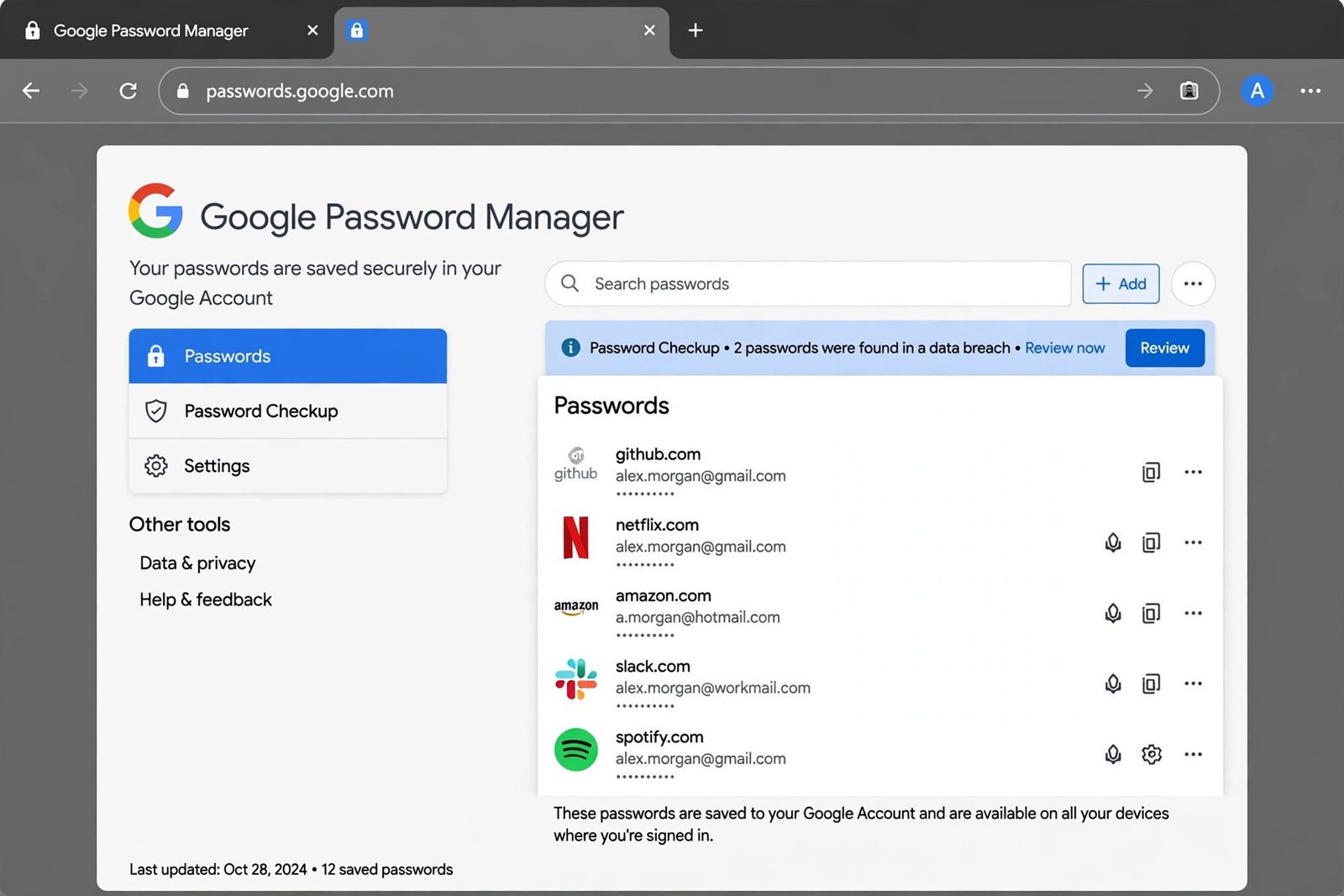
- In any browser, go to passwords.google.com and sign in with the same Google Account you use in Chrome.
- Look through the list. If your logins appear here, nothing is lost — the problem is only Chrome’s connection to the account.
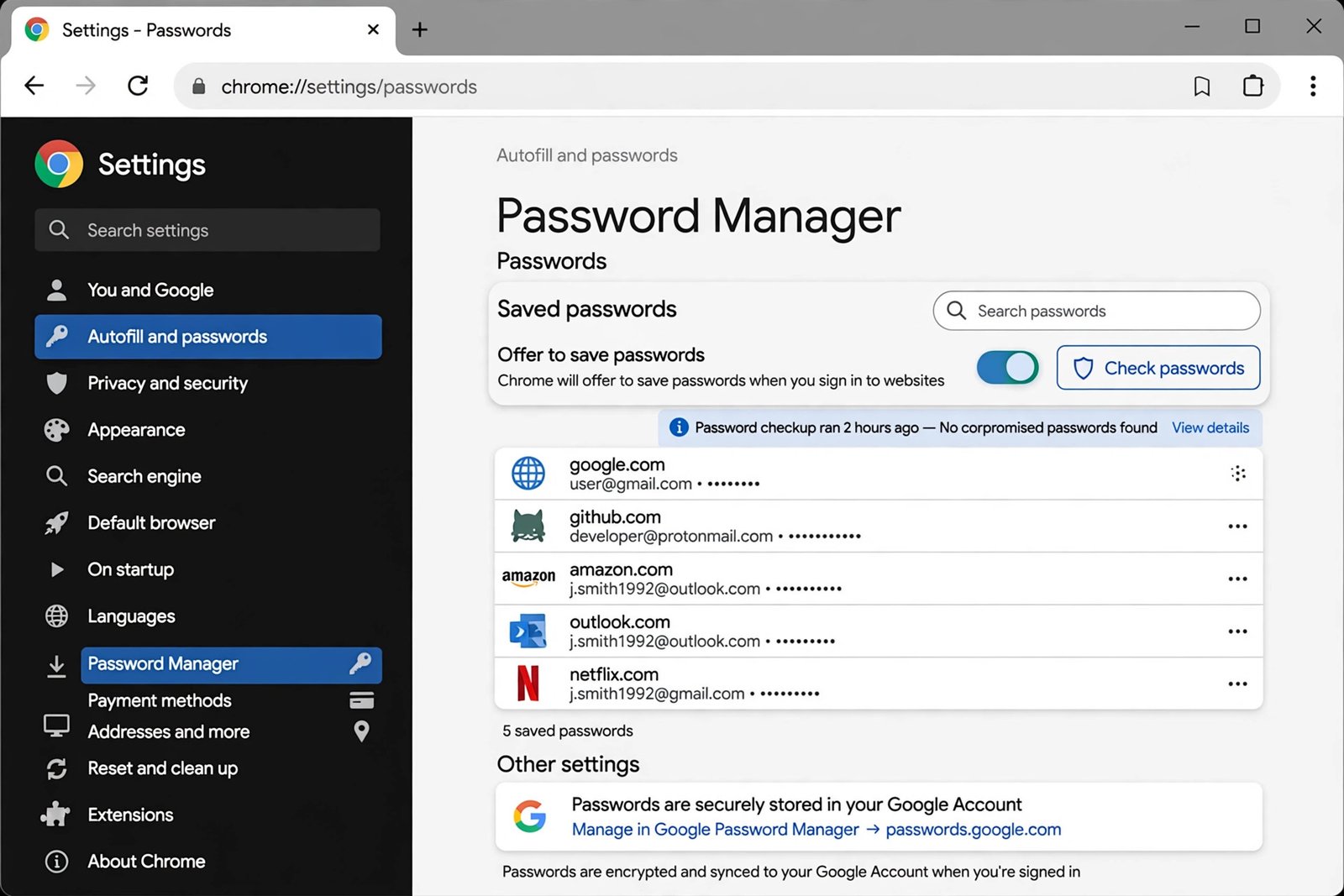
- In Chrome, open Settings, then go to Autofill and passwords and select Google Password Manager.
- Compare this list with the one at passwords.google.com — they should match once sync is working.
- Use the search box at the top of the Password Manager if you think a specific entry is missing; sometimes entries are there but sorted unexpectedly.
- If both lists are empty, move on to Fix 4 and Fix 5 before assuming the passwords are gone.
Fix 3: Turn Password Sync Back On
Being signed in is not always enough. Chrome lets you choose exactly what syncs, and password sync can be off even while bookmarks and history still sync. This is a classic reason chrome saved passwords disappeared on one device while everything else looks normal.
- Open Chrome and go to Settings, then select You and Google.
- Click Sync and Google services, then Manage what you sync.
- Make sure either “Sync everything” is on, or the individual “Passwords” toggle is switched on.
- If you see “Sync is paused”, click your profile icon and select “Turn on sync” again.
- Wait a minute or two, then reopen the Password Manager to see if your logins return.
- If other synced data is also missing, our guide on Chrome bookmarks not syncing covers the same sync settings in more depth.
Fix 4: Switch to the Correct Chrome Profile
Chrome supports multiple profiles, and each profile has its own passwords. If you (or someone else using the computer) created a second profile, your passwords are probably sitting in the other one.
- Click the profile icon in the top-right corner of Chrome.
- Look at the list of profiles. If you see more than one name, click the other profile to switch.
- In each profile, open
chrome://password-manager/passwordsand check for your logins. - Also confirm the email address shown under each profile matches the Google Account where you saved the passwords.
- If you find the right profile, you can set it as your default by going to Settings, then You and Google, and managing profiles.
- Delete or keep the extra profile only after you are sure your passwords live in the correct one.
Fix 5: Recover When chrome saved passwords disappeared After a Passphrase Change
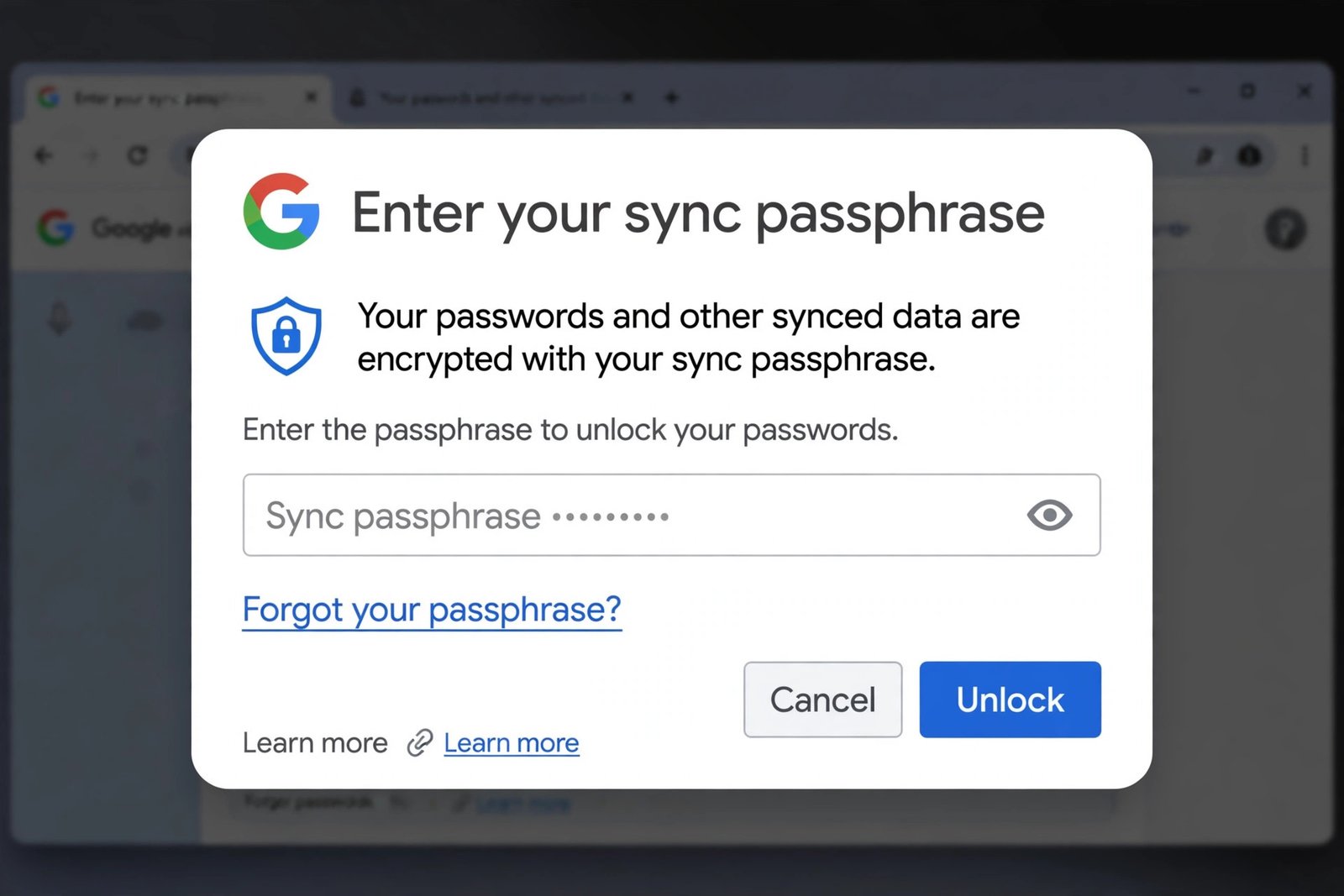
If you ever set a sync passphrase — a custom password that encrypts your synced data — Chrome cannot read your passwords until you enter it. This also blocks passwords.google.com from showing your logins. A forgotten or changed passphrase is a sneaky cause when chrome saved passwords disappeared everywhere at once.
- In Chrome, go to Settings, then You and Google, then Sync and Google services.
- If Chrome asks for your sync passphrase, enter the one you set earlier.
- If you do not remember it, you can reset it — but note that resetting deletes your synced data from Google’s servers, so only do this after checking passwords.google.com.
- To reset, sign in to your Google Account dashboard, open the Chrome sync section, and choose the option to reset the passphrase.
- After resetting, sign back in to Chrome on each device and let sync start fresh.
- Your passwords stored locally on the device are not deleted by a passphrase reset — they will sync up again once you sign in.
Fix 6: Stop Chrome From Deleting Passwords on Exit
If your passwords return after signing in but vanish again every time you close Chrome, something is wiping your local profile data. Two usual suspects: Chrome’s own “clear on exit” setting and third-party cleanup software.
- In Chrome, go to Settings, then Privacy and security, then Delete browsing data.
- Open the “On exit” tab and make sure Passwords is NOT selected for automatic deletion.
- Check any PC cleaner or privacy apps you have installed — many delete browser data by default. Exclude Chrome’s password data from their cleaning rules.
- Make sure no one else using the computer runs Chrome with the “Clear data on exit” flag or a cleanup shortcut.
- Update Chrome to the latest version via Settings, then About Chrome, since damaged-profile bugs are often fixed in updates.
- If Chrome also crashes when you open settings, see our guide on Google Chrome keeps crashing — a damaged profile can cause both problems.
What to Avoid
- Do not reset your sync passphrase as a first step — it wipes synced data from Google’s servers.
- Do not delete Chrome profiles until you have checked every profile for your passwords.
- Do not install “password recovery” tools from unknown websites — many are malware in disguise.
- Do not clear all browsing data hoping it will fix the issue — that can delete the local copy of your passwords.
- Do not sign in with a different Google Account “just to test” — it can merge confusion about which account holds your logins.
- Do not turn off two-step verification on your Google Account while troubleshooting — it weakens your account security.
Frequently Asked Questions
Are my passwords permanently deleted when chrome saved passwords disappeared?
Usually not. If your passwords were synced to your Google Account, they remain on Google’s servers even when Chrome’s local list is empty. Signing back in with the same account and turning password sync on brings them back.
Why did chrome saved passwords disappeared after a Chrome update?
Updates sometimes sign you out of Chrome or pause sync. They can also create a fresh profile if the old one was damaged. Sign back in, check your profiles, and confirm password sync is enabled.
Can I see my Chrome passwords without opening Chrome?
Yes. Go to passwords.google.com in any browser and sign in with your Google Account. You will see every password synced to that account, and you can view, copy, or delete entries there.
What is a sync passphrase, and why does it hide my passwords?
A sync passphrase is an extra password you can set to encrypt your synced Chrome data. While it is active, Google cannot read your data — so passwords.google.com will not show your logins until you enter the passphrase in Chrome.
Why do my passwords disappear every time I restart Chrome?
Chrome is probably deleting them on exit. Check Settings, then Privacy and security, then Delete browsing data, and open the “On exit” tab. If Passwords is selected there, uncheck it. Also check any PC cleaner apps for rules that wipe Chrome data.
Conclusion
When chrome saved passwords disappeared, the fix is usually simple: sign back in to Chrome with the right Google Account, make sure password sync is on, and check the correct profile. Your logins are most likely safe in your Google Account at passwords.google.com, waiting for Chrome to reconnect. Work through the fixes above in order, and avoid hasty resets that could delete the very data you are trying to recover.