

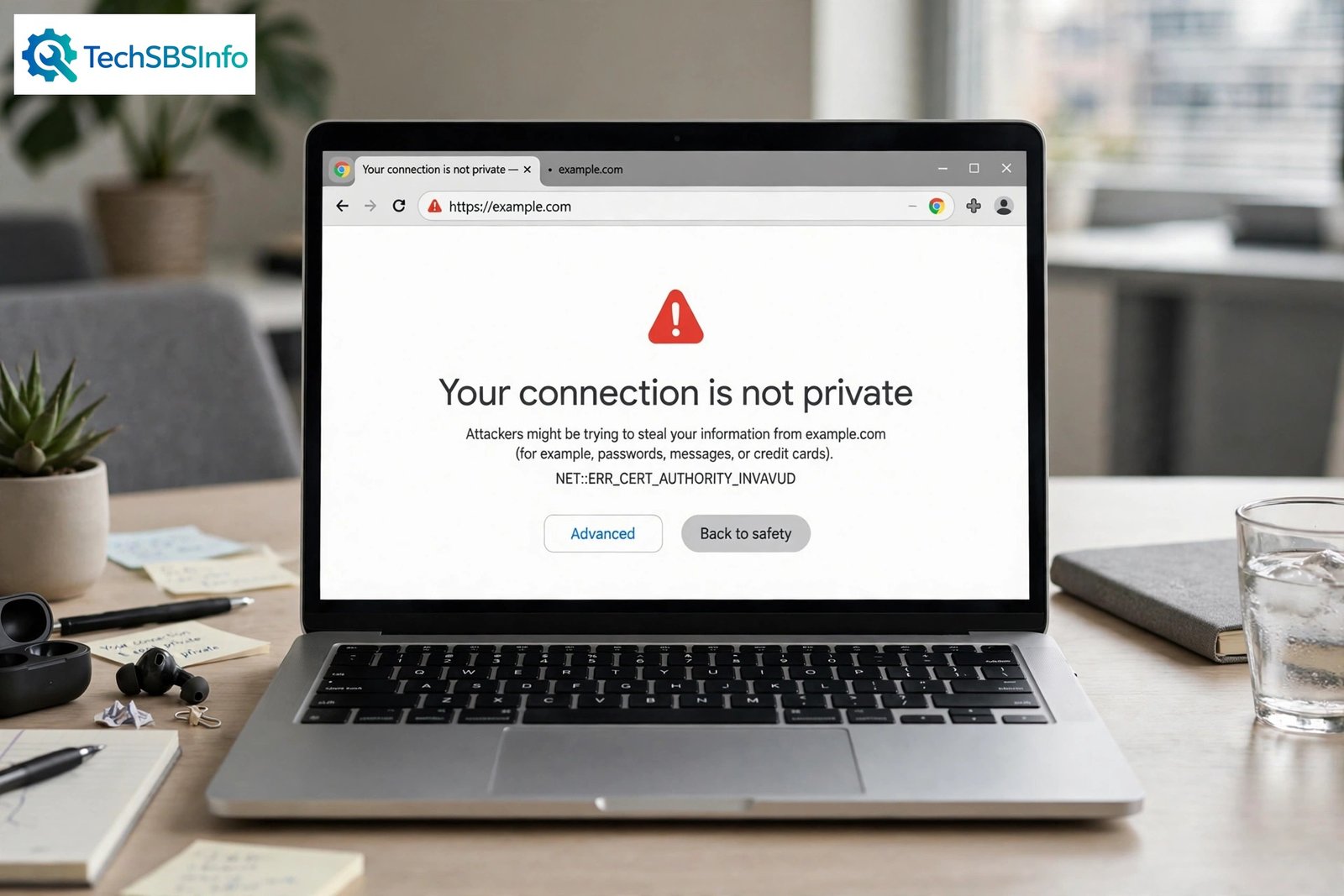
When chrome says your connection is not private, it means Chrome could not confirm that the website uses a valid security certificate. This warning protects you from sending personal data to a site that may not be safe. The good news is that in most cases the problem is not dangerous at all. A wrong date and time on your computer, an expired certificate on the website, or your antivirus software scanning secure traffic can all trigger this page.
Do not panic when you see the red warning. Work through the fixes below in order. Most users solve the problem within five minutes, without changing anything risky.
Table of Contents
- Quick Checks
- Diagnose: Match Your Symptom to a Cause
- Fix 1: Reload the Page and Check the Address
- Fix 2: Correct Your Computer’s Date and Time
- Fix 3: Test the Site in an Incognito Window
- Fix 4: Clear Chrome’s Browsing Data
- Fix 5: Turn Off Extensions and Test Again
- Fix 6: Read the Advanced Details (chrome says your connection is not private)
- Fix 7: Turn Off Your Antivirus HTTPS or SSL Scanning
- Fix 8: Update Chrome and Reset Its Settings
- What to Avoid
- Frequently Asked Questions
- Conclusion
- Helpful Official Resources
Quick Checks
- Press Ctrl + R to reload the page and see if the warning goes away.
- Check that the web address starts with https:// and has no typing mistakes.
- Make sure your computer’s clock shows the correct date, time, and time zone.
- Open the same site on your phone or another device to see if the warning follows the site or your computer.
- Restart your router if other websites are also failing to load.
- Try the site over mobile data instead of your office or public Wi-Fi, which may use a filtering proxy.
Diagnose: Match Your Symptom to a Cause
| Symptom | Cause | Go to Fix |
|---|---|---|
| Warning appears on every website you open | Wrong date and time on your computer | Fix 2 |
| Warning appears only on one specific website | That site’s certificate is expired, misconfigured, or self-signed | Fix 6 |
| Warning appears on your office or public Wi-Fi only | The network uses a proxy or firewall that intercepts secure traffic | Fix 7 |
| Warning appears after installing a new extension or antivirus | An extension or antivirus HTTPS scanning is breaking certificate checks | Fix 5, Fix 7 |
| Warning appears in Chrome but not in another browser | Corrupt Chrome browsing data or a bad Chrome profile | Fix 3, Fix 4 |
| Warning appears on old websites you used to visit fine | The site uses an outdated security protocol Chrome no longer accepts | Fix 6 |
| Warning appears right after a Chrome update | A new Chrome security policy or a changed setting | Fix 8 |
Fix 1: Reload the Page and Check the Address
Temporary network glitches and small typing mistakes cause this warning more often than people expect.
- Press Ctrl + R (or click the reload button) to reload the page.
- Look carefully at the address bar. Make sure you did not mistype the domain name, for example gooogle.com instead of google.com.
- Confirm the address begins with https://. If it says http://, try changing it to https:// yourself and press Enter.
- If the site is reached through a bookmark, open the address manually once. Old bookmarks sometimes point to outdated or redirecting addresses.
- If the warning is gone after the reload, you are done. If it stays, move on to Fix 2.
Fix 2: Correct Your Computer’s Date and Time
Security certificates are valid only within a fixed date range. If your computer’s clock is wrong, Chrome thinks every certificate is invalid, and chrome says your connection is not private on site after site.
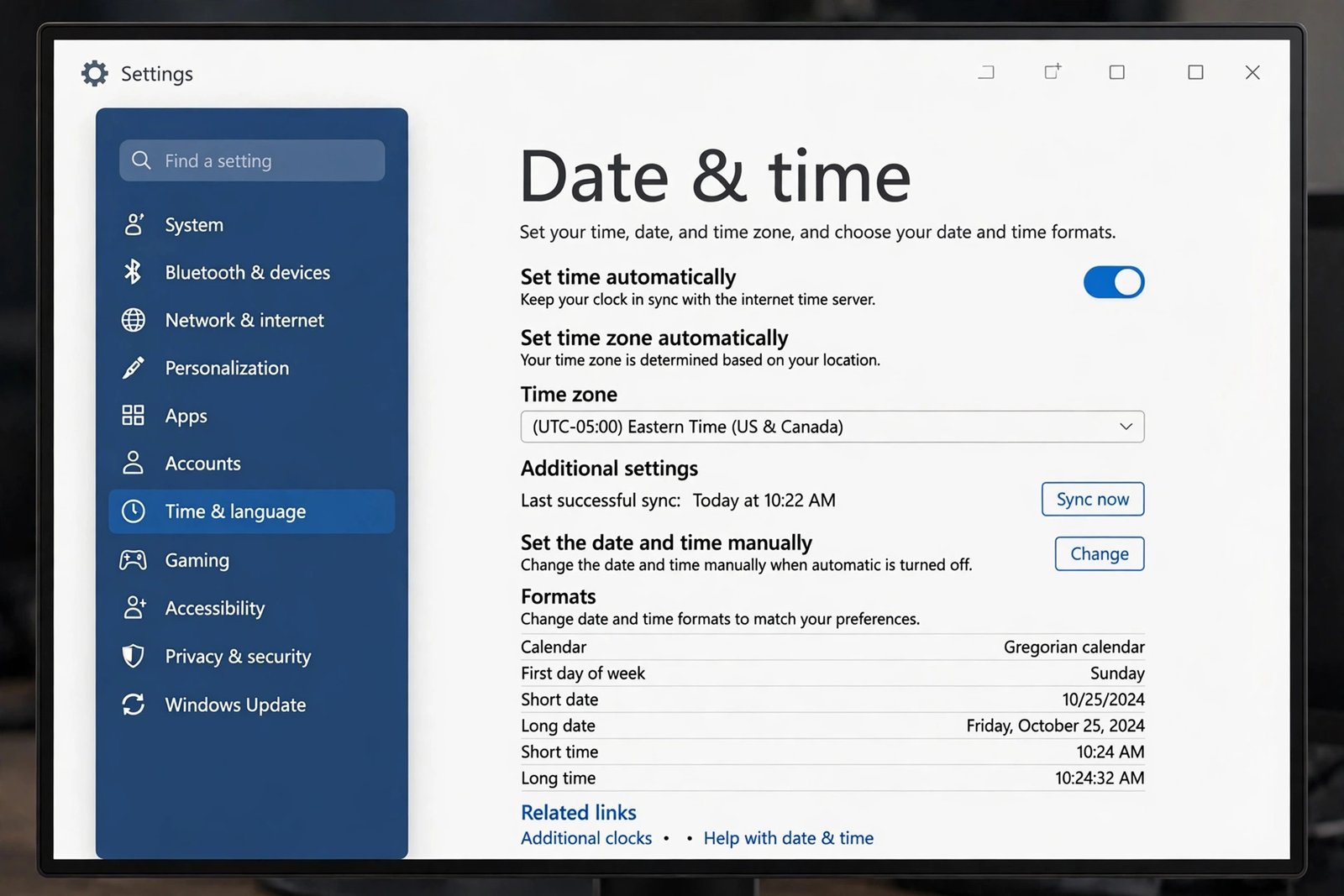
- Press Win + I to open Windows Settings.
- Go to Time & language, then select Date & time.
- Turn on Set time automatically and Set time zone automatically.
- Click Sync now to force an immediate update.
- Restart Chrome and reload the failing website.
- On a Mac, open System Settings, go to General, then Date & Time, and turn on Set time and date automatically.
This is the most common fix when the warning appears on every site you visit. It takes less than a minute and solves the problem immediately in many cases.
Fix 3: Test the Site in an Incognito Window
Incognito mode opens the site with no extensions and no stored cookies or cache. This tells you quickly whether the problem comes from your Chrome profile or from the site itself.
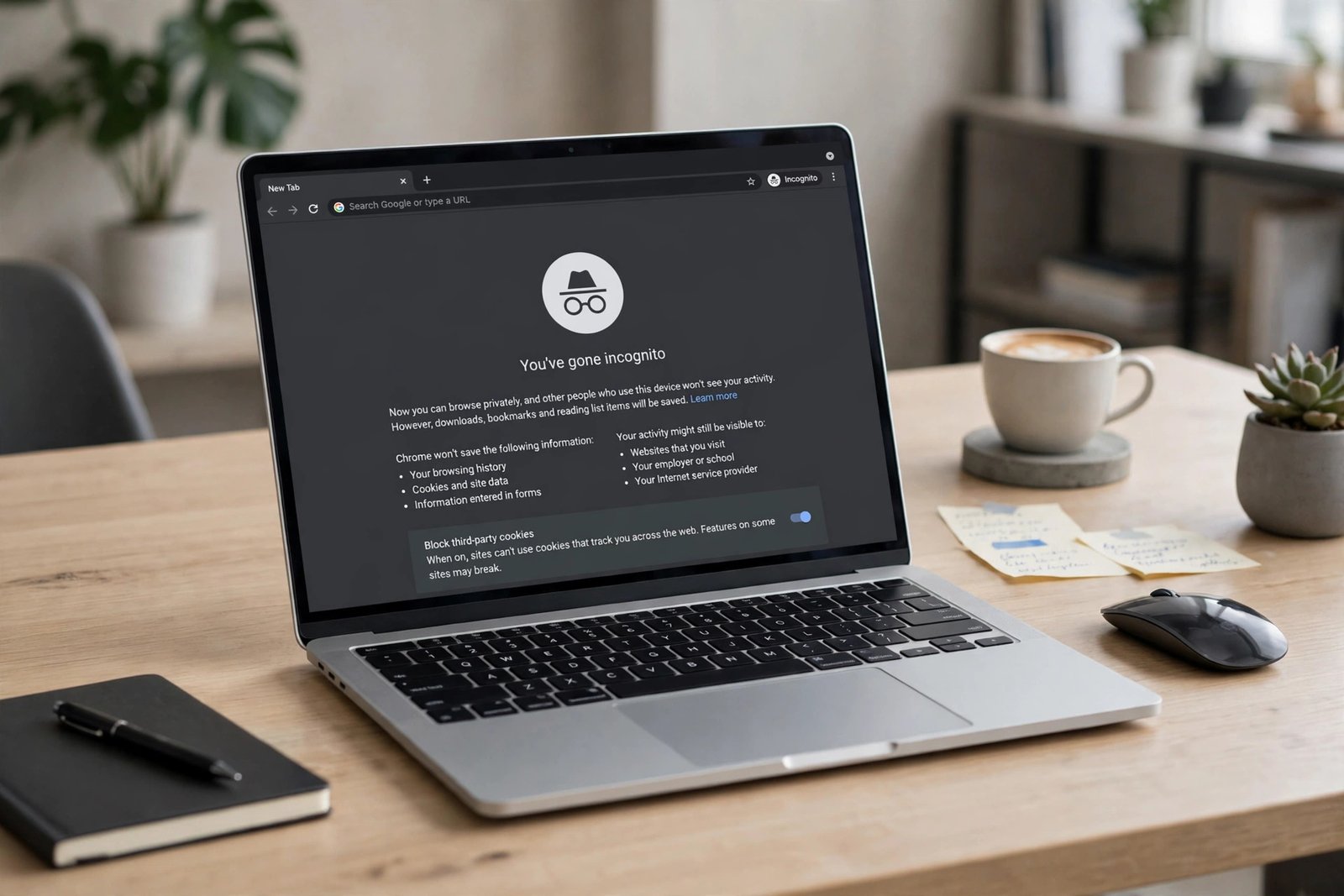
- Press Ctrl + Shift + N to open an Incognito window.
- Type the website address and press Enter.
- If the site loads normally in Incognito, the cause is an extension or corrupt browsing data. Continue with Fix 4 and Fix 5.
- If the warning still appears in Incognito, the cause is your system, your network, or the site itself. Skip ahead to Fix 6 and Fix 7.
Fix 4: Clear Chrome’s Browsing Data
Old cache files and expired certificate data stored by Chrome can trigger the privacy warning even after the site’s certificate is renewed. Clearing them gives Chrome a clean start.
- Press Ctrl + Shift + Delete to open the Clear browsing data window.
- Set the time range to All time.
- Check Cookies and other site data and Cached images and files.
- Click Clear data.
- Close Chrome completely, then open it again and reload the website.
This will sign you out of most websites, so keep your passwords handy. If the error message persists for a single site after this, see our guide on Chrome pages not loading for more loading fixes.
Fix 5: Turn Off Extensions and Test Again
Some extensions, especially VPN, ad-blocker, and security extensions, interfere with how Chrome verifies certificates. Turning them off one by one finds the culprit.
- Type chrome://extensions in the address bar and press Enter.
- Turn off all extensions using the toggle switches.
- Reload the failing website.
- If the warning disappears, turn the extensions back on one at a time, reloading the site after each one.
- When the warning returns, you have found the problem extension. Keep it off or replace it with a safer alternative.
- Remove the offending extension completely by clicking Remove on its card.
Security and privacy extensions are the most frequent offenders. If you rely on a VPN extension, try using the VPN’s own desktop app instead of the browser extension.
Fix 6: Read the Advanced Details (chrome says your connection is not private)
Chrome shows an Advanced button on the warning page for a reason. The details behind it tell you exactly what Chrome found wrong with the certificate.
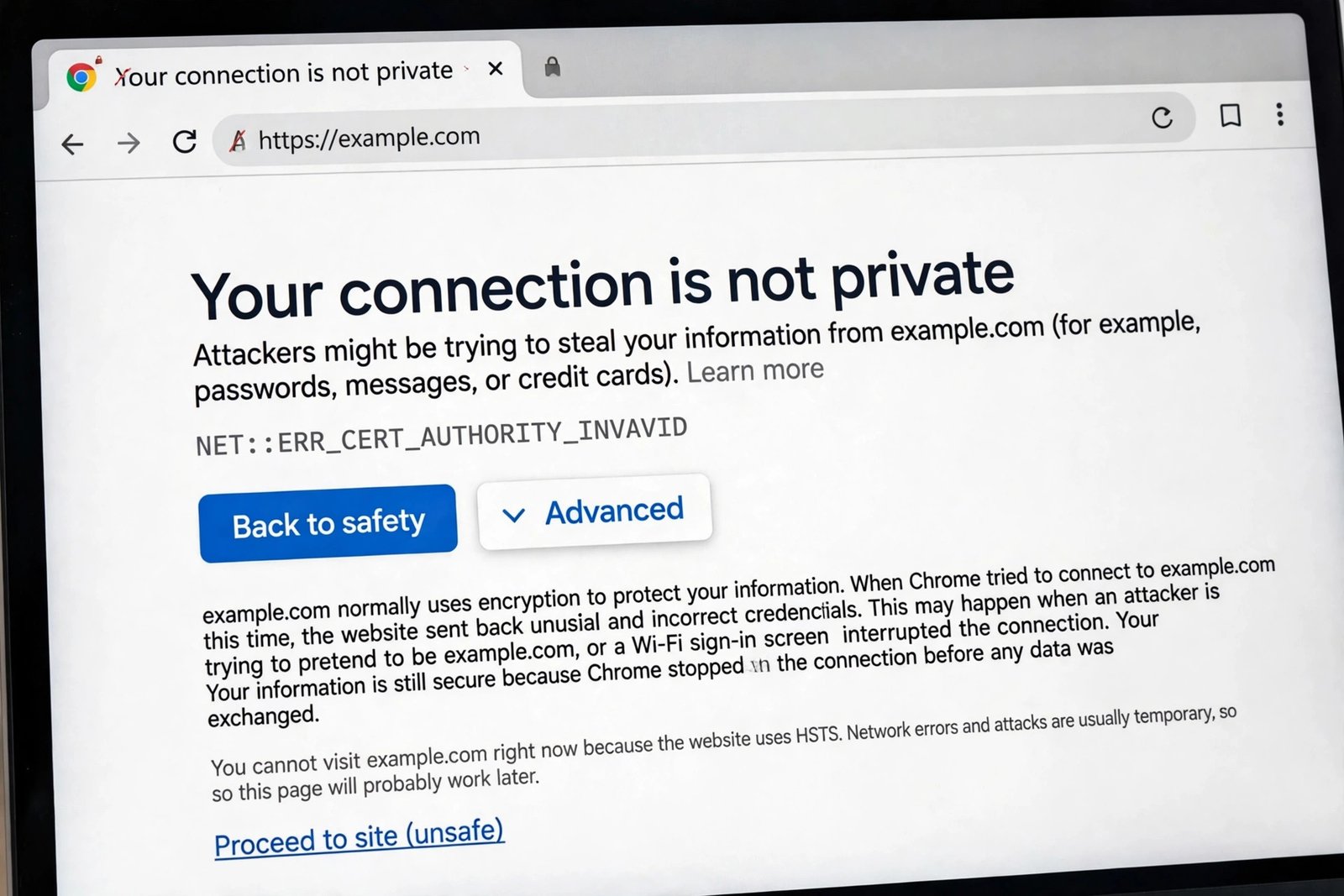
- Click the Advanced button on the warning page.
- Read the technical message. Common ones include:
- Your clock is behind — your date or time is wrong (see Fix 2).
- The certificate expired — the site owner’s certificate is out of date.
- Self-signed certificate — the site uses a certificate that was not issued by a trusted authority.
- Only click Proceed to site (unsafe) if you fully trust the site and you will not enter any password or payment details.
- If the certificate expired on a site you manage or use for business, contact the site owner and ask them to renew it. If it is your own WordPress site, see our guide on fixing a WordPress SSL certificate not working.
Never enter login credentials or card numbers after proceeding past the warning. The page only tells you Chrome cannot verify the connection, so treat any data you send as exposed.
Fix 7: Turn Off Your Antivirus HTTPS or SSL Scanning
Many antivirus programs scan your encrypted traffic by inserting their own certificate into the connection. When this process fails or conflicts with Chrome, the browser blocks the site with the privacy warning.
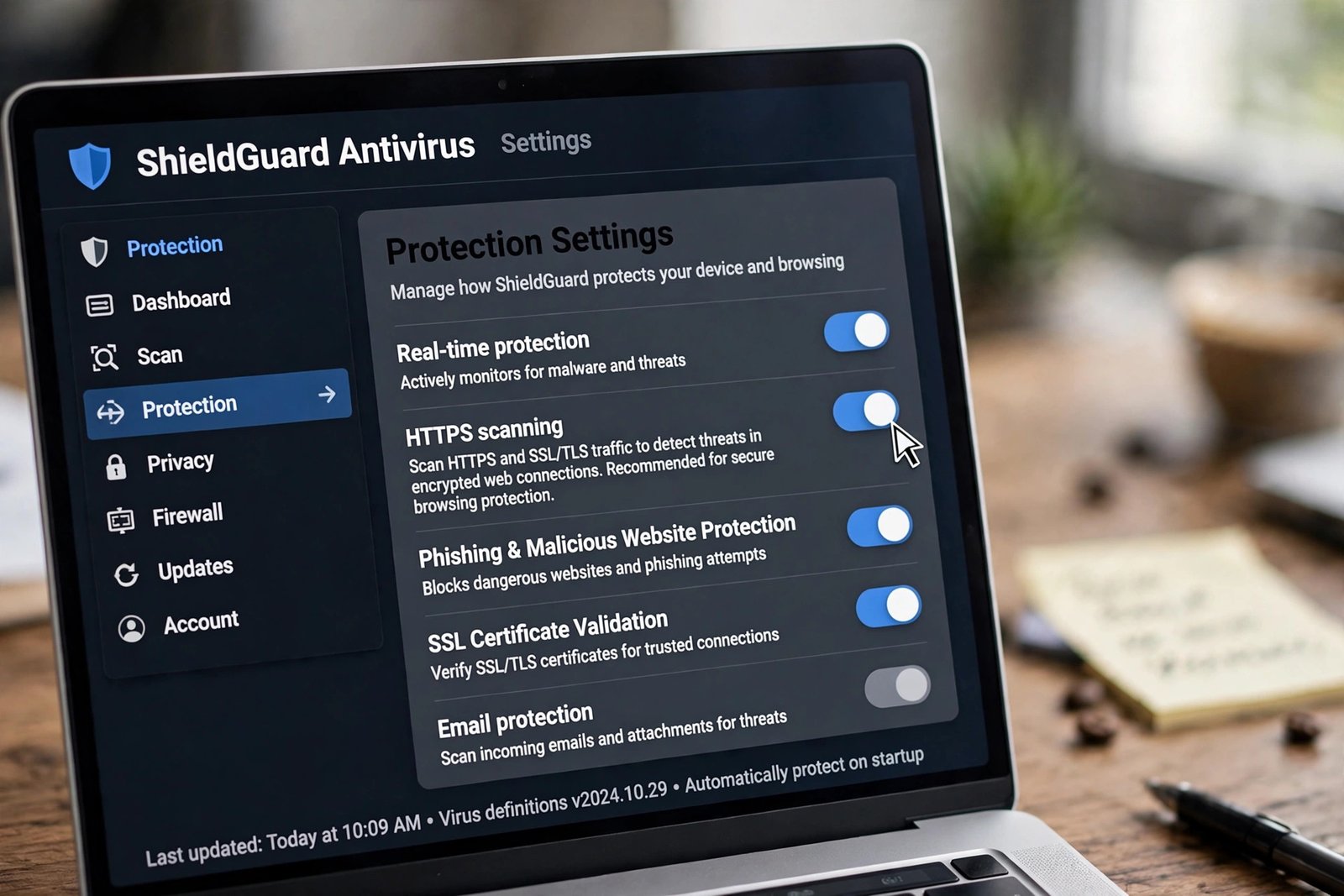
- Open your antivirus program’s settings window.
- Look for a section named Web protection, Web Shield, or Online security.
- Find the option called HTTPS scanning, SSL scanning, or Scan secure connections.
- Turn that option off temporarily.
- Reload the website in Chrome and check whether the warning is gone.
- If the warning disappears, keep the scanning off for now and check your antivirus maker’s help pages for an updated fix. Do not disable your real-time protection entirely.
Office and school networks use a similar trick with a proxy server that inspects traffic. If the warning appears only on that network, ask your IT team whether their proxy certificate needs to be installed on your computer.
Fix 8: Update Chrome and Reset Its Settings
An outdated Chrome version may use old security rules that clash with modern certificates. A damaged Chrome profile can also break certificate checks. Updating and resetting fixes both.
- Click the three-dot menu, go to Help, then About Google Chrome.
- Chrome checks for updates automatically. Install any update it finds, then click Relaunch.
- If the warning continues, open Settings, then go to Reset settings.
- Click Restore settings to their original defaults and confirm.
- Reload the website and test again.
Resetting does not delete your bookmarks, saved passwords, or history. It only returns settings to their defaults and turns off extensions. If your Google sign-in keeps dropping after these errors, our guide on Chrome keeps logging me out explains how to keep your session stable.
What to Avoid
- Do not proceed past the warning and enter passwords or payment details on untrusted sites.
- Do not install random “SSL fixer” programs or shady “driver updater” downloads from unofficial sites.
- Do not disable your firewall or real-time antivirus protection as a workaround.
- Do not use pirated software, activators, or cracks, which often bundle the malware that causes fake certificate errors.
- Do not ignore the warning on banking, email, or shopping sites, even if the page looks familiar.
- Do not change your computer’s date and time to match the error as a permanent fix; set them to automatic instead.
- Do not keep clicking through the warning on a site that shows a self-signed certificate unless you personally know the site owner.
Frequently Asked Questions
What does “Your connection is not private” mean in Chrome?
It means Chrome could not verify the site’s security certificate, so it cannot confirm that your connection is encrypted and the site is genuine. The warning protects you from attackers who might read or change the data you send.
Is it safe to click “Proceed to site (unsafe)”?
Only if you trust the site completely and will not type in any personal information. Clicking proceed disables the protection for that visit, so never use it on banking, email, or shopping pages.
Why does Chrome say your connection is not private on every website?
A wrong system date and time is the most common reason. An interfering antivirus HTTPS scan, a misconfigured network proxy, or a damaged Chrome profile can also cause the warning on all sites.
Can my antivirus cause this Chrome warning?
Yes. Many antivirus tools scan HTTPS traffic by inserting their own certificate. If Chrome rejects that certificate, the warning appears. Turning off the HTTPS or SSL scanning option in your antivirus usually fixes it.
The error says NET::ERR_CERT_DATE_INVALID. What should I do?
This message almost always means your computer’s clock is wrong. Open your date and time settings, turn on automatic time, click Sync now, and restart Chrome.
Will clearing my cache delete my bookmarks?
No. Clearing cached images and files plus cookies does not remove your bookmarks. It only signs you out of websites and clears temporary files.
Conclusion
The “Your connection is not private” page looks alarming, but it is usually a simple problem. Start with the quick checks, fix your date and time, test in Incognito, and check your antivirus HTTPS scanning. In almost every case, one of these eight fixes gets the site loading again within minutes. If the warning appears only on your own website, the certificate itself needs attention. And if a site’s certificate looks truly suspicious, trust Chrome and stay away. If the error blocks files from downloading, see our guide on Chrome downloads not working for related fixes.