

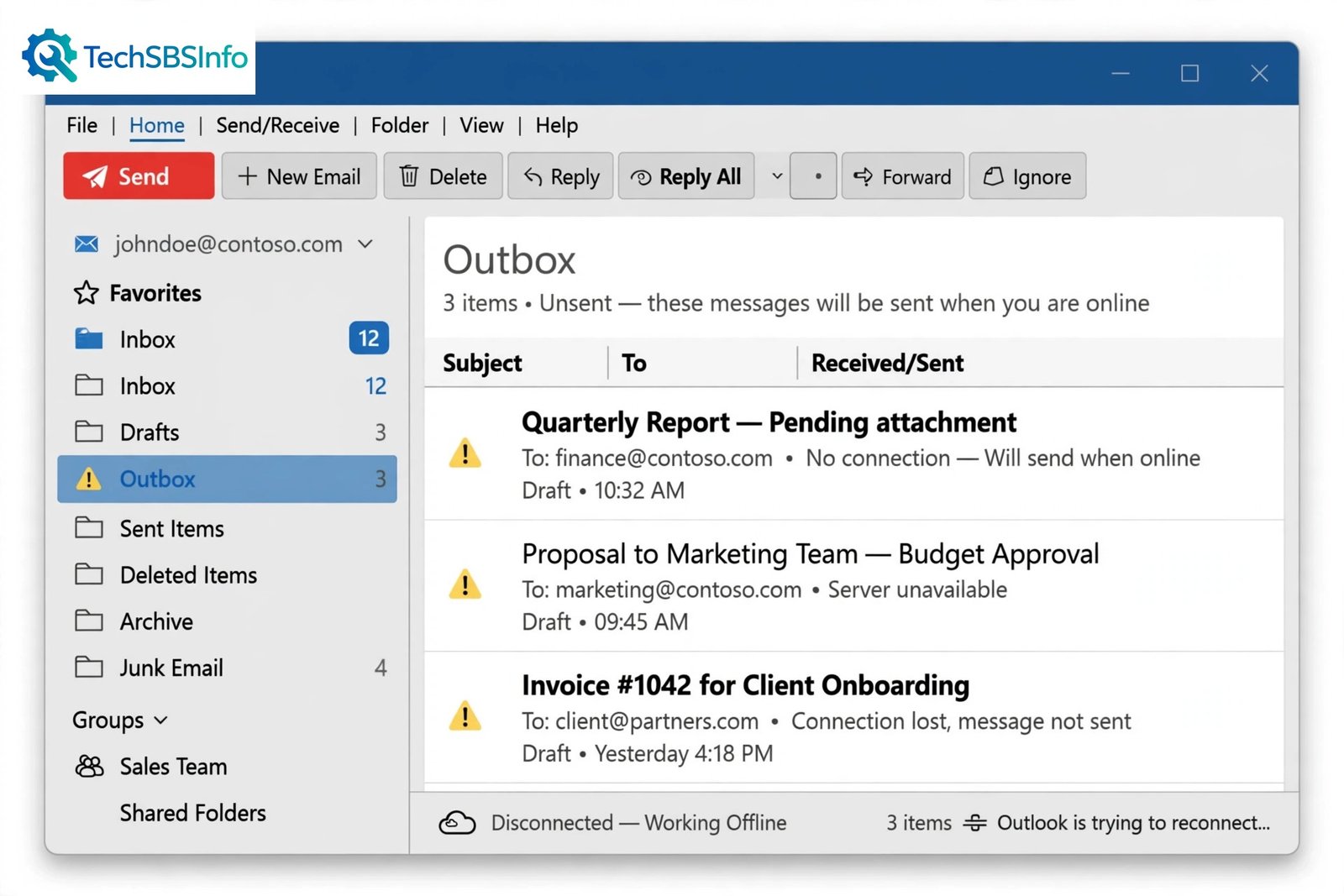
When outlook emails stuck in outbox happens, your message looks like it was sent, but it never actually leaves your computer. You click Send, close Outlook, and assume the job is done. Hours later, the email is still sitting in the Outbox, and the other person never received it.
The good news is that this problem is almost always easy to fix. Most cases come down to one of a few common causes: Outlook is working offline, the internet connection dropped, an attachment is too large, or a setting is stopping automatic sending. This guide walks you through quick checks first, then eight simple fixes in order, so you can release the stuck email and stop it happening again.
Table of Contents
- Quick Checks
- Diagnose the Problem
- Fix 1: Turn Off Work Offline and Send All
- Fix 2: Check Your Internet Connection
- Fix 3: Resend the Message Manually
- Fix 4: Remove a Large Attachment
- Fix 5: Turn On Send Immediately When Connected
- Fix 6: Update Your Password and Check Account Settings
- Fix 7: Start Outlook in Safe Mode and Disable Add-ins
- Fix 8: Fix Outlook Emails Stuck in Outbox with a Repair or a New Profile
- What to Avoid
- Frequently Asked Questions
- Conclusion
Quick Checks
Try these first. They take under a minute each and fix most cases.
- Look at the Outbox folder in the left pane. Confirm the email is actually there and not already sent.
- Check the bottom-right status bar in Outlook. If it says Working Offline or Disconnected, Outlook cannot send anything.
- Look at the Send/Receive tab. If the Work Offline button looks highlighted or pressed, click it once to go back online.
- Make sure your internet is working by opening any website in your browser.
- Check whether the email has a large attachment. Big files often block the whole queue.
- Restart Outlook once. A stuck send process sometimes clears on a fresh start.
Diagnose the Problem
Use this table to match what you see with the most likely cause, then jump to the right fix.
| Symptom | Cause | Go to Fix |
| Status bar shows Working Offline | Outlook is disconnected from the mail server | Fix 1 |
| No websites load and Outlook shows Disconnected | Internet connection is down | Fix 2 |
| Emails only send when you press Send/Receive yourself | Automatic sending is turned off | Fix 5 |
| One email refuses to send and blocks the rest | Attachment is too large or the message is damaged | Fix 4 |
| Outlook asks for a password or shows a login error | Password changed or account settings are wrong | Fix 6 |
| Emails stall after a new add-in was installed | A faulty add-in is blocking sending | Fix 7 |
| Every email is stuck and nothing above helped | Outlook installation or profile is damaged | Fix 8 |
Fix 1: Turn Off Work Offline and Send All
The single most common reason for outlook emails stuck in outbox is that Outlook is running in offline mode. In this mode, everything you send waits in the Outbox until you go back online. Here is how to turn it off.
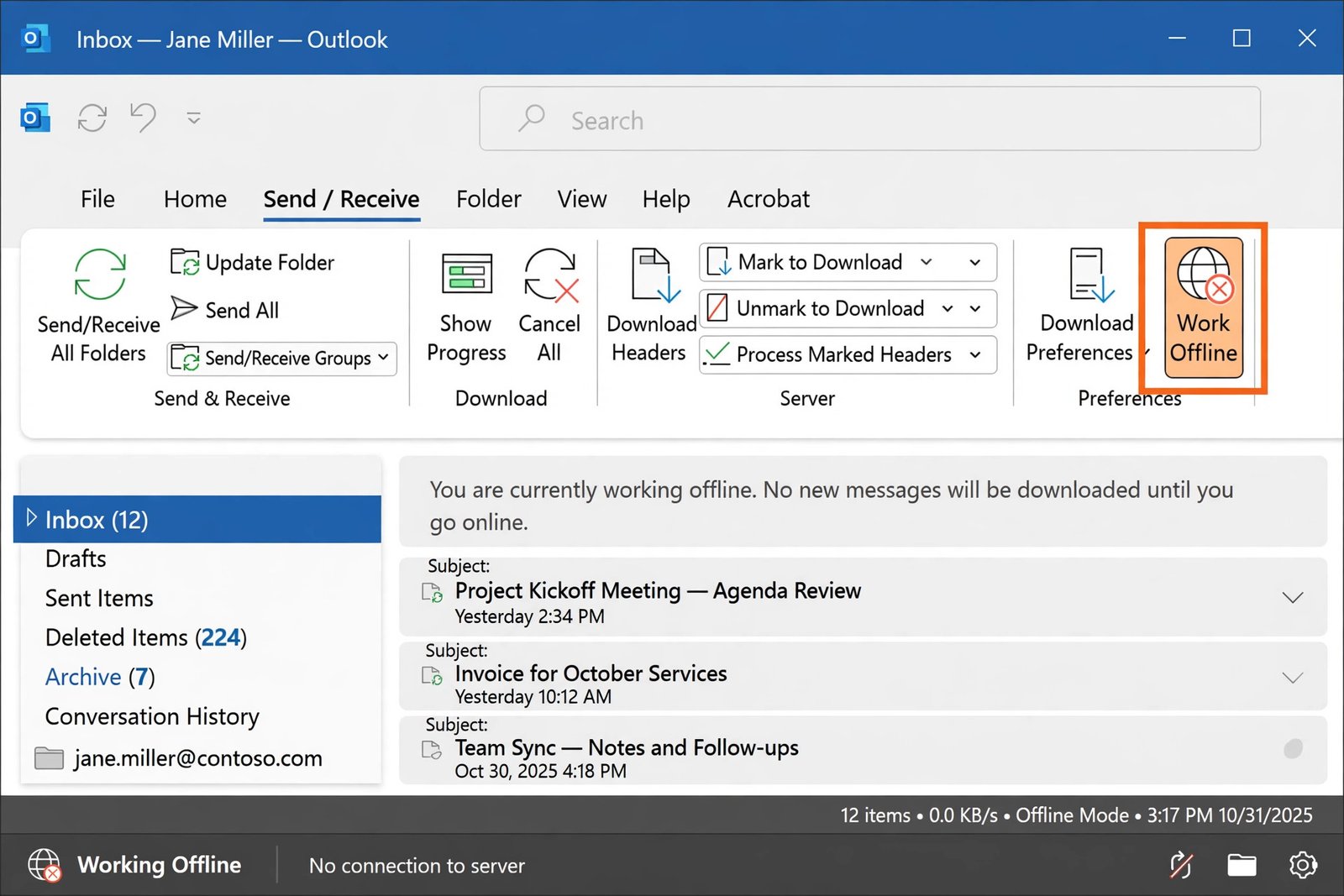
Follow these steps:
- Open Outlook.
- Click the Send/Receive tab at the top.
- Look at the Work Offline button on the ribbon.
- If it looks pressed in or highlighted, click it once to switch it off.
- The status bar at the bottom should change from Working Offline to Connected.
- Click Send/Receive again and choose Send All Folders (or press F9).
- Open the Outbox folder and check whether the stuck emails start sending.
If the emails begin moving, the problem is solved. If they stay put, move to the next fix.
Fix 2: Check Your Internet Connection
Outlook cannot send anything without a working connection. Sometimes the Wi-Fi icon looks fine while the actual internet is down, so do not trust the icon alone.
- Open your web browser and try loading any website.
- If the website fails to load, fix your connection first:
- Restart your router and wait one minute.
- Reconnect to your Wi-Fi network.
- On a laptop, make sure Airplane Mode is off.
- Once websites load again, return to Outlook.
- Press F9 or click Send/Receive > Send All Folders.
- Watch the Outbox to confirm the messages go through.
If your computer connects fine but Outlook still shows Disconnected, your network may be blocking Outlook’s ports. In that case, try a different network (for example, mobile hotspot) to see whether sending works there.
Fix 3: Resend the Message Manually
Sometimes Outlook sends new emails normally but skips one that got stuck during a brief connection drop. Forcing a manual send often clears that one message.
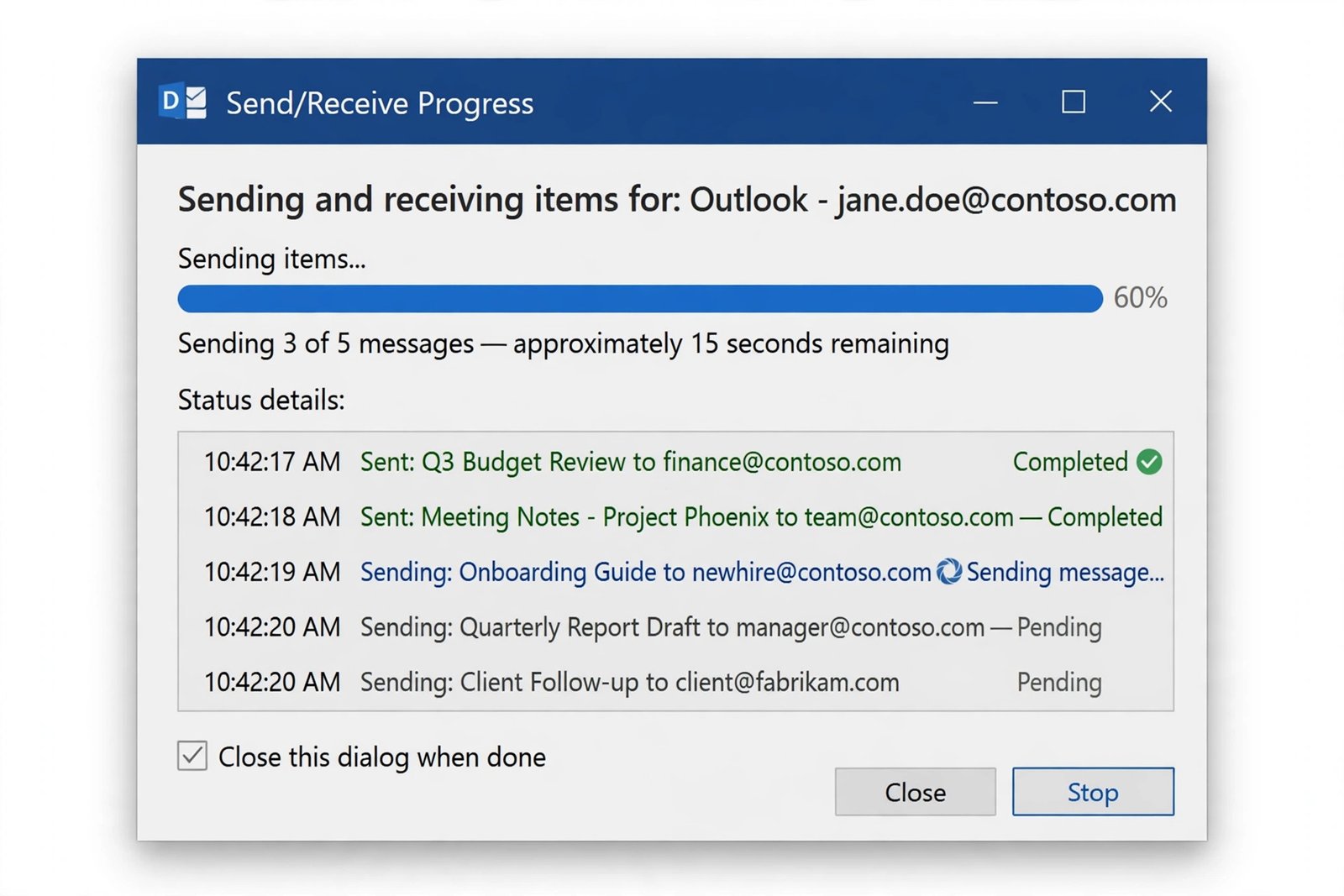
Follow these steps:
- In the left pane, click the Outbox folder.
- Double-click the stuck email to open it.
- Click Send again in the message window.
- Go to the Send/Receive tab and click Send All Folders.
- Click Send/Receive > Show Progress to watch what happens.
- If the message sends, the problem is fixed.
- If the progress window shows an error, note the error text. It usually points at the real cause, such as a bad address or a large attachment.
Fix 4: Remove a Large Attachment
Microsoft’s own support guidance says a large attachment is the most likely cause of a stuck email. One oversized file can hold the entire Outbox hostage, because Outlook keeps retrying it and never reaches the messages behind it.
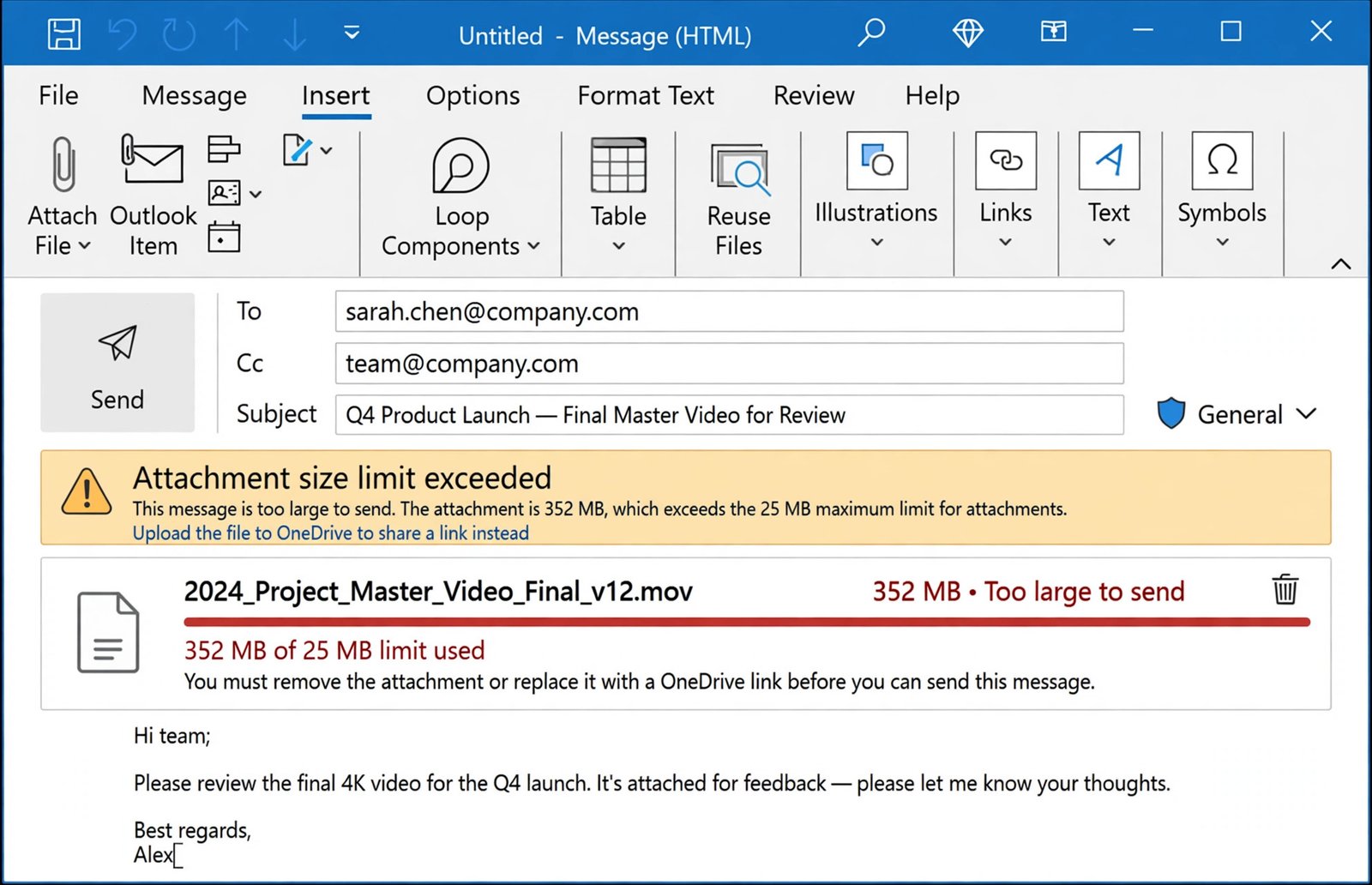
Follow these steps:
- Click the Send/Receive tab and turn on Work Offline. This stops Outlook from retrying while you work.
- Open the Outbox folder.
- Drag the stuck message to the Drafts folder.
- Double-click the message in Drafts to open it.
- Click the large attachment and press Delete.
- Alternatively, save the file to your computer first so you do not lose it.
- Click Send to put the smaller message back in the Outbox.
- Go to Send/Receive and click Work Offline again to go back online.
If you still need to share the big file, upload it to OneDrive and send a link instead of attaching it. If Outlook says it is still trying to send the old message, close Outlook completely (check Task Manager for outlook.exe), then reopen it and repeat the steps above.
Fix 5: Turn On Send Immediately When Connected
By default, Outlook should send emails right away. If this setting is off, your messages sit in the Outbox until you trigger a send manually. This is a very common cause of the outlook emails stuck in outbox problem on desktop Outlook.
Follow these steps:
- Click File > Options.
- In the left list, click Advanced.
- Scroll to the Send and receive section.
- Tick the box for Send immediately when connected.
- Click OK to save.
- Send a test email to yourself to confirm it goes out instantly.
If you only use the new Outlook or Outlook on the web, this setting does not exist in the same place. Instead, check that you are signed in correctly and that the account is not showing any sync errors.
Fix 6: Update Your Password and Check Account Settings
If you changed your email password recently (for example, on your phone or in a browser), Outlook keeps trying with the old one. The server rejects it, and the emails stay stuck in the Outbox.
Follow these steps:
- Look for a password prompt or a needs password warning in the status bar.
- If Outlook shows an error about your account, go to File > Account Settings > Account Settings.
- Select your email account and click Change (or Repair).
- Enter your current password carefully.
- Click Next and let Outlook test the connection.
- If the test passes, send a test email from the Outbox.
Also confirm your outgoing server settings. On the Outgoing Server tab, make sure My outgoing server (SMTP) requires authentication is ticked. A wrong SMTP setting stops every outgoing email at once, which looks exactly like the outlook emails stuck in outbox issue. If Outlook starts misbehaving in other Office apps too, our guide on Microsoft Word not responding can help you spot wider Office problems.
Fix 7: Start Outlook in Safe Mode and Disable Add-ins
Add-ins are small extras that plug into Outlook. A buggy or outdated add-in can block the sending process. Safe Mode starts Outlook with all add-ins turned off, so it is a quick way to test whether an add-in is the culprit.
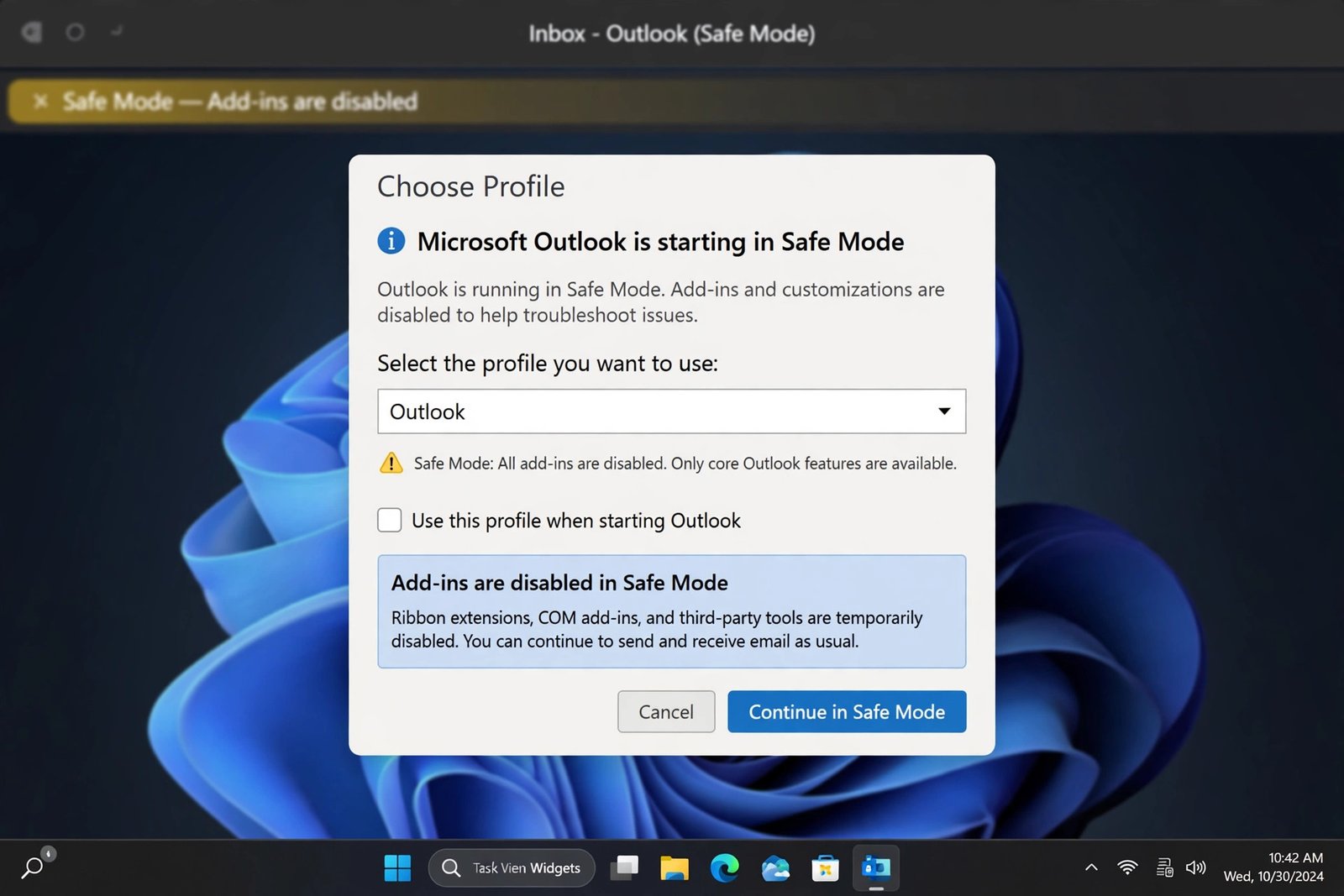
Follow these steps:
- Close Outlook completely.
- Press Windows + R to open the Run box.
- Type outlook.exe /safe and press Enter.
- Choose your profile and click OK.
- Try sending an email from the Outbox.
- If it sends in Safe Mode, an add-in is causing the problem.
- If it still does not send, the problem is elsewhere. Skip to Fix 8.
To find the bad add-in:
- In Safe Mode, go to File > Options > Add-ins.
- At the bottom, choose COM Add-ins and click Go.
- Untick all add-ins and click OK.
- Restart Outlook normally and test sending.
- Re-enable add-ins one at a time, testing after each, until sending breaks again. Leave that one disabled.
If Outlook also refuses to open or crashes while you do this, see our guide on Office apps crashing on startup.
Fix 8: Fix Outlook Emails Stuck in Outbox with a Repair or a New Profile
If none of the fixes above worked, the Outlook installation or your mail profile may be damaged. A profile stores your account setup, and rebuilding it gives Outlook a clean start without deleting your emails (they stay on the mail server).
Follow these steps for a Quick Repair:
- Close Outlook.
- Open Control Panel > Programs > Programs and Features.
- Select Microsoft Office (or Microsoft 365) and click Change.
- Choose Quick Repair and click Repair.
- Restart your computer, open Outlook, and test sending.
Follow these steps for a new profile if the repair did not help:
- Close Outlook.
- Open Control Panel and search for Mail.
- Click Show Profiles, then Add.
- Name the new profile and set up your email account in it.
- Select Always use this profile and choose the new one.
- Restart Outlook and send a test email.
After a new profile works, you can keep using it and delete the old one later. If you also use Outlook to read incoming mail and that side has problems, read our guide on Outlook not receiving emails.
What to Avoid
- Do not delete and re-add your account before trying the simpler fixes. It rarely helps and wastes time.
- Do not send the stuck email again and again. Duplicate clicks create duplicate messages that all pile up.
- Do not download a registry cleaner or “Outlook fixer” tool from a random website. Use only Microsoft’s own repair.
- Do not edit the Windows Registry unless you know exactly what the key does. A wrong edit can break Outlook completely.
- Do not ignore a password prompt. Typing nothing and hoping it resolves itself never works.
- Do not attach the same huge file repeatedly. Shrink it, split it, or share a link instead.
Frequently Asked Questions
Why do my outlook emails stuck in outbox only send after I restart Outlook?
A restart resets the sending process and clears a temporary glitch in the connection. If it keeps happening, the real cause is usually offline mode, a large attachment, or the “Send immediately when connected” setting being off. Work through Fix 1, Fix 4, and Fix 5 to stop it repeating.
How do I delete an email stuck in the Outbox?
Turn on Work Offline first, then open the Outbox, select the message, and press Delete. If Outlook refuses because it is “transmitting” the message, close Outlook completely (end outlook.exe in Task Manager), reopen it, and delete the message before going back online.
Can a large attachment block my other emails too?
Yes. Outlook sends Outbox messages in order, so one oversized message at the front holds up everything behind it. Remove the attachment from the stuck message, as described in Fix 4, and the rest of the queue usually goes through on its own.
Does the Outbox appear if I use Outlook on the web?
The web version also has an Outbox, but messages rarely get stuck there because sending does not depend on your computer’s settings. If emails stall in Outlook on the web, check your internet connection and make sure your mailbox is not full.
Will creating a new Outlook profile delete my emails?
No. Your emails are stored on the mail server (or in your data file), not in the profile itself. A new profile only rebuilds the account setup. That said, it is always smart to confirm your important emails are visible in the web version of your mailbox before you rebuild anything.
What if only one recipient’s emails get stuck?
Check that recipient’s address for a typo. Also look in File > Options > Mail for any rules that might be redirecting or delaying messages to that person. For spreadsheet-related Office quirks, you might also find our Excel file not opening guide useful when Office behaves strangely overall.
Conclusion
Emails stuck in the Outbox are annoying, but the fix is usually one of the simple ones at the top of this guide. Start by checking Work Offline, then your connection, then the message itself for large attachments or wrong passwords. Only move to Safe Mode, repairs, or a new profile if the easy fixes fail. Once sending works again, keep the Send immediately when connected setting on and avoid giant attachments, and your Outbox should stay empty from now on.