

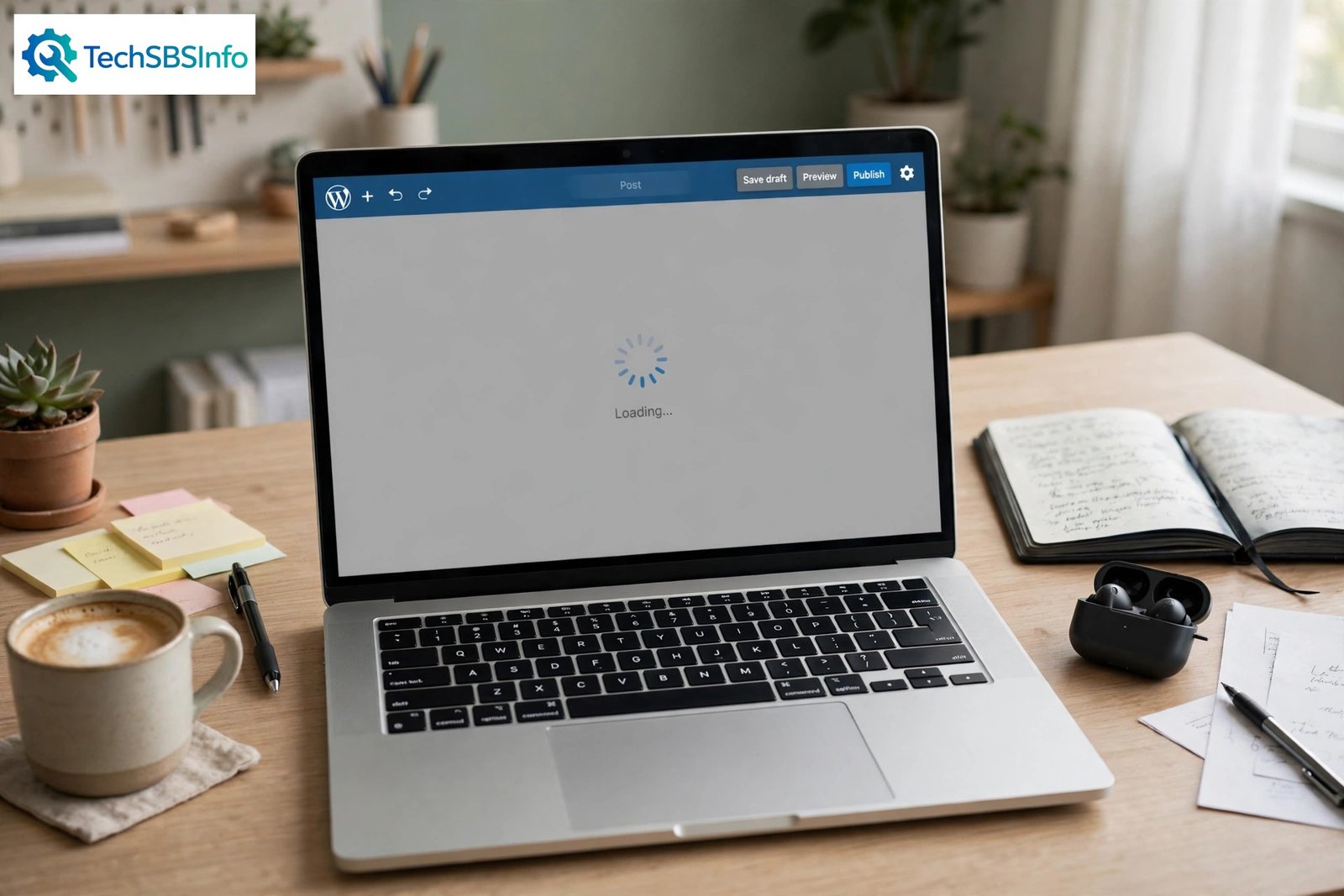
If your wordpress block editor not loading problem has stopped you mid-post, you are not alone. The editor sometimes shows a grey screen with a spinning loader that never finishes. Other times it shows a blank white page or an error message instead of your blocks.
The good news is that this problem is almost always caused by something fixable. It is usually a JavaScript error from a plugin, a stale browser cache, or a browser extension getting in the way. This guide walks you through 9 fixes in order, from the simplest to the most thorough. Most people solve it by Fix 4.
Table of Contents
- Quick Checks
- Diagnose the Problem
- Fix 1: Hard Refresh and Clear Your Browser Cache
- Fix 2: Try Incognito Mode and Disable Browser Extensions
- Fix 3: Check the Browser Console for JavaScript Errors
- Fix 4: Deactivate Plugins and Use Troubleshoot Mode
- Fix 5: Switch to a Default WordPress Theme
- Fix 6: Increase PHP Memory and Disable Script Concatenation
- Fix 7: Check That the REST API Is Reachable
- Fix 8: Reinstall WordPress Core Files
- Fix 9: Check Your PHP Version and Reinstall the Gutenberg Plugin
- What to Avoid
- Frequently Asked Questions
- Conclusion
- Helpful Official Resources
Quick Checks
- Press Ctrl + Shift + R (Windows) or Cmd + Shift + R (Mac) for a hard refresh.
- Open the editor in a private or incognito window.
- Turn off ad blockers and script-blocking browser extensions for your site.
- Make sure WordPress, your theme, and all plugins are updated to their latest versions.
- Try a different browser to rule out a browser-specific problem.
Diagnose the Problem
Match what you see to the likely cause, then jump to the right fix.
| Symptom | Cause | Go to Fix |
|---|---|---|
| Grey screen with a spinner that never stops | A JavaScript error, usually from a plugin or theme | Fix 3, Fix 4 |
| “The editor has encountered an unexpected error” message | A block or plugin is crashing the editor | Fix 4 |
| Editor works in incognito but not in a normal window | Stale browser cache or a browser extension | Fix 1, Fix 2 |
| Editor broke right after a WordPress update | An outdated plugin or theme is incompatible | Fix 4, Fix 5 |
| Editor opens but posts will not save or update | The REST API is blocked or failing | Fix 7 |
| Blank white page where the editor should be | PHP memory limit or a fatal theme error | Fix 5, Fix 6 |
| Editor is slow or freezes while typing | Too many blocks, heavy plugin, or low memory | Fix 6 |
Fix 1: Hard Refresh and Clear Your Browser Cache
The block editor loads a lot of JavaScript files. If your browser keeps an old copy of one of those files, the editor can fail to start. A hard refresh often solves it in seconds.
- Open the post or page where the editor is stuck.
- Press Ctrl + Shift + R on Windows or Cmd + Shift + R on Mac for a hard refresh.
- Wait for the page to reload fully and check if the editor loads.
- If it still does not load, clear your browser cache completely.
- In Chrome, go to Settings, then Privacy and security, then Delete browsing data.
- Tick Cached images and files and choose All time.
- Click Delete data, then reload the editor.
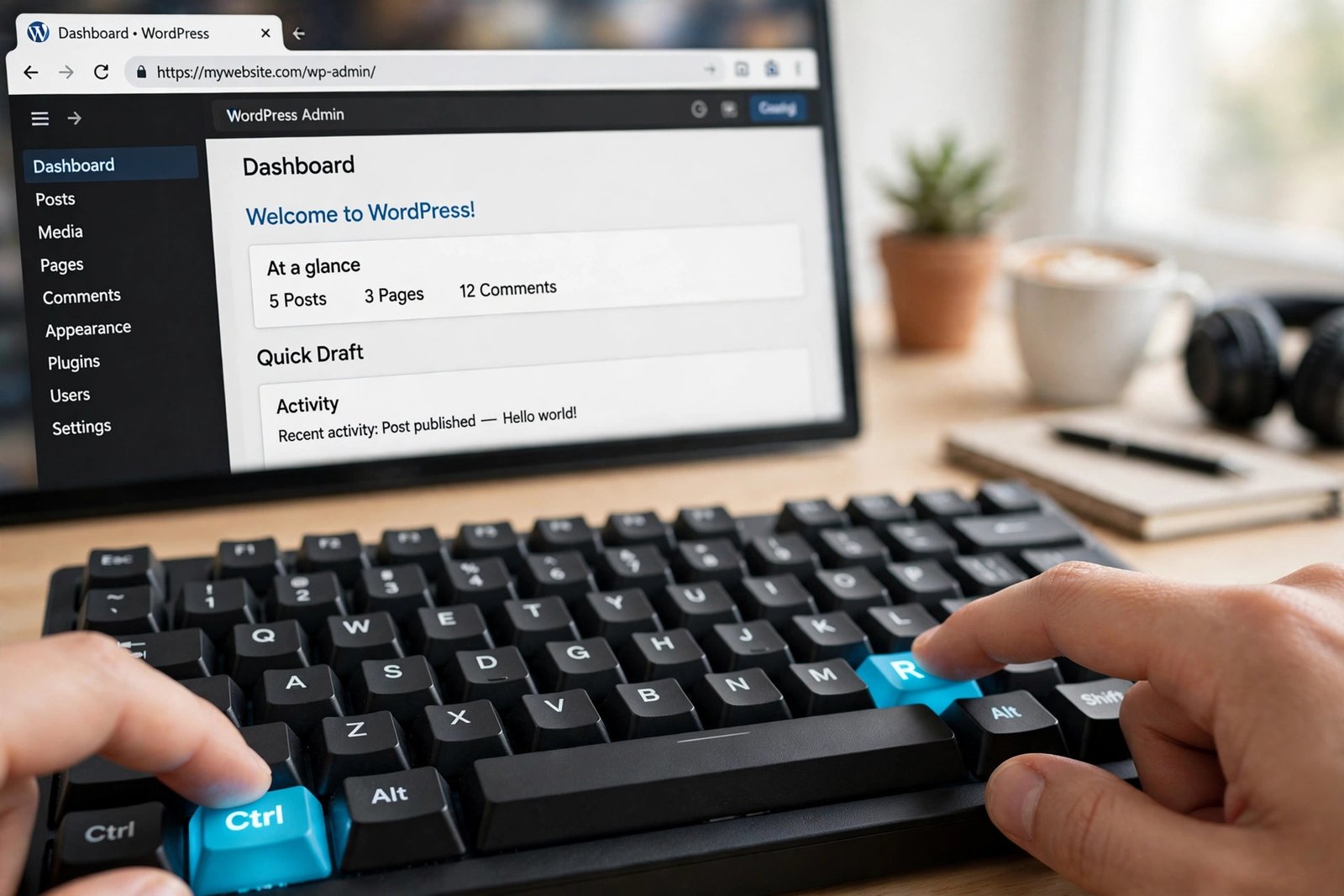
This fix works more often than people expect. Browser caches go stale after updates, and the editor is very sensitive to mismatched script files.
Fix 2: Try Incognito Mode and Disable Browser Extensions
Browser extensions can block the scripts the block editor needs. Ad blockers, privacy tools, and script managers are the most common culprits.
- Open your site in a private or incognito window and try the editor there.
- If the editor loads in incognito, an extension or cached data is the problem.
- Go back to your normal window and open your browser’s extensions page.
- In Chrome, visit chrome://extensions in the address bar.
- Turn off every extension using the toggle switches.
- Reload the editor and see if it loads.
- If it works, turn extensions back on one at a time to find the one causing the problem.
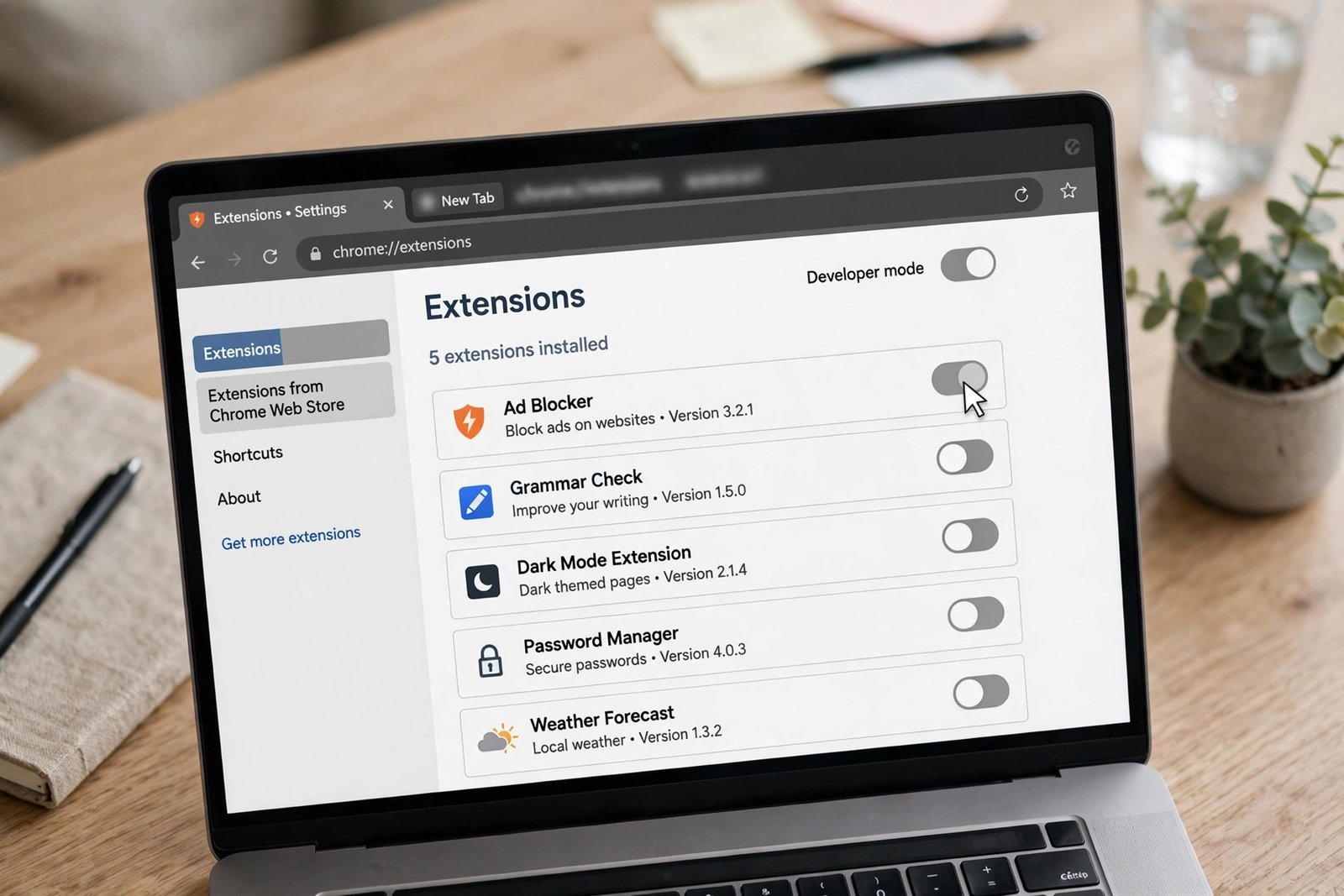
Keep the problem extension disabled or replace it. Many ad blockers let you whitelist your own site, which is a good middle ground.
Fix 3: Check the Browser Console When wordpress block editor not loading Appears
When wordpress block editor not loading is caused by a script error, your browser’s developer console shows exactly what failed. This step takes a minute and tells you where to look next.
- Open the stuck editor page.
- Press F12 (or Ctrl + Shift + J in Chrome) to open developer tools.
- Click the Console tab.
- Look for red error messages. Note the file names and plugin paths in them.
- A path like
/wp-content/plugins/some-plugin/tells you which plugin is breaking the editor. - If you see a 404 error for a script file, that file failed to load — note its name.
- Write down the error details before moving to Fix 4.
You do not need to understand every error. You only need the plugin or theme name in the file path. That name is your target in the next fix.
Fix 4: Deactivate Plugins and Use Troubleshoot Mode
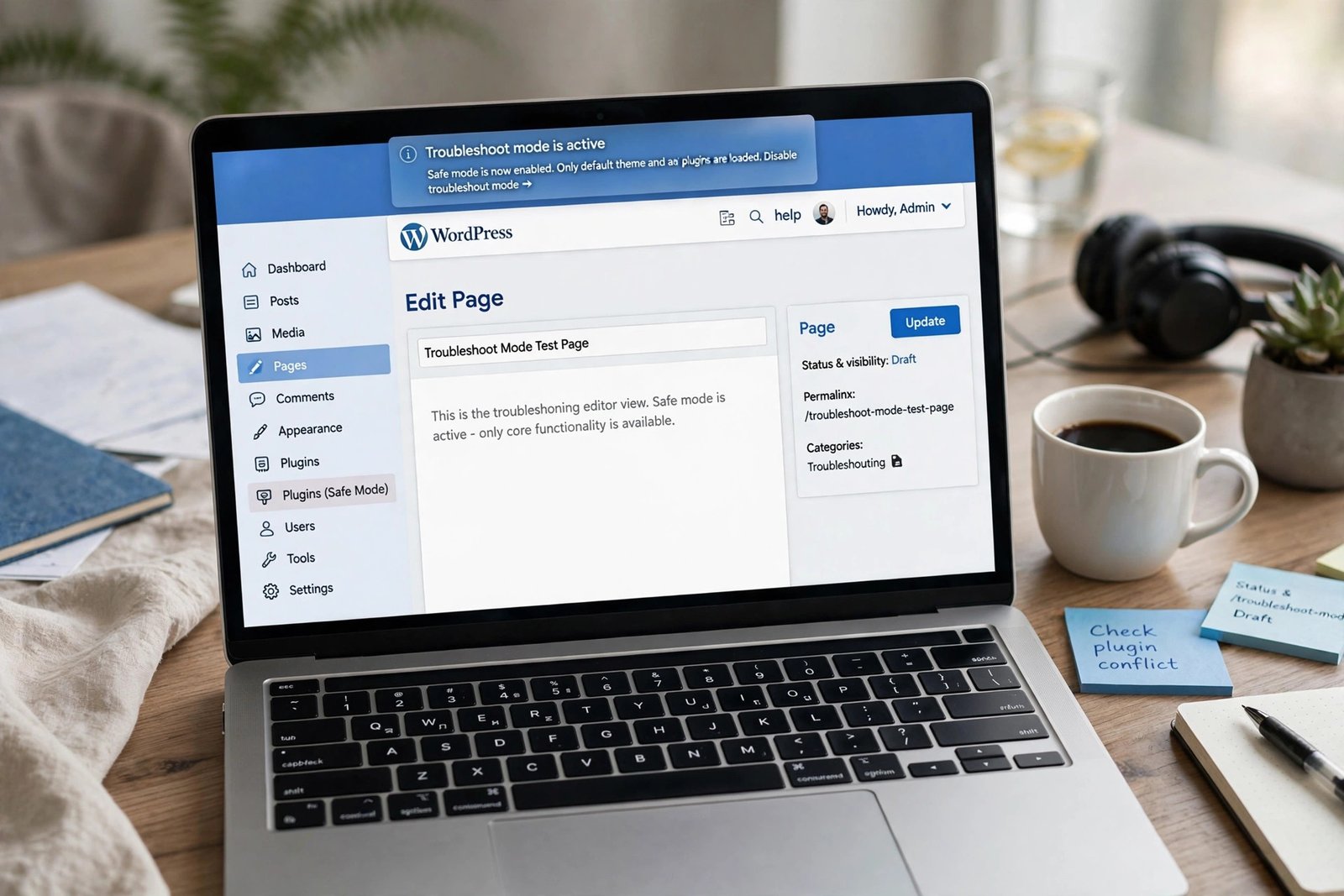
Plugin conflicts are the number one cause of the editor failing to load. The safest way to test is with the Health Check & Troubleshooting plugin’s Troubleshoot Mode, which disables plugins only for your session.
- Install and activate the Health Check & Troubleshooting plugin from the WordPress plugin directory.
- Go to Tools, then Site Health, then the Troubleshooting tab.
- Click Enable Troubleshoot Mode. All plugins will be disabled for you, but visitors see the normal site.
- Open the editor and check if it loads.
- If it loads, the problem is a plugin. Re-enable plugins one by one, testing the editor after each one.
- When the editor breaks again, the last plugin you enabled is the culprit.
- Leave that plugin deactivated and contact its developer or look for an update.
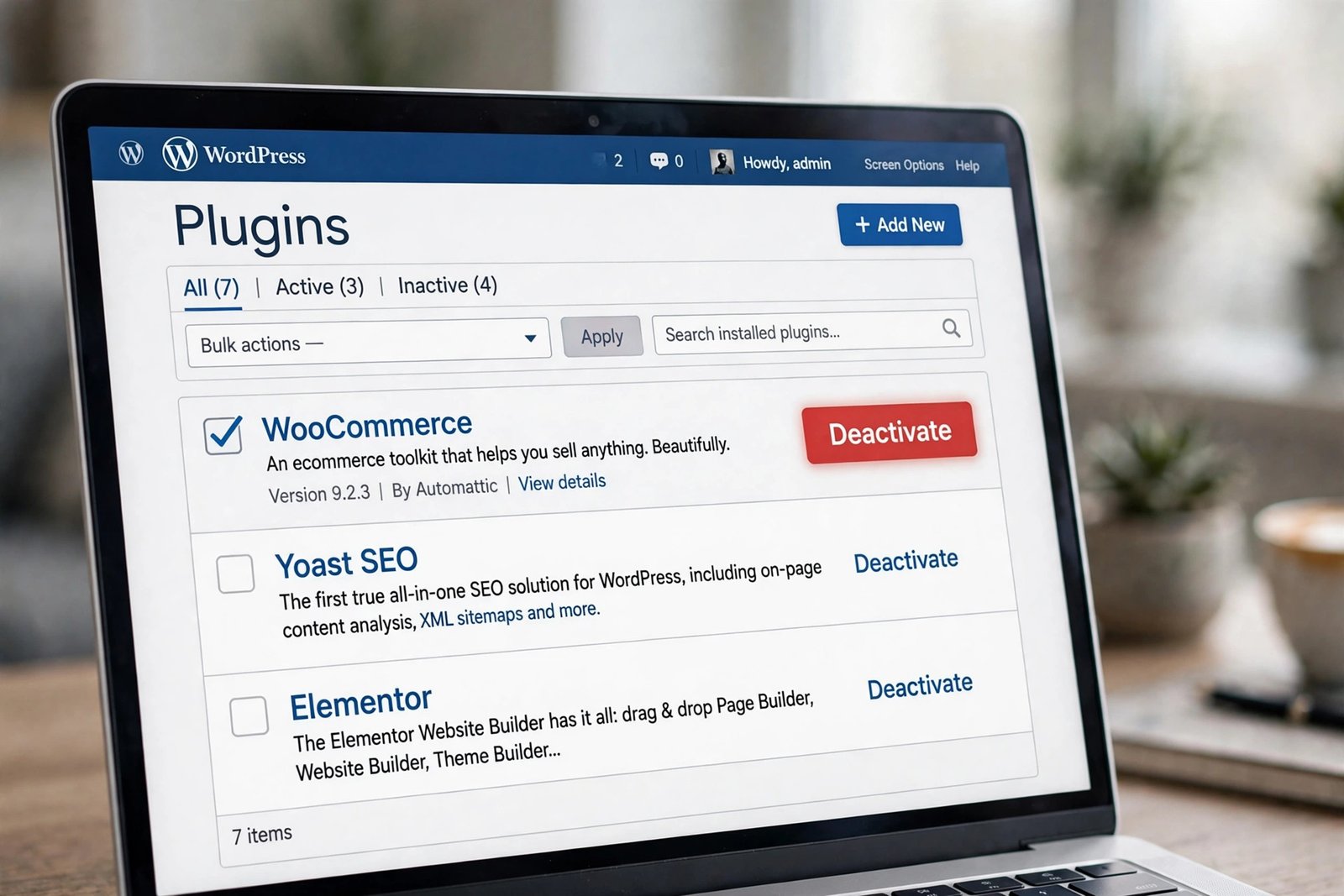
If you cannot access your dashboard at all, you can deactivate plugins by FTP. Rename the /wp-content/plugins/ folder to plugins-old. WordPress will deactivate all plugins. Then rename plugin folders back one at a time to find the bad one. Our guide on a plugin conflict covers this process in more detail.
Fix 5: Switch to a Default WordPress Theme
If the editor still will not load with all plugins disabled, your theme may be the problem. Themes can load custom scripts or styles that break the editor.
- Go to Appearance, then Themes in your dashboard.
- Activate a default theme such as Twenty Twenty-Four or Twenty Twenty-Five.
- Open the editor and test it.
- If the editor loads, your theme is causing the problem.
- Check for a theme update, or contact the theme developer.
- Switch back to your theme only after the issue is resolved.
If your site looks very different with the default theme, do not worry. This is only a test. Your content and settings stay intact when you switch back. A broken theme can also cause wider problems, so if your whole site is down, see our guide on a WordPress website not loading.
Fix 6: Increase PHP Memory and Disable Script Concatenation
The block editor needs enough PHP memory to run. On small hosting plans, the default limit can be too low. WordPress also combines scripts to save requests, and this combining can break on some servers.
- Open your site’s wp-config.php file by FTP or your host’s file manager.
- Add this line just above the “stop editing” comment to raise the memory limit:
define( 'WP_MEMORY_LIMIT', '256M' );
- To disable script concatenation, add this line too:
define( 'CONCATENATE_SCRIPTS', false );
- Save the file and reload the editor.
- If the editor loads, one of these two settings was the problem.
The CONCATENATE_SCRIPTS line is safe to keep. It only tells WordPress to load scripts separately instead of combining them. If your dashboard shows a fatal error instead, our critical error guide has the full recovery steps.
Fix 7: Check That the REST API Is Reachable
The block editor talks to WordPress through the REST API. If something blocks the REST API — a security plugin, a firewall rule, or a bad .htaccess rule — the editor cannot load or save.
- Install the Health Check plugin if you have not already (see Fix 4).
- Go to Tools, then Site Health.
- Look for warnings about the REST API under the status checks.
- If the REST API test fails, temporarily disable your security plugin and test again.
- Check your
.htaccessfile for rules blocking/wp-json/. - Some hosts block the REST API by default. Ask your host to allow it.
A quick manual test: visit yoursite.com/wp-json/ in your browser. You should see JSON data. If you see a 403 or 404 page, the REST API is blocked and your host or a plugin is the cause.
Fix 8: Reinstall WordPress Core Files
If core WordPress files are damaged or incomplete — for example after a failed update — the editor’s scripts may be missing. Reinstalling core files replaces them without touching your content.
- Go to Dashboard, then Updates.
- Click the Re-install version button for WordPress.
- Wait for the reinstall to finish.
- Clear your browser cache and reload the editor.
- If you cannot reach the dashboard, download WordPress from wordpress.org and upload fresh copies of the
wp-adminandwp-includesfolders by FTP.
Reinstalling core files never deletes your posts, pages, media, themes, or plugins. It only replaces the built-in WordPress files. This fix is especially useful if the problem started right after an update was interrupted.
Fix 9: Check Your PHP Version and Reinstall the Gutenberg Plugin
Two last checks cover the remaining common causes. An outdated PHP version can break modern editor code, and a damaged Gutenberg plugin install can do the same.
- Go to Tools, then Site Health, then the Info tab.
- Expand the Server section and note your PHP version.
- WordPress recommends PHP 8.1 or newer. If your host offers a newer version, upgrade through your hosting panel.
- If you use the standalone Gutenberg plugin, deactivate and delete it, then reinstall it from the plugin directory.
- The block editor is built into WordPress core, so the standalone plugin is optional — the editor works fine without it.
- Reload the editor and confirm it loads.
If you use a page builder alongside the block editor and only the builder is broken, our guide on the Elementor editor not loading covers that specific case.
What to Avoid
- Do not install nulled plugins or themes — they often contain broken or malicious code that crashes the editor.
- Do not edit WordPress core files directly — use the reinstall method in Fix 8 instead.
- Do not downgrade WordPress or PHP just to make an old plugin work — update the plugin instead.
- Do not leave your security plugin deactivated permanently after testing — reactivate it once you find the cause.
- Do not skip a backup before changing wp-config.php or reinstalling files.
- Do not switch to the Classic Editor as a permanent fix — it only hides the real problem.
Frequently Asked Questions
Why is the WordPress block editor showing a blank screen?
A blank screen usually means a PHP fatal error or a failed JavaScript file. Check the browser console for errors, switch to a default theme, and raise the PHP memory limit as described in Fixes 3, 5, and 6.
Can a plugin stop the block editor from loading?
Yes. Plugin conflicts are the most common cause. Use Troubleshoot Mode from the Health Check plugin to disable all plugins safely, then re-enable them one by one to find the one breaking the editor.
Will switching my theme fix the block editor?
It will if your theme is the cause. Activate a default theme like Twenty Twenty-Four and test the editor. If it works, update your theme or ask the theme developer for a fix.
Is the Classic Editor a permanent fix for this problem?
No. The Classic Editor avoids the broken code instead of fixing it, and the underlying conflict can still affect other parts of your site. Fix the real cause using the steps above.
Do I need to reinstall WordPress to fix the block editor?
Only if core files are damaged. Try the simpler fixes first — cache, extensions, and plugin conflicts solve the problem for most people. Reinstalling core files is safe and does not delete your content.
Conclusion
When wordpress block editor not loading interrupts your work, start simple. A hard refresh and a quick extension check solve it in seconds for many users. If the problem runs deeper, Troubleshoot Mode will point you to the exact plugin or theme at fault. Work through the fixes in order, and keep your WordPress, theme, and plugins updated so the problem does not come back.
Helpful Official Resources
- WordPress Editor support article — official guidance on the block editor and its requirements.
- Block Editor developer handbook — technical documentation for the block editor from WordPress developers.